

Offering Refunds to Customers
08/13/2025

How to Offer Refund to Buyers
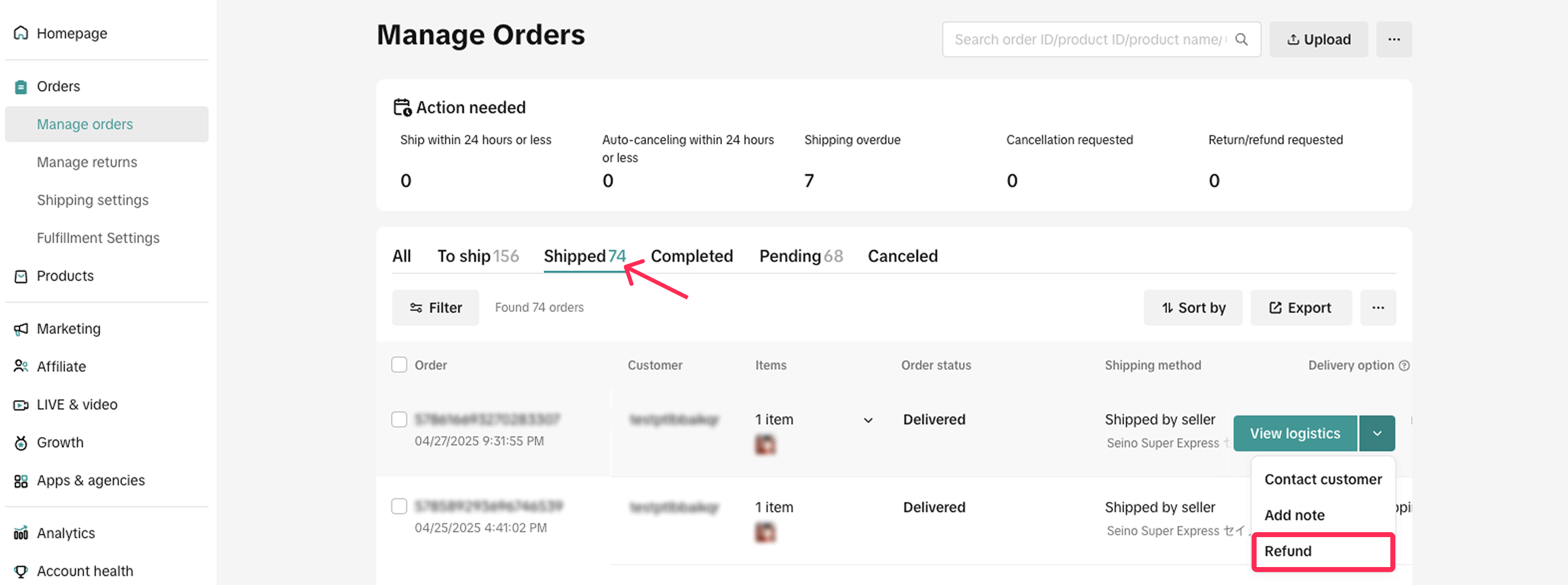
- You will have the option to initiate a full or partial refund to customers when your order is under the 'Shipped' tab, which means it could be In-Transit or Delivered. To begin, go to Orders > Manage Orders, and navigate to the 'Shipped' tab. Select the order you would like to refund and click 'Refund' from the dropdown.
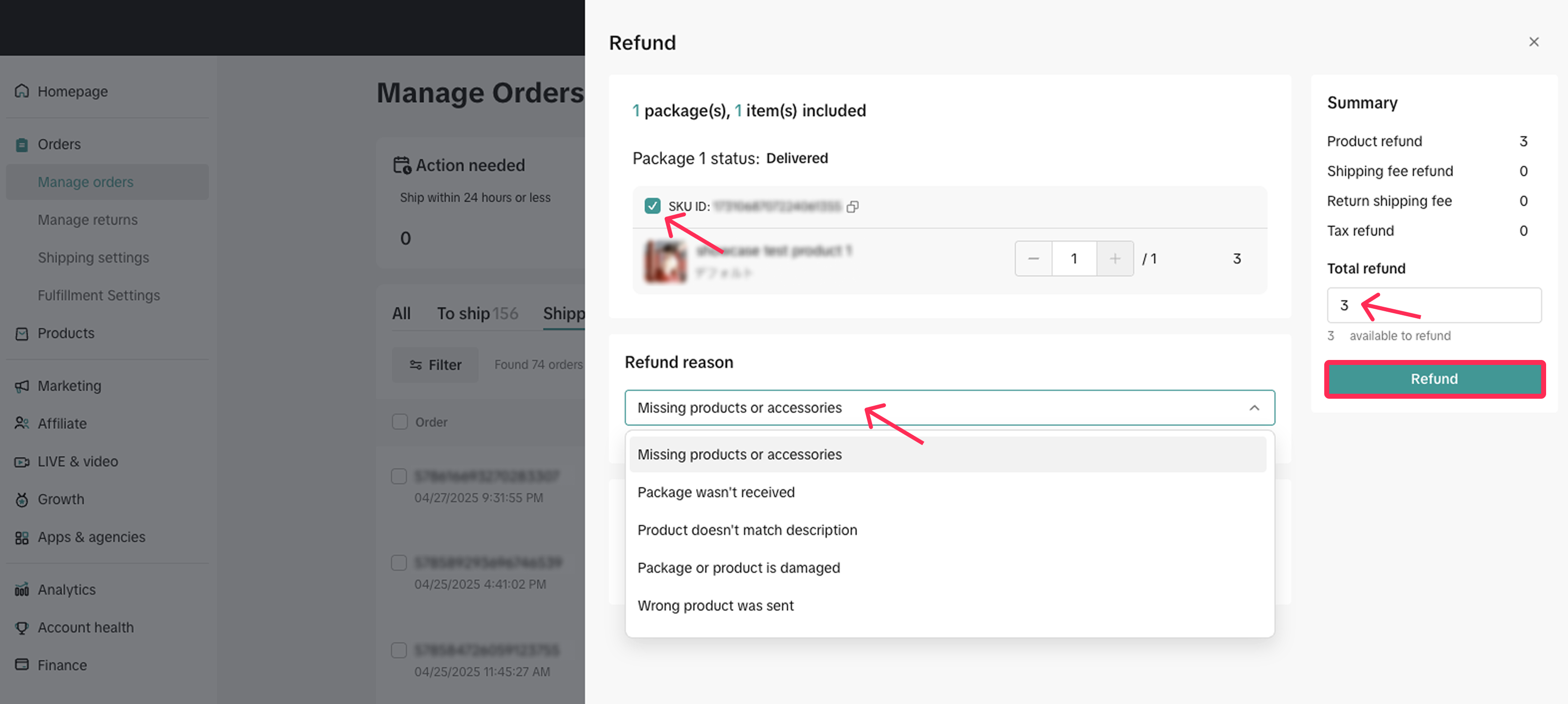
- You will see a Refund tab, where you can select the product you want to refund and the reason for the refund. On the right side, you will see the available amount you can refund. You can enter either the full refund amount or a partial refund. Once you click 'Refund,' the refund will be processed and sent to the customer without needing their approval.
 Please note that when you issue a partial refund, customers can still raise a return and refund request if they have any issues with the product. However, if you issue a full refund, customers will not be able to raise any request. Let's look at the examples below:
- Full Refund: If the seller issues a full refund, the customer cannot request any additional refunds or raise any issues.
- Order Amount: $100
- The seller issues a full refund of $100.
- The buyer receives this refund and cannot request anything further.
- Partial Refund: If the seller issues a partial refund, the customer can still submit an aftersales request after receiving the order. However, if the customer submits a request after receiving a partial refund, the total refund the seller can provide will not exceed the original order amount.
- Order Amount: $100
- The seller issues a partial refund of $20 while the order is in transit.
- The buyer receives $20 back but can still submit an aftersales request after receiving the order.
- If the buyer submits a return request, the seller can only refund up to $80 (the original amount $100 minus the $20 already refunded).
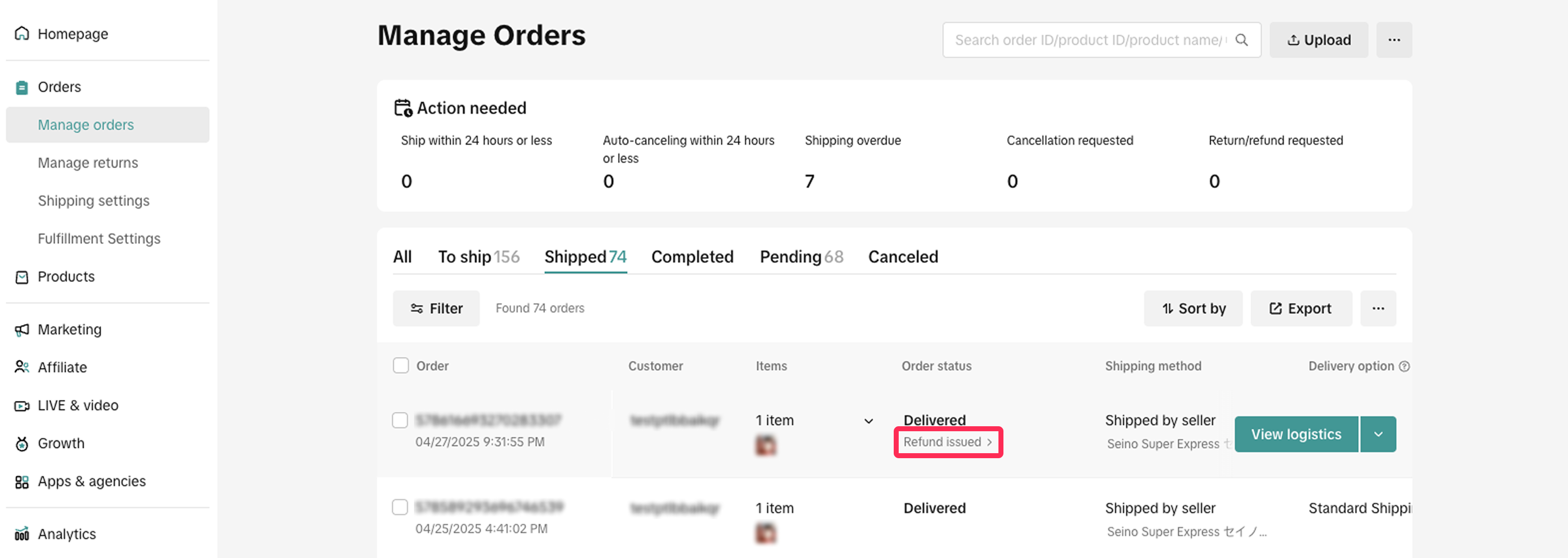
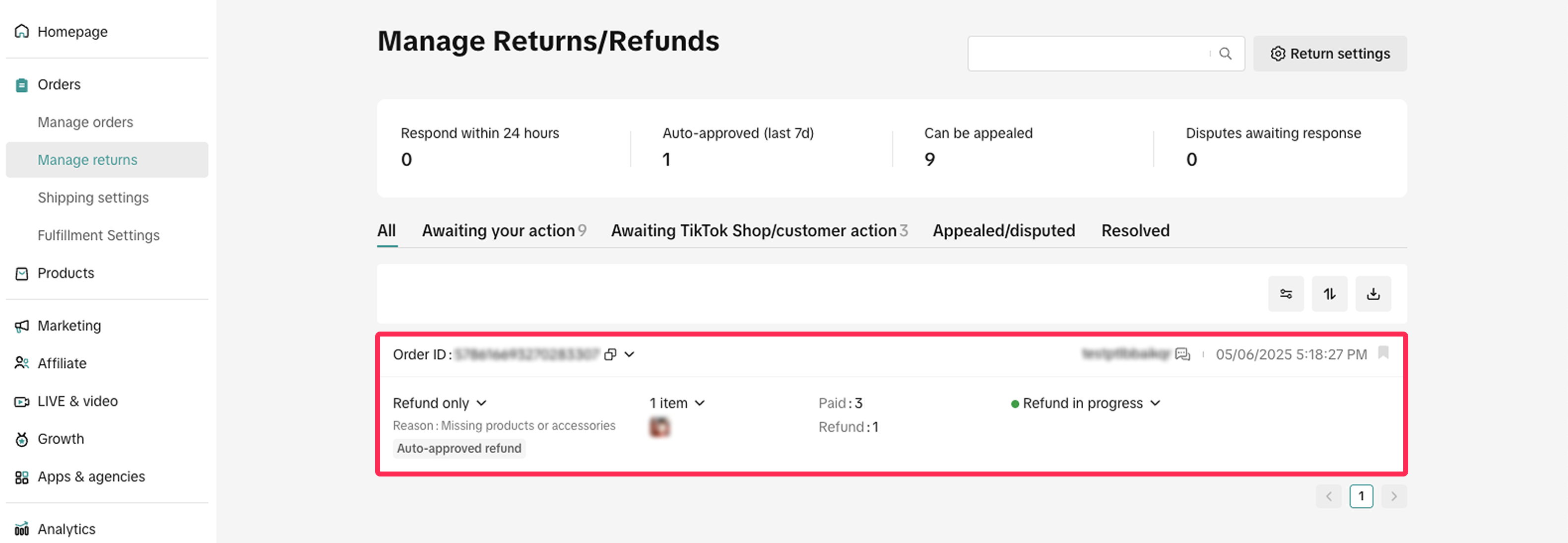
- You can check the refund status on the Manage Orders page. Under the order status column, you will see the status 'Refund Issued.' You can also click on this to view your refund details on the Manage Returns page.

FAQ
- When can I initiate a full or partial refund?
- Does a customer need to approve the seller's full or partial refund offer?
- I have already issued a partial refund to the customer; why can they still submit another aftersales request?
- If I offer a full or partial refund to the customer, will the order be counted as SFRR (Seller Fault Return/Refund Rate)?
You may also be interested in
Failed Return Package
Note: this rule applies only to local-to-local transactions. What is a failed return package? A fail…

Required Evidence for Rejecting Buyer's Aftersale Requests
This article aims to provide a comprehensive guide on how to effectively reject a buyer's return, re…
Initiating an Appeal for Return/Refund Requests
This article aims to improve seller's understanding regarding appeal management on Seller Center fro…

Managing Refund-Only Request
This article provides a clear overview of the refund-only process, giving you the tools to respond e…

Why can't I locate the Appeal button on the "Manage Returns/…
If you're unable to find the Appeal button on the "Manage Returns/Refunds" page, it could be due to…

When can a buyer raise a return/refund request?
Timeframe for return/refund requests: Buyers can submit a return/refund request within fifteen (15)…

What if the buyer returns incomplete, used, or incorrect ite…
No compensation for incorrect items returned by buyer: Buyers must ensure that they enclose the corr…
Auto Rule Settings for Returnless Refunds
This comprehensive guide will assist you in setting up automated rules for return/refund requests, s…
Auto Rule Settings for Cancellation Requests
This article will provide you with a quick walkthrough on how to set up automated rules for acceptin…
Return & Refund Methods
This guide will provide you with a clear understanding of the return process, various return methods…