

Initiating an Appeal for Return/Refund Requests
01/08/2026

What Types of Scenarios Can Be Appealed?
You can initiate appeals for the following order types: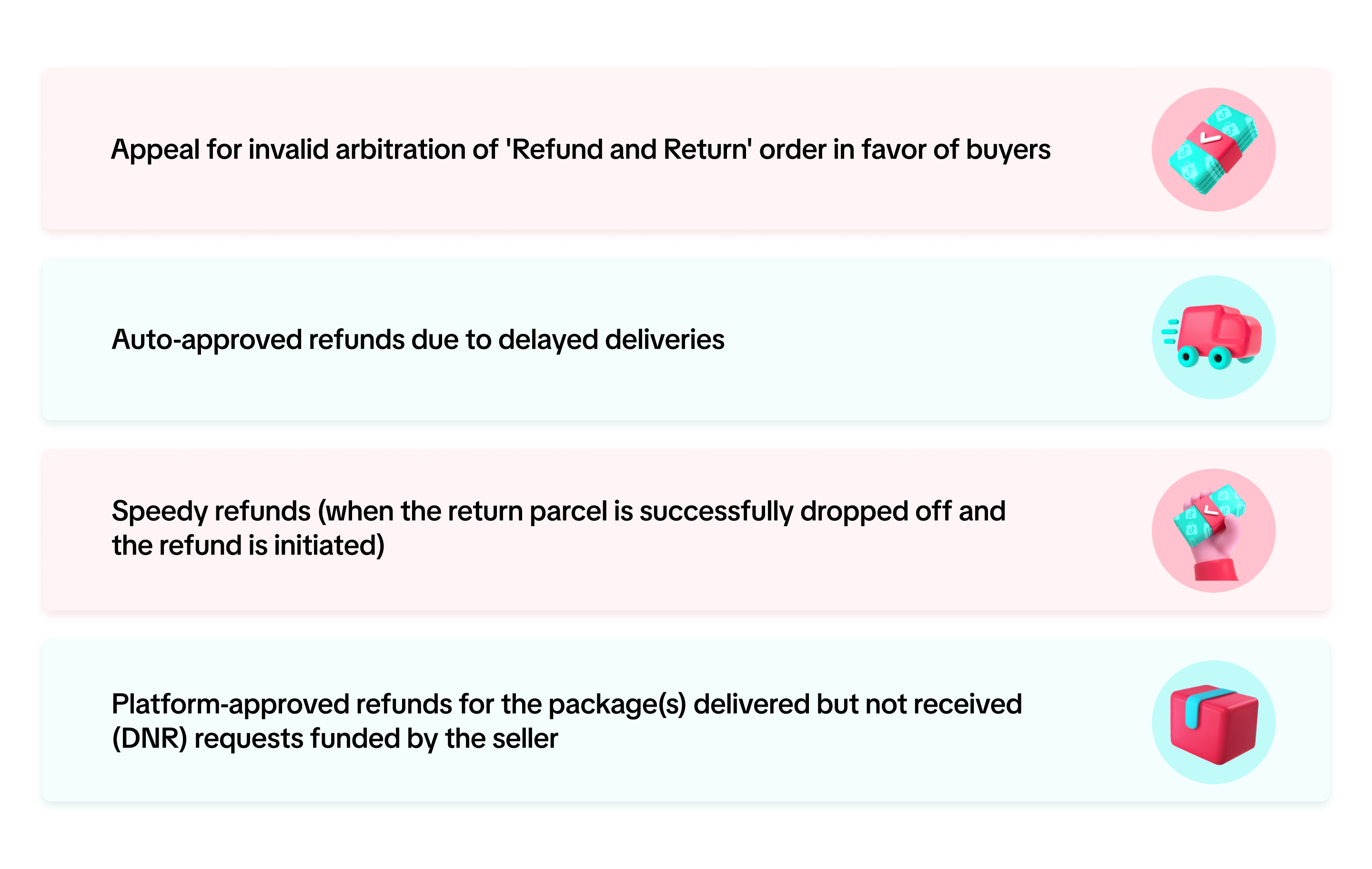

How to Initiate the Appeals Process?
- In Seller Center, go to Orders > Manage Returns. Use the 'Can Be Appealed' quick filter or click on the 'Appeal' tag to see a list of requests that are eligible for appeal. Sellers have 7 calendar days from the time the appeal becomes available to submit their appeal. To initiate the appeal, click on the Appeal button.
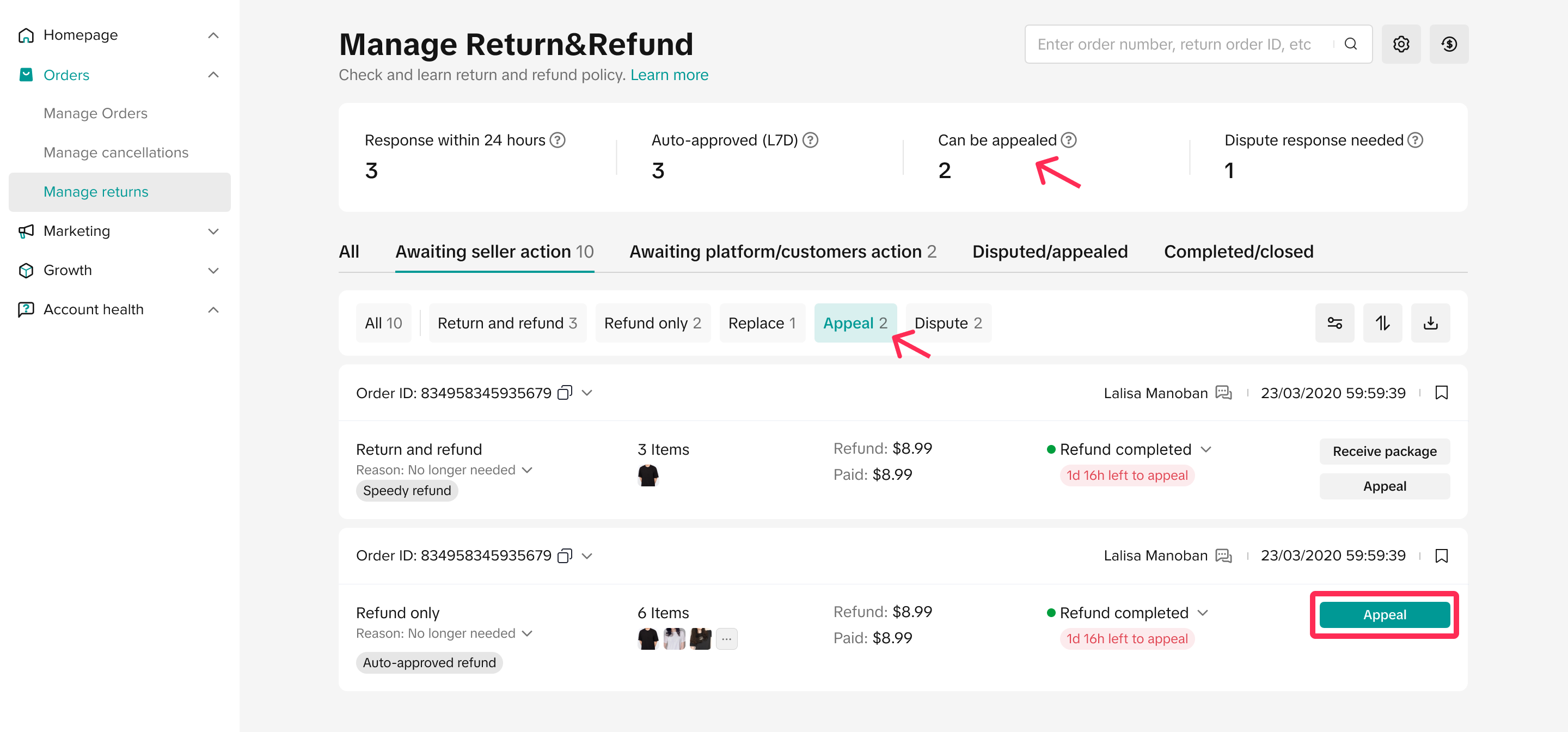 Note: For speedy refund, an appeal button will be displayed and clickable for sellers under the following conditions:
- You have received the return package from the buyer, but there are some issues with it, such as missing items or returned items that don’t match the original order.
- You have not received the package within 3 calendar days after the refund is processed (from when the buyer's pick-up or drop-off was successful).
- After clicking 'Appeal,' you can submit the relevant reasons for your appeal and upload supporting evidence, such as a clear and unobstructed photo of the air waybill (AWB), a clear image of broken items, a comparison photo showing the differences between the returned item and the original order, etc. You may also need to provide additional comments to our Customer Service team to assist with the appeal process.
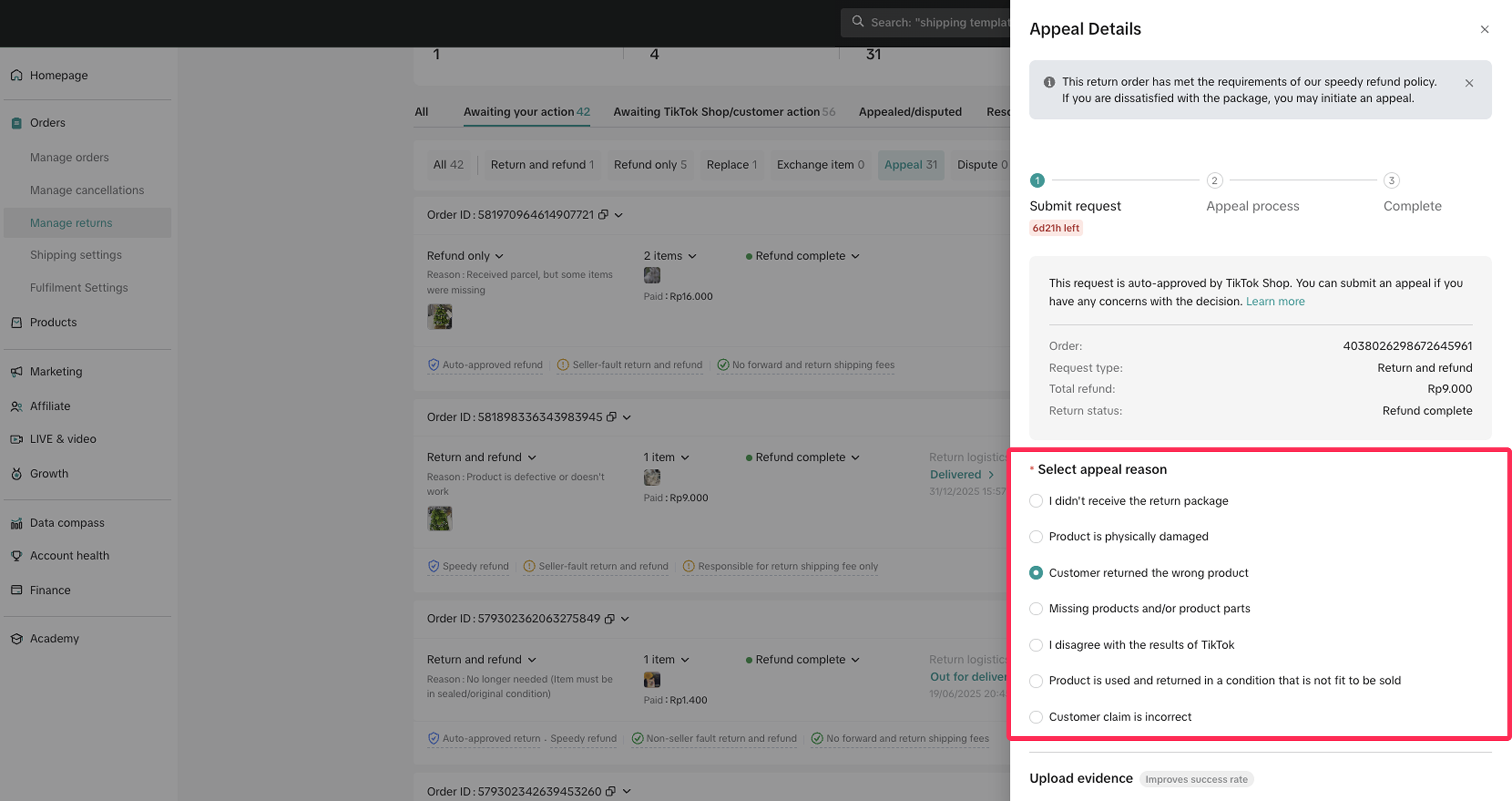 💡Tip: You can click on 'View Example' to see an example of the evidence that you should provide. Submitting relevant evidence can enhance your chances of a successful appeal.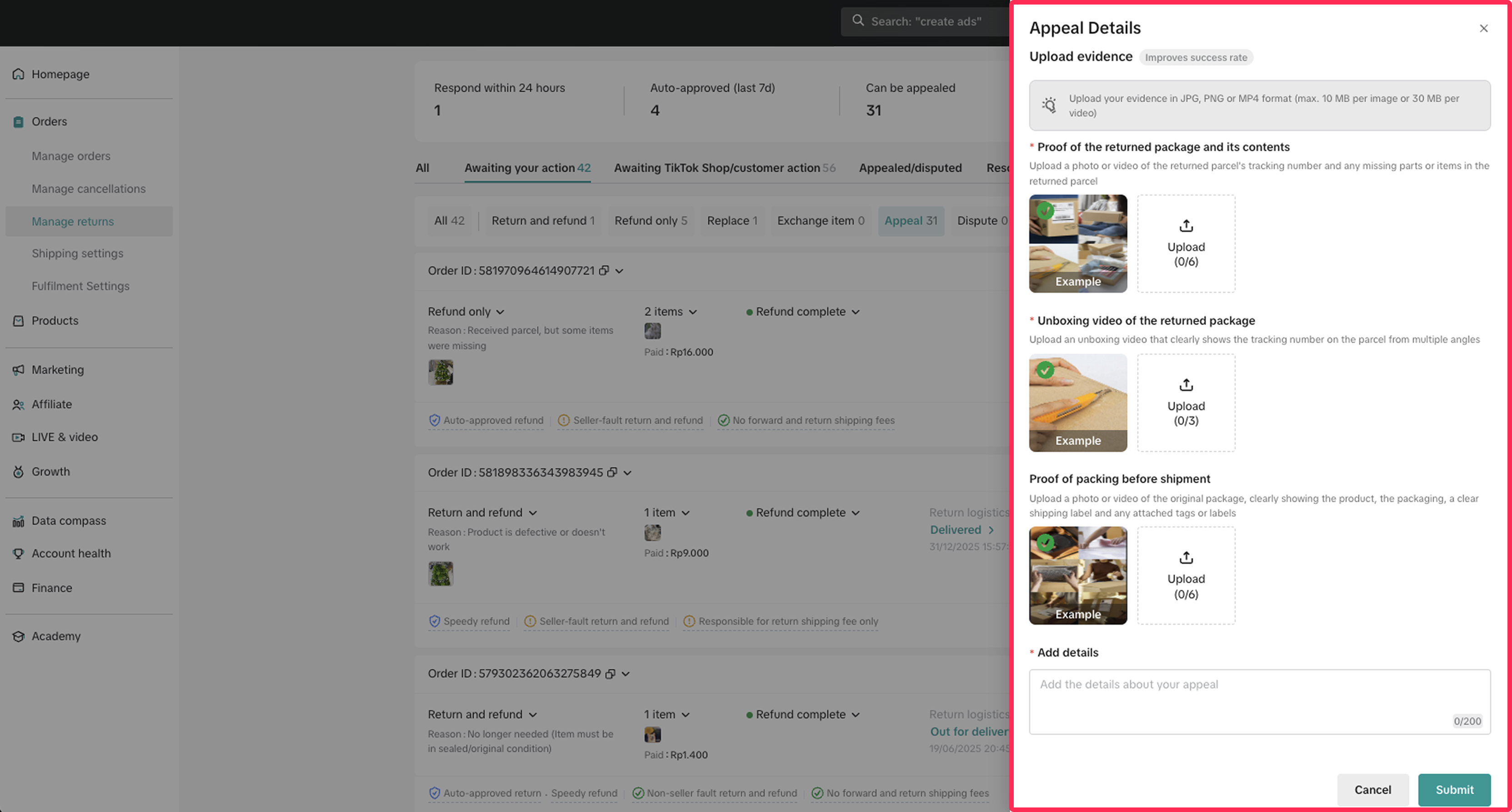
- Your appeals will be reviewed by the TikTok Shop Support team, who may request additional evidence before making a decision.
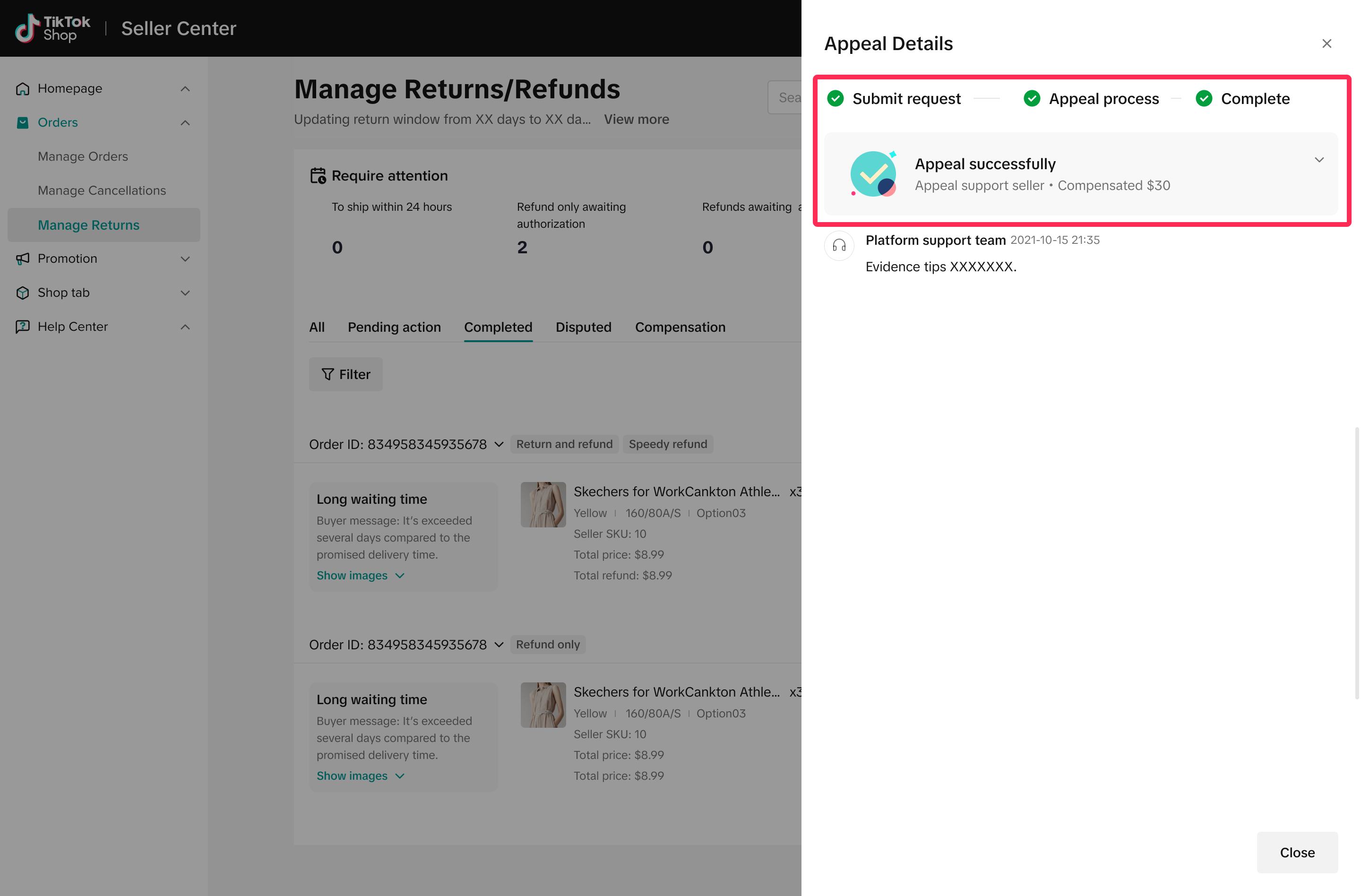
- You will have the opportunity to view the appeal results for each order on the Manage Returns/Refunds page. From there, you can click to access the 'Appeal Details' page for more detailed information:
- If your appeal is approved, you will find compensation details for your orders.
- In case your appeal is denied, you will also see the reason for the denial.

How to Track Appeal Progress
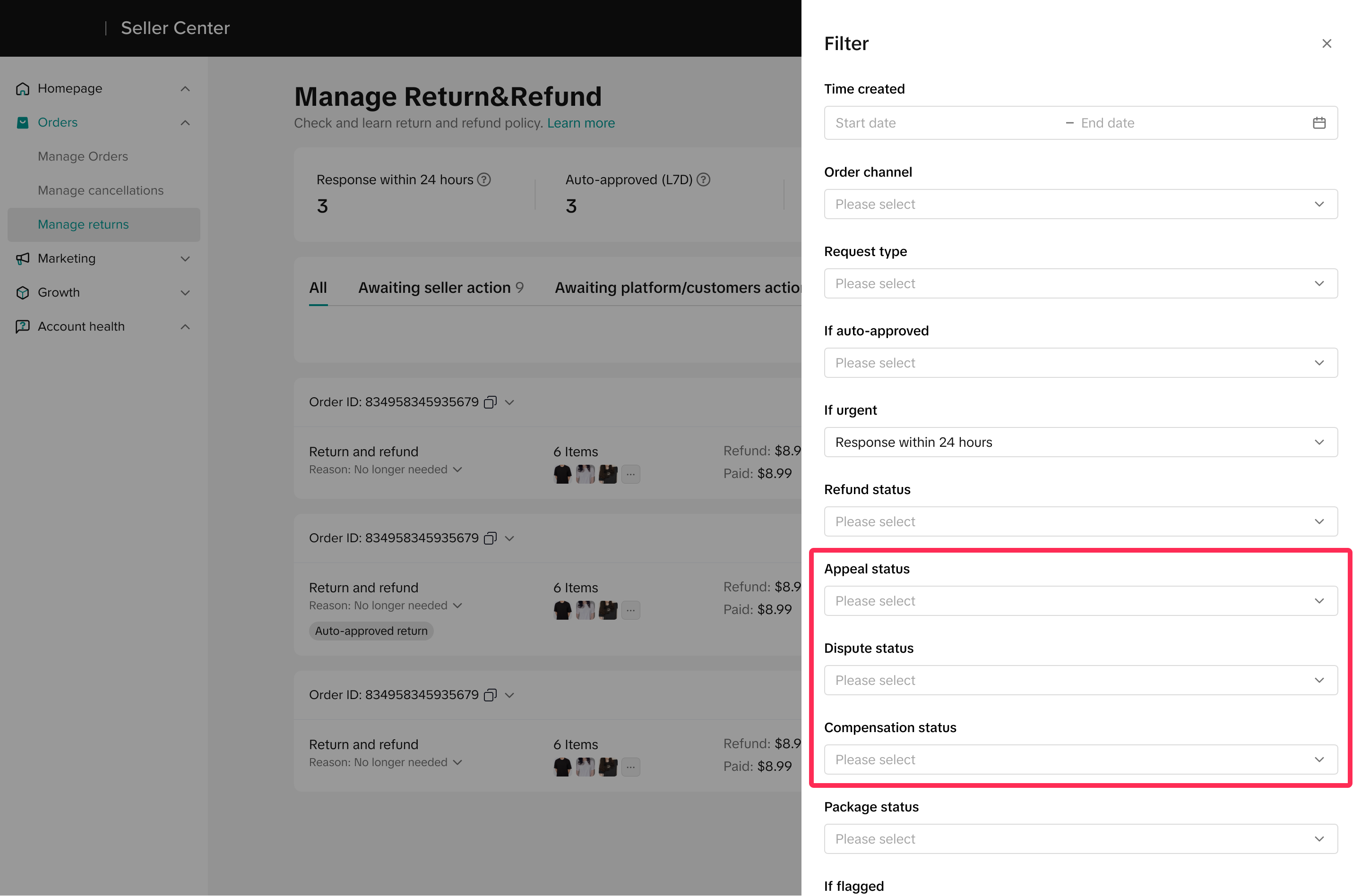
You can easily monitor and filter your appeal tickets on the Manage Returns/Refunds page using the following filters to keep track of your appeal progress:- Appeal status
- Dispute status
- Compensation status
You may also be interested in
Failed Return Package
Note: this rule applies only to local-to-local transactions. What is a failed return package? A fail…
Offering Refunds to Customers
This article provides a quick guide on how to initiate a refund to customers for minor inconvenience…

Required Evidence for Rejecting Buyer's Aftersale Requests
This article aims to provide a comprehensive guide on how to effectively reject a buyer's return, re…

Managing Refund-Only Request
This article provides a clear overview of the refund-only process, giving you the tools to respond e…

Why can't I locate the Appeal button on the "Manage Returns/…
If you're unable to find the Appeal button on the "Manage Returns/Refunds" page, it could be due to…

When can a buyer raise a return/refund request?
Timeframe for return/refund requests: Buyers can submit a return/refund request within fifteen (15)…

What if the buyer returns incomplete, used, or incorrect ite…
No compensation for incorrect items returned by buyer: Buyers must ensure that they enclose the corr…
Auto Rule Settings for Returnless Refunds
This comprehensive guide will assist you in setting up automated rules for return/refund requests, s…
Auto Rule Settings for Cancellation Requests
This article will provide you with a quick walkthrough on how to set up automated rules for acceptin…
Return & Refund Methods
This guide will provide you with a clear understanding of the return process, various return methods…