

Auto Rule Settings for Returnless Refunds
07/30/2025

Creating New Rules
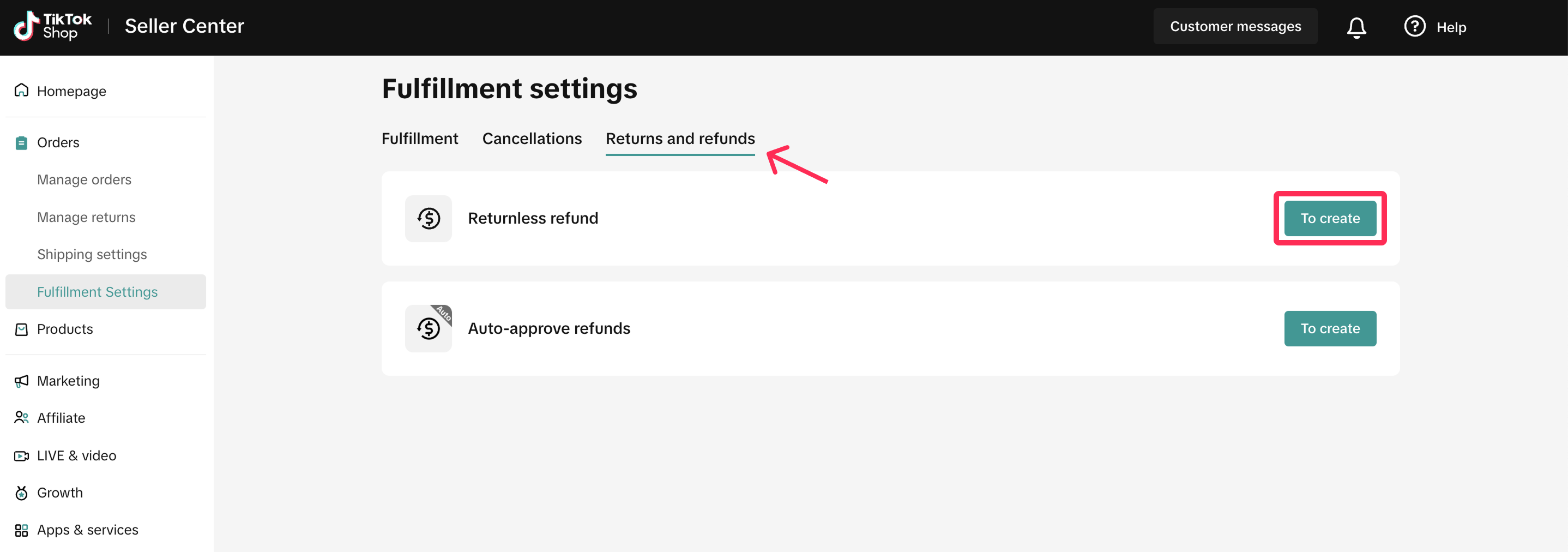
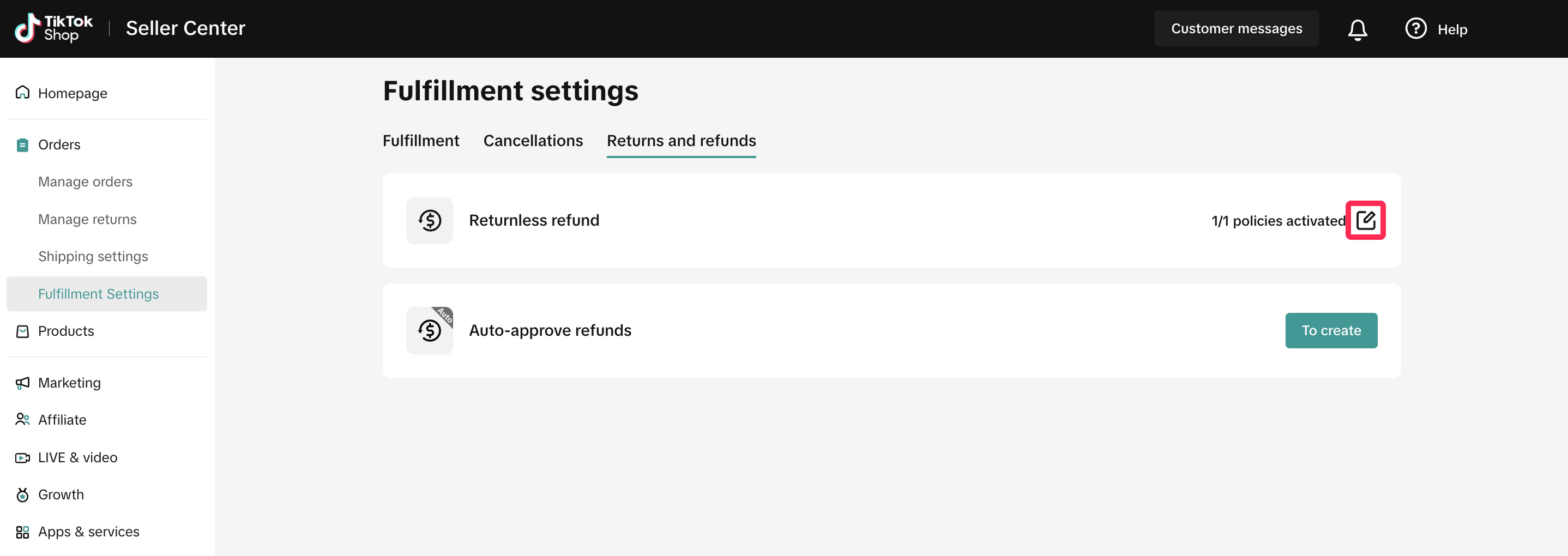
- Go to Orders > Fulfiment Settings. Navigate to the Returns and Refunds tab and click 'To Create' under Returnless Refund or Auto-Approve Refunds.
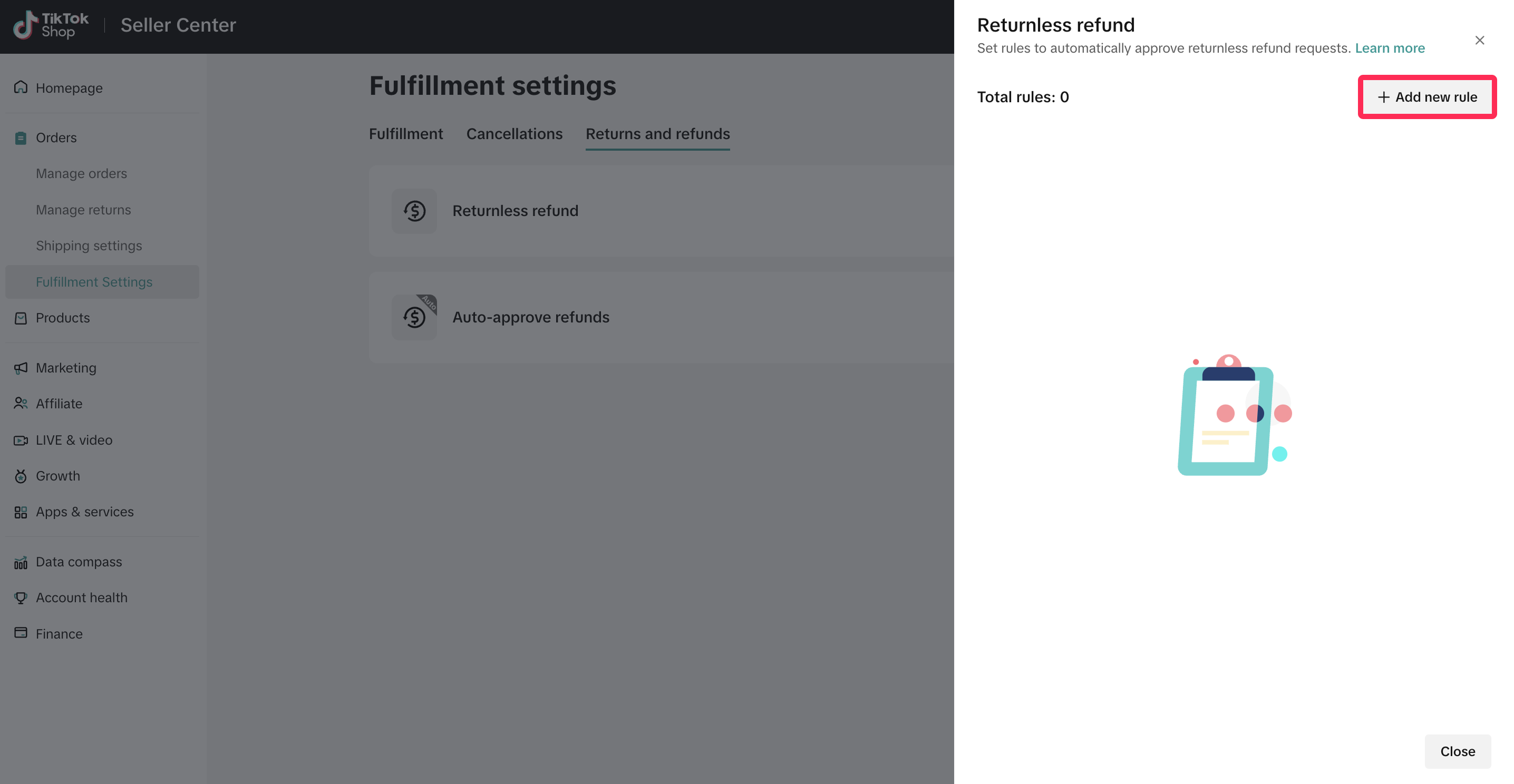
- You will see either the new Returnless Refund tab or the Auto-Approved Refund tab, depending on the rule you want to set up. Click 'Add New Rule' to access the rule-setting options.
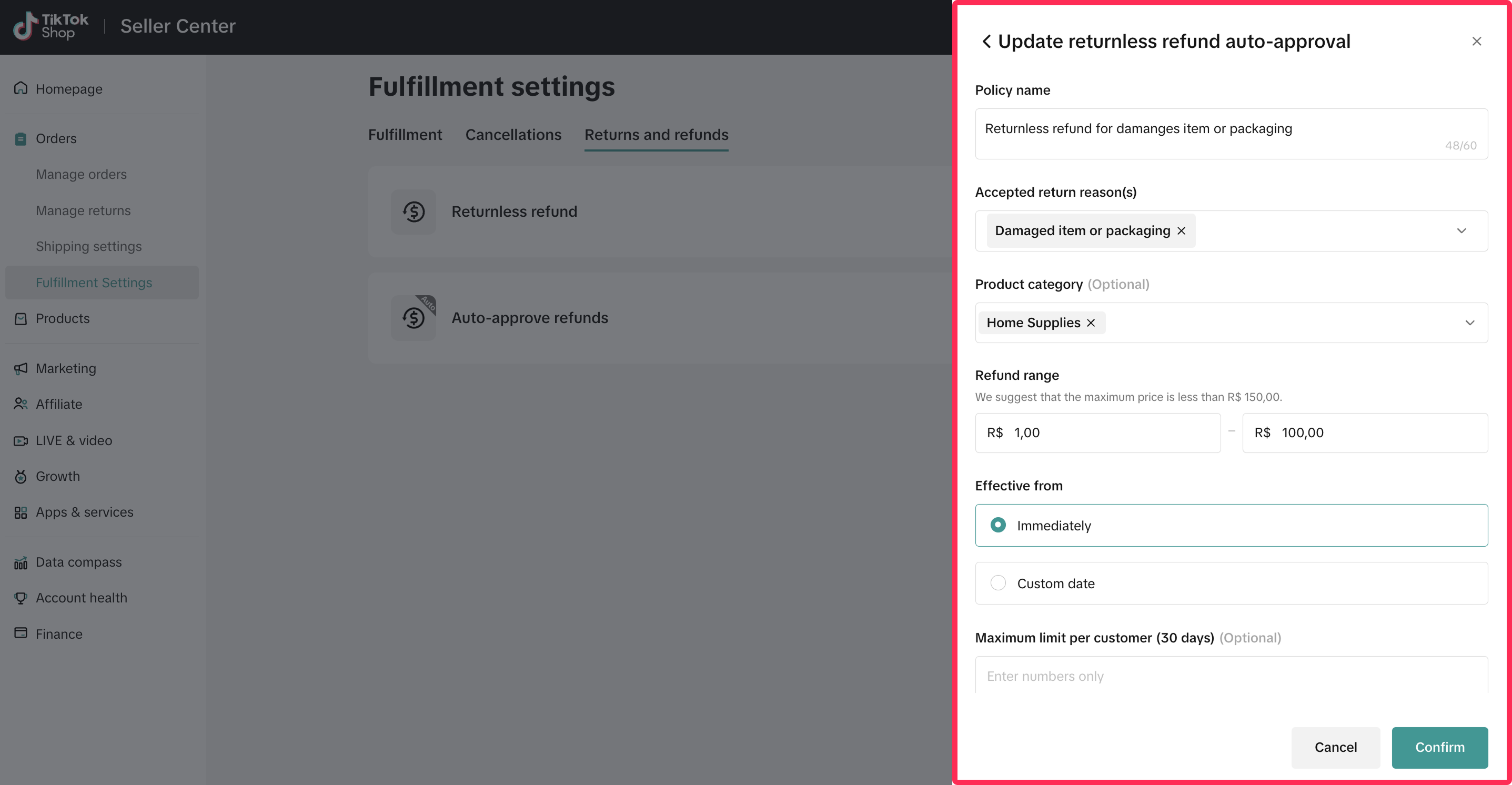
- On this page, you can set the policy name and select the accepted return reasons, product categories, refund range/refund range for returnless refunds, the effective date, and the maximum limit per customer. Returnless refunds will be processed when the buyer's return reason matches your settings. Please carefully review your selections before clicking 'Confirm' to enable the rule.
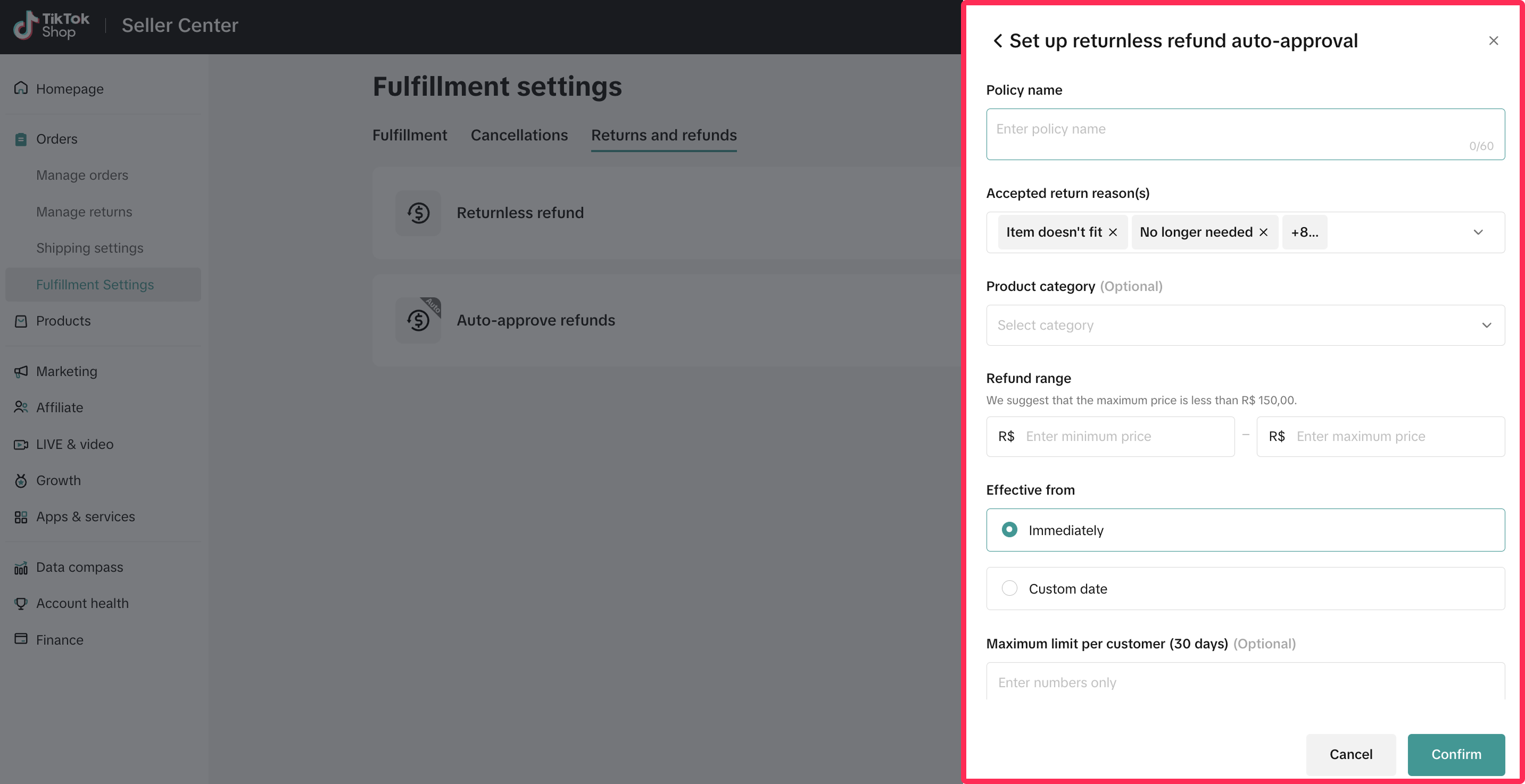 ❗️Important: Pay close attention to the refund range. To minimise any potential financial loss, we recommend setting the range to not exceed ₫50,000.
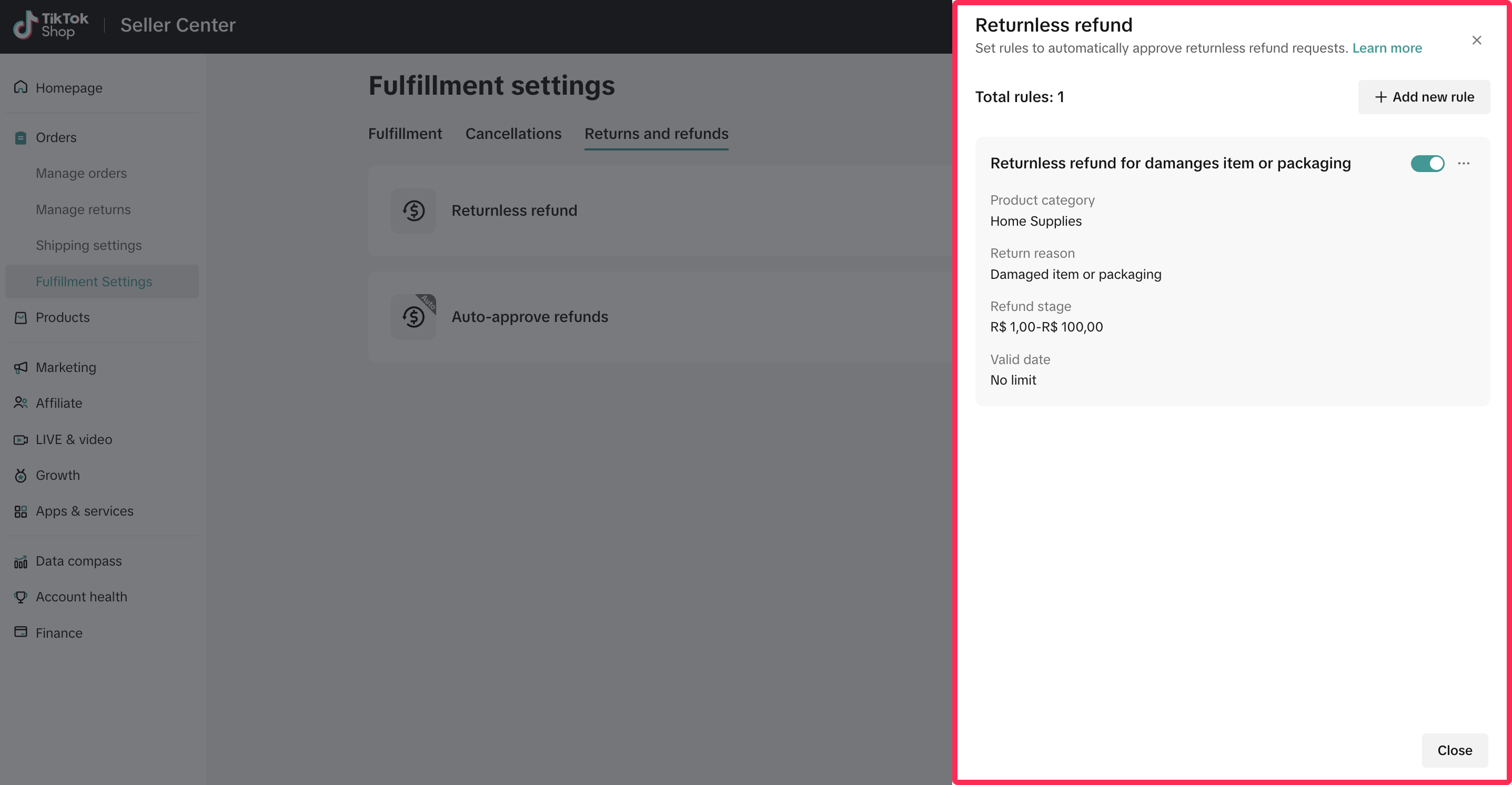
- Once you have set up the refund/returnless refund rule, it will be activated. You can easily toggle these rules on or off by adjusting the toggle switch.

Editing Rules
- To edit existing rules, navigate to the Fulfiment Settings page. Under the Returns and Refunds tab, click on the edit icon.
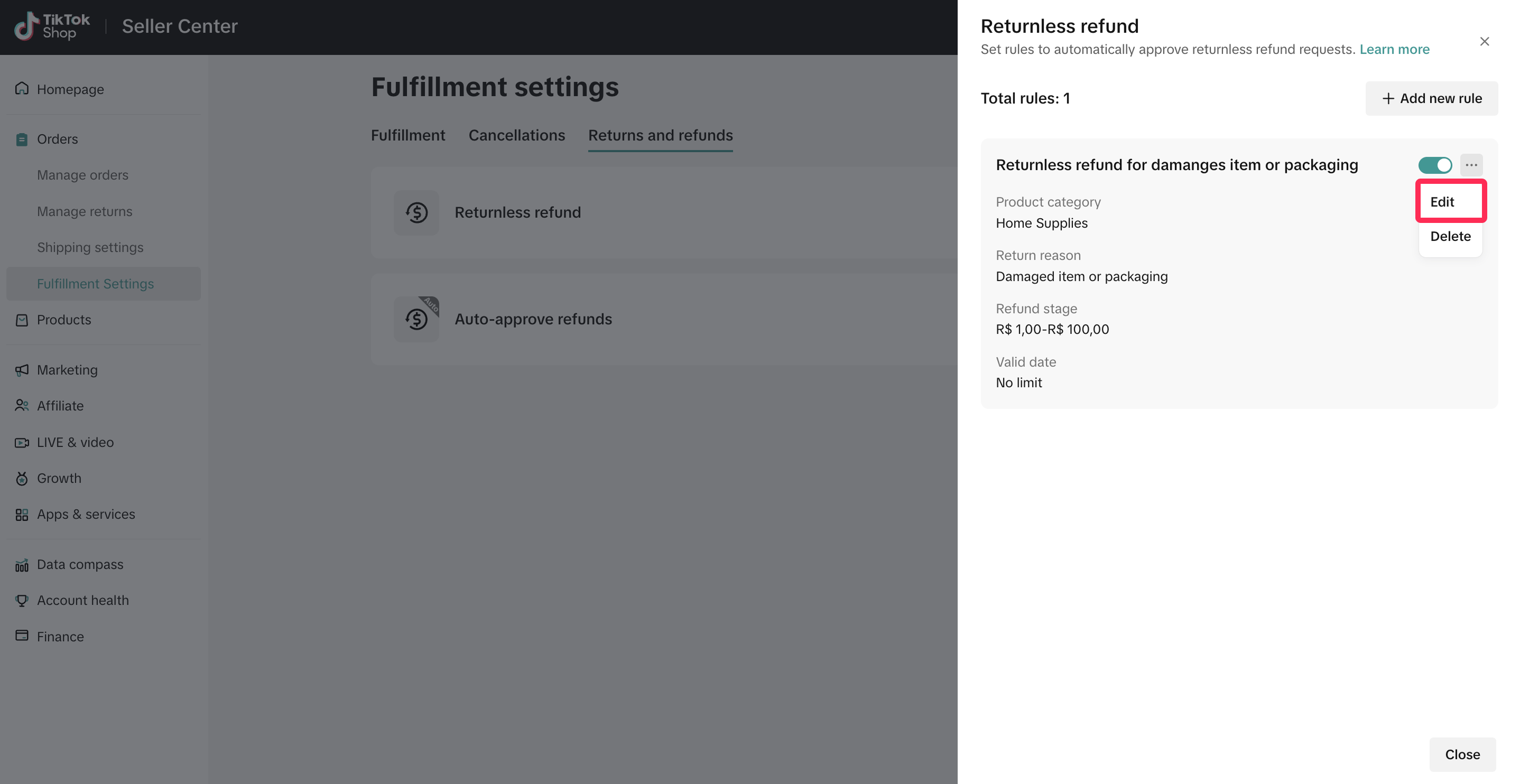
- You will see a list of rules that you created. Click on the three-dot icon (...) next to the rule and select 'Edit.'
- Make the desired changes to the rule settings. Once you have updated the settings, click 'Confirm' to save your new configuration.

Deleting Rules
- To delete the existing rules, navigate to the Fulfiment Settings page. Under the Returns and Refunds tab, click on the edit icon.
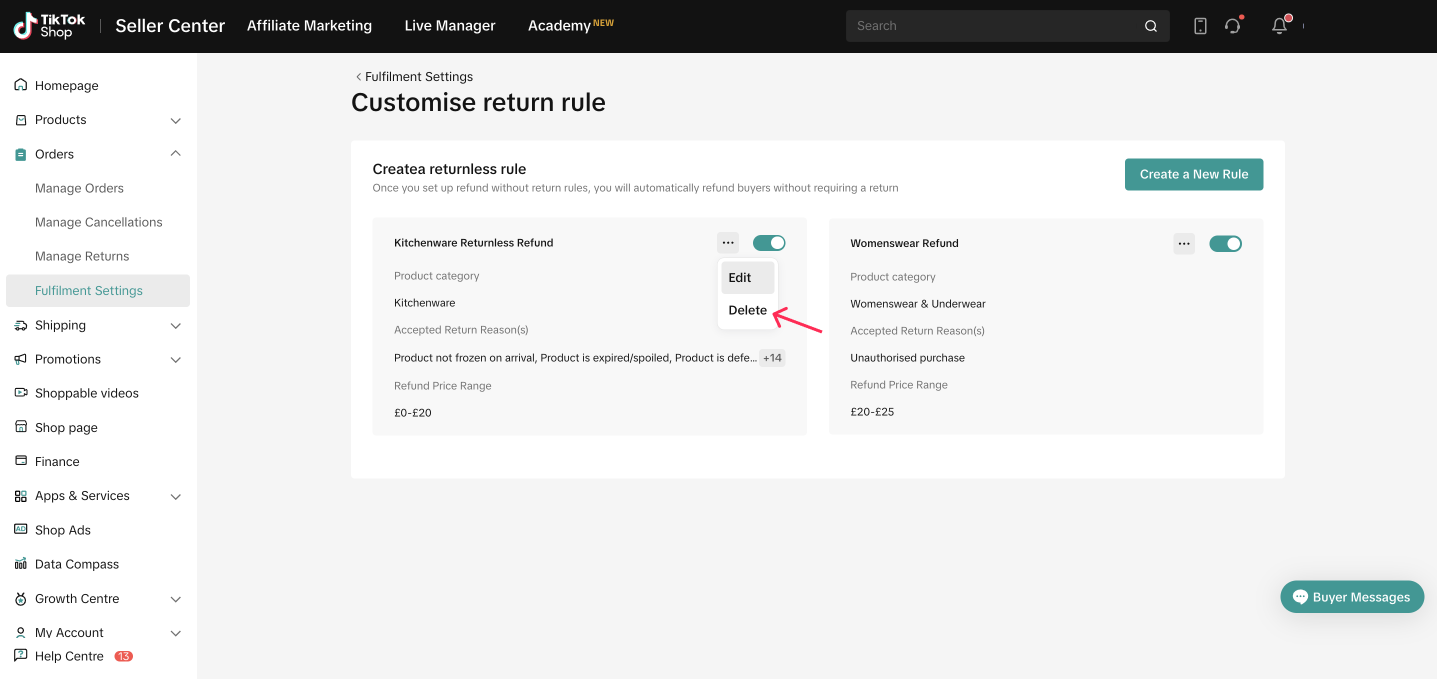
- You will see a list of rules that you created. Click on the three-dot icon (...) next to the rule and select 'Delete.'
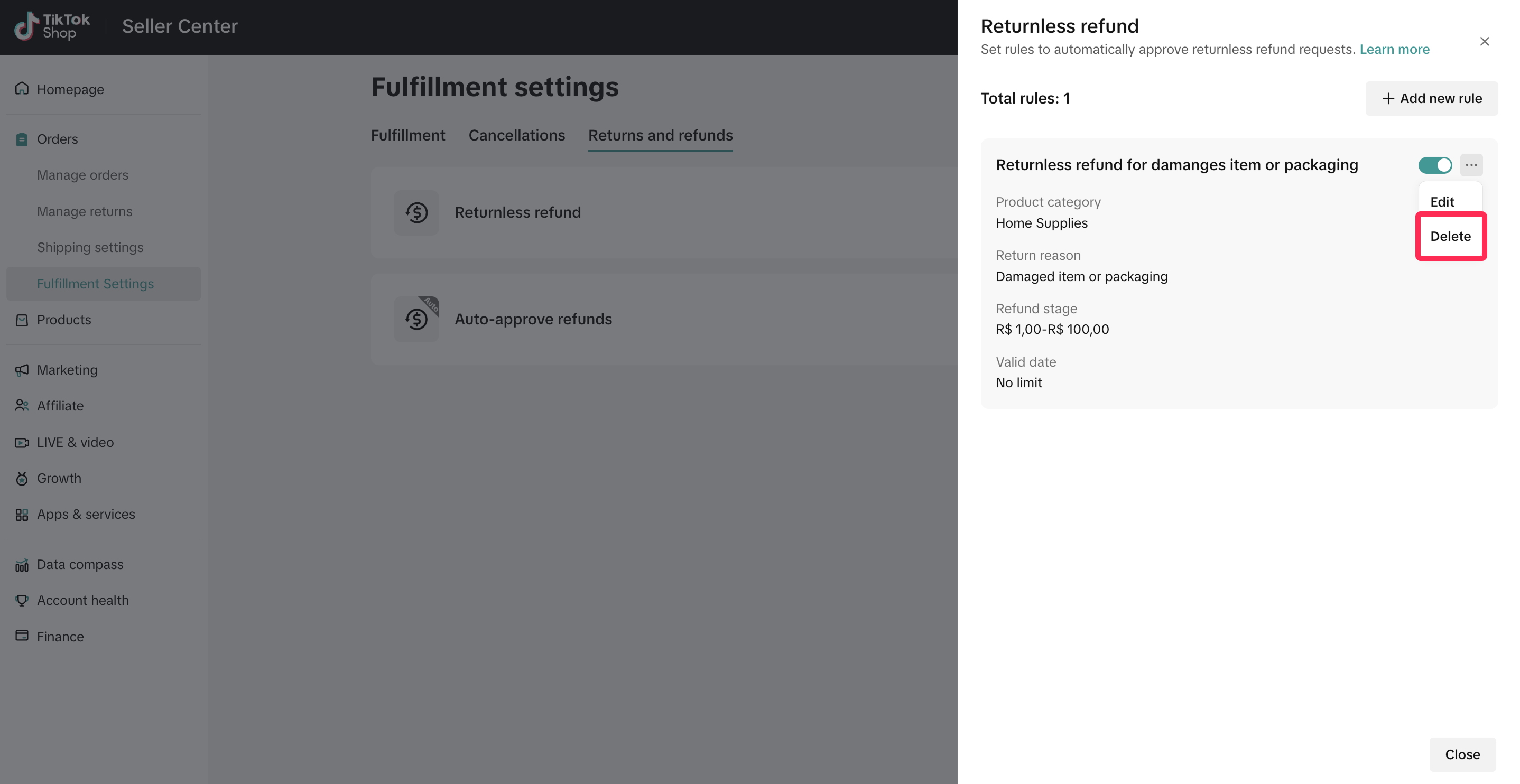
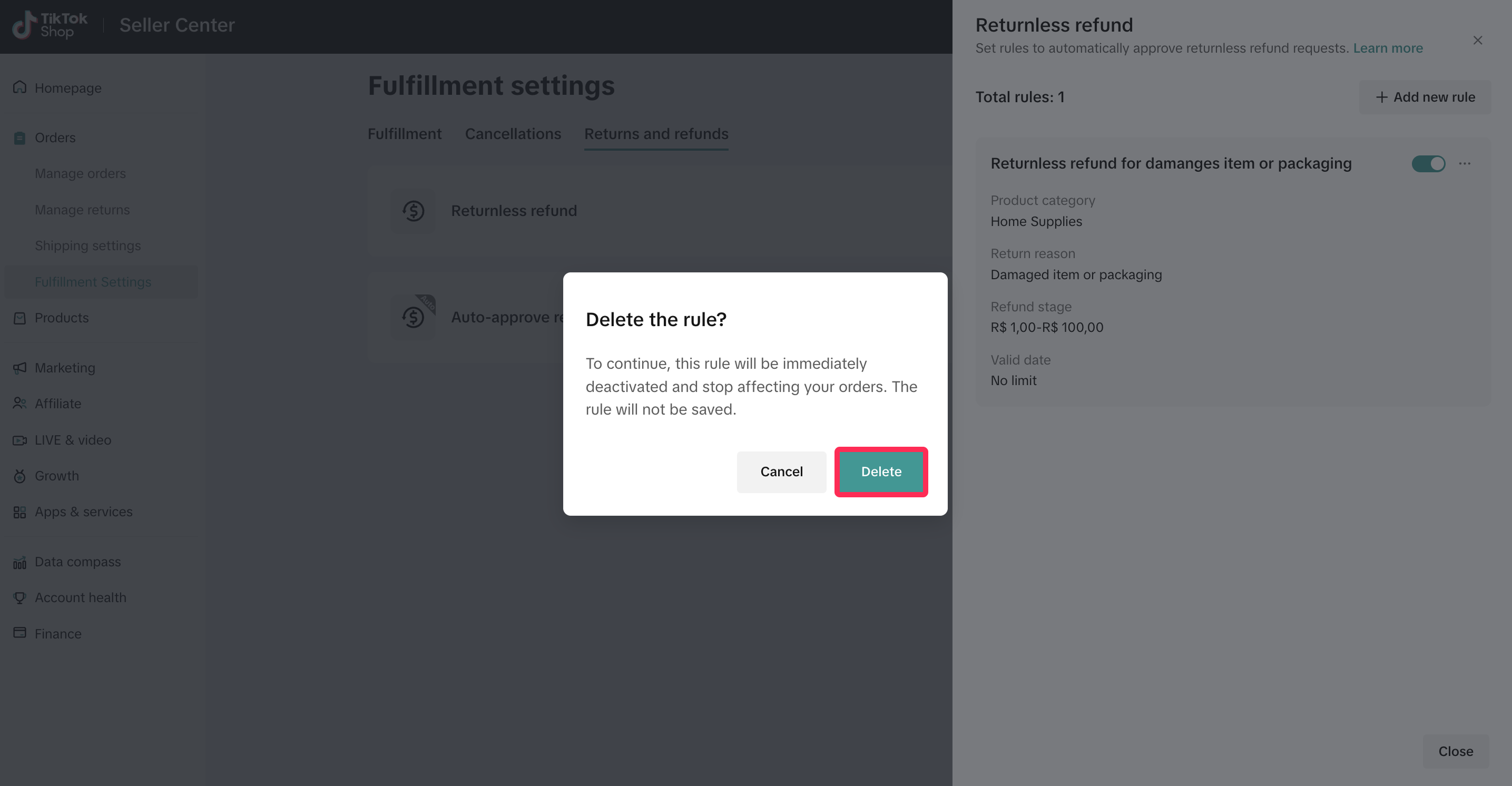
- A pop-up window will appear asking for confirmation. Click Delete to confirm and proceed with deleting the rule.

FAQ
- Can I appeal requests that have been approved under my own rules?
- What if the automated rules I set up conflict with TikTok Shop's platform rules?
- Do I need to personally process refunds for items that are affected by my rule settings?
You may also be interested in
Failed Return Package
Note: this rule applies only to local-to-local transactions. What is a failed return package? A fail…
Offering Refunds to Customers
This article provides a quick guide on how to initiate a refund to customers for minor inconvenience…

Required Evidence for Rejecting Buyer's Aftersale Requests
This article aims to provide a comprehensive guide on how to effectively reject a buyer's return, re…
Initiating an Appeal for Return/Refund Requests
This article aims to improve seller's understanding regarding appeal management on Seller Center fro…

Managing Refund-Only Request
This article provides a clear overview of the refund-only process, giving you the tools to respond e…
Why can't I locate the Appeal button on the "Manage Returns/…
If you're unable to find the Appeal button on the "Manage Returns/Refunds" page, it could be due to…
When can a buyer raise a return/refund request?
Timeframe for return/refund requests: Buyers can submit a return/refund request within fifteen (15)…
What if the buyer returns incomplete, used, or incorrect ite…
No compensation for incorrect items returned by buyer: Buyers must ensure that they enclose the corr…
Auto Rule Settings for Cancellation Requests
This article will provide you with a quick walkthrough on how to set up automated rules for acceptin…
Return & Refund Methods
This guide will provide you with a clear understanding of the return process, various return methods…