

Instant Services
01/19/2026
What is Instant Service?
Instant is designed to give sellers and buyers the fastest delivery experience on our platform — with orders reaching buyers within a few hours they are placed. With Instant Service, the courier will pick up the package from you and deliver it straight to the buyer, without stopping at any sorting stations. Because of this direct delivery model, Instant Service has stricter requirements for meeting lead times and following packaging guidelines.How does Instant Service work
2.1 Instant Service SLA
Seller Arrange Shipment period: 8:00 - 19:30 (latest at 21:00)Order create time | Ready-to-ship (RTS) SLA to avoid LDR | RTS Auto-Cancellation SLA | Transit-to-ship (TTS) Auto-Cancellation SLA |
00:00 - 08:00 | +0WD 09:30 | +0WD 21:00 | +1WD 12:00 |
08:00 - 18:00 | +0WD 1.5 hours from stocking time | ||
18:00 - 00:00 | +1WD 09:30 | +1WD 11:00 | |
| |||
2.2. How it works
| Category | Details | |
| Courier | [Logistics Provider] | |
| Max Radius | 40km | |
| Weight Limitation | 30kg | |
| Max Dimension | 60 cm (L) x 60 cm(W) x 60 cm (H) | |
| Packaging Requirement | No strict packaging requirements, provided that:
| |
| Prohibited Items |
| |
| Available Regions | HCM, HN (selected areas only) | |
| Seller Eligibility | Invited sellers only, can contact your Account Managers for more details | |
Benefits of Instant Service
Get your products featured daily in the Instant Service search filter and tags, helping more buyers discover your shop.
Offer fast, same-day delivery within hours to stand out from competitors and attract more buyers.
Faster delivery reduces cancellations, encourages repeat purchases, and improves overall buyer satisfaction — driving more sales for your shop.
- Boost Your Shop’s Exposure
- Strengthen Your Market Presence
- Increase Sales and Enhance the Buyer Experience
What do I need to do (as a seller) when I join the instant service
For Instant orders, make sure you complete the extra step when arranging shipment. After printing the shipping label, you must arrange shipment in the system. The system will only assign a driver after you arrange shipment, so be sure to do this promptly to avoid delays.
How do I set up Instant Service for my shop?
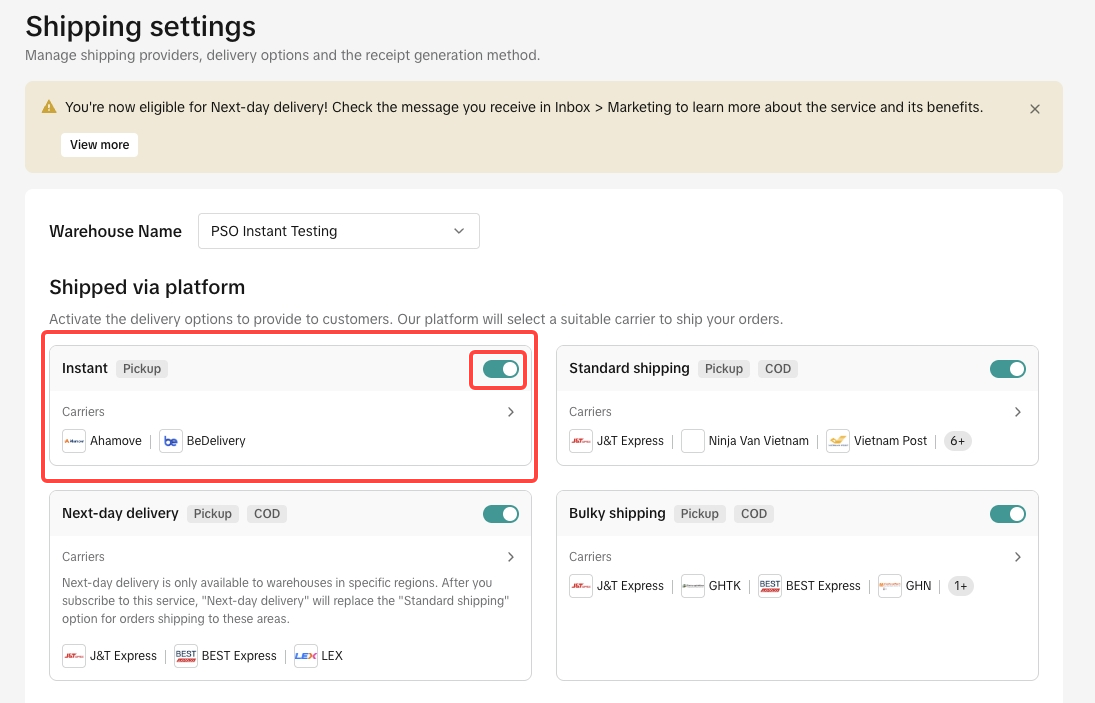
Step 1: go to Shipping Setting > Warehouse Setting to review and validate your pinpoint, as rider will use this information for picking up your packages. See below👇⚠️ Important: system may automatically set pinpoint for you, please click edit and review again whether the pinpoint is correct.
|
|
|
|
|
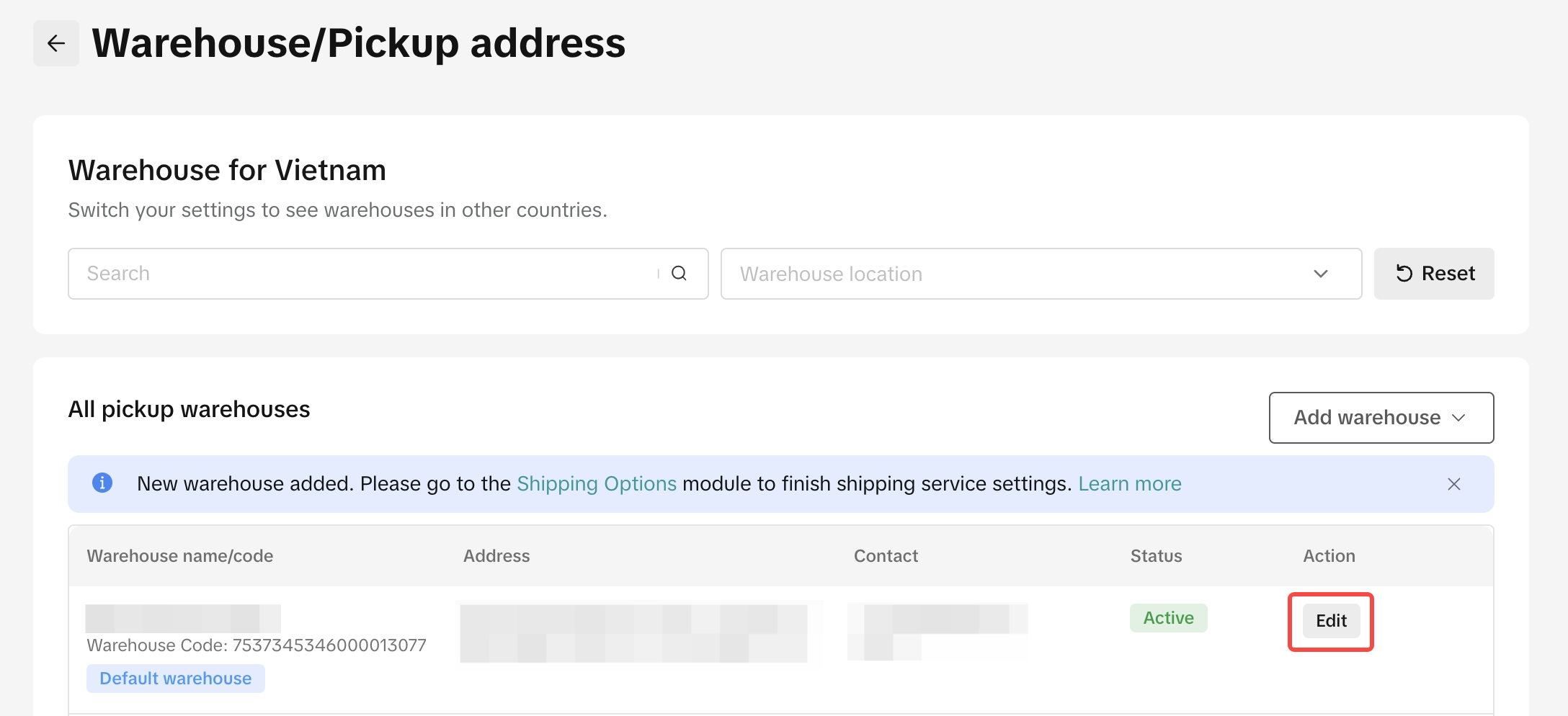 | 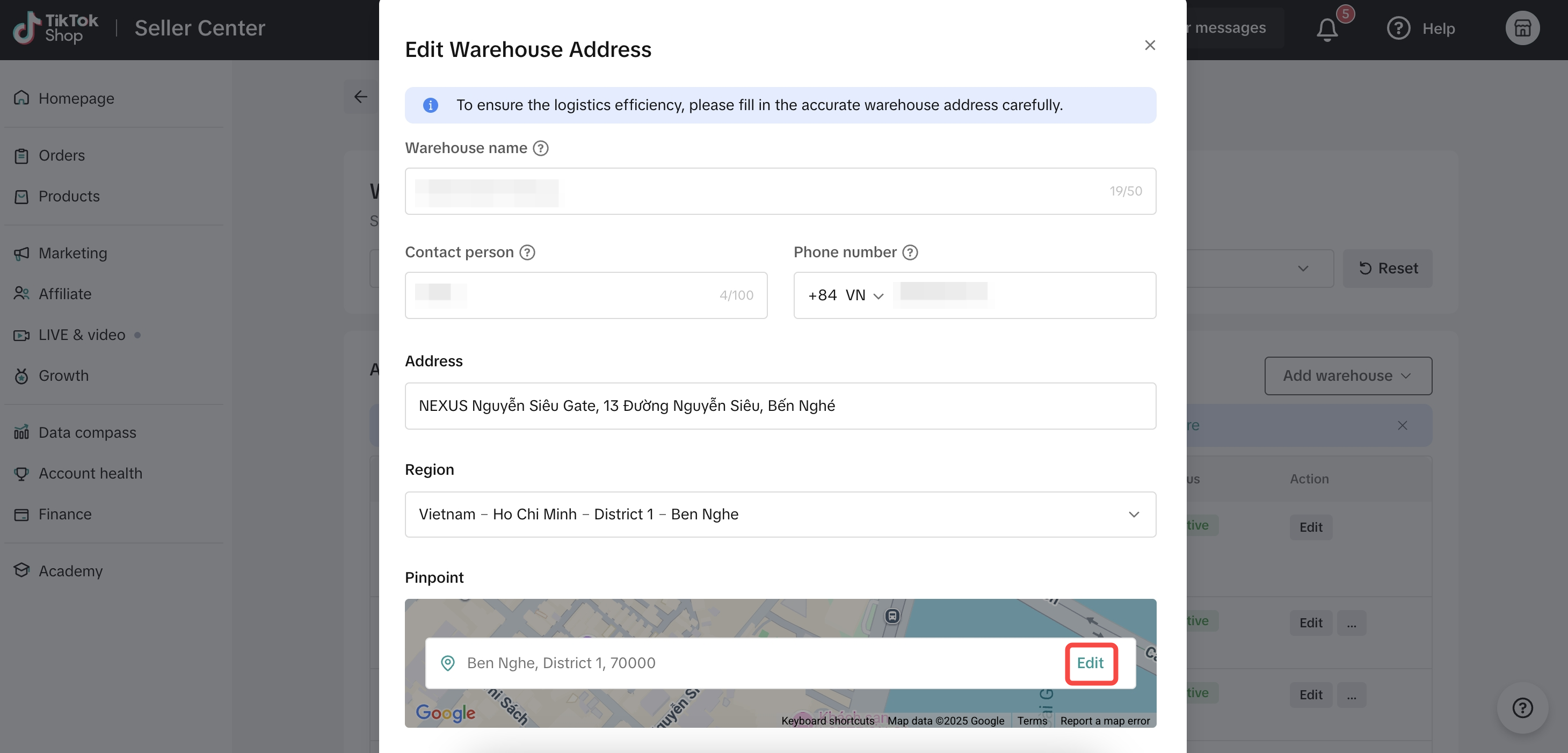 | 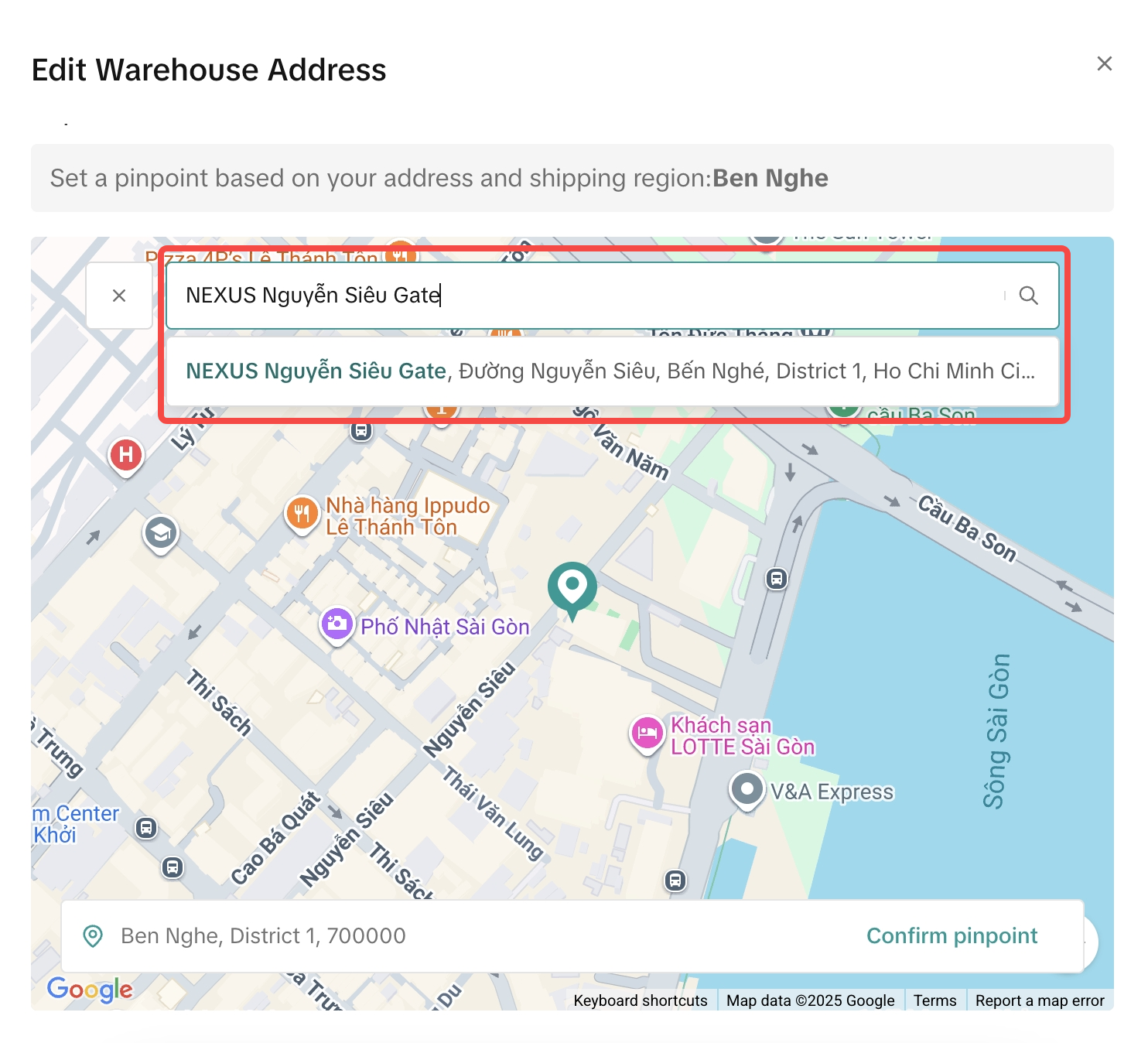 | 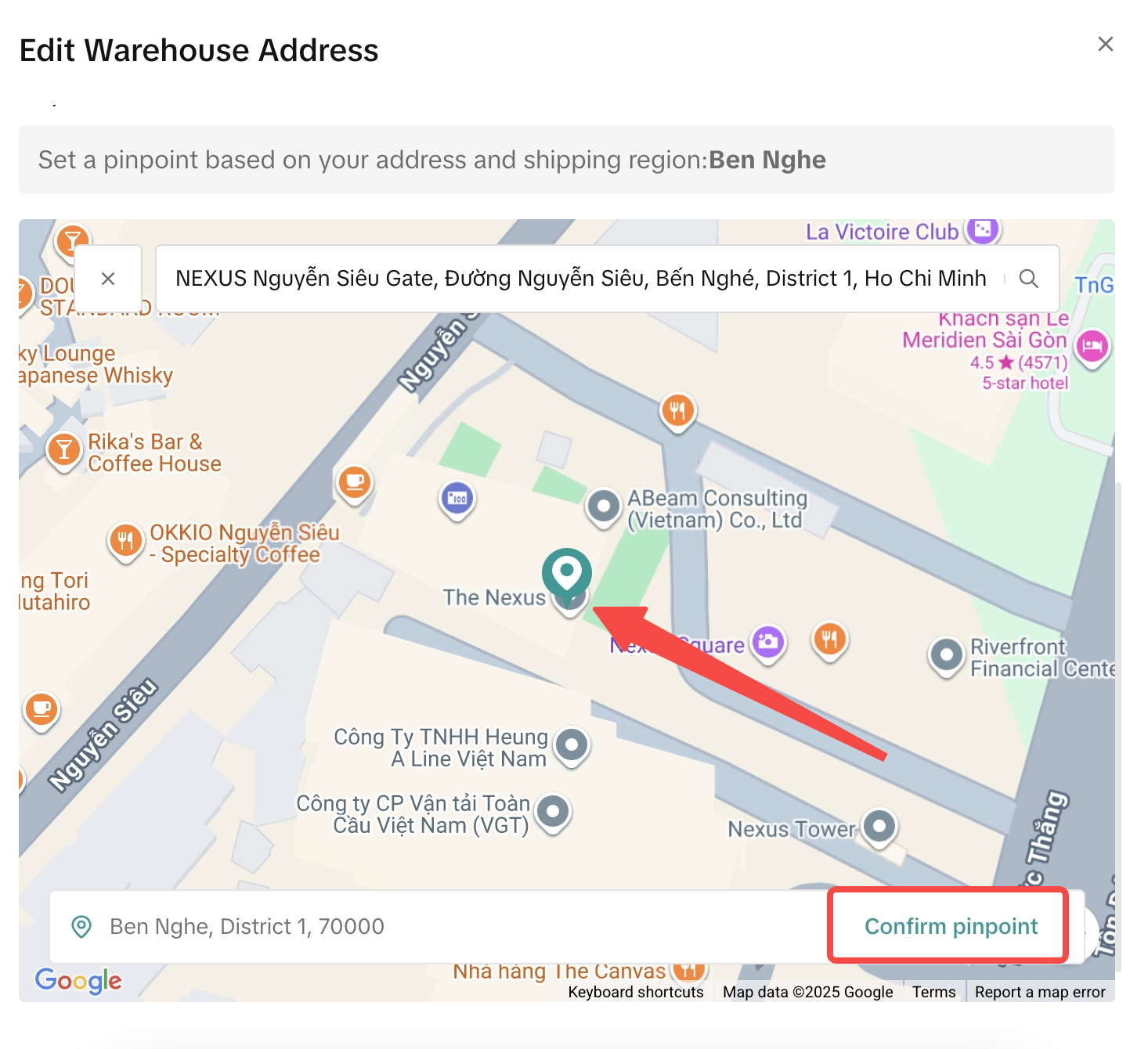 |  |
Note, Instant service is currently invitation only mode. If you cannot see Instant toggle, please contact your account manager right away to get you whitelisted!
- Select your warehouse
- Select "instant" and enable the service
 |

How do I see my Instant Shipping orders on Seller Center?
Step 1: “Manage orders ”>> filter “Delivery options” >> filter “Instant". ⚠️ Important: It is strongly recommended that sellers regularly monitor their instant orders and fulfill them as soon as possible to ensure compliance with the SLA(section 2.3)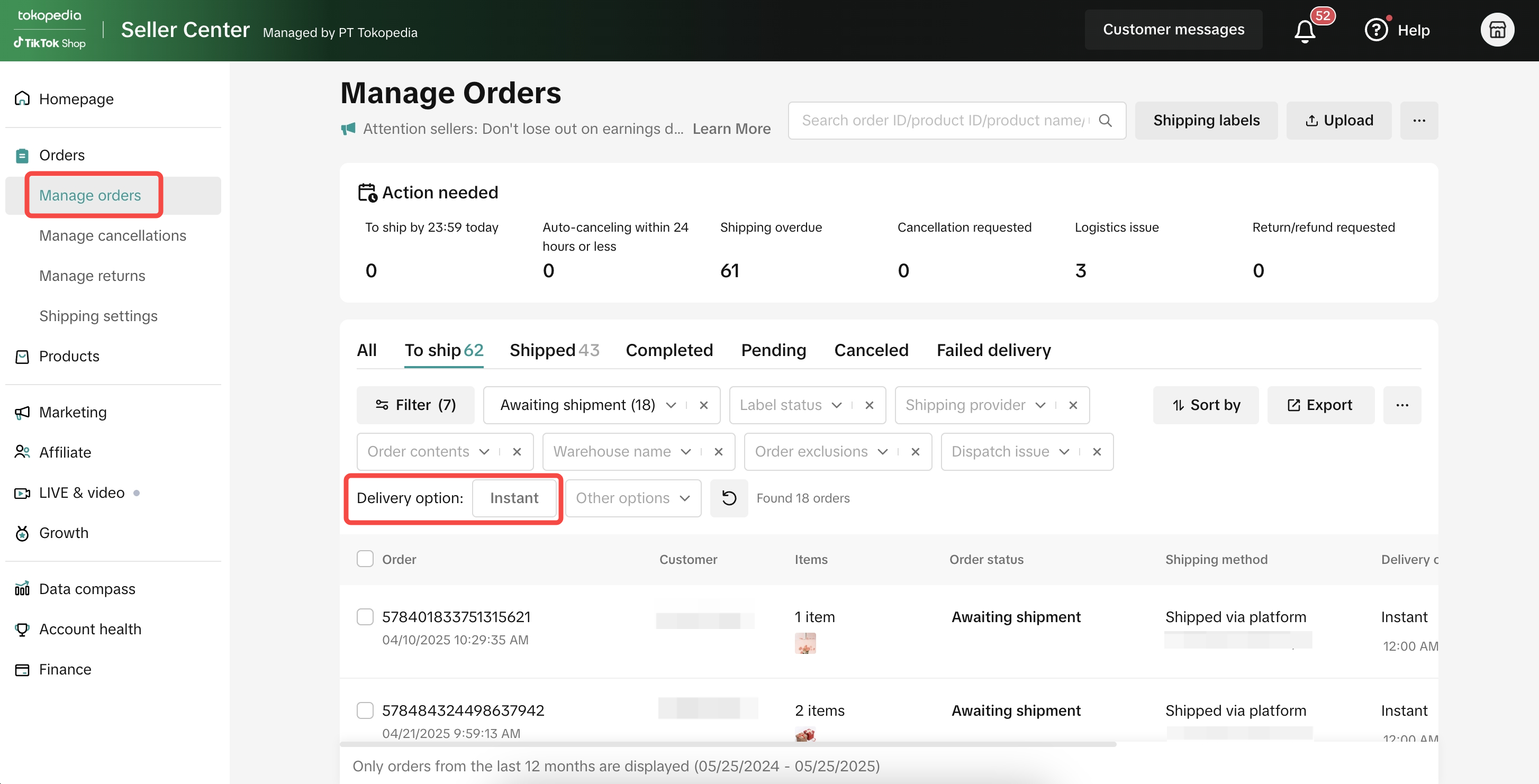 |
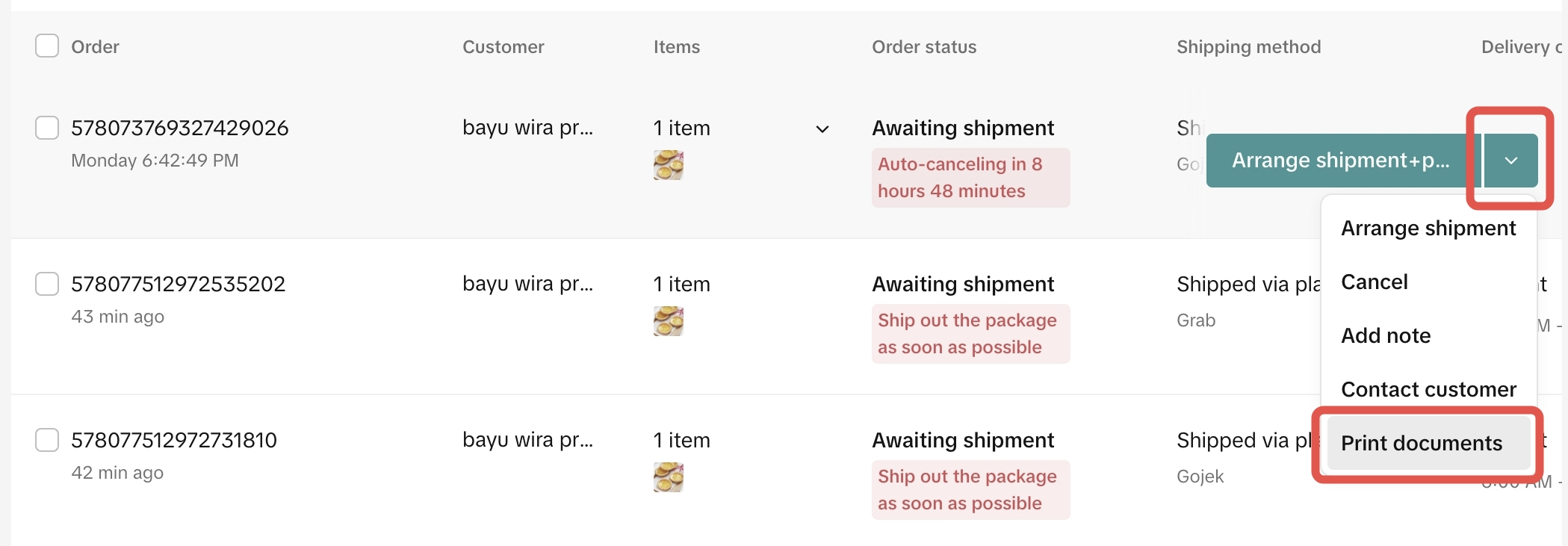
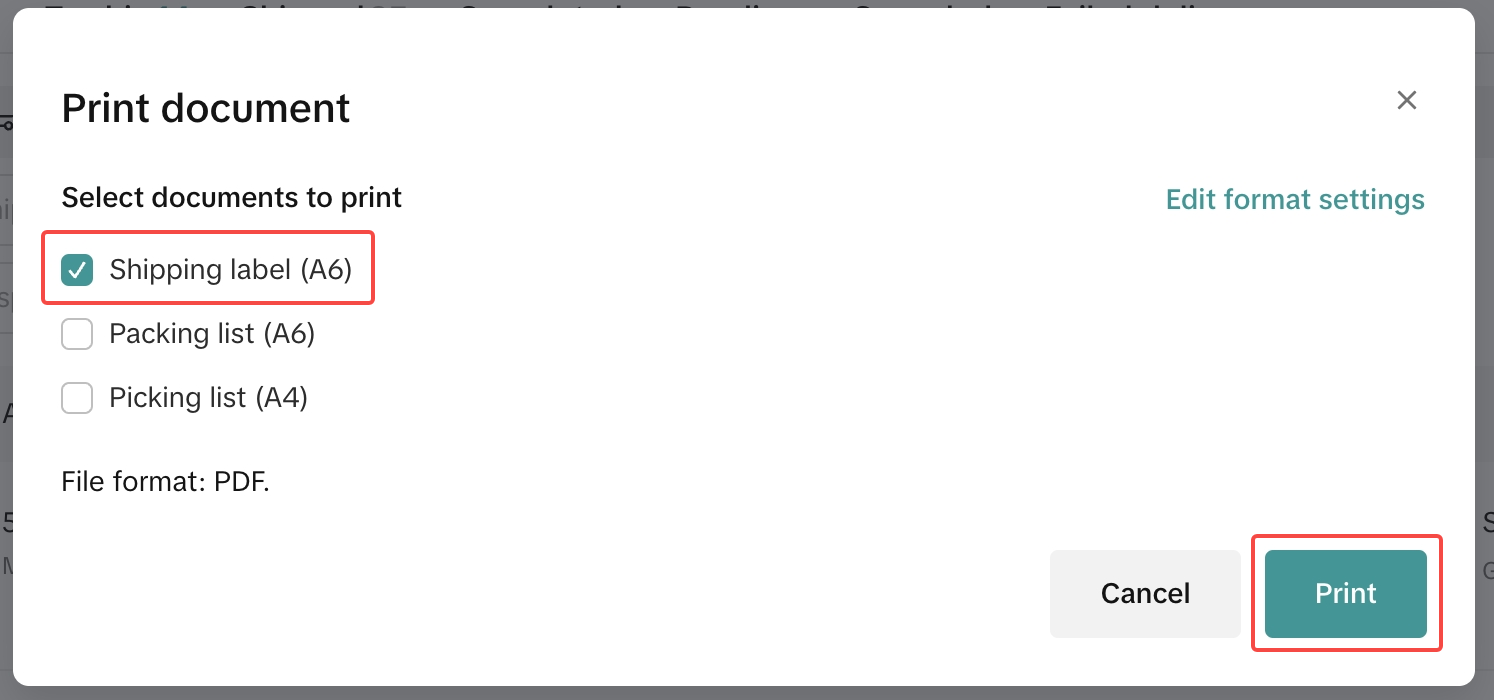
Select orders you would like to fulfill and select "Print documents" >> "Shipping label".
 |  |
⚠️ Note:
- Printing a shipping label will trigger a request for pickup request, and drivers will come to the seller's place within 1 hour
- Instant shipments can only request for pickup during provider operating hours (8am - 9pm). Plan ahead to ensure timely fulfillment.
Outside operating hours  | During operating hours 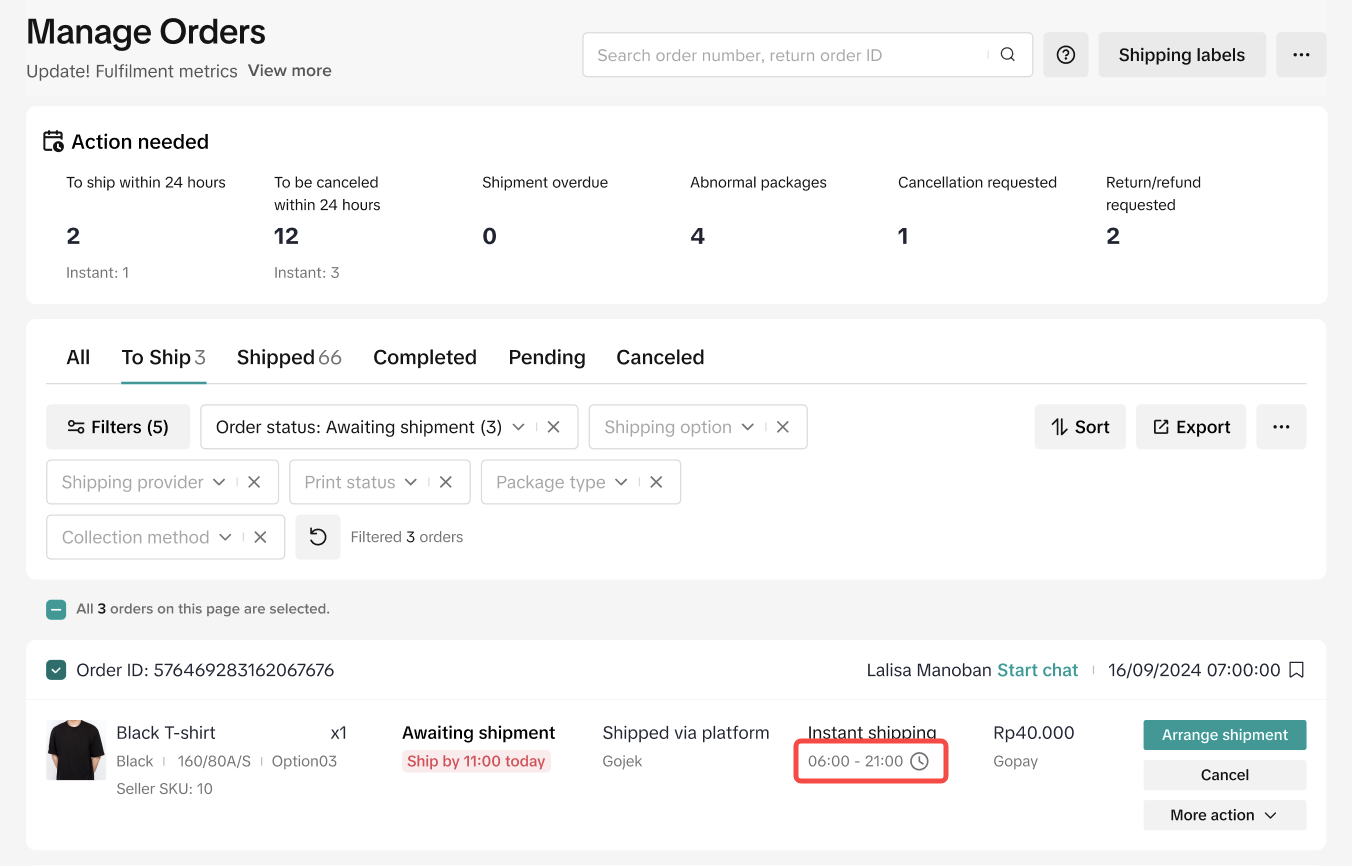 |
- In case of bad weather or unexpected events causing a driver shortage, our system will automatically retry to assign a driver. However, if the order isn’t picked up within the SLA period, the order may be canceled. Don’t worry! You can contact our support team for assistance. Help Center.
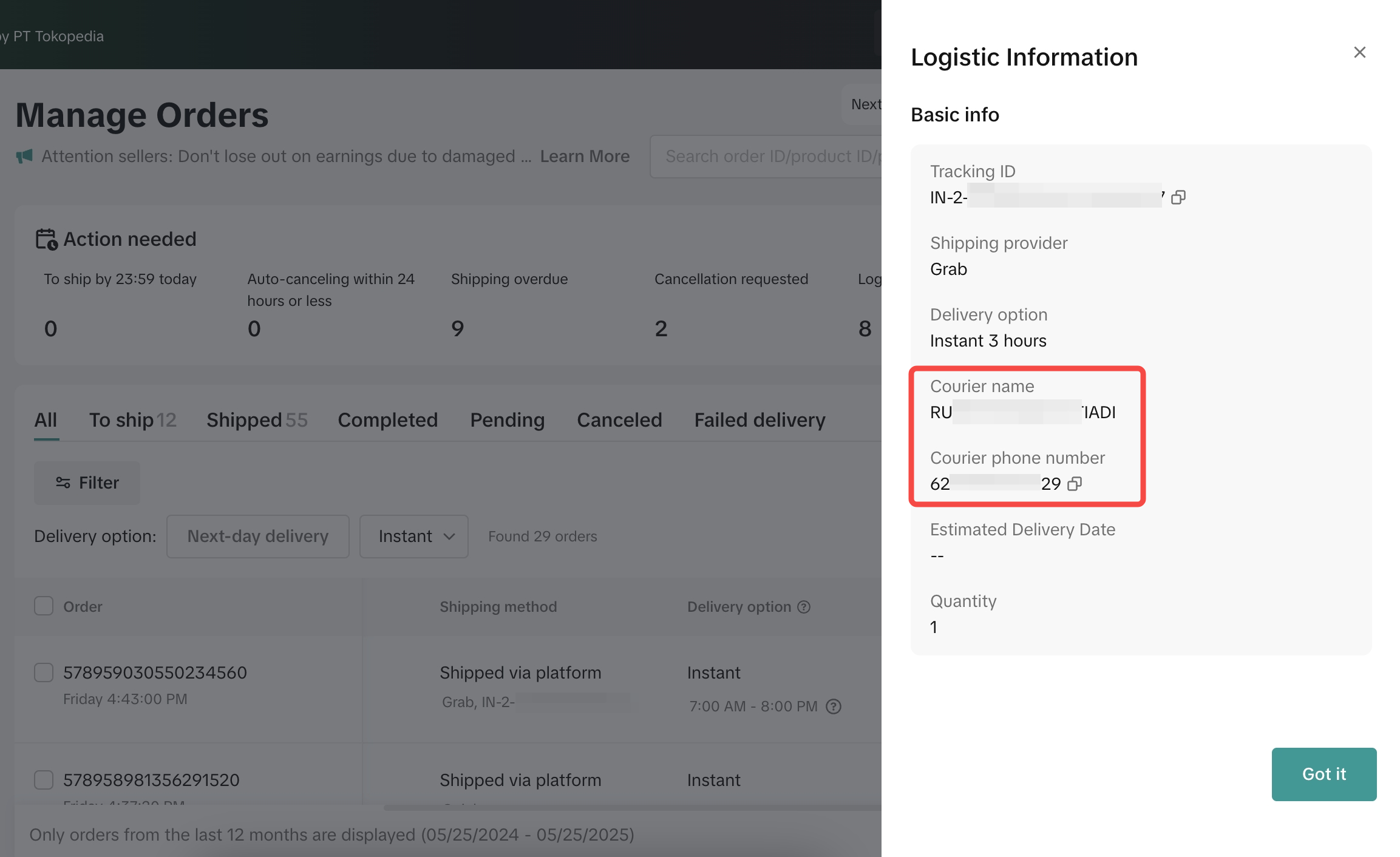
- You can find the driver’s contact details by clicking "View Logistics" — the driver’s name and phone number will be displayed.
 |  |
To ensure the correct parcel is picked up, sellers need to follow the following step when handover the parcel to driver:
- show and confirm the pickup code with the driver before handing over the package. The pickup code is located at the top right.
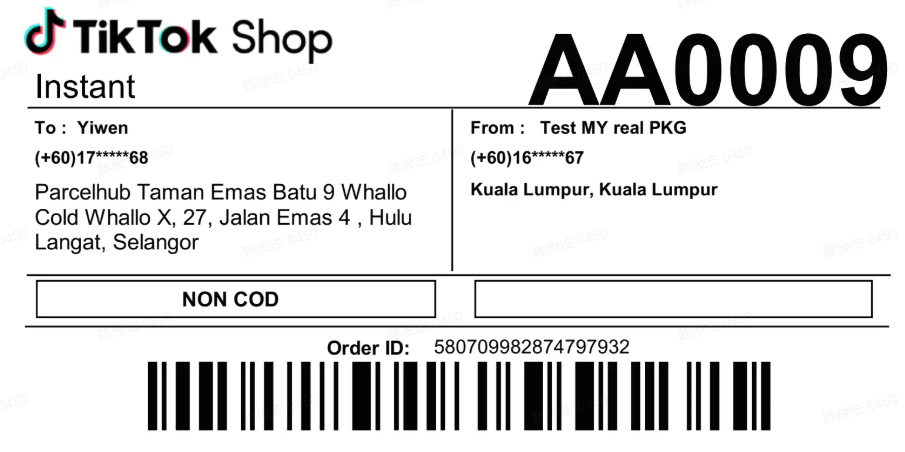
- ensure the correct driver comes to pick the correct parcel to the correct buyer address by checking information on the AWB with the information on the driver's app
- ensure the driver scan 'pickup success' status on the driver's app before leaving

How do I reschedule pickup?
If needed, pickup can be rescheduled once:Step 1: go to order and select More action > Reschedule Pickup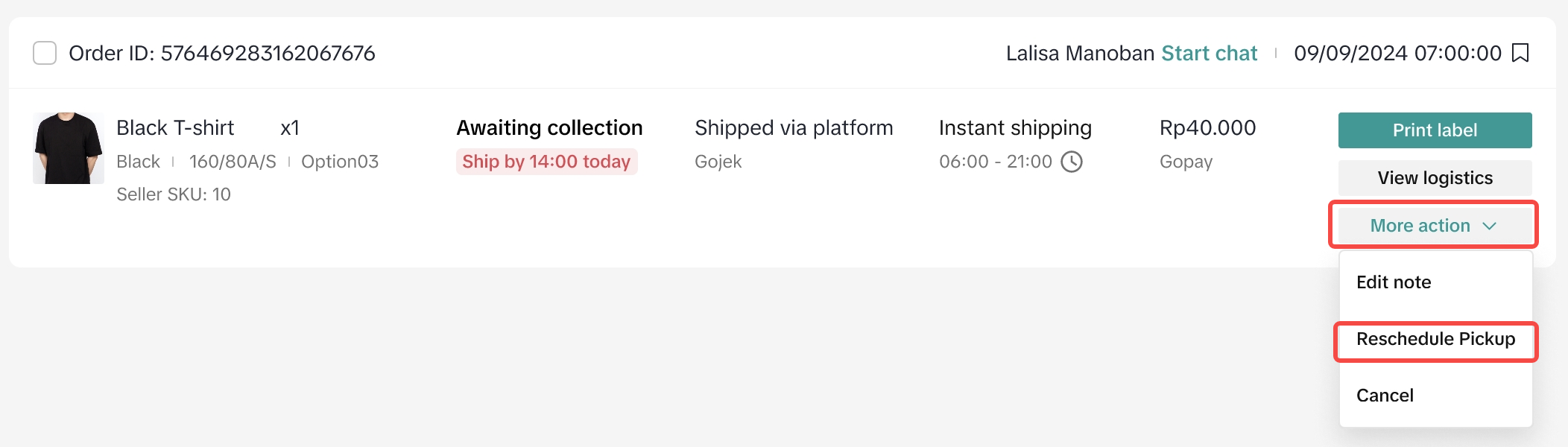 Step 2: select a new pickup schedule and input information of date, time, and reasons.
⚠️ Important:
- The system will only allow reschedule only 1 time
- 'Reschedule day' is limited to only the order received date and the following day.
- 'Time' options are available only within the shipping provider's operating hours.
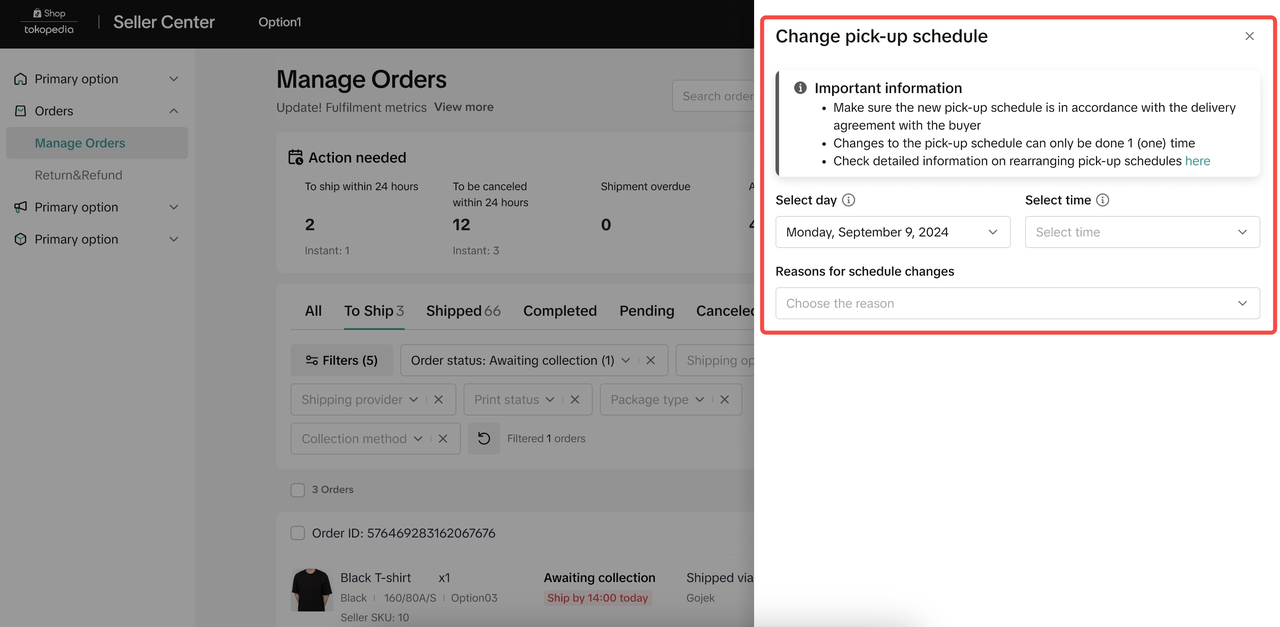 You can check your rescheduled information by More action > View Reschedule Pickup.

FAQ
What is the difference between Instant & Standard Service?
- Instant Delivery is designed to give sellers and buyers the faster delivery experience on our platform. With Instant Delivery, the courier will pick up the package from you and deliver it straight to the buyer, without stopping at any sorting stations. Because of this direct delivery model, Instant Delivery has stricter requirements for meeting lead times and following packaging guidelines. For more information about SLA and how to set shipping options, you can refer to following articles (Instant service SLA).
Can I open Instant for only some specific SKUs?
Yes, instant service can be activated at SKU level.Guideline:
- Go to Seller Center -> Products -> Manage Products
- Choose products you want to activate Instant and click "Edit" -> Shipping -> Custom
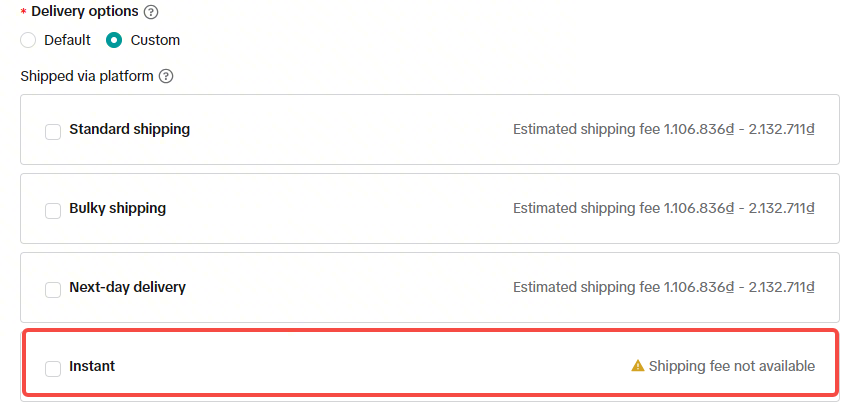
Why buyer can not see instant service in my shop even shop already opened instant service?
Please check via the following methods- App version: Pls check the buyer's APP version to see whether the latest version (or after which version)?
- Coverage area and Distance:
- Instant service only opened for selected areas.
- The distance between the buyer's and seller's warehouse addresses exceeds 40 kilometers (MY is 30 kilometers)
- Open by sku level: Please check if this SKU is subscribed to SKU level and does not select instant
What if there is no rider picking up the parcels?
- For instant and same-day orders, sellers may encounter no courier pickup due to traffic conditions. The system will automatically retry to reassign to new couriers. We appreciate your patience as the system reassigns your order.
- Late Delivery Rate (LDR): You will not be penalized if the delay is caused by a lack of available riders.
- Seller Fault Cancellation Rate (SFCR): If an order is automatically cancelled due to no rider pickup, please contact our help center to appeal the penalty.
Can I arrange a third party transport to deliver the order to the buyer if driver is not found for long period of time?
- No, you should not arrange a third party delivery to send the order to the buyer outside of the platform arrangement. In such cases, the platform will not be able to complete the sales and the seller is responsible for recovering the cost of the orders from the buyer separately.
What is the recommended method of handing over Instant Order to the riders?
- Confirming the details of the riders and the orders before handover the package to riders. Checking with rider to confirm update orders to “Pick Up” in their app in real-time at your location.
- If a rider has picked up the parcel but did not update in their app, this may risk for order cancellation. the platform will not bear the responsibility for the loss of the order.
Do I have to pay any extra fee to the riders if the order failed to delivery and have to be returned?
No, you don't need to pay any extra fee to the riders to get the returned parcels. The rider's fee will be refunded later by their companies.Can I deactivate Instant Service from my shop?
- Yes, you can deactivate instant service in seller center
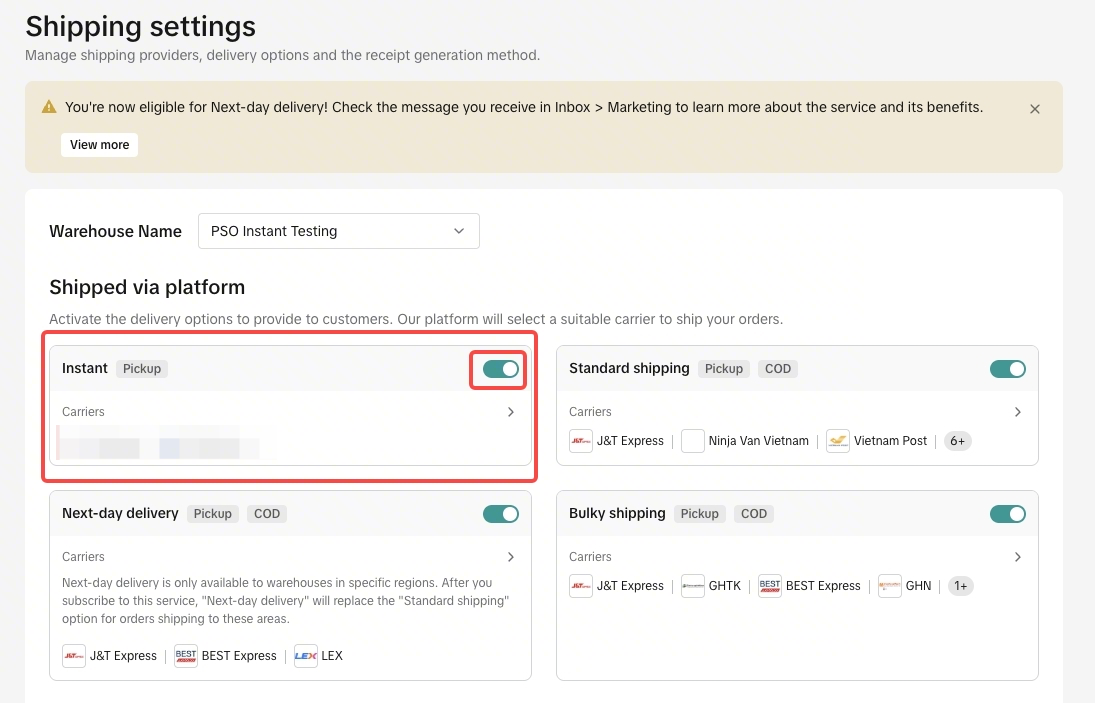
Can I reschedule pickup for orders with Instant and Same Day services?
Yes, it is possible to reschedule your pickup by follow below steps- Go to Manage orders and select orders you want to reschdule.
- Select 'More action' > 'Reschedule Pickup'
- Select a new pickup schedule and input information of date, time, and reasons.
- The system will only allow reschedule only 1 time
- 'Reschedule day' is limited to only the order received date and the following day.
- 'Time' options are available only within the shipping provider's operating hours.
Where can I check courier contact Instant and Same Day services?
You can follow below steps- Go to Manage orders and select orders you want to check courier contact
- Select on 'View logistics' and the rider contact will be available under logistics tracking section
Why cannot I "arrange shipment"?
For instant and same day services, sellers MUST arrange shipment during shipping provider operating time. Sellers can check operating time in the order management page.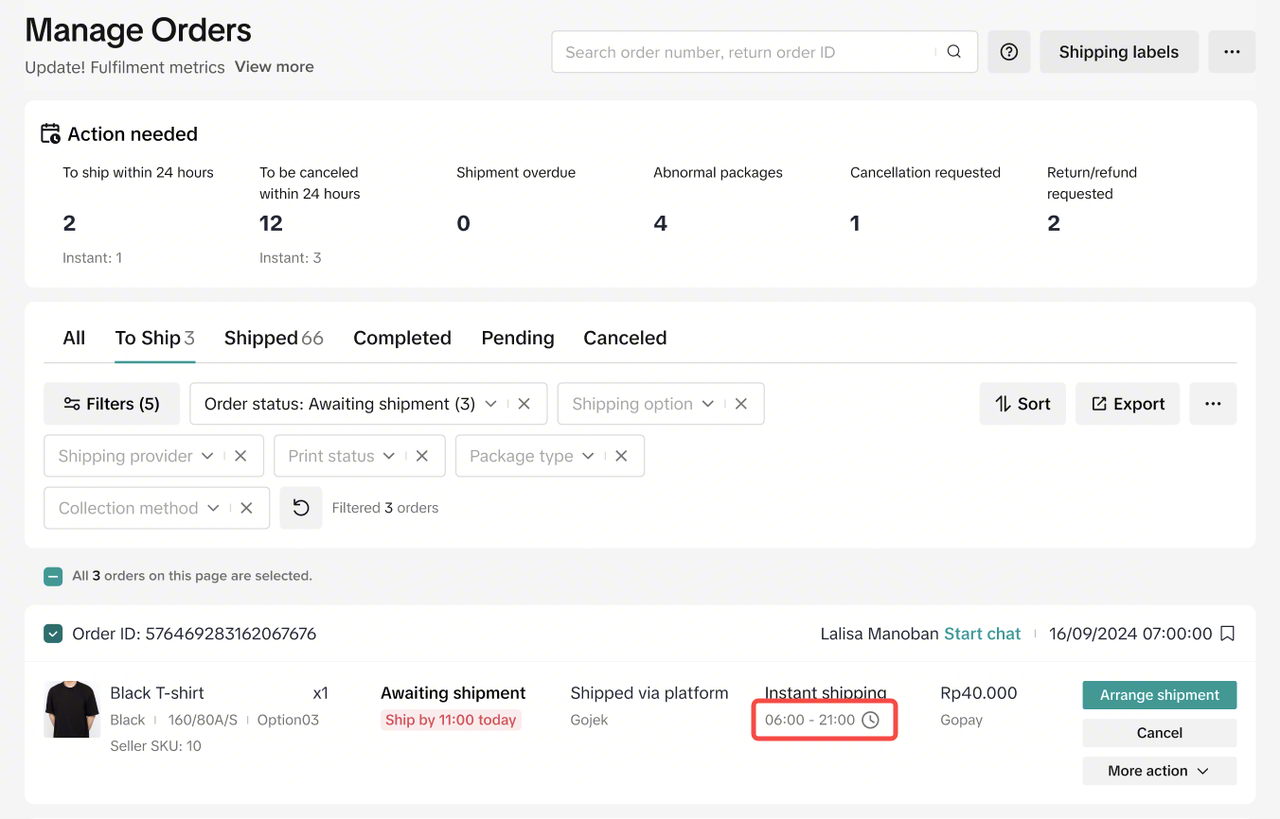
How to register for Instant Service?
Sellers can register for Instant Service in 2 ways:- Register through the Category Manager AM
- Register via the link Instant Service Registration Form: https://bytedance.sg.larkoffice.com/share/base/form/shrlgDJaBtTJHRcOVKerfiFYT1d
 NOTE: Registering for Instant Service is Free of Charge