Analyzing Livestream Data for Creators

Livestream Analytics
This article will show you how to navigate to the LIVE & LIVE Details page via Creator App to utilise the data available, empowering you with insights to continue improving your upcoming livestreams.
Highlights

  • Gain insight into your top performing LIVEs and understand which products drive the highest revenue
  • Understand your audience demographics to tailor your content better in suiting their needs
  • Analyse how audiences engage with you during your LIVEs, in terms of new followers, comments & shares

image

Checking LIVE Performance via Creator Data (on App)

Please note that all images are for illustration purposes only and may vary slightly from the actual interface.
Explanation
Interface
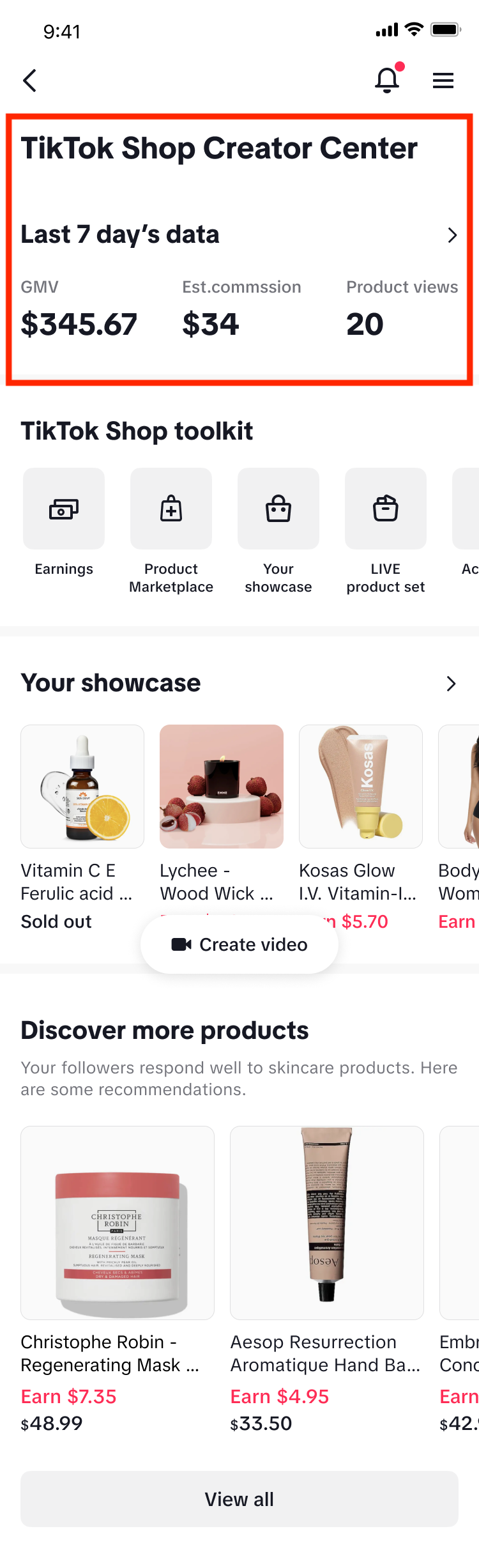
Navigate to: TikTok Shop Creator Center > Last 7 day's data Last 7 days dataHere you can get an overview of the last 7 days data which will provide you with GMV (valor bruto de la mercancía), Est commission and product view metrics. If you click on this section, you will open the Creator Data page. Note:
  • GMV and Est. Commission are calculated using the Commission Based Attribution logic. This means that the GMV shown here takes into account attributed GMV from affiliate promotion in order to make sure that the commission paid to you via Affiliate Plans is accurate.
  • Est. Commission: This is the estimated commission a creator can receive, but it may differ from the actual commission payment due to factors such as orders refunds.
Do note, the estimated commission here will exclude creator tax and any commission share paid to MCN agency.
image
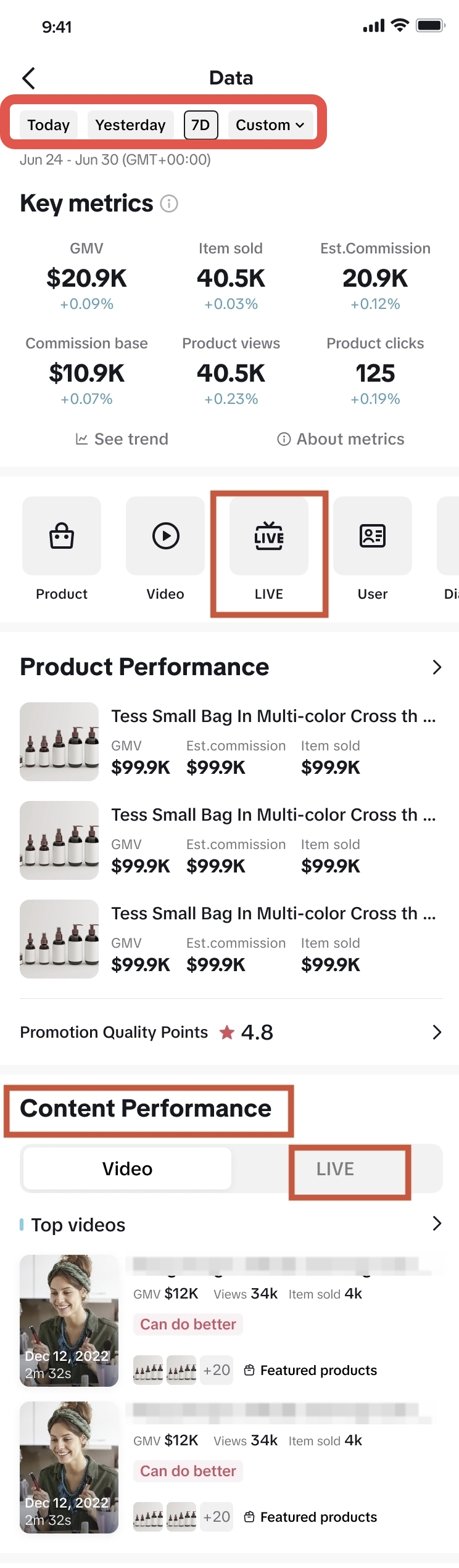
  1. Time selection
Toggle your time selection between Today, Yesterday, Last 7 Days or Custom.
  1. LIVE
Click on LIVE to open the main LIVE page where you can see overall LIVE Key Data and the list of all your LIVEs.
  1. Content Performance
    • Here, click on [LIVE] to quickly see which are your top performing LIVEs.
image
Creator Data page
image
LIVE Page
LIVE Page
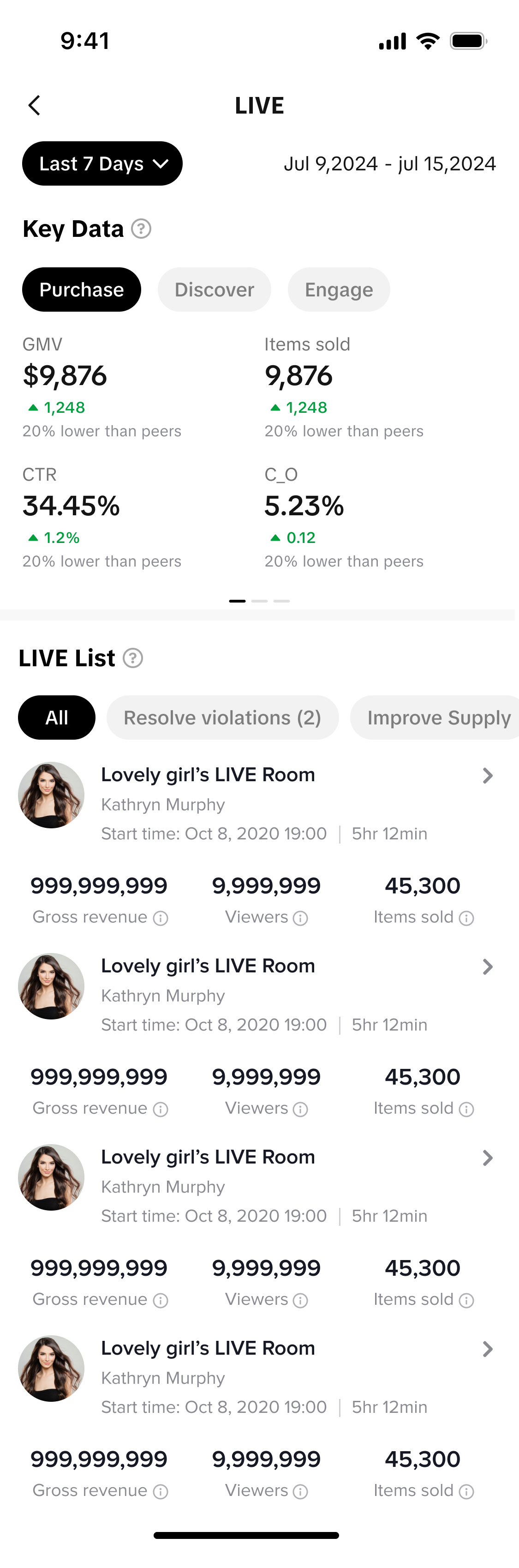
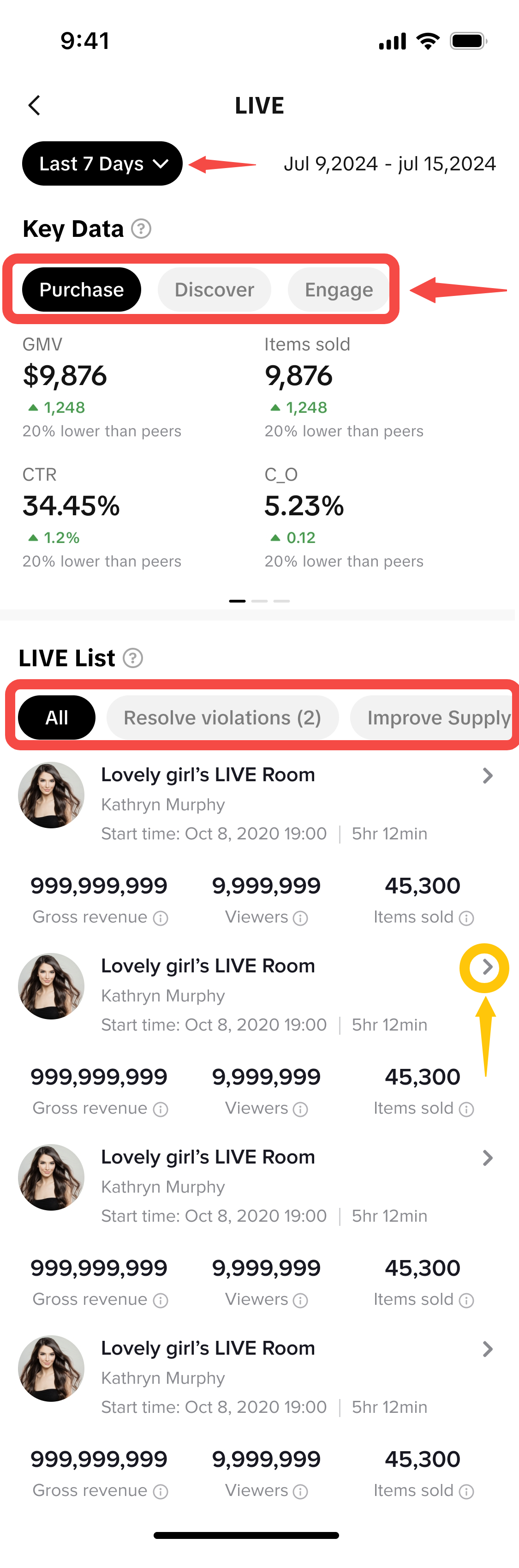
  1. Time selection
Toggle your time selection between Today, Last 7 Days or Custom.
  1. Key Data
  • Toggle between these 3 groups to view different performance metrics:
    • Purchase: Direct GMV, Attributed GMV, Main Orders, SKU Orders, C_O, Buyers, Items Sold, CTR
    • Discover: LIVE Impressions, LIVE Count, Average LIVE Duration, Views, Viewers, Average Viewing Duration, Average Concurrent Viewers
    • Engage: Comments, Comment Rate, New followers, Follow Rate, Likes, Like Rate, Shares, Share Rate.
  • Note: The performance metrics shown may vary depending on the time period selected.
To understand the definitions of the various metrics shown, simply click on the [?] icon beside Key Data.
  1. LIVE List
  • The list of LIVEs here will reflect according to the selected time period above.
  • Quickly filter your LIVEs with issues by toggling the diagnostic options:
    • Resolve violations
    • Improve traffic
    • Improve promotion
  • View each individual LIVE performance metrics such as Gross revenue, Viewers & Items sold
  • To zoom into more insights on an individual LIVE performance, simply click the > button to open the LIVE Details page.
image
LIVE Page
image
LIVE Details Page
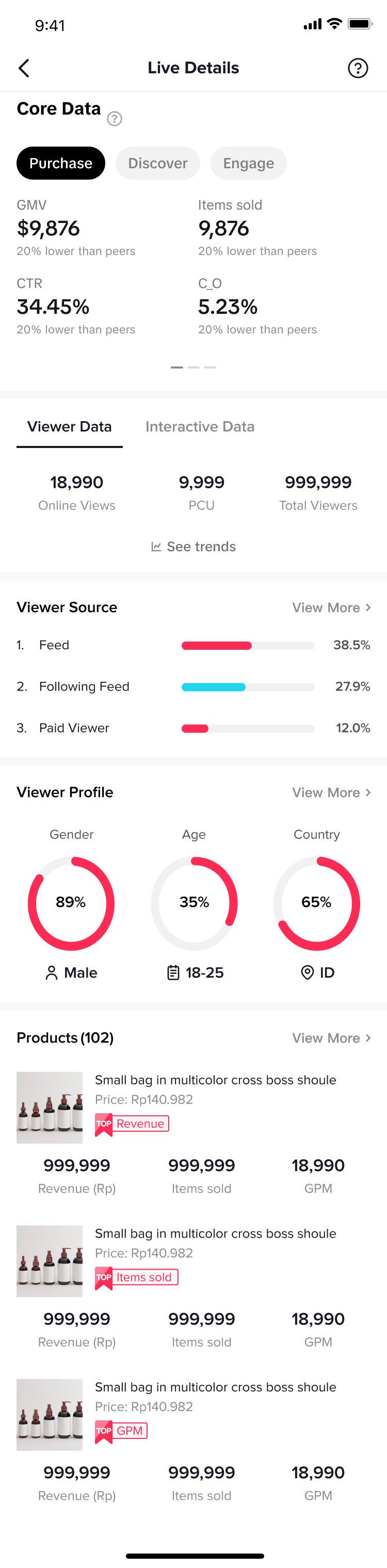
LIVE Details pageThe LIVE Details page breaks down various insights from an individual livestream performance to give you a well-rounded view of how your livestream performed, where your audience is from, what products were driving revenue, and more.These are the modules available on LIVE Details page:
  • Core Data
  • Viewer Data / Interactive Data
  • Viever Source
  • Viewer Profile
ProductsContinue reading below to learn how to use each module and the type of insights they provide.
image
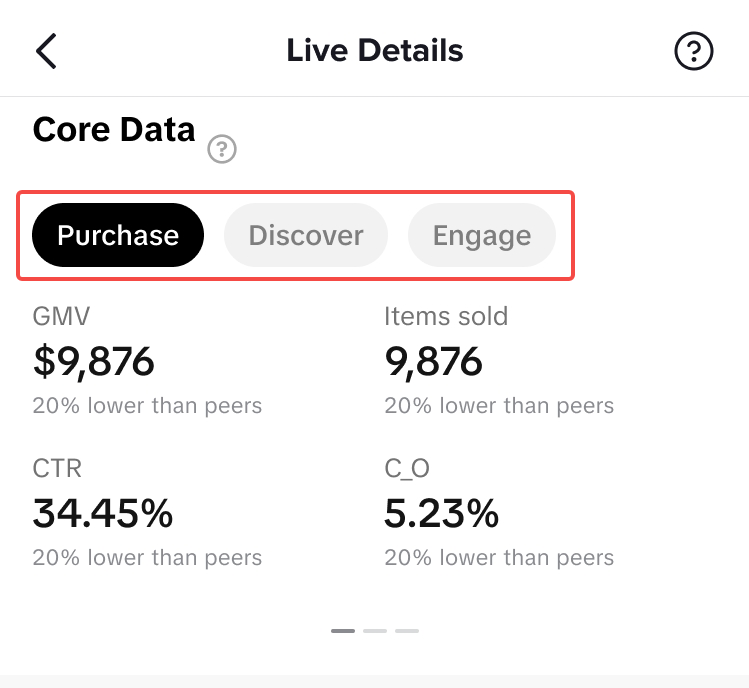
Live Details > Core Data
  • Toggle between these 3 groups to view different performance metrics:
    • Purchase: Direct GMV, Attributed GMV, Main Orders, SKU Orders, C_O, Buyers, Items Sold, CTR, Avg. Price (Main Orders), New Buyers, Show GPM, Watch GPM
    • Discover: LIVE Impressions, Views, Viewers, Average Viewing Duration, Average Concurrent Viewers
    • Engage: Comments, Comment Rate, New followers, Follow Rate, Likes, Like Rate, Shares, Share Rate.
  • Note: The performance metrics shown may vary depending on the time period selected.
image
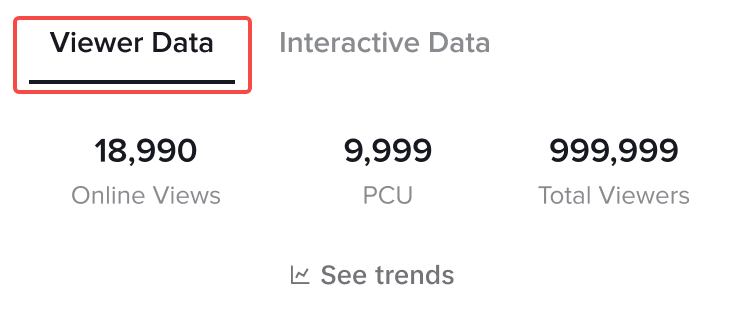
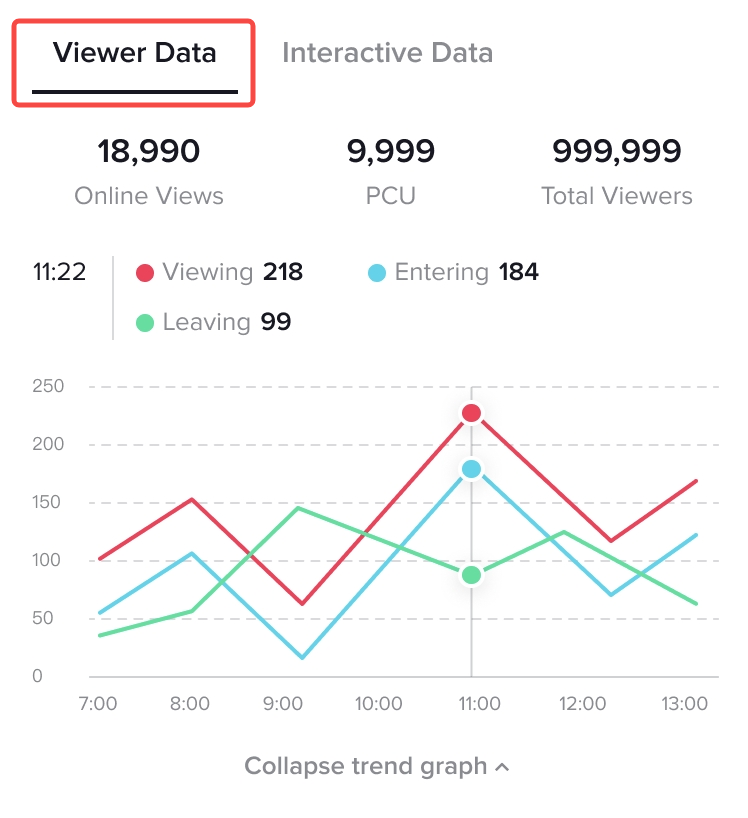
Live Details > Viewer Data
  • Viewer Data highlights 3 key metrics that summarises your audience behaviour during your LIVE:
    • Viewing
    • Entering
    • Leaving
  • Click on See trends to display the trendchart for an easier visual analysis of your audience fluctuations in entering and exiting your livestream.
image
image
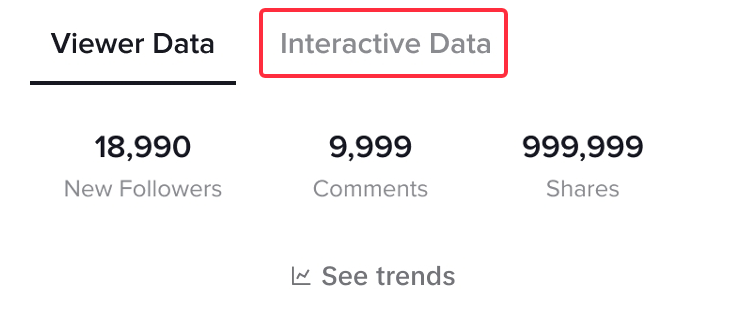
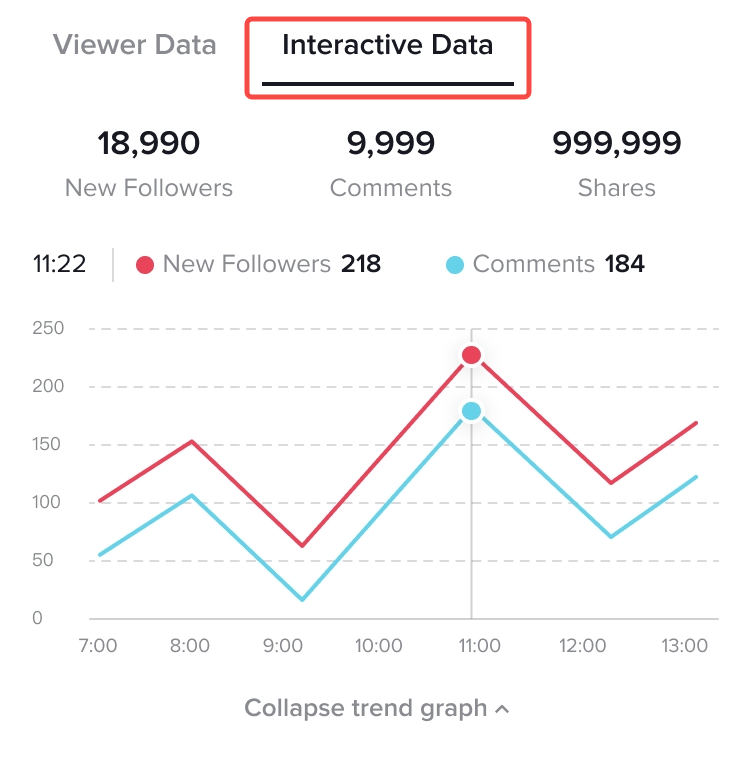
Live Details > Interactive Data
  • Interactive Data highlights 3 key metrics that summarises your engagement during the livestream:
    • New Followers
    • Comments
  • Click on See trends to display the trendchart for an easier visual analysis of fluctuations in new followers and comments during the livestream.
image
image
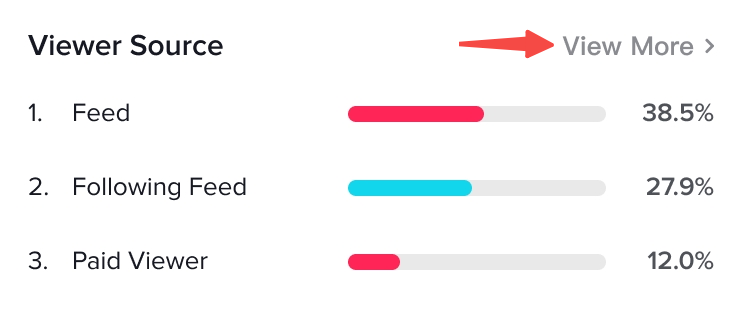
Live Details > Viewer Source
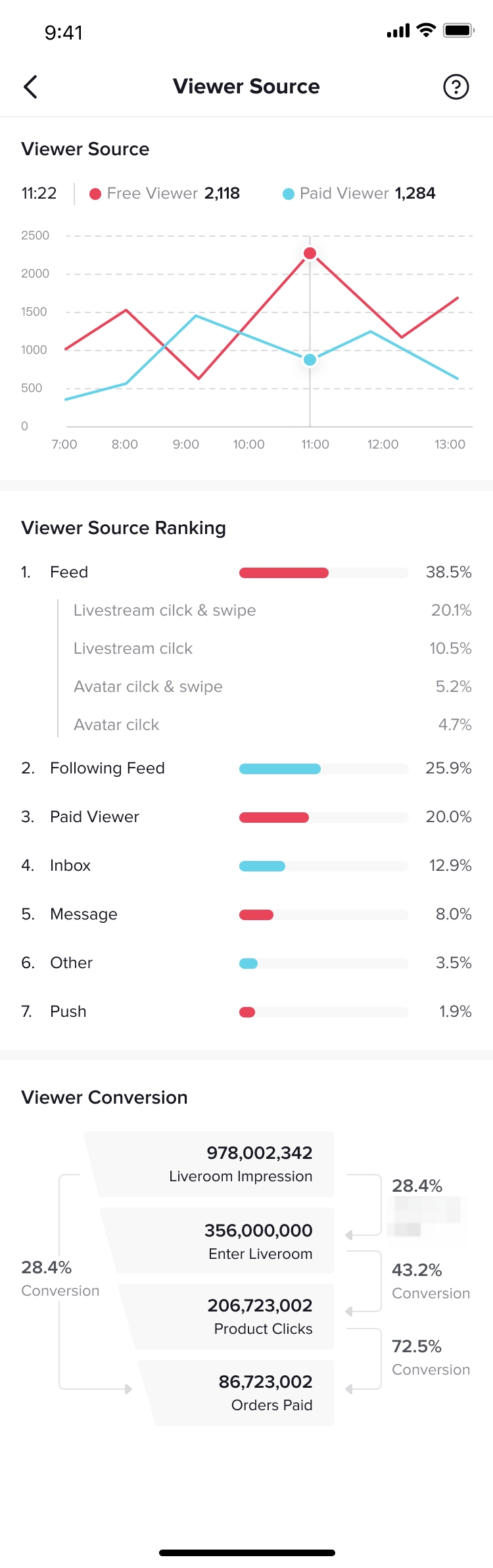
  • Viewer Source quickly shows you what are the Top 3 sources of where your viewers originate from.
  • Click on View More to open the full Viewer Source page where you can get:
    • A trendchart that displays fluctuations in Paid Viewer vs Free Viewer entering or existing your livestream.
    • A full list of your Viewer Sources, ranked from highest to lowest
A Viewer Conversion funnel, enabling you to understand the various conversion rates from when your audience enters your livestream -> click on a product -> create a paid order.
image
image
Viewer Source full page
Live Details > Viewer Profile
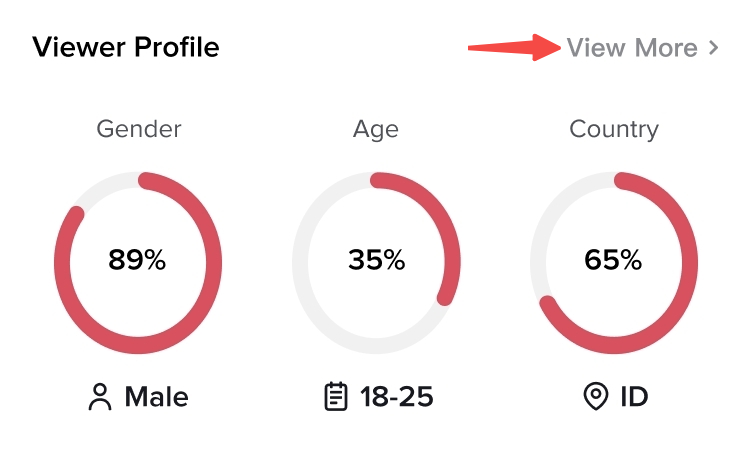
  • Viewer Profile allows you to quickly understand your audience demographic, such as Gender, Age and Country.
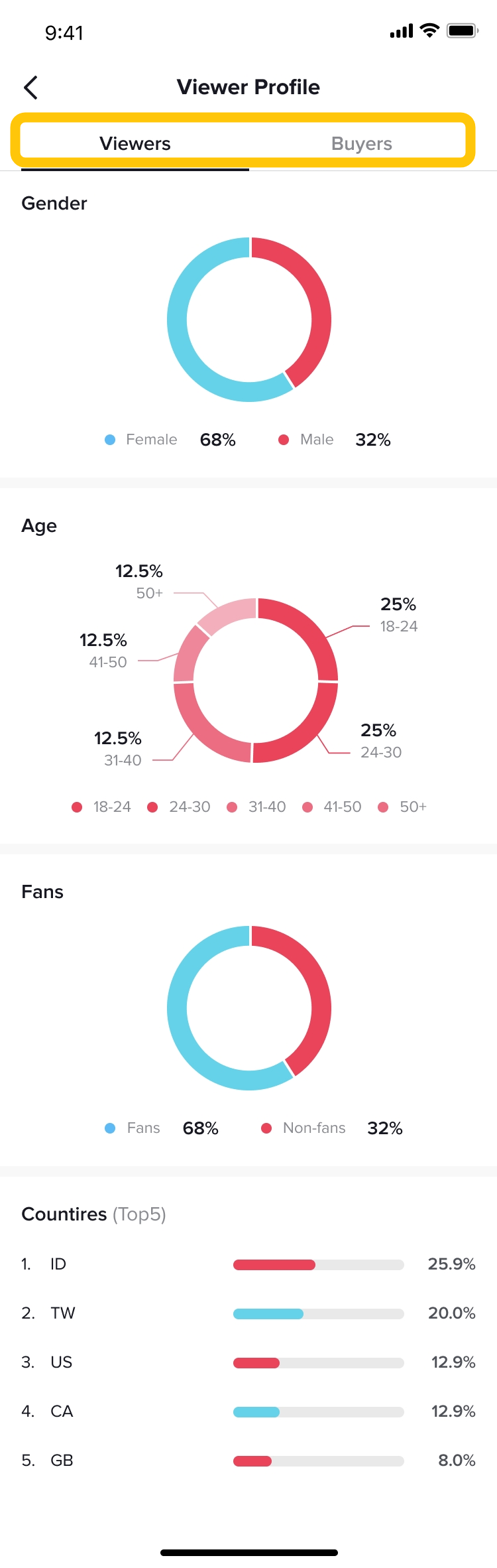
  • At the top, you can toggle the profile by Viewers or Buyers.
  • Click on View More to open the full Viewer Profile page where you can see a breakdown of:
    • Gender: % Male vs % Female
    • Age: % in different age categories
    • Fans: % Fans vs % Non Fans
    • Countries: Top 5 countries where your audience originates from and the respective percentages.
This will help you to discover the demographics of your viewers and buyers, which will help you to tailor LIVE content specifically to them.
image
image
Viewer Profile full page
Live Details > Products
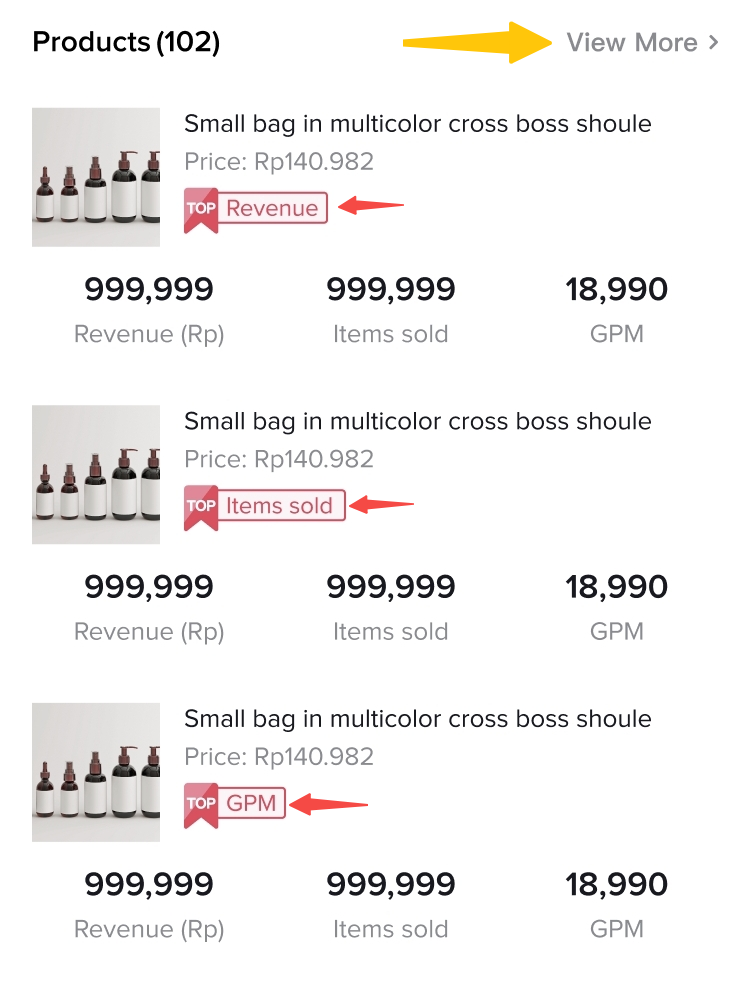
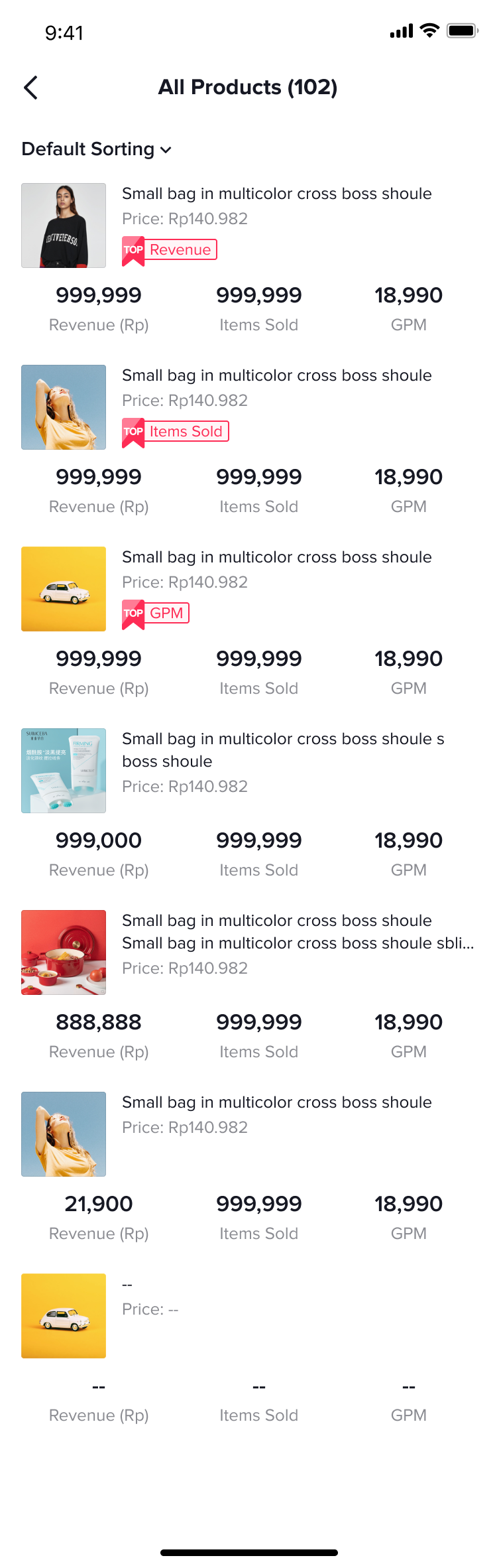
  • The Products section will showcase the Top 3 products with the highest revenue, items sold and GPM by default.
    • Each product will have a pink "TOP" label as an identifier of TOP Revenue, TOP Items Sold and TOP GPM.
  • Click on View More to open the full Products page where you can view the full list of products featured during the livestream.
    • Here, you can choose to sort by:
      • Revenue
      • Items Sold
      • GPM
    • If you select the Default Sorting option, this will automatically display the top 3 products with the highest revenue, items sold and GPM pinned to the top, followed by all other products.
The Products list will help you to understand which products you should put effort into and therefore can help you generate commission.
image
image
Products full page
image

FAQs

  1. What is the difference between Direct GMV and Attributed GMV?
Direct GMV
Attributed GMV
The total amount paid for orders placed directly from the LIVE, including returns and refunds.The total amount paid for orders attributed to affiliate content, including returns and refunds.
Direct GMV is an indicator of how effective a livestream is in directly driving conversions and sales, and therefore is a more accurate reference when conducting live analysis and diagnosis compared to Attributed GMV. Attributed GMV allows you to track the GMV performance of the product you promoted due to your affiliate content. This is what is used to calculate your commission.