

LIVE Giveaway
02/10/2026

Eligibility Criteria
The eligibility criteria below is applicable to Affiliate Creators and sellers with bound official or marketing accounts who are setting up LIVE Giveaway via TikTok App or LIVE Manager PC.ELIGIBILITY CRITERIA | ||
| Eligibility Criteria | Your Own Choice Giveaway Prize | From Item List Giveaway Prize |
| Creator with PQP Scores |
|
|
| Creator without PQP Scores |
| |
| Verification Frequency | Daily | |
Do's and Don'ts of LIVE Giveaway
To ensure a smooth LIVE session and experience for both you and your viewers, here are some tips on LIVE Giveaway best practices and what to avoid. Remember, it is important to adhere to TikTok Shop's guidelines to avoid potential violation risks:- TikTok Shop Gambling, Gifting and Surprise-based Products Guidelines
- Prohibited and Unsupported Products
- Branded Products Listing Guidelines

Before LIVE
Setting Up LIVE Giveaway
Creators can set up a LIVE Giveaway in 2 ways:i) Before going LIVE: Pre-configure the LIVE Giveaway and select the giveaway event to publish it instantly during LIVE.
ii) During ongoing LIVE: Create a new LIVE Giveaway and publish it instantly during LIVE.
Learn Key LIVE Giveaway Strategies*
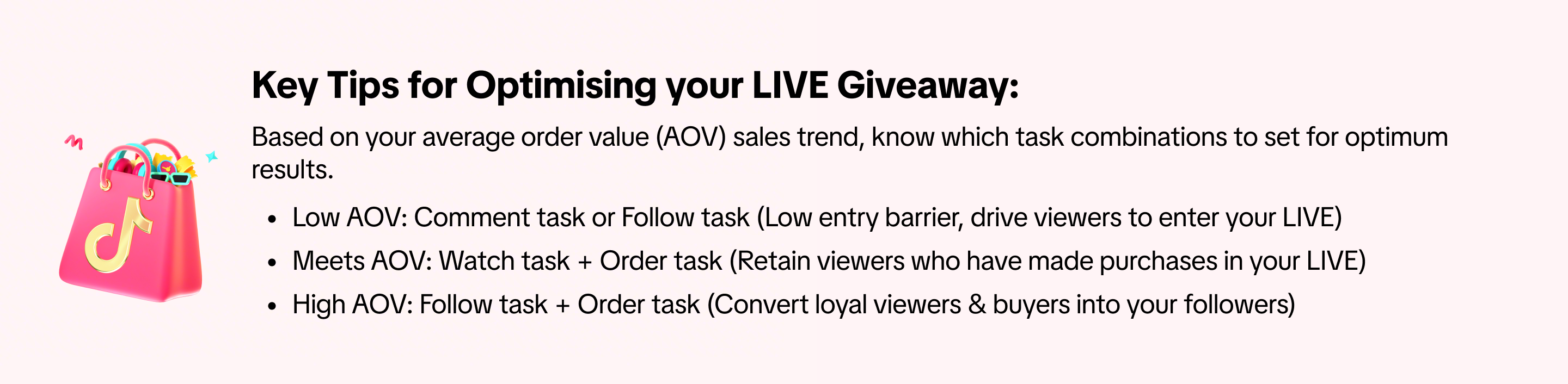
Unsure when is a good time or the right time to publish a new LIVE Giveaway? Run LIVE Giveaways at different intervals of your livestream, adjusting accordingly with different strategies.Launch Timing & Task Types | ||
At the start of the livestream | Launch within the first 10 minutes of starting your livestream to drive excitement and quickly attract audiences into your LIVE. | Watch + Comment task |
At low viewership | Launch giveaway when viewership is lower than average, to retain viewers and increase average watching time | |
Before promoting top product | Launch giveaway to increase average watch time, then promote top product & drive sales through comments and boost user conversion. | |
Scheduled timing | Pre-announce mid/high-value giveaways at fixed times (e.g., 10:00am, 11:30am) and emphasize before countdown starts. | Follow or watch task |
Giveaway Commentary | ||
Before Giveaway Starts | Announce upcoming giveaway launch and giveaway prizes, educate viewers on how to join by commenting or following upon launch of giveaway. | “We’re starting a LIVE Giveaway in a few minutes!" |
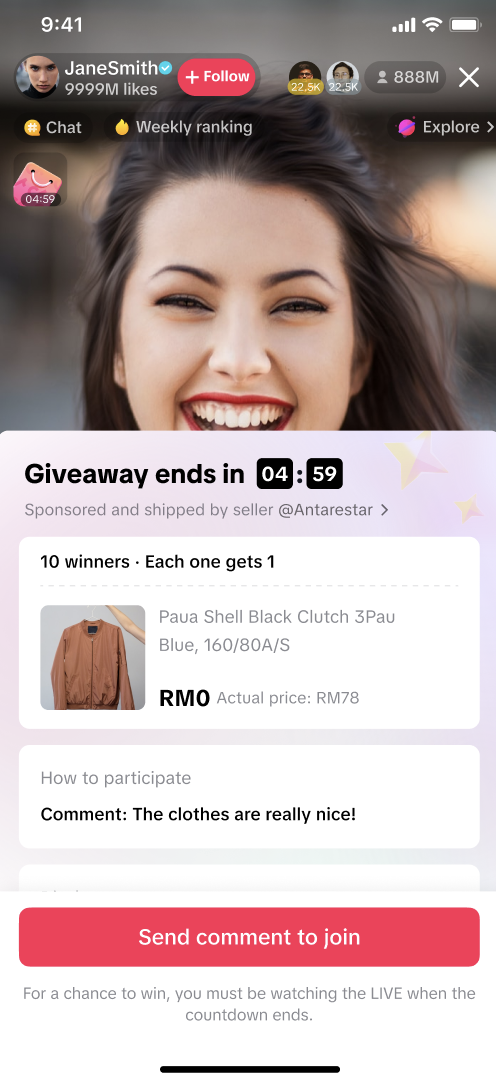
Upon Giveaway Launch | Remind viewers repeatedly to join the giveaway by “clicking on the pink bag in the top left corner" and create a sense of urgency through counting down to guide them to click on the giveaway. | “5 minutes left! Win a La Mer travel set - just click the top left corner pink bag to join!” |
| Display or showcase the actual giveaway product and verbally highlight it as a giveaway prize, so the viewers can see the actual products and are more attracted to join the giveaway. | “Join the giveaway for a chance to win this prize - a travel set worth $100, small & easy to carry around!” | |
After Giveaway Ends | Thank viewers for joining the giveaway and announce the next giveaway at <time>, encourage viewers to remain in the livestream for another chance to win later. | “Congrats to the giveaway winners! Those who missed out - don’t worry, there’s another giveaway at 9pm!” |
Types of LIVE Giveaway Prizes
While setting up LIVE Giveaway, choose between various giveaway prize types before publishing the giveaway event via TikTok App or LIVE Manager (PC).Platform Voucher giveaway type is currently available to selected sellers or creators only.
| Giveaway Prize Type | Your Own Choice | From Item List | Platform Vouchers |
| Eligible Users |
| ||
| Description | Offer physical or digital prizes of your own choice. | For Sellers: Offer products from your own store. For Affiliate Creators: Offer prizes which are products sponsored by sellers you are collaborating with. | Offer platform vouchers that are sponsored by the platform. These include co-funded vouchers or general product vouchers. |
| Benefits | Sellers & affiliate creators have the option to offer any prize of their choice (physical, or digital).Affiliate creators have the flexibility to publish a giveaway at any time, without requiring prize allocation from sellers. | Sellers can leverage on their shop's stock clearance items or low value items as giveaway prizes.Affiliate creators can strengthen collaboration with sellers & host giveaway events that drive higher live room engagement and traffic, at no added costs. | Sellers & affiliate creators can host giveaway events that drive higher live room engagement and traffic, at no added costs. |
| Cost of Prize | Any cost of prizes here are borne by the affiliate creator or seller. | Any cost of prizes here are borne by the seller. | Any cost of prizes here are borne by the platform. There is no cost from sellers or creators. |
| Prize Fulfillment | Sellers & affiliate creators are required to complete the prize fulfillment to the winner. | Sellers are required to complete the prize fulfillment to the winner. | Platform will automatically distribute the prize to the winner. |
- Sellers are required to set up the Creator LIVE Giveaway first before Affiliate Creators can select available items, read more here.
- There is no criteria required from sellers or creators to fulfill in order for platform sponsored prizes to be shown within the list of LIVE Giveaways available. As long as there are available platform sponsored prizes, it will automatically be displayed for hosts to select and publish.

Setup Giveaway via TikTok App
Publishing a 'From Item List' or 'Your Own Choice' giveaway requires you to set participation tasks for viewers to complete before they are eligible to join the giveaway. Choose to set up to 2 tasks, or select the option 'No task' which enables all viewers to join.Place order during LIVE task type is currently available to selected sellers or creators only.
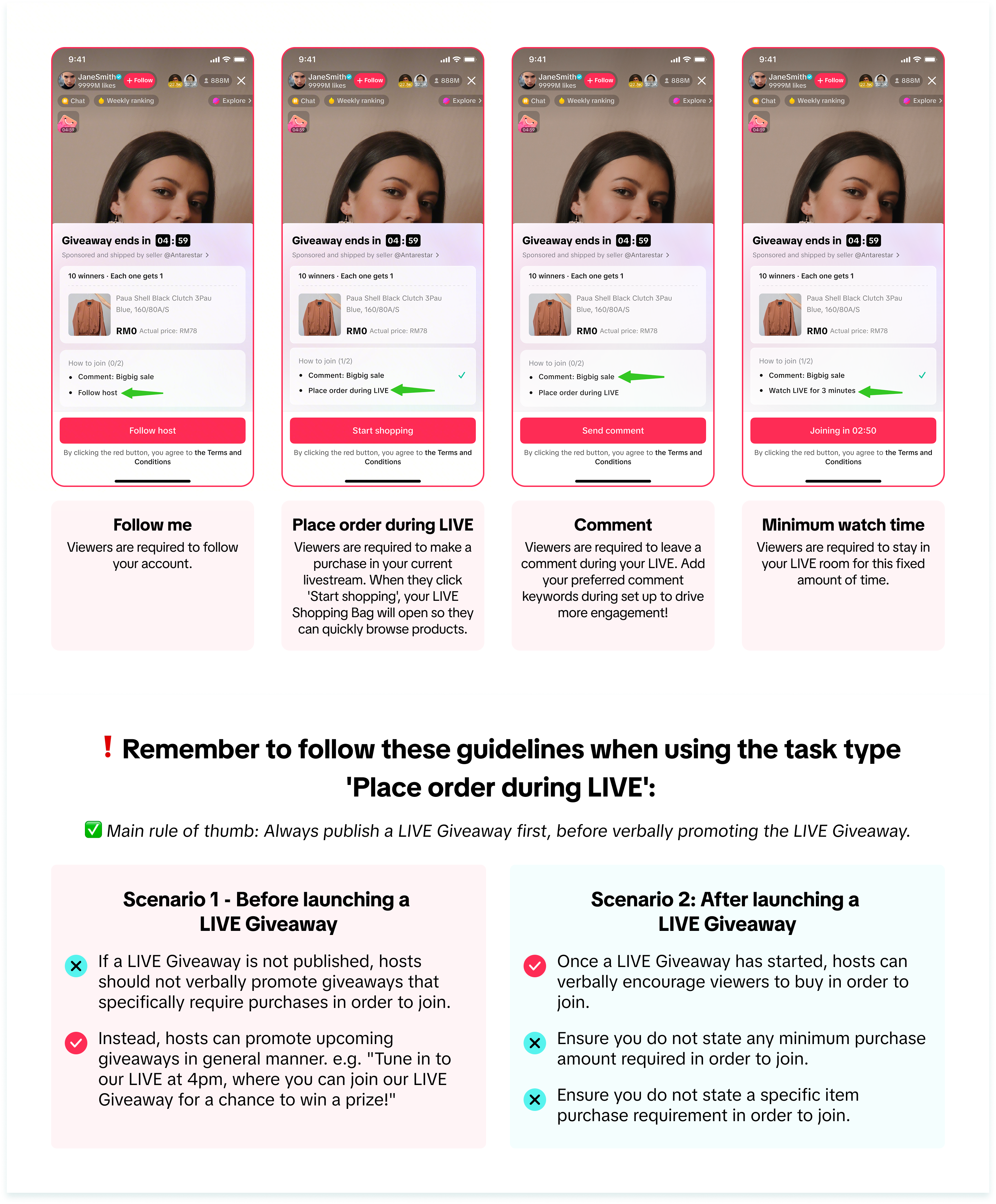
Note: All images shown below are for example purposes only and the actual interface may vary.
- From Item List
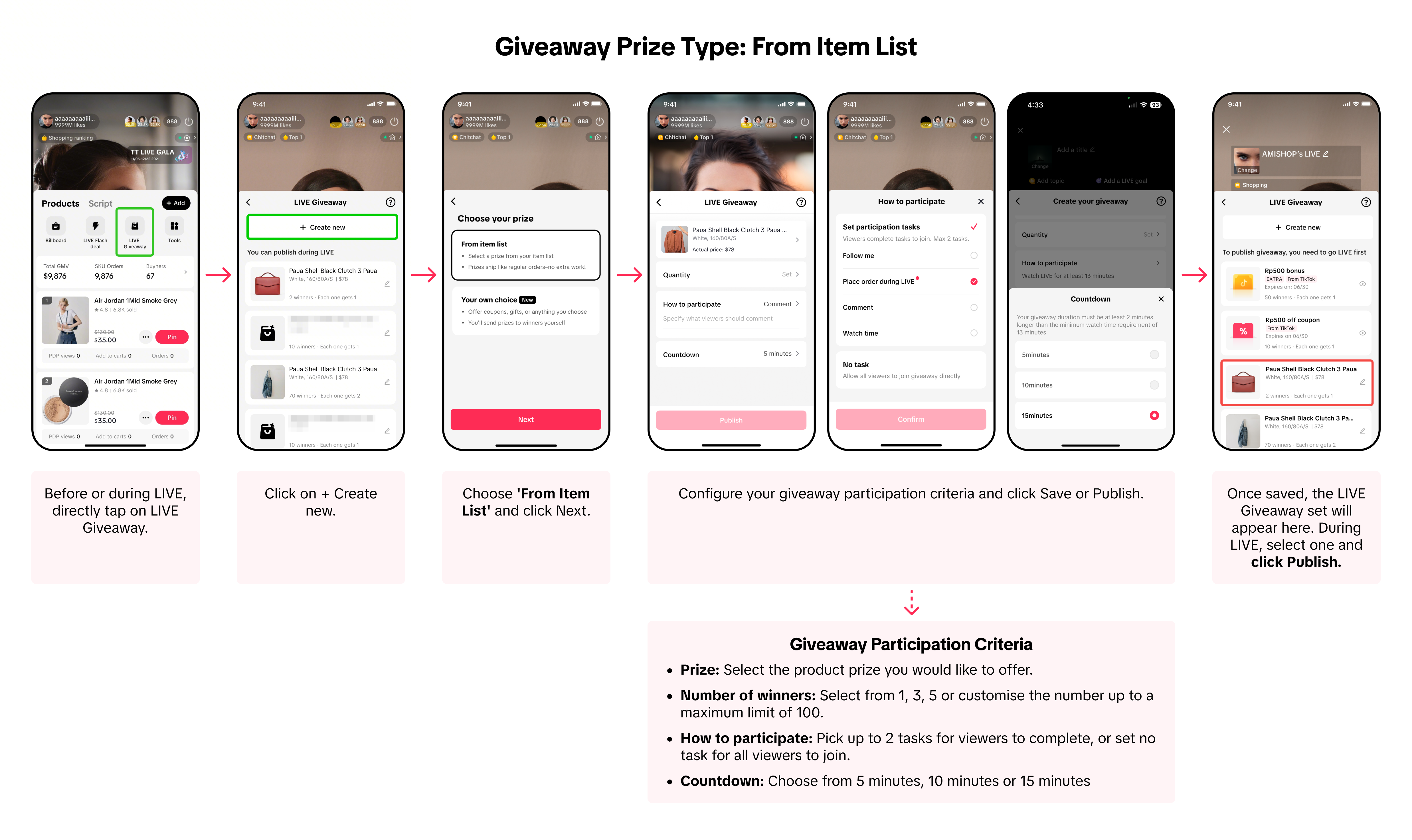
- Your Own Choice
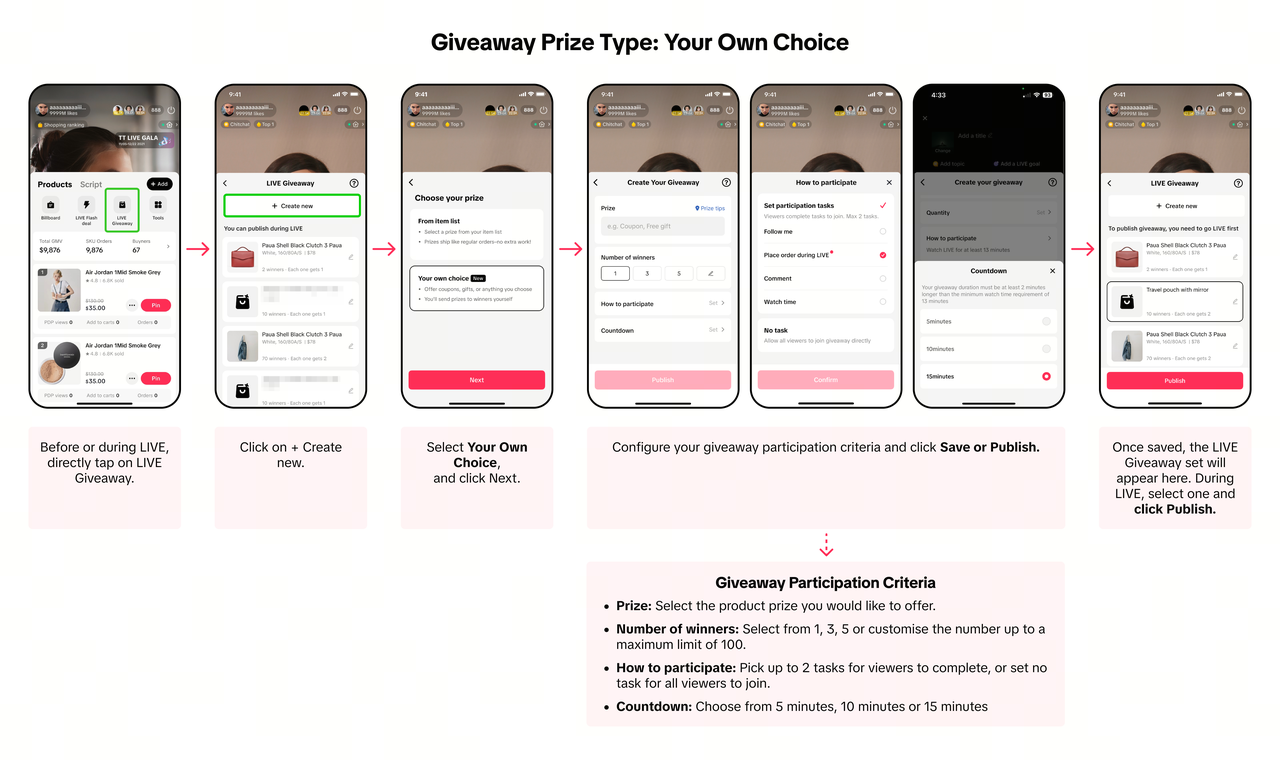
- Platform Vouchers
Set Up LIVE Giveaway via LIVE Manager (PC)
Via LIVE Manager, navigate to the LIVE Giveaway page.- Note: Steps 1-6 below are also applicable when setting up a new LIVE Giveaway via LIVE Events or LIVE Console, and can be configured before LIVE or during LIVE.
| Creating a new LIVE Giveaway | |
Via LIVE Giveaway page | Via LIVE Console page |
Select the Giveaways tab and click Create Giveaway. 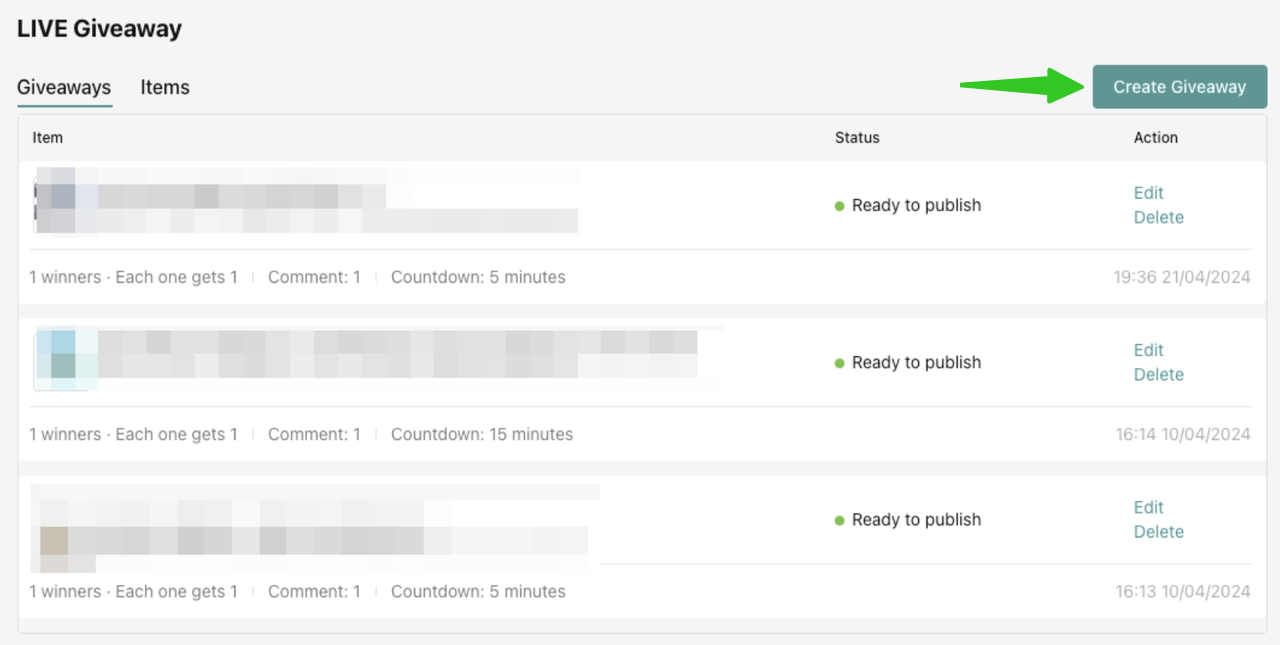 | Shift to the Giveaway tab, then click + Create giveaway. 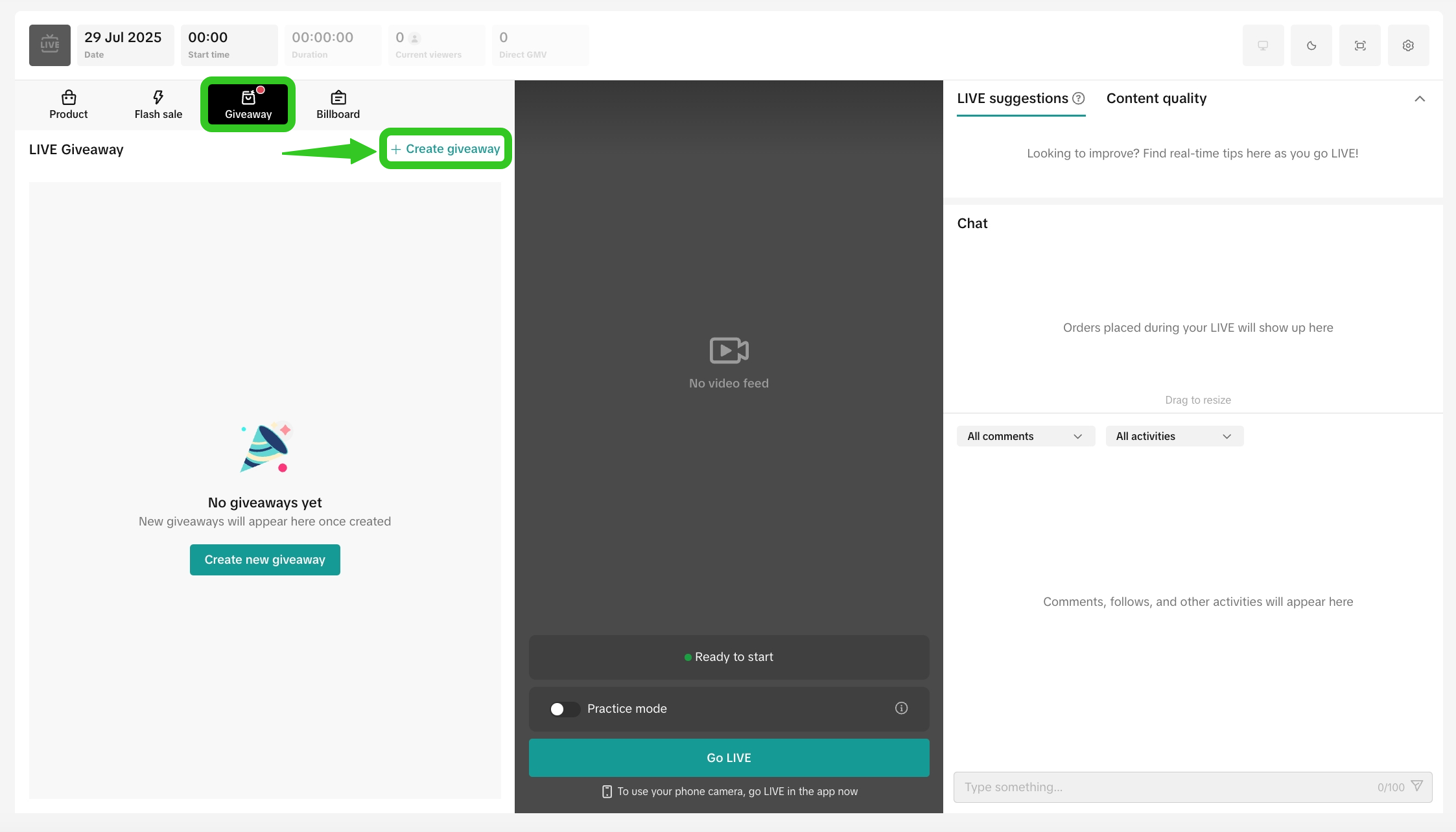 |
| Check for available platform-sponsored giveaway prizes | |
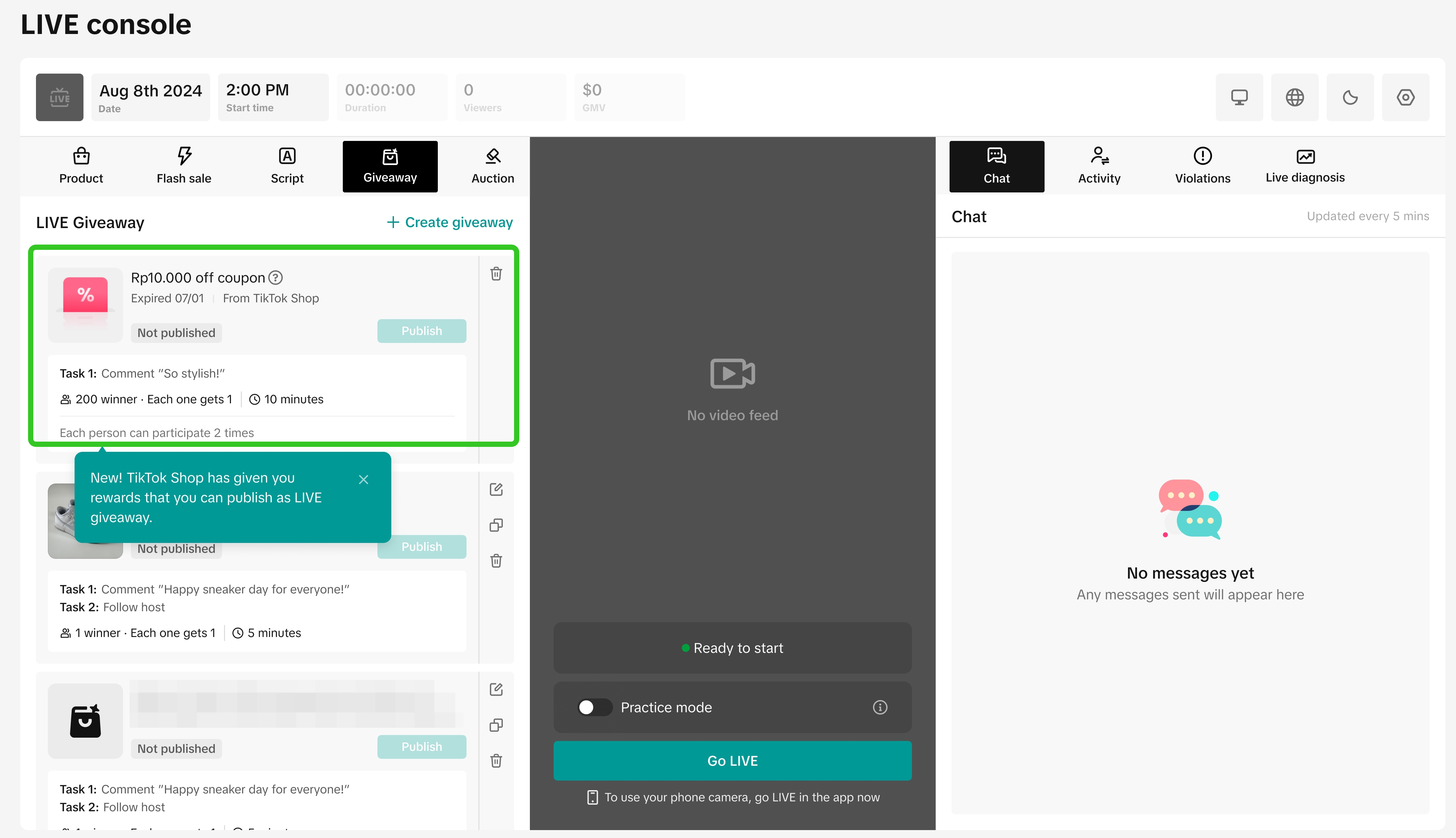 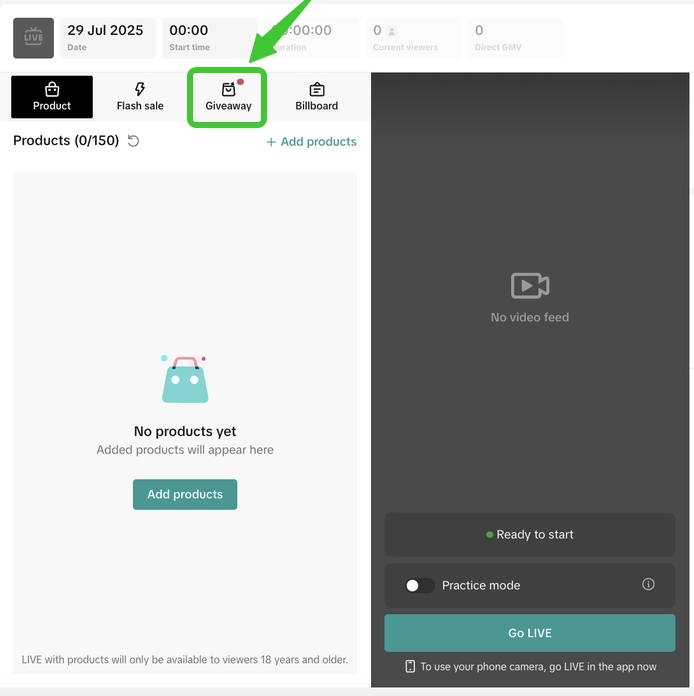 | Available platform voucher giveaways will be shown here.There is no criteria required from sellers or creators to fulfill in order for platform sponsored prizes to be shown within the list of LIVE Giveaways available. As long as there are available platform sponsored prizes, it will automatically be displayed for hosts to select and publish. If a red dot appears on the LIVE Giveaway tool, this means new platform-sponsored giveaway prizes are now available for you to publish! |
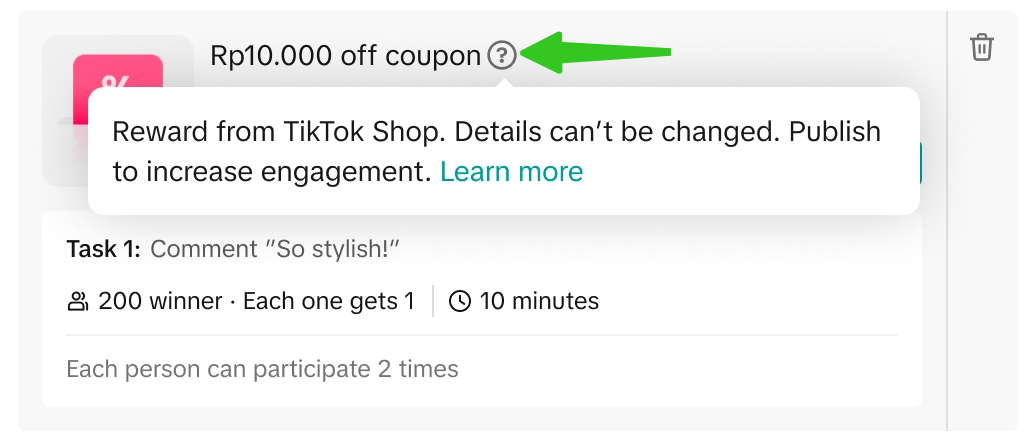 | Click on the (?) icon beside the platform voucher to learn more about this platform-sponsored prize. |
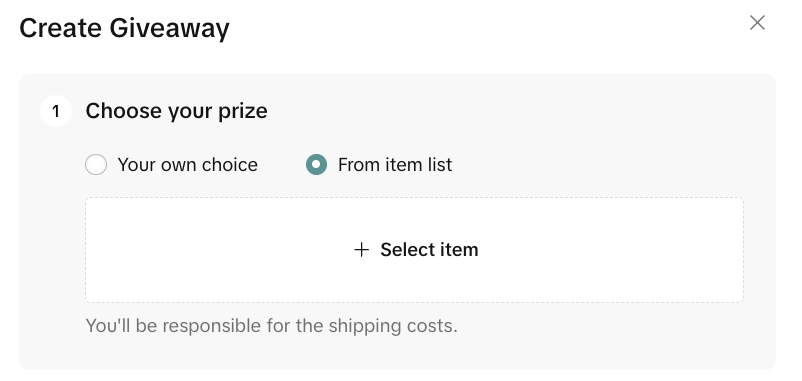
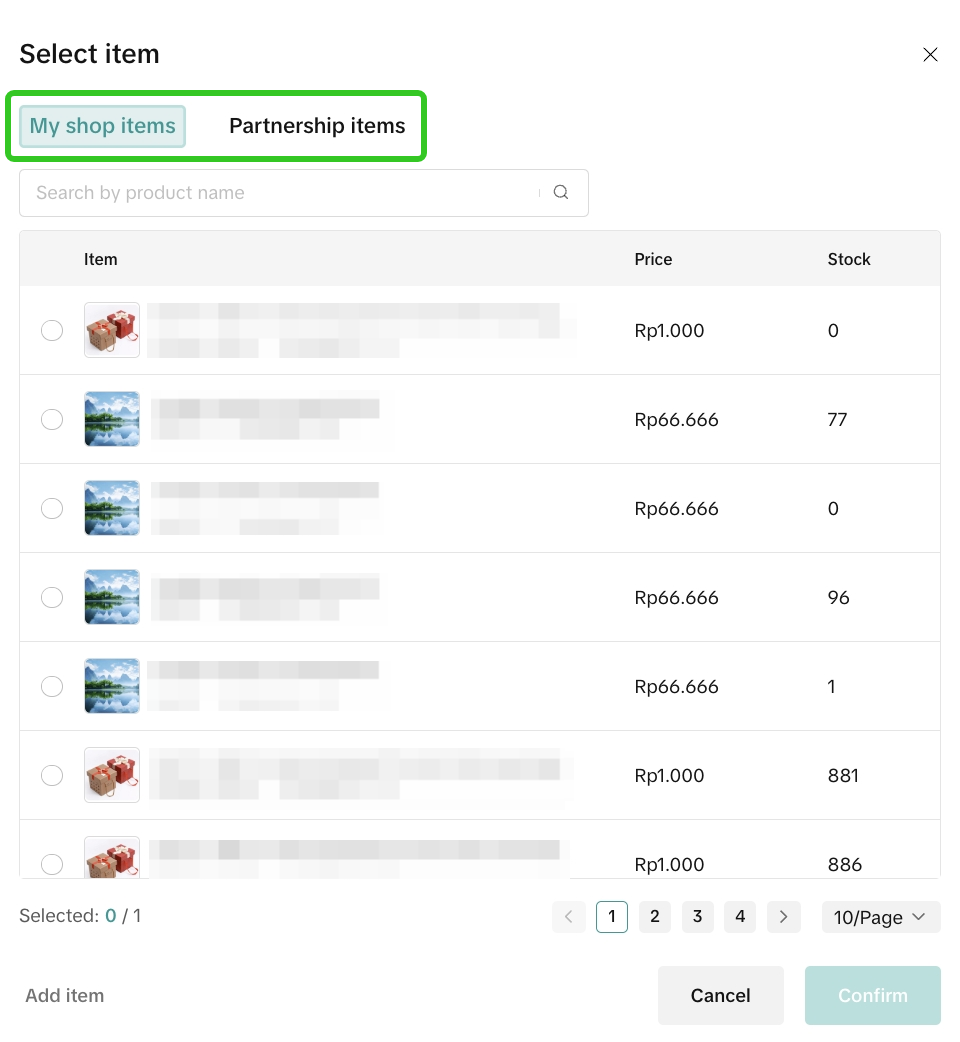
Your own choice | From item list | Platform Voucher |
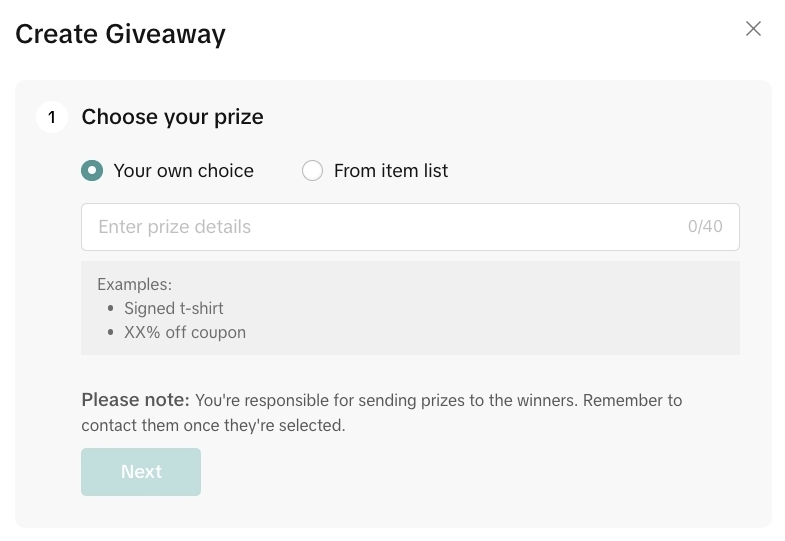 |  
| 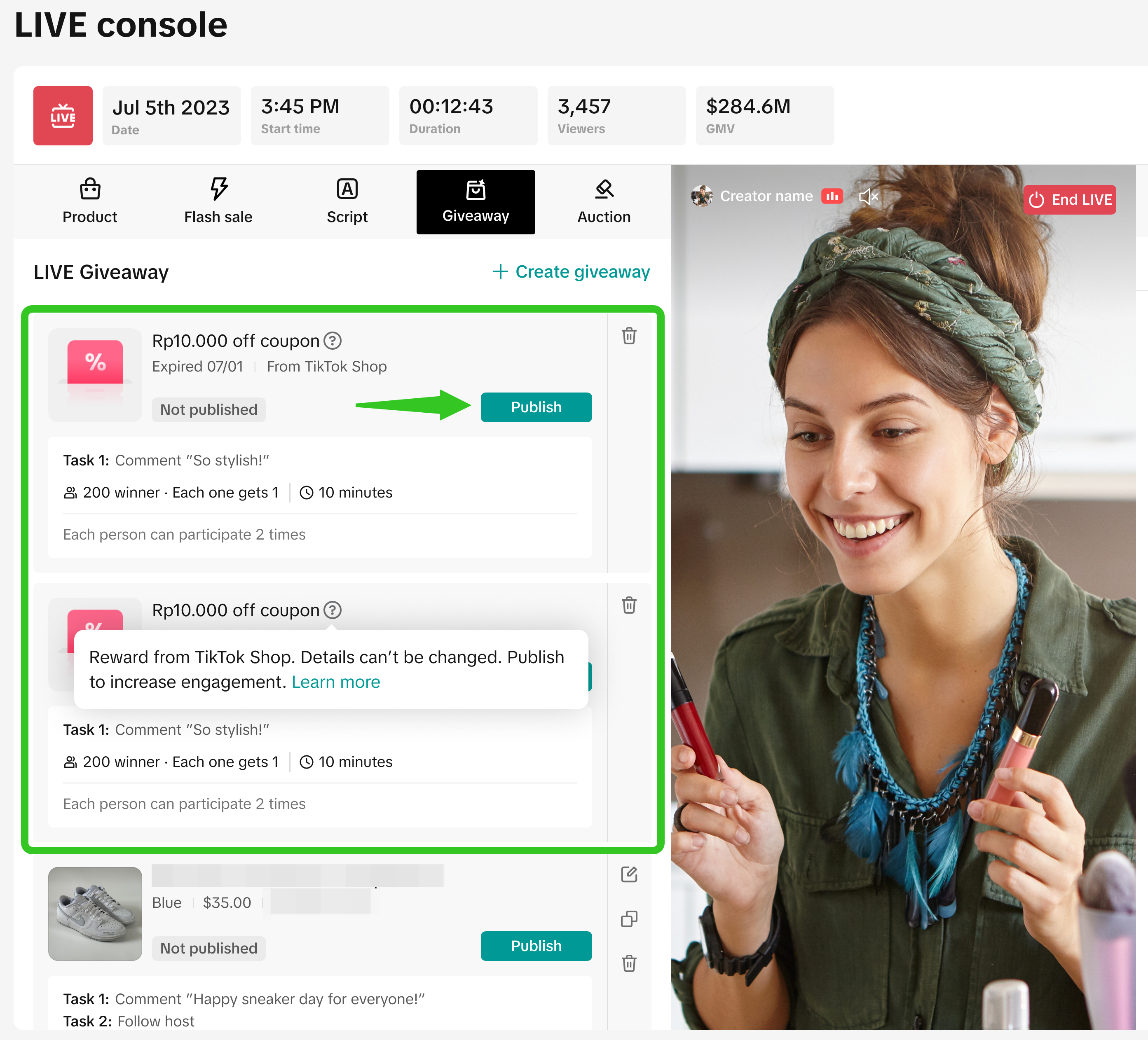 |
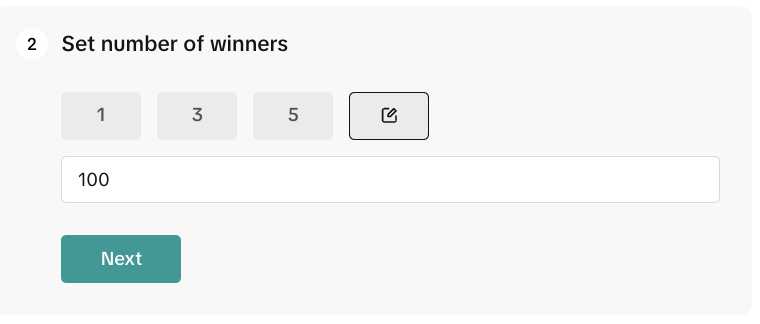
- When using a platform voucher giveaway, the number of winners and tasks required are pre-set by the platform and cannot be edited.
| Applicable to giveaway prize type: From item list or Your own choice | |
 |
|
 |
|
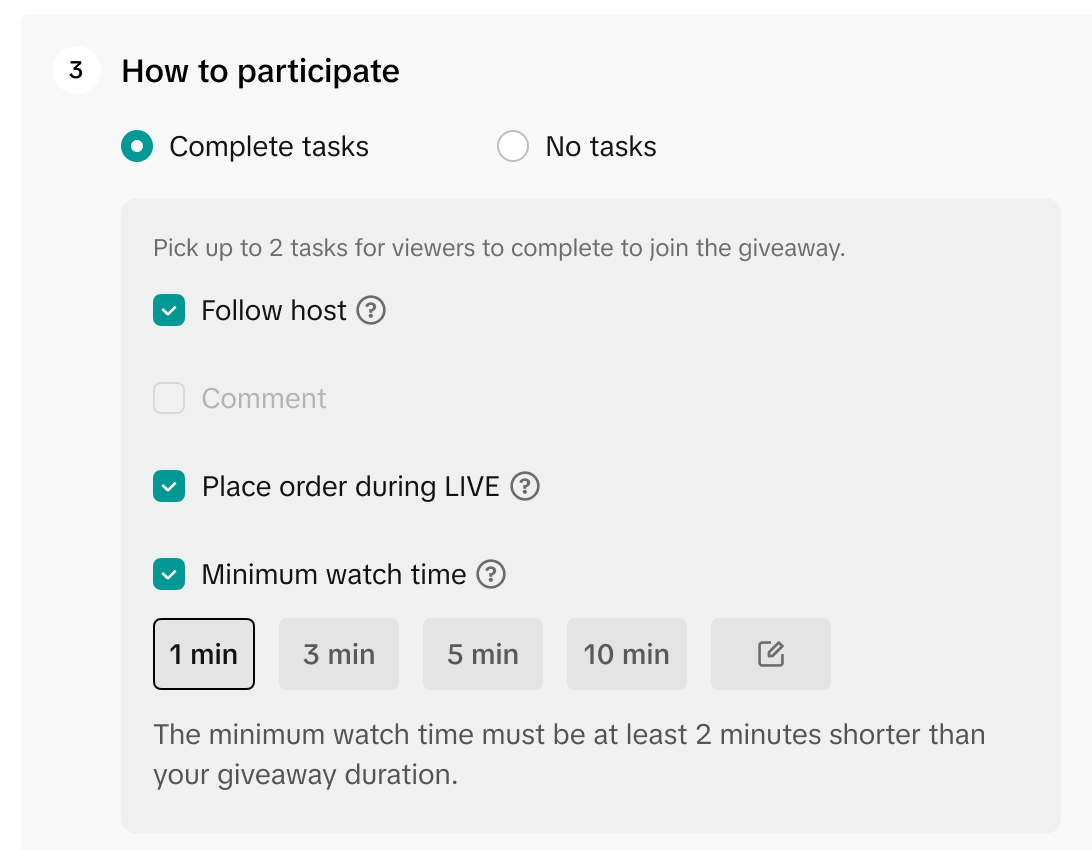 | Choose up to 2 tasks (optional, 1 task is valid as well):
|
 |
|
 |
- Important: Hosts must Go LIVE first, before a LIVE Giveaway can be published.
- Please note that you can only run 1 LIVE Giveaway Event at a time.
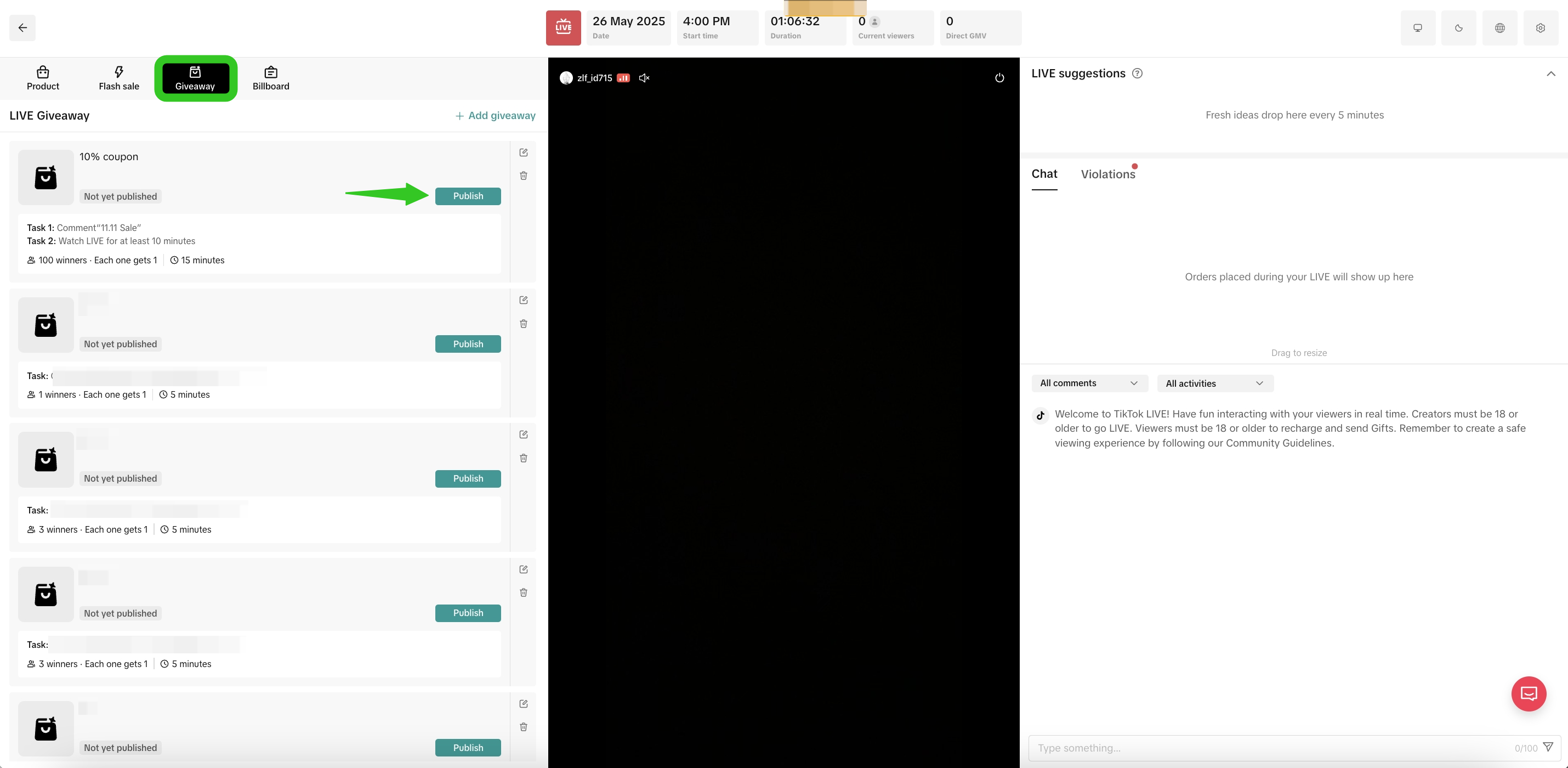 | 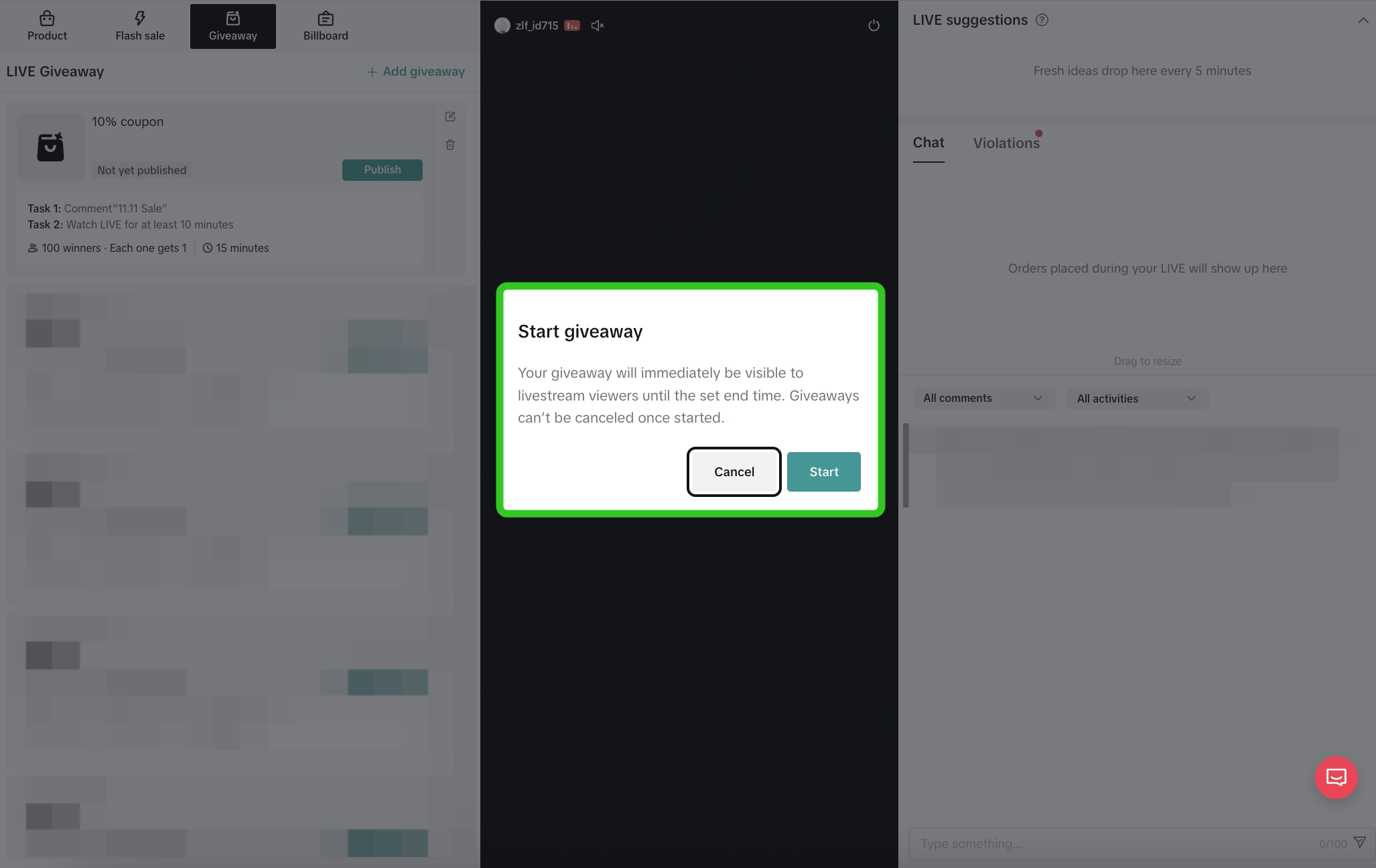 |
| Select the previously configured giveaway and click Publish. | A pop up will appear to confirm you'd like to start the giveaway now. |
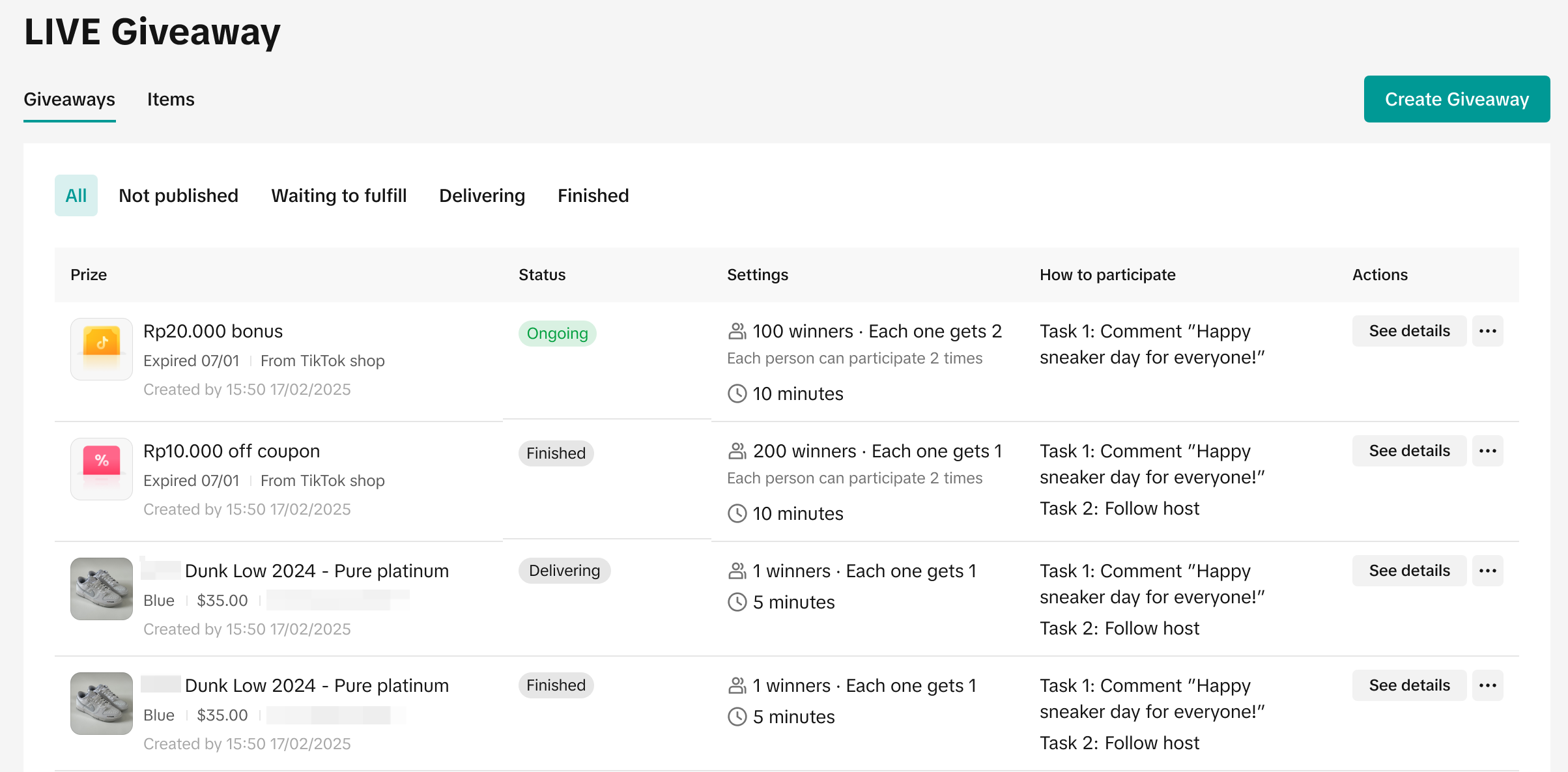
Once the giveaway has ended, you'll be able to review the winners list and key data relating to the giveaway.
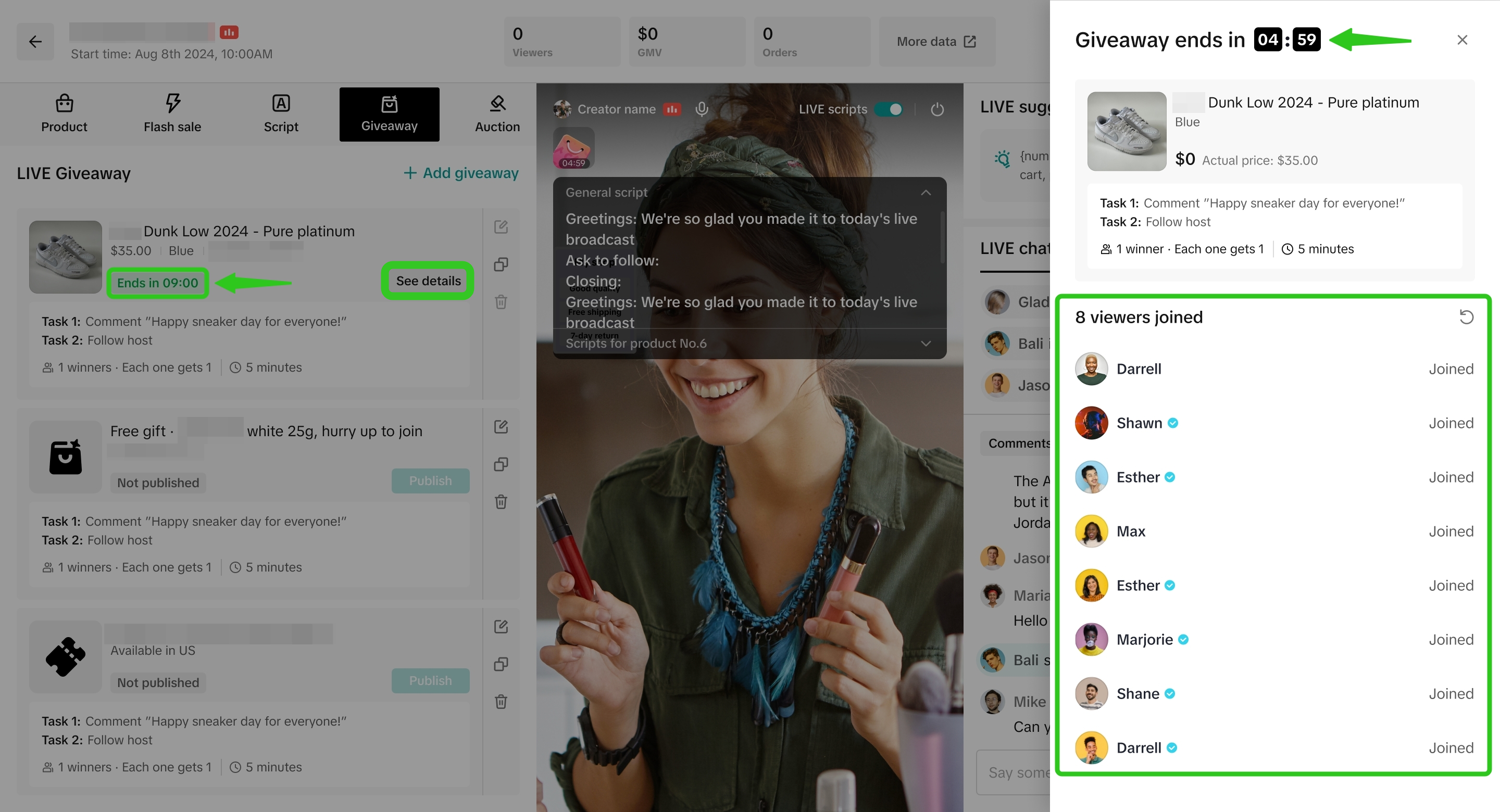 | 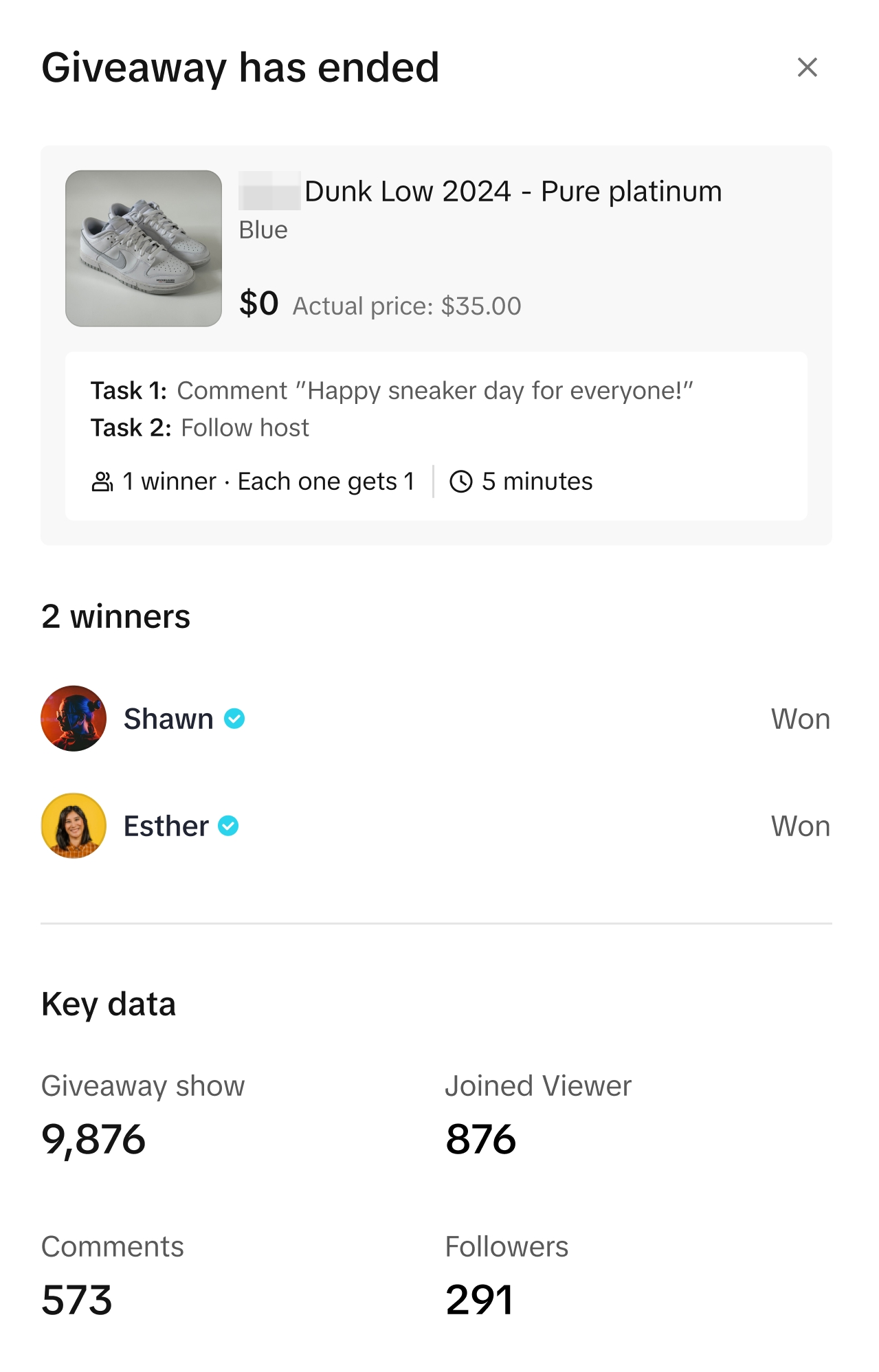 |
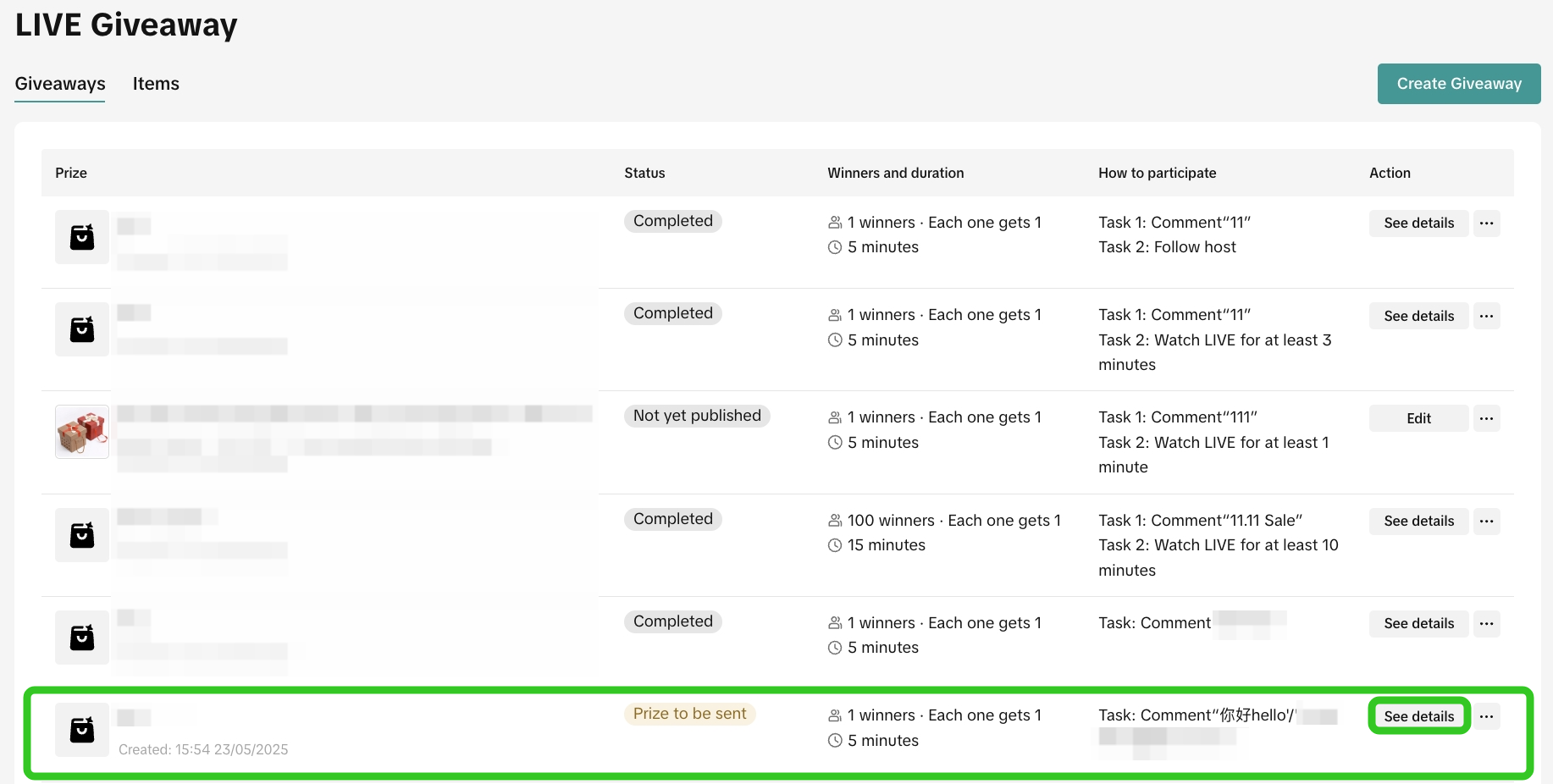 | Within the list of LIVE giveaways, the LIVE Giveaway that ended will have a status of 'Prize to be sent'. Click on see details to review the list of winners that are awaiting prize fulfilment. |
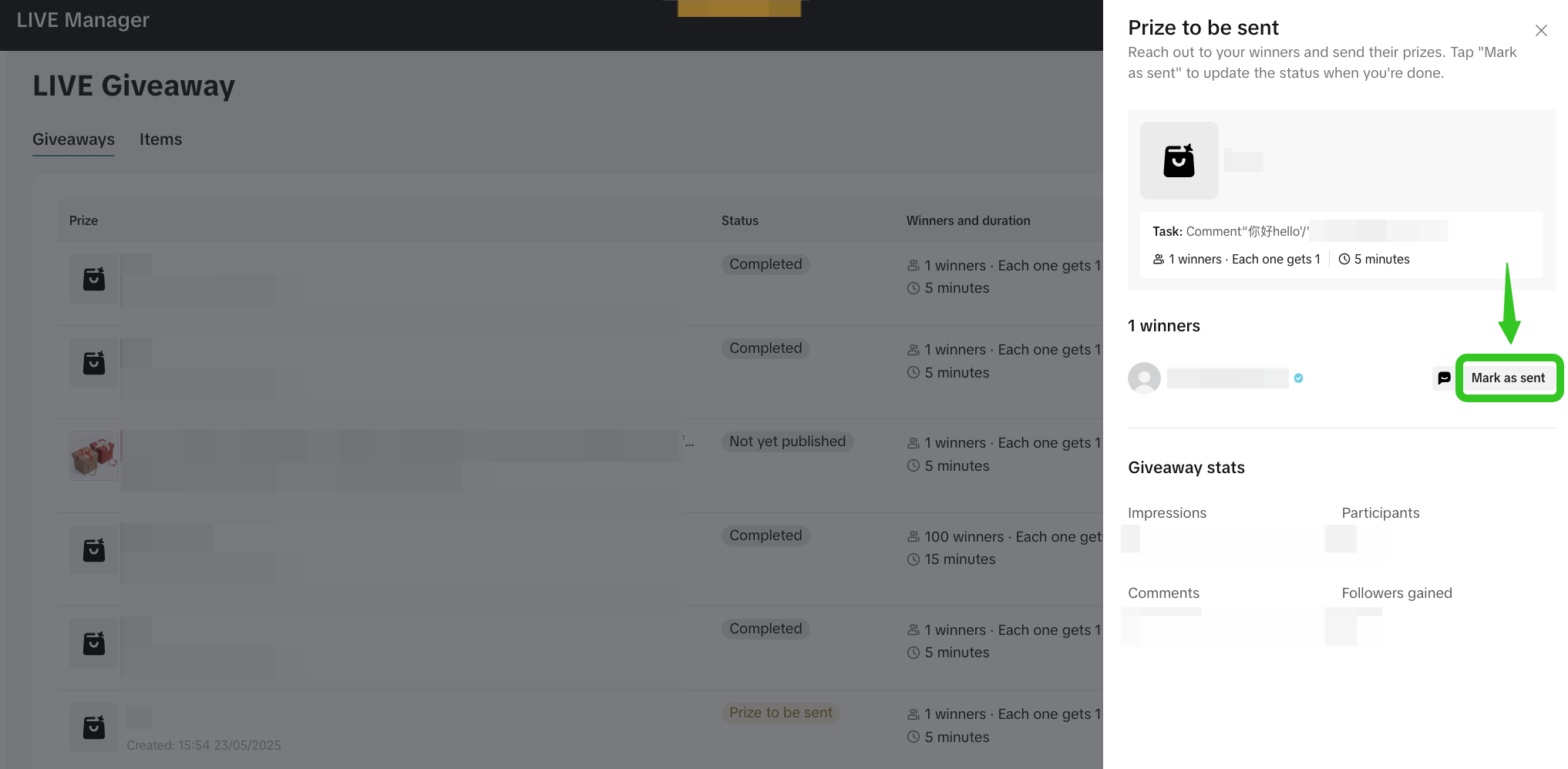 | Once you have fulfilled the prize delivery to the winners, click 'Mark as sent'. |
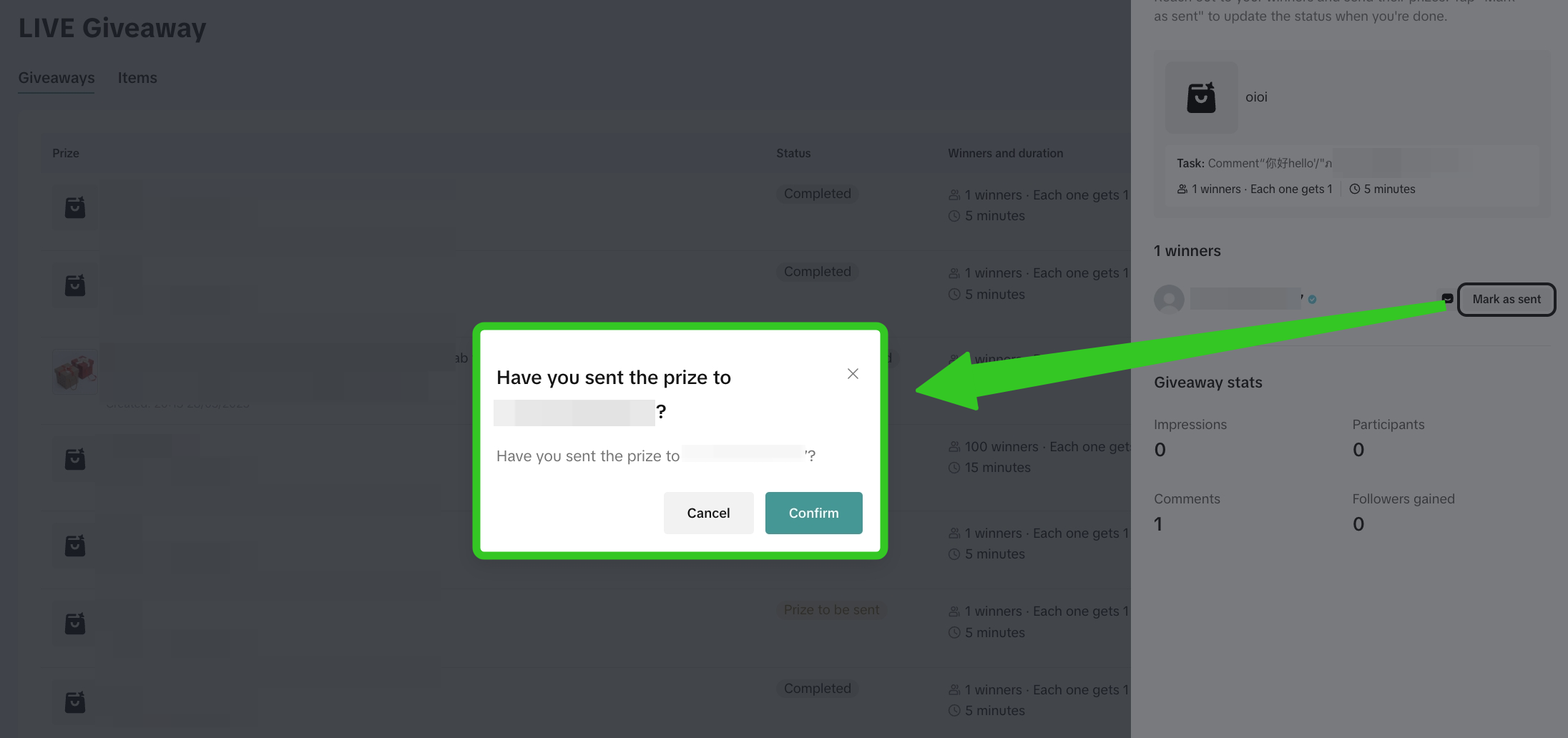 | A pop up will appear to re-affirm that prize fulfilment has been completed. Click Confirm. |
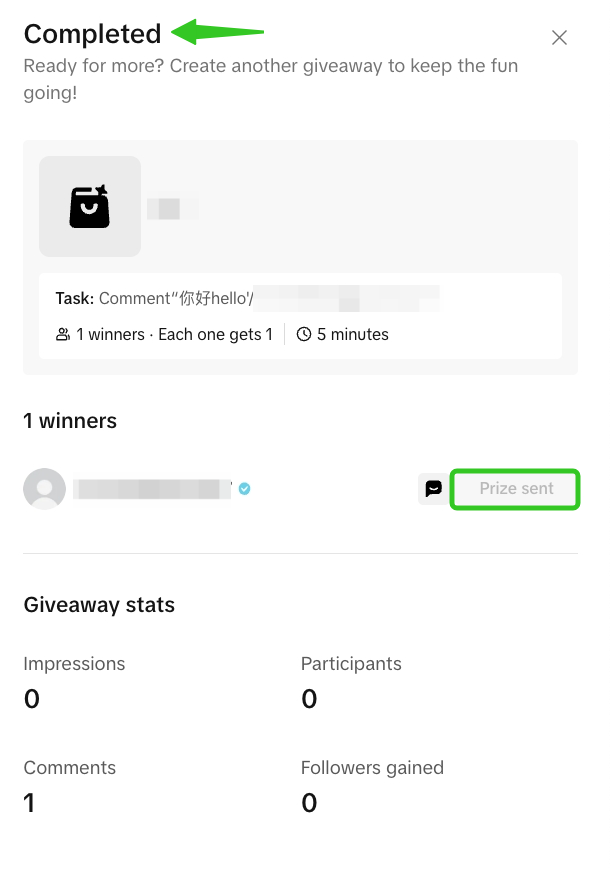 | The status of the giveaway will change to 'Completed' and prizes will be marked as 'Prize sent'. |
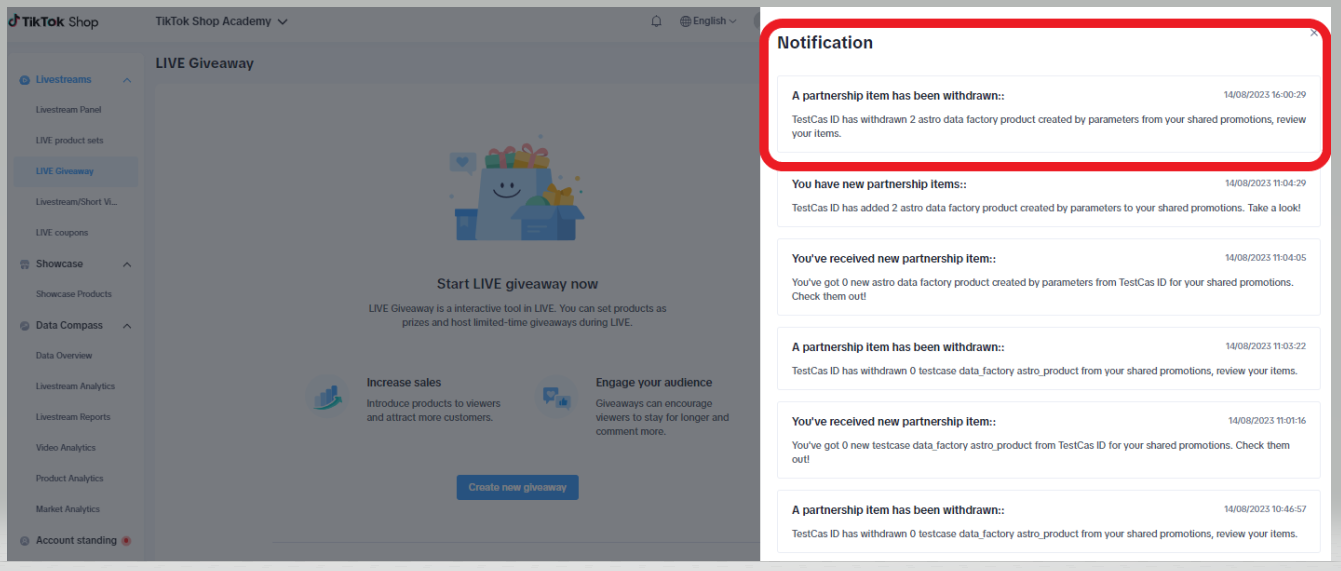
During LIVE
Checking Your Published Giveaway
Step 1 | Step 2 | ||
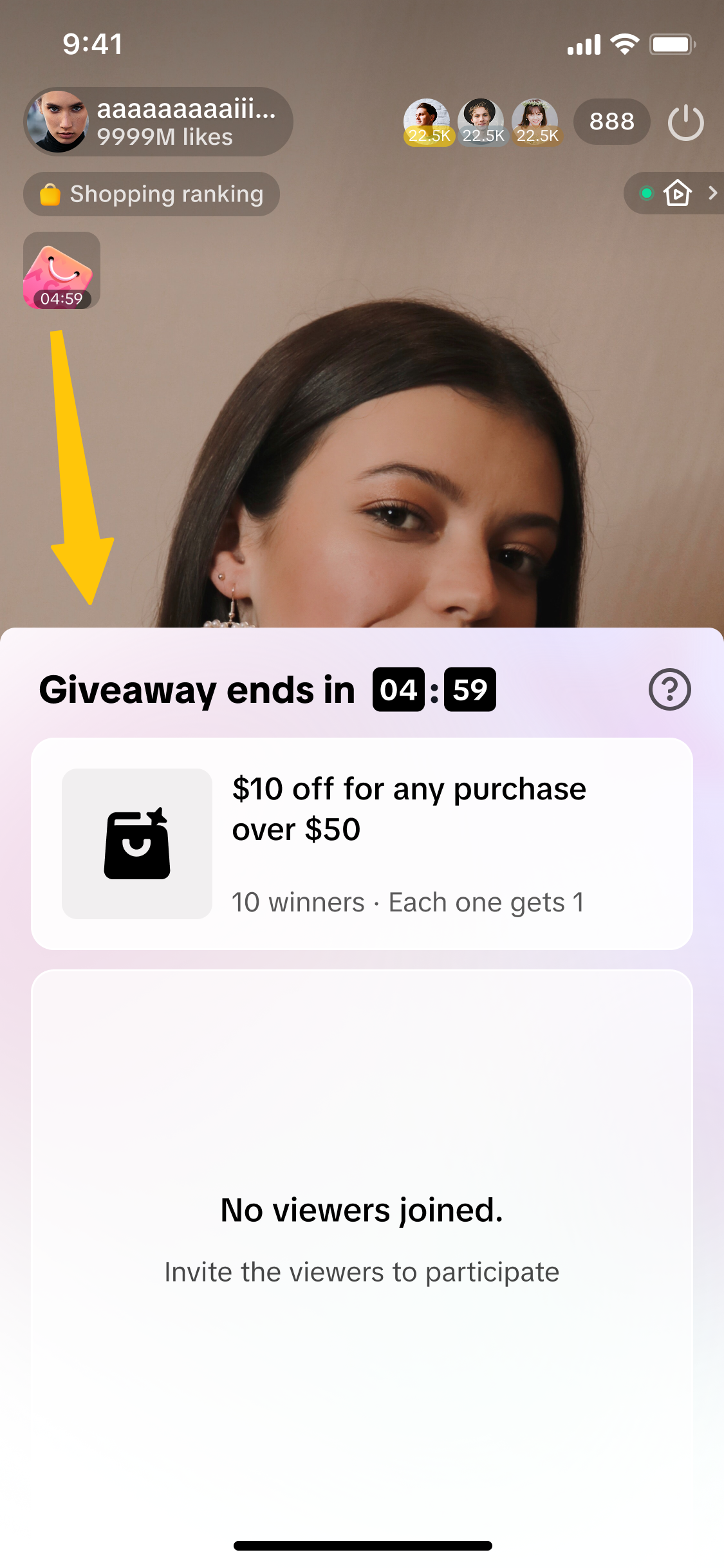 | 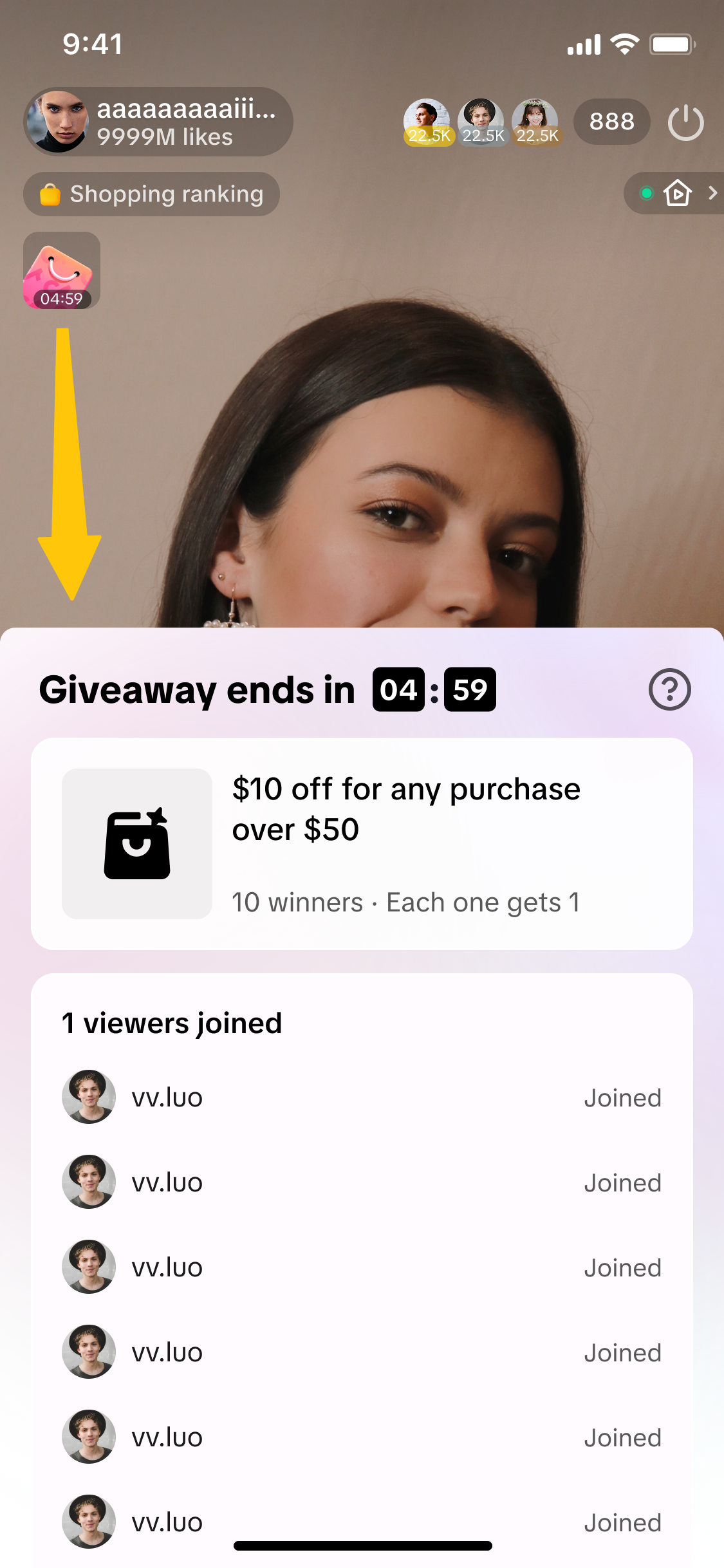 | 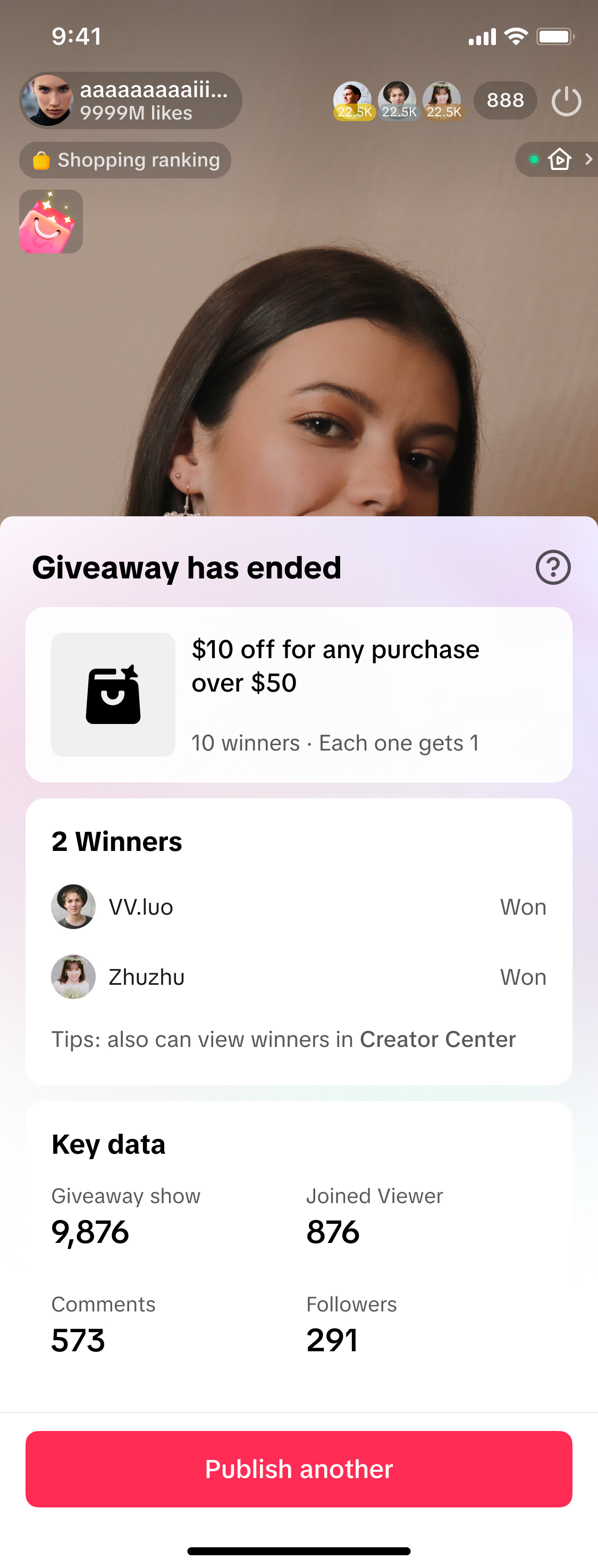 | 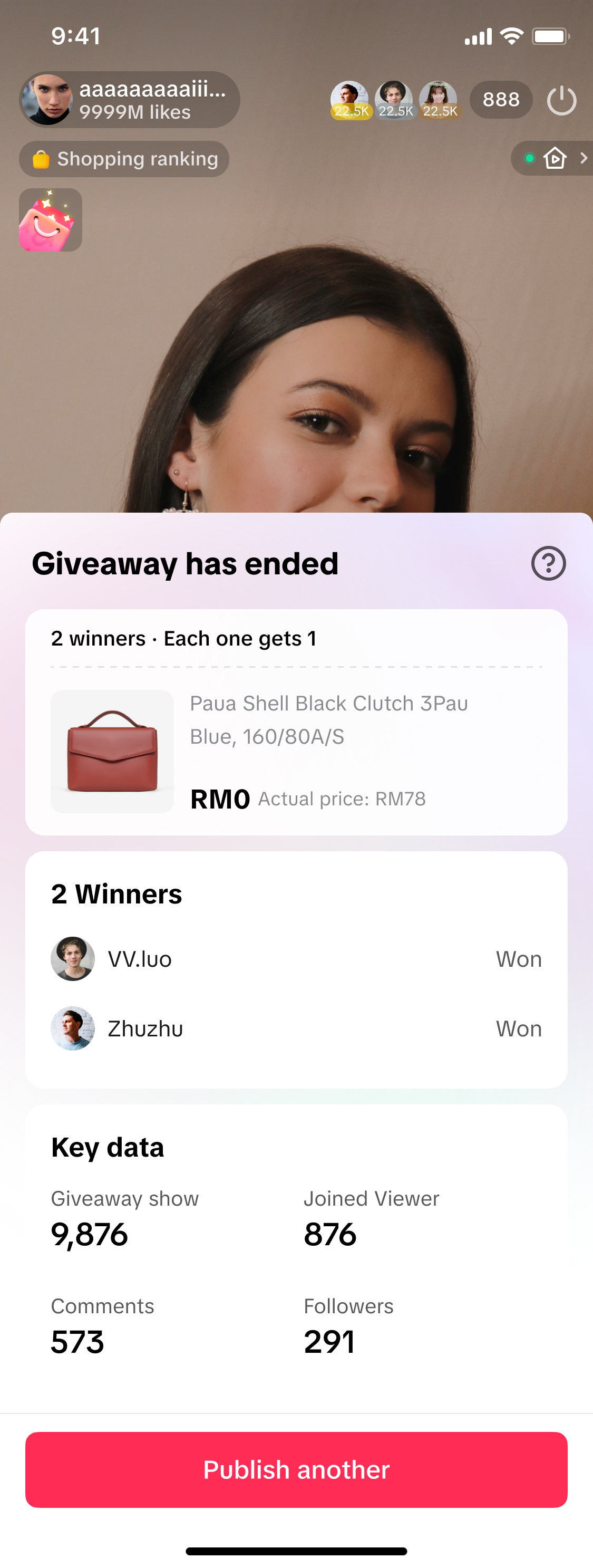 |
Click on the pink shopping bag in the top left corner to open the giveaway event details. Here you can check how many viewers have joined your giveaway. | Once the giveaway has ended, view a summary that includes the list of winners and giveaway performance data such as viewers, comments and followers. | ||

Viewer Participation in LIVE Giveaway
| Step 1 | Step 2 |
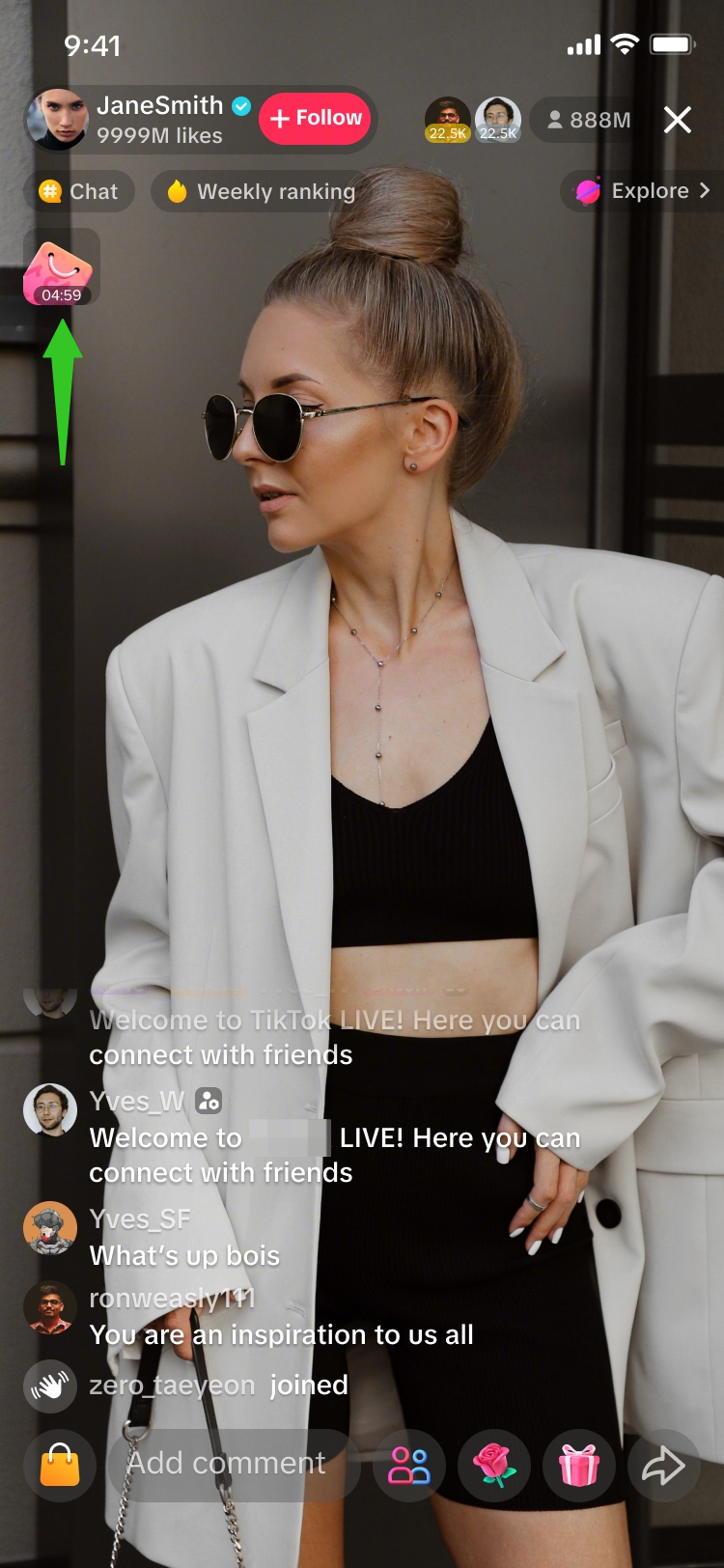 | 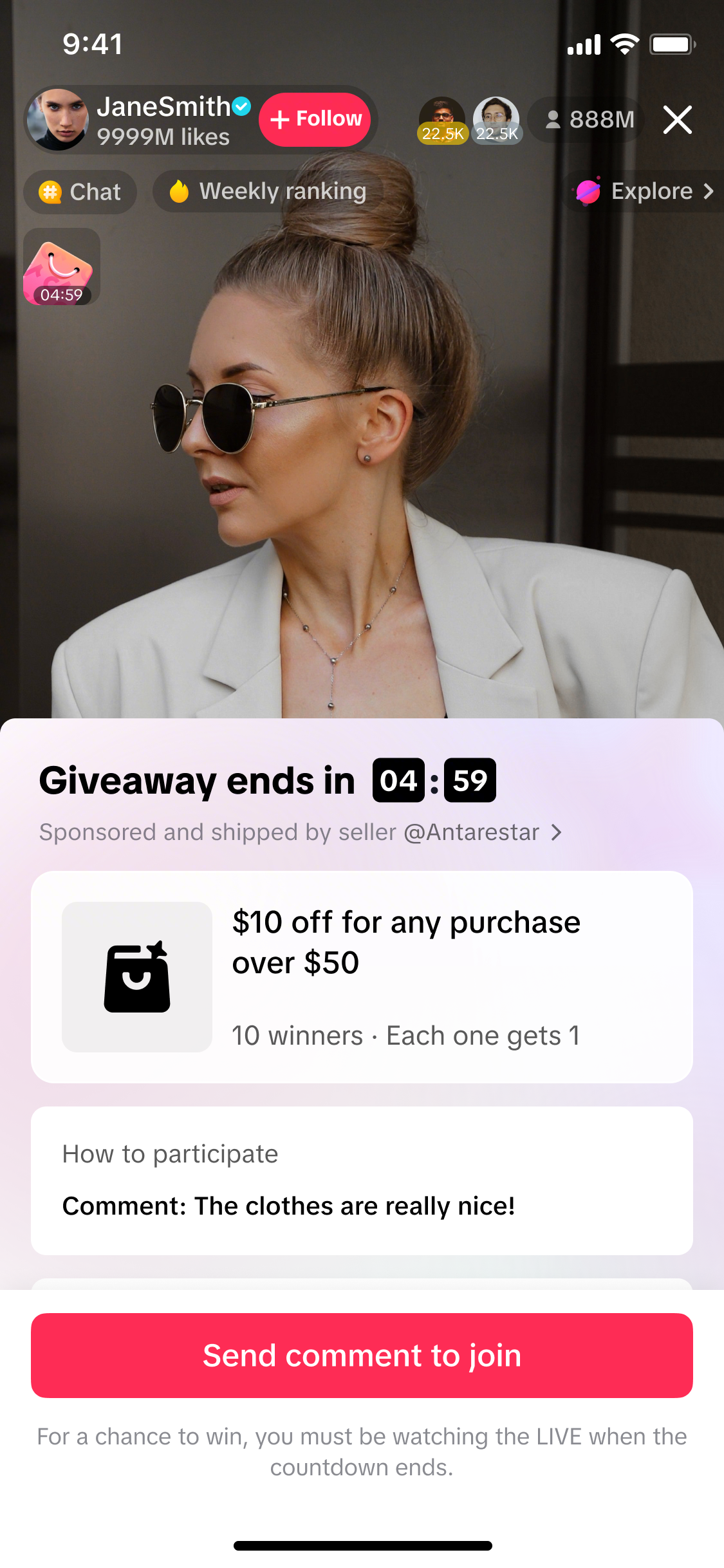 |
| Step 3Viewers continue to remain in the LIVE while the giveaway is ongoing. Once the giveaway event has concluded, a pop up will notify them if they have won or not. | ||||
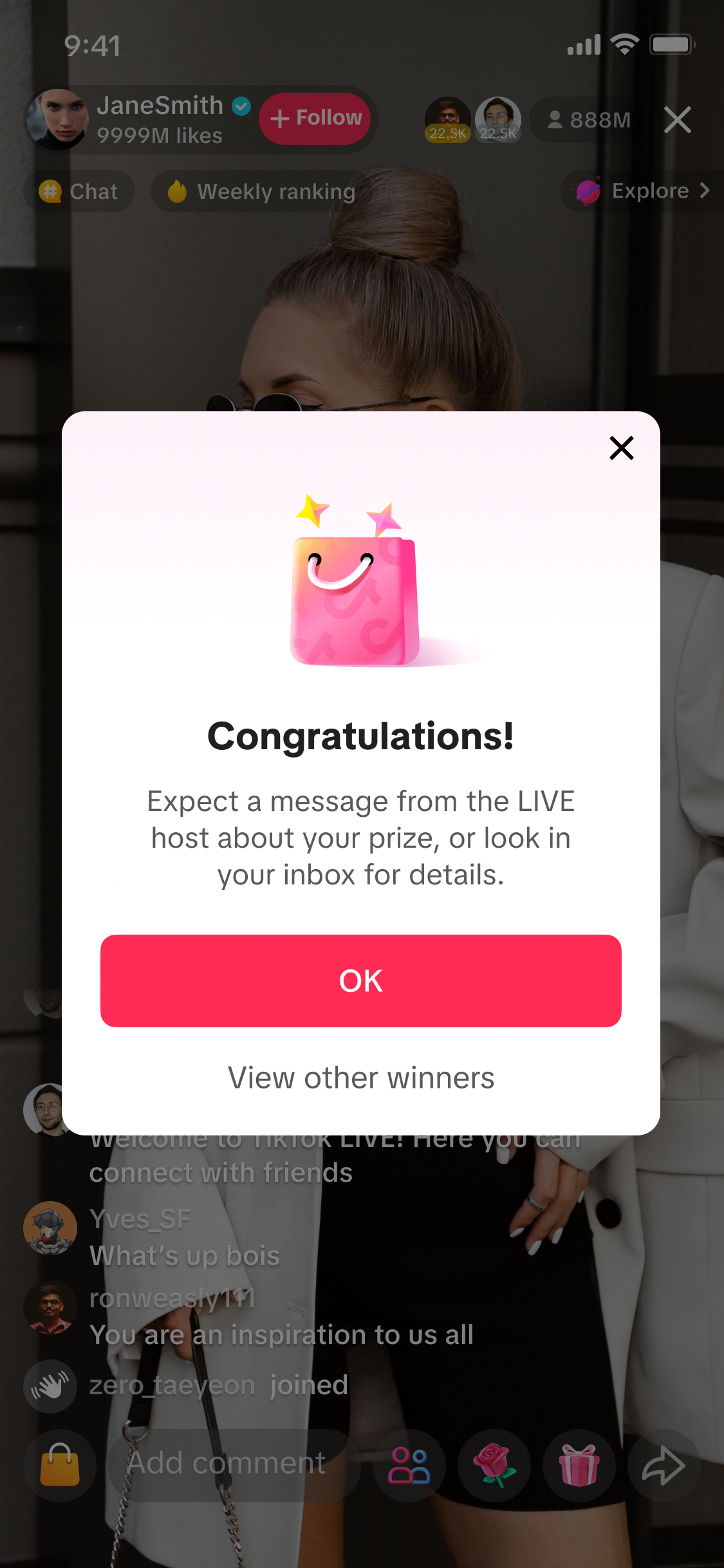 Your Own Choice | 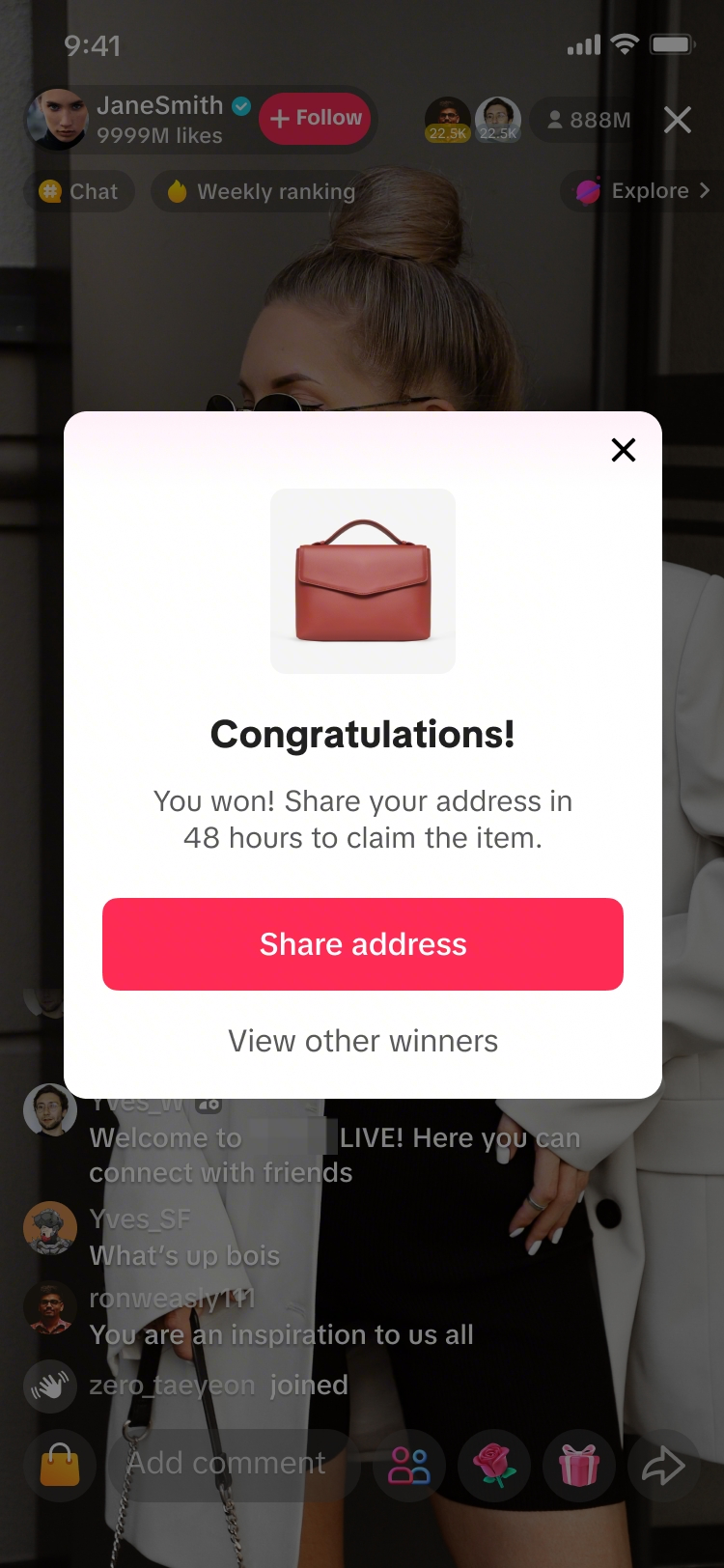 From Item List | 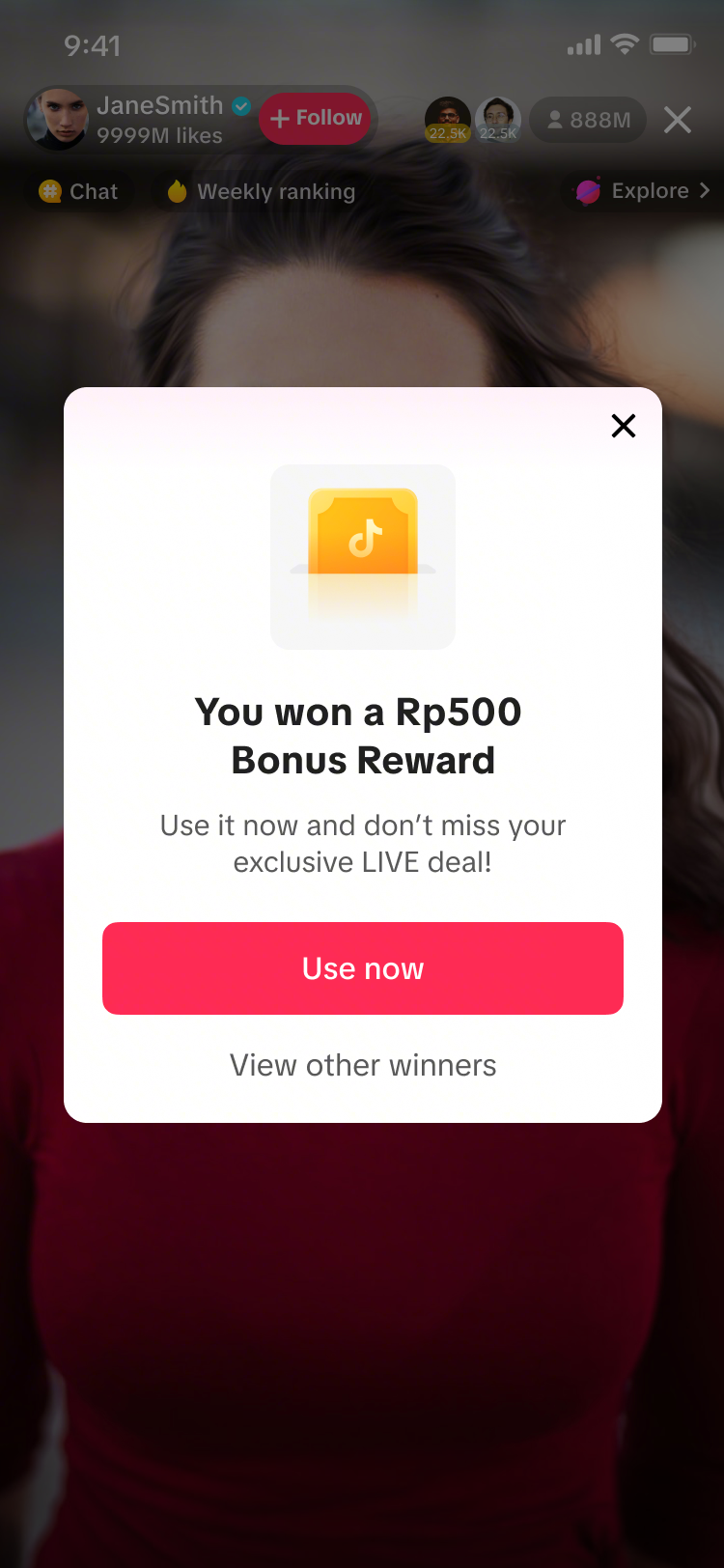 Platform Bonus reward | 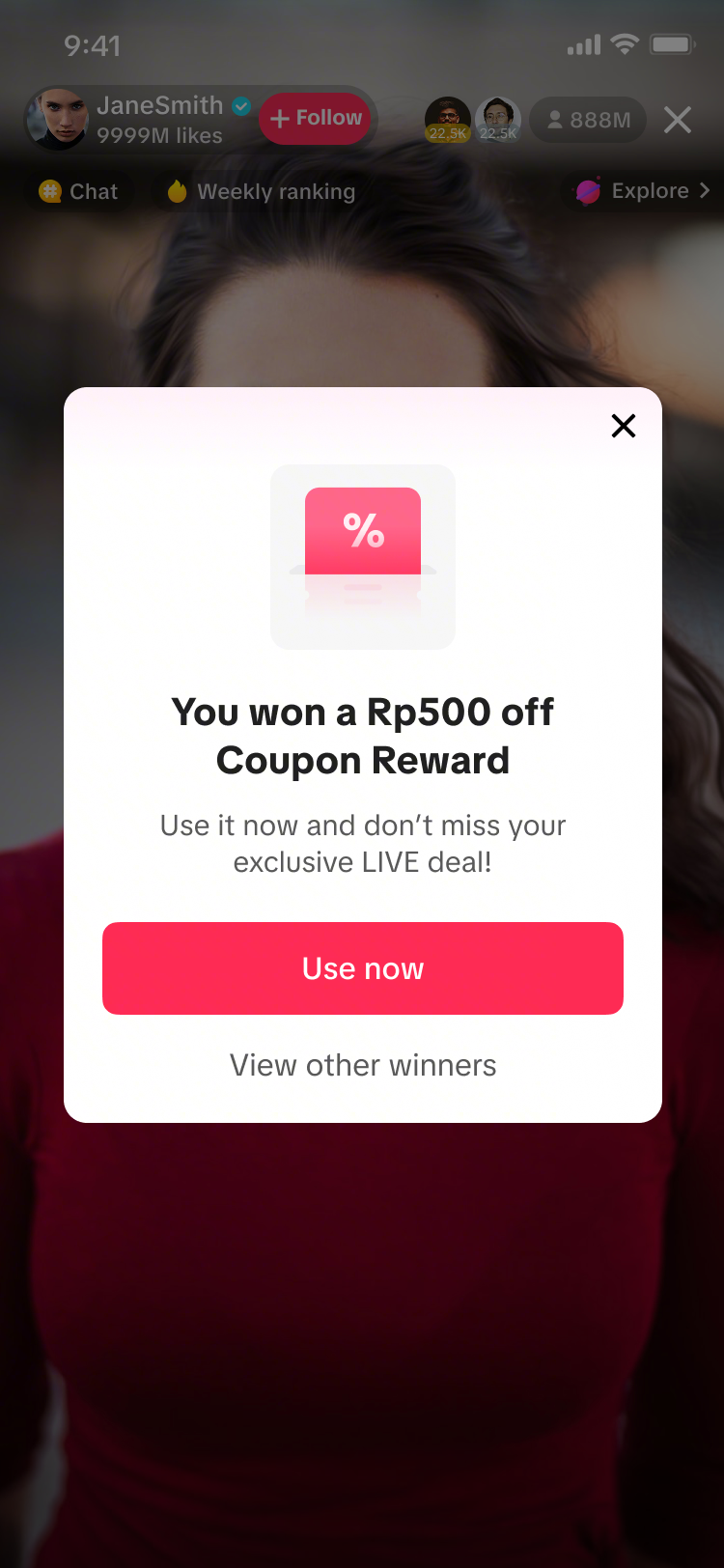 Platform Voucher | 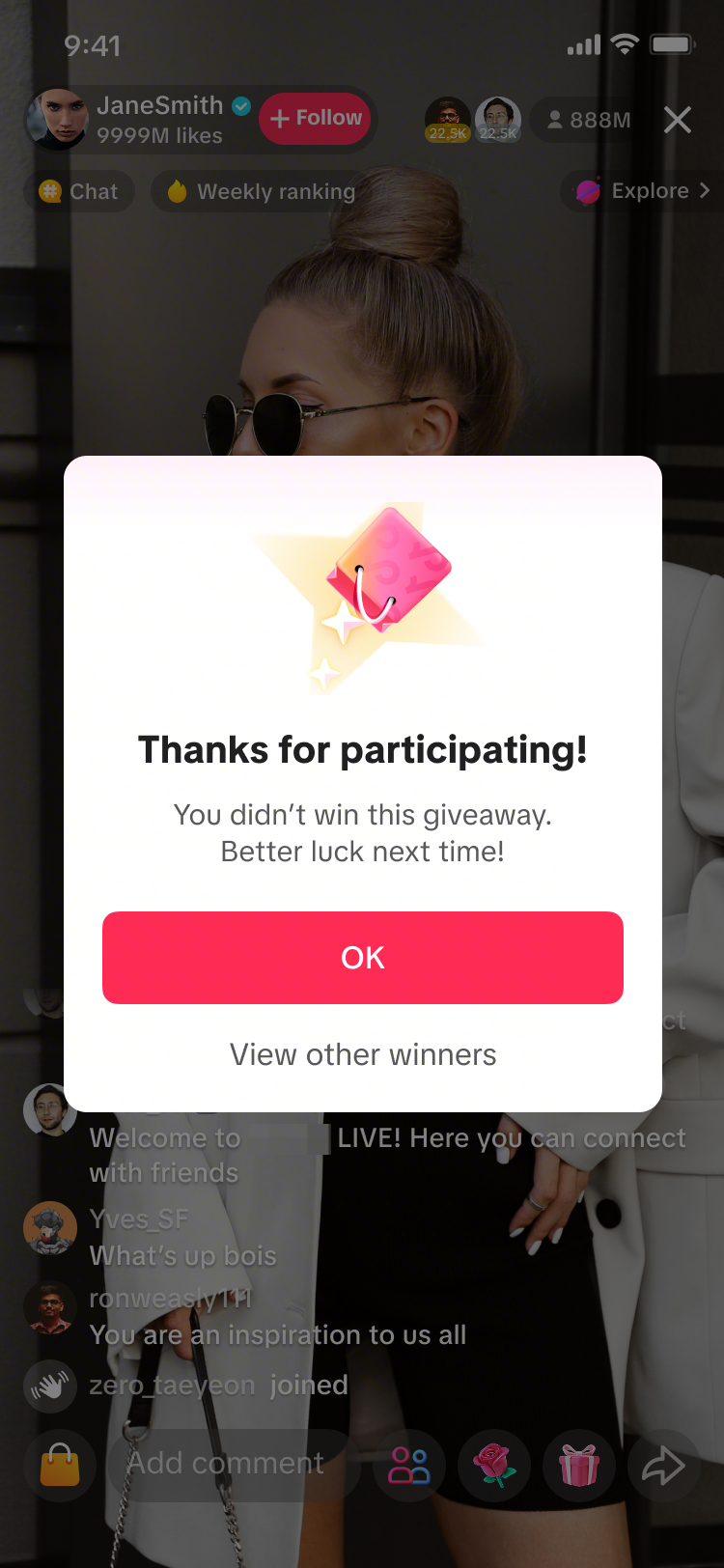 Did not win any prize |
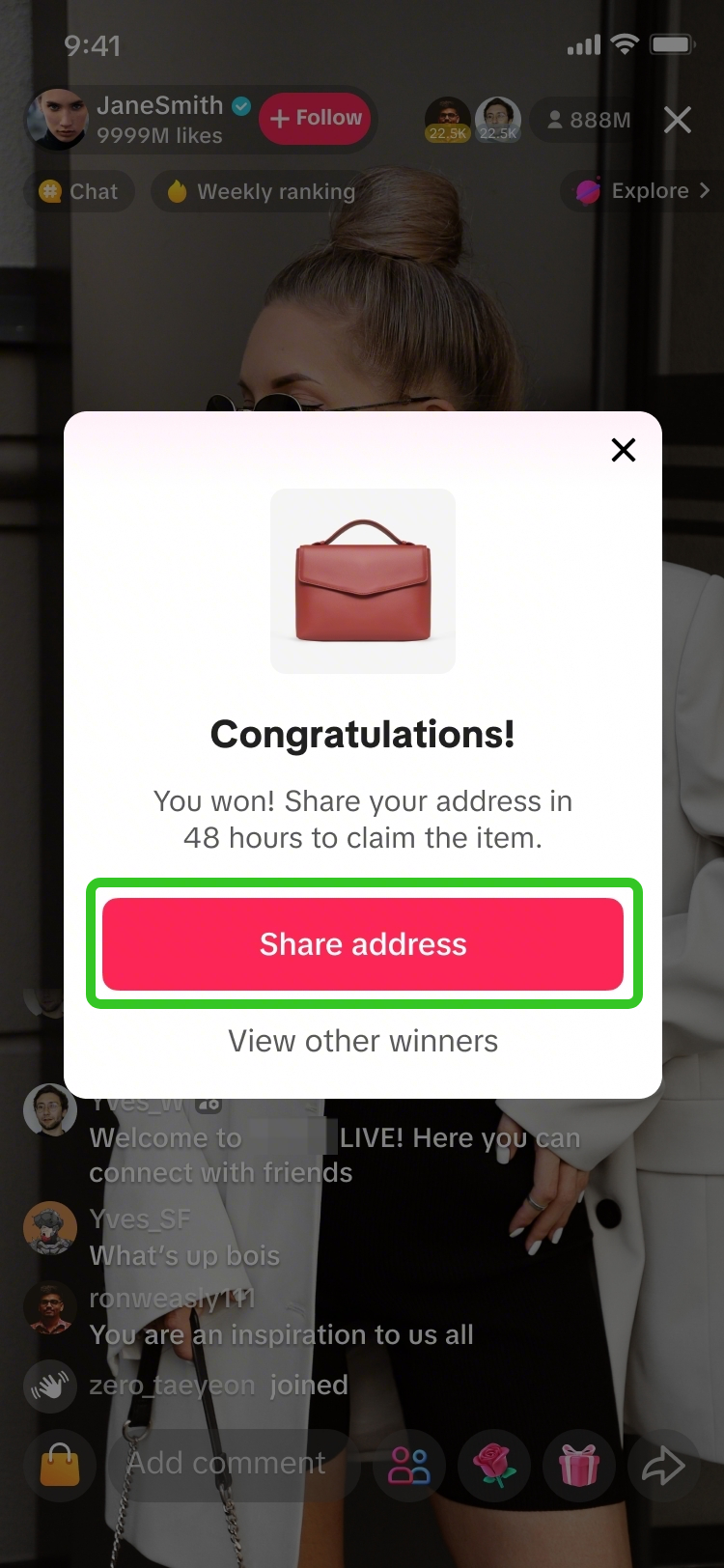 | Upon winning a From Item List giveawayViewers are required to share their address within 48 hours or the prize will be forfeited. |
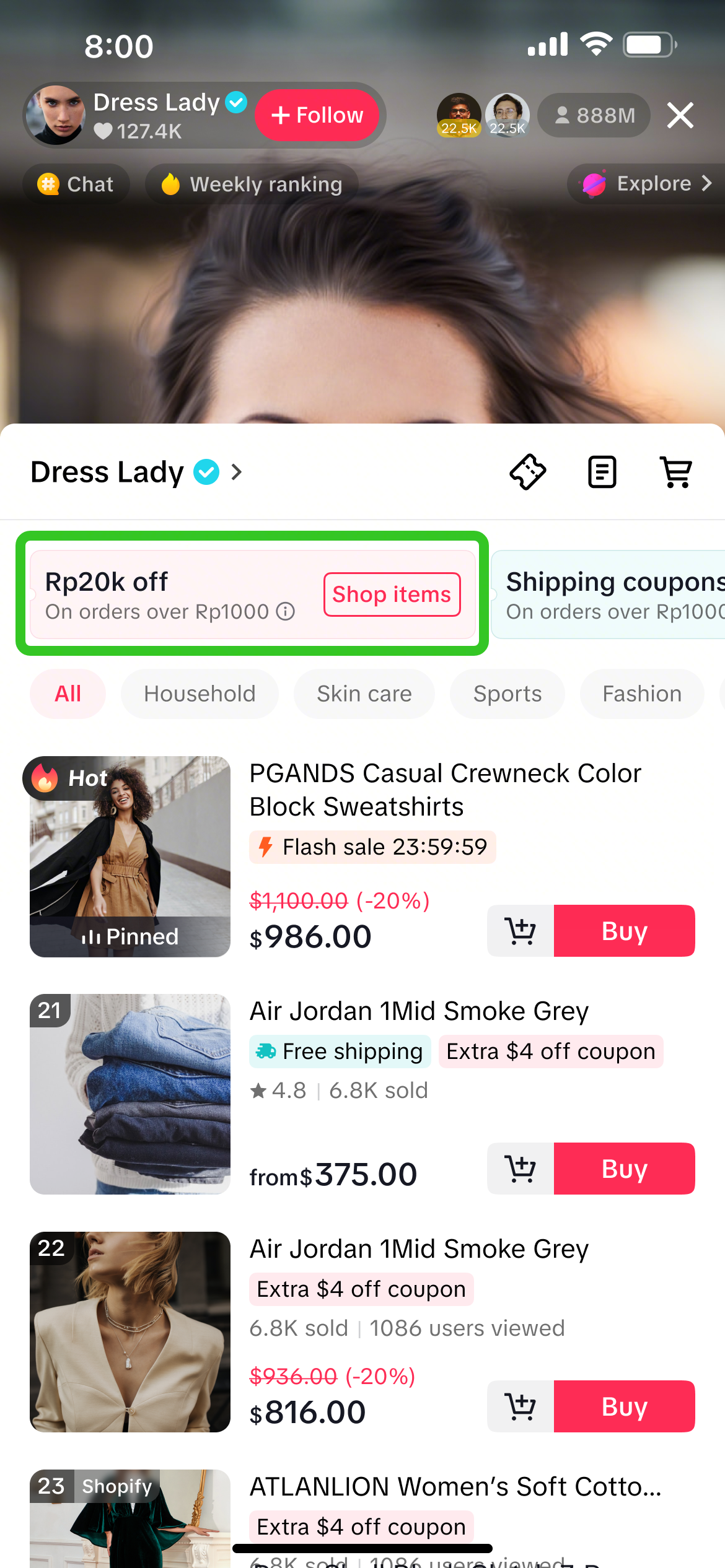 | Upon winning a Platform VoucherIf the winner clicks on Use Now via the pop up notification, the LIVE Shopping Bag will open and the voucher won will be displayed within the coupon panel. |
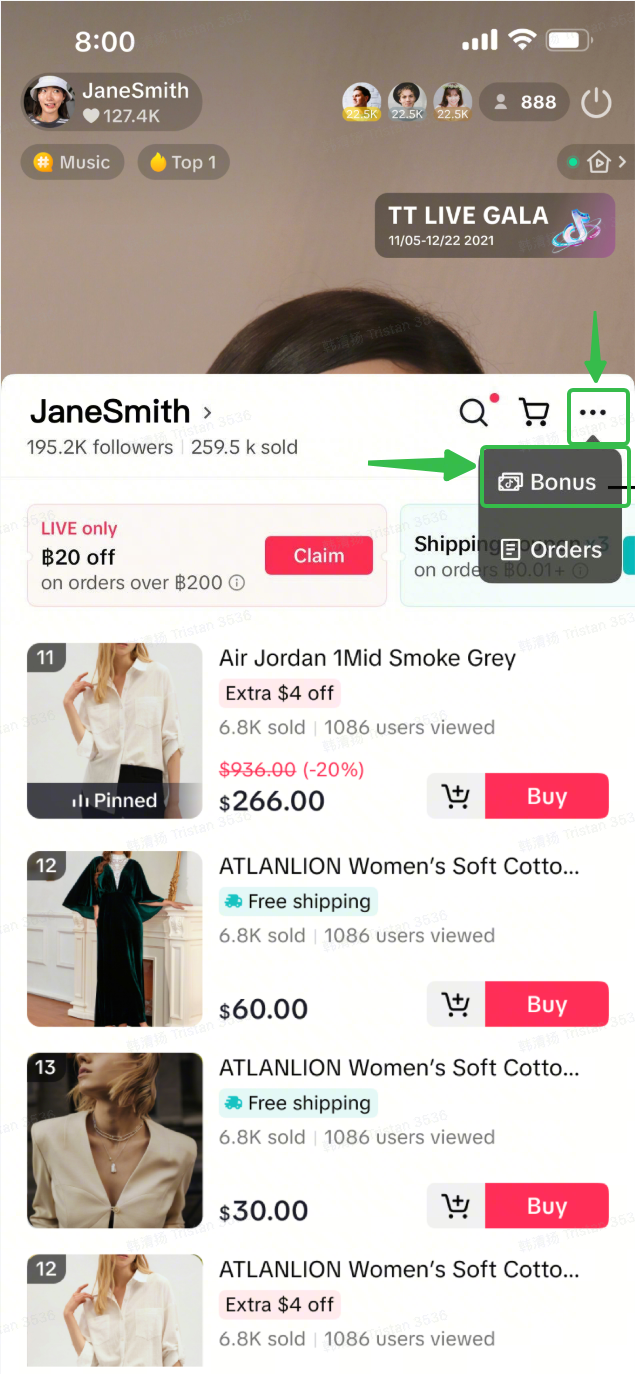 | Upon winning a Platform Bonus rewardIf the winner clicks on Use Now via the pop up notification, the LIVE Shopping Bag will open and the Bonus reward can be found via the Bonus icon here. |
| Notification will be sent to LIVE Giveaway Winners*This notification is sent for From Item List giveaway prize types only. | ||
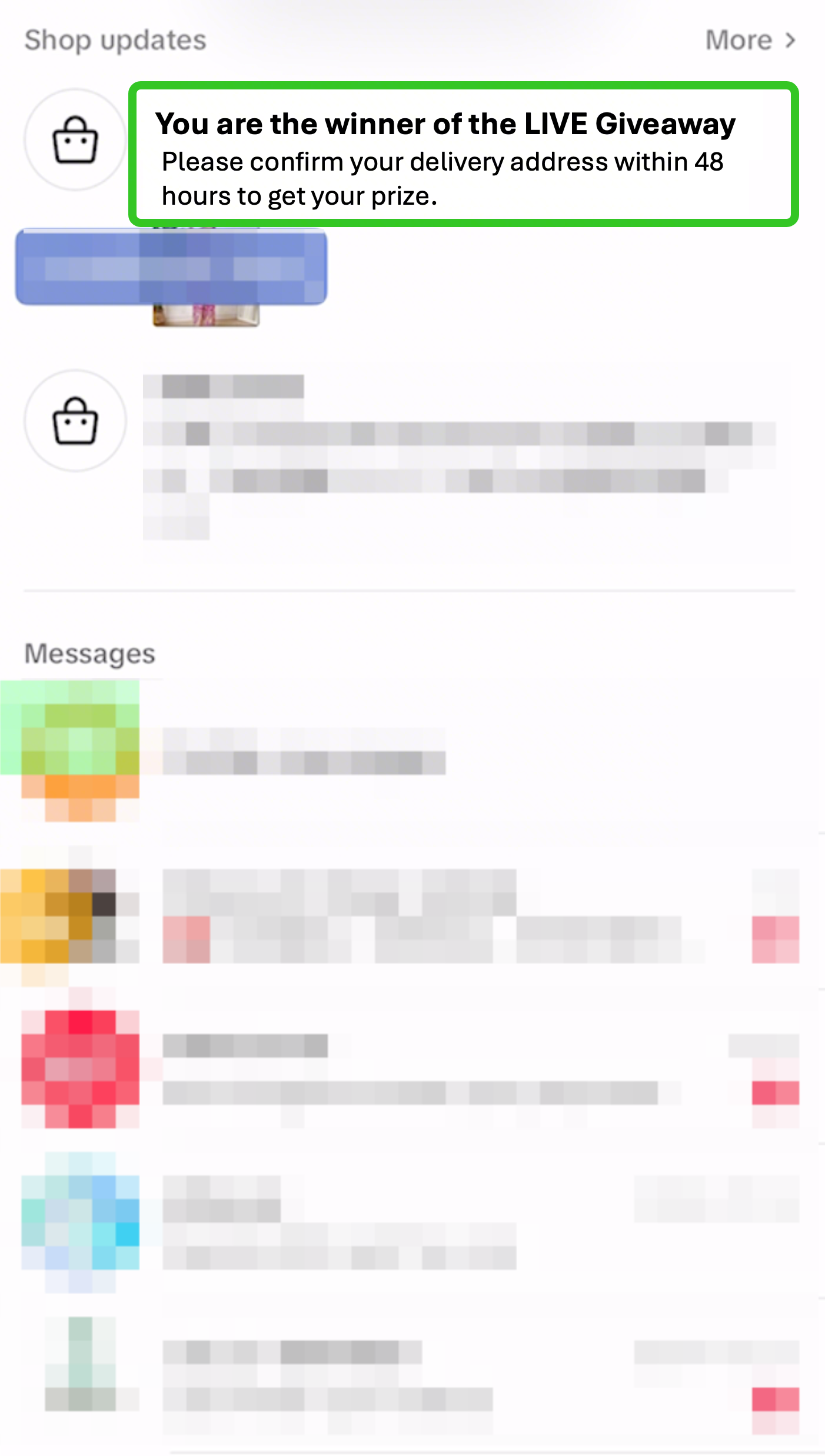 | 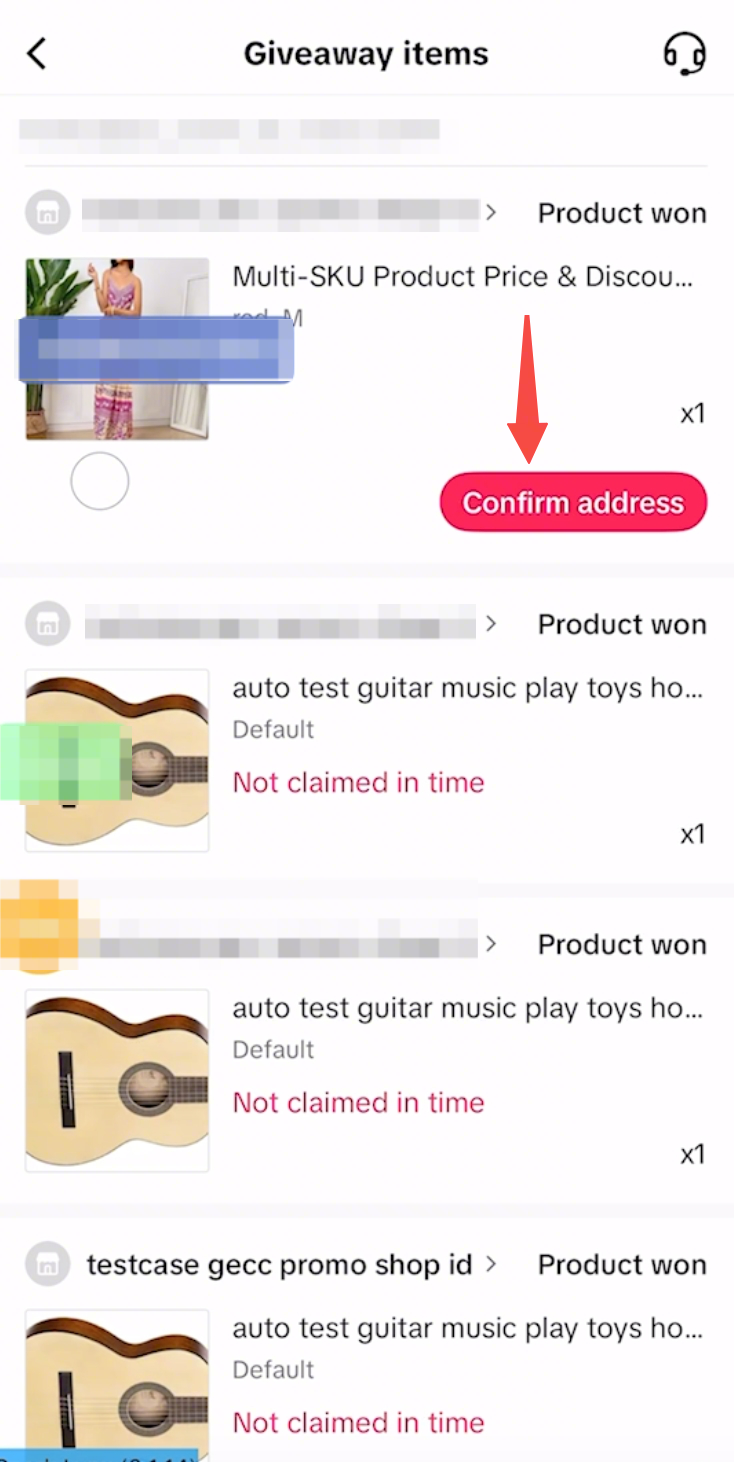 | |
Upon clicking on the message, users can submit their address in order for their prize to be delivered to them. | ||
After LIVE
Fulfilling LIVE Giveaway Prizes
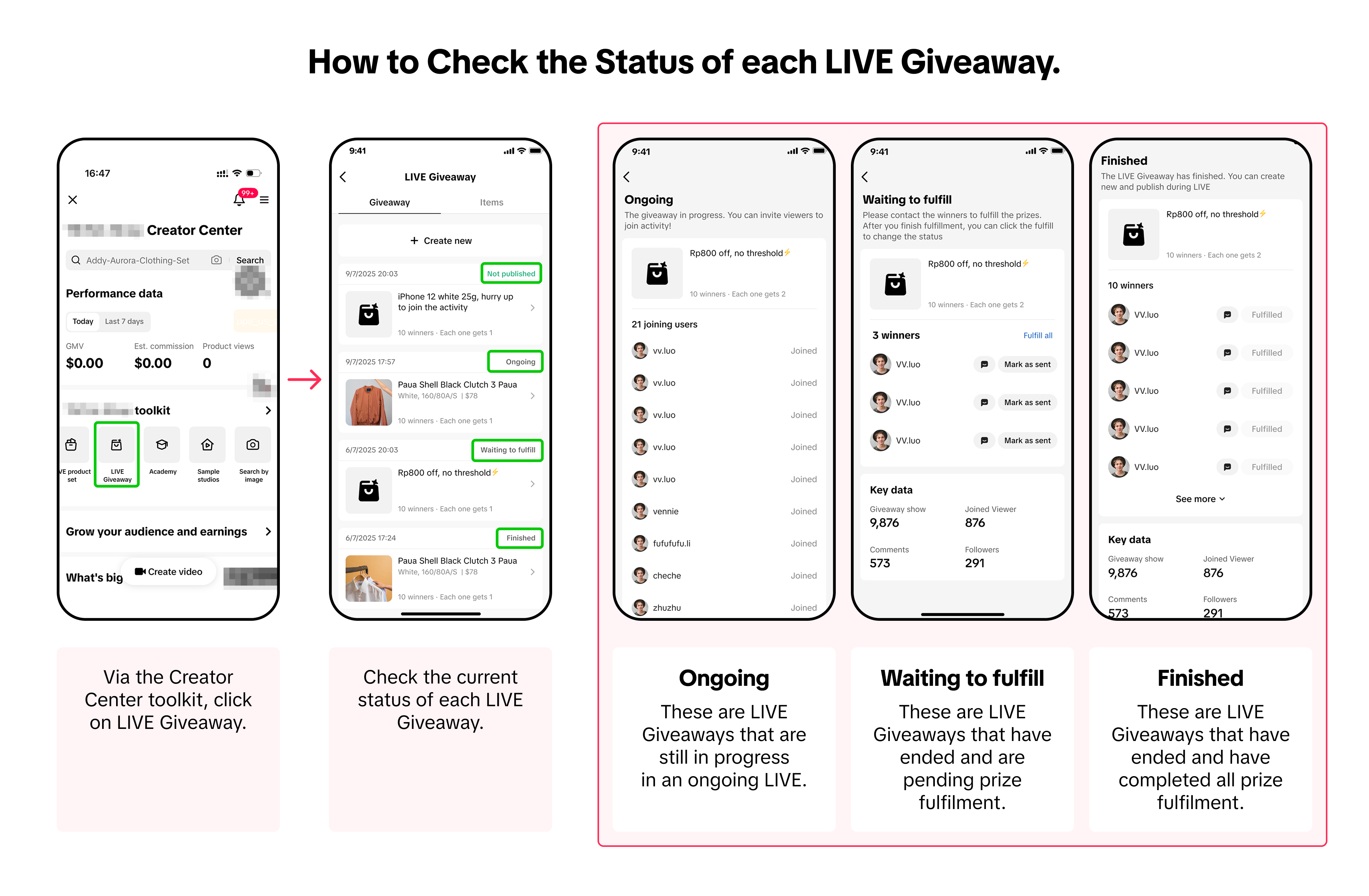
How to update fulfillment status | ||
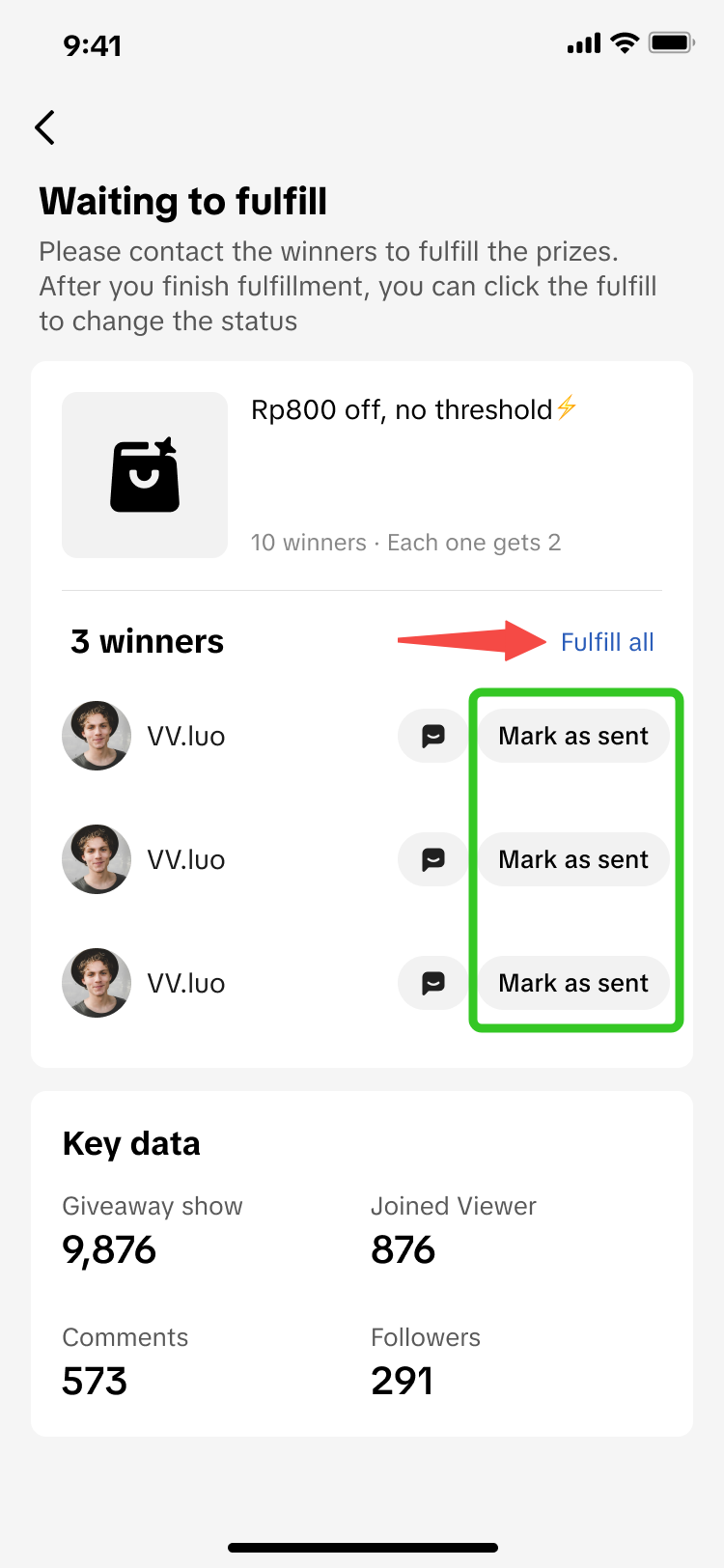 | 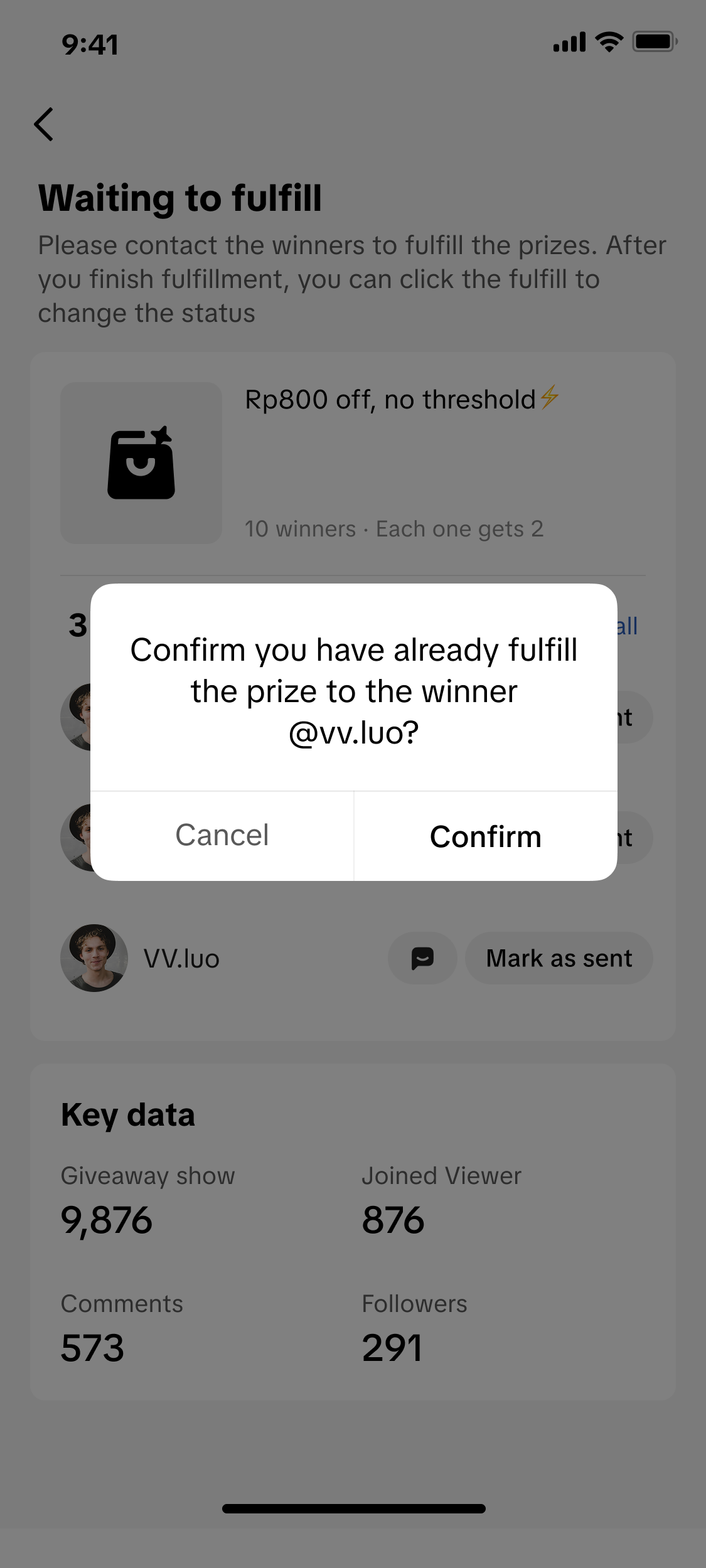 | 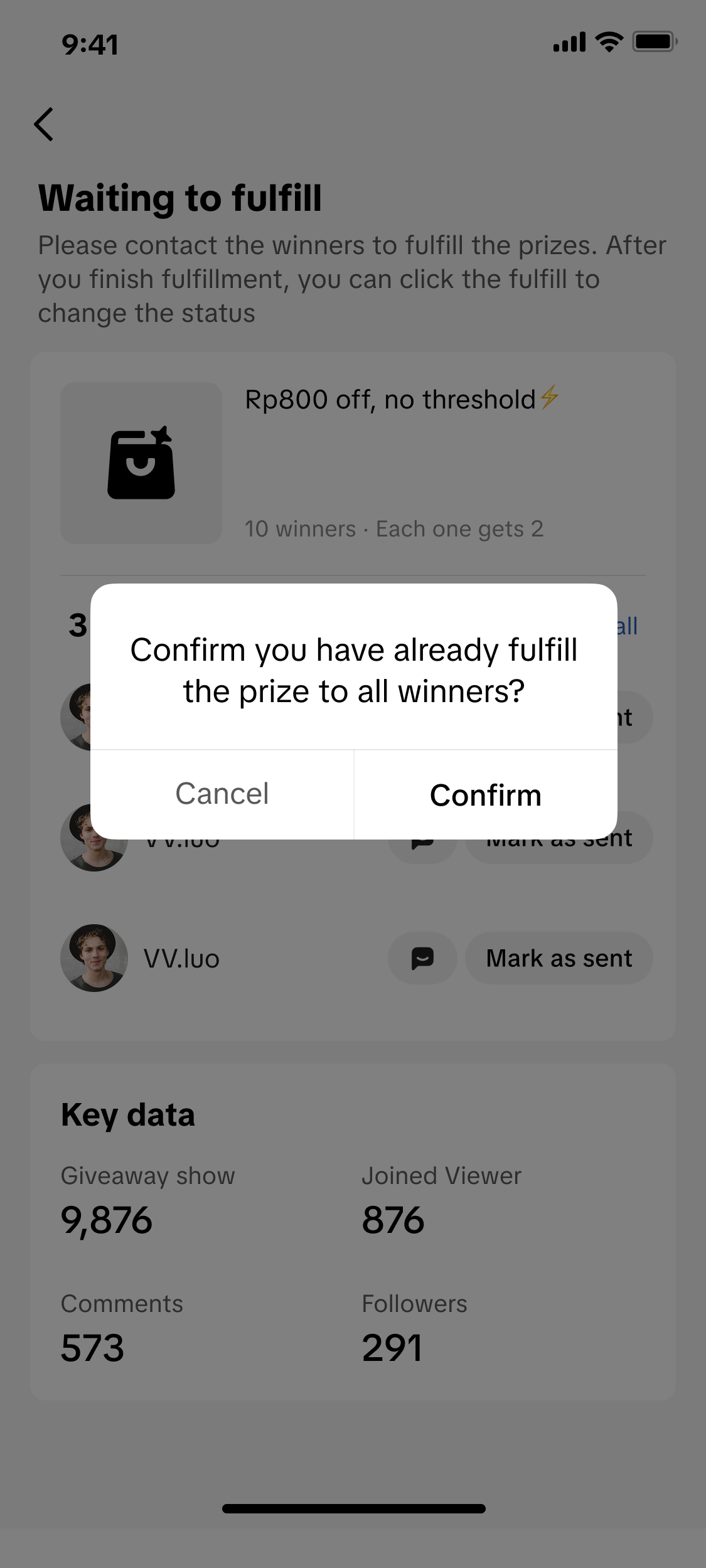 |
| Once you have sent the items to the winners, you may individually click 'Mark as sent', or click Fulfill all. | A pop up will appear to confirm if you have already fulfilled the prize delivery. If yes, click confirm and the giveaway status will change from Waiting to fulfill to Finished. | |

FAQs
General FAQ
- While editing a LIVE Giveaway, can we change the giveaway type from 'Your Own Choice' to 'From Item List' or vice versa?
- Can I set a custom time period for the Giveaway Event?
- How can I check pending giveaway prizes to be fulfilled?
ii) Check the status of your LIVE Giveaways. Those marked as "Waiting to fulfill" are pending prizes that need to be fulfilled.
- How many giveaways can I host within 1 livestream session?
- For the task type 'Place order during LIVE', can I set a minimum purchase amount requirement?
- During my LIVE, I plan to publish 3 different LIVE Giveaway events using the task type of 'Place order during LIVE'. Are viewers required to make a purchase 3 times, to join each respective LIVE Giveaway event?
FAQ - Your Own Choice
- What is the maximum number of winners that I can set?
- Who bears the cost and delivery of prizes when using the 'Your Own Choice' prize type?
- If a seller uses the 'Your Own Choice' prize type, the seller is to bear the costs.
- If an Affiliate Creator uses the 'Your Own Choice' prize type, the affiliate creator is to bear the costs.
FAQ - From Item List
- Is there a limit to the amount of products a seller can assign to Creator LIVE Giveaway?
- Are Sellers only allowed a maximum number of Creators they can collaborate with?
- Who bears the cost and delivery of prizes when using the 'From Item List' prize type?
- Upon winning a LIVE Giveaway, what does the viewer need to do next?
FAQ - Platform Vouchers
- What is a platform voucher?
- Why should I giveaway platform vouchers during LIVE Giveaway?
- Can I choose which platform voucher to give?
- Why did my LIVE Giveaway for platform voucher fail to publish?
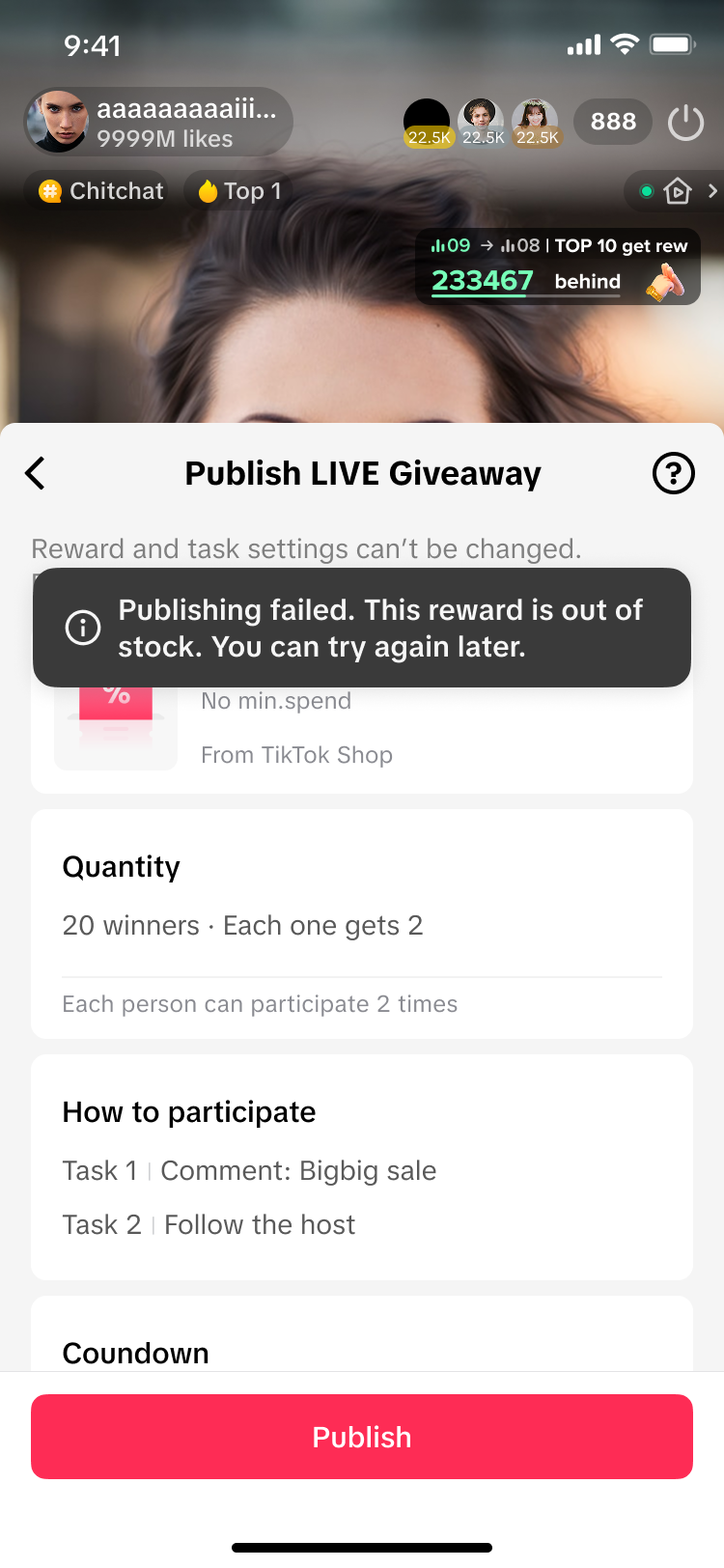 | If there are no platform vouchers displayed, this could mean:
|
- Why are there no available platform vouchers shown in my list of LIVE Giveaways?
- Can I use my own store vouchers for LIVE Giveaway?
- Can I create or edit the tasks within a platform voucher giveaway?
- How will I know when there are new platform vouchers available for me to use in LIVE Giveaway?
Within your LIVE Shopping Bag | |
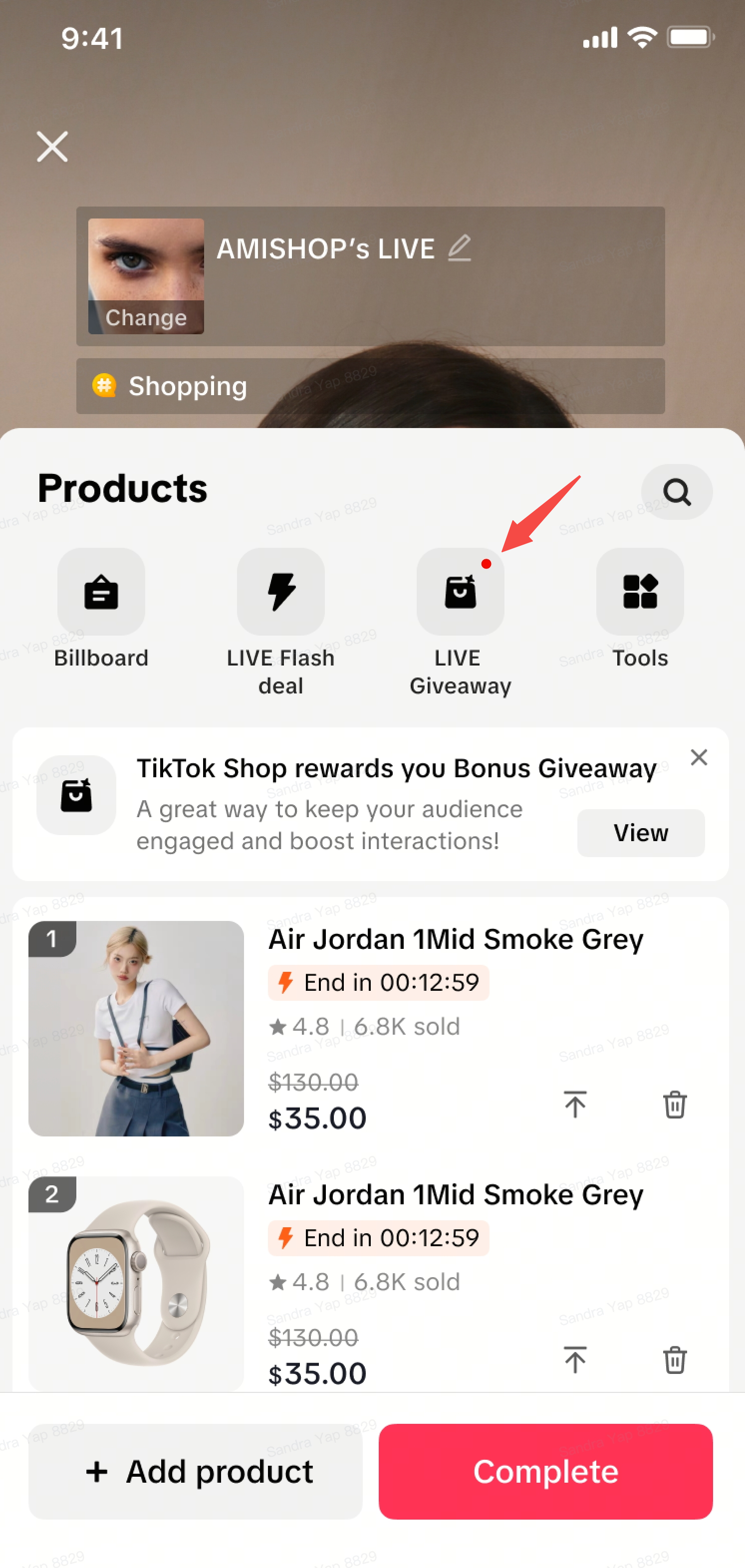 | 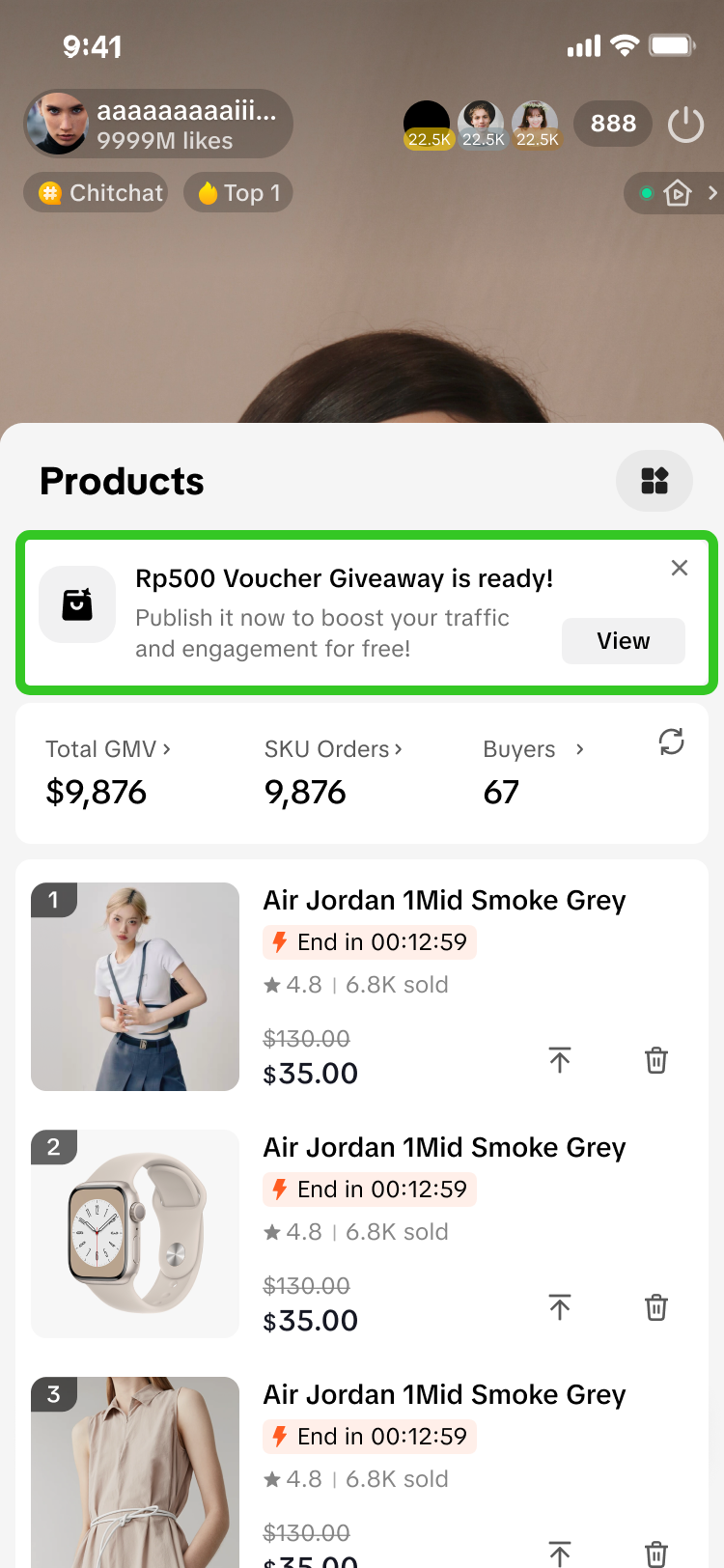 |
| A red dot will appear beside the LIVE Giveaway tool, whenever a new platform voucher is available. | This notification box will appear above your product list, and will display the available value platform voucher. |
- Is there a limit to the number of times a viewer can win a platform voucher within 1 livestream?
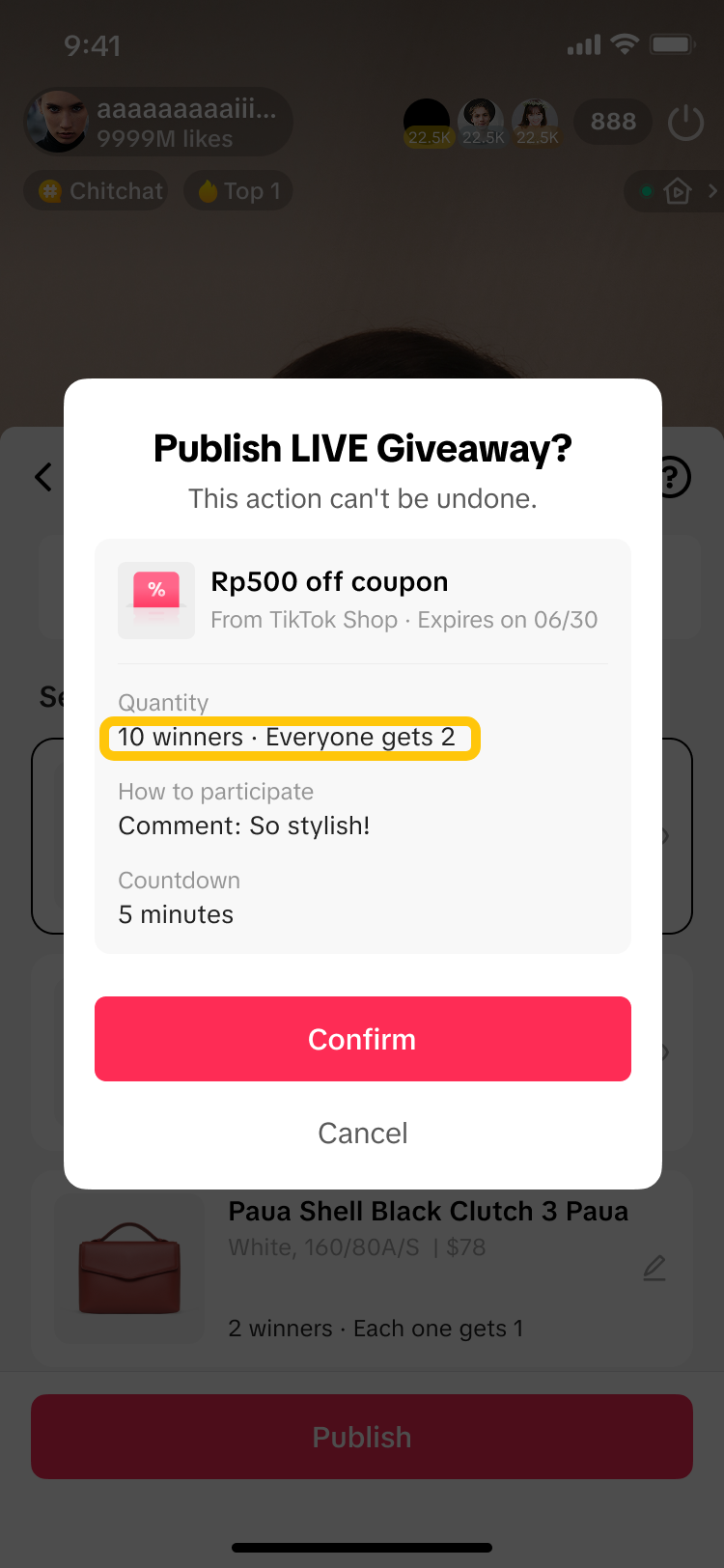 | To ensure fairness, each viewer may win maximum [X] times per [time period]. This limit will vary depending on the platform voucher settings. The limit per viewer can be seen when you preview the LIVE Giveaway details before publishing it.Exceeding the limit makes them ineligible during the restricted period. |
- How do the winners claim their platform voucher?
- Can the platform voucher only be used during an ongoing LIVE?
Anda mungkin juga tertarik
Auto-Sort Products for LIVE
In this article, we will teach you how the auto-sort products feature works and how it can benefit y…
LIVE Event
What is LIVE Event? Many viewers find it hard to keep track of livestream schedules because each cre…

Misleading Content
To protect customers and maintain trust, TikTok Shop prohibits any content that could mislead buyers…
LIVE Highlights
LIVE Highlights is a tool designed to provide you with the best-performing segments of your livestre…
【video】Operations Must Be The 3 TikTok Backends Live Profici…
01. TikTok Shop Seller Center 02. TikTok Shop Streamer 03. TikTok Desktop version
【video】Process of Live Streaming Optimization Logic and Room
01. Traffic Aspect 02. Content Aspect 03. Conversion Aspect
【video】The Logical Approach to Effectively Reviewing livestr…
01. Traffic Analysis 02. Content Analysis 03. Conversion Analysis

Creator LIVE Flash Sale
What is Creator LIVE Flash Sale? Creator LIVE Flash Sale is a type of Seller Flash Sale, whereby it…
LIVE Follower Voucher
This article will share with you what a LIVE Follower Voucher is, how you can leverage these LIVE Fo…
Checking LIVE Data within LIVE Shopping Bag
As a host actively doing livestreams, having real-time data on how your LIVE is performing will be h…