

Customer Service Team Management
12/31/2024
This article will guide you to have a clear overview of how to manage customer service features, including your agents, in order to achieve high customer satisfaction rates.

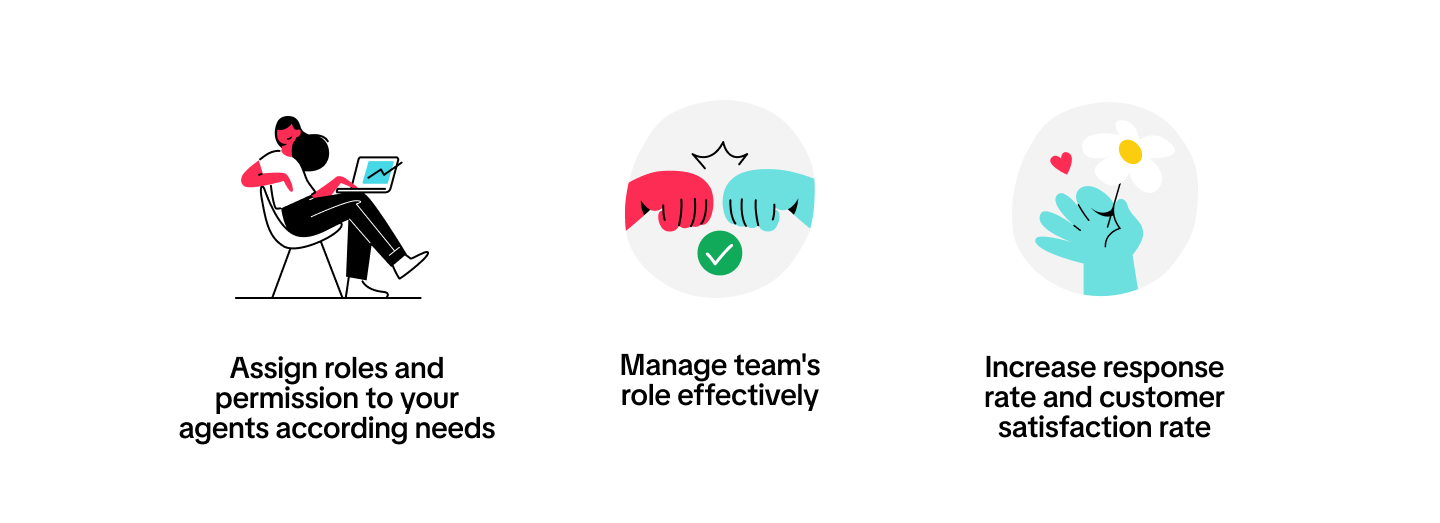
Benefits of Customer Service Team Management

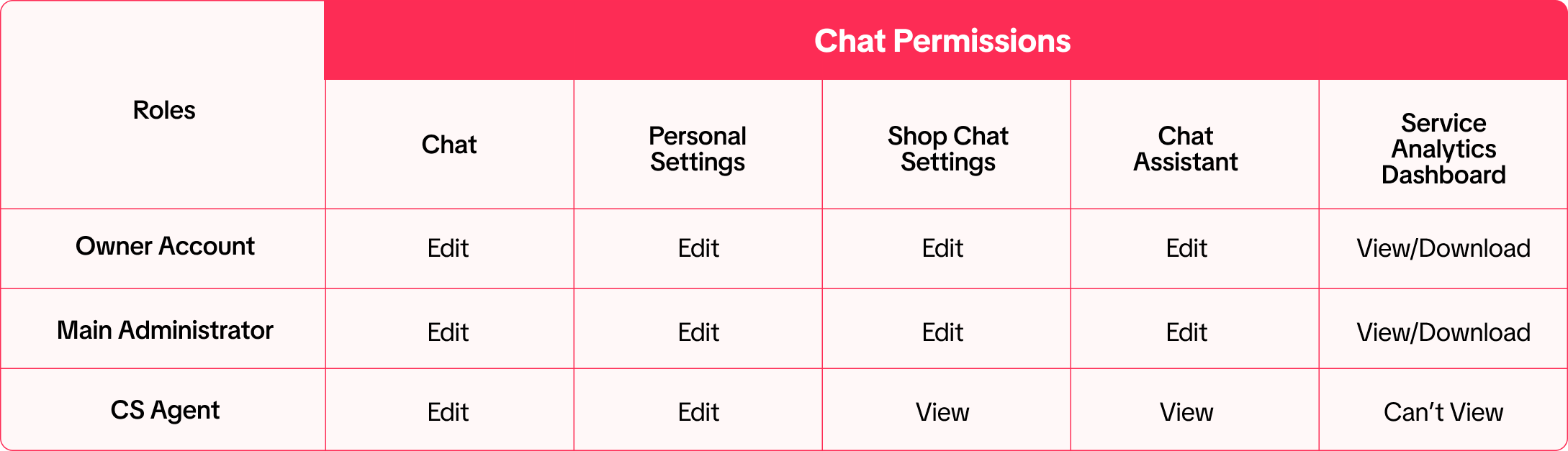
Roles and Permissions
Besides owner, there are two roles that can access the chat feature:- Main Administrator
- Customer Service (CS) Agent

Roles configuration
If you are the owner, you can add, edit, delete, and deactivate customer service agent roles through My Account > User Management on TikTok Shop Seller Center.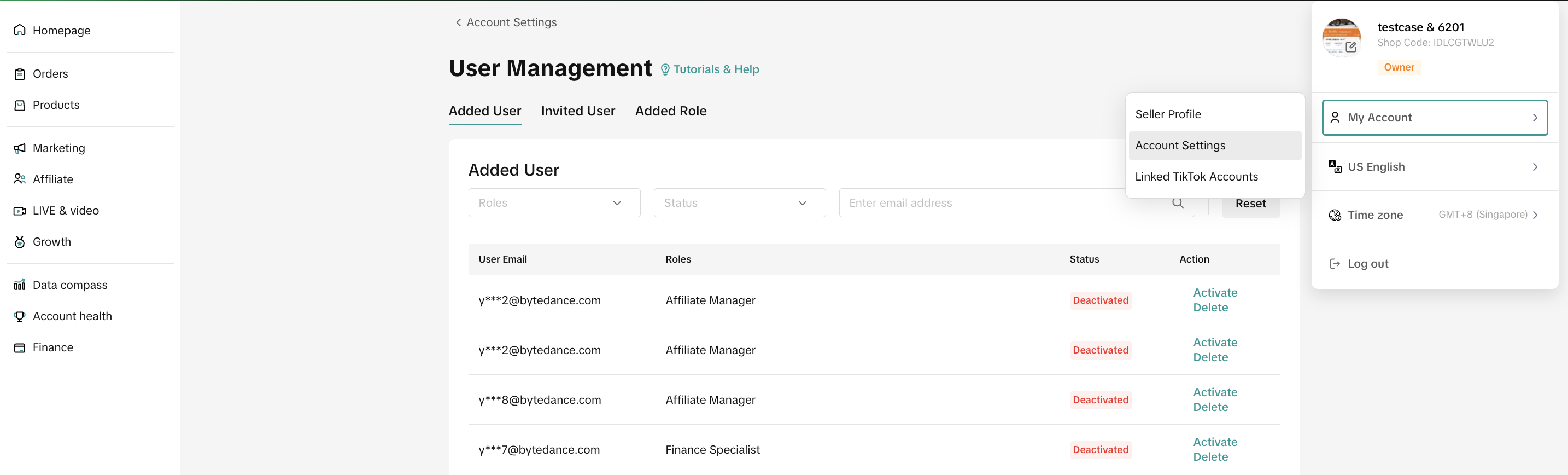
Adding Roles
Click [Add User] in the top right corner to add an agent. Select the role, email and default language.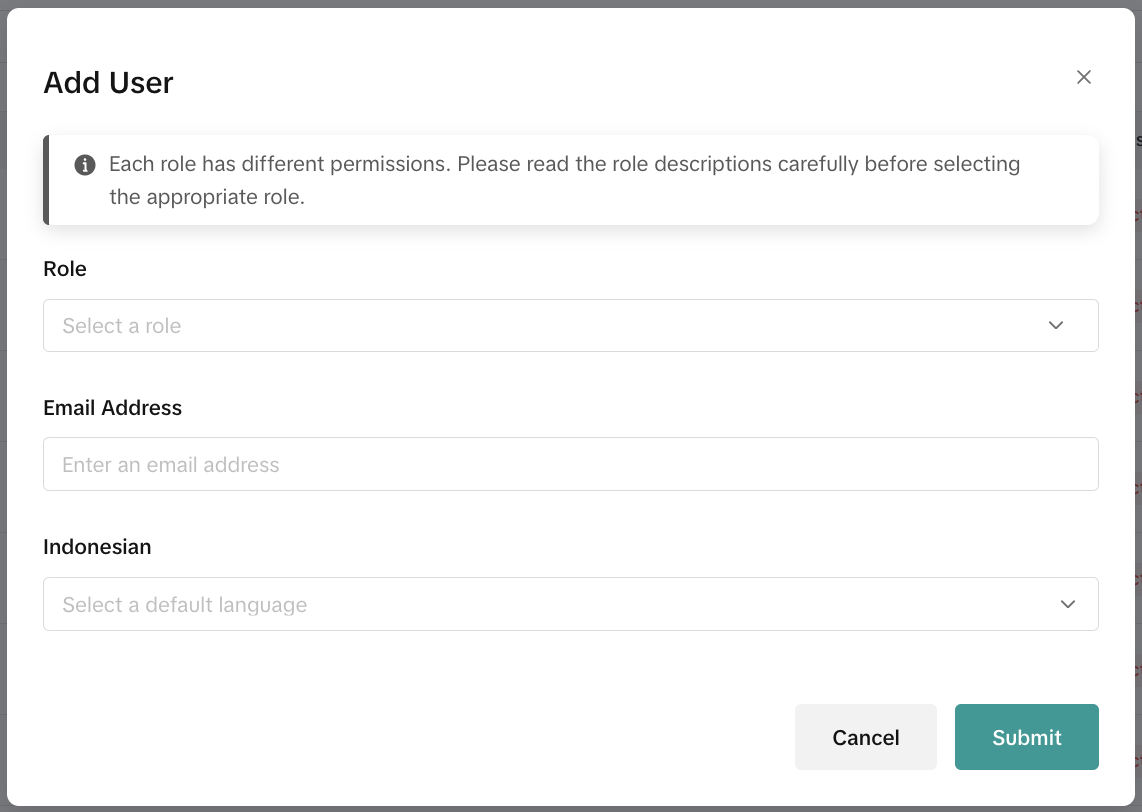 After entering the information, click "Submit".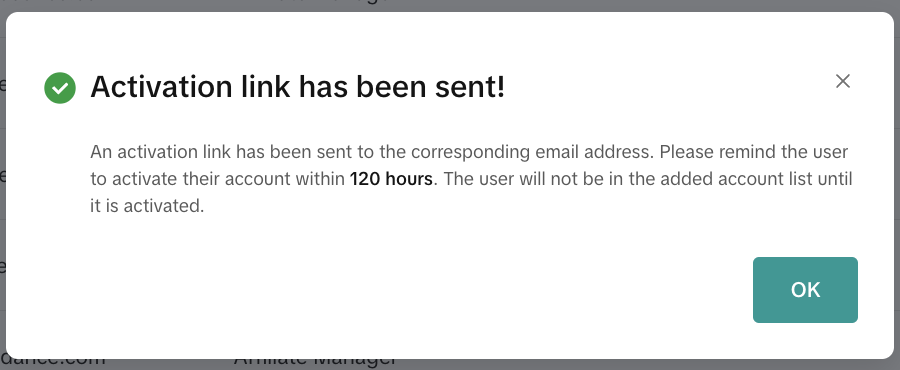
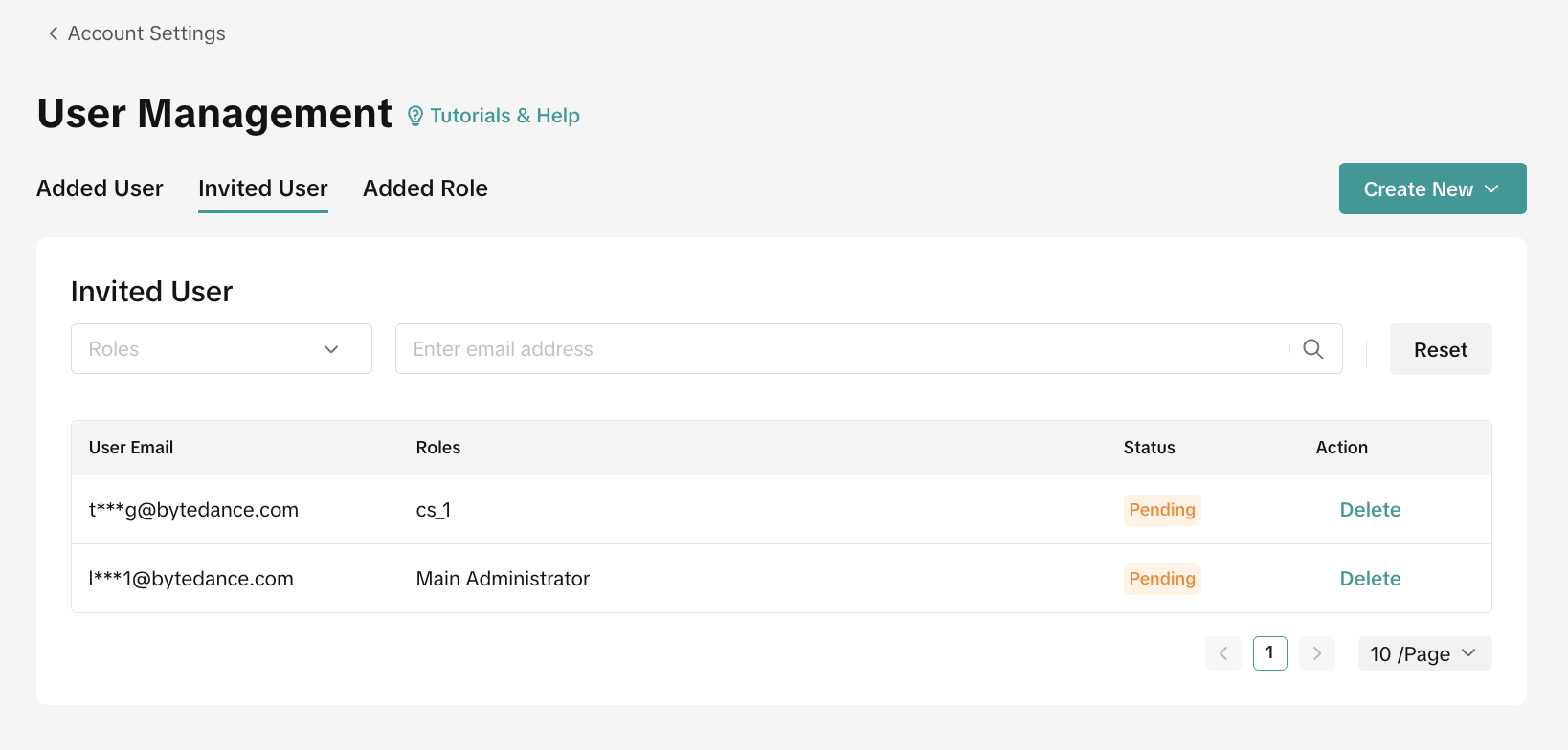 The pending sub-accounts will appear under the [invited user] list. After the activation is confirmed, the account will appear under the [added user] list.
Deleting Roles
In the User list, click the delete icon in the "Action" column for a user to delete the user. Once deleted, the user can no longer use the account or password to log in to the TikTok Shop Seller Center.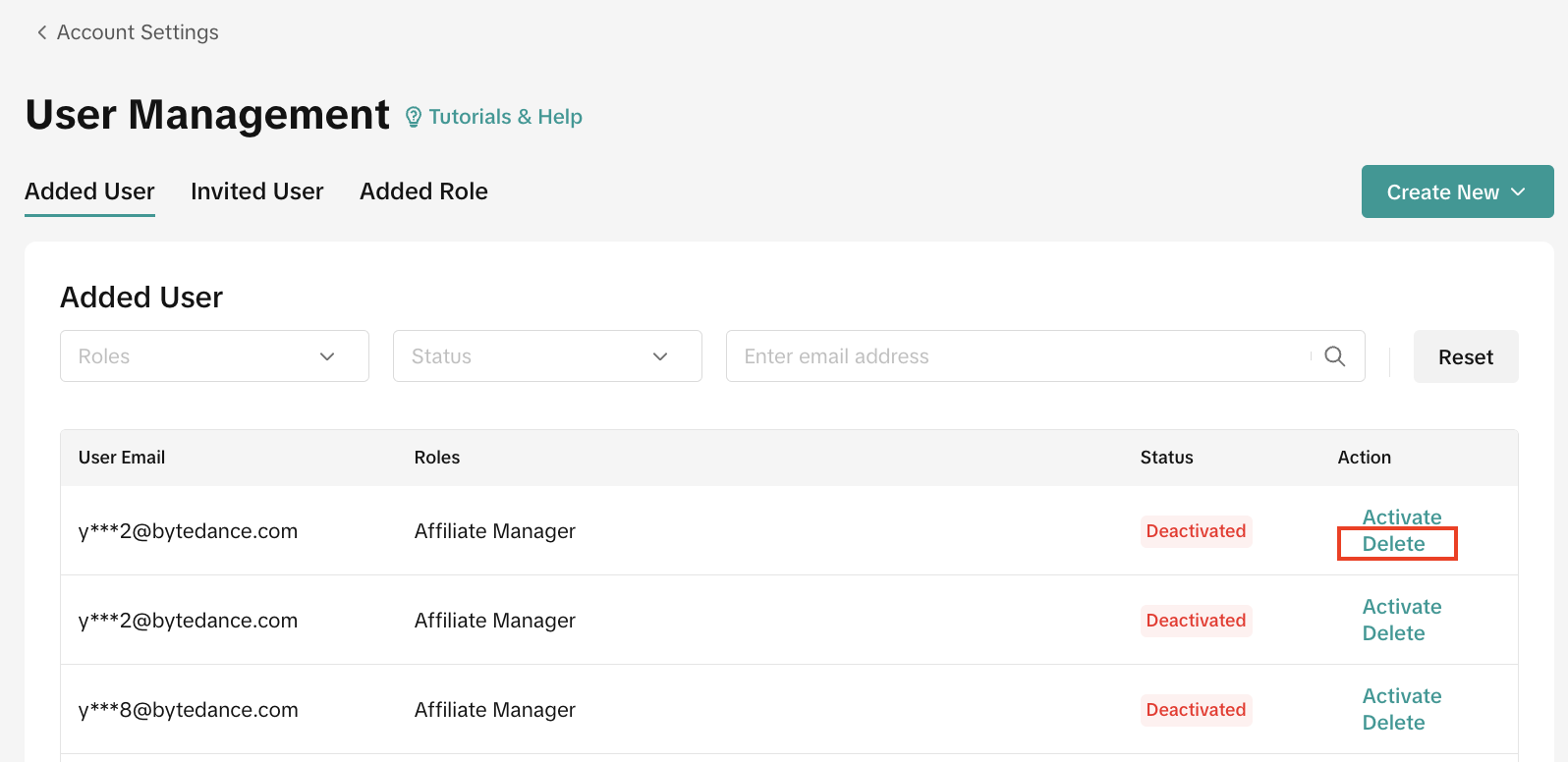
Editing Roles
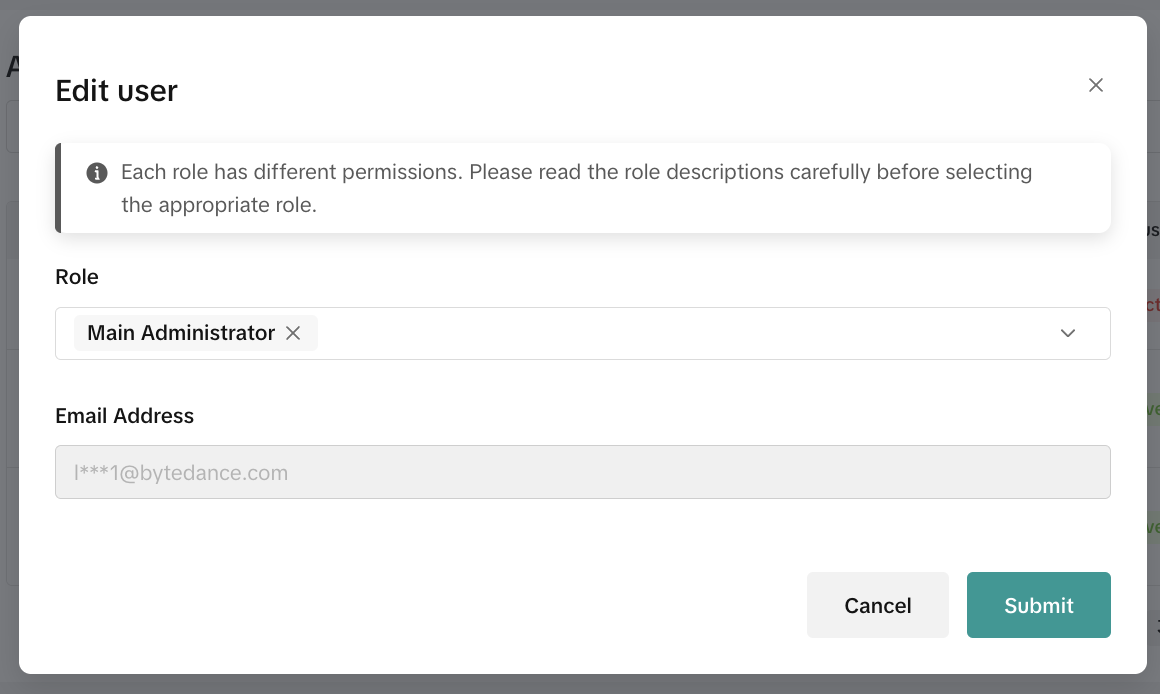
In the User list, click the edit icon in the "Action" column to edit the user.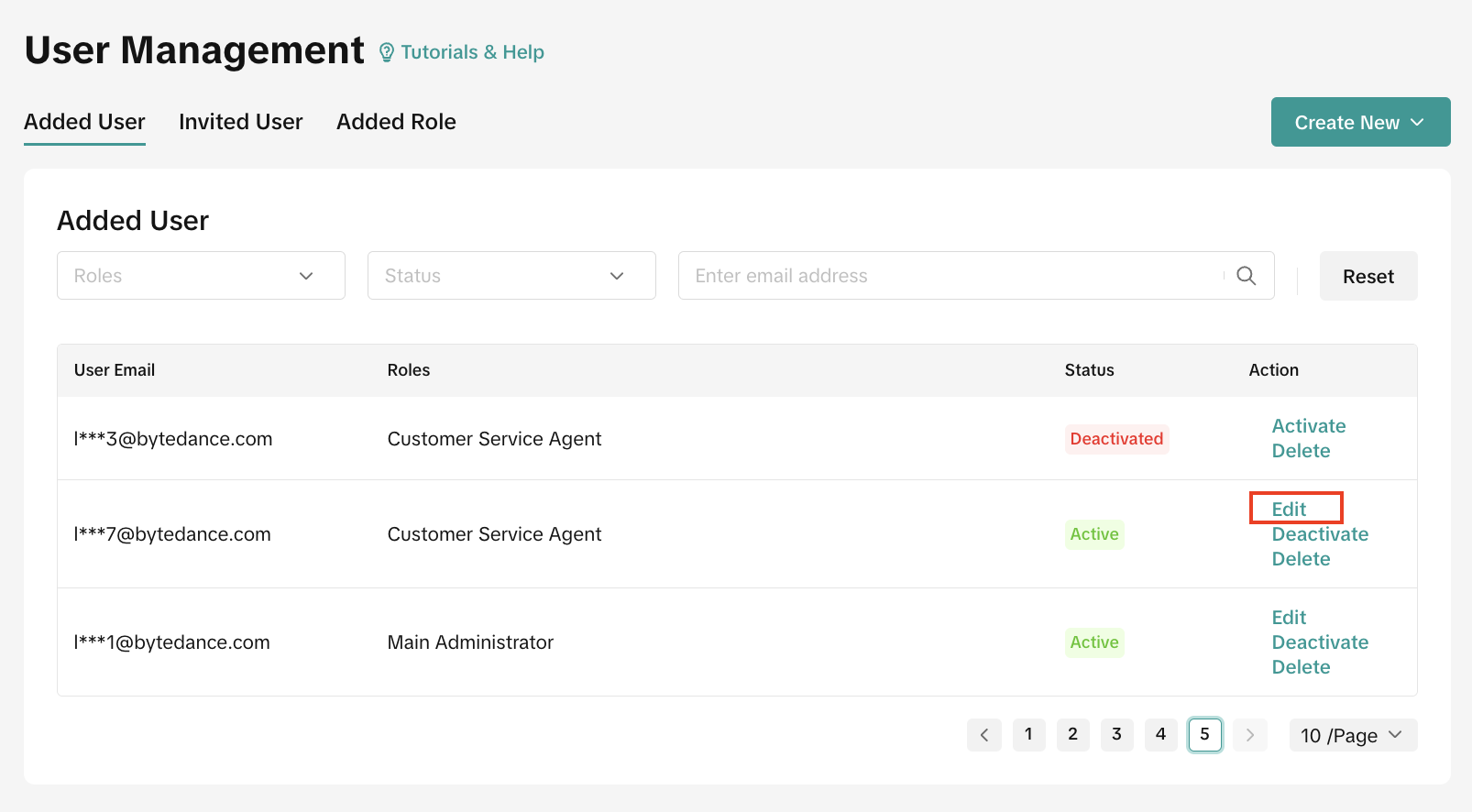
You can edit the role, can't edit the email.
Deactivating & Activating Roles
In the User list, click the deactivate icon in the "Action" column for a user to deactivate the user. Once deactivated, the user doesn't have permissions to the chat tool.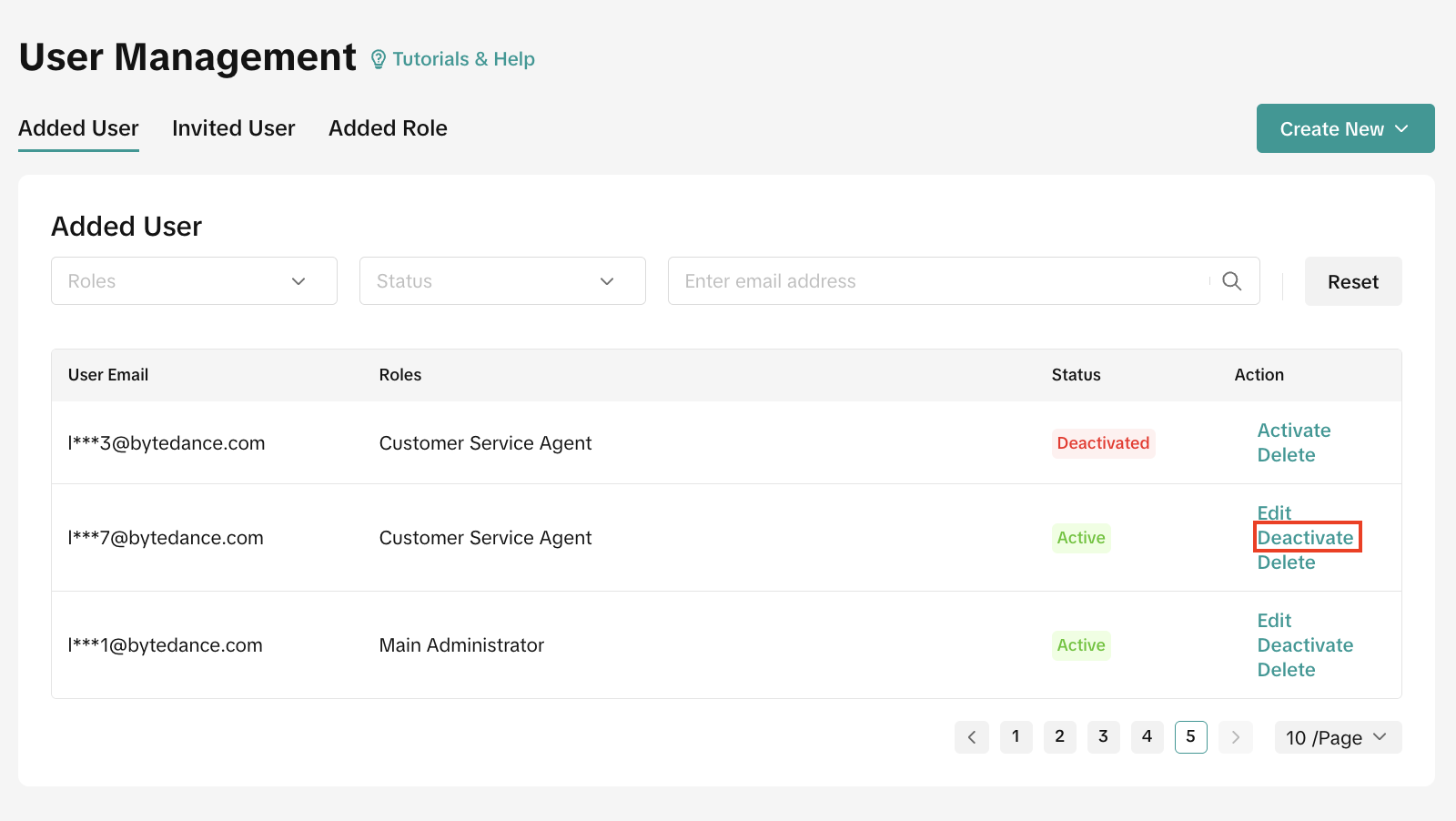 You may activate the user again later as needed.

Agent Settings
Set up how the chats are assigned to agents and who can see all the chats in your shop.Go to Customer Message - Settings - Agents settings
Chat Assignment
Assign the new chats by customers by 2 types of assignment:
- Assign new chats to agents with lowest workloads: This setting will prioritize agents with the lowest workloads. An agents workload is calculated by dividing the number of active sessions by their total sessions & capacity
- Assign equally: chat will be distributed equally based on an agents capacity
Chat Access Management
Access will determine which roles you can see and are able to transfer all the chats in your shop, including the chats assigned to other agents. To transfer a chat assigned to others, find the chat in the "All open" view, then click "Transfer chats". You can assign selected chat or all current chats to the assigned agents. Type your agent name or choose based on the available name.
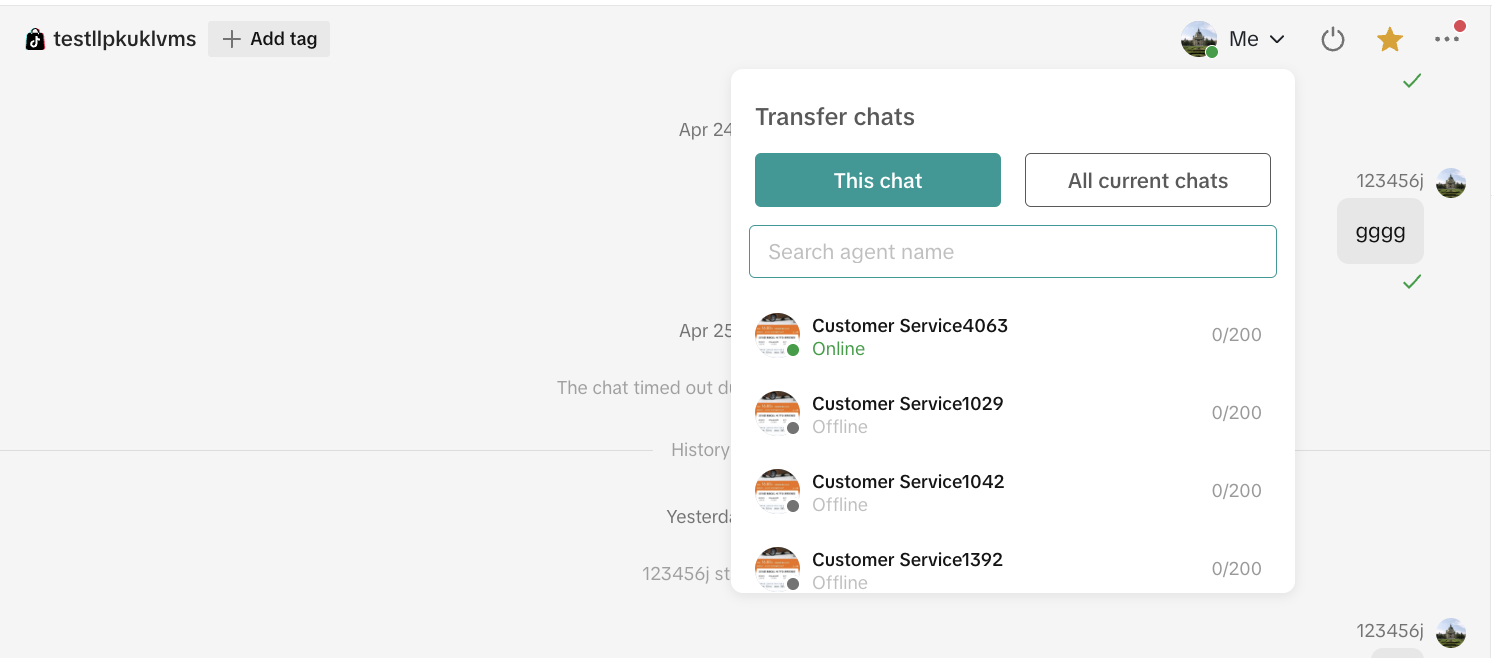 For all current chat selections, if there are more than 100 chats, only the latest 100 chats will be transferred.
Once the chat has been transferred, you will see this pop up below. Click "Transfer to me" or "Transfer to others" to re-assign the chat.

Translation Settings
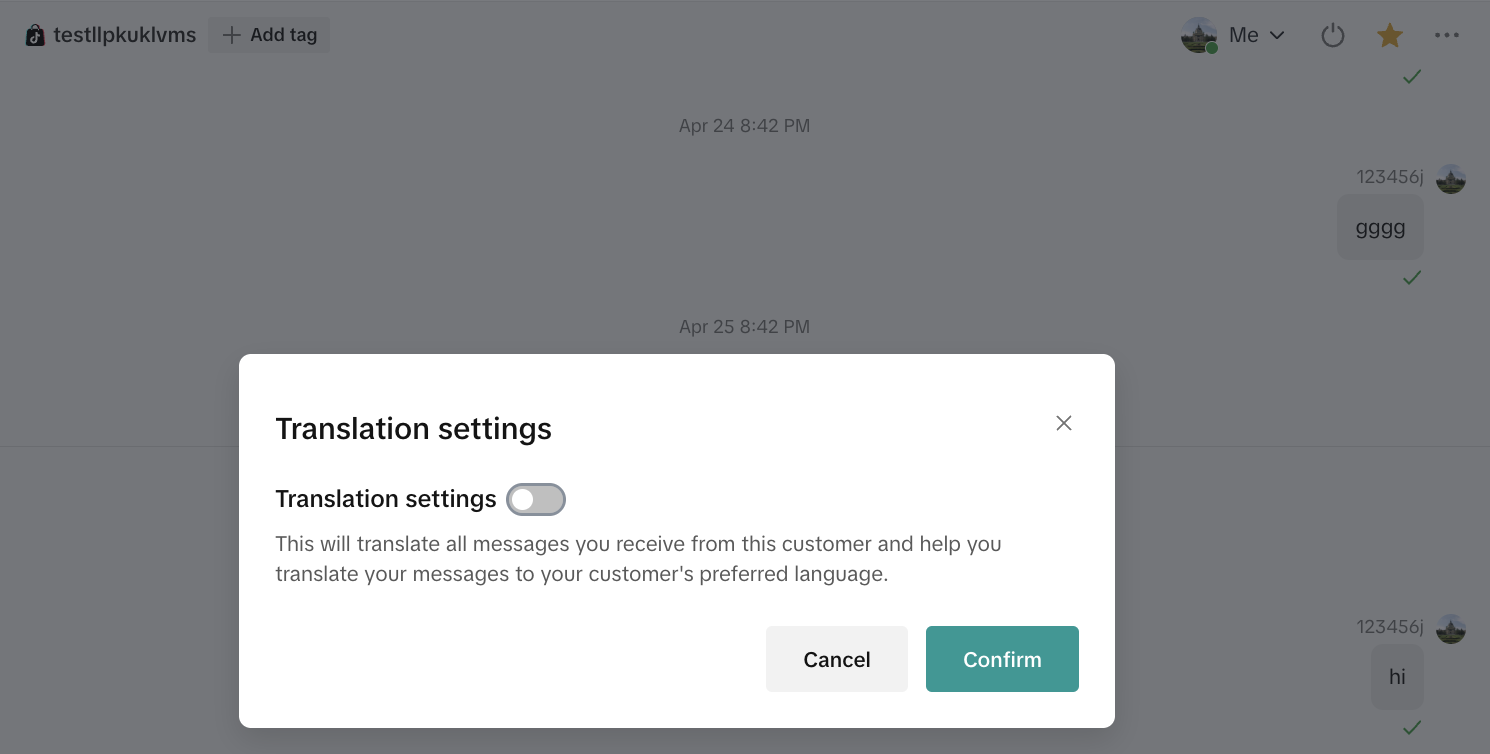
This setting will provide real-time translation for both incoming customer messages and outgoing responses.Select “Auto-detect” to let the system automatically identify preferred languages, or choose “Custom” to manually select them.
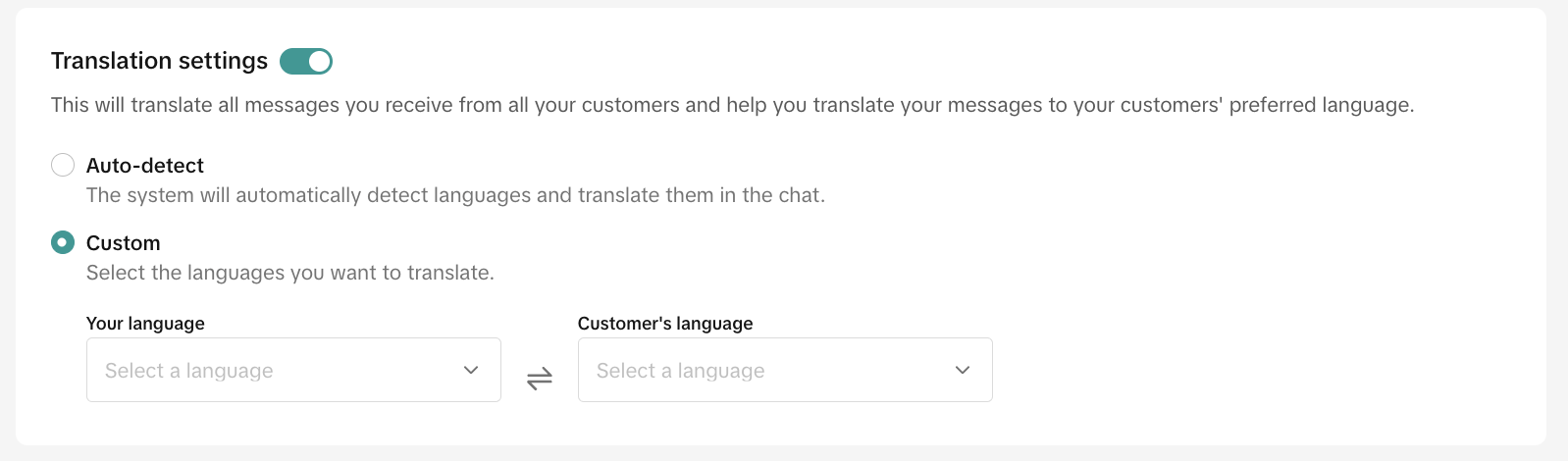 You can also manage translation settings for all chats in "chat settings" or for individual chats from the "more actions" menu.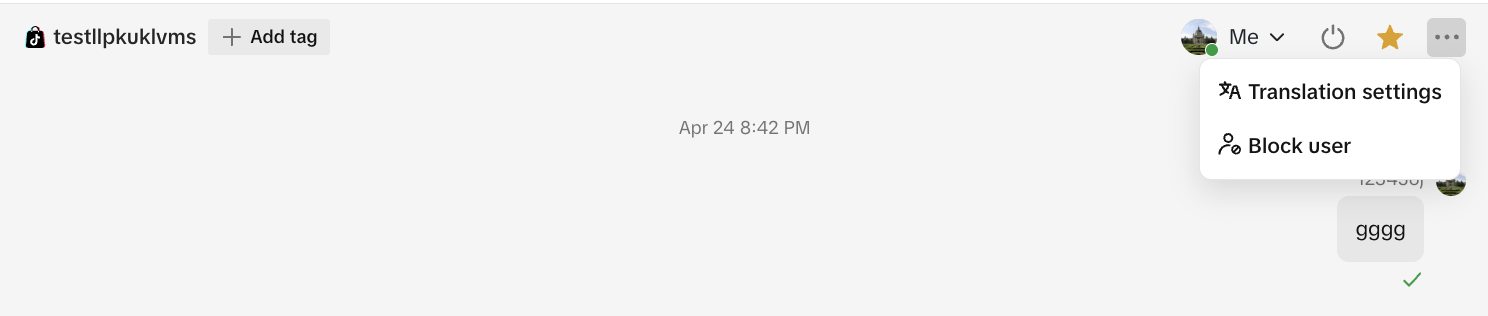

Team Management
Store managers can manage and set the accounts of customer service agents in the team management module.Access
Buyer Message - Setting - Team managementPermission: Only shop managers have permission to this page, that is, main account, administrator and accounts with advanced customer service authority.
View and Modify Agent Information
The customer service agents information that you can modify are:- Basic Information: Avatar, nickname and email address.
- Roles: Store owner, admin and agents. Agents are granted basic permissions to chats; admins are granted advanced permissions such as team management and shop settings.
- Maximum Capacity: The maximum number of chats an agent can manage at a time. This is set independently per agent per shop.
- Open Chats: The number of open chats for an account.
- Accept Chats: Ability for an account to receive auto-assignment chat.
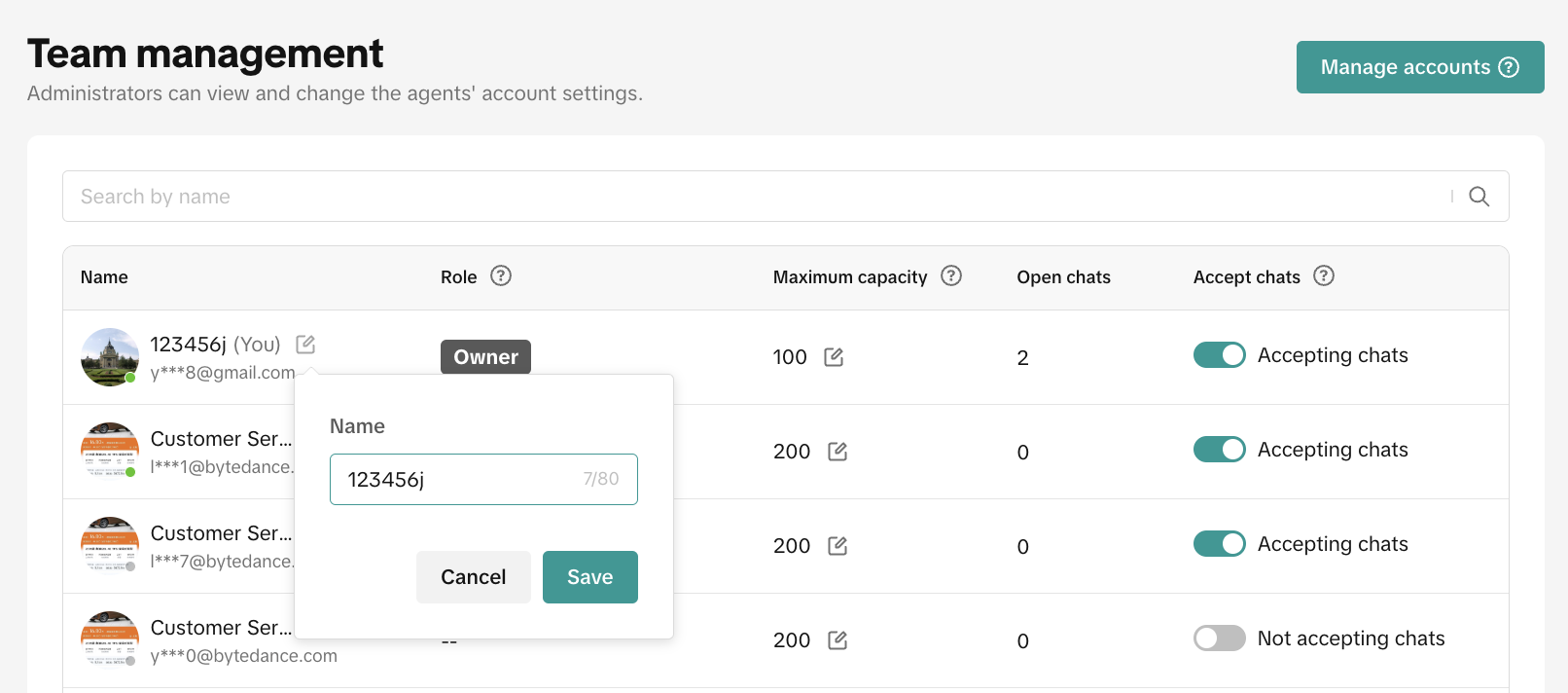
- Nickname
- Maximum Capacity
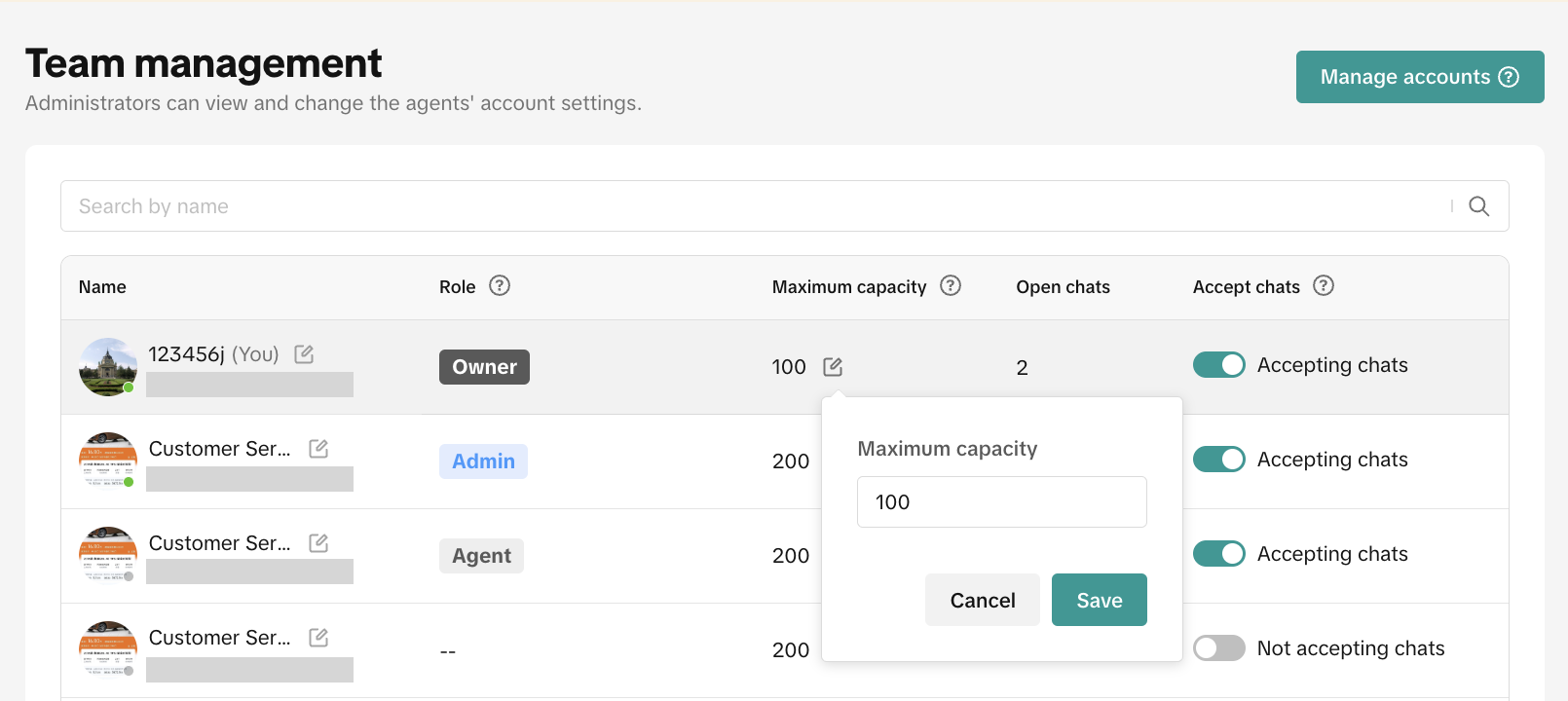
- Accept Chats
- Turning on the switch: Accept auto-assign chats means that the agent will receive chats automatically assigned by the system and chats assigned to the agent manually by other agents.
- Turning off the switch: Do not accept auto-assign chats means that the agent will not receive chats automatically assigned by the system, but other agents can still manually assign a chat to the agent.
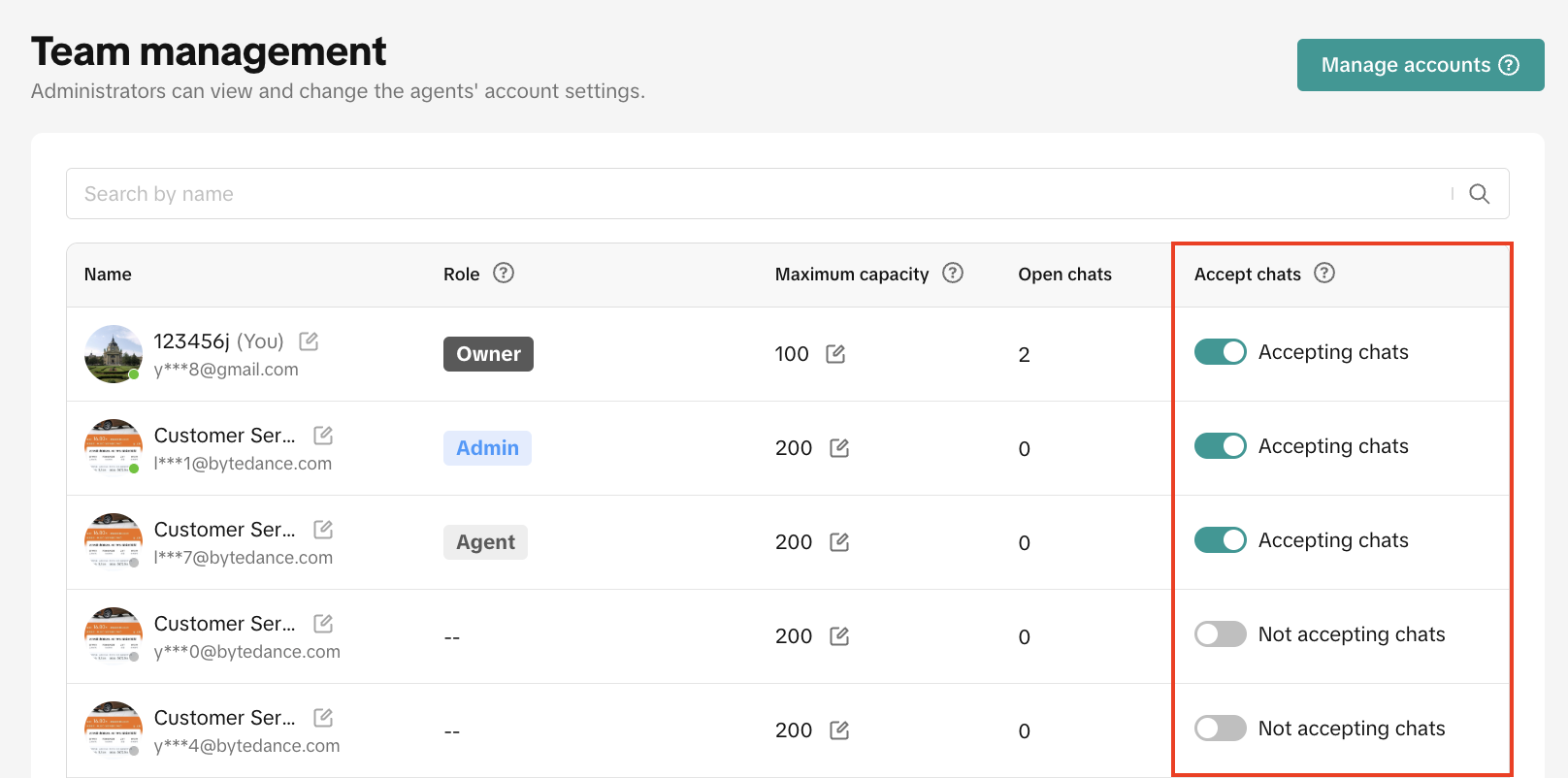 Note: All accounts and data shown in the screenshots above are fictional examples for reference only and do not represent promises or predictions of actual outcomes.
FAQ
- Can store managers deactivate the Customer Service Agent role and re-activate again in the future?
- Yes. Store Owner and Admin can re-activate a customer service agent role later after they deactivate the role.
- Is there any maximum capacity for agents to receive assigned chats?
- Yes. The system will limit capacity for each agent receiving chats to 999 chats. But TikTok Shop highly suggests sellers to set this limit according to agents' capacity and working hours. Too many assigned chats that one agent could receive will affect their performance, like slower responses and even skipped chats. This will impact the overall response rate and customer satisfaction rate.
Có thể bạn cũng quan tâm về

Seller Sharing - Underme Vietnam
Underme Vietnam specializes in providing sporty lingerie for women on the TikTok Shop platform. Desp…

Shop Ownership Change Process
Note: You will only be able to change ownership from to individual to corporate/household sellers or…
Delegation Mode
This article informs what happens, why it helps, and what you need to do (one time) so your Account…

Violation Points & Milestones for Sellers
What are Violation Points? Violation Points are points issued to sellers who breach our policies an…

How can I change my login email address or phone number asso…
To update your email address/phone number, please follow the steps below: Login to your TikTok Shop…

【Video】Homepage - All you need to check
Find your daily important information and action needed items on homepage. 2.1 Let's Start Your Busi…
Scam Prevention: Cash on Delivery (COD) Scam Orders
Scam Prevention - Cash on Delivery (COD) Scam Orders TikTok Shop strives to provide a shopping exper…
TikTok e-commerce short video music selection guide
For the purpose of upholding music copyright law, we recommend that everyone uses music with commerc…
Adjustment Period for New Shops
New shops are subject to a adjustment period during which some functions are restricted. These restr…

Seller Sharing - Socomo Shop
Socomo is a brand specializing in Korean-style women's fashion, a rising star with a commendable tra…