LIVE Scripts

What are LIVE Scripts

Understanding how to structure LIVE content and creating essential talking points are fundamental first steps to successful LIVE selling. Available to all sellers & affiliate creators, LIVE Scripts is designed to provide auto-generated scripts that can efficiently guide hosts before and during LIVE.
image
image
image
Backed by smart technology, recommended scripts provide hosts diverse sales pitches and selling points of the products showcased in your LIVE sessions. Elevate your livestreams to the next level with LIVE Scripts, a productive tool to help you keep your audience engaged, drive attention and boost conversion during livestream.
Please note:
  • The script is AI generated and provided for your convenience. TikTok Shop does not guarantee the completeness or accuracy of the content.
  • You are required to review and ensure that the script is accurate, truthful and complies with our Seller Terms of Service (as applicable) before use.
  • You are solely responsible for any use of this tool.
image

Benefits of using LIVE Scripts

  1. Enhanced Structure: LIVE Scripts helps develop a well-organized framework for your content, ensuring that key points are covered in a logical sequence. Get inspiration for more interactive opening remarks, enticing product introduction and effective closing remarks to keep your viewers engaged and interested.
  2. Save Time: By automating the scriptwriting process, you save time that would have been spent brainstorming and organizing content from scratch. In particular, scripts for 'Product highlights' provide a good summary of the product and its selling point, making LIVE Scripts a great assistant in helping you to present product highlights in the most effective way.
  3. Improved Engagement: LIVE selling is not only about showing the product, but also how to articulate the products' value more effectively and appeal to the audience's needs. Drive viewer engagement and conversion by integrating effective tactics and different talking points throughout your LIVE.
image

How to use LIVE Scripts

Via TikTok app

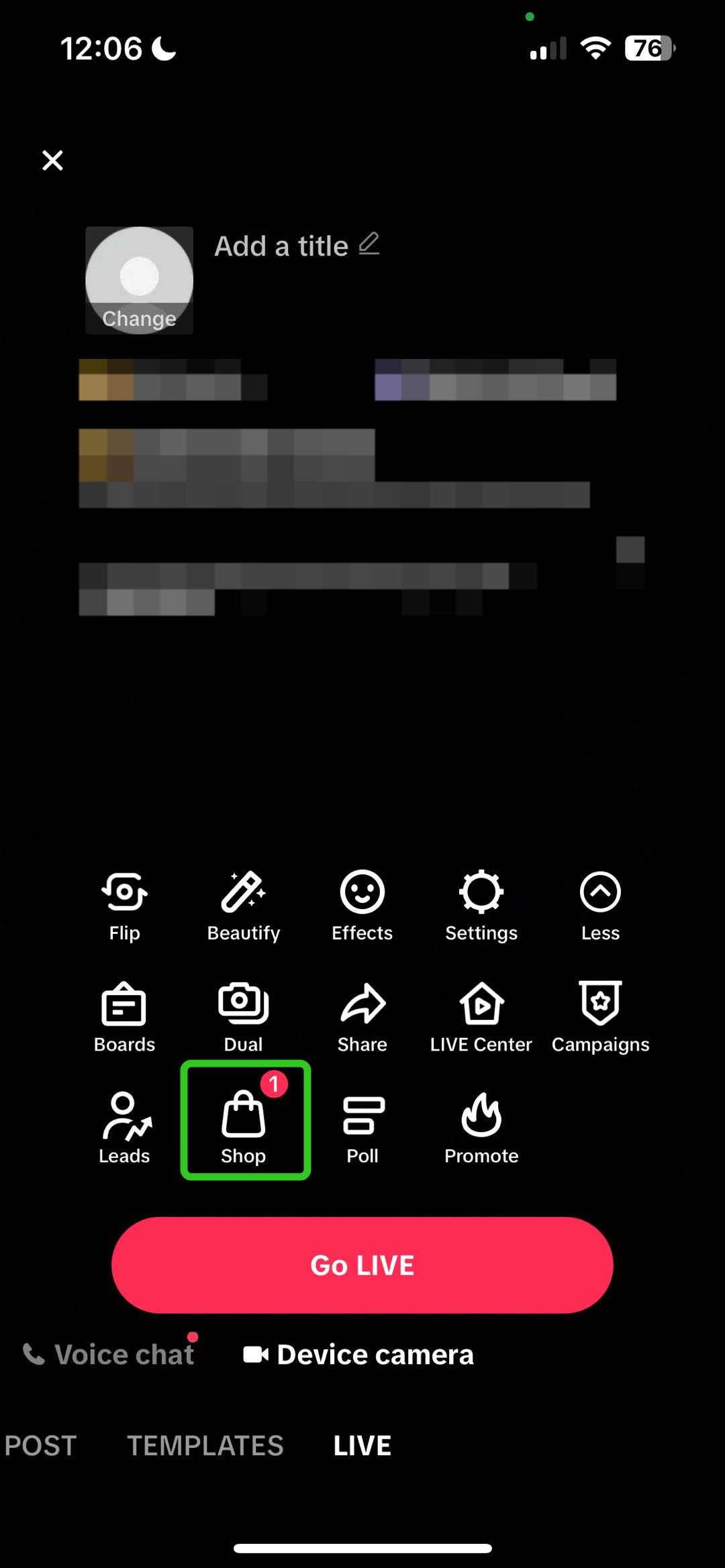
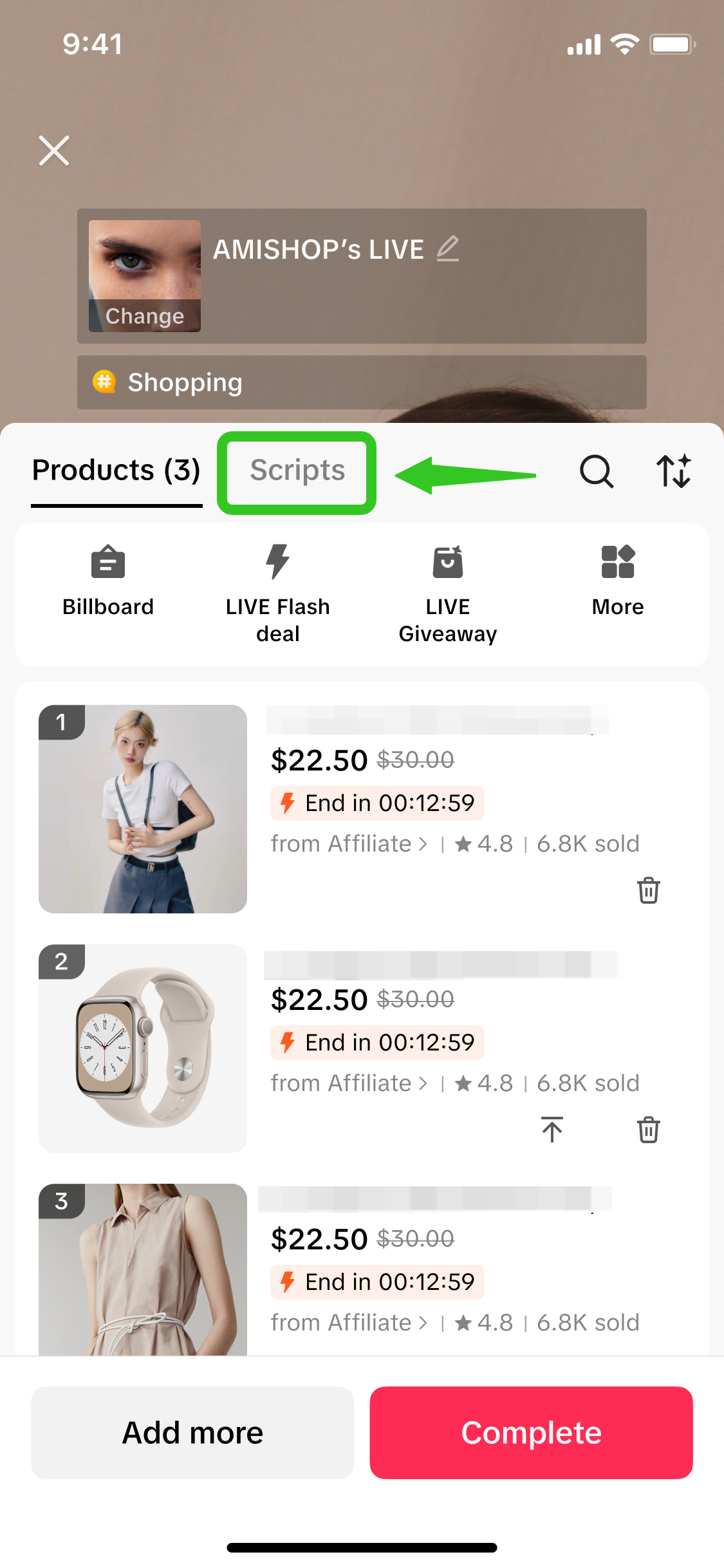
Step 1: Enter LIVE Shopping Bag & add productsBefore going LIVE, click on the 'Shop' icon to open your LIVE Shopping Bag. The 'Scripts' tab is where you can find script suggestions based on the products added to your LIVE Shopping Bag. Ensure you add more than 1 product in order for script suggestions to appear.
Enter the LIVE Shopping Bag -> Click on the 'Scripts' tab
image
image
image
image

Step 2: View, Edit or Refresh Scripts
View Scripts
image
image
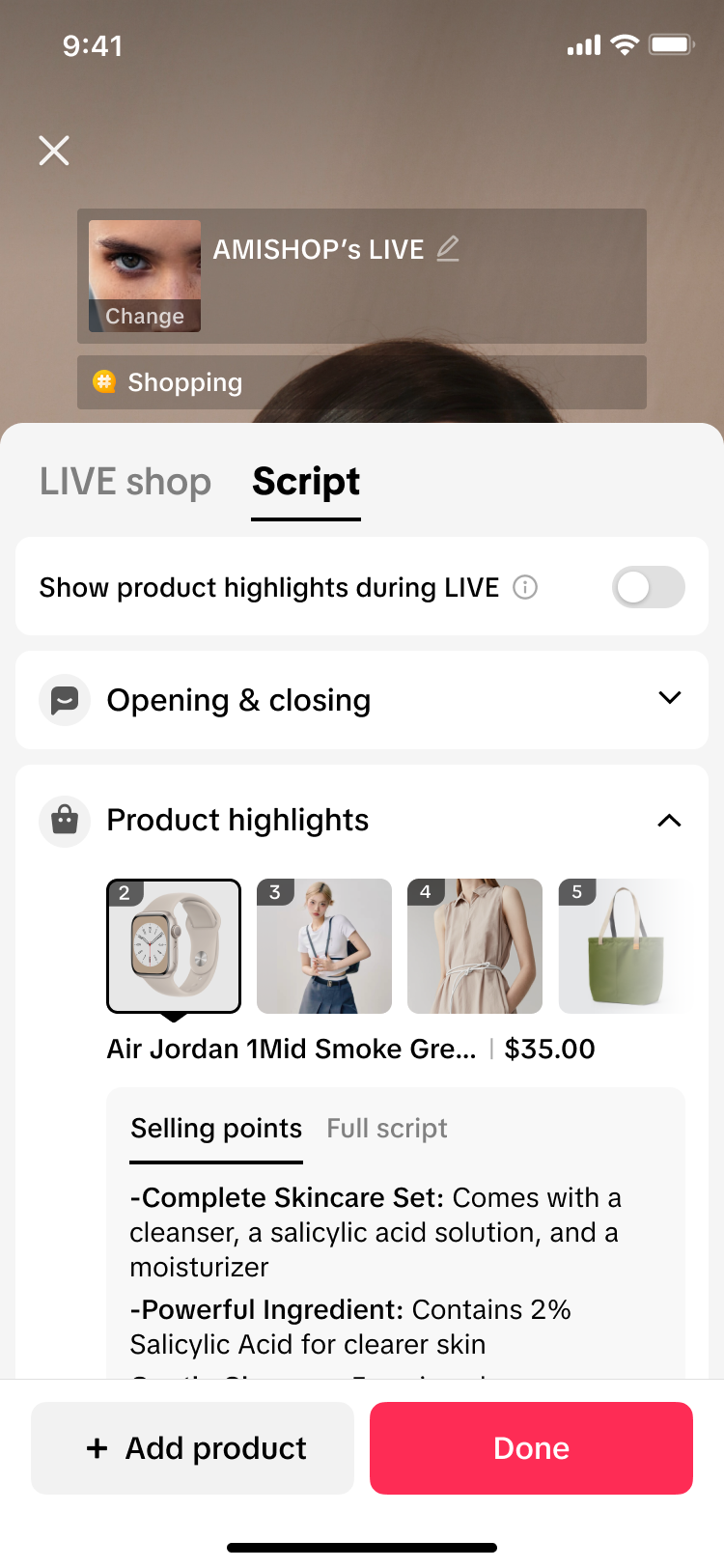
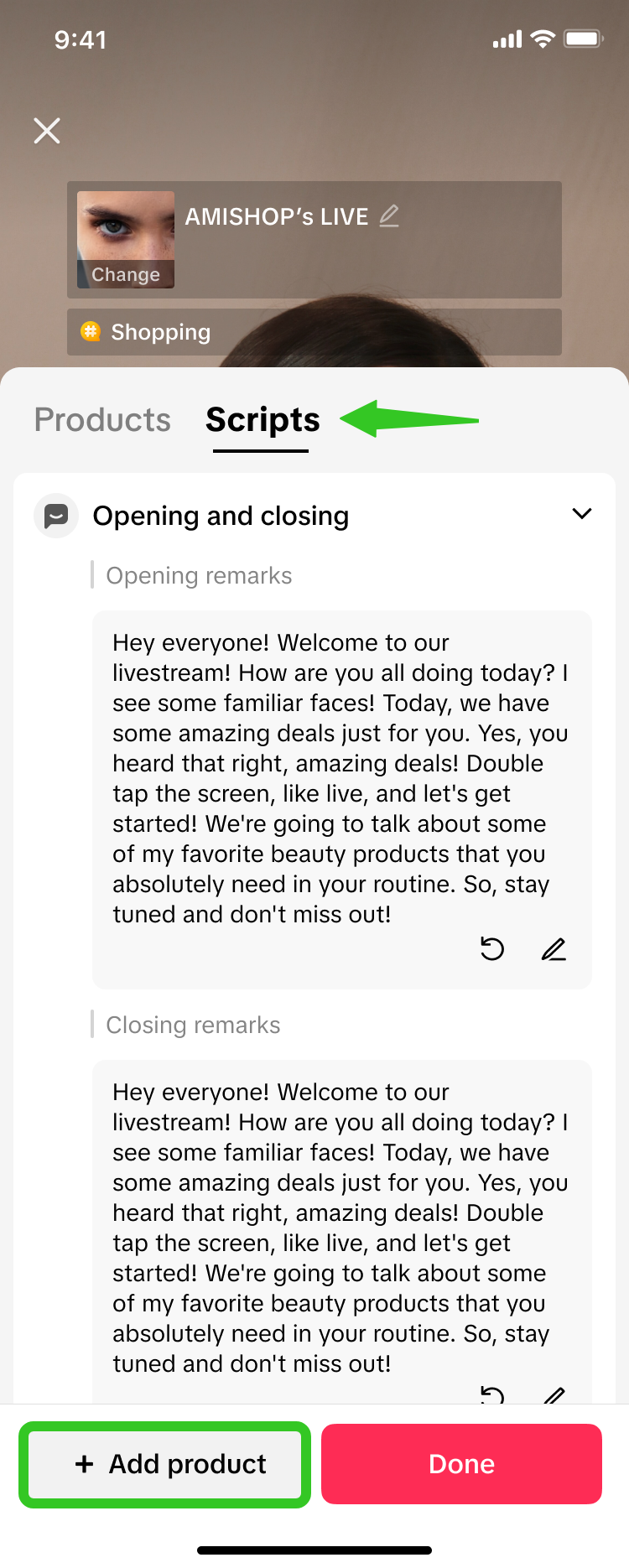
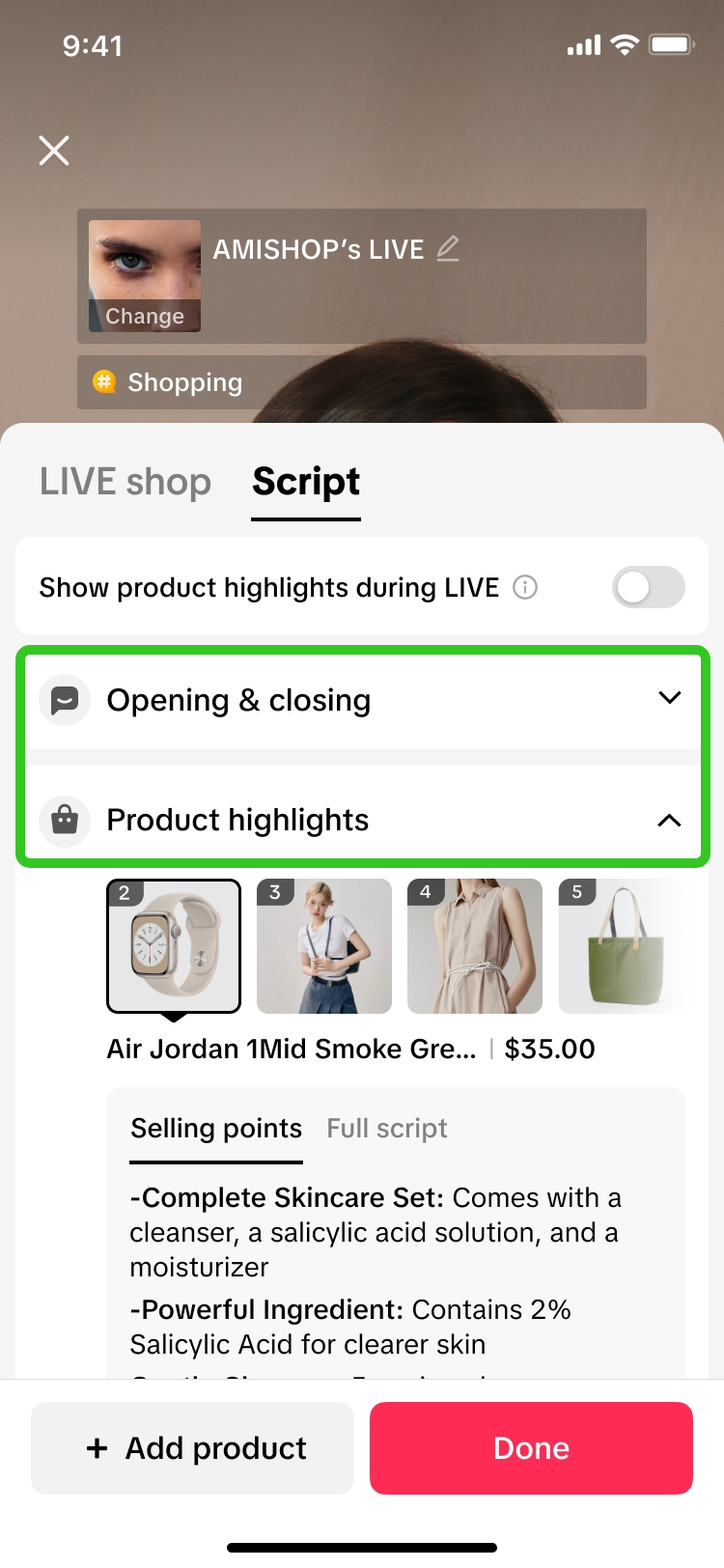
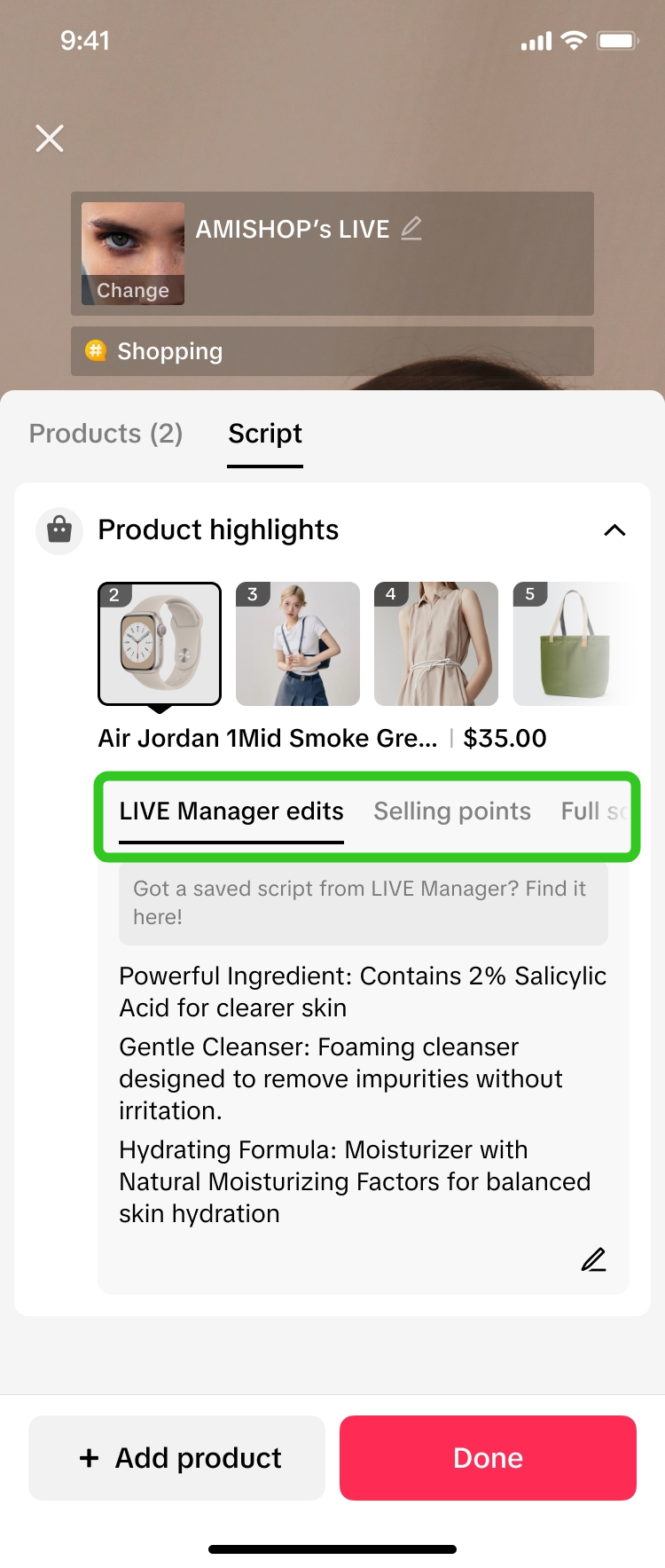
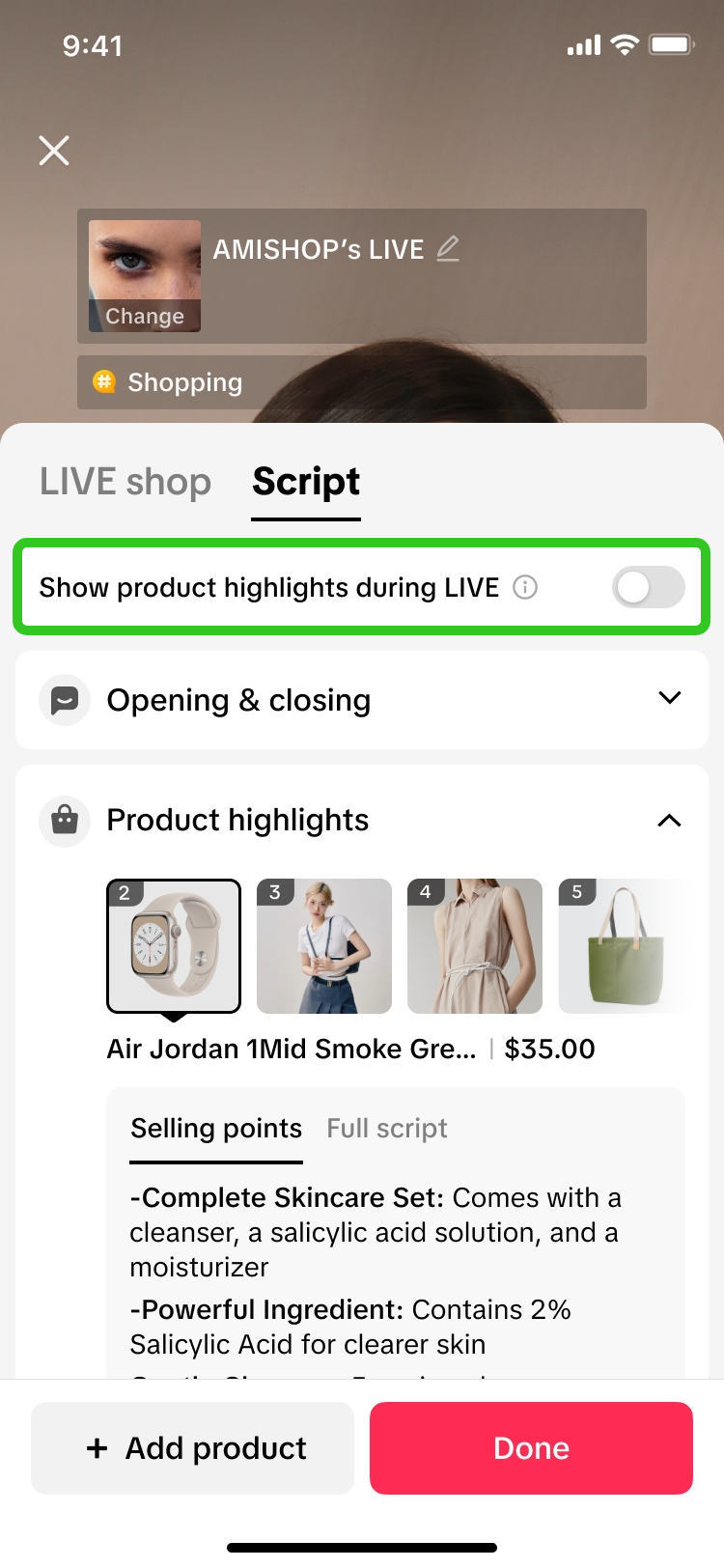
Scripts are provided in 2 sections, 'Opening & closing' and 'Product highlights'. Click on the dropdown arrow to expand each section. 'Product highlights' are further categorised into 3 tabs:
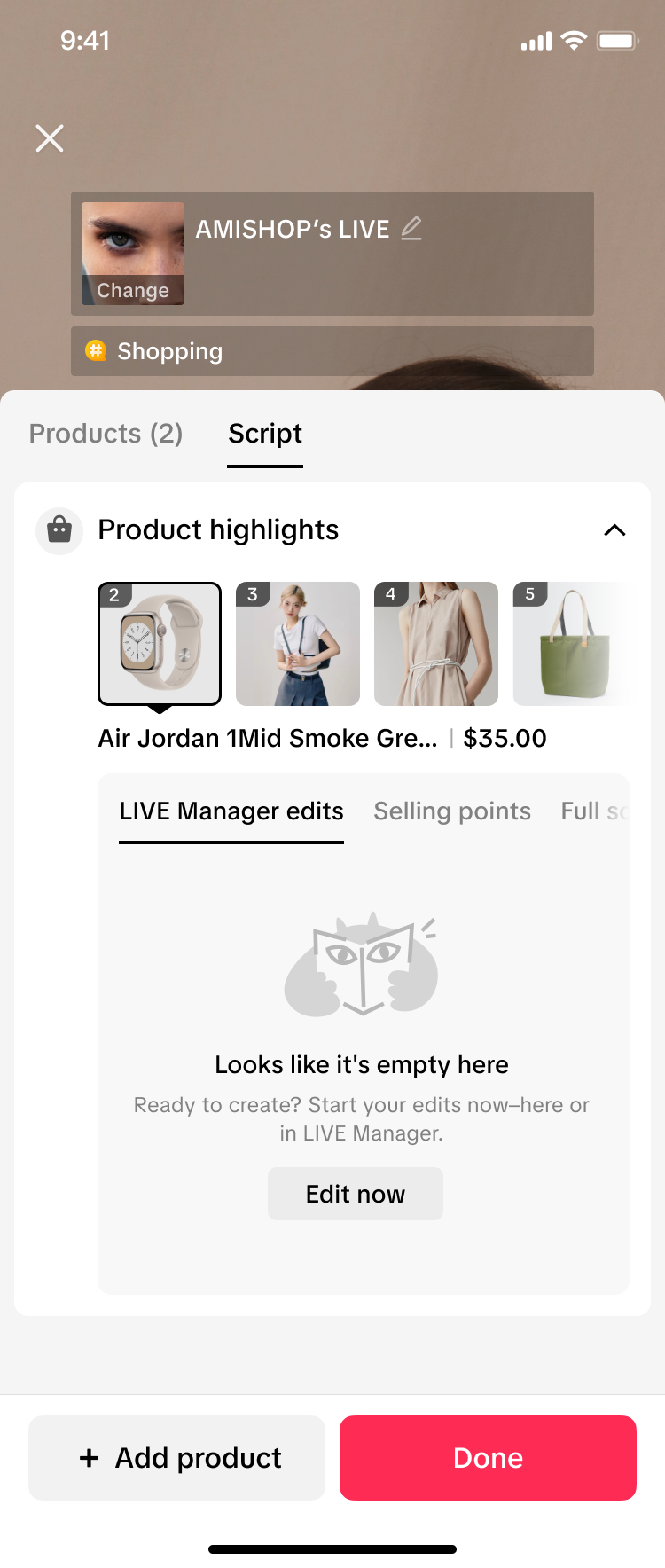
  • LIVE Manager edits: This tab will appear if a script has been edited via LIVE Manager PC. Edits on PC & App will be mutually synced.
  • Selling points: This tab displays short bullet points designed to highlight the most important benefits of the product quickly.
  • Full script: This tab displays a complete, detailed description covering the product attributes, sample usage scenarios, and call to action suggestions.
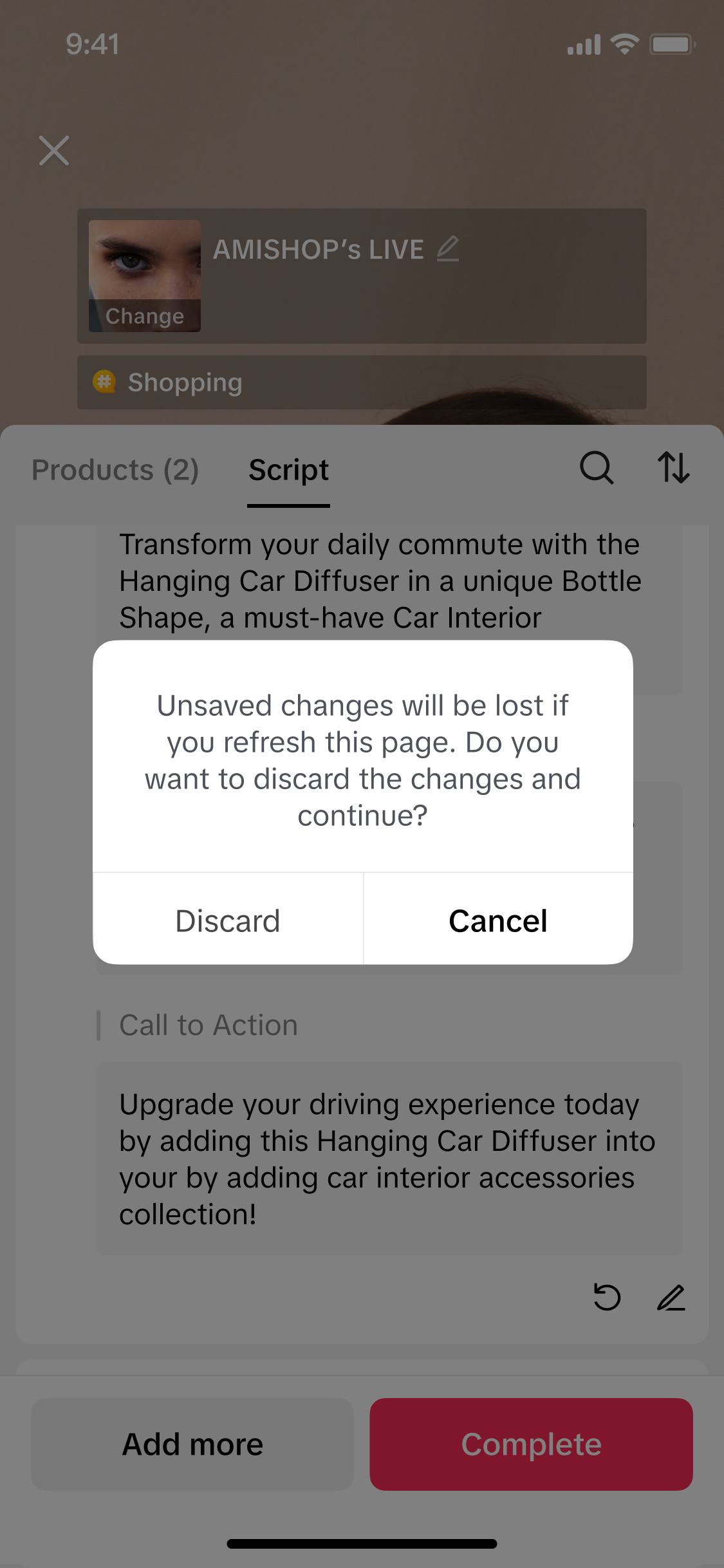
Adjust the script to match your own style or refresh the script to get different script suggestions.
Edit Scripts
Refresh Scripts
image
image
image
image
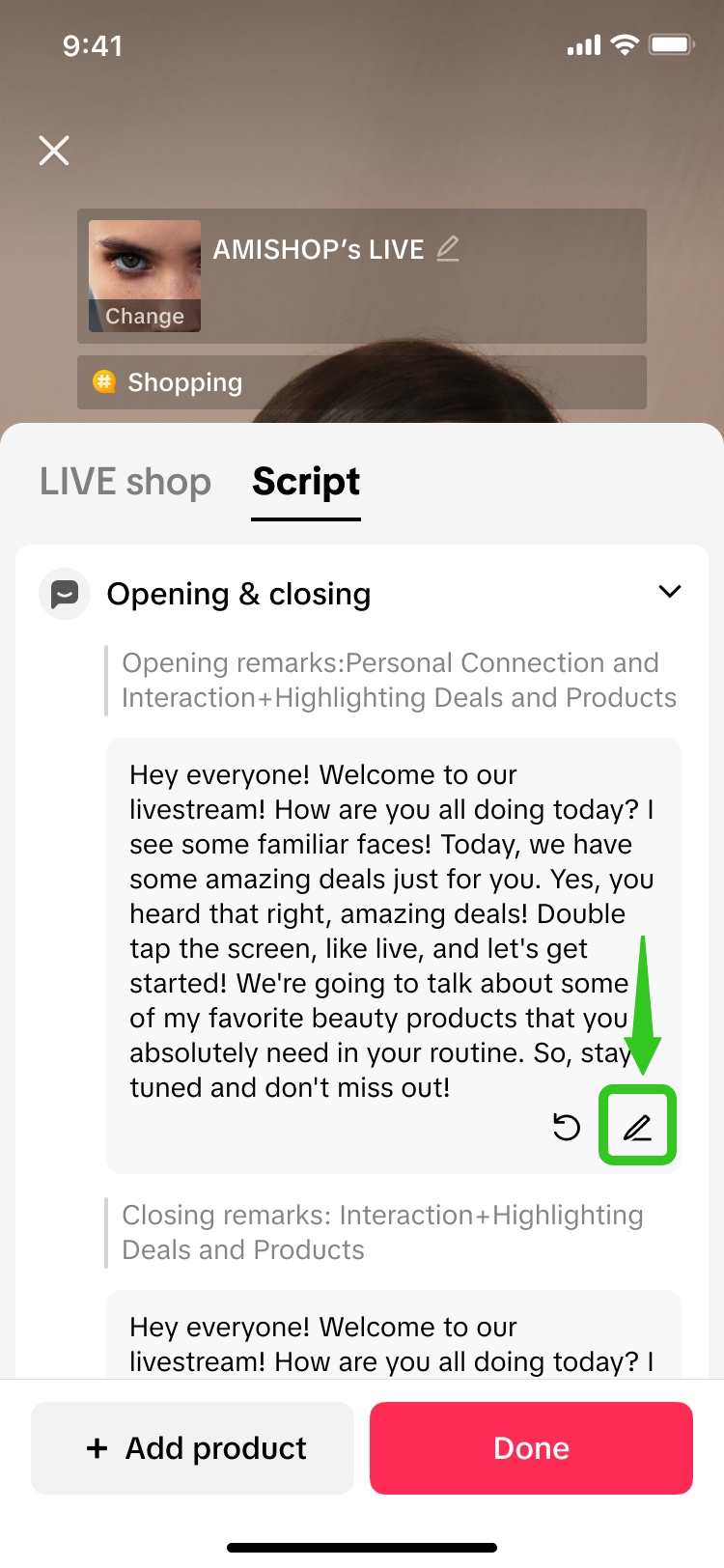
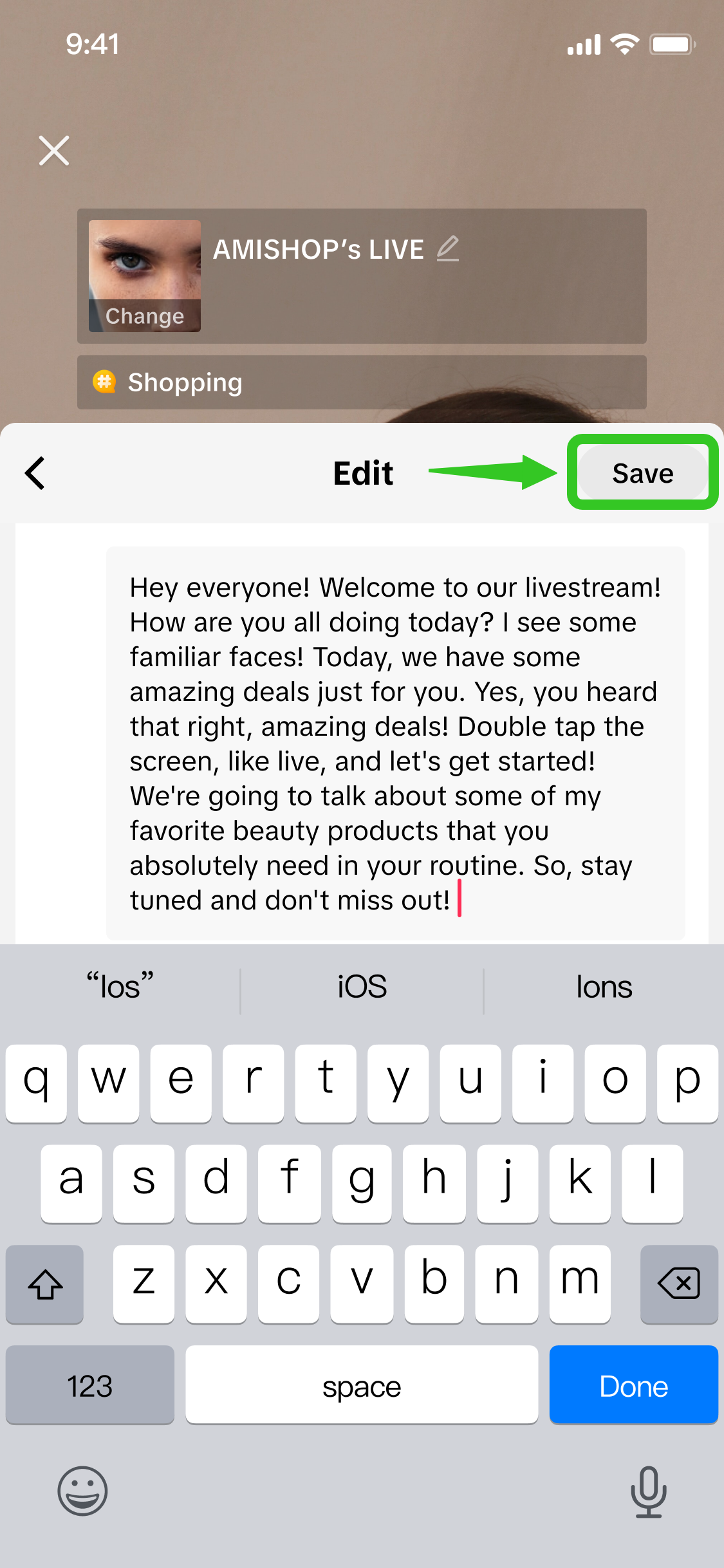
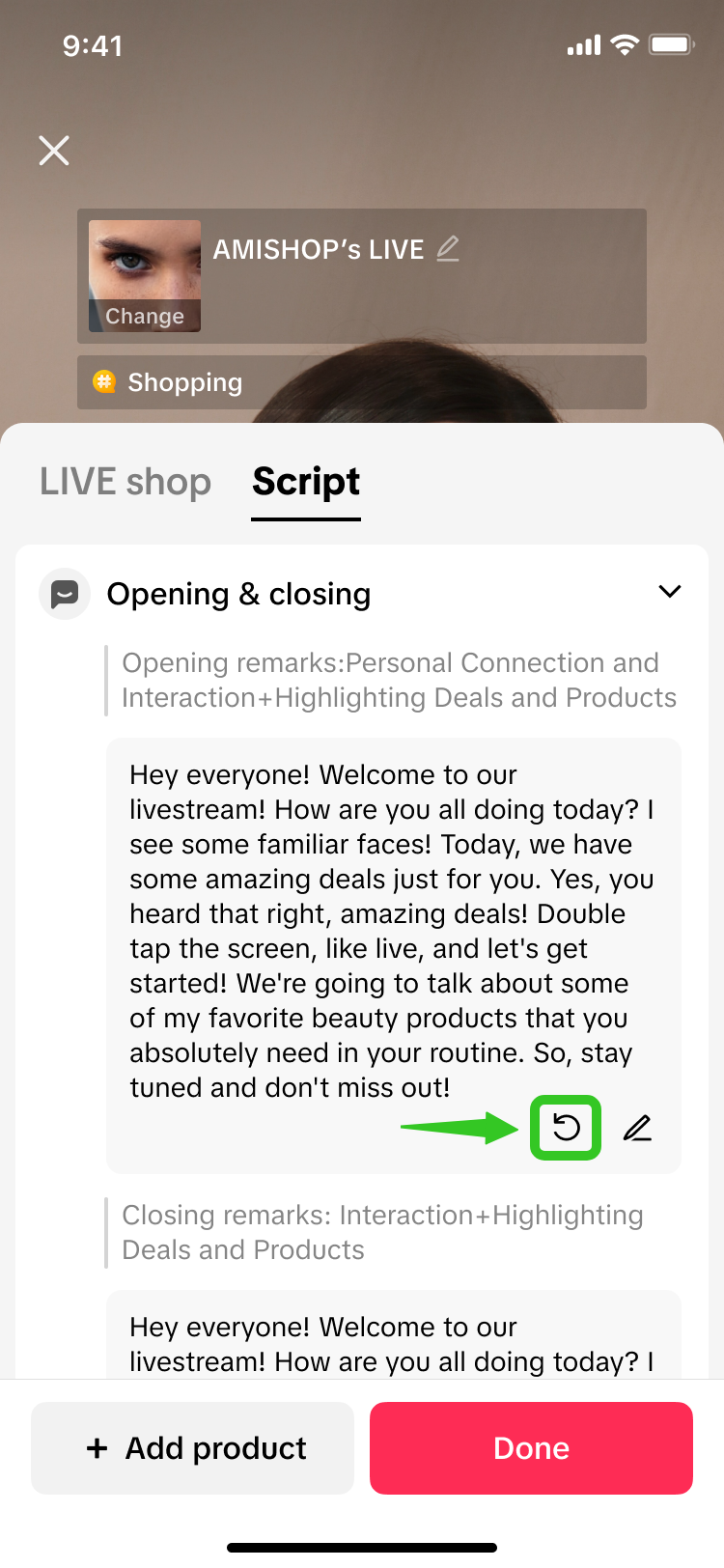
Click on the pencil icon button on the bottom right corner. Update the script text as you like and click Save.Click on the refresh icon to generate a new script.Note: Upon refresh, any prior content that was edited and customized will be lost. Script refresh is available for all sections, except Product highlights > Selling points.

Step 3: Use Script Prompter during LIVE
image
image
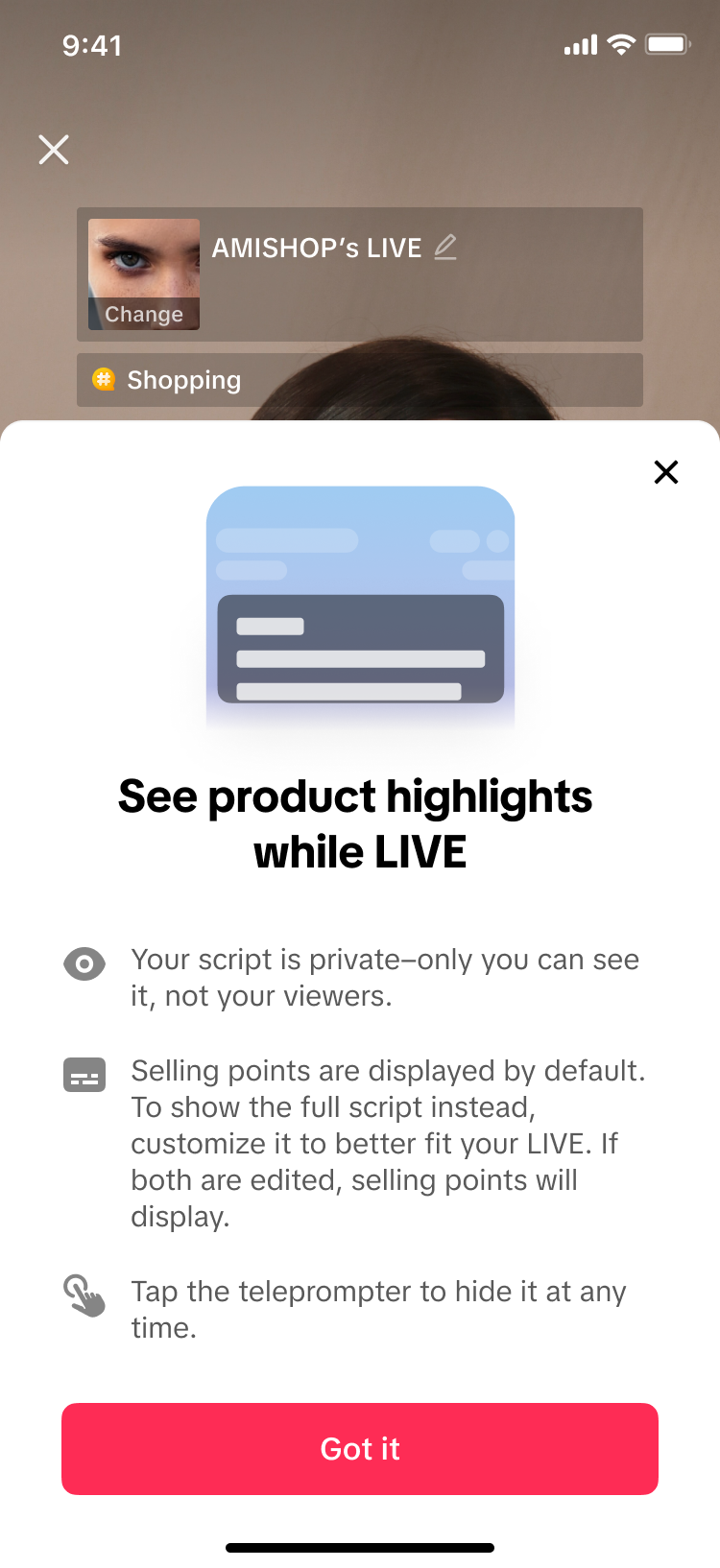
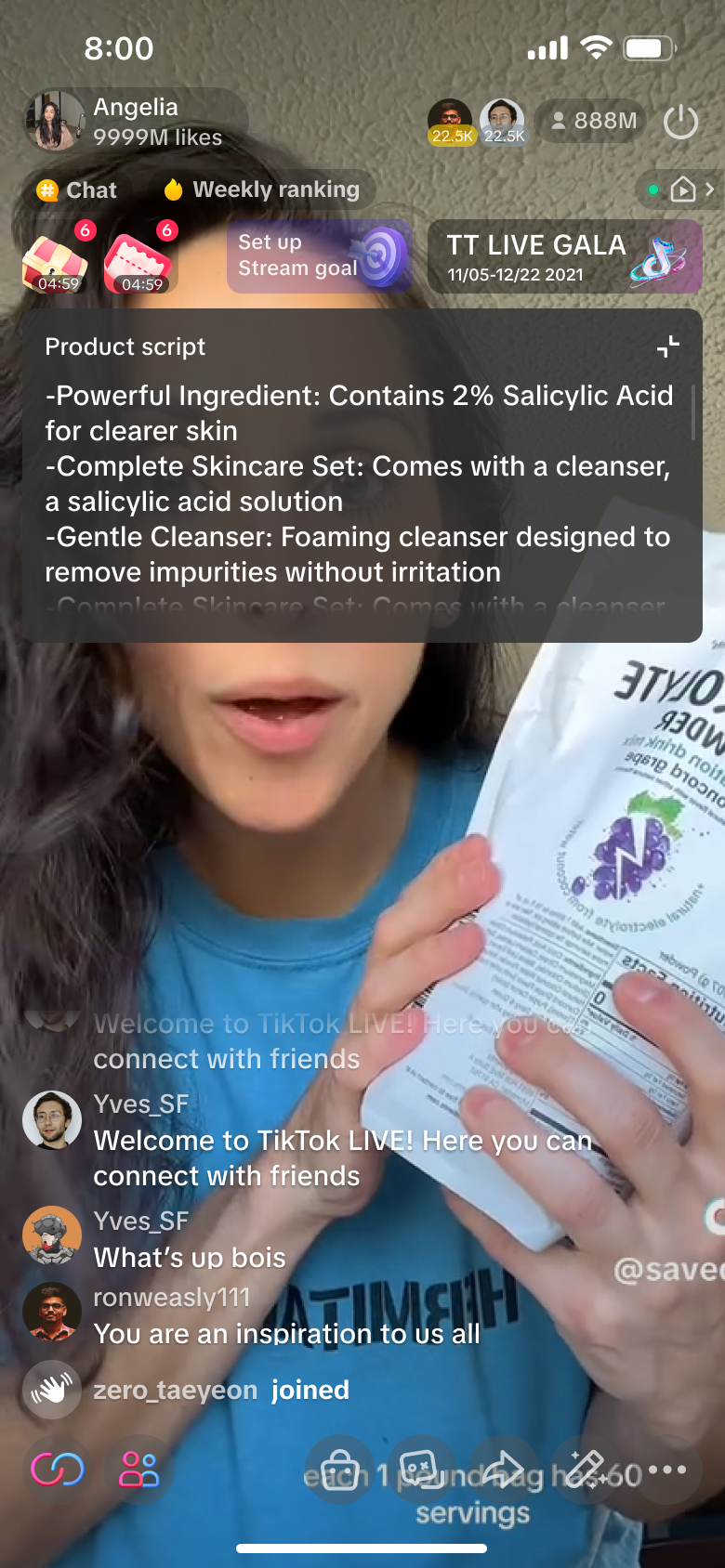
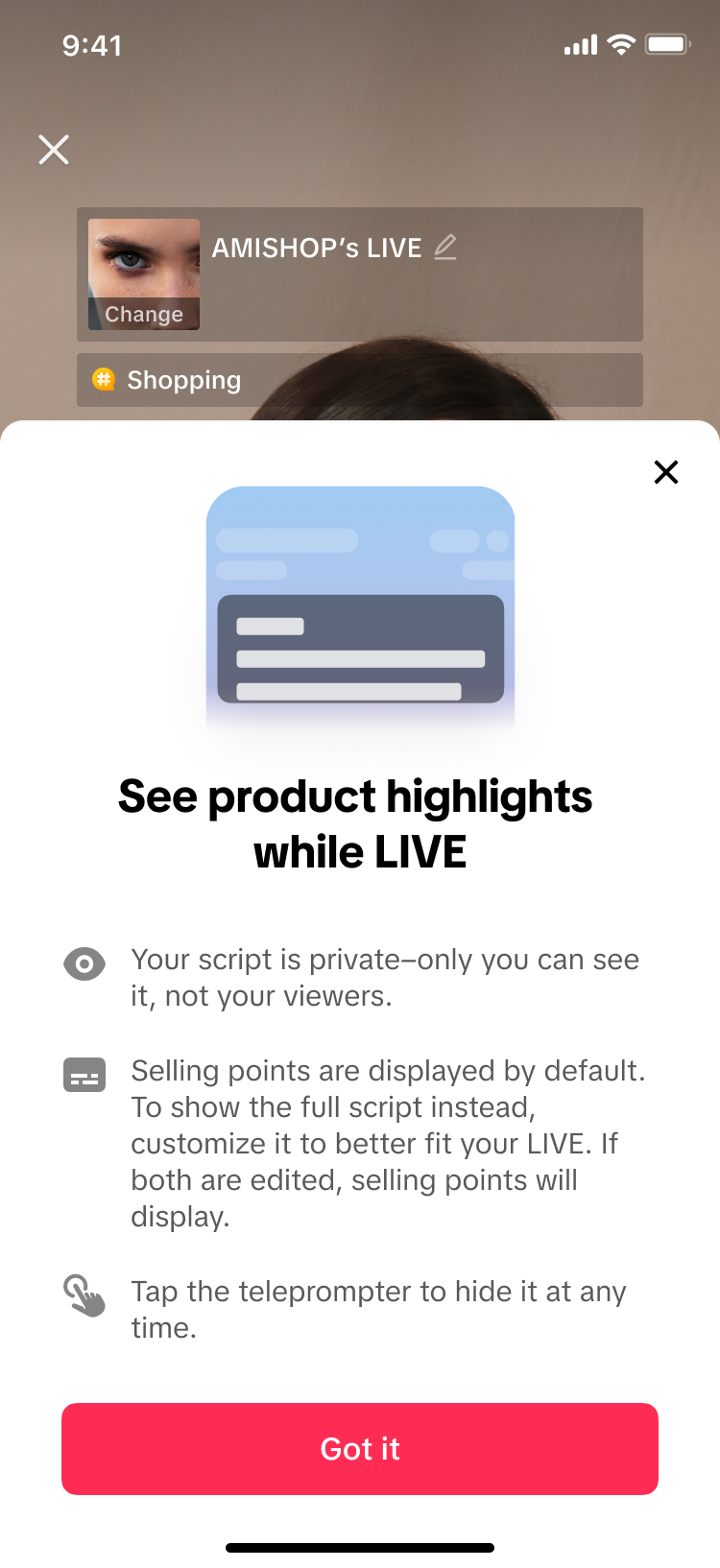
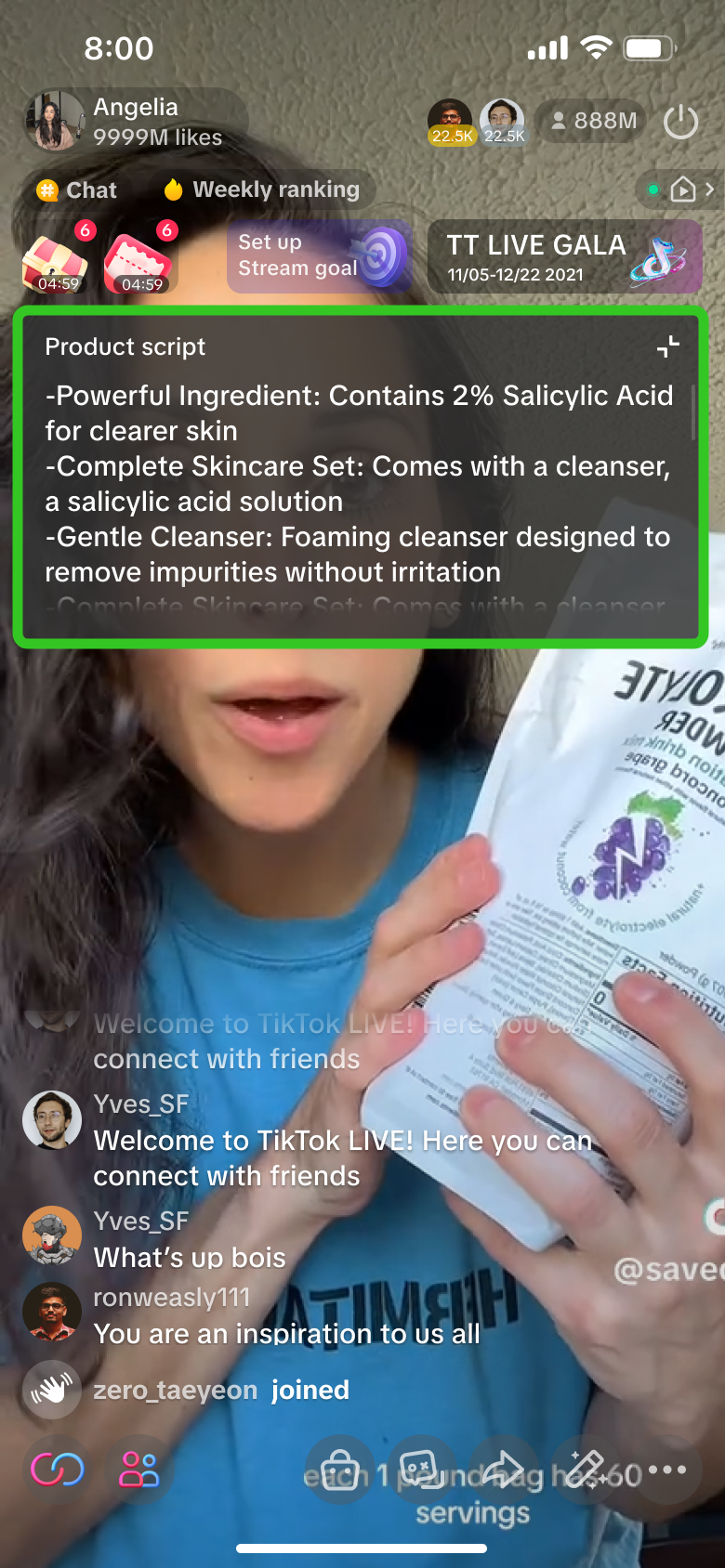
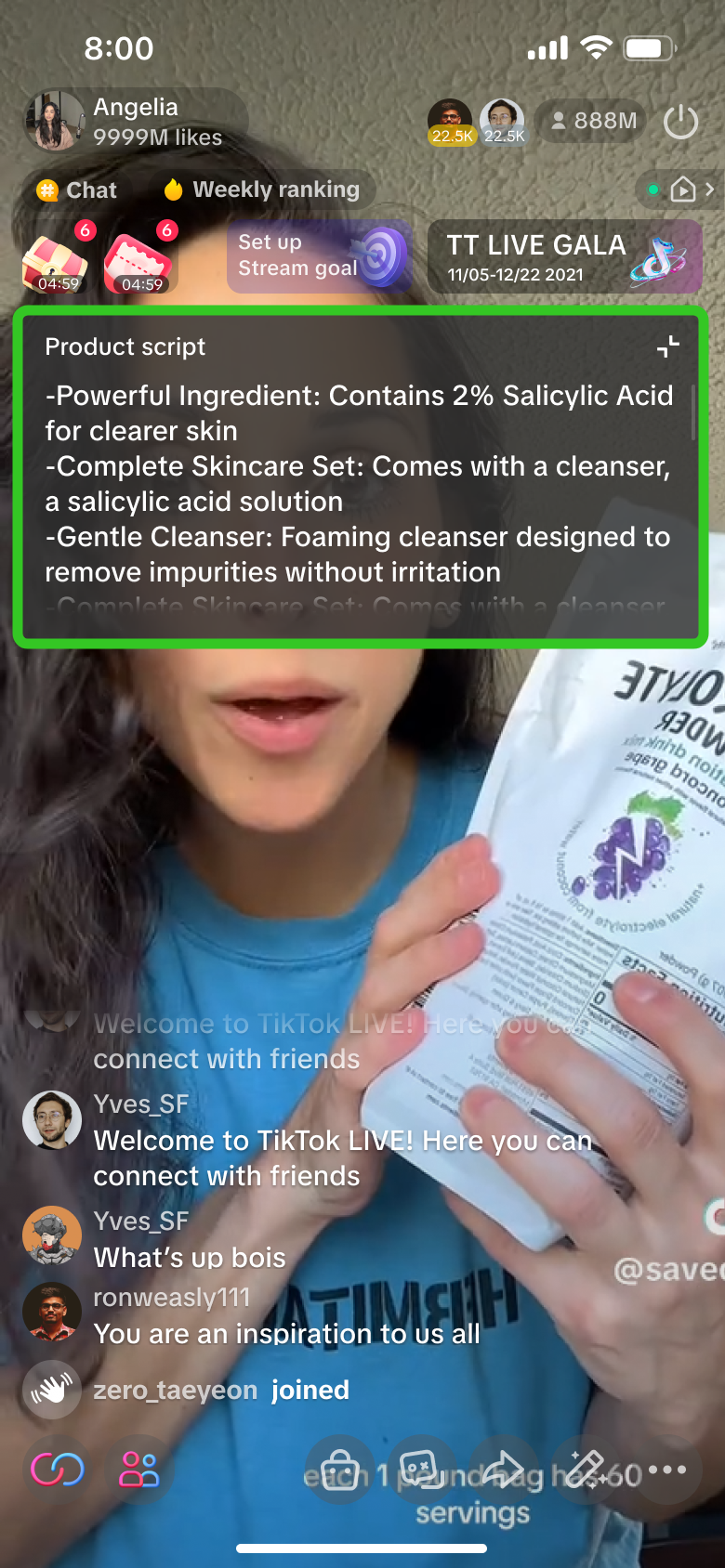
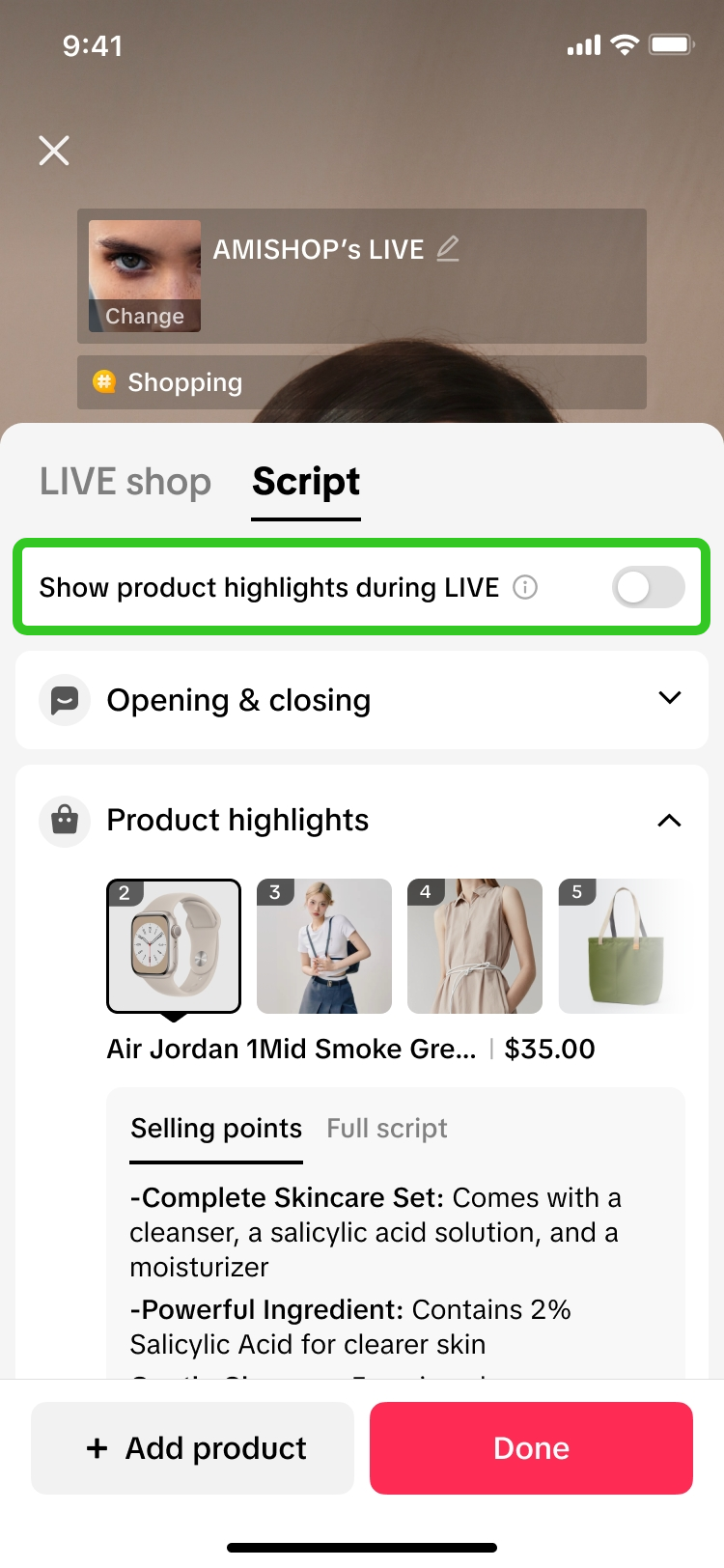
Toggling on "Show product highlights during LIVE" will enable a script prompter to be displayed on your screen during your LIVE, once a product has also been pinned. This script is only seen by livestream hosts, and is not displayed to viewers.
image

Via LIVE Manager PC

LIVE Manager PC
image
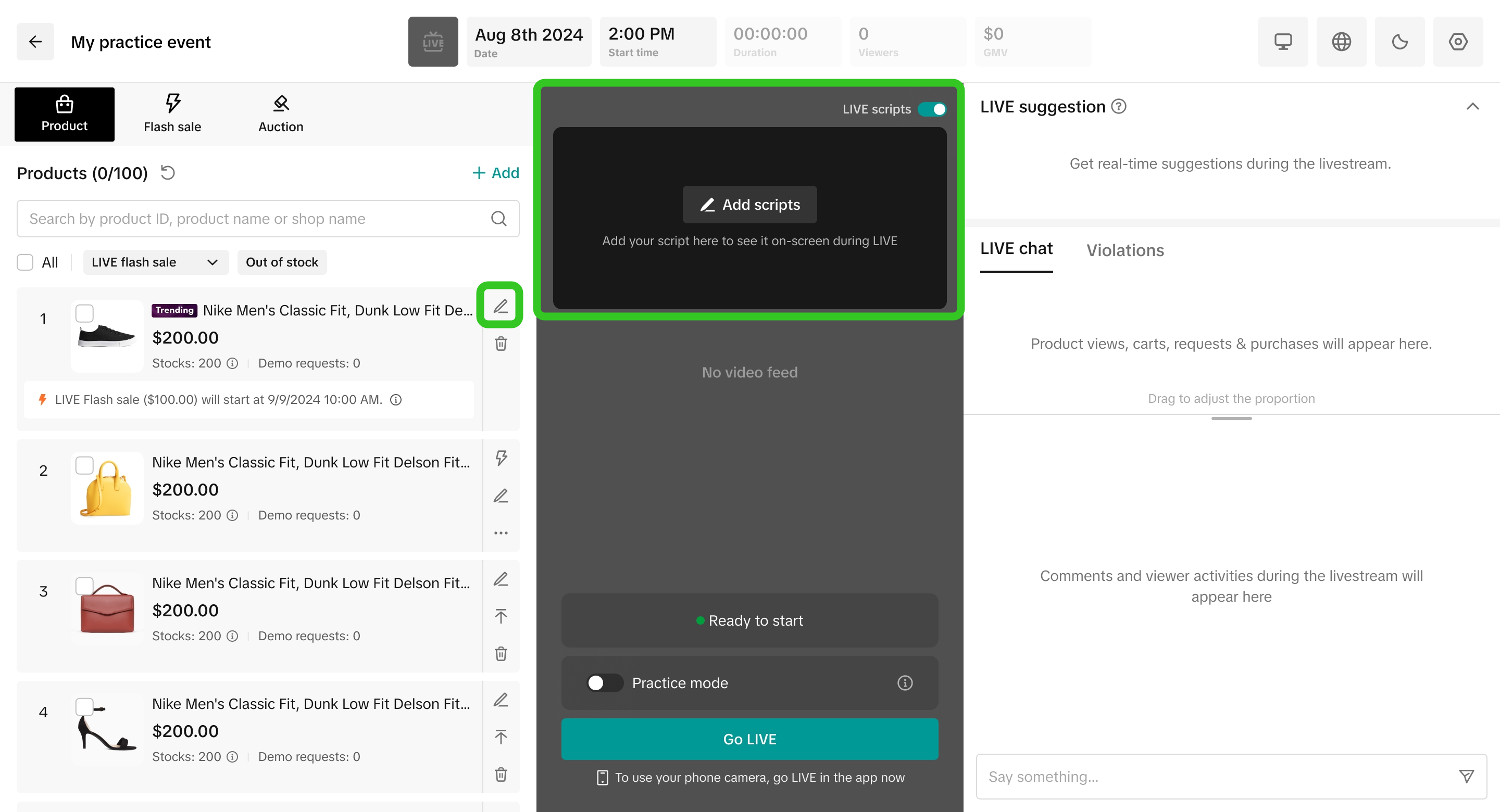
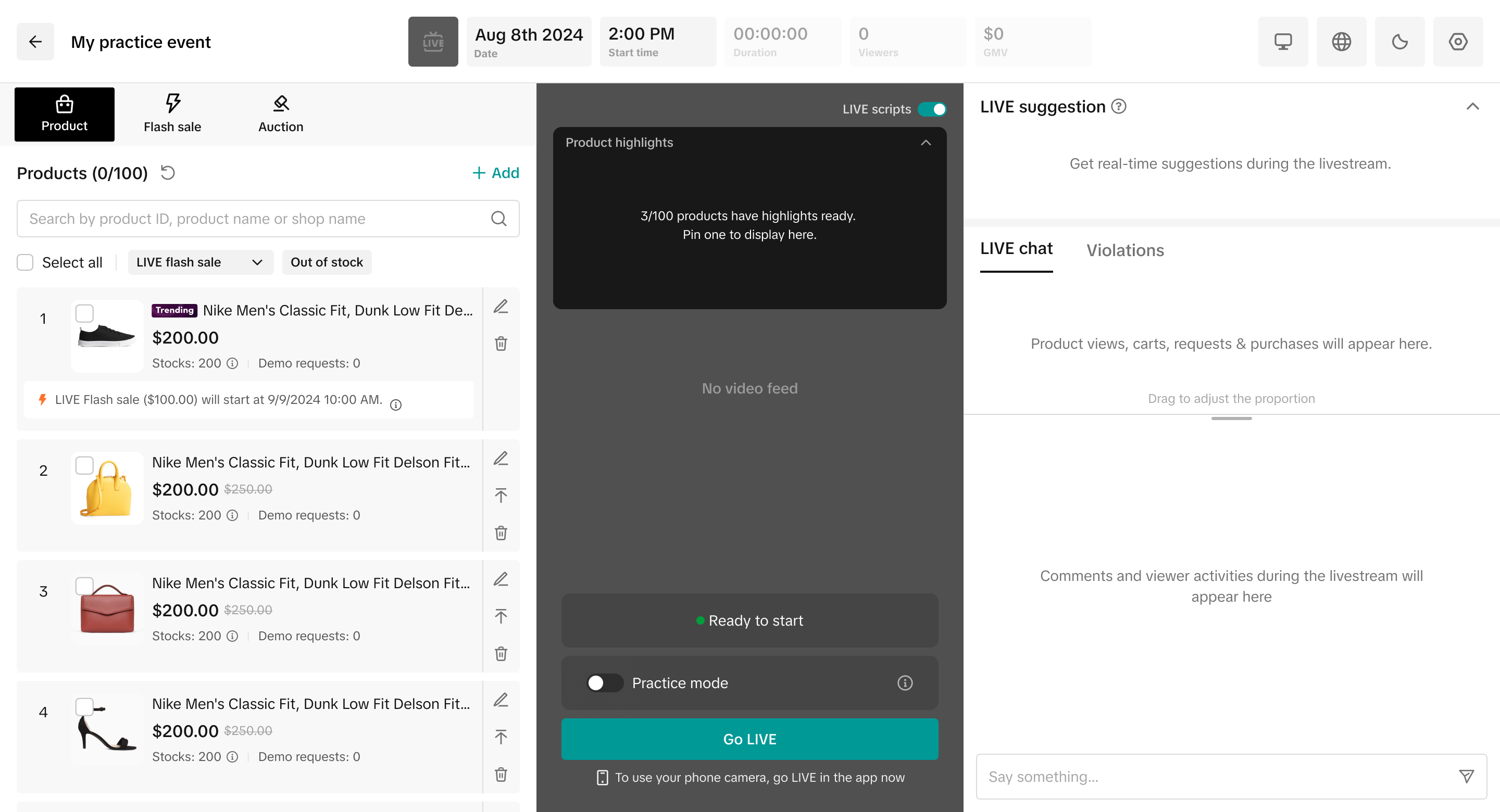
Step 1: Navigate to LIVE Console. Here, you can:
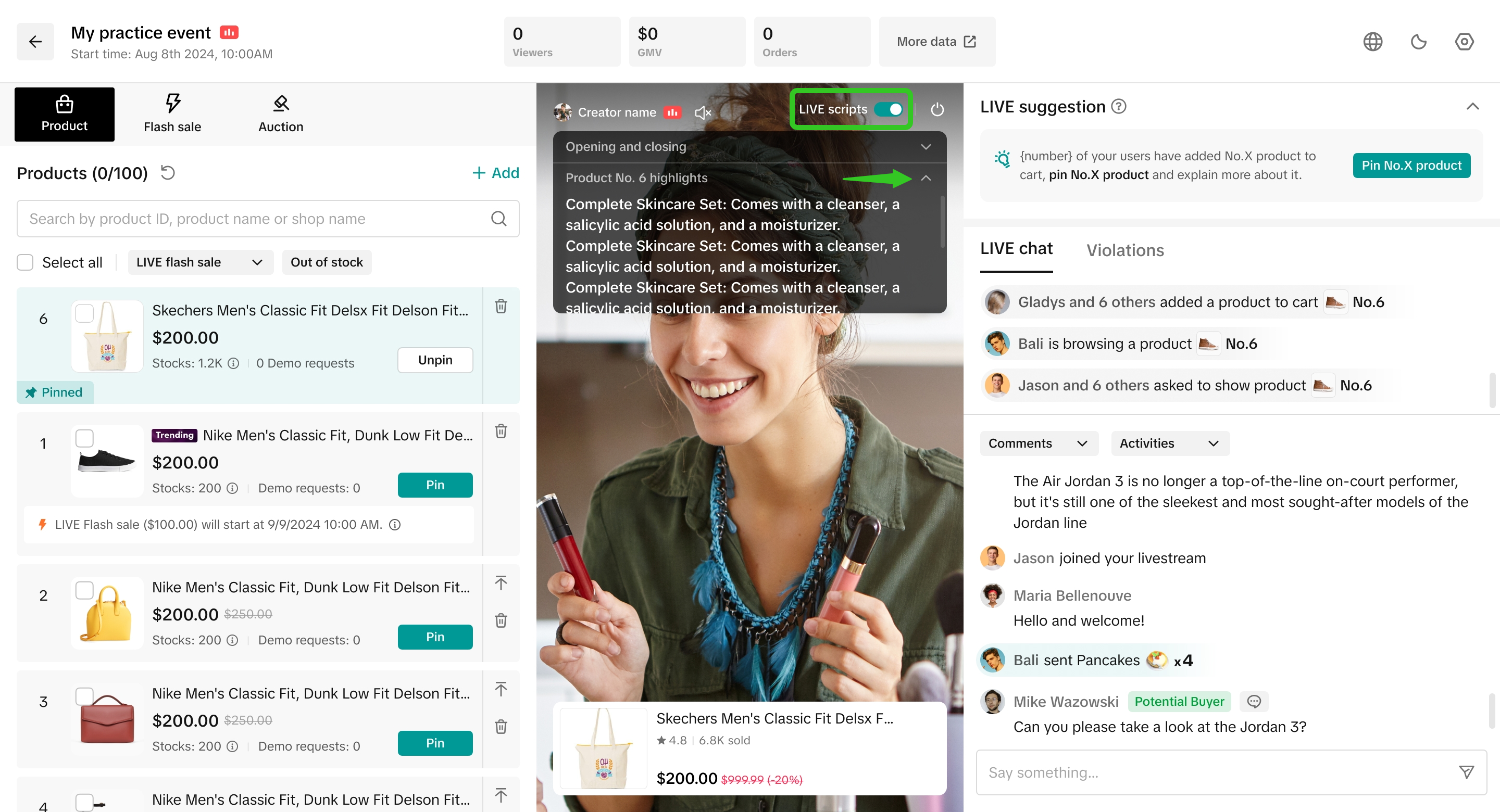
  • Toggle on or off 'LIVE scripts' - This will display the script prompter during your LIVE.
  • Add scripts - Click this to open the script editing window.
  • Edit scripts at product level - Click on the pencil icon beside each product to directly edit the script for this item.
image
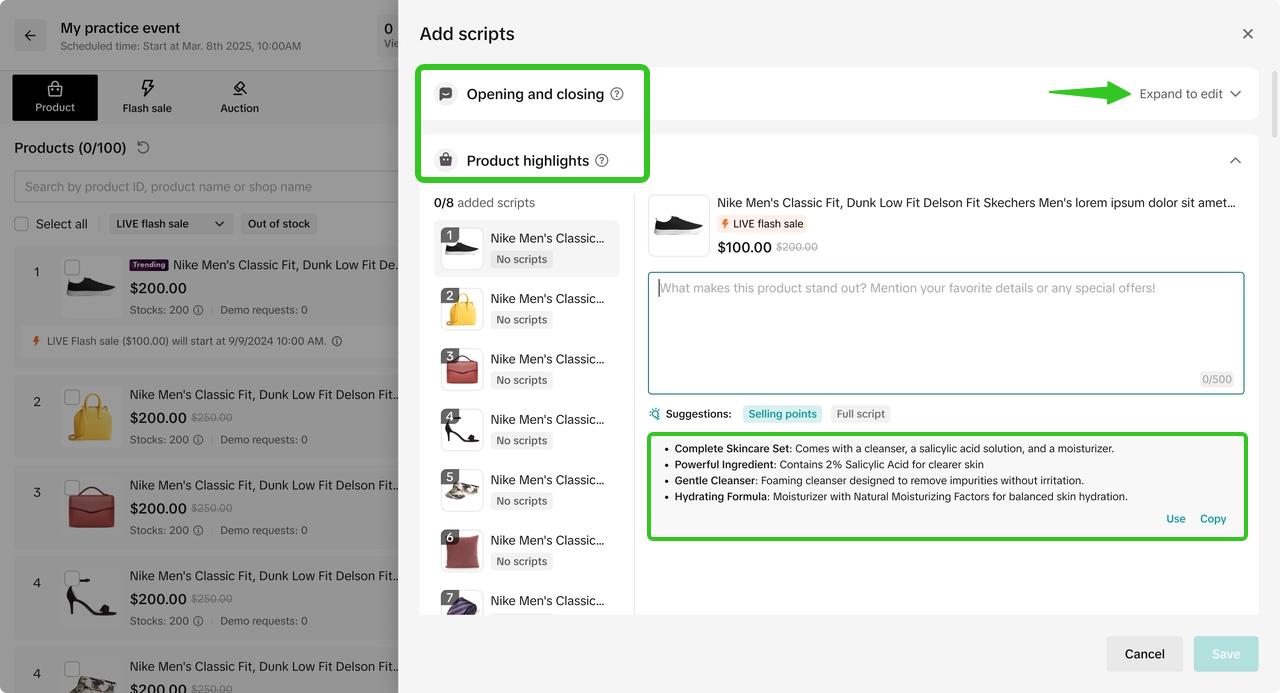
Step 2: Edit Scripts & SaveIn this script editing window, you can:
  • View 2 script sections: 'Opening and closing' or 'Product highlights'. Click the dropdown arrow to expand each section.
  • In each section, you may choose to edit your own script, or quickly use the suggested scripts below.
Once done updating the text box, click Save. ❗ If the text box is left blank and no script is saved, no scripts will be available for display during LIVE.
image
Opening and closing onlyimageimageProduct highlights only
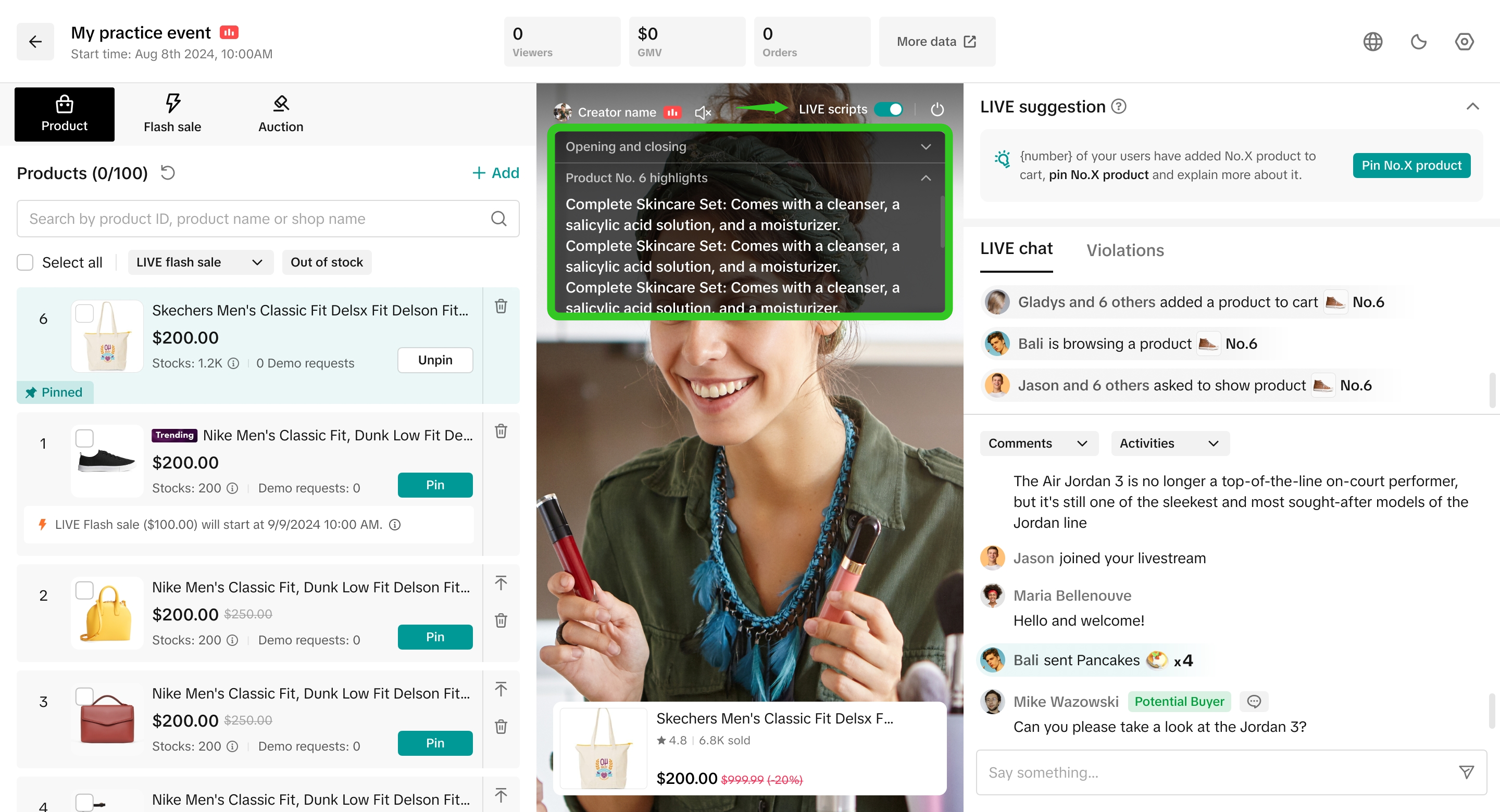
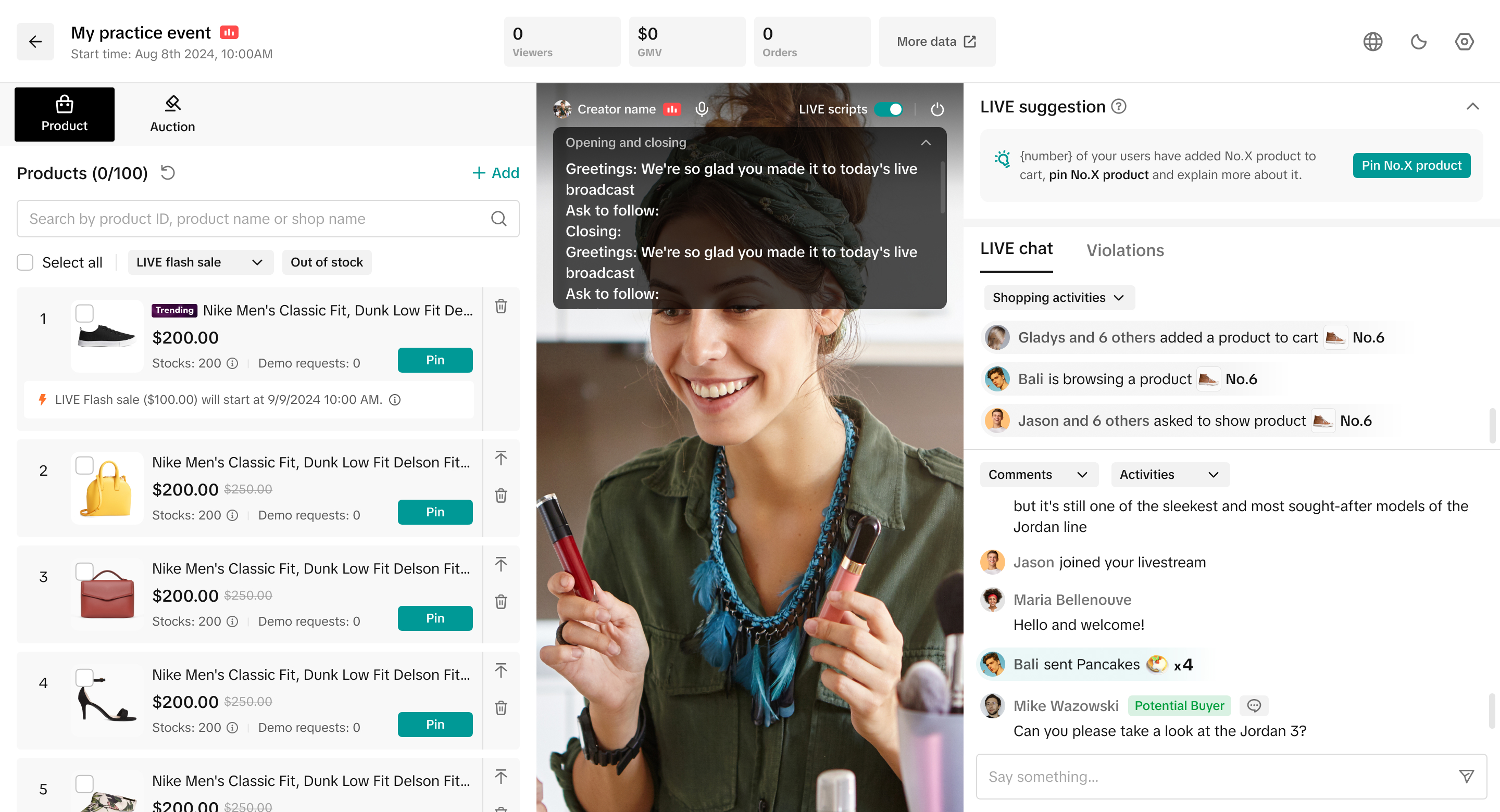
Step 3: Use Script Prompter during LIVEThe 'LIVE scripts' toggle is turned on by default. The script prompter displays 2 sections, which can be easily expanded or collapsed by clicking the dropdown arrow.
  • Opening & closing script: Will be displayed & expanded on the prompter
  • Product highlights script: Will be displayed & expanded on the prompter, once the respective product is pinned.
image

LIVE Scripts Strategies

Since livestream hosts can be at different experience levels—such as new hosts versus matured hosts—here are tailored strategies each group can use to maximize the benefits of this feature.

Aspect
New Livestream Hosts
Matured Livestream Hosts
Usage goalsConfidence-building, clarity, structureCreativity, spontaneity, real-time engagement
Script DetailLeverage on the full scripts provided, to strengthen your conversational flow & build familiarity with product knowledgeEdit product highlights scripts to feature bullet points or short summarized prompts, for quick & easy reference
Script CustomizationStick to minimal script editing and minimal customisation. Instead, use the suggested scripts to save time on pre-LIVE preparation.Strong script editing and addition of brand voice. Customise script based on previous livestream performances and audience behaviour.
Script SuggestionsFocus on mastering consistent, proven scripts to build confidence and ensure clear communication.Use suggested scripts to test new selling points or messaging variations in real-time.
Script Prompter UsageAlways on - keep it expanded for easy reference, making transitions and messaging clearer. Allow it to act as a safety net, reducing chances of awkward pauses and helping you stay on track without forgetting key points.Always on - expand or collapse the prompter as needed. Use the prompted scripts as a backup or inspiration rather than a reading script. Prioritize audience interaction and personalized engagement.
image

FAQs

  1. Is there a limit to the number of products that the script can be generated for?
There is no limit as the script will be generated for each product added to your LIVE Shopping Bag. Do note, you can add a maximum of 150 products to your LIVE Shopping Bag.
  1. Will toggling on the script prompter on TikTok App also take effect on LIVE Manager PC, and vice versa?
No, it will not.
  • LIVE Manager PC: Script prompter will be turned on by default. This does not turn on the script prompter via TikTok App.
  • TikTok App: Script promper can be manually toggled on. This does not turn on the script prompter via LIVE Manager PC.
  1. On the app, there is no script displayed in the 'LIVE Manager edits' tab. Why is that?
image
This is because the user has not used LIVE Manager PC to edit and save any scripts.'LIVE Manager edits' will display scripts only when a user has actively used LIVE Manager PC to edit and save scripts.
  1. The script prompter takes up too much space on my screen. Is there a way to turn it off, or minimize it?
On app
On PC
image
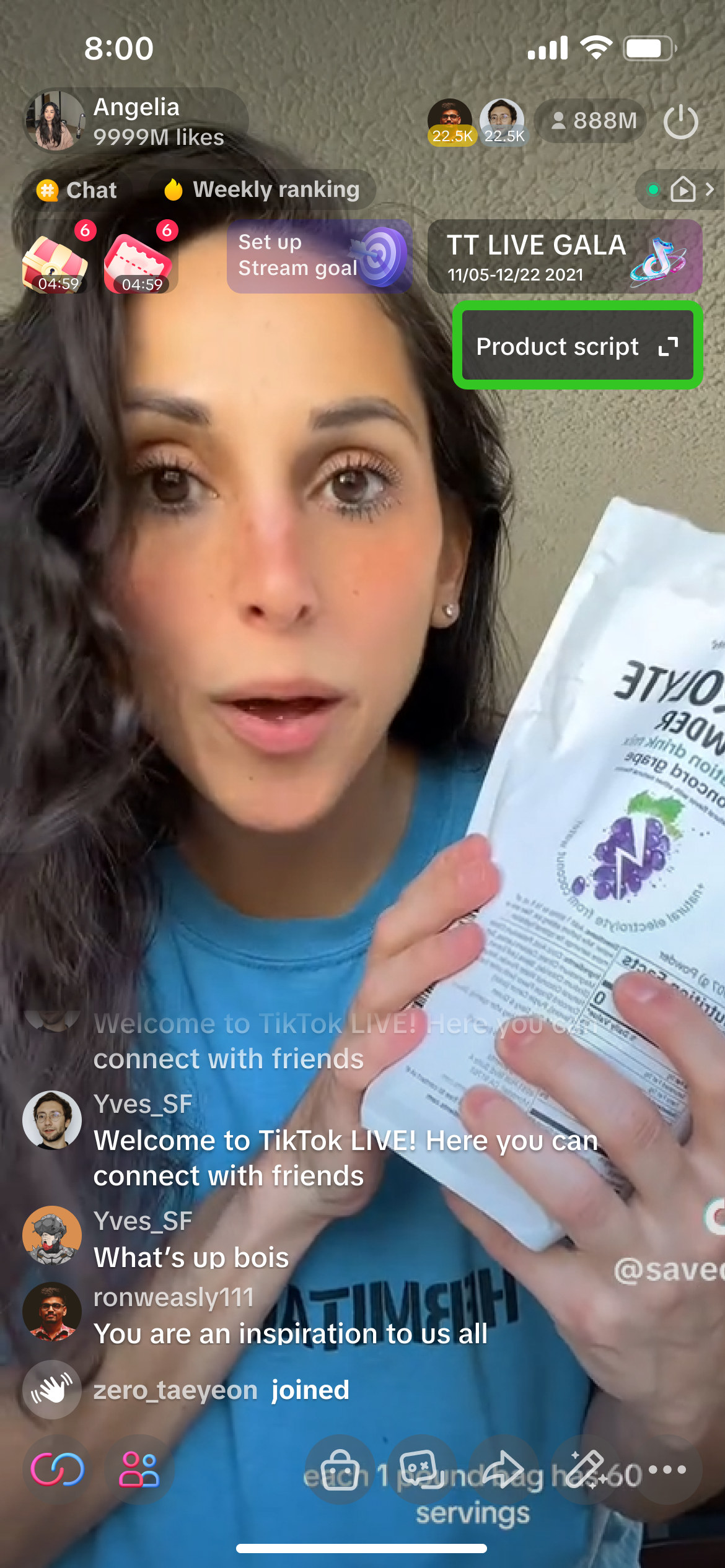
Click on the arrow in the top right corner of the script prompter to minimize it.
image
Once minimized, it will be displayed like this.
image
To turn off the script prompter, toggle off the settings here.
image
Click on the arrow in the top right corner of the script prompter to minimize it.To turn off the script prompter, swipe left to toggle off the 'LIVE scripts' feature.
  1. I have turned on the feature on both the app and PC, but the script prompter does not display product highlights scripts for me. Why is that?
For the script prompter to display product highlight scripts during your LIVE, there must be a saved script for that product and the respective product must be pinned. Learn more about pinning a product card here.
  1. I have edited the 'Selling points' text under Product highlights. Will my edited script be displayed on the script prompter?
Yes, if you have edited the 'Selling points' script and successfully saved it, this edited script will be displayed on the script prompter if you have toggled on 'Show product highlights during LIVE', and pinned the respective product of the edited script.
  1. I have edited the 'Full script' text under Product highlights. Will my edited script be displayed on the script prompter?
  • Via App: By default, the 'Selling points' script will be prioritised for display on the script prompter.
  • Via LIVE Manager PC: Any saved script will be displayed on the script prompter.
  1. On LIVE Manager PC, there are no scripts shown. Why is that?
image
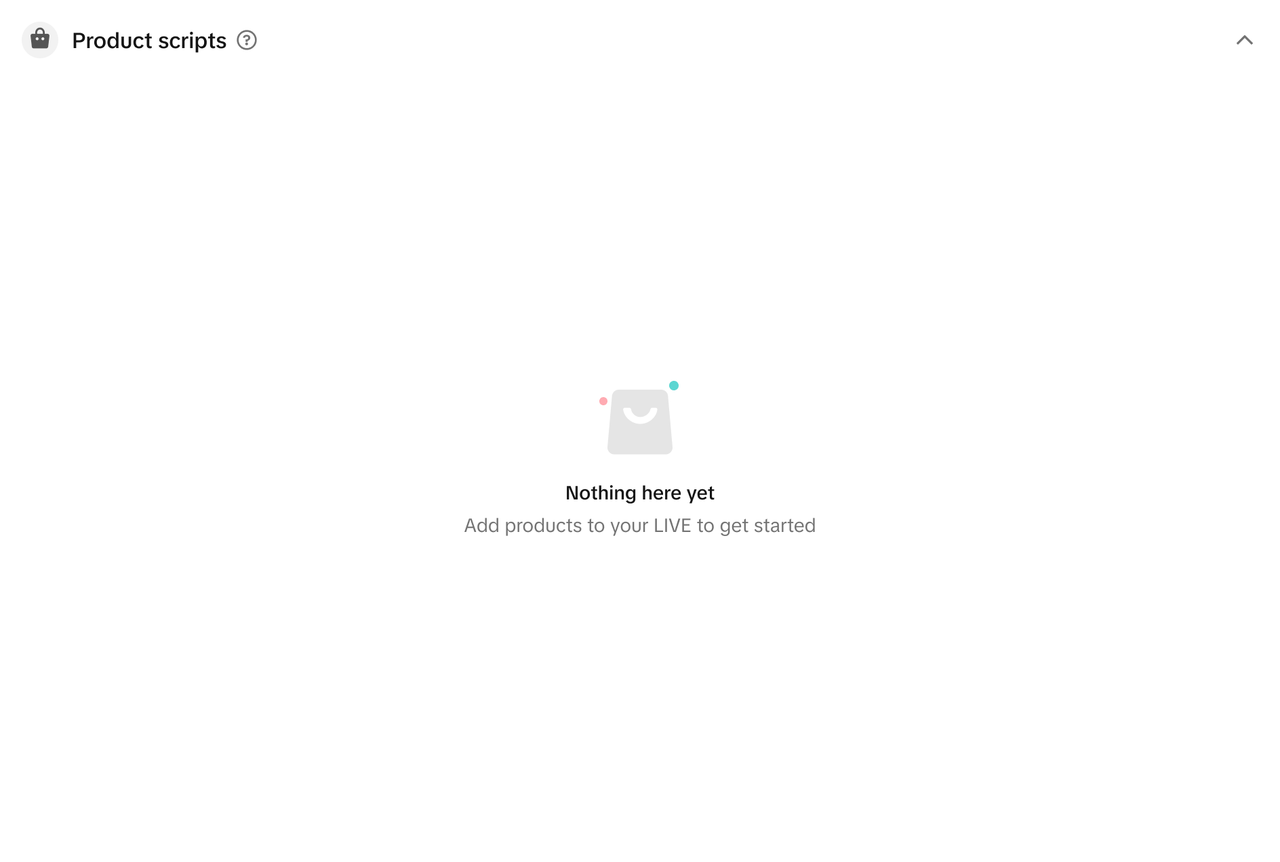
This screen will be displayed when no scripts are available, as no products have been added to your shopping bag.Please add at least 1 product into your shopping bag, to get suggested scripts.