

Creator Exclusive Voucher
12/31/2024
This article teaches you how to use Creator Exclusive Vouchers to increase your average order value and conversion rates. You will learn how to set up and manage it on PC.
 Watch this video to get a quick overview of Creator Exclusive Voucher:

The tool allows sellers to offer discounts with or without minimum spend threshold.
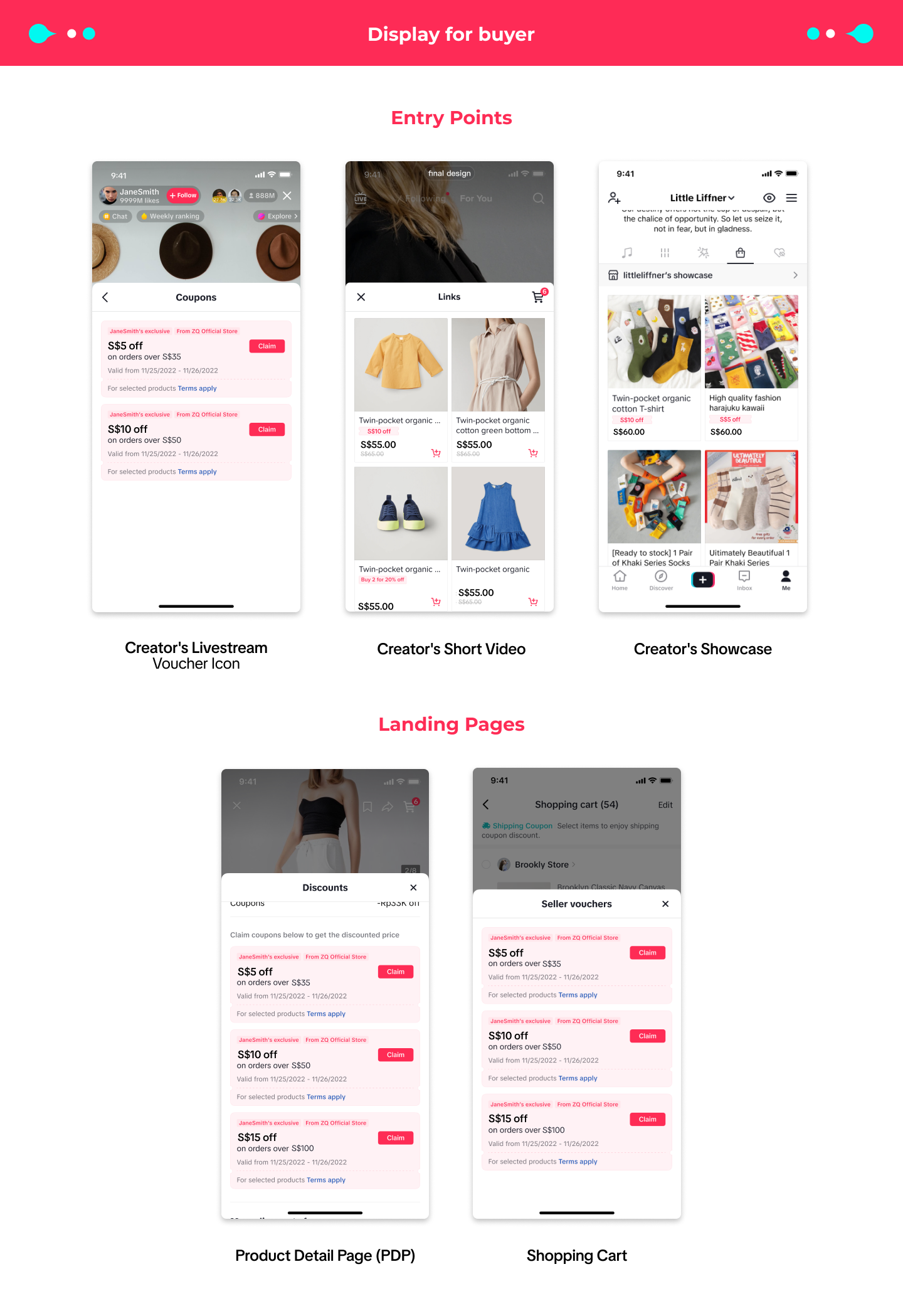
 Creator Exclusive Vouchers can be claimed by buyers across the following pages:
 Do note that Creator Exclusive Vouchers can be used in combination with Product Discounts, Flash Deal, and other seller discounts, as well as platform subsidies.
Additionally, all Seller Voucher types (Regular Voucher, LIVE Interactive Voucher, and Seller New Customer Voucher) can not be stacked in the same order. When the buyer checks out, the voucher with the greatest discount will be used.
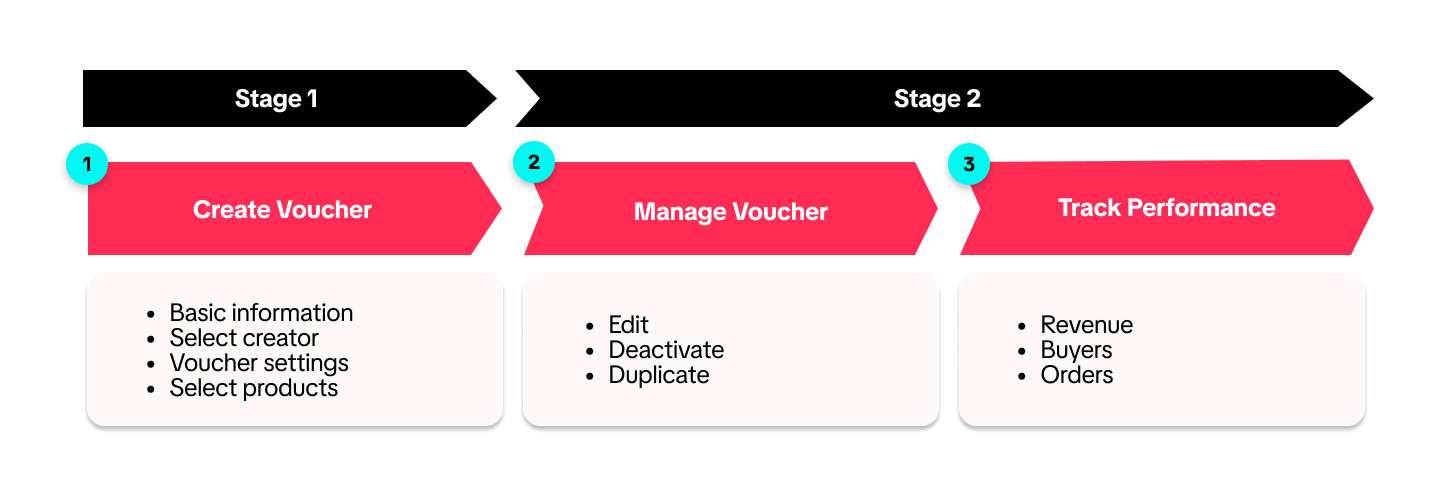
In this article, we share how to create, manage, and track Creator Exclusive Vouchers.

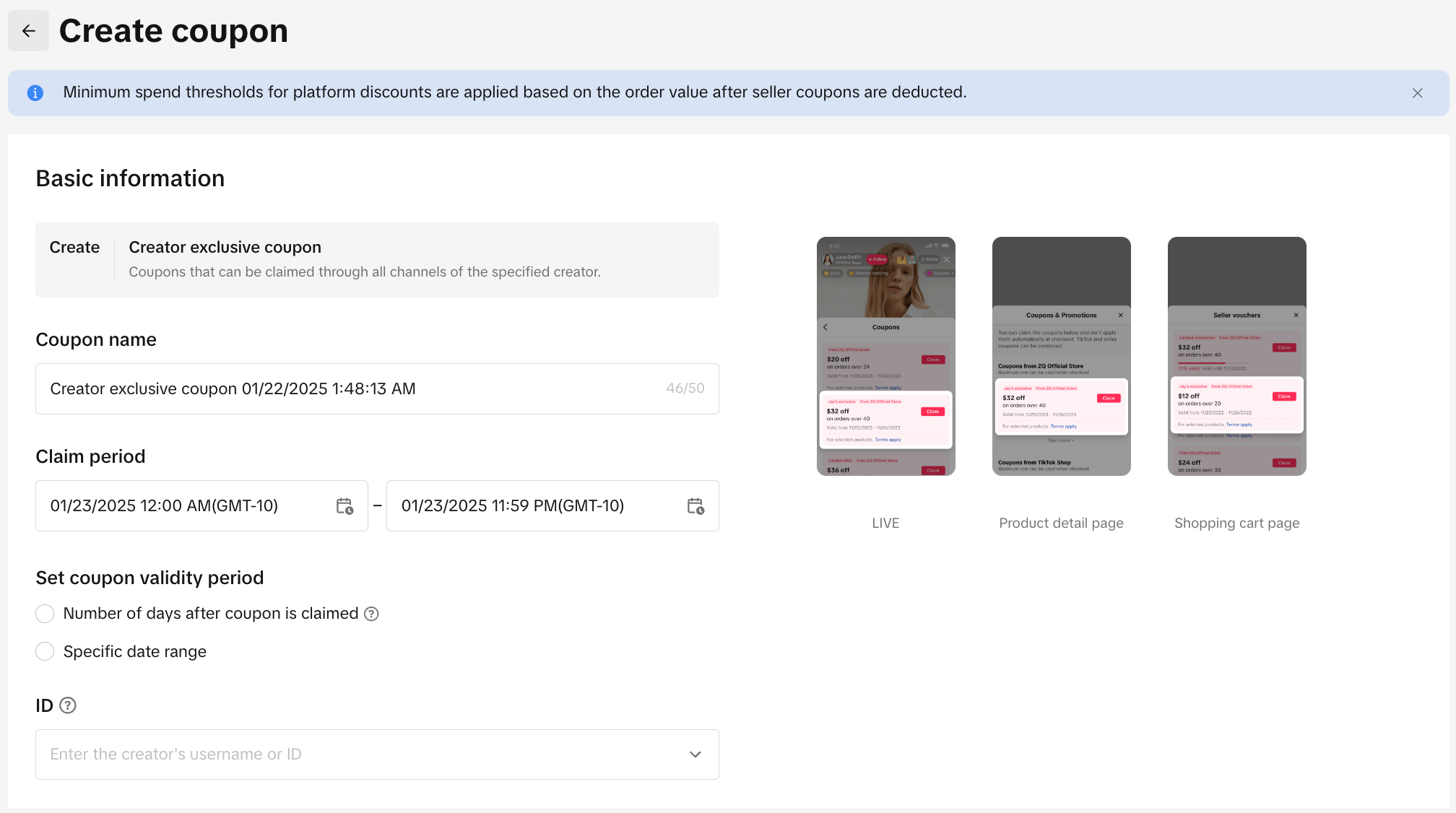
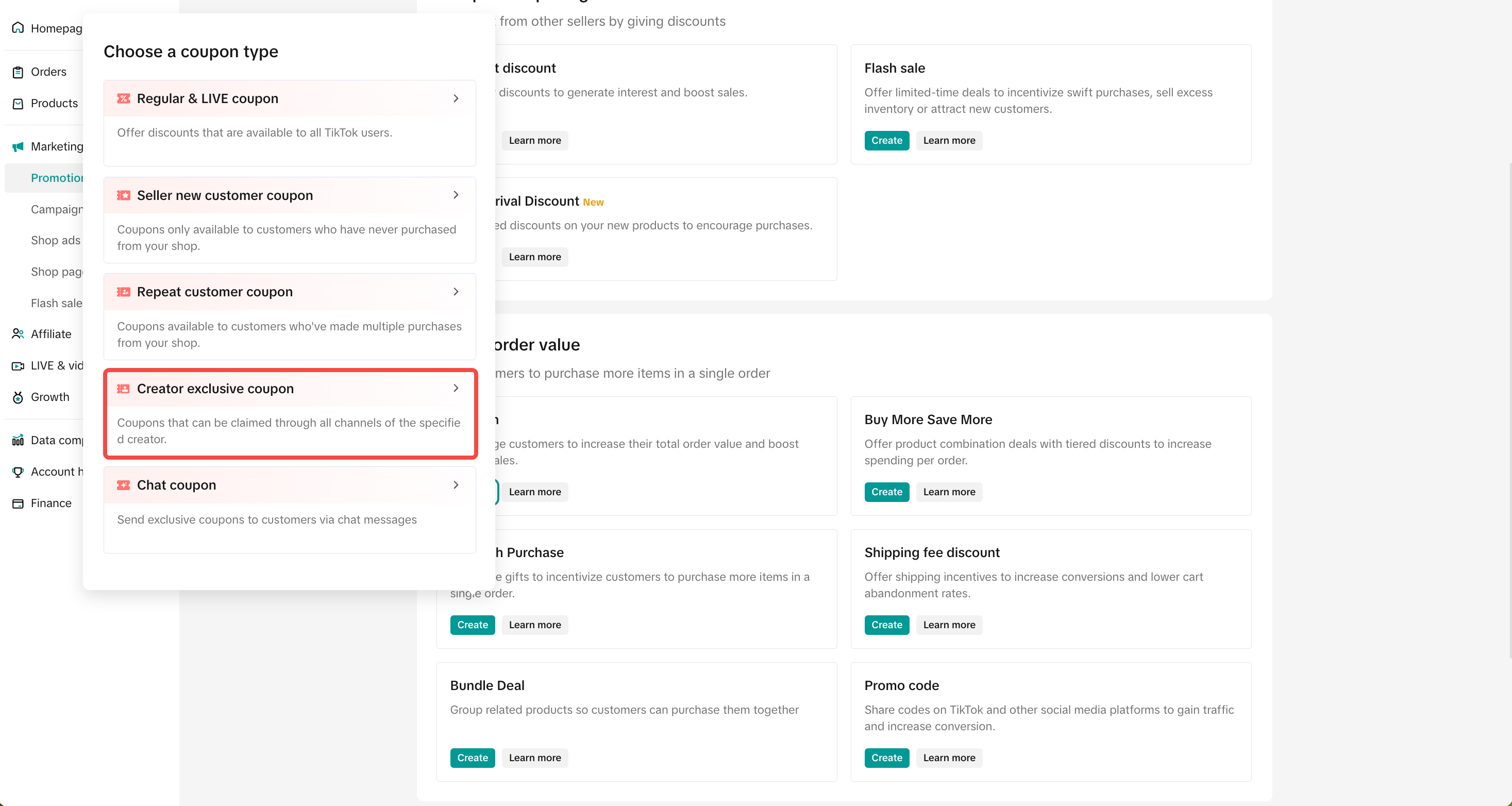
Select Create under "Voucher" and click the Creator Exclusive Voucher option.
Enter the Creator's username or ID that is in the same country as the seller. The creator cannot be linked to your Official account or Marketing account.
Please communicate with your creator about this promotion created and the products involved as they will not receive a notification about this partnership.
Note: You can only select one creator per promotion. Just create more/duplicate promotions if you would like to offer promotion to more creators.
 Voucher Setting
 The voucher can be applied to specific products only.
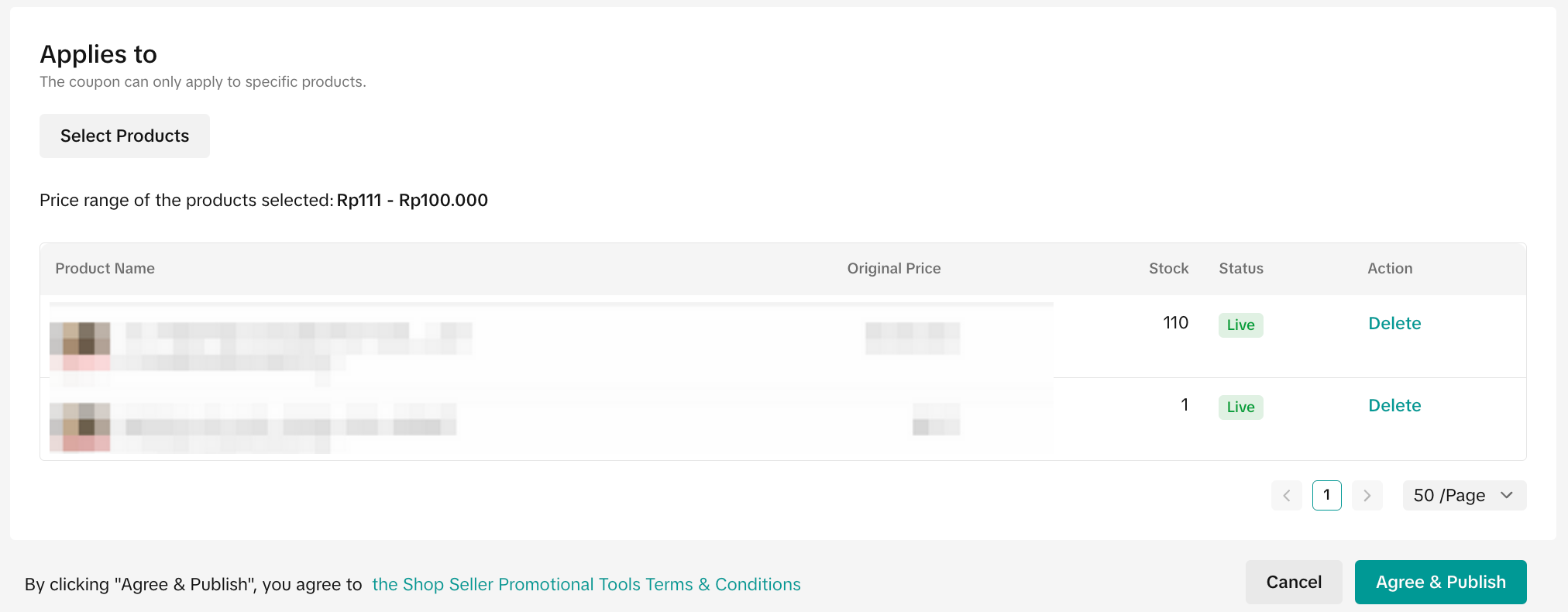 After all the settings are completed, click Agree & Publish to create the voucher.
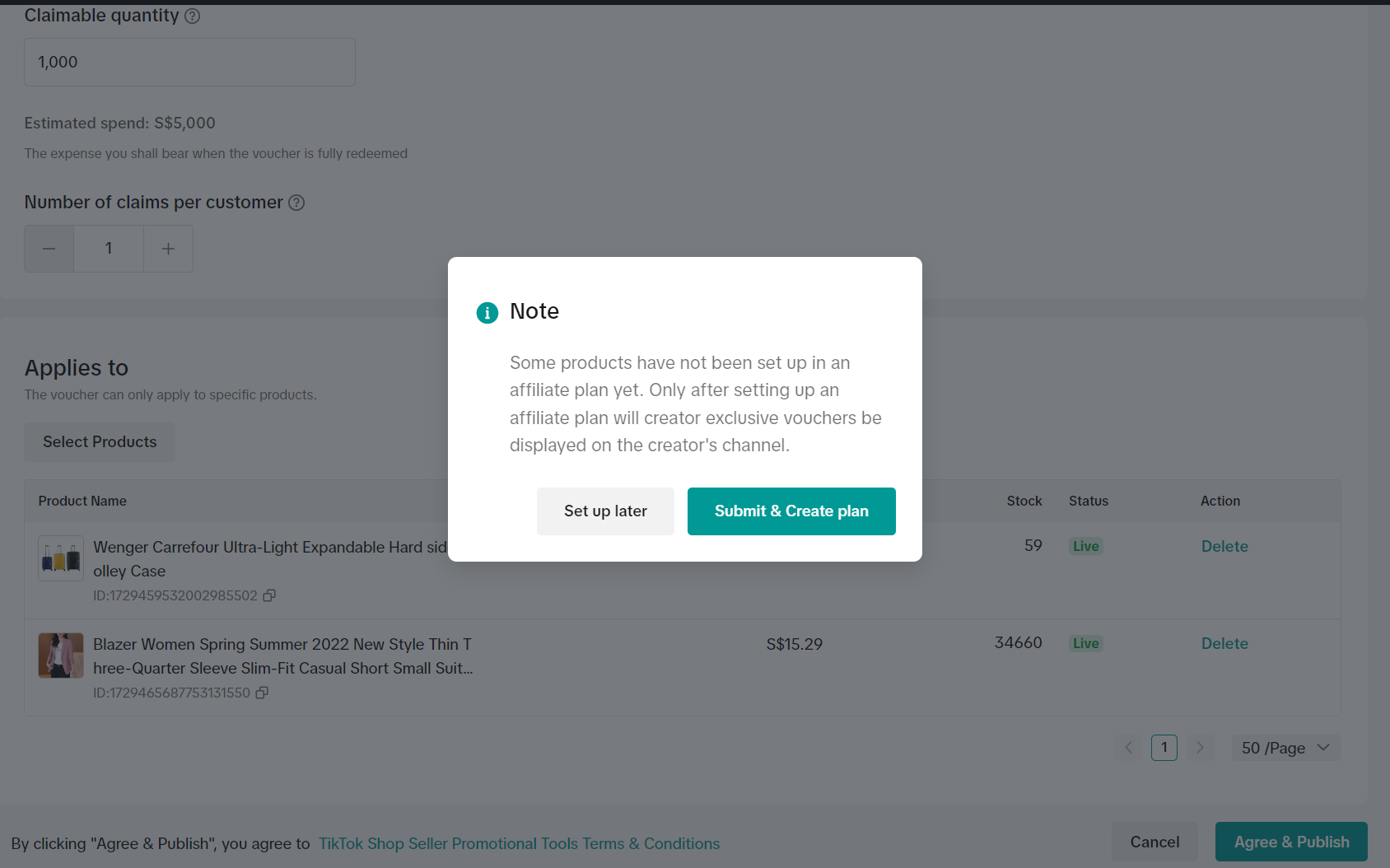
Create any type of affiliate plan (Shop plan, Open plan, Targeted plan) to include the selected products for your voucher to be displayed on the Creator's channels.
 💡 Pro Tips
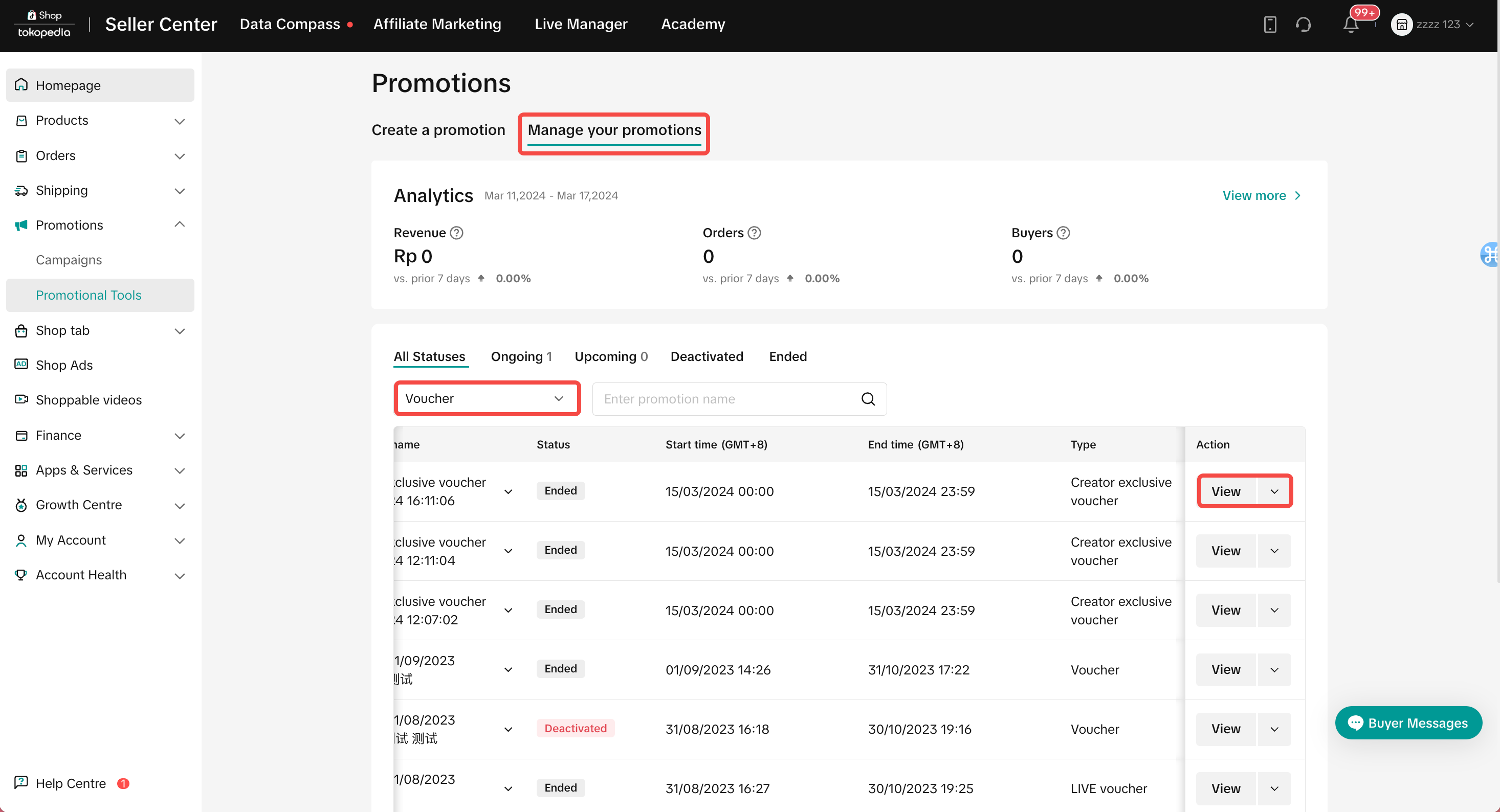 To manage a promotion on the Seller Center PC, visit manage your promotion to review the details of ongoing, upcoming and deactivated promotions.

Watch this video to get a quick overview of Creator Exclusive Voucher:What is Creator Exclusive Voucher?
Creator Exclusive Voucher is a seller-funded promotional tool that can be claimed by viewers via Creator's channels (LIVE, Short Videos, and Showcases/Product Detail Pages). It is one of three types of Seller Voucher tools currently available for TikTok Shop sellers.The tool allows sellers to offer discounts with or without minimum spend threshold.
Creator Exclusive Vouchers can be claimed by buyers across the following pages:Do note that Creator Exclusive Vouchers can be used in combination with Product Discounts, Flash Deal, and other seller discounts, as well as platform subsidies.Additionally, all Seller Voucher types (Regular Voucher, LIVE Interactive Voucher, and Seller New Customer Voucher) can not be stacked in the same order. When the buyer checks out, the voucher with the greatest discount will be used.
In this article, we share how to create, manage, and track Creator Exclusive Vouchers.
Create Creator Exclusive Vouchers
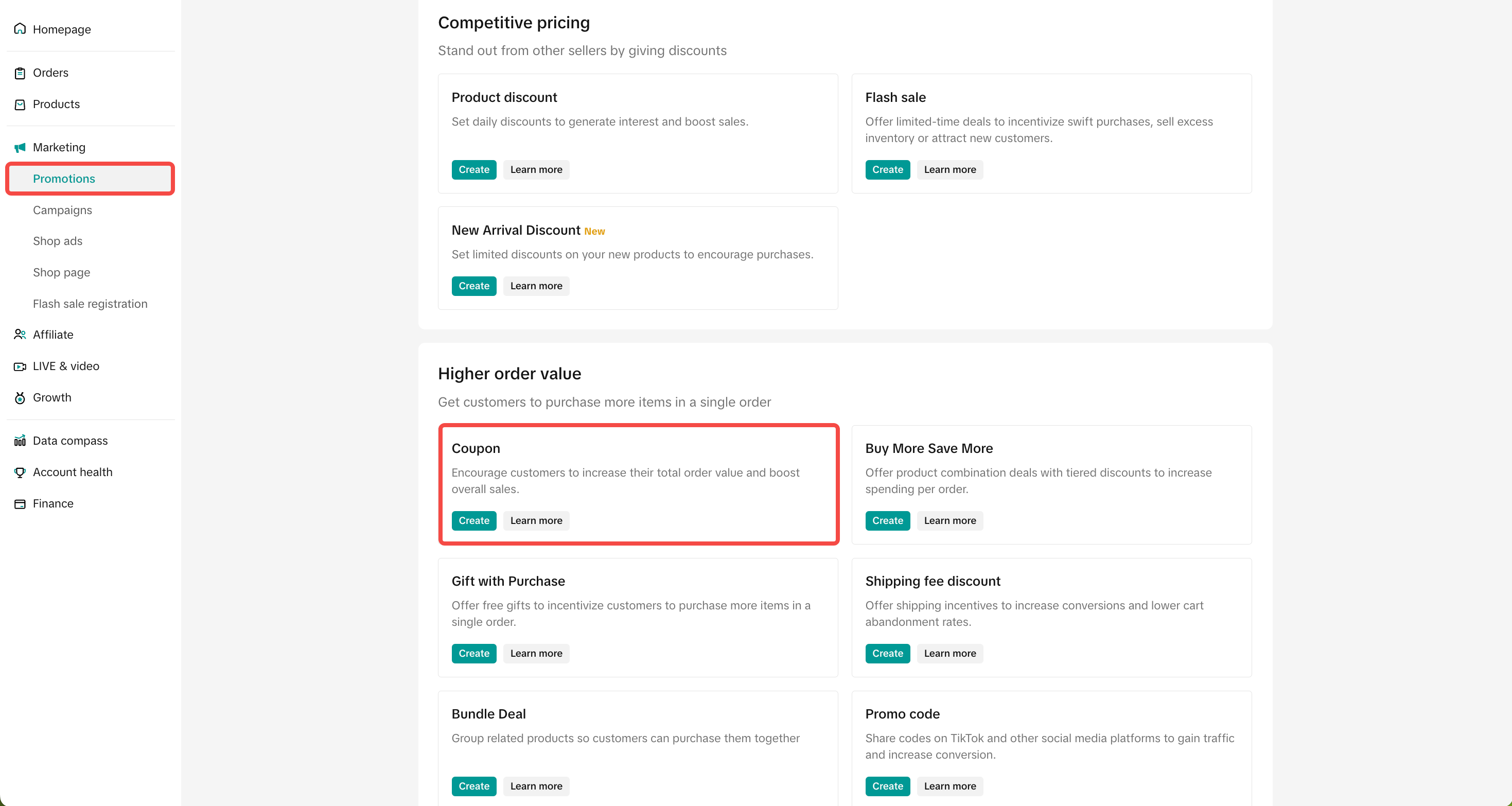
To create a voucher on the Seller Center on PC, visit the Promotional Tools tab.Select Create under "Voucher" and click the Creator Exclusive Voucher option.
 |  |
Please communicate with your creator about this promotion created and the products involved as they will not receive a notification about this partnership.
Note: You can only select one creator per promotion. Just create more/duplicate promotions if you would like to offer promotion to more creators.
Voucher Setting- Discount type: You can set up Amount off or Percentage off vouchers.
- Amount off: Reduce the price by setting a fixed amount
- Percentage off: Reduce the price by setting a percentage
- Minimum spend: The minimum spend required for buyers to enjoy the discount
- Maximum discount per order: For percentage off discount type, you can choose to set a maximum discount per order (The maximum discount per order must be greater than or equal to the Discount percentage x Minimum spend)
- For example: If the discount is 50% and the minimum spend is 10, the maximum discount per order must be greater than or equal to 5.
- Claimable Quantity: Indicate the claimable quantity for your voucher to be claimed by buyers. Once the voucher is fully claimed, the voucher will no longer be displayed to buyers (Note: The claimable quantity is not the actual usage quantity of the voucher as buyers who claimed the voucher may not successfully complete the check out with the voucher).
- Number of claims per customer: A maximum of 1 seller voucher can be applied per order by default. The number of claims per customer refers to the amount of times the same buyer can enjoy the voucher in different orders.
The voucher can be applied to specific products only.- After selecting products, you can filter by product category, product name and product ID.
After all the settings are completed, click Agree & Publish to create the voucher.Create any type of affiliate plan (Shop plan, Open plan, Targeted plan) to include the selected products for your voucher to be displayed on the Creator's channels.
💡 Pro Tips- Use creator exclusive vouchers to increase your chance of collaborating with creators on TikTok Shop, especially if you are offering an affiliate commission under 10%. We also recommend using these vouchers to promote new products that may have less reviews and ratings, or if you are a new seller to TikTok Shop.
- Look into the creator's profile and choose creators that match your target audience. Additionally, ensure that the selected products resonate with the creator's style and expertise.
- Communicate with your creators before issuing the voucher to ensure that they are aware of the promotion details and voucher terms. This will help ensure smooth collaboration and for your creators to promote the creator exclusive voucher effectively.
Manage Creator Exclusive Vouchers
To manage a voucher on the Seller Center, visit the Promotional Tools tab.- Visit Seller Center > Promotions > Promotional Tools > Manage your promotions
To manage a promotion on the Seller Center PC, visit manage your promotion to review the details of ongoing, upcoming and deactivated promotions.- Click Edit:
- To edit upcoming promotions, sellers can change the promotion period, change the promotion price, switch the type of total purchase limit and buyer purchase limit and can increase or decrease the value of purchase limit.
- To edit ongoing promotions, sellers cannot switch the type of total purchase limit and buyer purchase limit. The value of purchase limits can only be increased.
- Click Deactive: To end an upcoming or ongoing promotion
- Click Duplicate: To copy and paste the promotion setting to help you quickly set up another one.
FAQ
- How many creators can be chosen when creating Creator Exclusive Voucher?
- Is there a restriction or whitelist to which creators can be chosen to offer creator exclusive voucher?
- Does the creator and seller need to have an active affiliate plan (shop plan, open plan, target plan) for the seller to be able to offer the creator exclusive voucher?
- How will creators be notified that they have received a creator exclusive voucher and where can the creator see more details of the voucher (issue quantity, minimum spend, discount amount etc.)?
- If the customer claimed a creator exclusive voucher from creator's channel, how can the customer use the voucher?
You may also be interested in
CUỘC THI HOT HIT - CÔNG CỤ GIẢM GIÁ HÀNG MỚI VỀ
🔥 Cuộc Thi Hot Hit: Chia Sẻ Trải Nghiệm – Rinh Quà "Cực Cháy" Lên Đến 2,5 Triệu Đồng! 🔥 Bạn đã…

Seller LIVE Interactive Voucher
This article teaches you how to use LIVE Interactive Vouchers to increase your average order value a…
Promo Code
Promo Code This article teaches you how to use Promo Code as a flexible external distribution tool t…
Review Coupon
This article introduces Review Coupon, a seller-funded promotional tool designed to help you collect…

Recommended Promotion
This article introduces Recommended Promotion, a personalized assistant built directly in your Selle…
Livestream Interaction
Product Selling Points
Short Video Tips
Giveaways
Platform and Seller Promotional Activities