

Seller Regular Voucher
12/31/2024
This article teaches you how to use Seller Regular Vouchers to increase your average order value and conversion rates. You will learn how to set up and manage Seller Regular Vouchers across PC and mobile.

What is Seller Regular Voucher?
Seller Regular Voucher is a seller-funded promotional tool that can be claimed and redeemed by buyers during check out. It is one of three types of Seller Voucher tools currently available for TikTok Shop sellers.There are two channels where your Regular Seller Vouchers can be distributed to help boost storewide sales or on selective products to run specific promotions:
- All Channels: Displayed on all channels of TikTok Shop.
- Shopping Center : Displayed on Shopping Center channel of TikTok Shop
 Seller Regular Vouchers can be claimed by buyers across the following pages:
 Do note that all types of Seller Vouchers can be used in combination with Product Discounts, Flash Deal, and other seller discounts, as well as platform subsidies.
Additionally, all Seller Voucher types (Regular Voucher, LIVE Interactive Voucher, and Seller New Customer Voucher) can not be stacked in the same order. When the buyer checks out, the voucher with the greatest discount will be used.
In this article, we share how to create, manage, and track Seller Regular Vouchers.
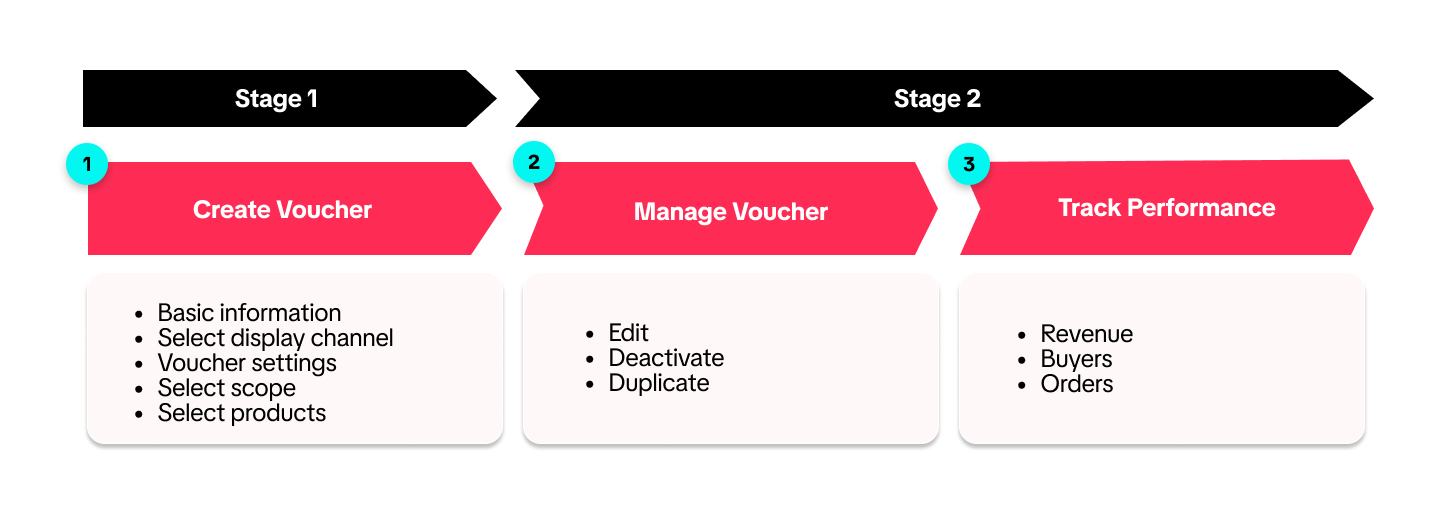

Create Seller Regular Voucher
On Seller Center PC
To create a voucher on the Seller Center on PC, visit the Promotions tab and create a promotion.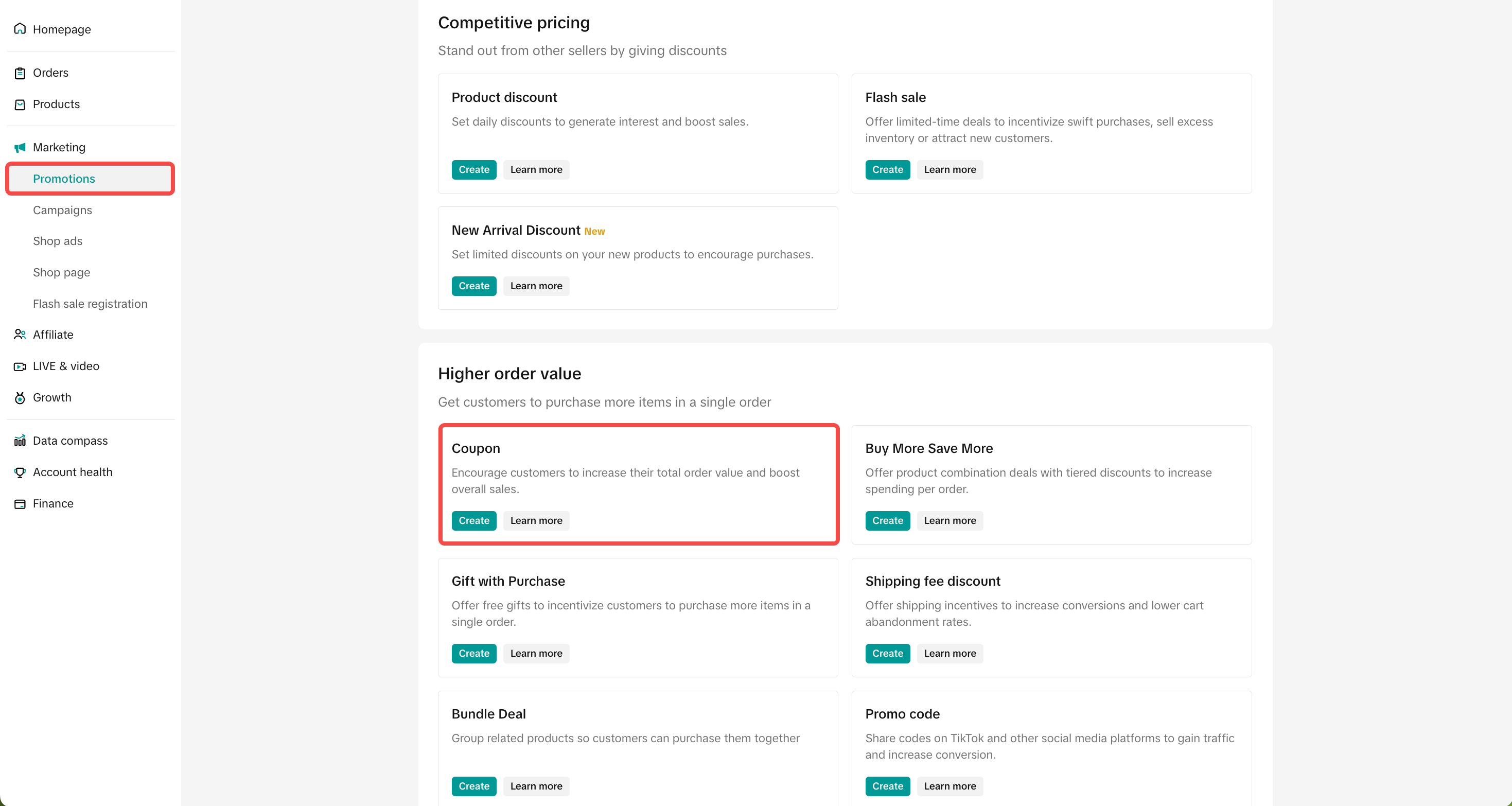 | 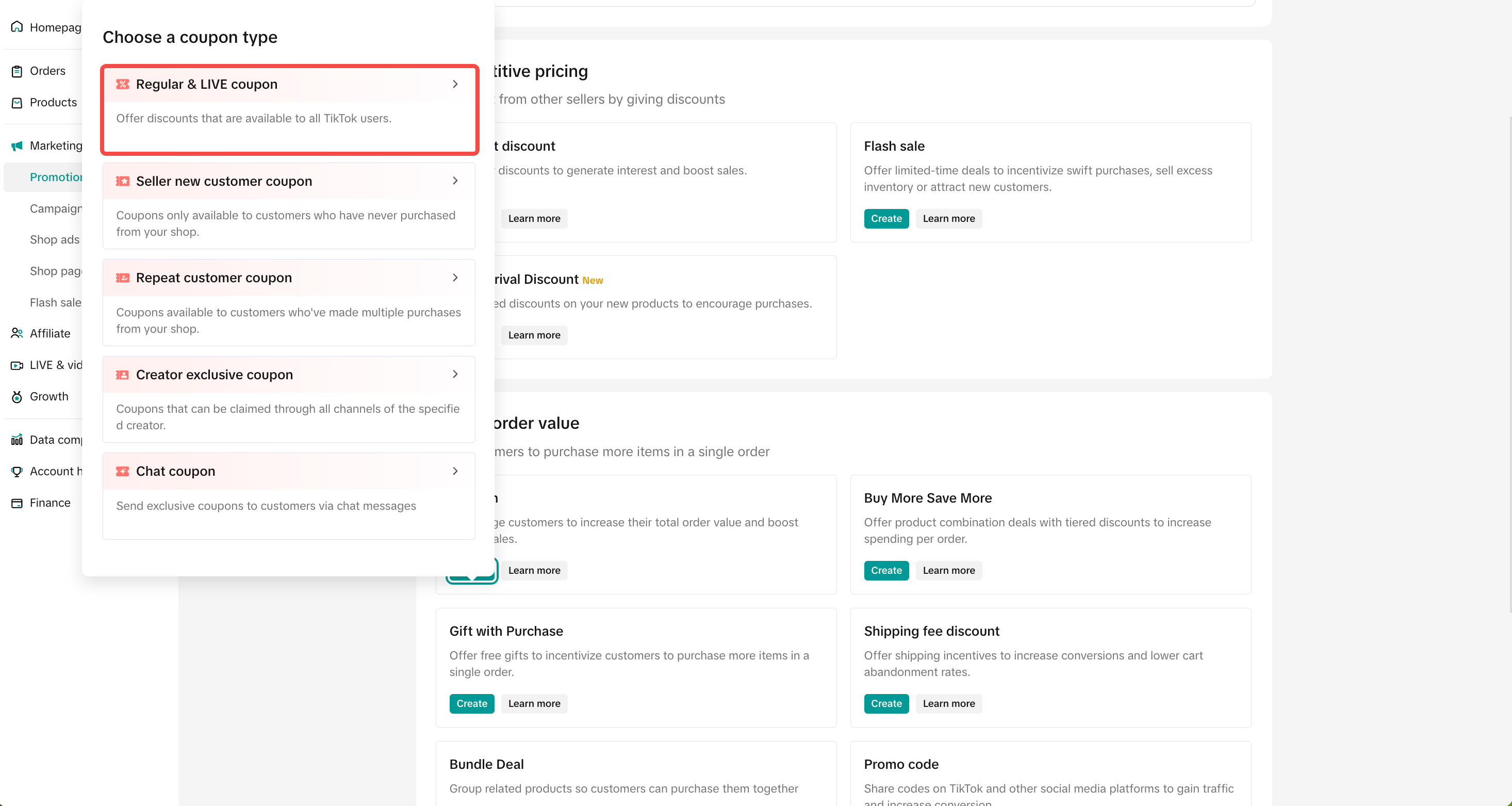 |
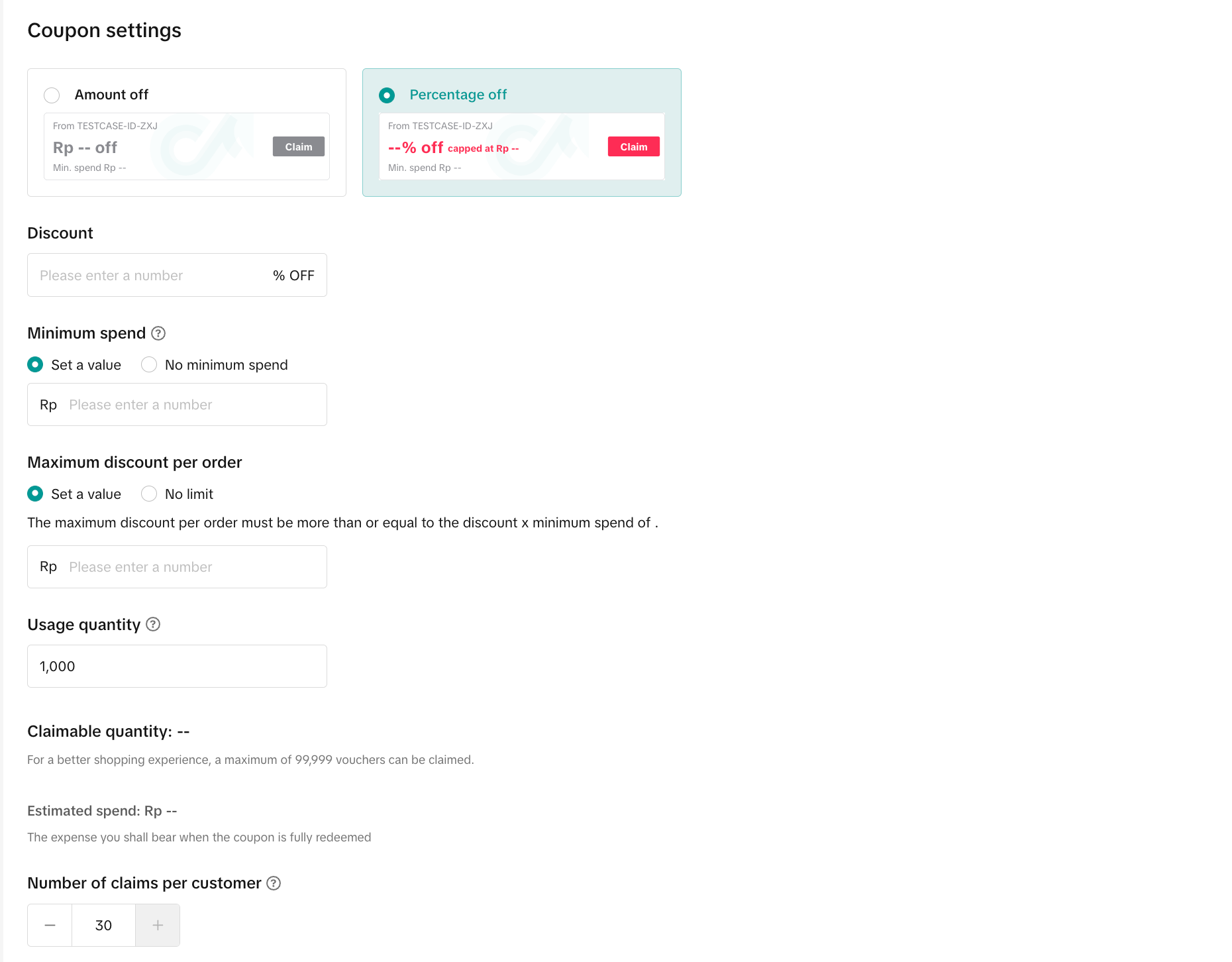
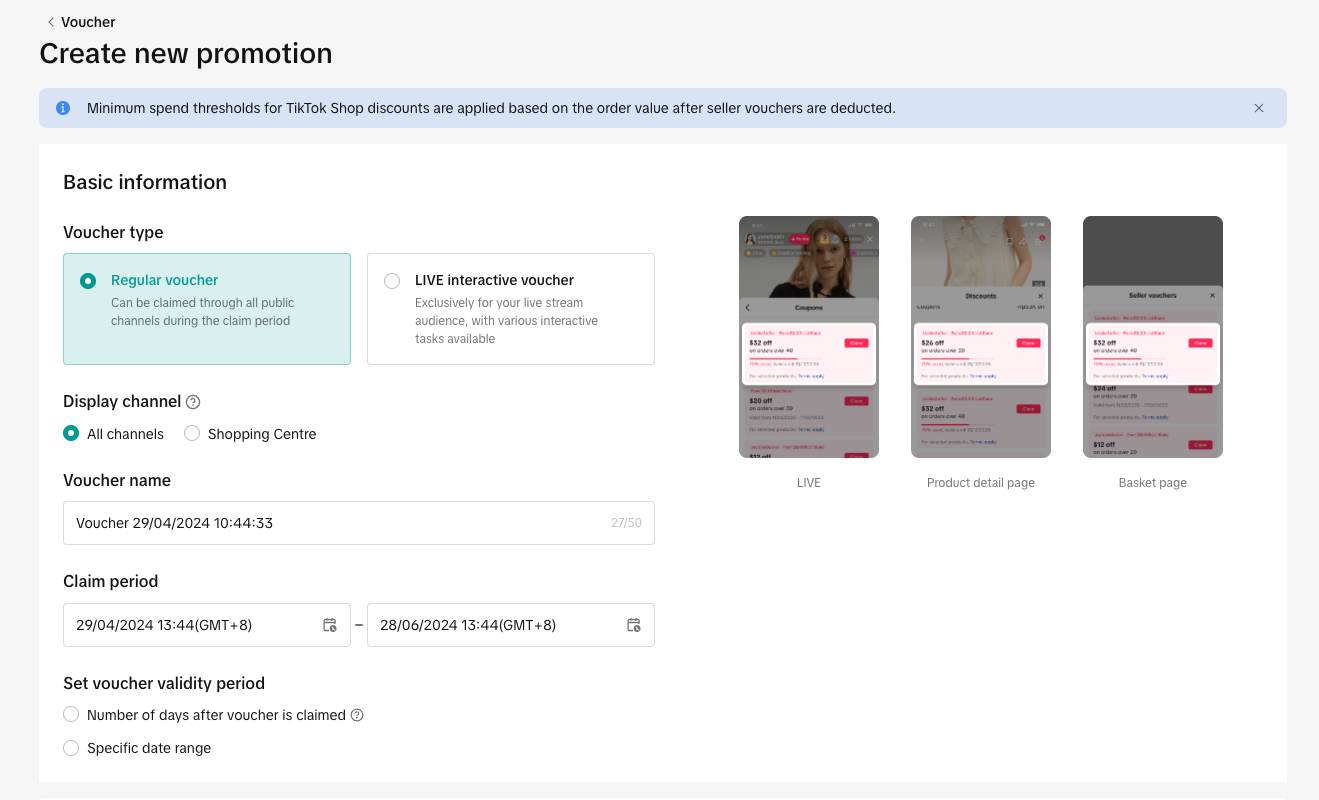 Voucher Setting
- Discount type: You can set up Amount off or Percentage off vouchers.
- Amount off: Reduce the price by setting a fixed amount
- Percentage off: Reduce the price by setting a percentage
- Minimum spend: The minimum spend required for buyers to enjoy the discount
- Maximum discount per order: For percentage off discount type, you can choose to set a maximum discount per order (The maximum discount per order must be greater than or equal to the Discount percentage x Minimum spend)
- For example: If the discount is 50% and the minimum spend is 10, the maximum discount per order must be greater than or equal to 5.
- Usage Quantity: Indicate the usage quantity for your voucher. Once the usage quantity has been reached, all buyers, including those that have already claimed the vouchers, can no longer enjoy the voucher.
- Claimable Quantity: A total of 99,999 voucher quantities can be claimed by default. However, the voucher usage limit is based on the usage quantity provided by the seller, which is calculated on a first come first serve basis.
- Number of claims per customer: A maximum of 1 seller voucher can be applied per order by default. The number of claims per customer refers to the amount of times the same buyer can enjoy the voucher in different orders.
 Additionally, the voucher can be applied to either the entire shop or specific products only.
- If you select specific products, you can filter by product category, product name and product ID.
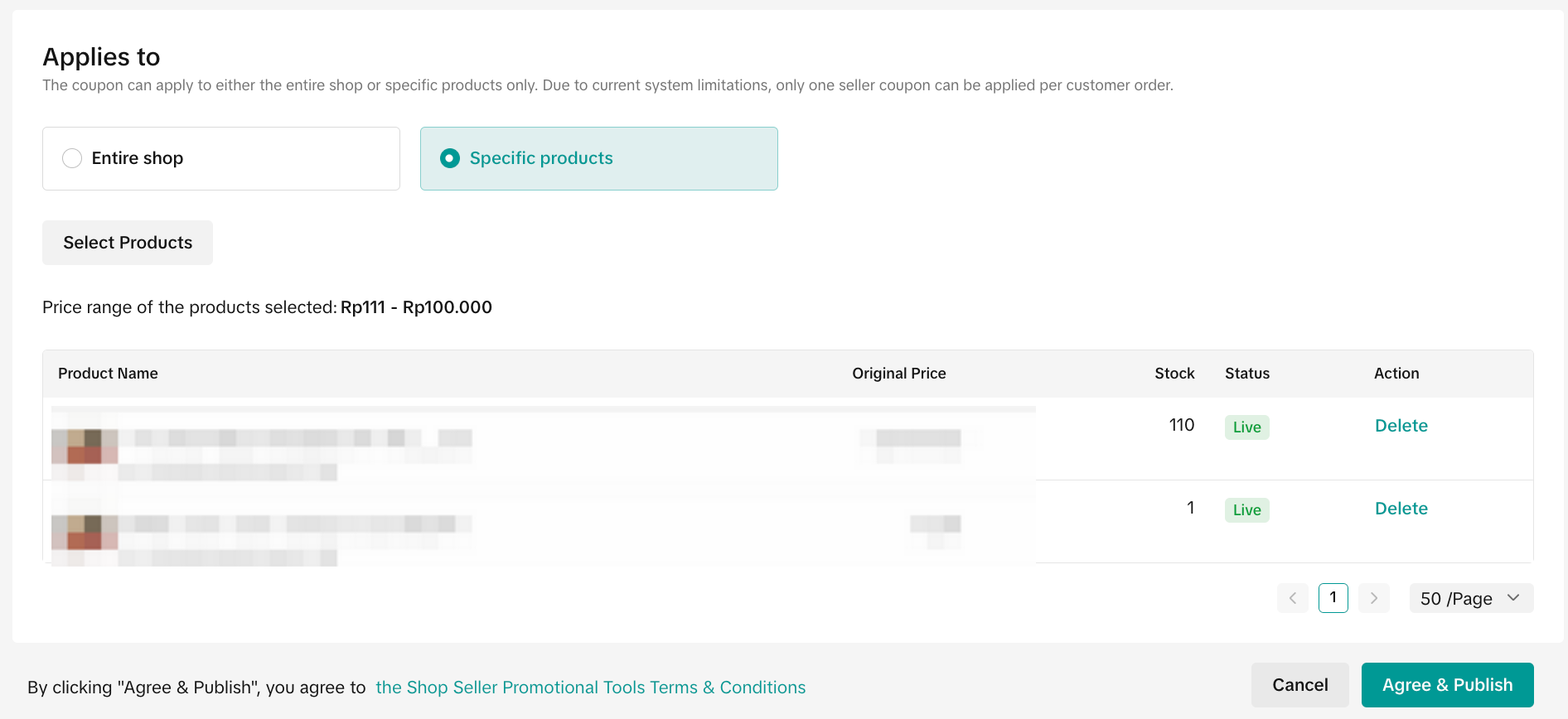 After all the settings are completed, click Submit to create the voucher.
On Seller Center App
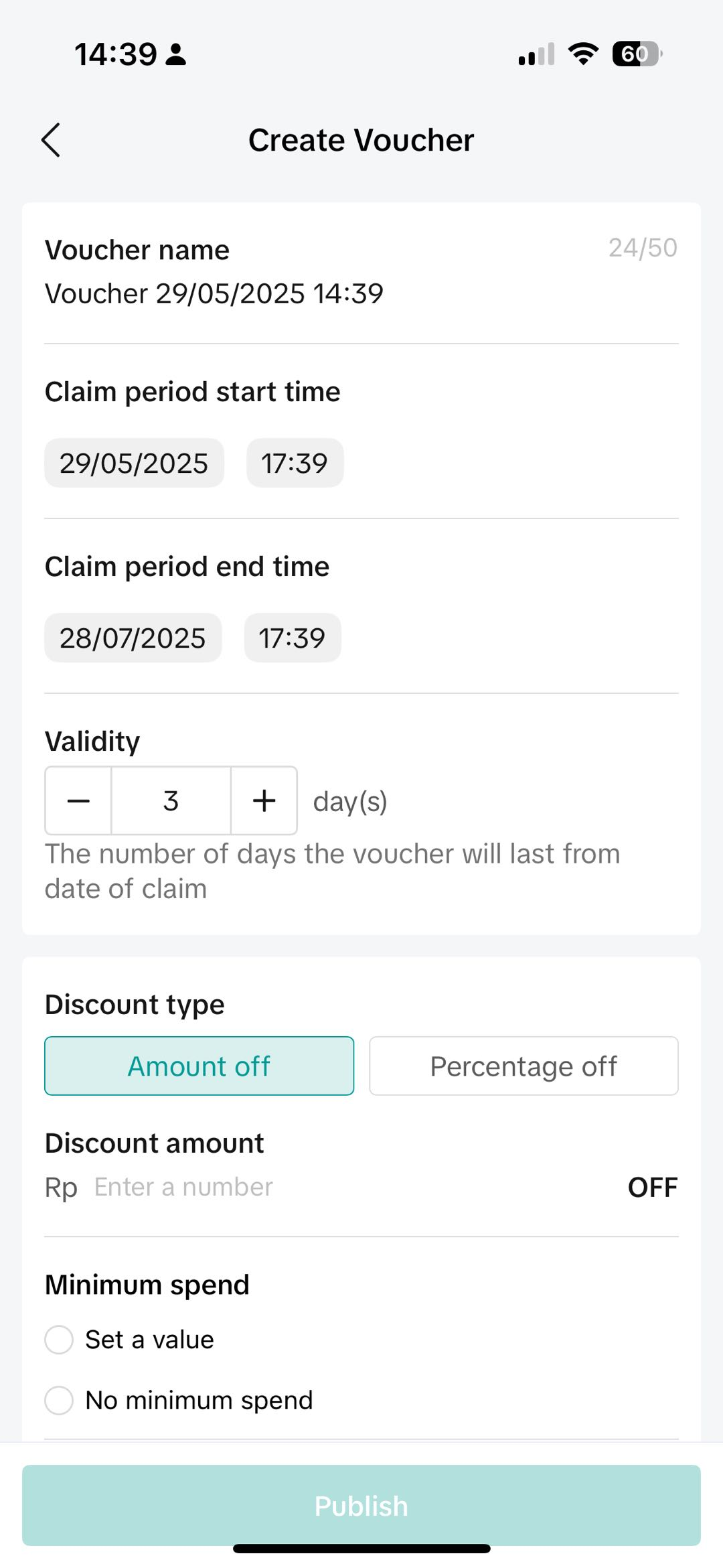
To create a Voucher on the Seller Center App, visit the Promotions tab and select Voucher- Set a promotion name and promotion period
- Select a discount type and provide the voucher settings (discount amount or percentage, minimum spend and maximum discount per order and usage quantity)
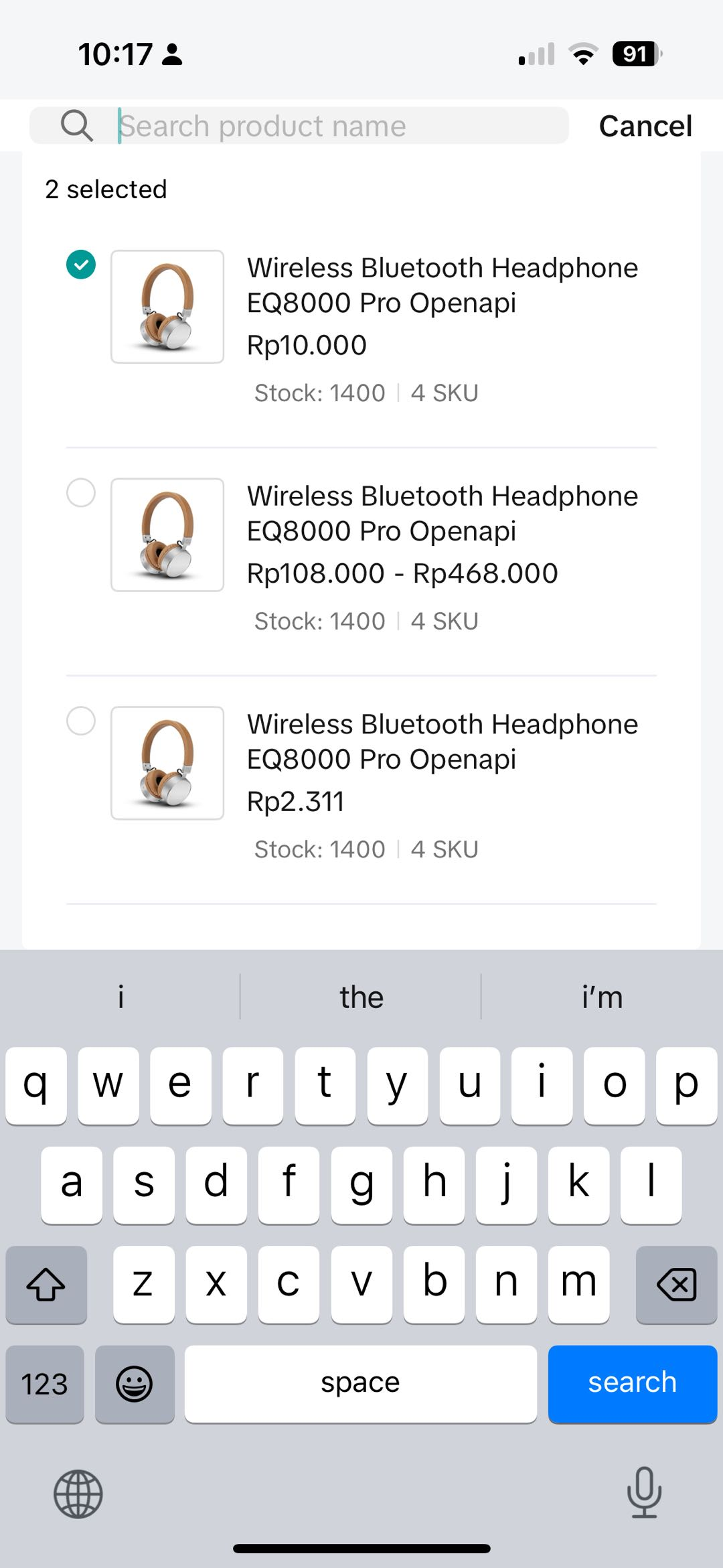
- Select whether to apply the voucher to all products or specific products, you can easily find the products you want to include by searching for product names.
- Once you have reviewed the promotion details, click Publish
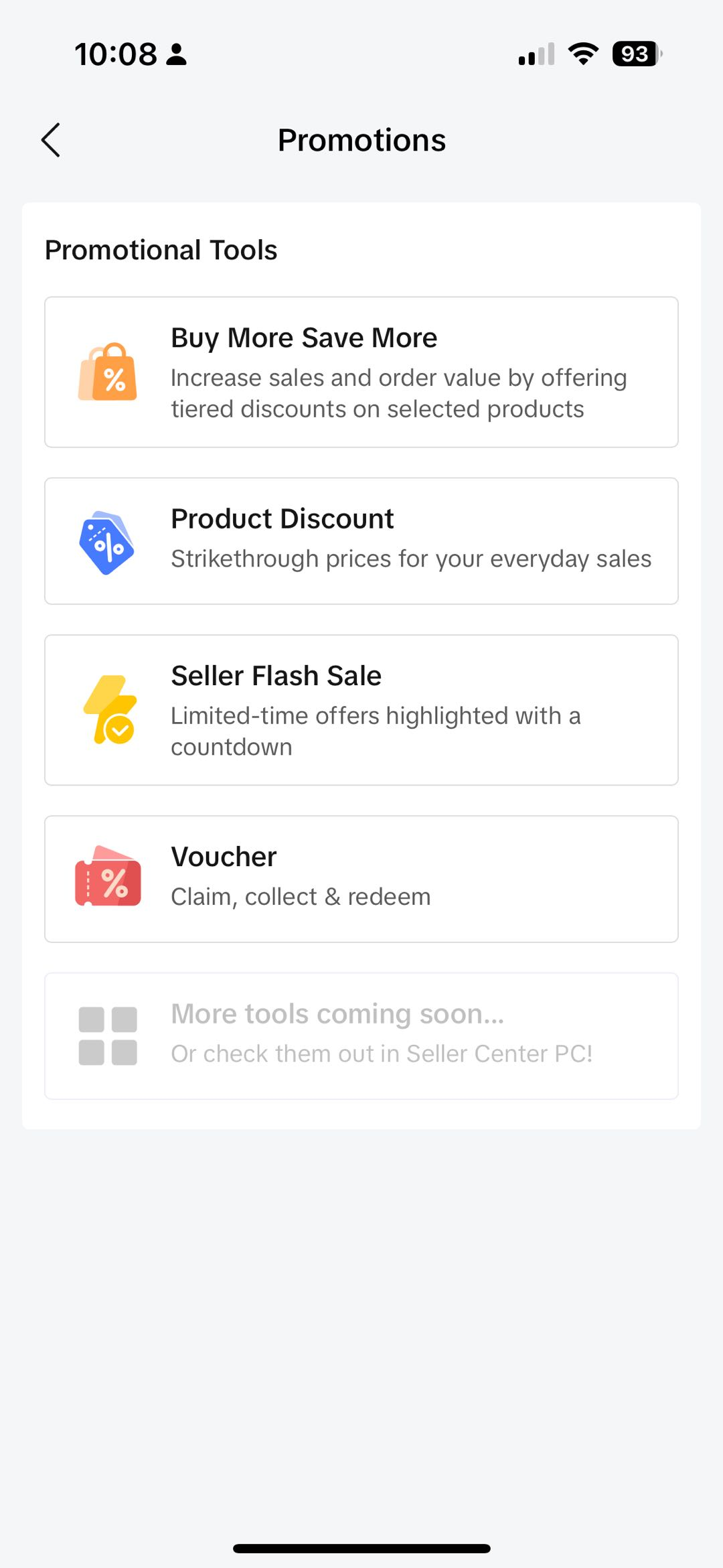 | 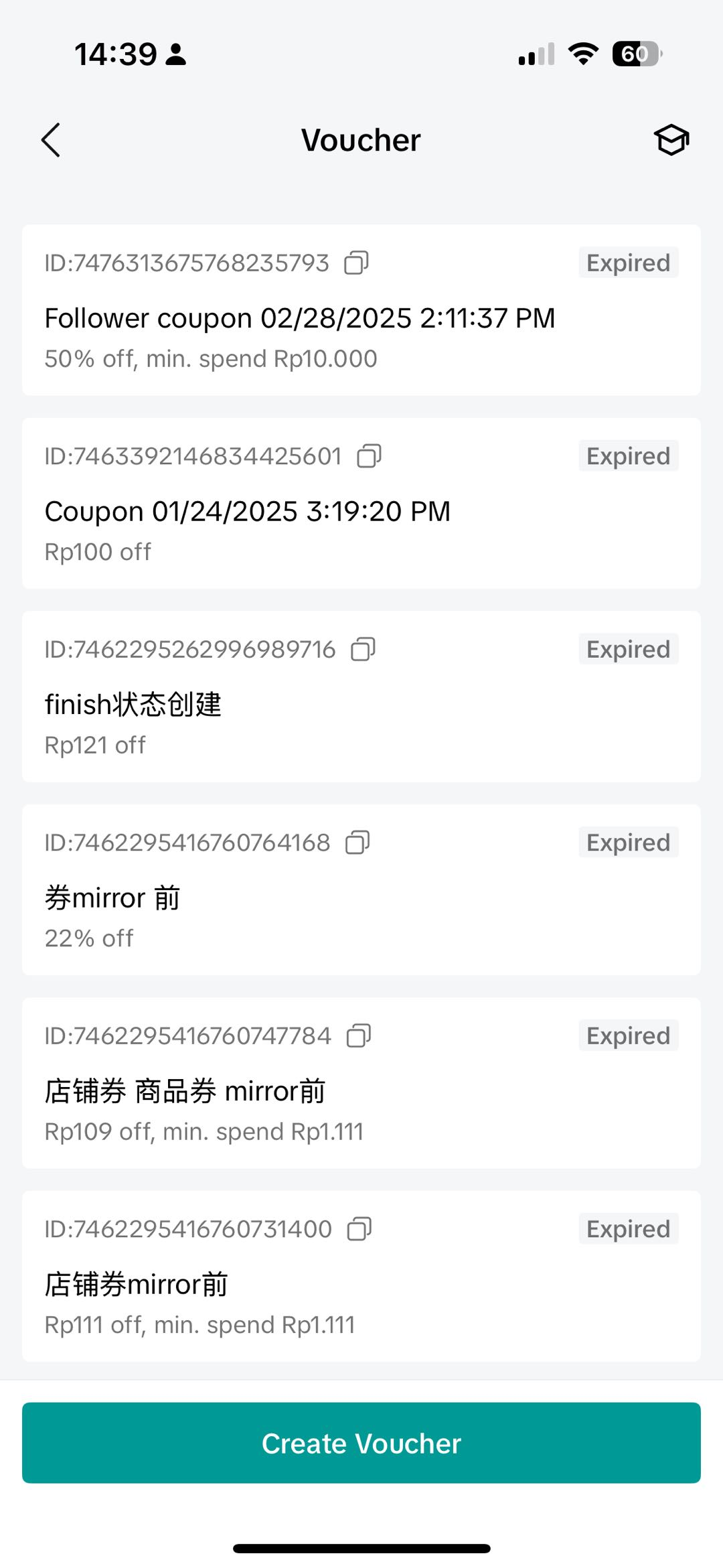 |  |  |
- Set your minimum spend at 1.2-1.5x higher than your average order value to increase your buyers basket size. You can obtain your store's historical average order value from Data Compass.
- Create multiple tiers of vouchers with low, medium, and high minimum spend. This will encourage buyers to purchase more products in a single order by offering a deeper discount for higher minimum spend.
- You don't always have to give discounts to your entire store. Vouchers could be valid on particular products such as promoting new products or running clearance sales.

Manage Seller Regular Voucher
Enter Manage your promotions to view the details of ongoing, upcoming and deactivated promotions.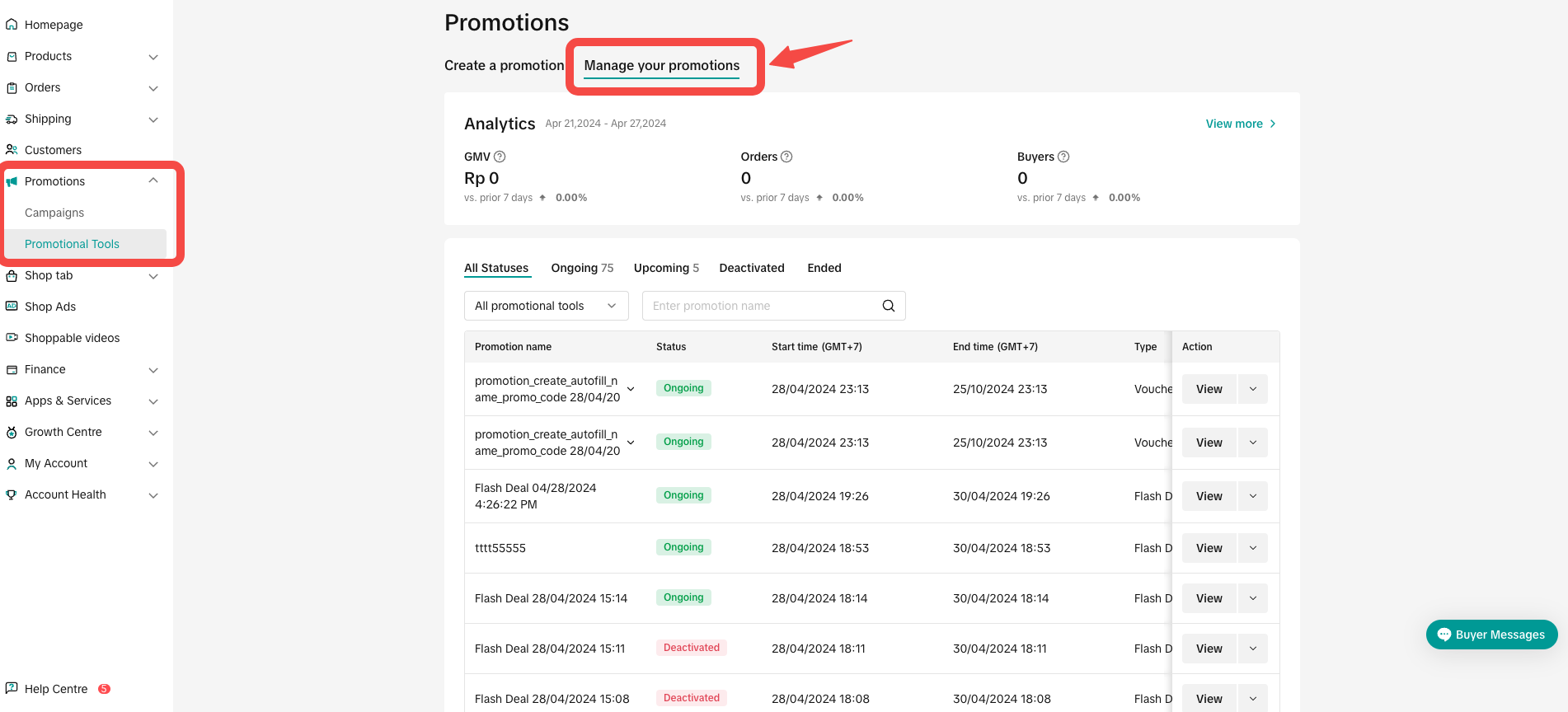
- Click Edit:
- To edit upcoming promotions, sellers can adjust the discount information and usage quantity.
- To edit ongoing promotions, sellers can increase the voucher quantity, other voucher settings cannot be changed.
- Click Deactivate: To end an upcoming or ongoing promotion
- Click Duplicate: To copy and paste the promotion setting to help you quickly set up another one.

Track Voucher Performance
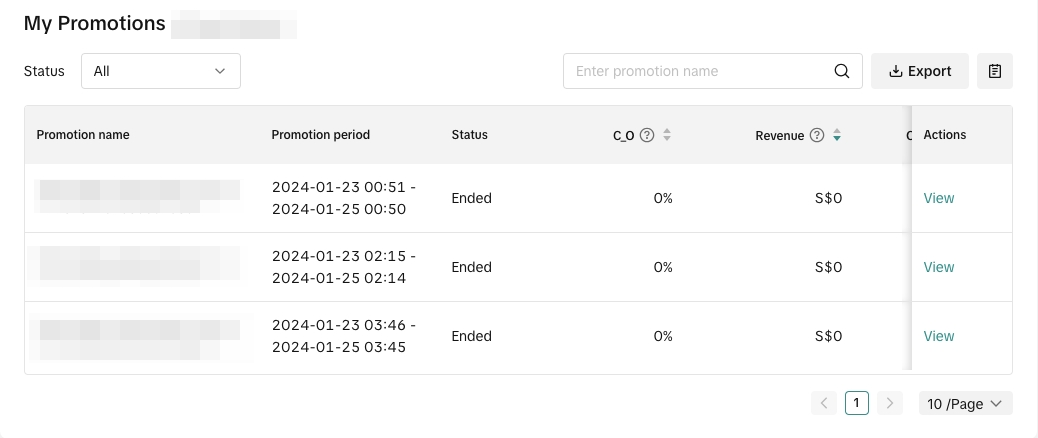
To monitor your voucher performance, visit the Promotion Analytics page.You can select a Promotional Tool to display its core data and trends. Core Data includes metrics such as Voucher usage, Revenue, Orders, and Buyers.
 You can also check the status and conversion performance of each promotion through the Promotion List. You can use the list to analyze which promotion generates the most revenue or ROI and optimize your promotional events in terms of product, event time, and event channel.
 💡 Pro Tips
- A low redemption rate could indicate that your promotions are not resonating with your audience or that they are too difficult to redeem.
- The minimum spend may be too high for the average selling price of the products.
- If you configured the voucher for specific products, you may need to test out a different selection of products.
- Analyzing your average order value (AOV) can also help you fine-tune your promotional tools. If your AOV is lower than you'd like, try setting a higher minimum spend to encourage customers to spend more.
- Track the revenue generated by your vouchers to see which vouchers are the most effective in growing your business.

FAQ
Why am I receiving a "Maximum Discount Per Order is Low" message?
- When your Voucher is configured with Percentage off and has a low maximum discount per order, you need to check if the promotion is created as intended.
Example:If you click Continue to submit after seeing the message, the promotion will take effect as configured.
- A 20% off voucher where the maximum discount per order is $1
- The original price of product A is $100
- At 20% off the discount will be $20, however the maximum discount per order is only $1
- It's an unattractive promotion as the final price would be $99
- Maximum Discount Per Order is Low prompt will appear
- If the customer claimed a Shopping Center voucher and added multiple products from the seller to cart from both Shopping Center and non Shopping Center, can they continue to use Shopping Center vouchers for those products?
- What happens when the voucher usage quantity has reached the limit?
- For orders that have applied regular vouchers and resulted in cancellation or return, will the voucher usage quantity be updated?
For example: Voucher usage quantity set as 100
- Usage quantity = 50
- Order cancellation = 1
- Usage quantity will be updated to 49
You may also be interested in
CUỘC THI HOT HIT - CÔNG CỤ GIẢM GIÁ HÀNG MỚI VỀ
🔥 Cuộc Thi Hot Hit: Chia Sẻ Trải Nghiệm – Rinh Quà "Cực Cháy" Lên Đến 2,5 Triệu Đồng! 🔥 Bạn đã…

Seller LIVE Interactive Voucher
This article teaches you how to use LIVE Interactive Vouchers to increase your average order value a…
Promo Code
Promo Code This article teaches you how to use Promo Code as a flexible external distribution tool t…
Review Coupon
This article introduces Review Coupon, a seller-funded promotional tool designed to help you collect…

Recommended Promotion
This article introduces Recommended Promotion, a personalized assistant built directly in your Selle…

Livestream Interaction
Product Selling Points
Short Video Tips

Giveaways
Platform and Seller Promotional Activities