Hướng dẫn tính năng MWH (Multi-warehouse)
13/12/2022
Tính năng MWH (Multi-warehouse) là gì?
MWH (Multi-warehouse) là một tính năng của Trung tâm Nhà bán hàng - Seller Center cho phép bạn thiết lập đến 20 kho hàng. Điều này giúp bạn có thể xử lí đơn hàng được hiệu quả hơn, cùng lúc đó giảm thiểu chi phí vận và thời gian vận chuyển.Cách đăng kí tính năng Multi-warehouse
Nhà bán hàng phải liên hệ với AM (Account Manager) phụ trách, AM sau đó sẽ cần đăng tuân thủ quy trình đăng kí nội bộ với đội ngũ nội bộ của TikTok Shop
Sau khi đã đăng kí và được kiểm tra, nhà bán hàng sẽ cần đợi phản hồi từ AM trong tuần tiếp theo, đi kèm một đường link hướng dẫn. Một khi được xét duyệt, giao diện thiết lập kho hàng sẽ hiển thị thêm tùy chọn "Thêm kho hàng".
Before 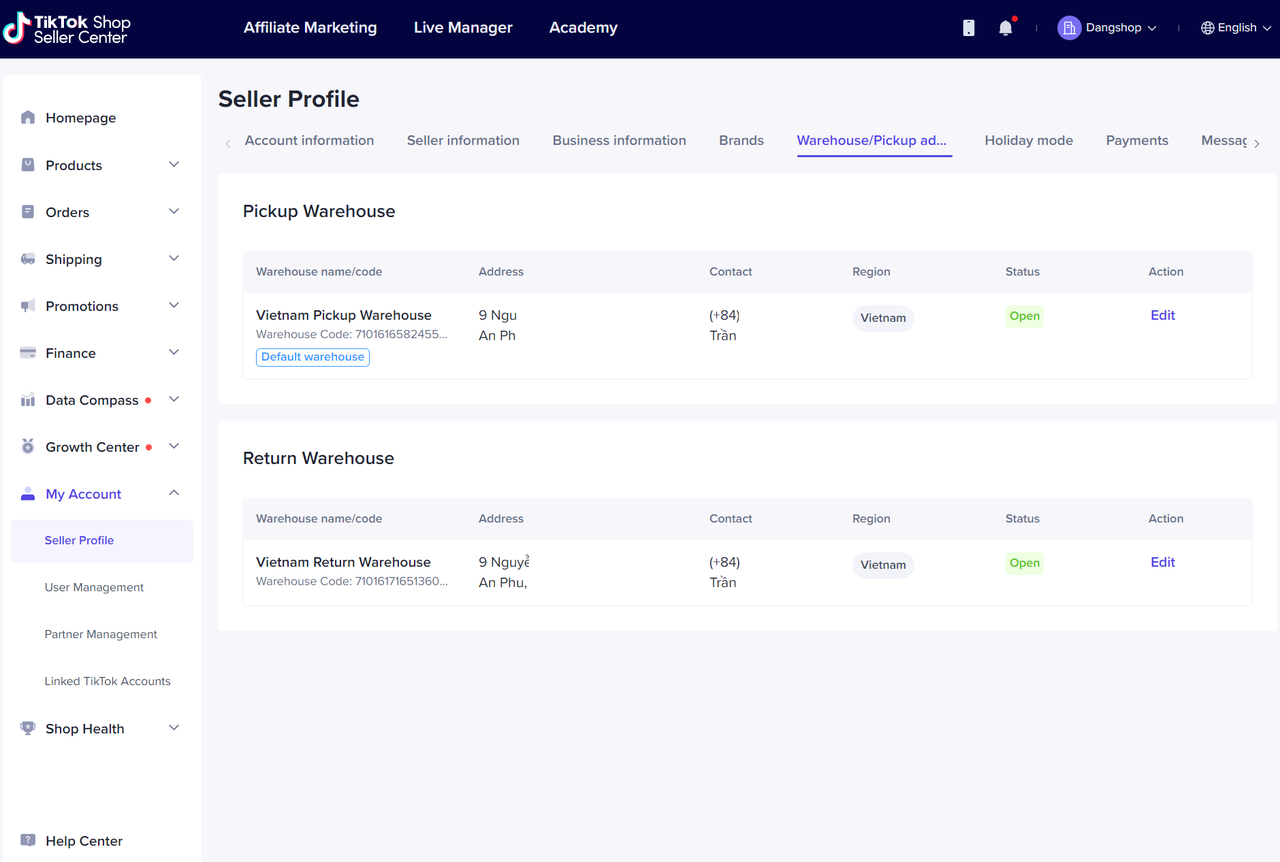 After
After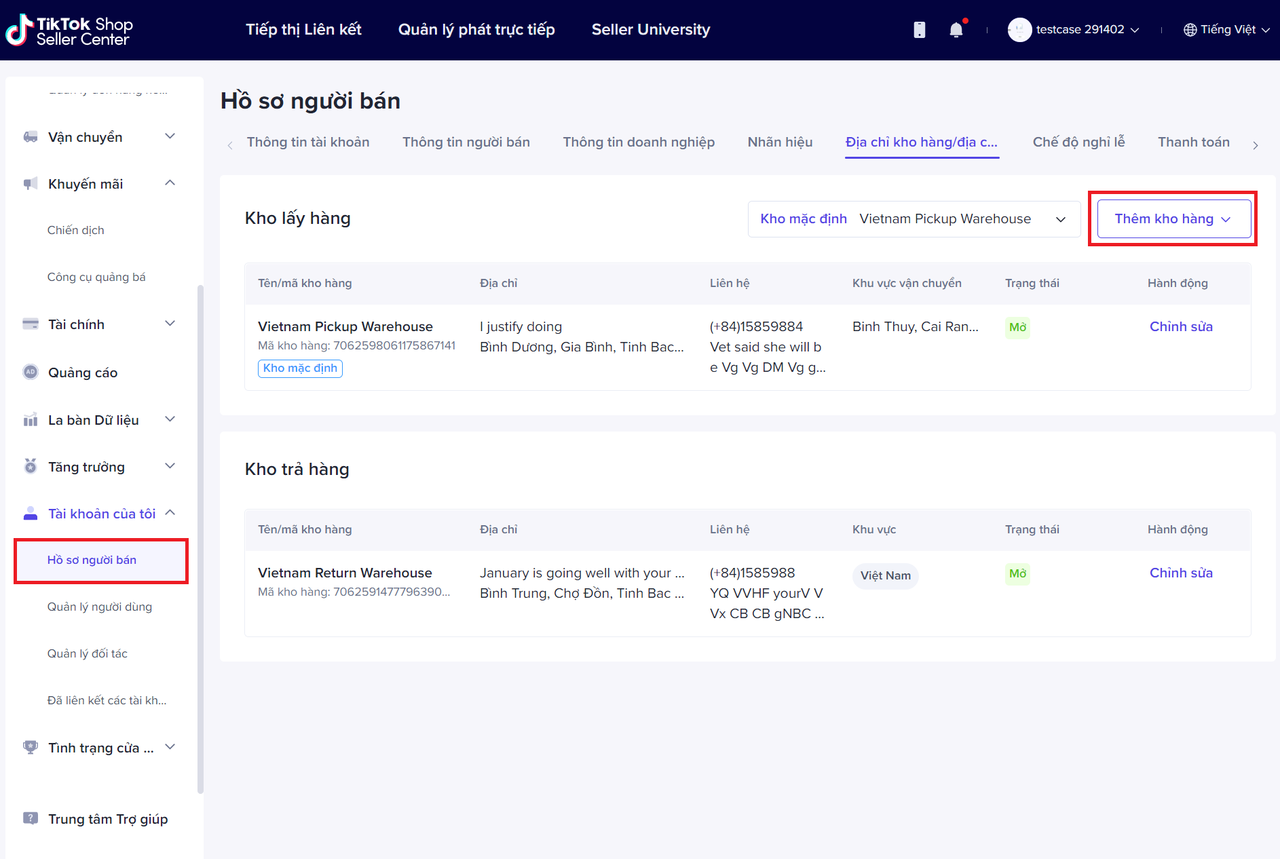 Hàng tuần sẽ có Buổi Hướng dẫn tính năng (Tùy vào từng market), để giúp nhà bán hàng hiểu rõ cách vận hành MWH trên Seller Center.
 Hướng dẫn tính năng trên Trung tâm Nhà bán hàng
Bước 1: Cách tạo Kho hàng mới và chọn Khu vực vận chuyển
Nhà bán hàng có thể thiết lập đến 20 Kho lấy hàng. Vui lòng đăng nhập vào Trung tâm Nhà bán hàng, chọn mục Tài khoản của tôi > Hồ sơ người bán > Địa chỉ kho hàng/địa chỉ lấy hàngThêm kho hàngNhấp vào nút Thêm kho hàng và điền thông tin chi tiết. Nhấp Lưu khi hoàn thành.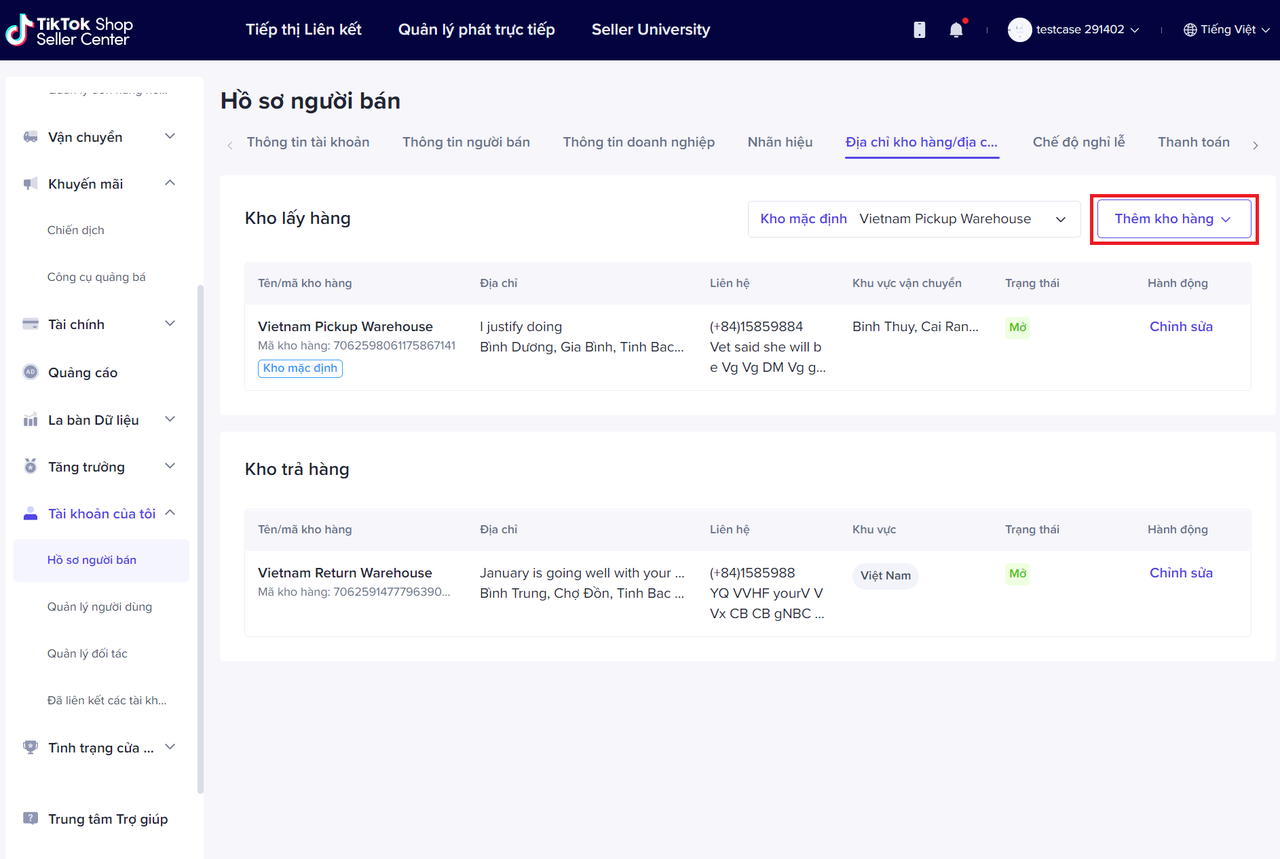
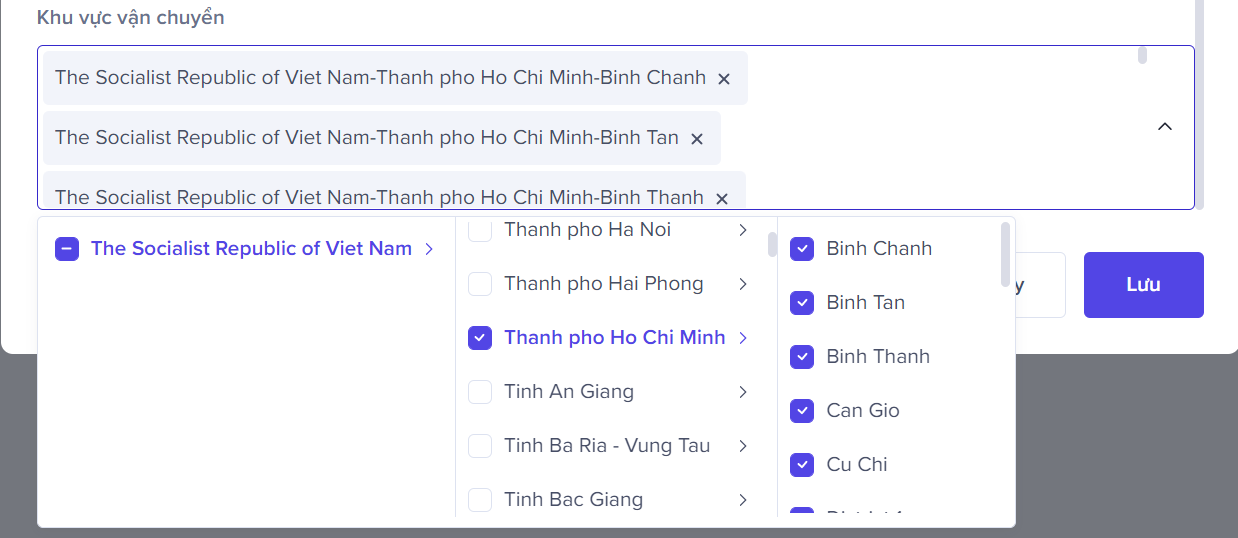
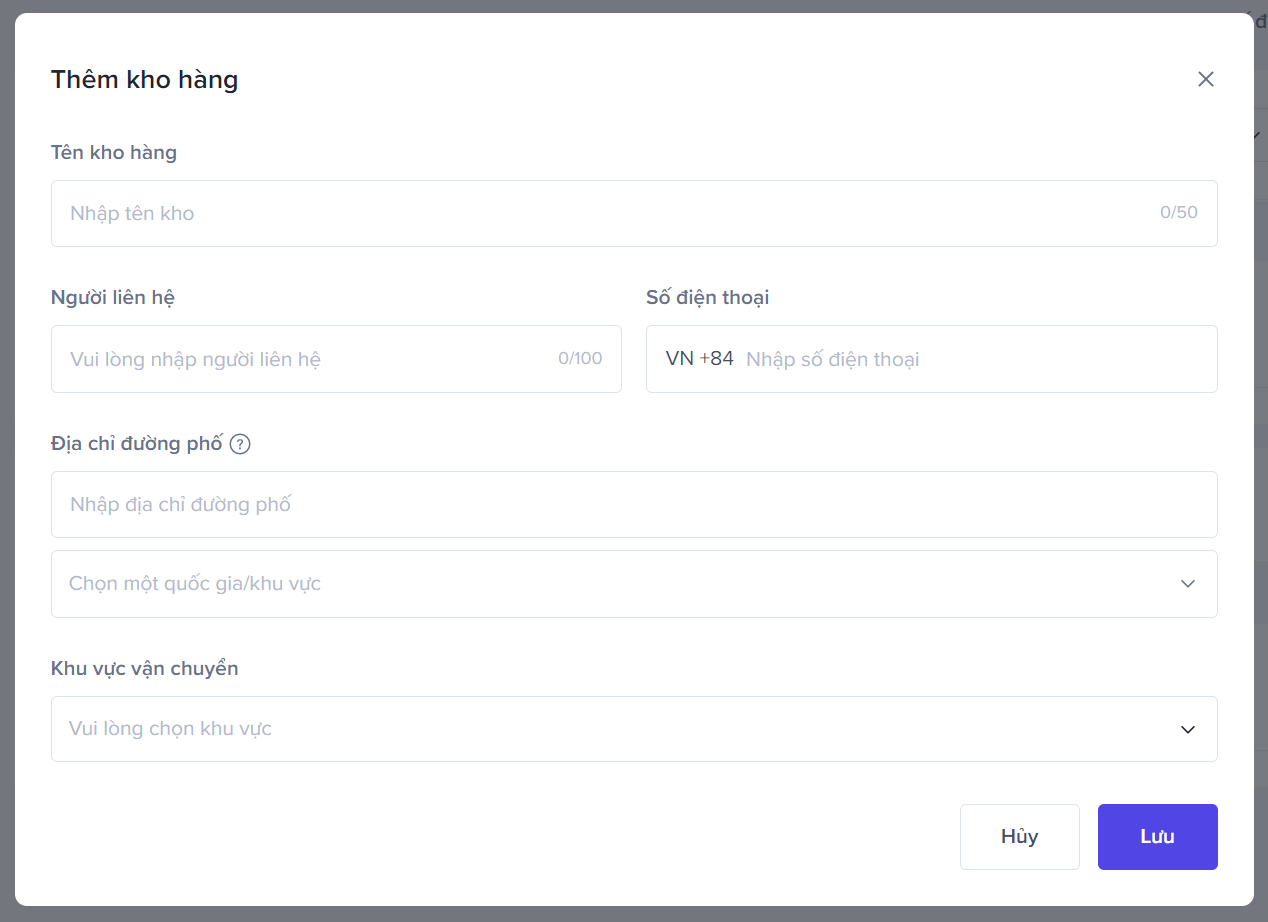 Lưu ý rằng Khu vực vận chuyển ám chỉ khu vực mà kho hàng có thể đáp ứng, giúp hệ thống biết được hàng hóa tại kho này có thể vận chuyển đến một số vùng nhất định hay không. "Khu vực vận chuyển trong cửa sổ "Chỉnh sửa Địa chỉ Kho hàng" sẽ không hiển thị nếu nhà bán hàng chỉ có một kho hàng.
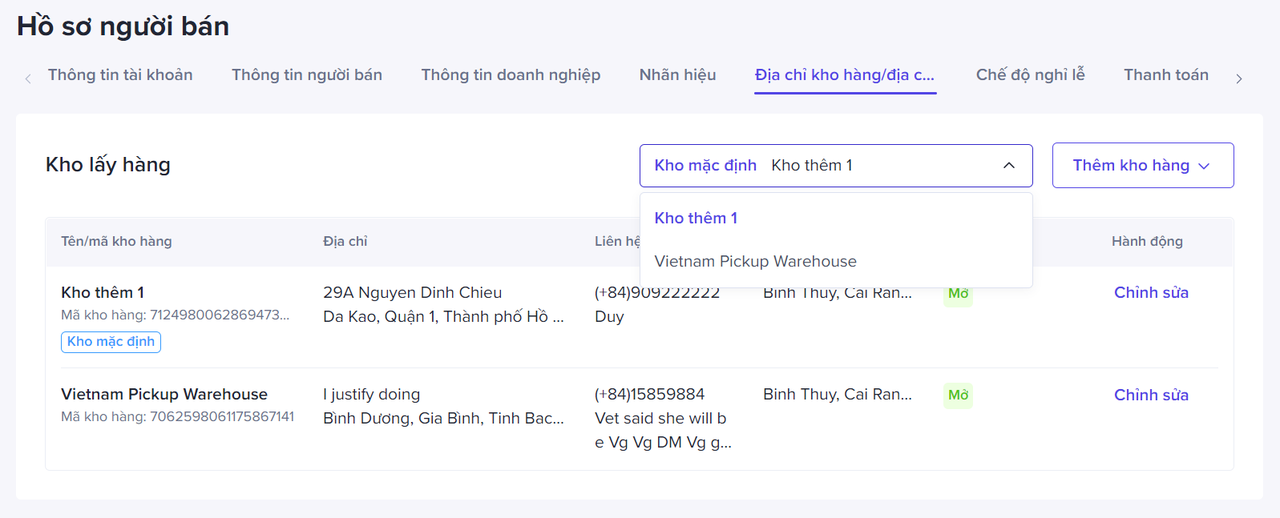
  Kho mặc định (Tùy chọn)Nhà bán hàng cũng có thể thiết lập "Kho mặc định". Sau khi tùy chọn, kho mặc định này sẽ là kho được cập nhật tồn kho đầu tiên cho các sản phẩm mới tải lên.
  Lưu ý:
- Thiết lập Kho mặc định là điều bắt buộc để bật tính năng Multi-warehouse
- Với các sản phẩm cũ (đang có trước khi bật tính năng Multi-warehouse) thì Kho mặc định sẽ là kho bạn đăng kí đầu tiên với TikTok Shop (tồn kho hiện tại sẽ không bị thay đổi). Các sản phẩm mới tải lên sau này và được bật MWH thì Kho mặc định sẽ là kho bạn thiết lập mặc định cho Multi-warehouse.
- Về quy trình xử lí đơn hàng: hệ thống sẽ tự động tính toán để lựa chọn kho hàng gần nhất với địa chỉ của người mua - giúp cải thiện thời gian giao hàng và chi phí vận chuyển.
Bước 2: Cách để bật Chế độ nghỉ lễ cho Kho hàng
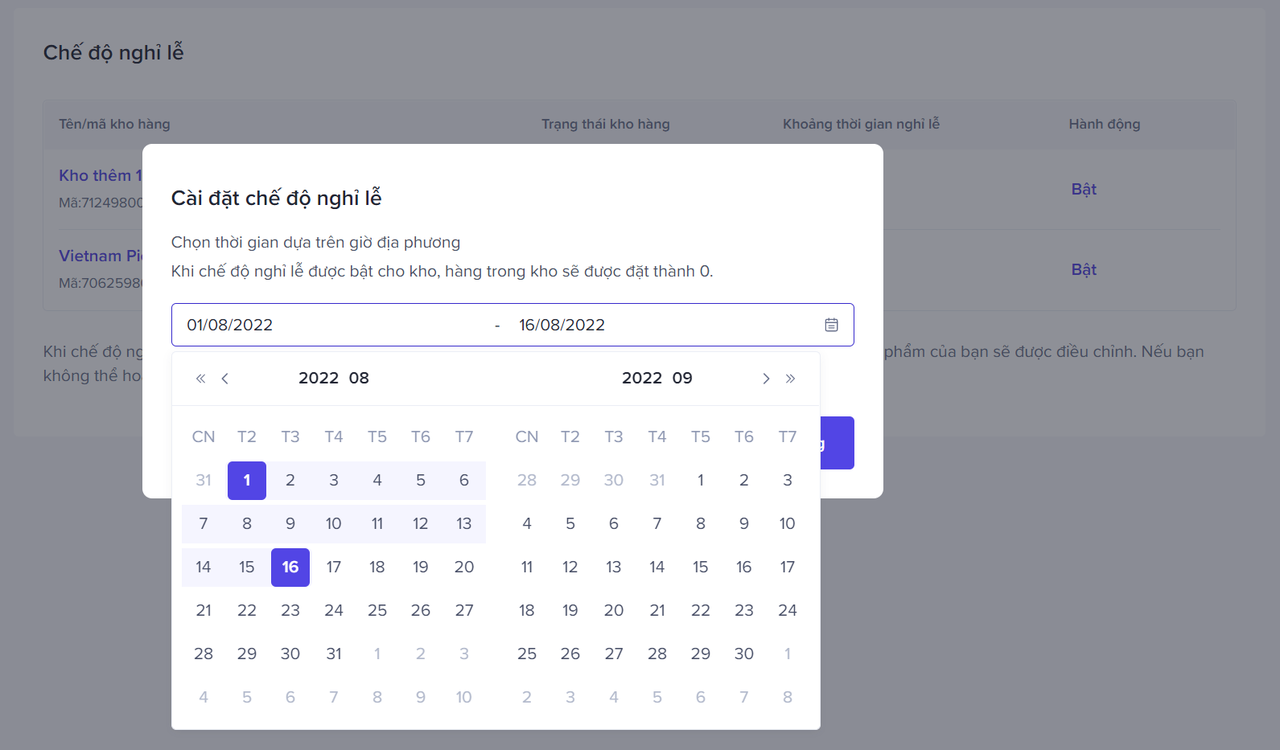
Chế độ nghỉ lễNhà bán hàng có thể thiếp lập Chế độ nghỉ lễ tùy theo nhu cầu vận hành của từng kho hàng thuộc cửa hàng. Vui lòng truy cập Tài khoản của tôi > Hồ sơ người bán > Chế độ nghỉ lễ.Chọn kho hàng và nhấn vào nút "Bật", sau khi lựa chọn thời gian, nhấn "Xong".Một khi chế độ nghỉ lễ của kho hàng được bật, số tồn kho của kho hàng đó sẽ hiển thị là 0 trong khoảng thời gian nghỉ lễ.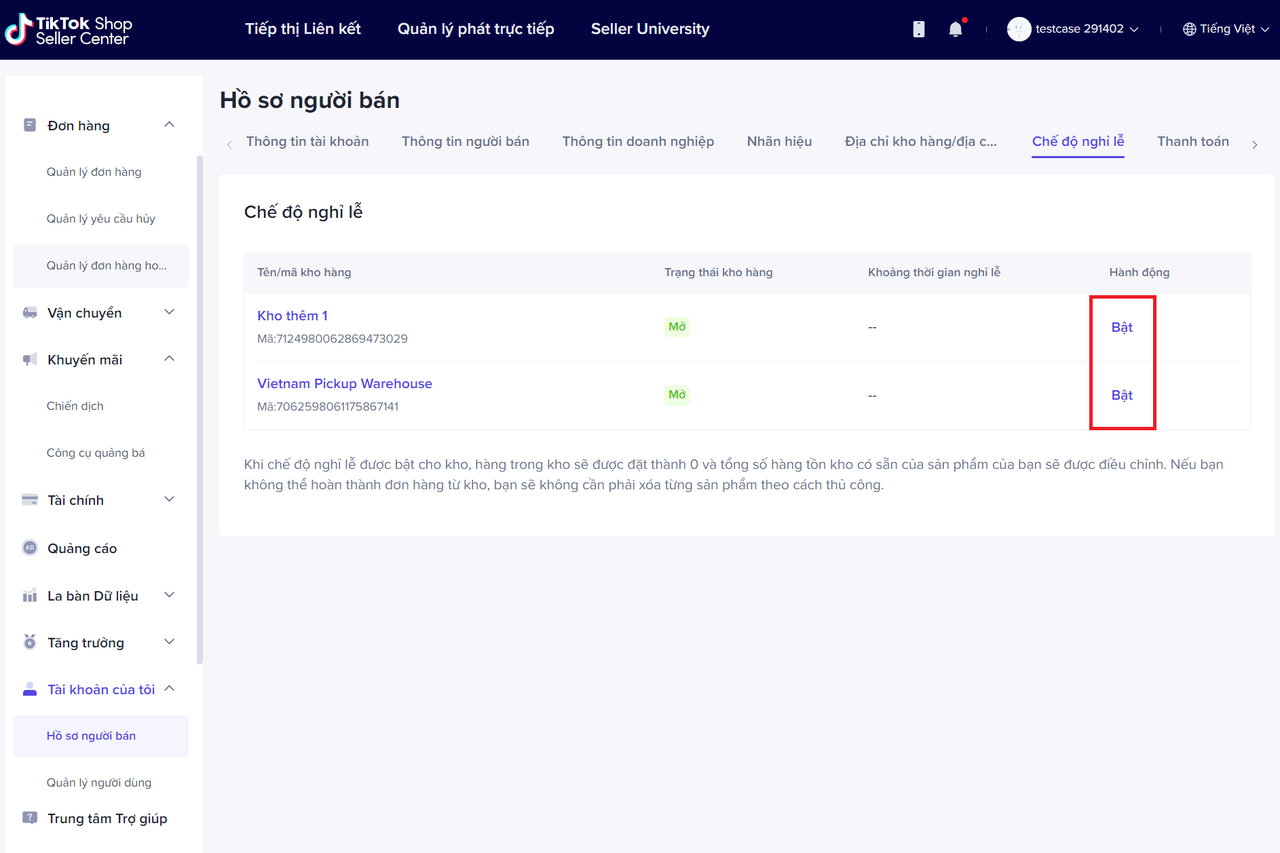
Bước 3: Cách để kiểm soát Tồn kho của từng kho hàng
Chỉnh sửa Edit Single Product MWH StockMục Sản phẩm. Vui lòng truy cập Sản phẩm > Quản lý sản phẩm > Chỉnh sửa. Nhà bán hàng có thể chỉnh sửa tồn kho của một sản phẩm đơn lẻ cho nhiều kho hàng sau khi tích chọn "Thêm vào nhiều kho" trong trang Chỉnh sửa sản phẩm.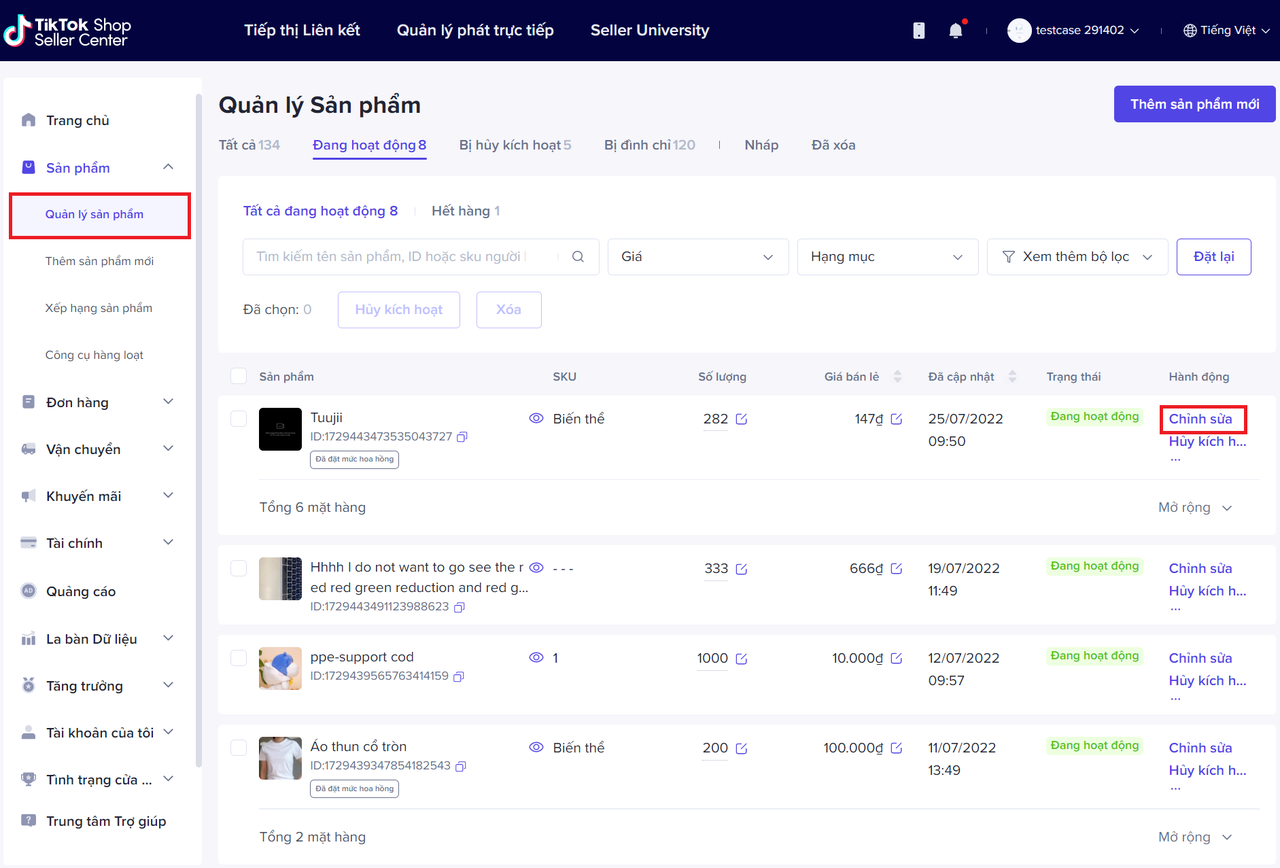 Sau khi nhà bán hàng chọn "Thêm vào nhiều kho", sản phẩm sẽ được hệ thống xác nhận được lưu ở nhiều kho, nhà bán hàng lúc này có thể chỉnh sửa tồn kho của toàn bộ hệ thống kho hàng, và lưu ý tùy chọn trên sẽ không thể tắt được nữa.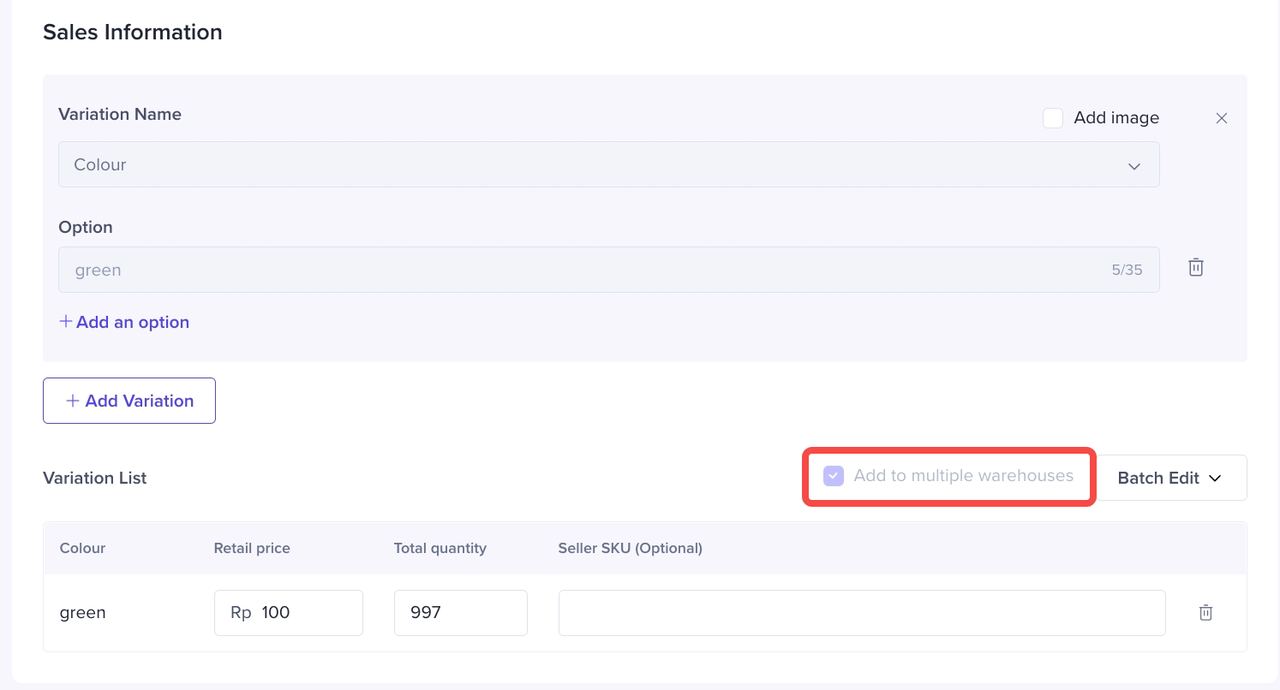
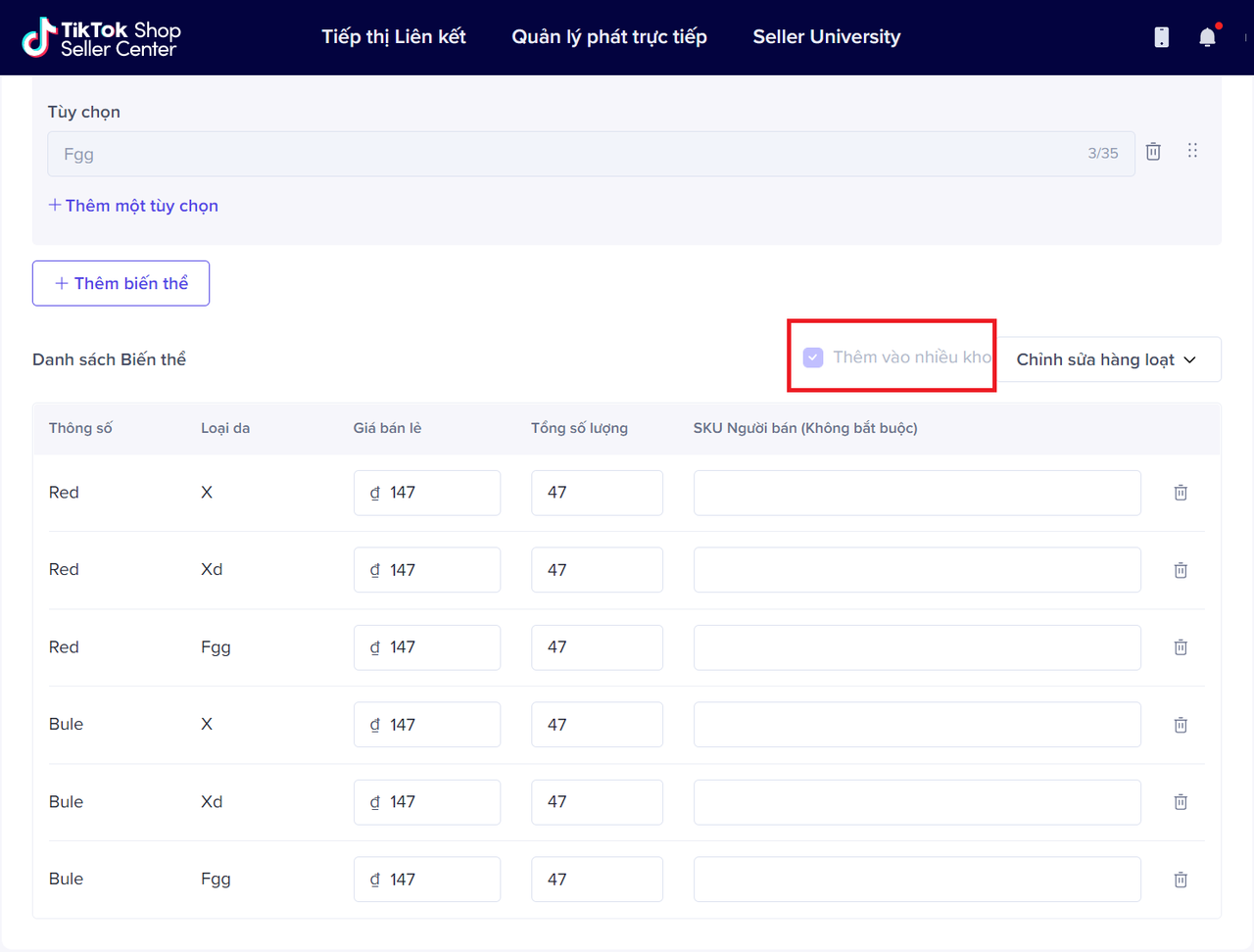 Thêm kho hàng mới và tồn kho của sản phẩm này, tổng lượng hàng sẽ được tự động Add new warehouse and stock of this product, the total quantity will be calculated automatically.
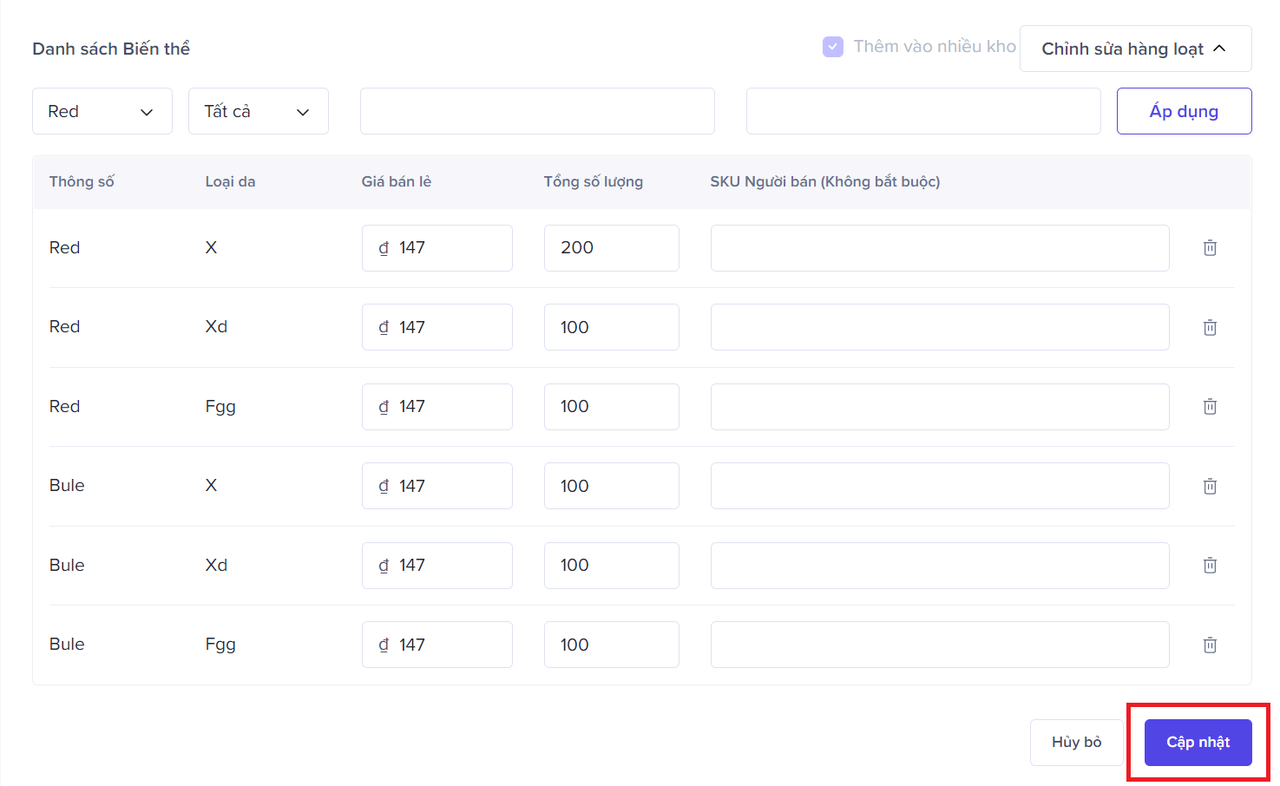
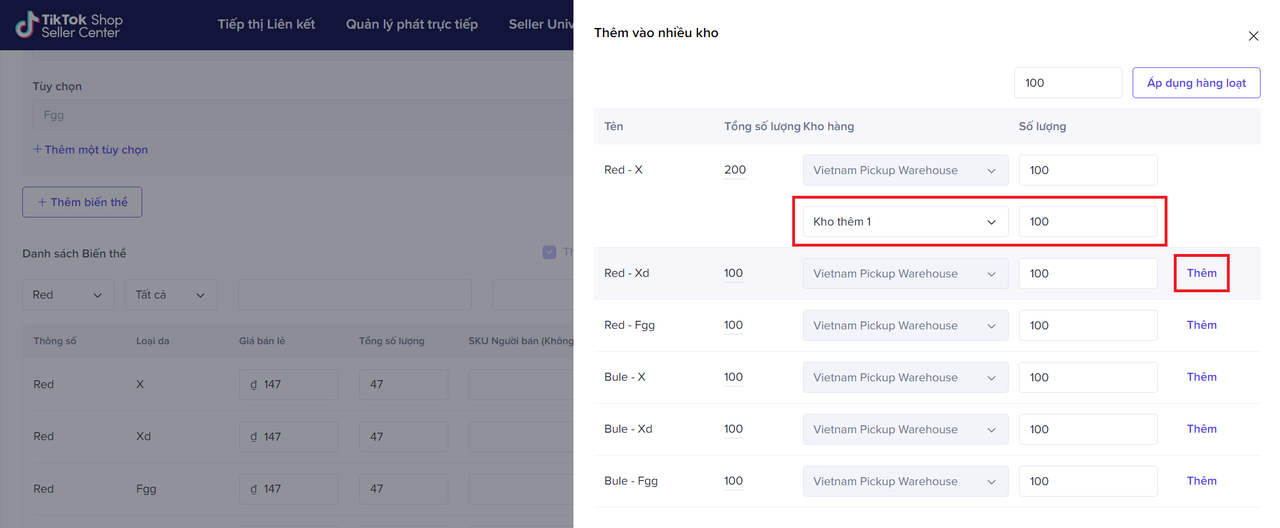 Sau khi điều chỉnh, hãy nhớ nhấn vào Cập nhật trong trang Chỉnh sửa sản phẩm nhé.
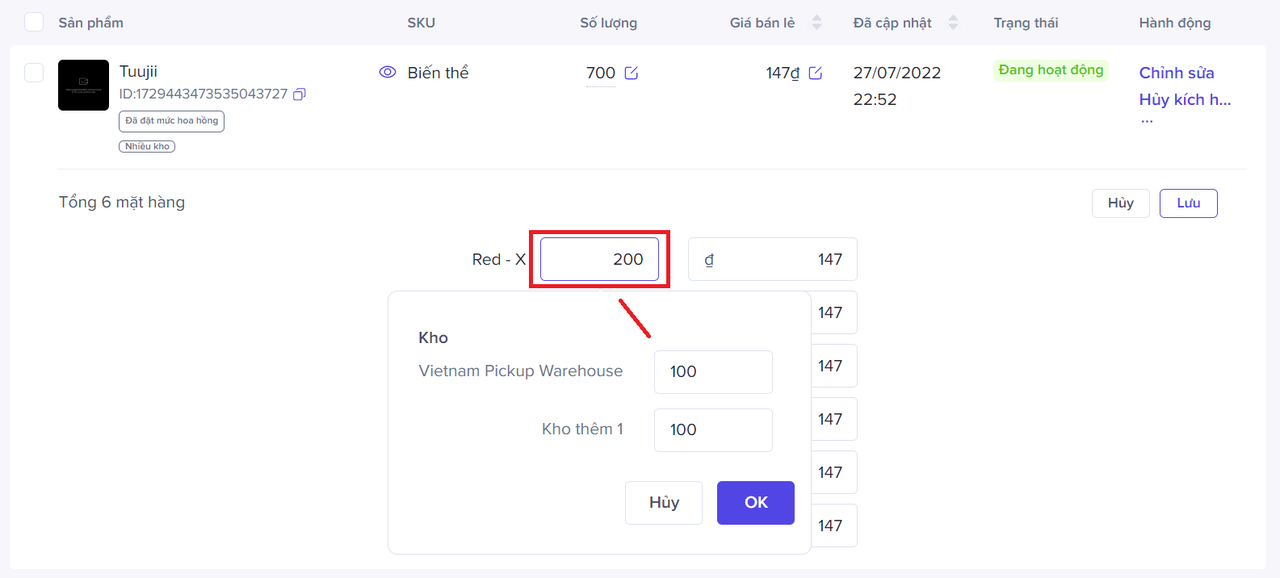
 Sau khi sản phẩm được chỉnh sửa, sản phẩm sẽ được hiện thị thẻ "Nhiều kho".
 Nếu bạn cần tùy chỉnh tồn kho trên từng kho hàng của sản phẩm sau đó, bạn có thể điều chỉnh ngay lập tức thông qua nút Mở rộng, và tùy chỉnh số lượng cho từng kho hàng.
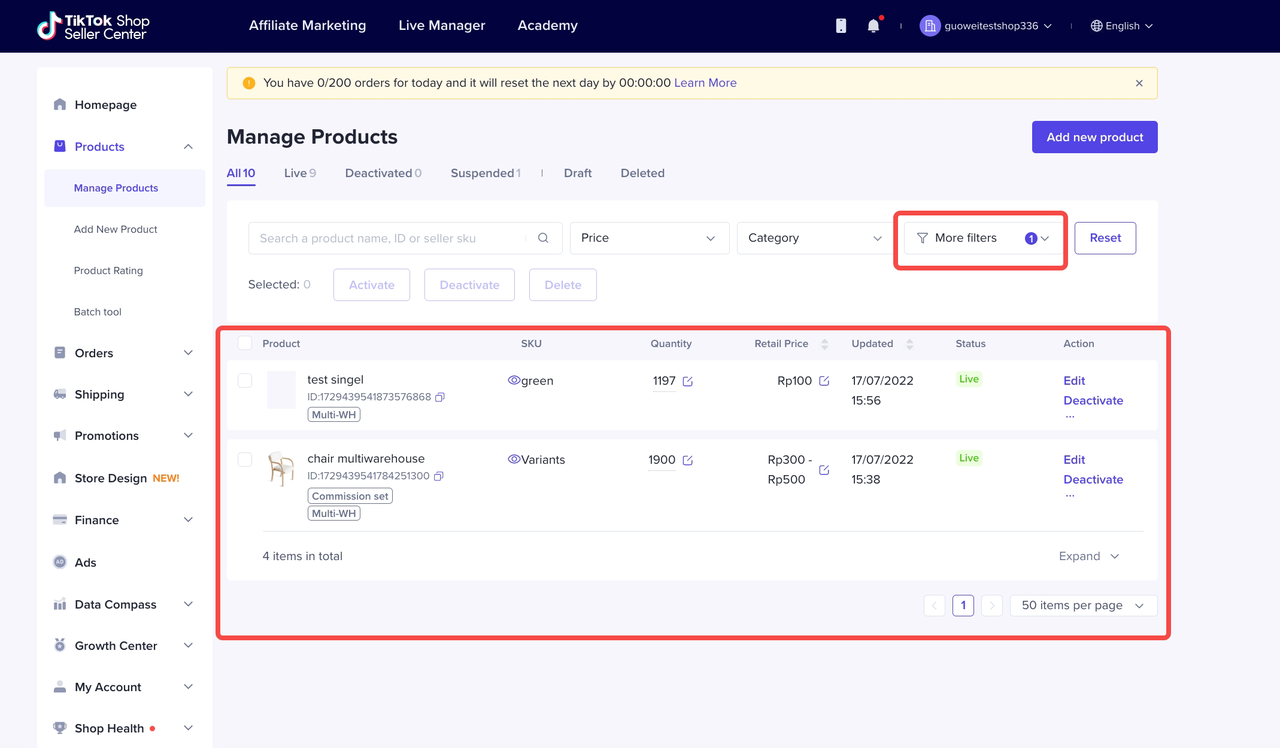
 Tìm kiếm sản phẩm theo từng Kho hàngTrong mục "Quản lý sản phẩm", nhà bán hàng có thể kiểm tra tồn kho sản phẩm và tình trạng của từng kho hàng.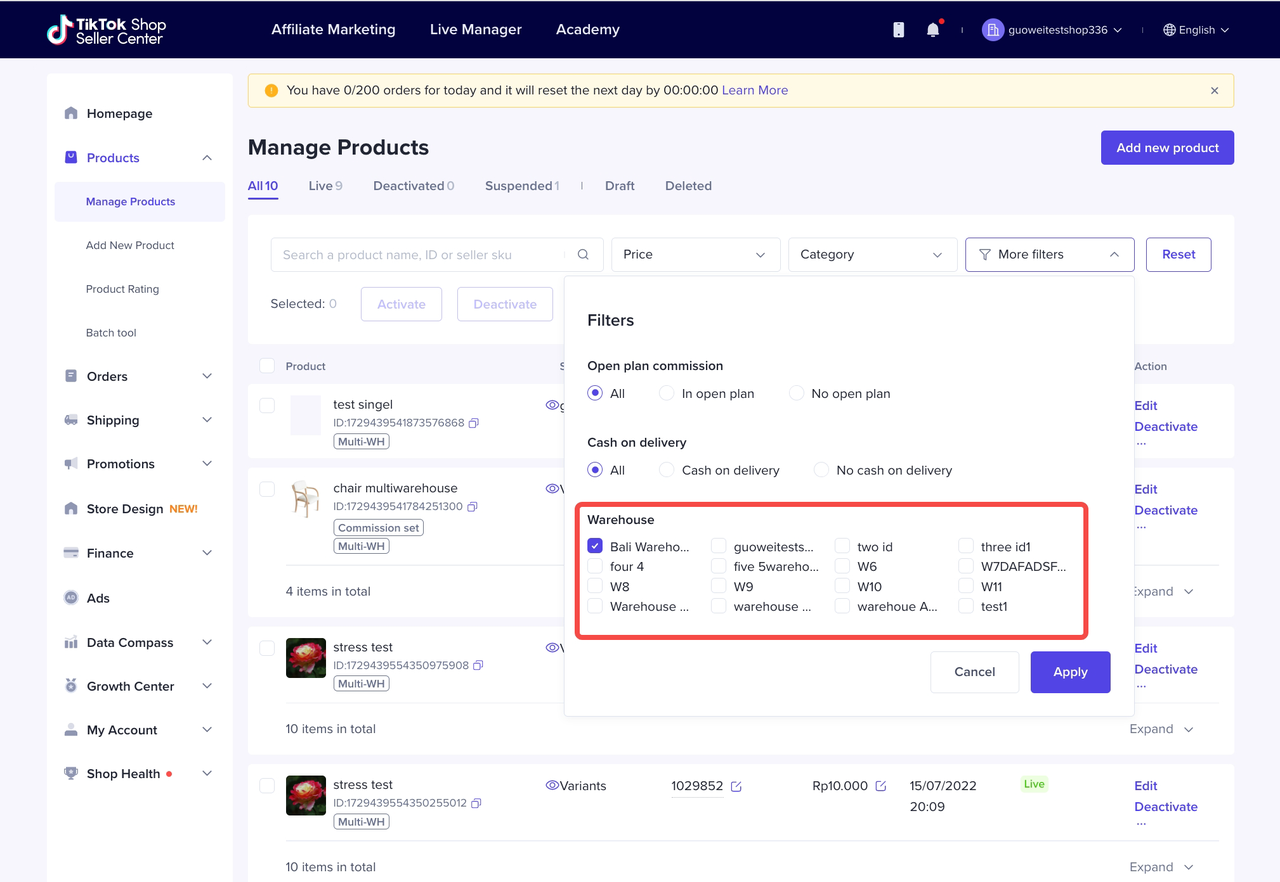
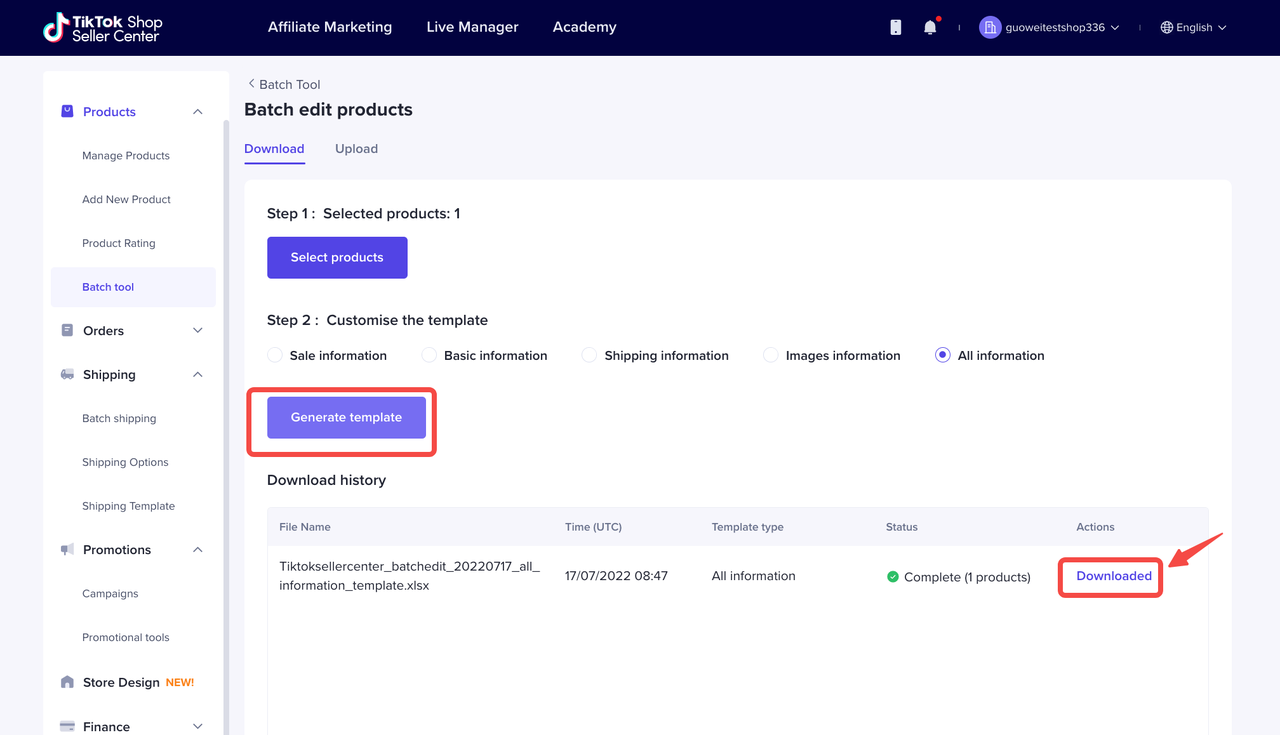
 Chỉnh sửa hàng loạt Tồn kho sản phẩm MWH Batch Edit Product MWH StockNhà bán hàng cũng có thể Chỉnh sửa tồn kho sản phẩm Multi-warehouse hàng loạt, vui lòng truy cập Sản phẩm > Công cụ hàng loạt > Chỉnh sửa hàng loạt sản phẩm > Chọn sản phẩm và Tạo mẫu.
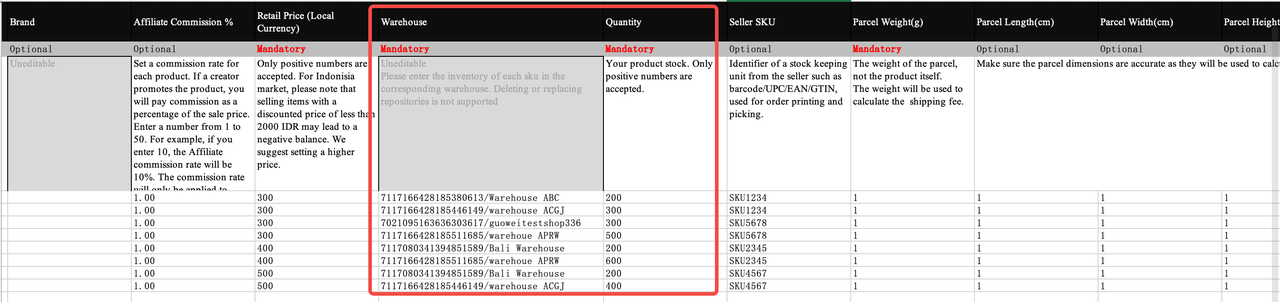
 Số lượng hàng tồn của từng kho hàng có thể chỉnh sửa bằng Excel, tuy nhiên bạn không thể thêm hay xóa kho hàng qua file Excel.
 Sau khi chỉnh sửa, vui lòng tải file lên. Số lượng sản phẩm tồn kho của từng kho hàng sẽ được cập nhật.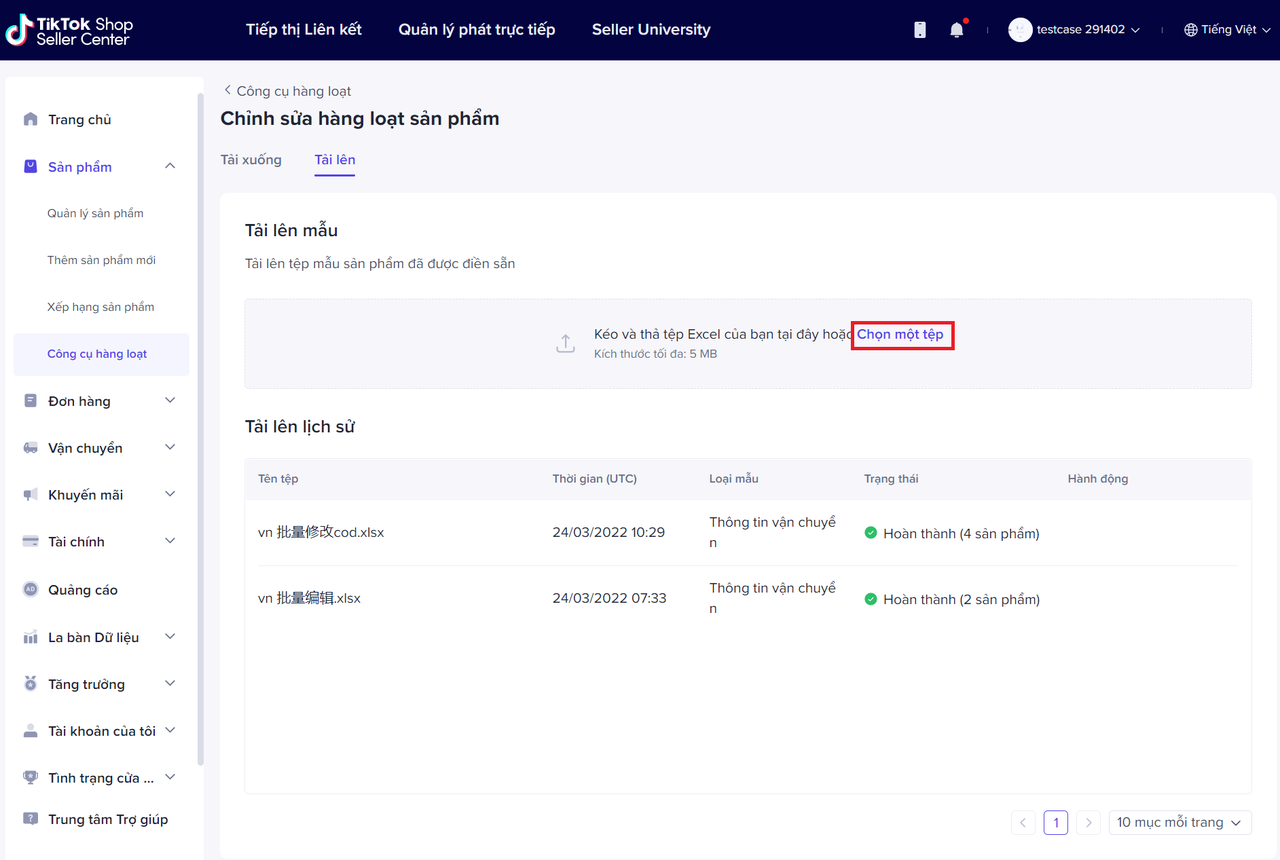
Bước 4: Cách để Xử lí và Quản lí đơn hàng của từng Kho
Cũng không có khác gì trước đây. Sẽ có sẵn một bộ lọc theo Kho hàng trong mục Vận chuyển hàng loạt. Quản lí có thể kiểm tra đơn hàng của từng kho.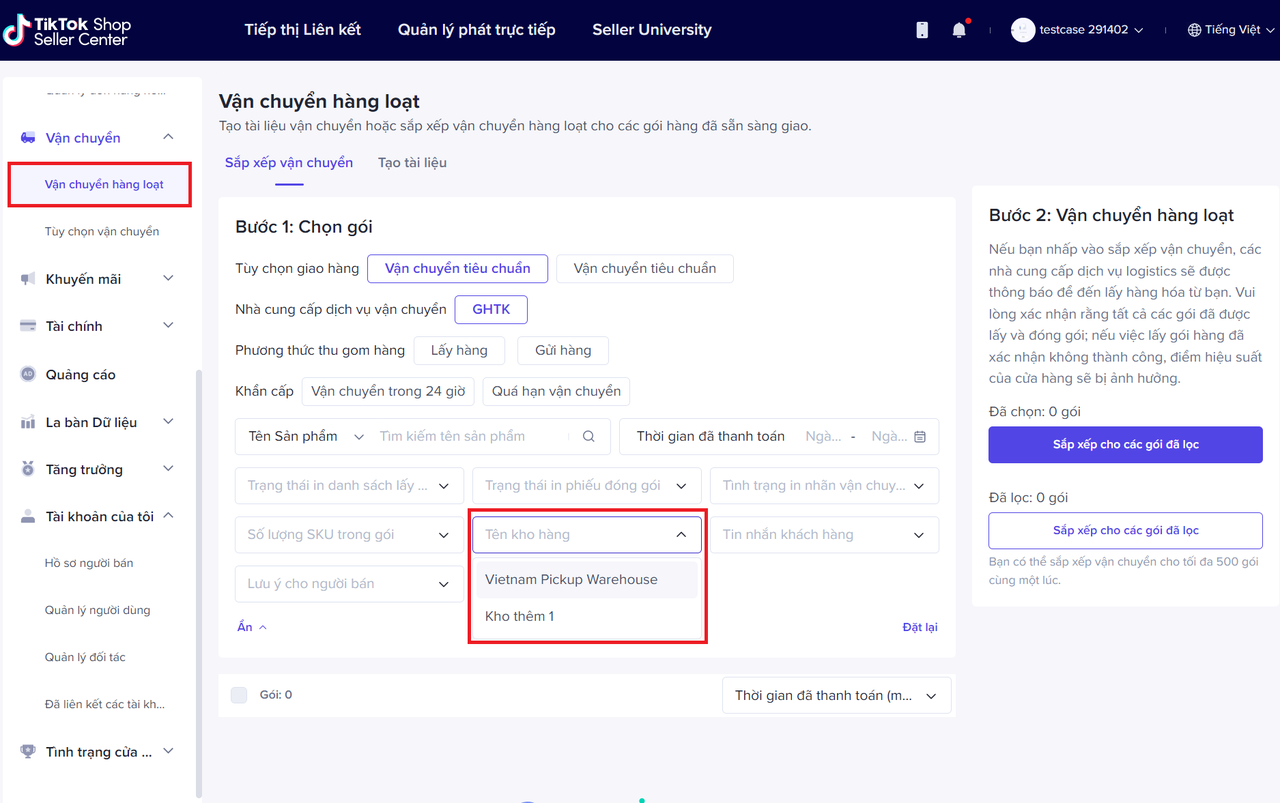
Người mua sẽ thấy gì khi bạn áp dụng tính năng Multi-warehouse?
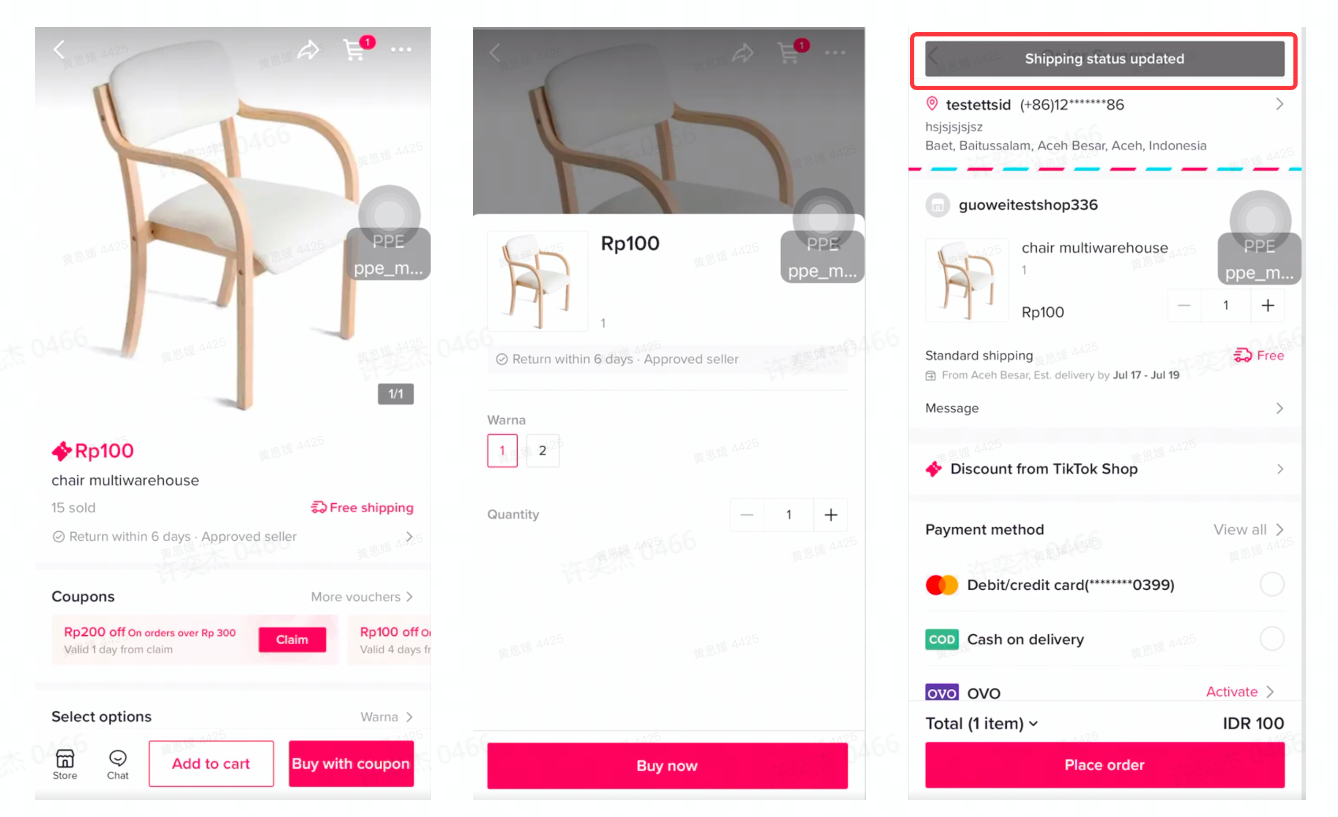
Sự thay đổi duy nhất là: sau khi nhà bán hàng bật tồn kho sản phẩm ở hơn một kho hàng, nếu người mua nhấn "Mua Ngay", hệ thống TikTok Shop sẽ tự động phân tích và lựa chọn kho phù hợp cho đơn hàng này, dựa theo địa chỉ và lượng hàng của kho. Tin nhắn "Tình trạng vận chuyển được cập nhật" sẽ được hiển thị khi người dùng tải trang Thanh toán đơn hàng.