

Affiliate Center in Seller Center App
12/02/2024
This article will guide you on how to use Affiliate features in your Seller Center App. With the inclusion of the Affiliate Center in the Seller Center app, you can adjust your Affiliate strategy on the go!
Key Note: The Affiliate Center will only be available to the Seller if they have no pending violations
📝 Turning off the Auto-add products toggle will only stop your future products from getting added to Open Collaboration automatically. To remove your current products, go down directly to the Remove Products section.
To learn more about our Automated Opt-In option and what it looks like in its desktop version, read our guide here.
To learn more about the 30-day delay period Affiliate Commission settings in this article.

Key Note: The Affiliate Center will only be available to the Seller if they have no pending violations
Open Collaboration
The Open Collaboration function is available in the Seller Center app for Sellers to freely add, remove and adjust their affiliate products. To enter your Open Collaboration, simply open your Seller Center app and scroll down to Affiliate Center.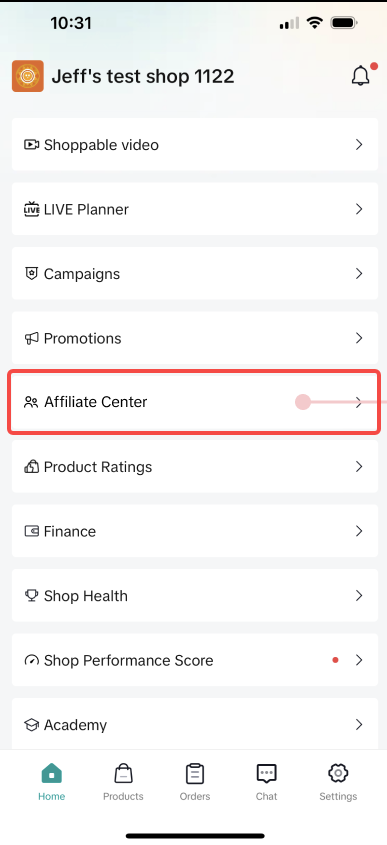 | 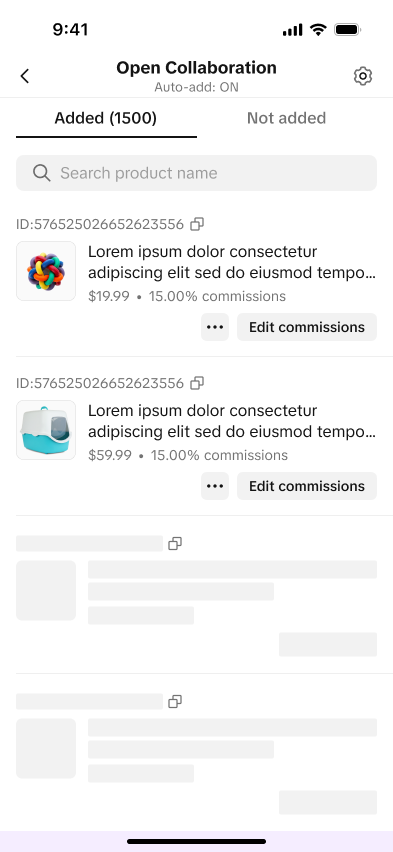 | 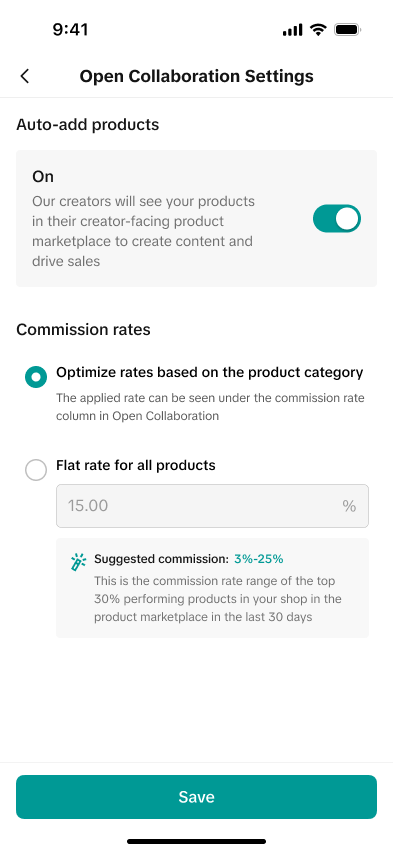 | 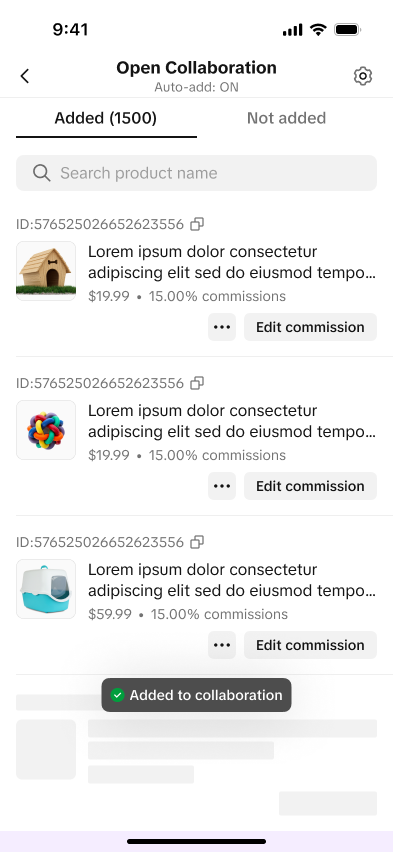 |
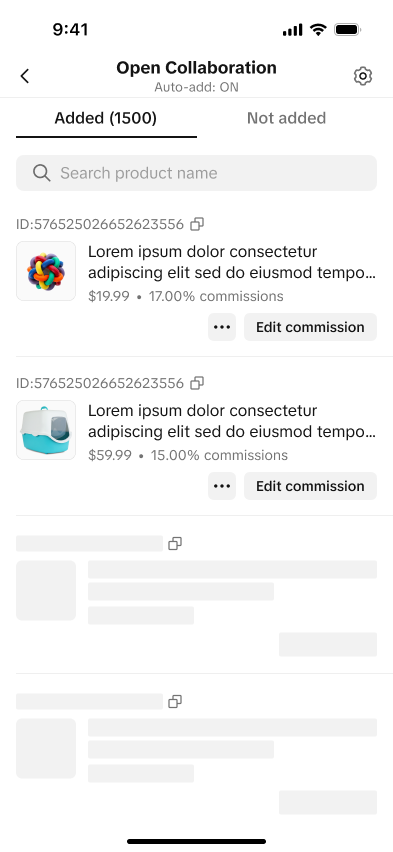
| Upon logging in to your Seller Center app, tap on Affiliate Center | For Sellers with existing Open Collaboration, you are redirected to your list of currently enrolled products | Tapping on the settings button at the top of the screen will redirect you to Open Collaboration Settings. | For your product's commission rates, you have two options under the settings. These options make it easier for you to adjust all your product's commission rates |
Add Products in Open Collaboration
You can also add products manually to your Open Collaboration using the Seller Center app. This function only works if you turned the Auto-add Products toggle OFF. Additionally, the Auto-add function only works for newly uploaded products.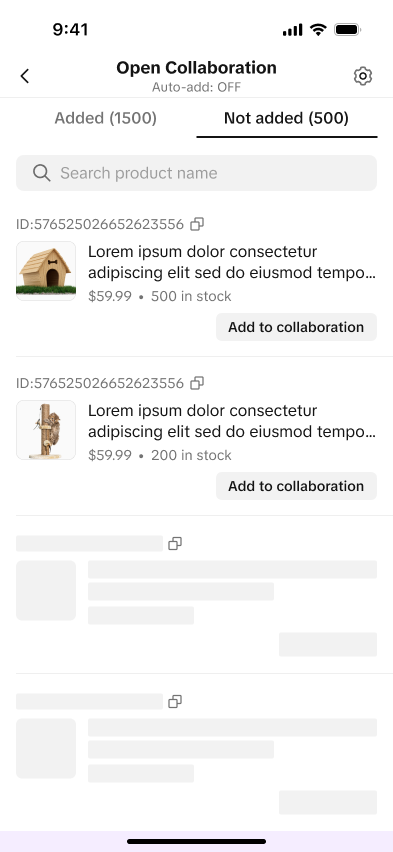 | 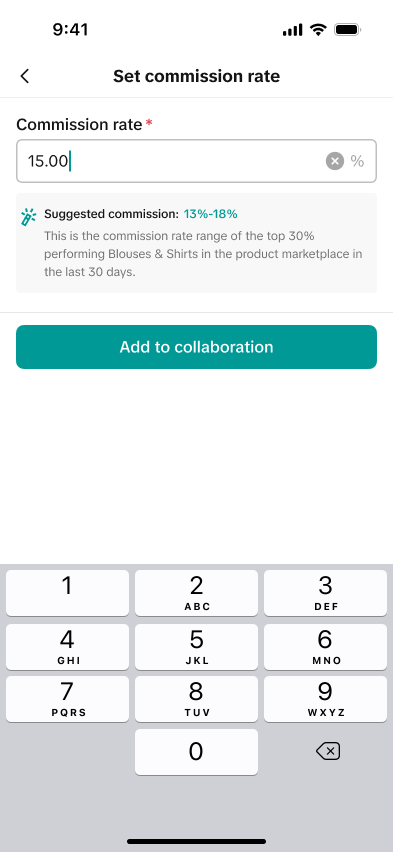 | 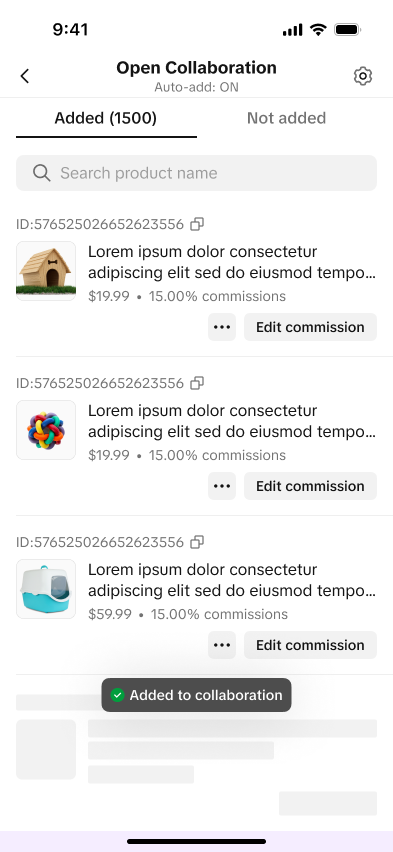 |
| From the Open Collaboration page, go to the Not added tab. Tap on Add to collaboration with your desired product | After tapping, it will redirect you to set the product's commission rate | Once added, a prompt will notify you if the product is successfully added to Open Collaboration! |
Automated Opt-In Option for Existing Sellers
Sellers currently not enrolled in Affiliate may receive a pop-up in their Seller Center app that allows them to add all their products in Open Collaboration with just one tap.To learn more about our Automated Opt-In option and what it looks like in its desktop version, read our guide here.
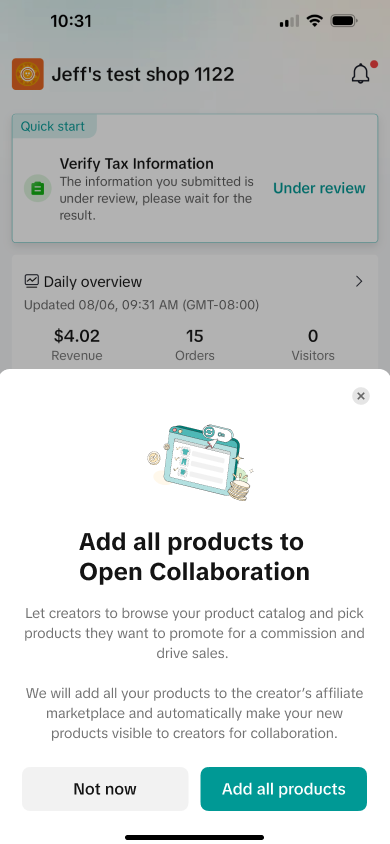 | 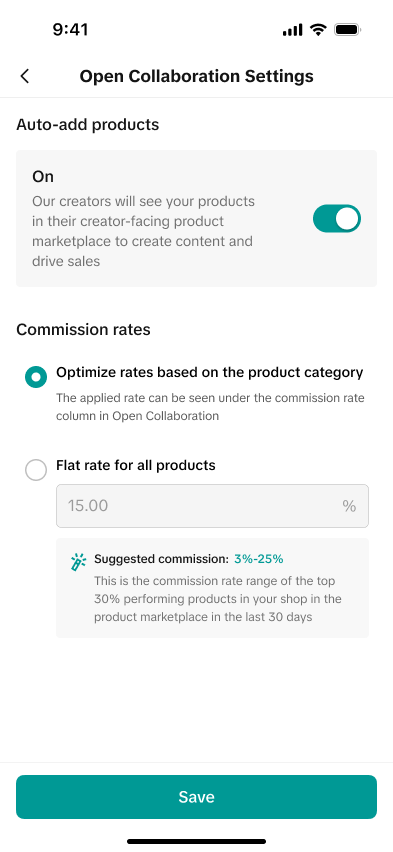 |  |  |
| You may receive a pop-up that allows you to add all your products in Open Collaboration. Tap on Add all products to start the opt-in | Once you tap Add all products, it will redirect you to Open Collaboration settings. The opt-in automatically selects the optimize rates toggle. This function provides your products with different commission rates based on their category | Another option is to apply the same commission rate on all your products by selecting the flat rate toggle | Once you've saved your preferences, all your affiliate-approved products are now in Open Collaboration! |
Remove Products
You also have the option to remove any of your products in Open Collaboration. However, the Seller Center app only allows you to remove products one by one. You can opt to remove products in bulk in the desktop version.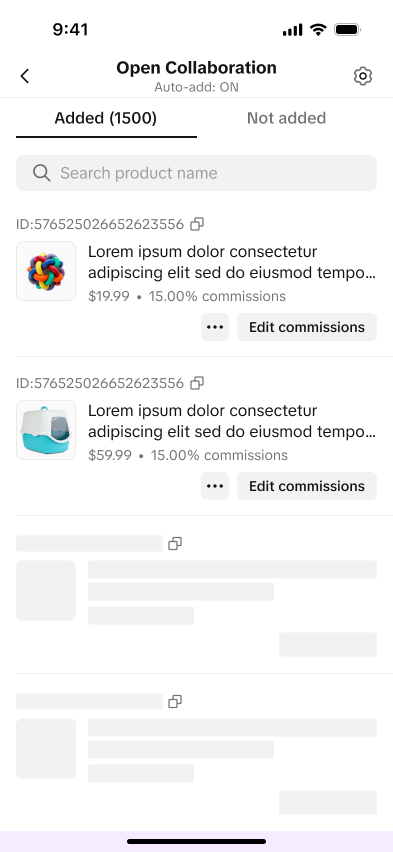 | 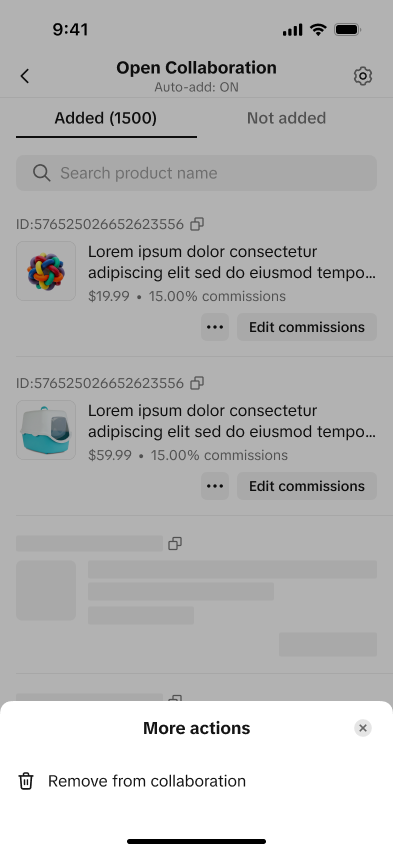 | 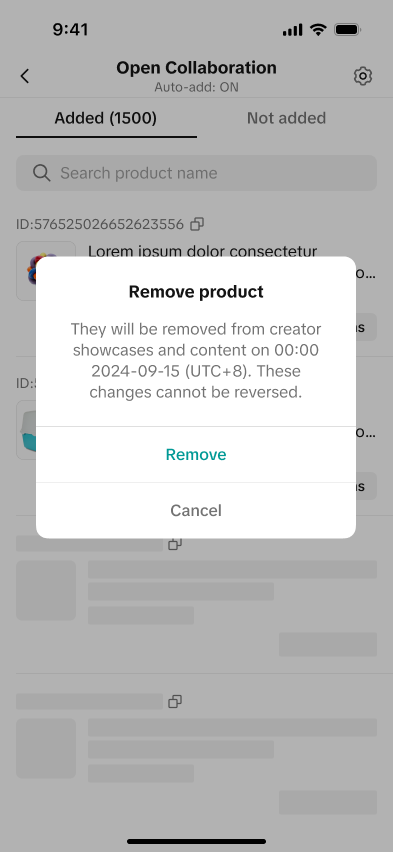 | 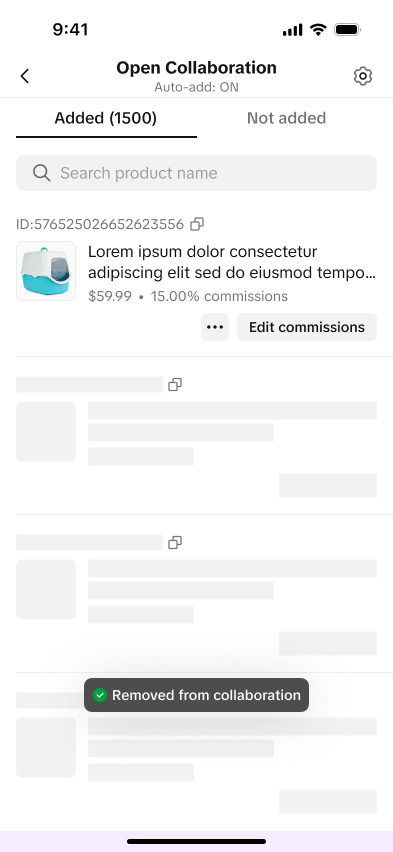 |
| On the Added page, tap the "..." button on the product you wish to remove | This will prompt the more actions pop-up, click on Remove from collaboration | A final pop-up will show up that confirms your action to remove said product | Once you tap on Remove, the system will confirm if the product was successfully removed from Open Collaboration |
Edit Commission for Single Products
You can edit the commission of any single product via the Seller Center app. Upon editing your commission, you may receive a pop-up that the edit will not apply to some creators. This is due to some Creators that are currently earning commission from your product. After the 30-day period, they will now earn the new commission rate.To learn more about the 30-day delay period Affiliate Commission settings in this article.
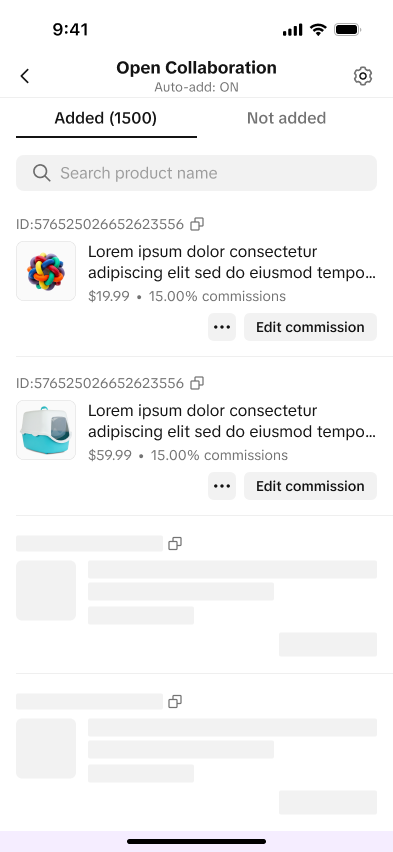 | 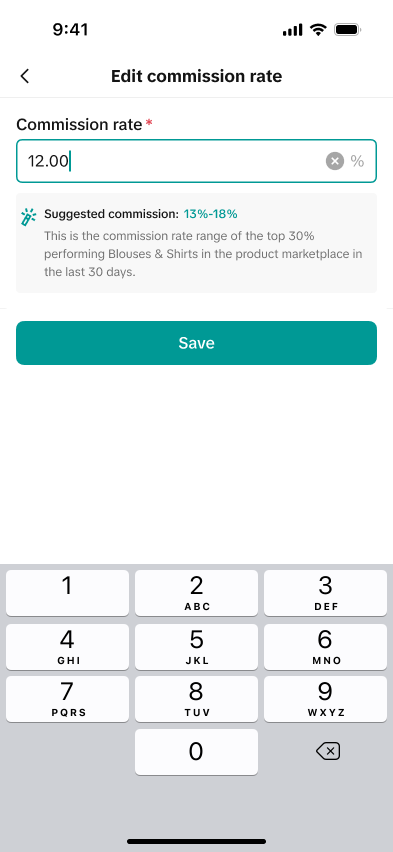 | 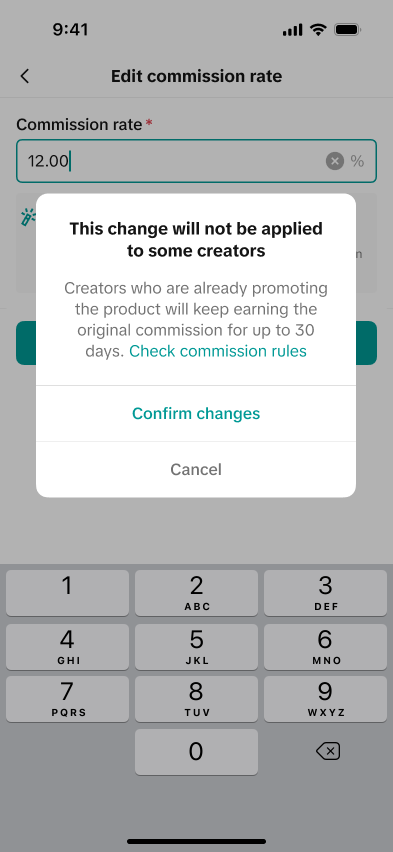 | 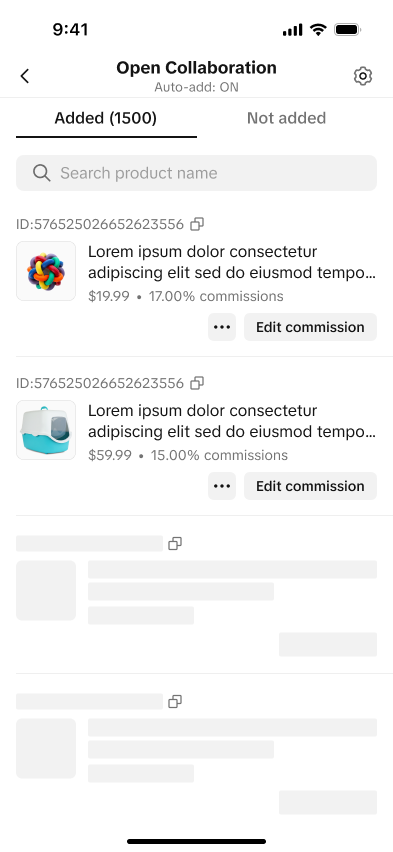 |
| Tap on edit commission | Adjust the commission rate | If the new commission rate is lower, it will take effect after 30 days for creators that are currently promoting your product. If the new commission rate is higher, it will take effect immediately | The new commission rate will reflect on your chosen product after you confirm the changes |
FAQ
- Can I send out Target Collaboration invites using the Seller Center app?
- As of now, Sellers can only use the Open Collaboration feature in-app. You will still need to send Target Invites via Seller Center desktop.
- Can I edit my Free Samples settings in the Seller Center app?
- Currently, you can also adjust your Free Samples to the desktop version.