

Sales Accelerator
03/06/2026
This feature in Seller Center will guide sellers to have a more attractive product strategy and get higher potential to achieve more orders. This will help sellers to improve their sales through a range of high quality products to sell.
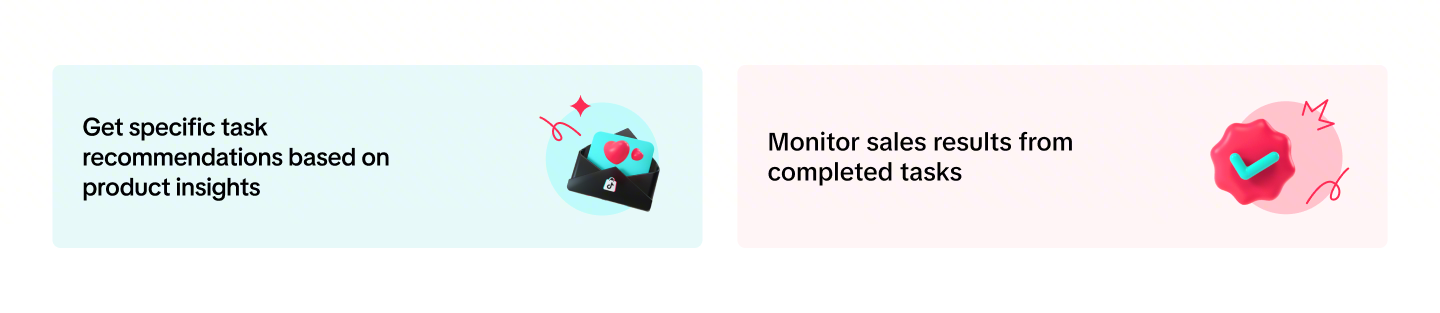
Entrance: Products > Sales AcceleratorOn that page, sellers can:- See top recommended task
- See qualified products and recommended tasks to be done to get more orders
- Complete tasks directly on each product and see the impact data

Benefits of Sales Accelerator

Key Function
Product Growth Expert
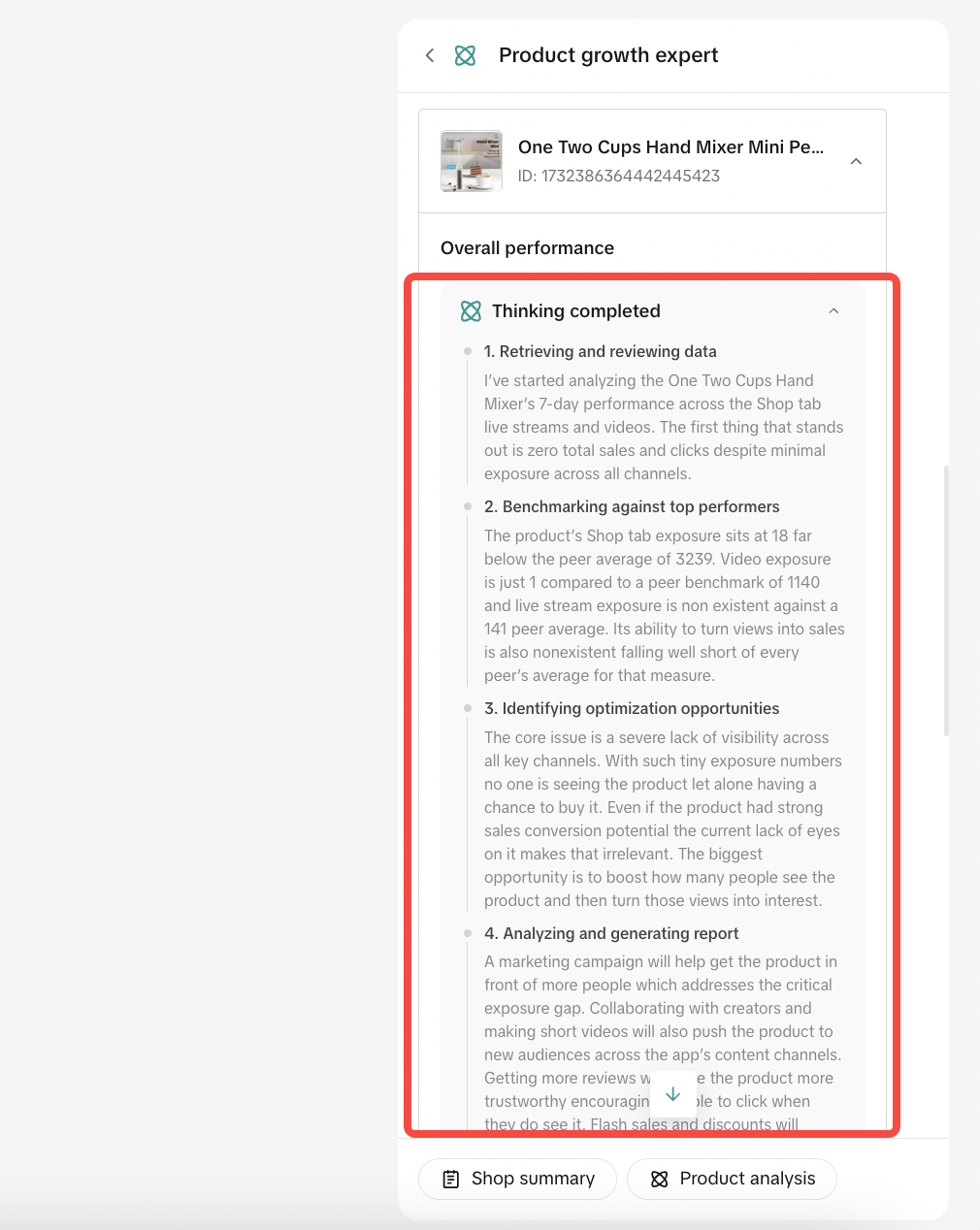
On the right-hand side of Sales Accelerator, there is an AI assistant function called Product Growth Expert. This feature analyzes individual product performance and provides actionable recommendations to help improve results and drive growth.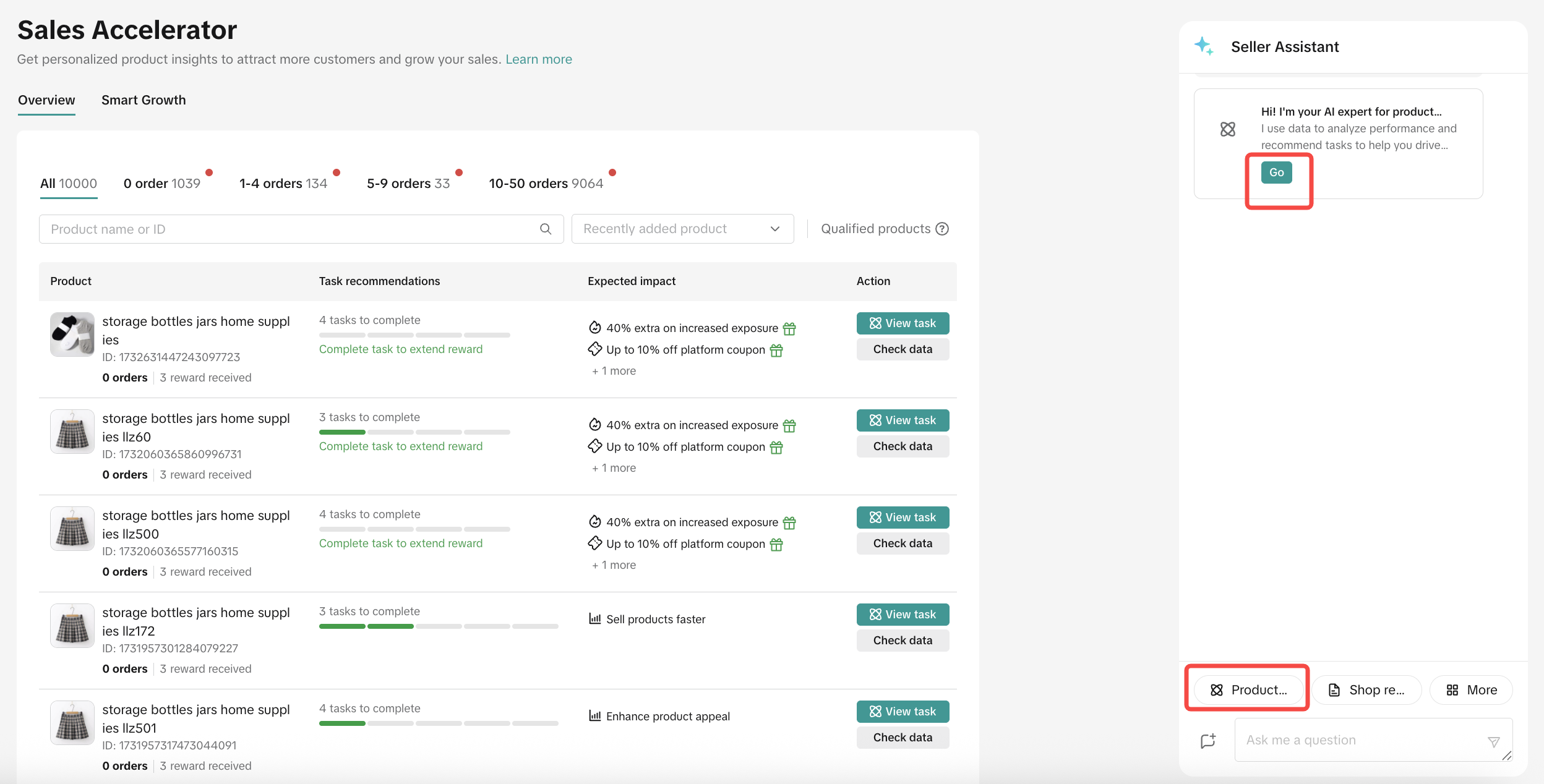 | 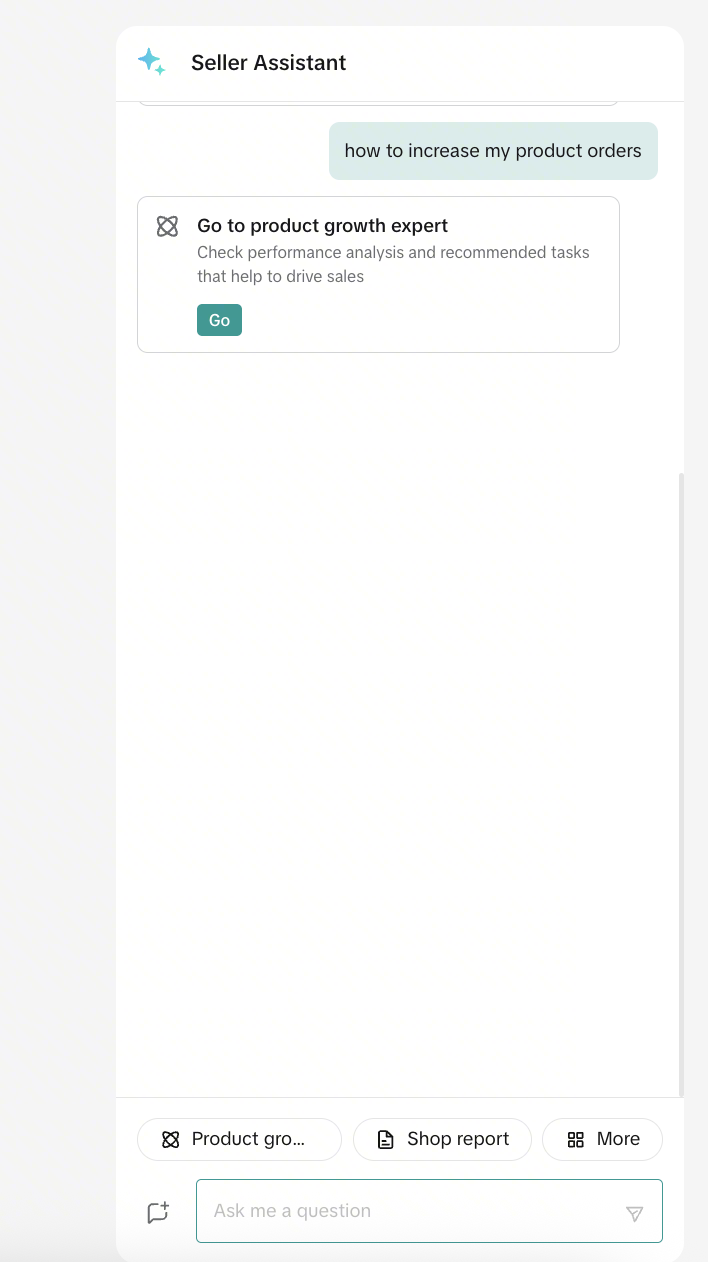 |
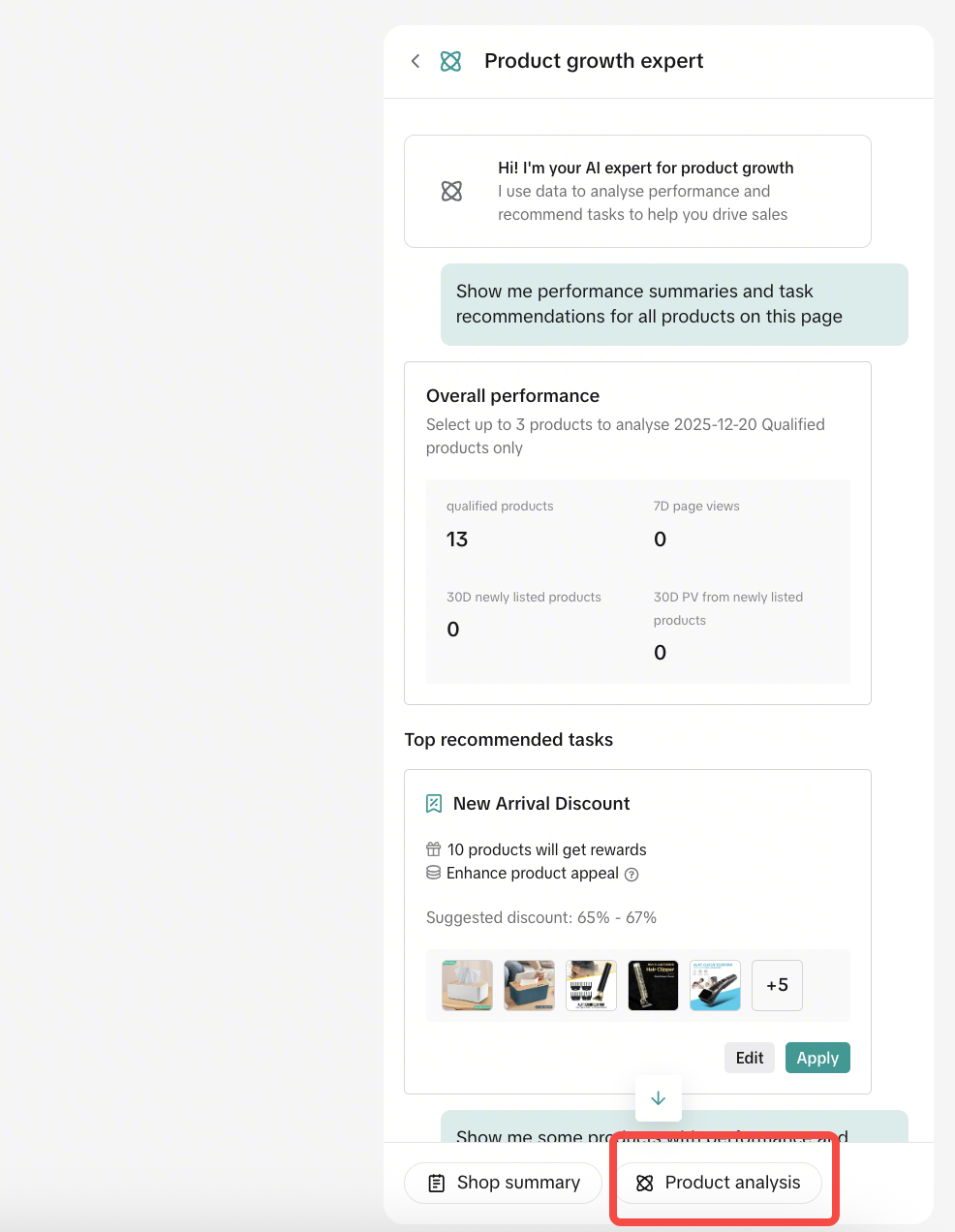
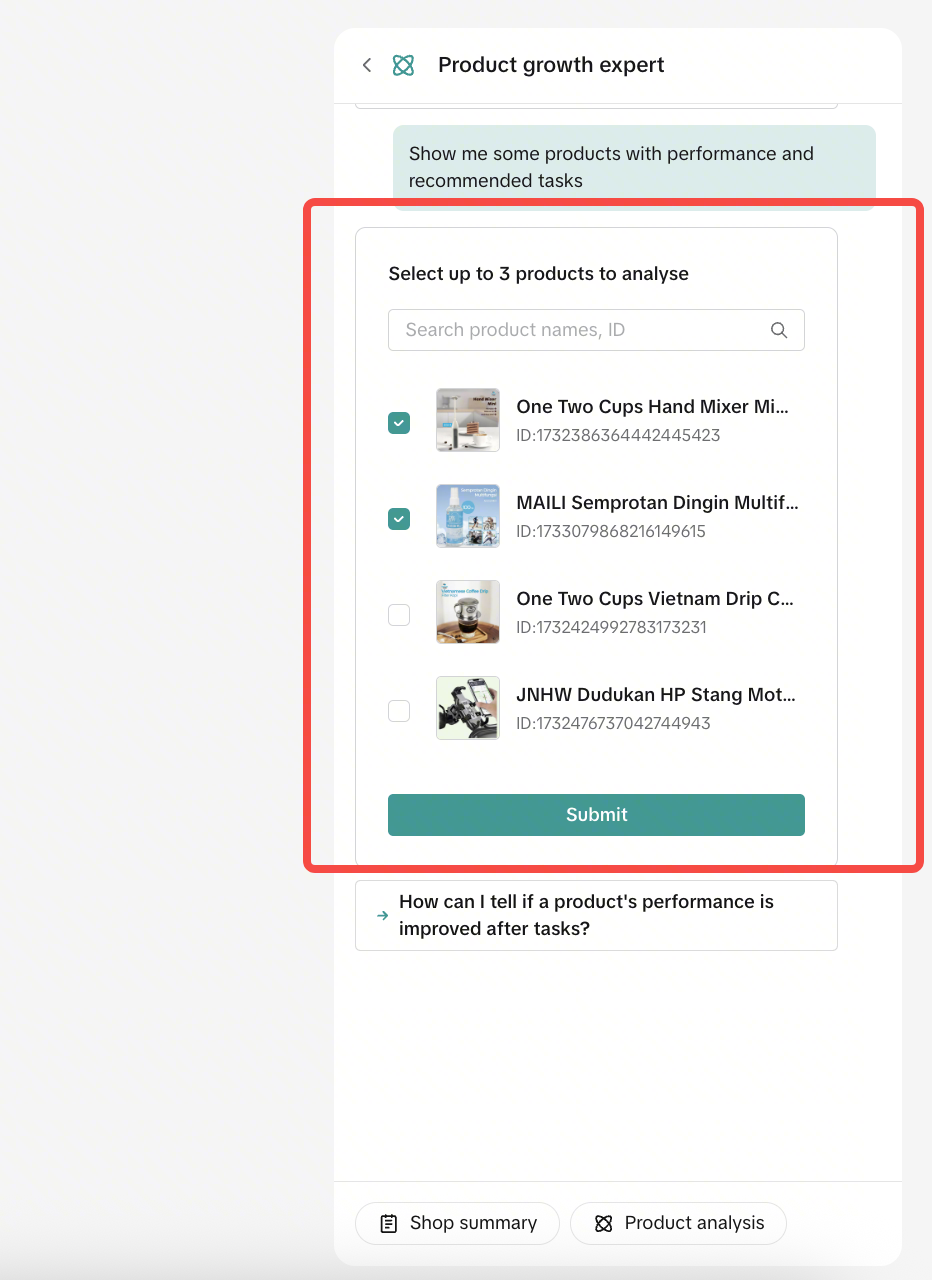
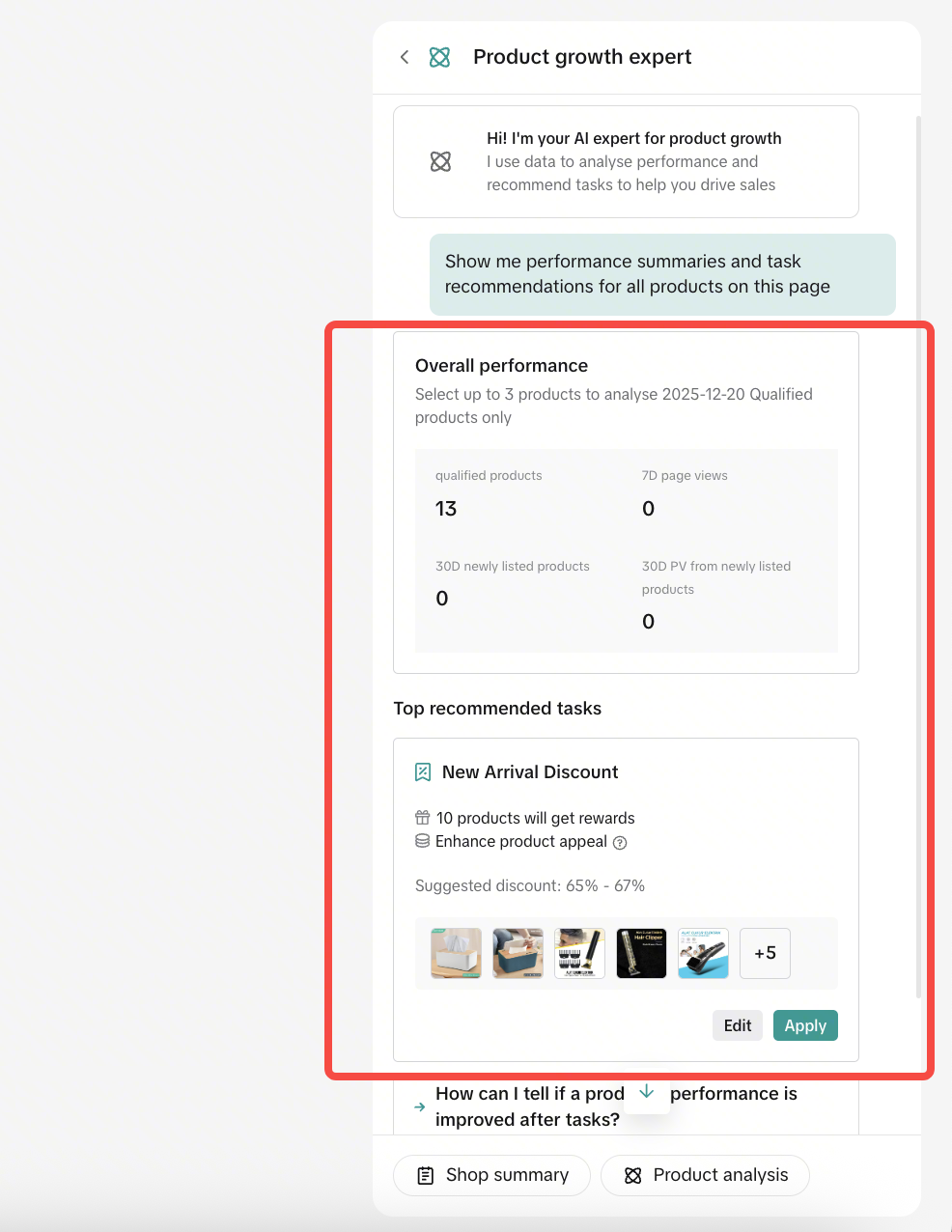 To see analysis for some specific products, click the Product Analysis button on the bottom of the page, select up to 3 products to analyze and then click Submit.
 |  |
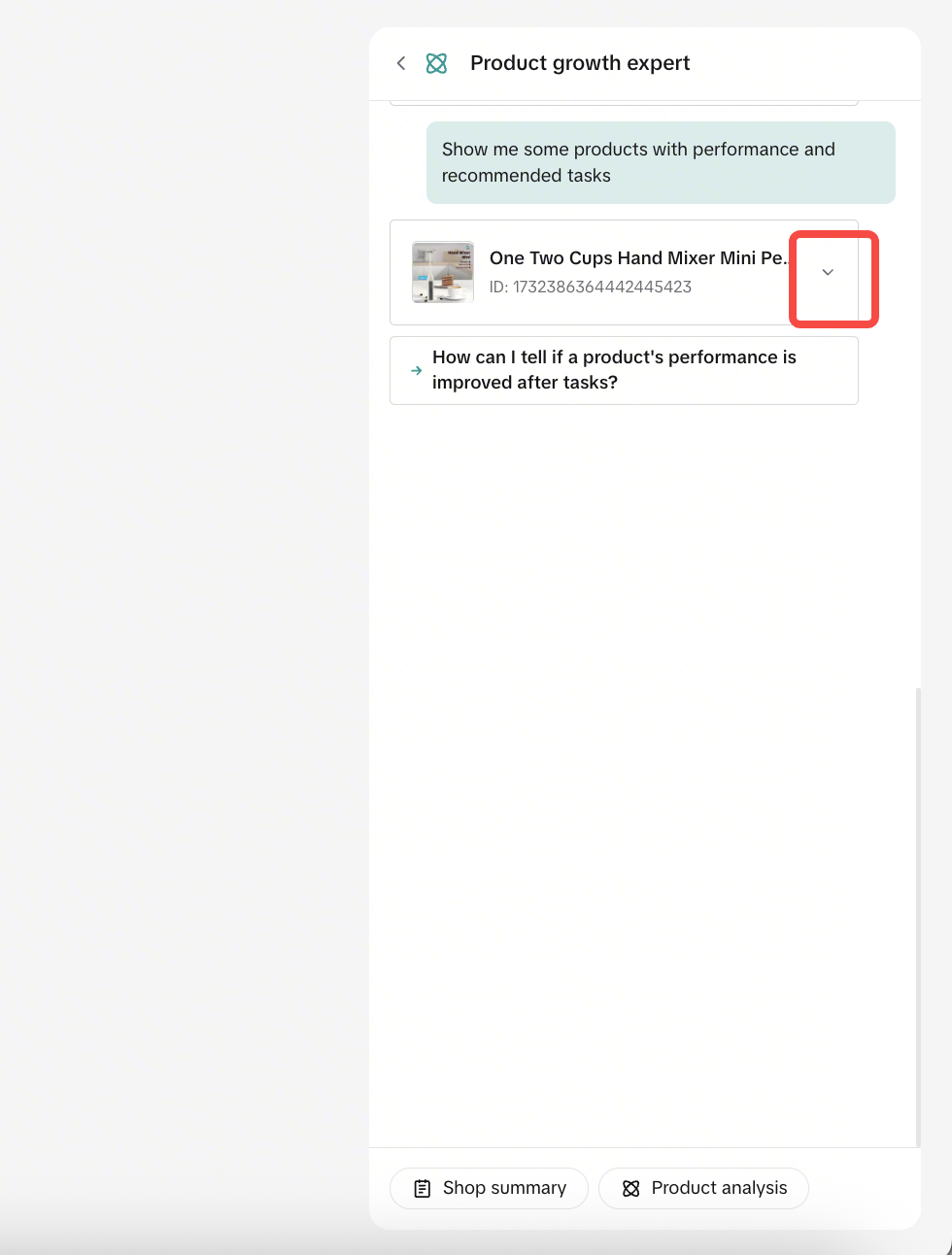
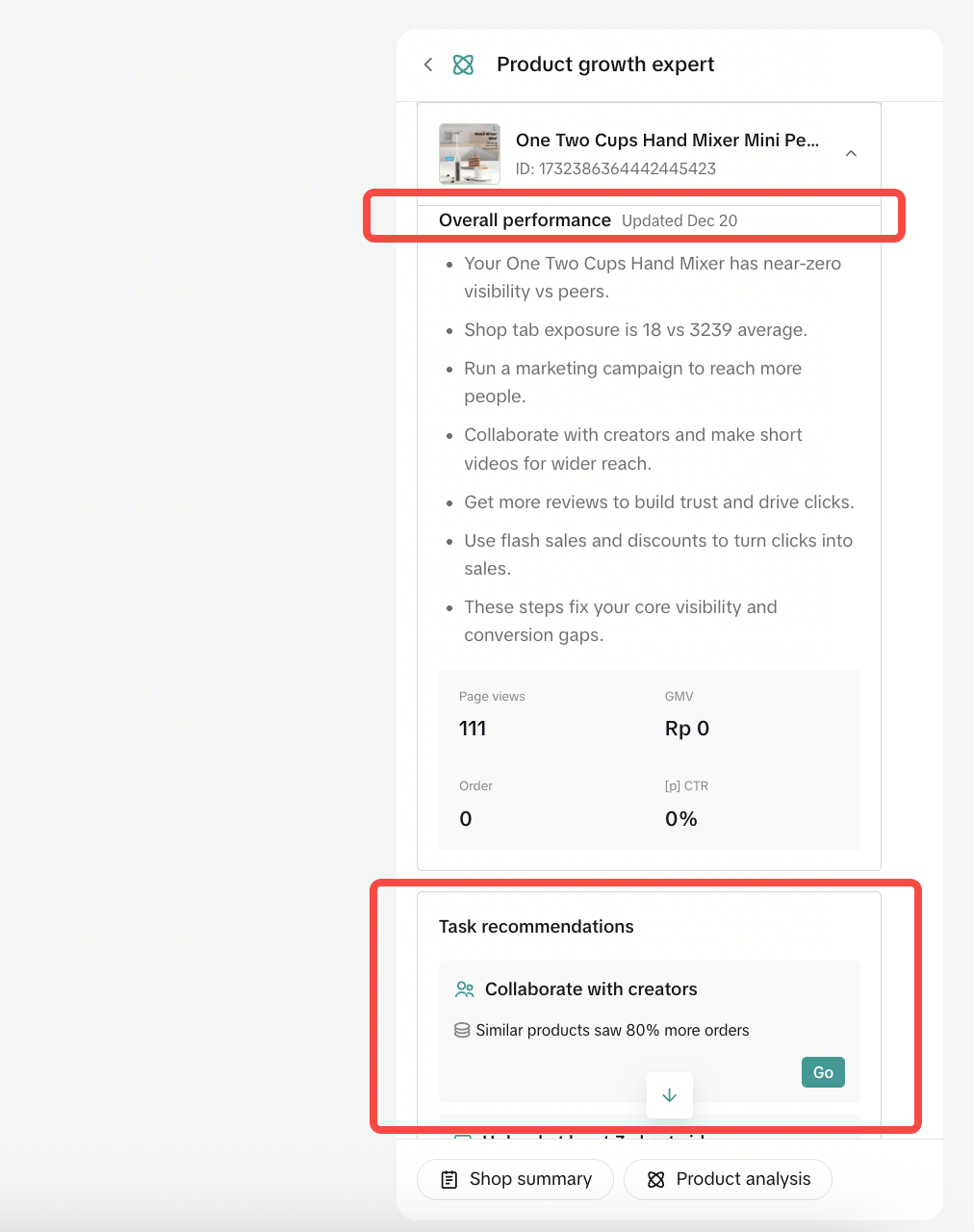
In the overall performance report, the system shows how the specific product is performing across key metrics, including views, GMV, orders, and CTR. It also provides recommendations on actions you can take to improve performance.
| Click dropdown to see results | See how the systems make the analysis for you | See the overall report and task recommendations |
 |  |  |
Top Recommended Task
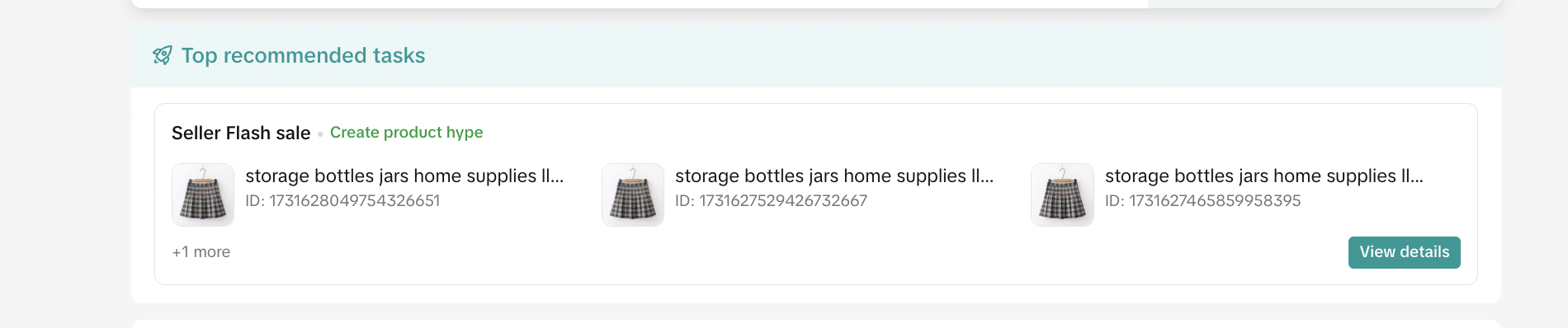 This section will give you recommendations of products that have high sales potential so that you can take action by completing the task, eg: Setup Flash Sale.
AI Video
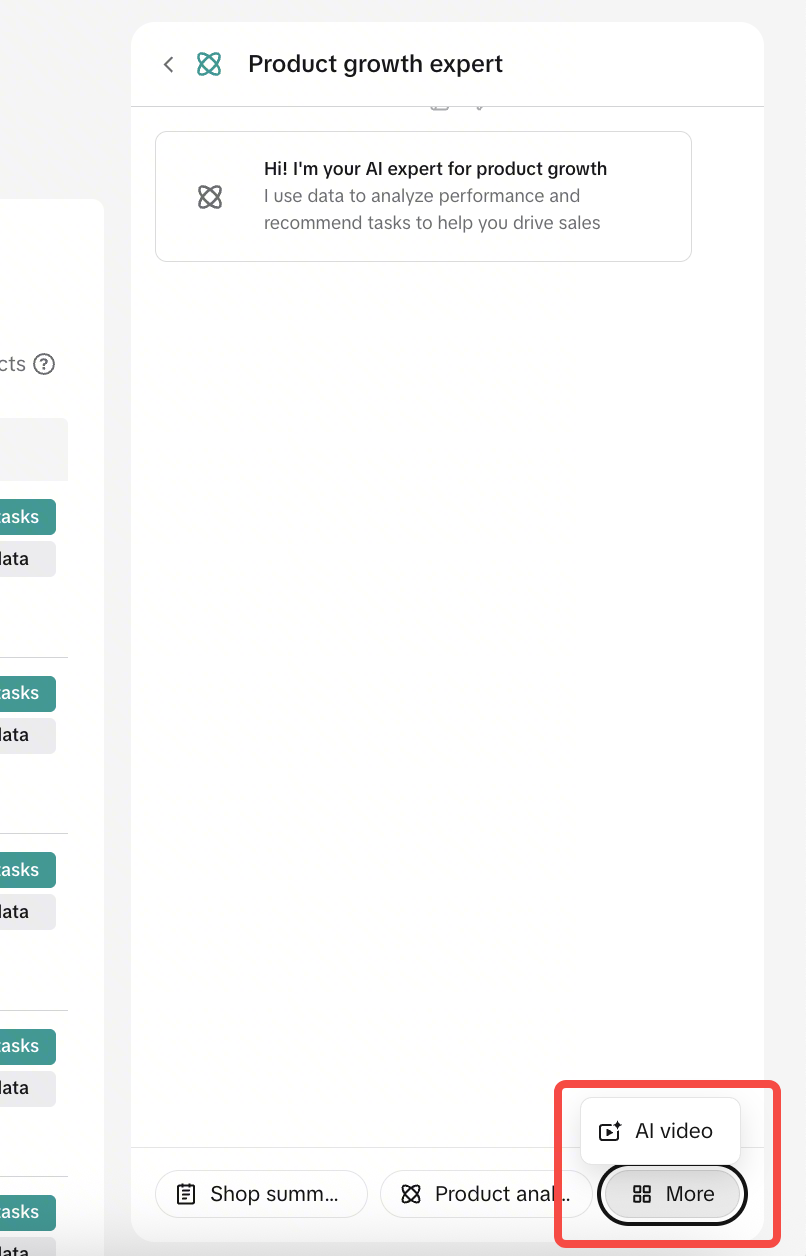
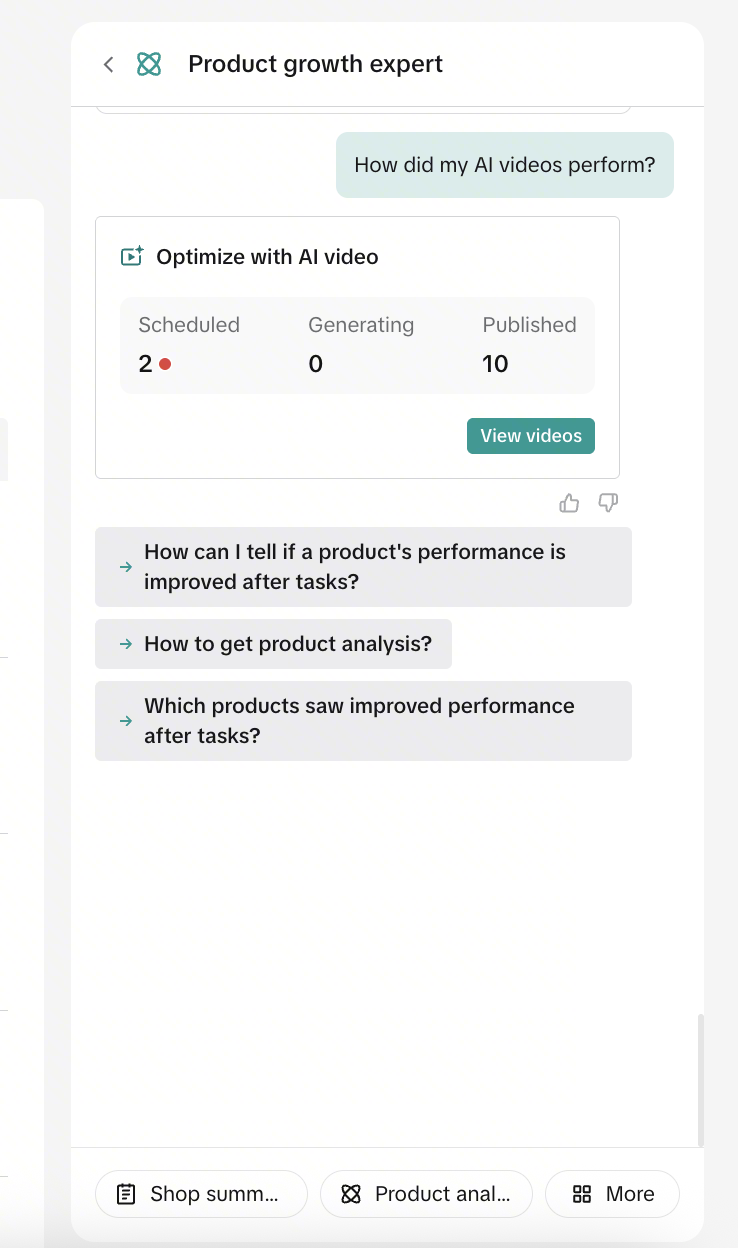
Sales Accelerator offers an AI Video feature that helps sellers automatically generate shoppable videos for their products. This feature is currently available for selected categories only, so not all sellers may see it yet.If you see an Optimize with AI Video task in your task recommendations, you can click View Task to review the task details and start generating AI Videos for free.
How AI Video Works
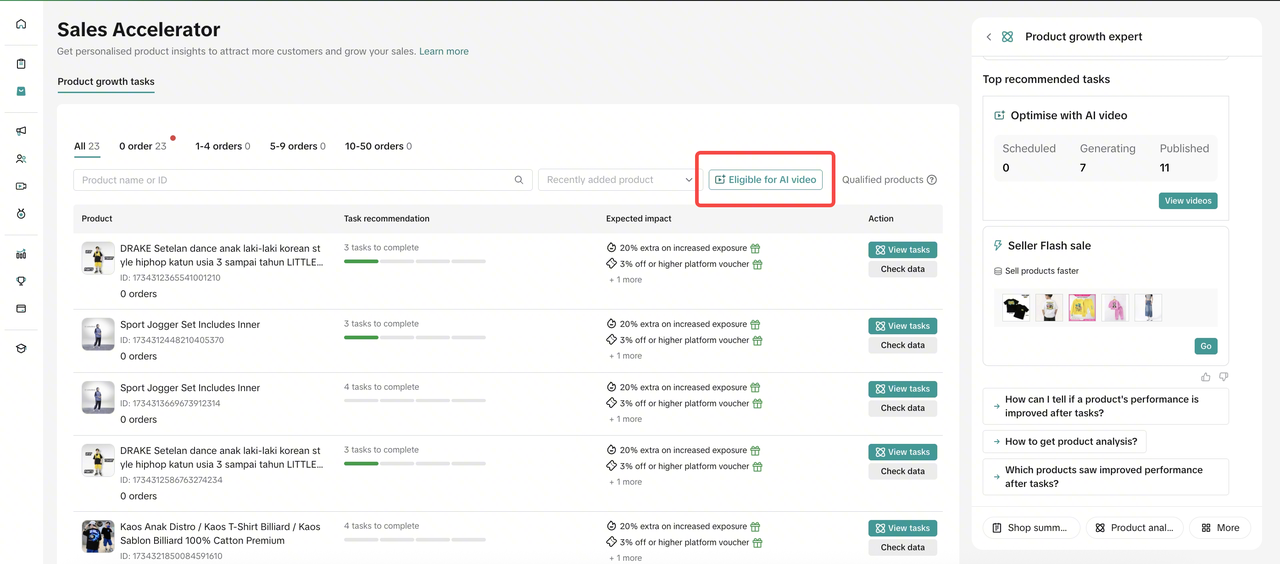 Fashion Sellers
- Sales Accelerator automatically generates an AI Video for your selected products using your existing product images.
- The system will auto-schedule the video for publishing on your shop’s TikTok account.
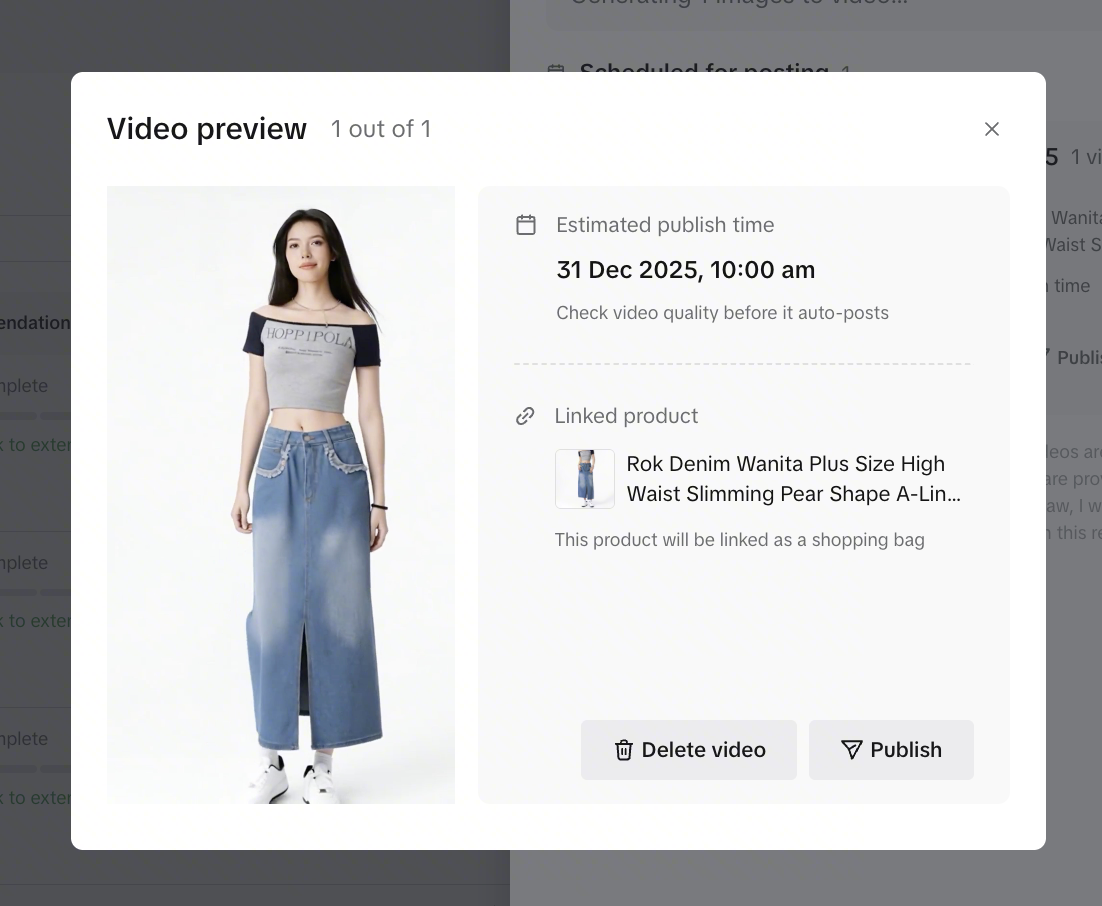
- You can preview the AI-generated video in advance and delete it if it does not meet your expectations.
- After the video is published, you can delete it directly from your TikTok account if needed.
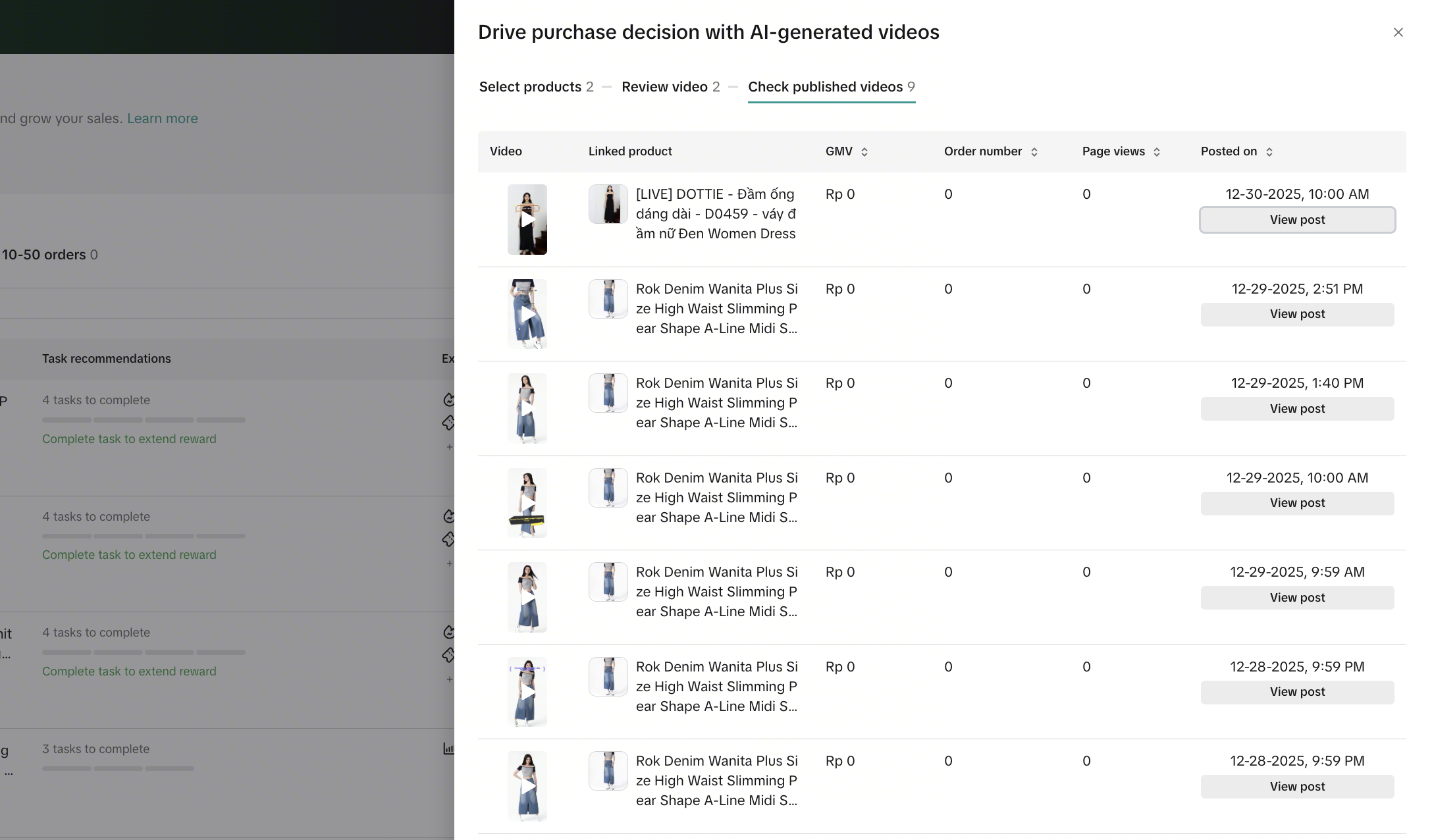
- You can track the performance of the auto-posted video by clicking View Impact, where key metrics such as posting date, GMV, number of orders, and page views are available.
| Step 1: Check products with AI Video tasksProducts eligible for AI Video will be marked with an AI Video task. | Step 2: Click View Task, then select Try for Free |
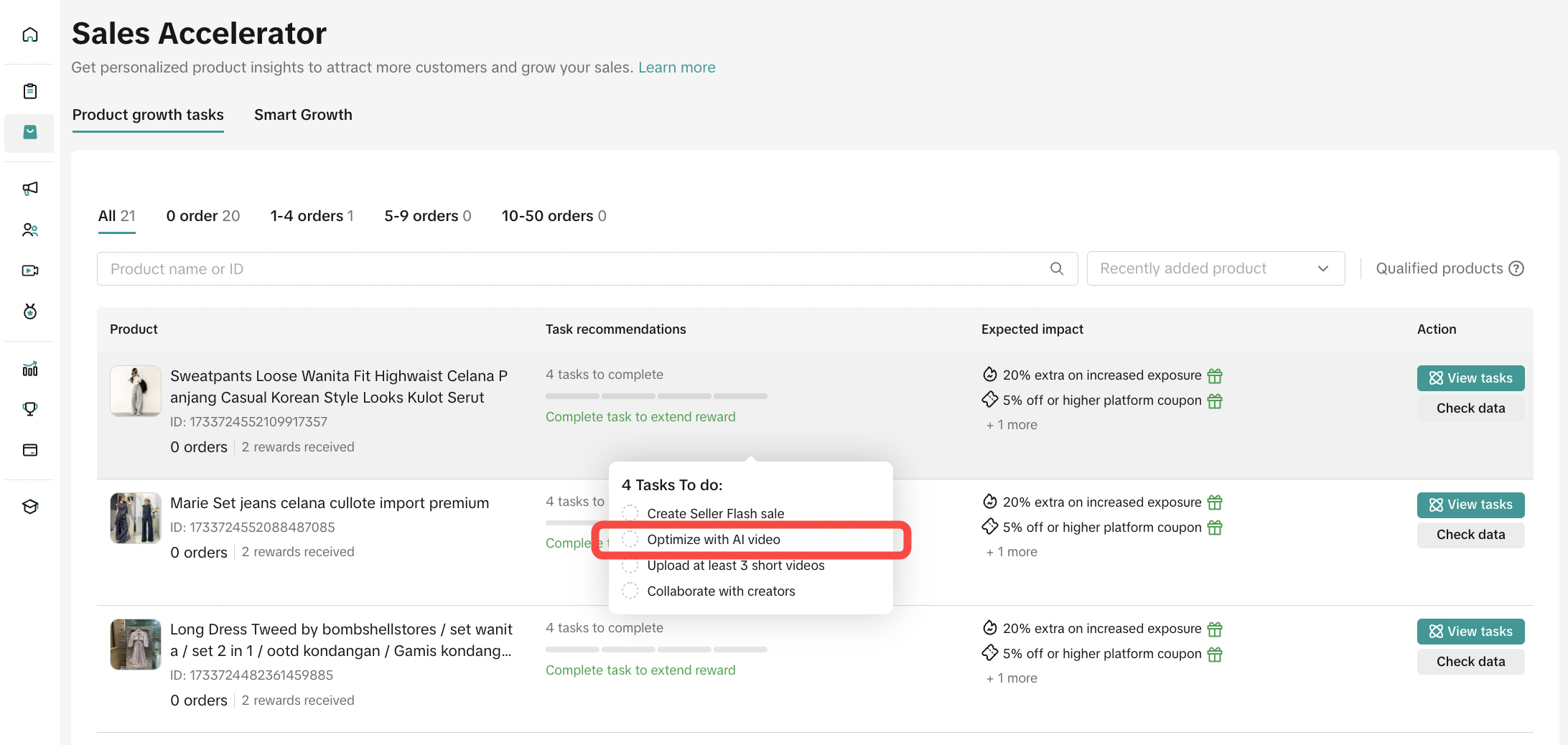 | 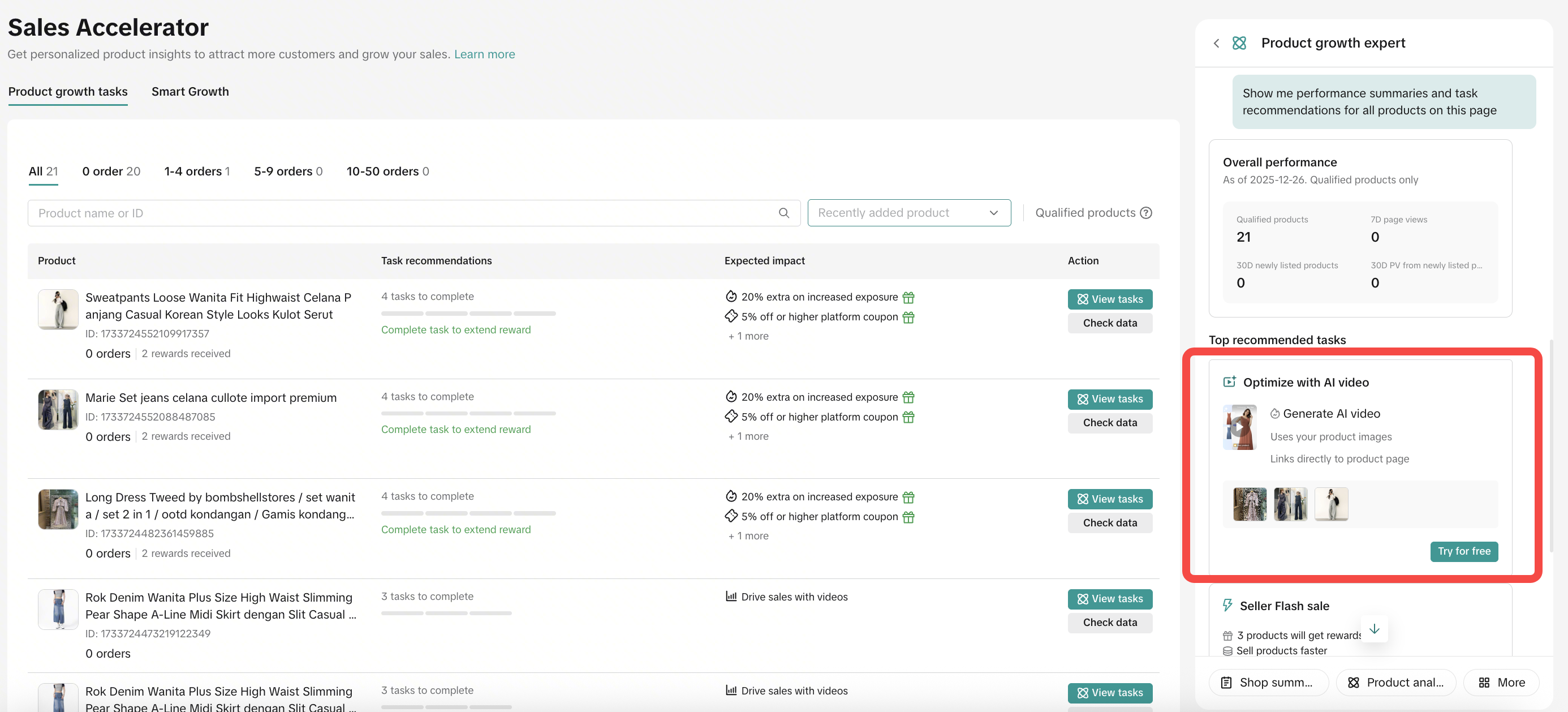 |
| Step 3: Select eligible productsReview the list of products eligible for AI Video and choose which products the system should use to generate shoppable videos based on your existing product images. | Step 4: Video generation & schedulingThe system will generate the video and automatically schedule it to be published on your shop’s TikTok account within a few days. You will receive a notification once the video generation is completed. |
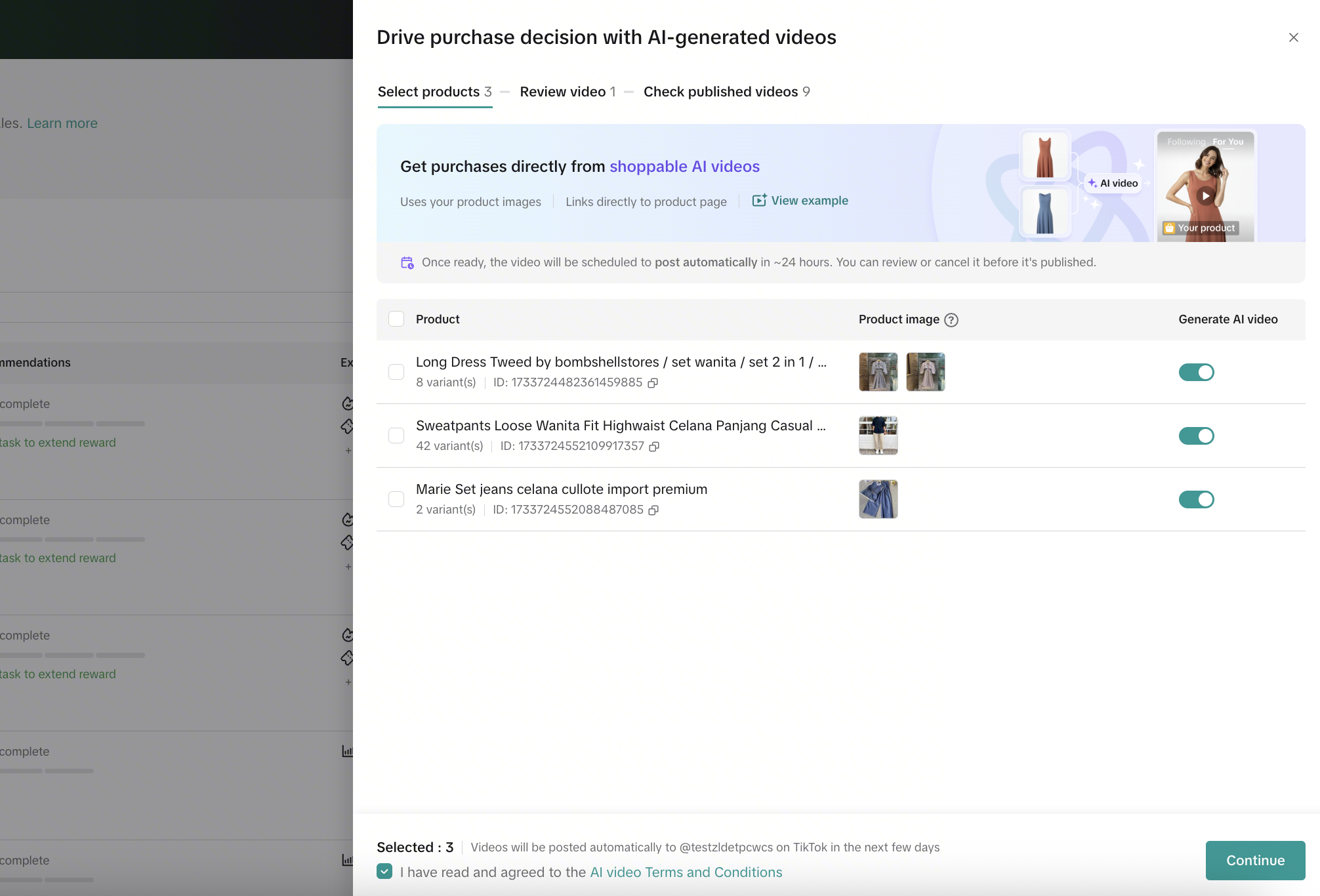 | 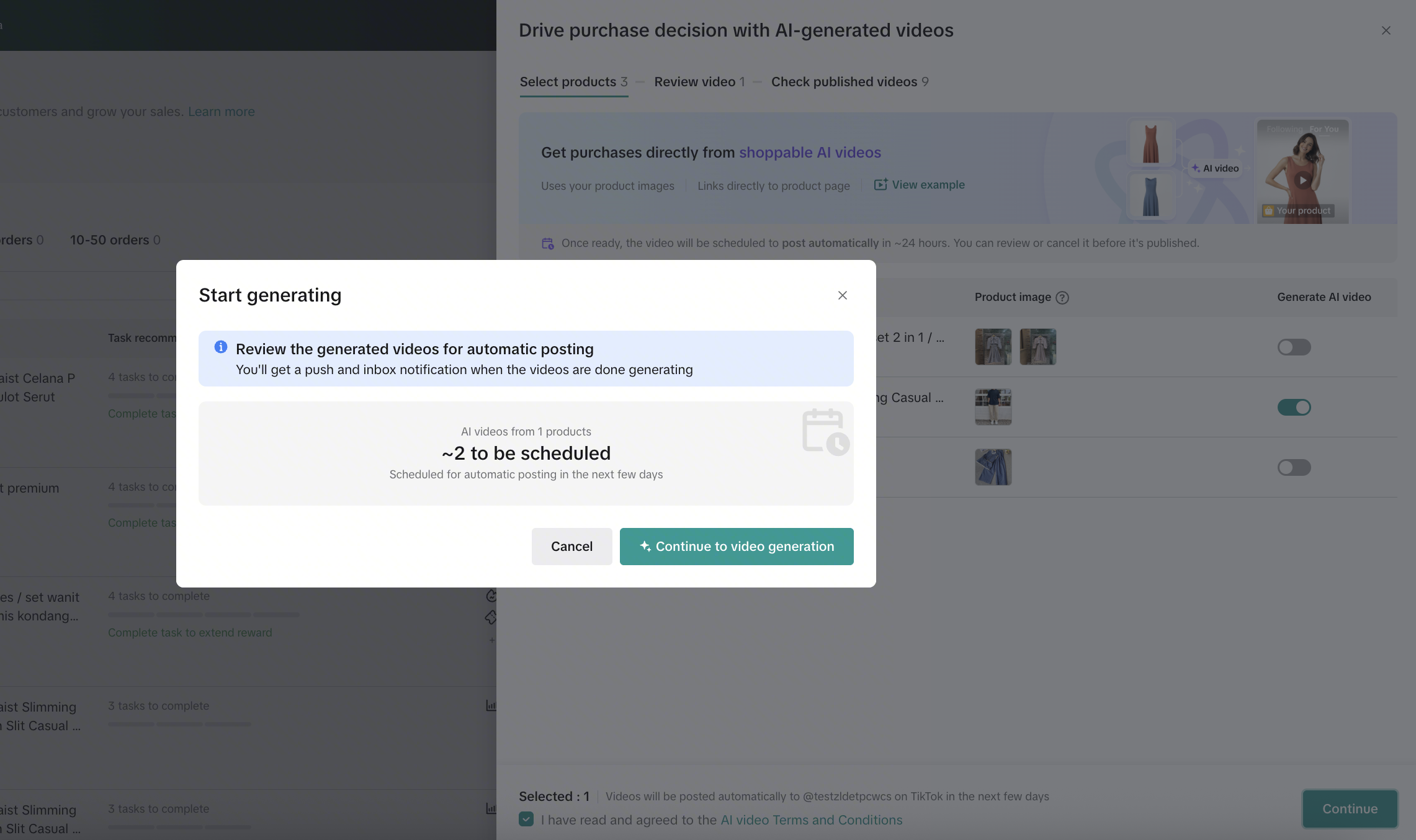 |
| Step 5: Review before publishingPreview the generated video, check the estimated posting time, and choose to publish immediately if desired. If you are not satisfied with the video quality, you can delete it to stop the scheduled posting. | Step 6: Track performanceAfter the video is published, you can view its performance, including GMV, number of orders, and views generated by the video. |
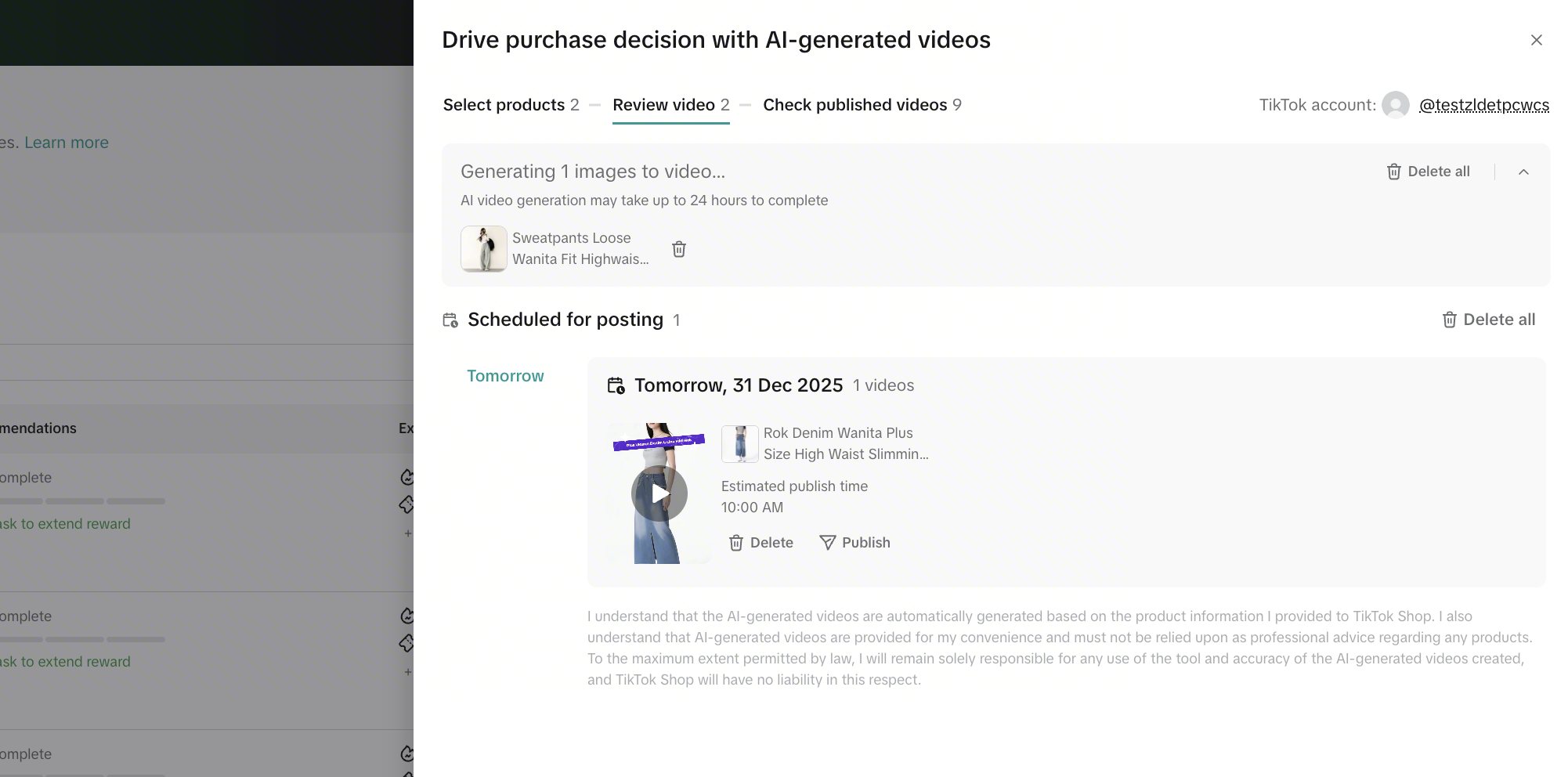  |  |
- Sales Accelerator generates an AI Video for your selected products using your existing product images.
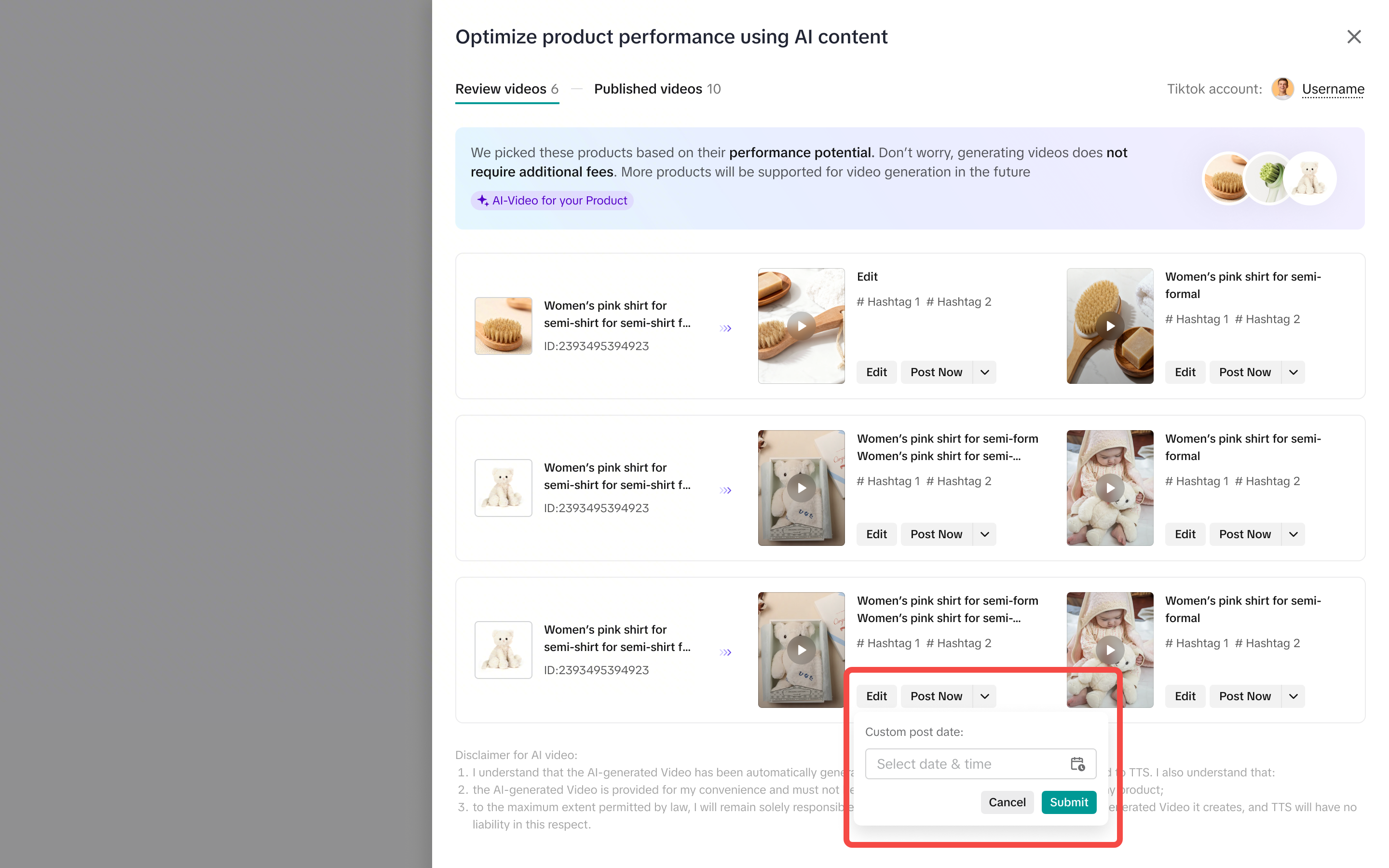
- Once the system finished generating the video, you should check and decide whether to publish right away or schedule to be posted at specific time on your shop’s TikTok account.
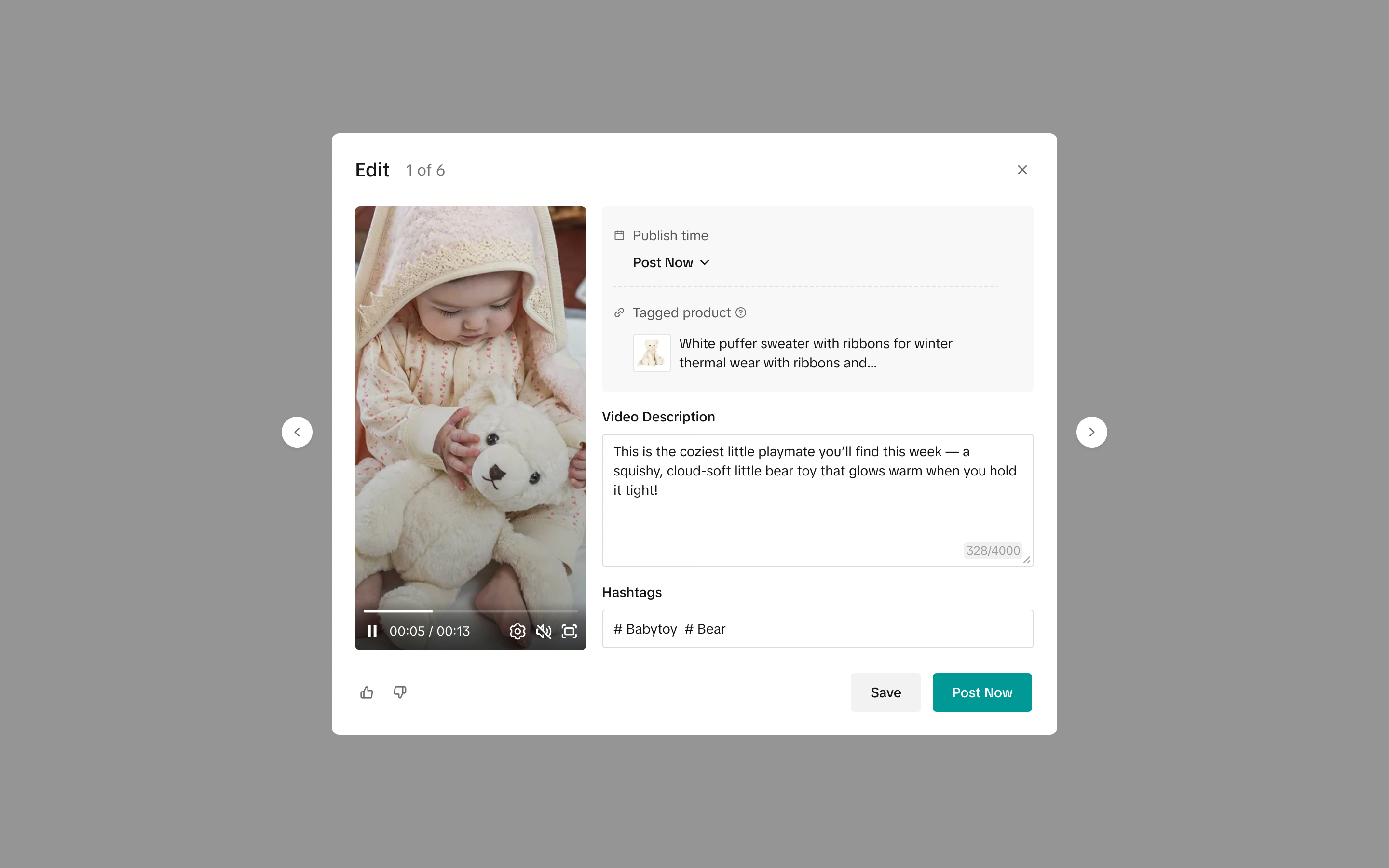
- The systems will auto-generate the video caption and hashtag, which you can review and edit.
- To provide feedback on this video, please use the like or dislike button. Disliking a video will trigger a brief survey to understand your reason, after which the video will be deleted.
- After the video is published, you can delete it directly from your TikTok account if needed.
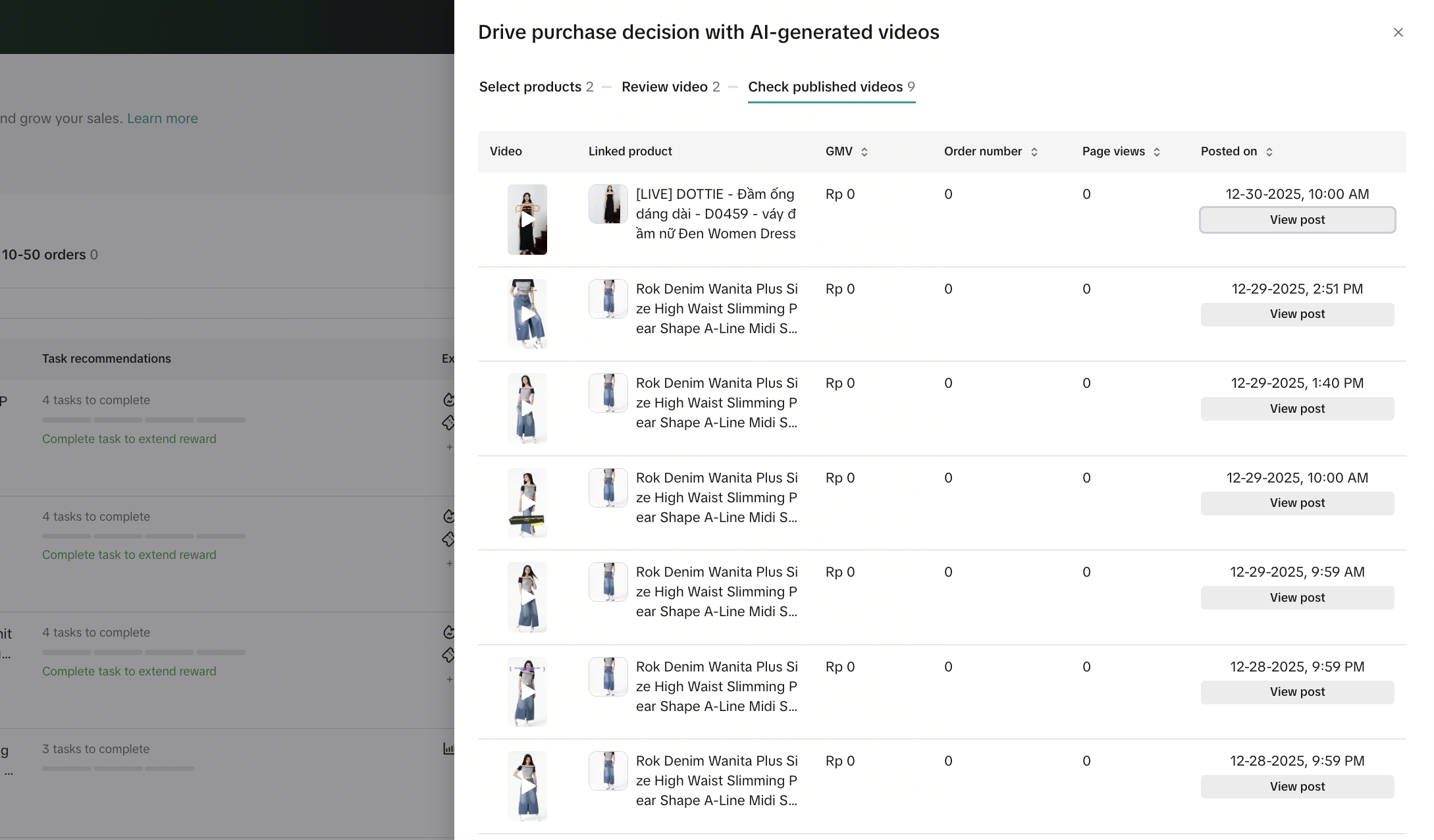
- You can track the performance of the auto-posted video by clicking Check Published Video, where key metrics such as posting date, GMV, number of orders, and page views are available.
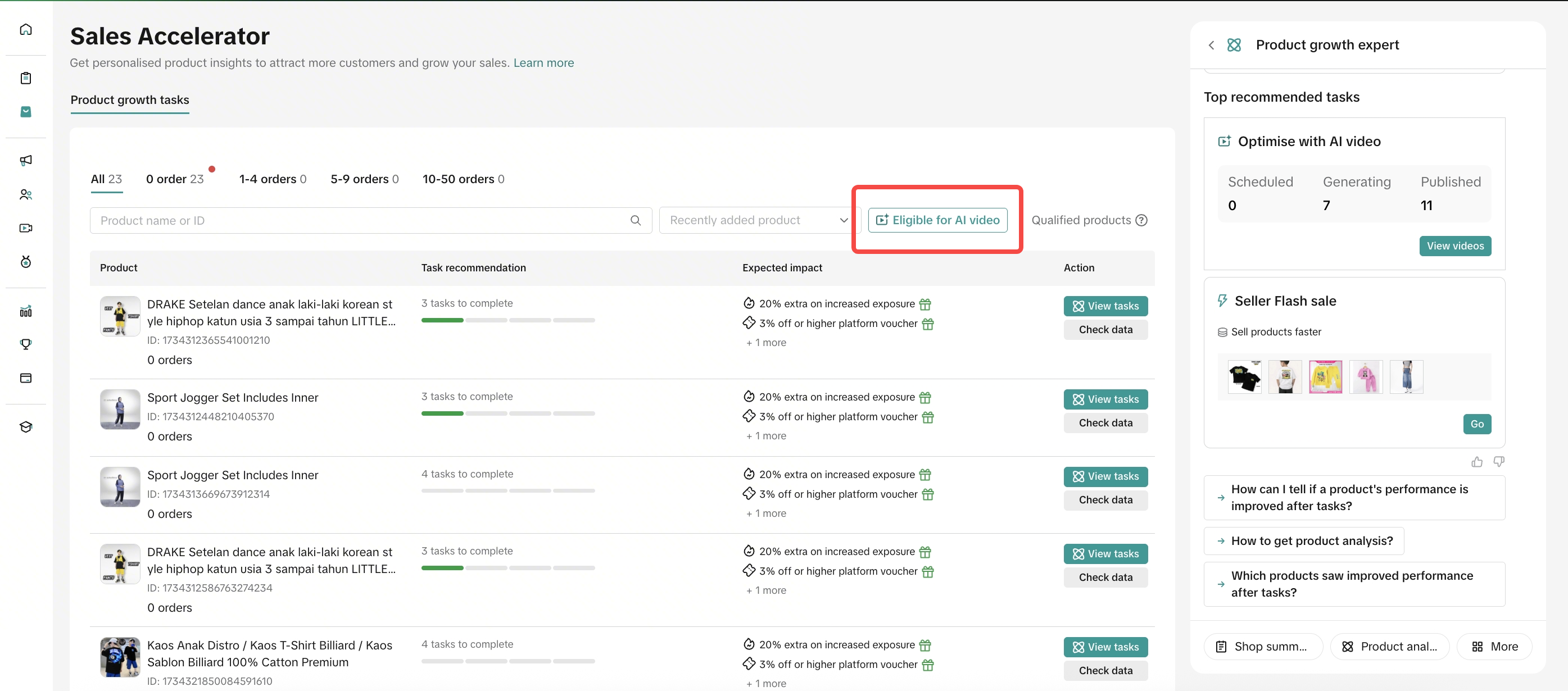
| Step 1: Check products with AI Video tasksProducts eligible for AI Video will be marked with an AI Video task, you can also filter it. | Step 2: Click View Task, then select Try for Free |
 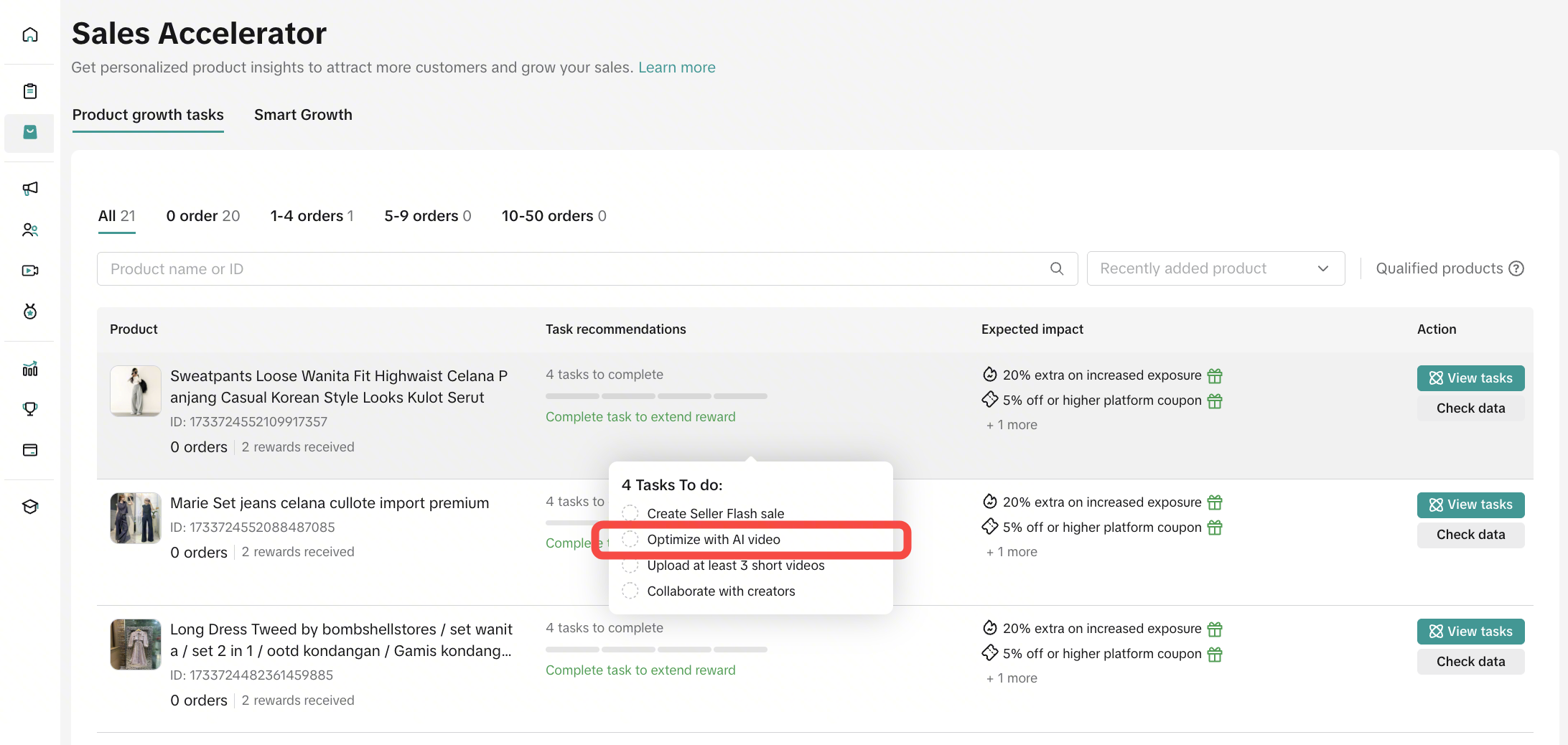 | 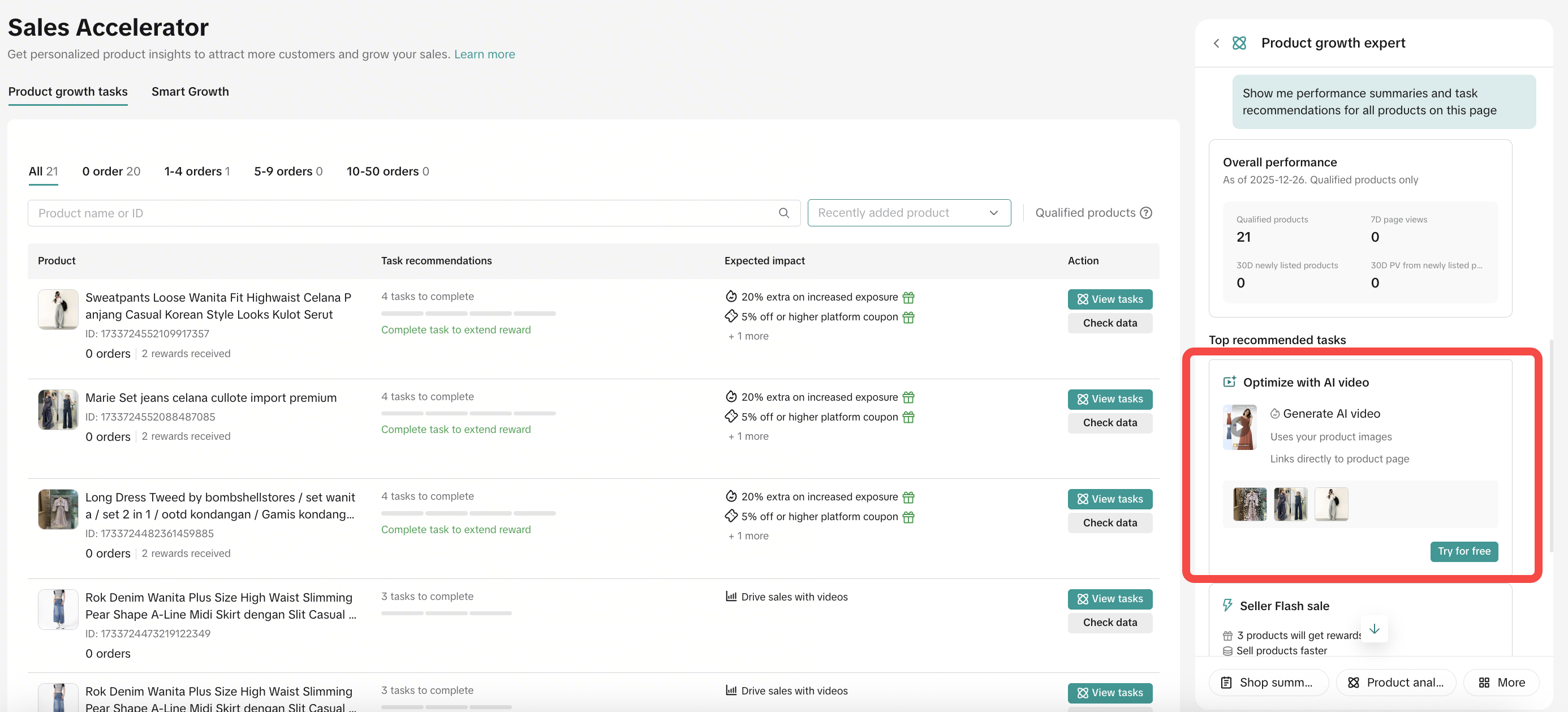 |
| Step 3: Select eligible productsReview the list of products eligible for AI Video and choose which products the system should use to generate shoppable videos based on your existing product images.Your video generation quota refreshes weekly. Publish your generated videos to earn extra quota within the current week. | Step 4: Video generation & NotificationThe system will generate the video and you will receive a notification once the video generation is completed. |
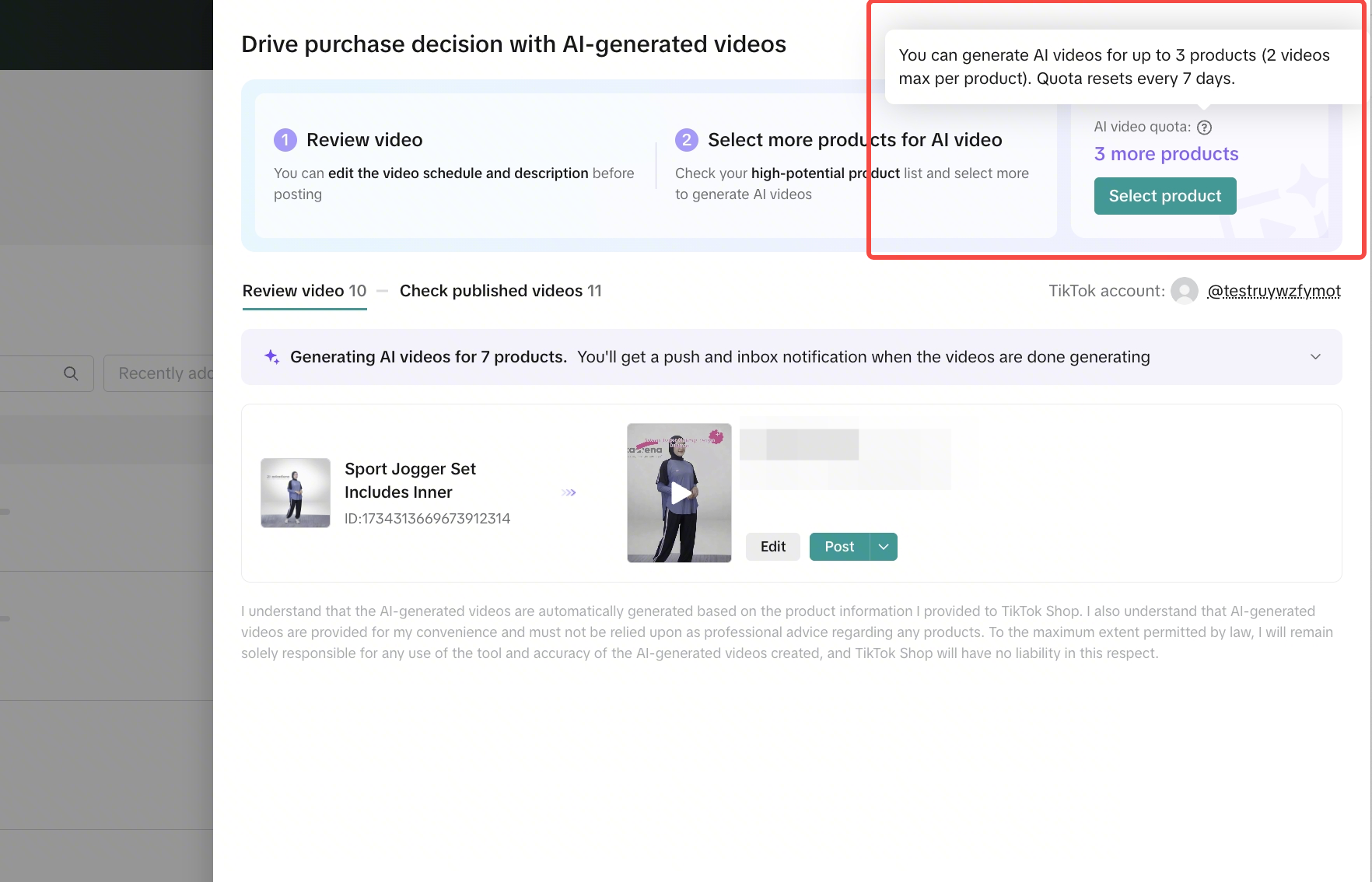 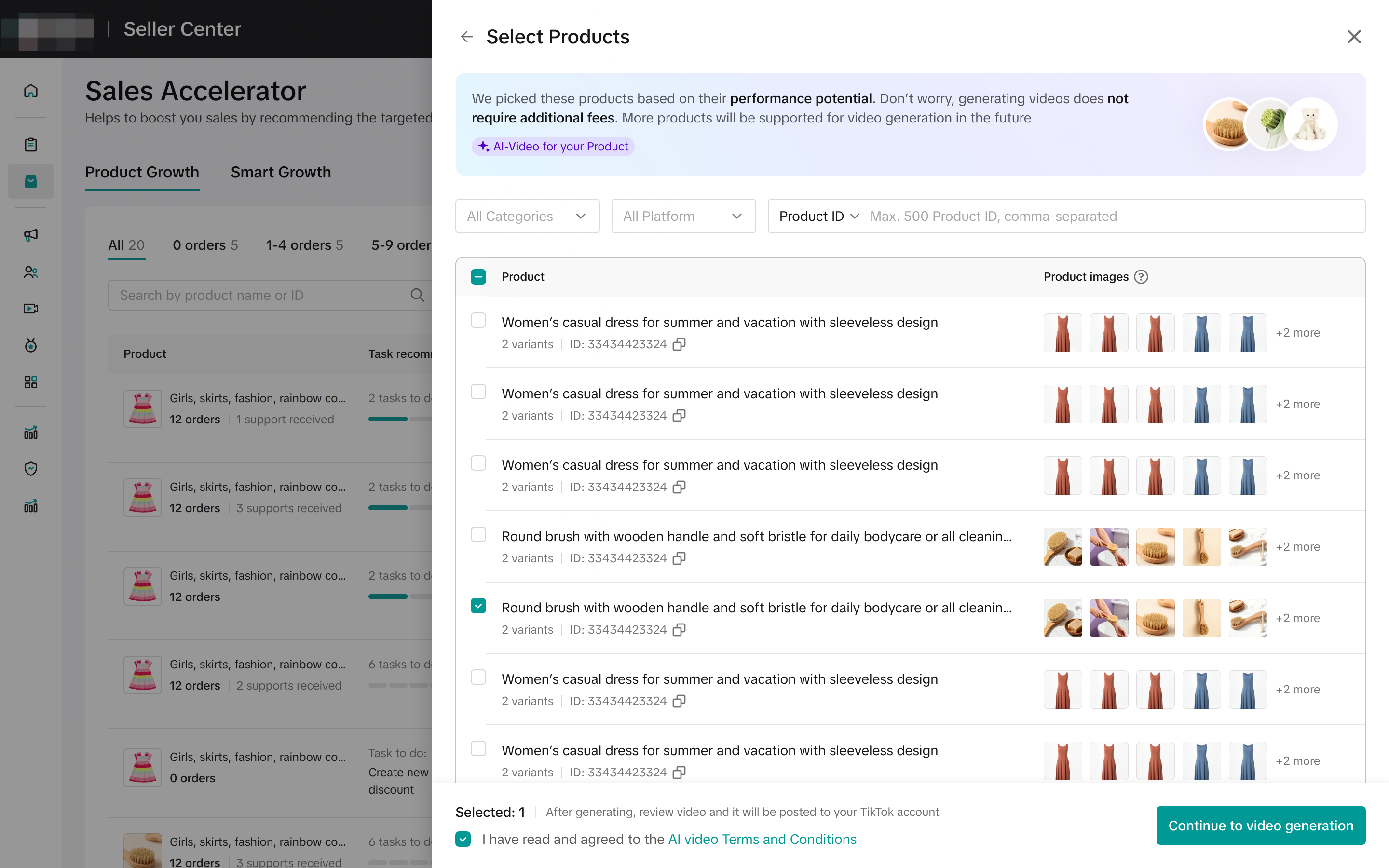 | 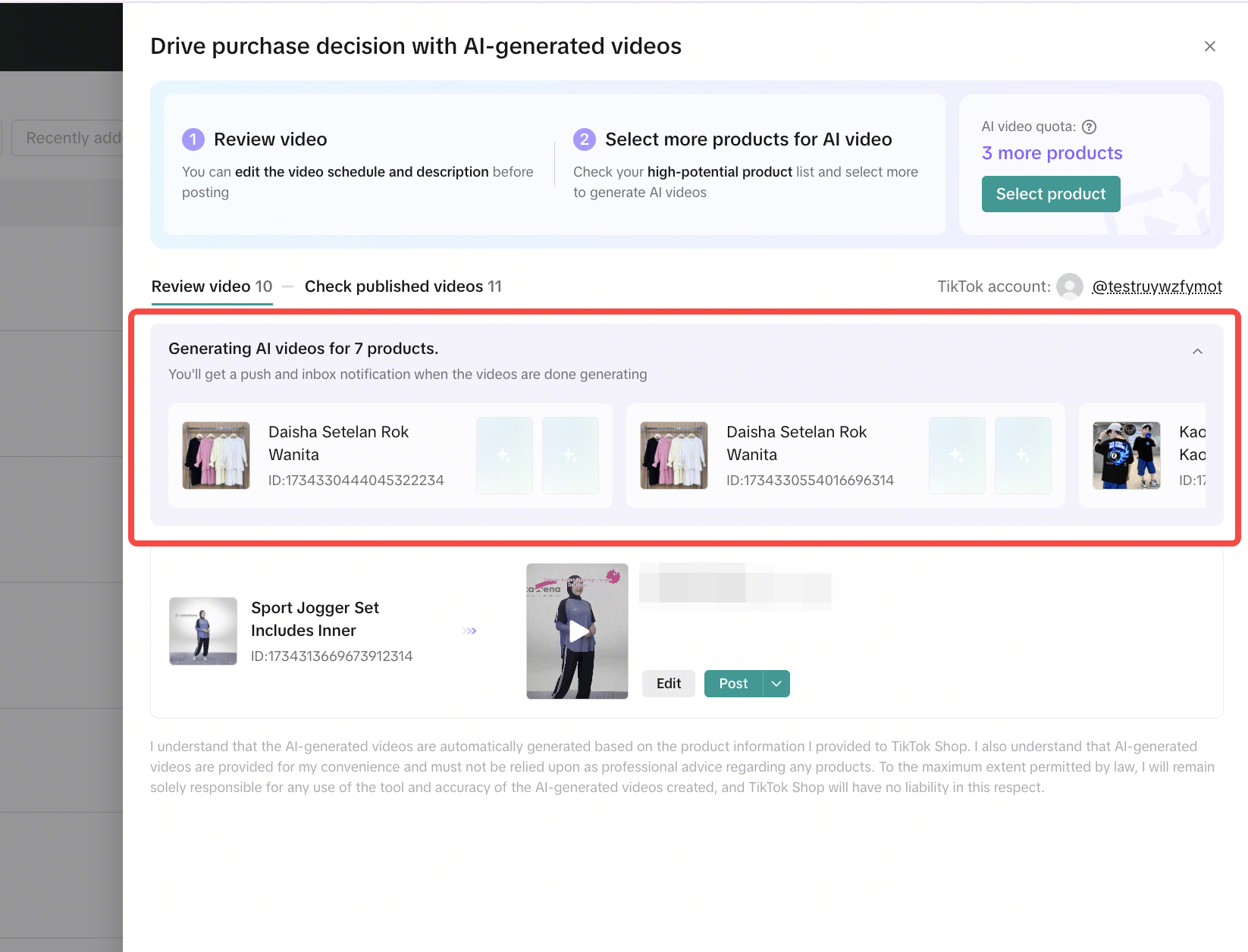 |
| Step 5: Review before publishingPreview the generated video, check the caption and hashtag, edit them if needed, and choose to publish immediately or schedule at specific time. | Step 6: Track performanceAfter the video is published, you can view its performance, including GMV, number of orders, and views generated by the video. |
  |  |
 |  |
Qualified Products
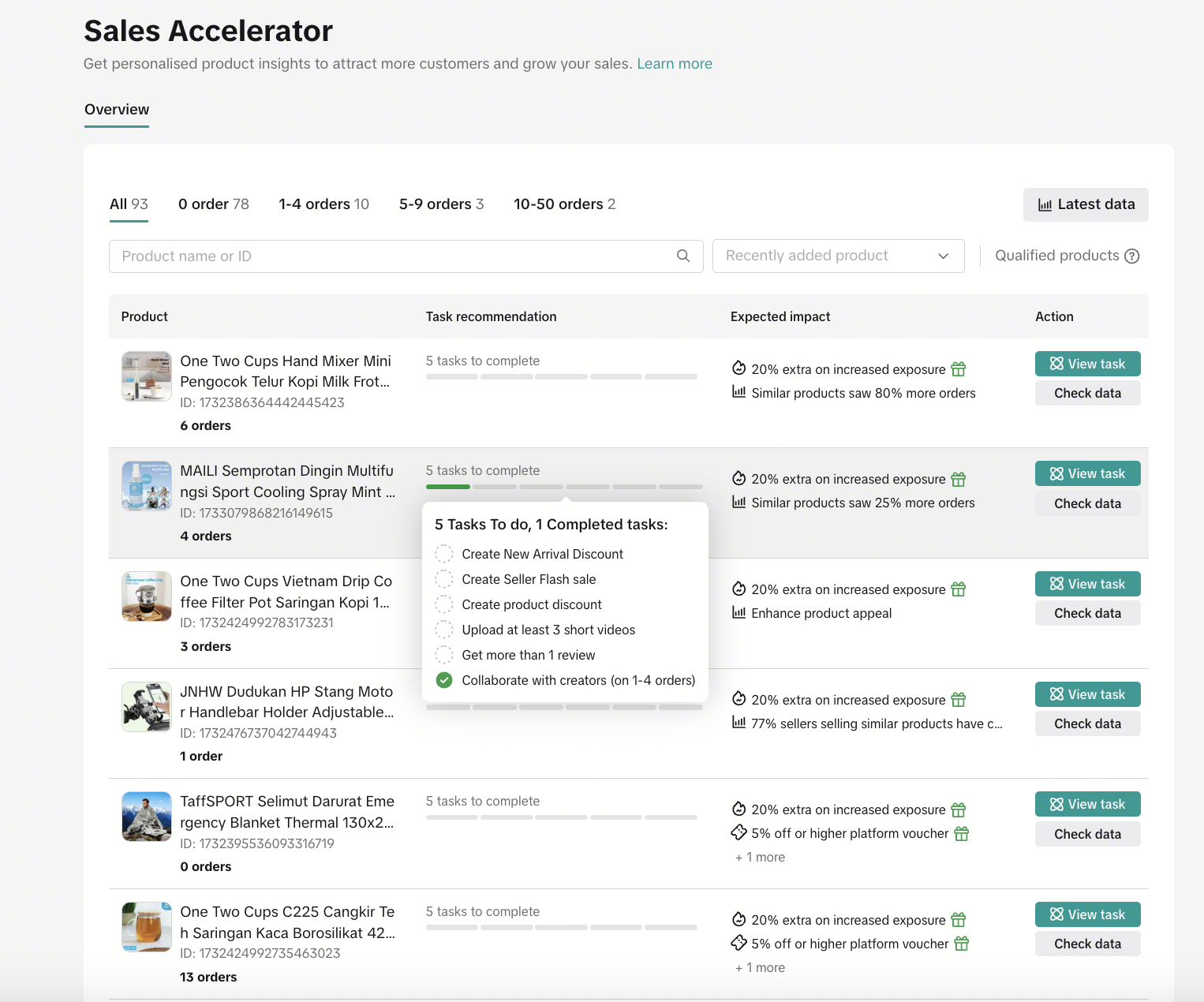
List of all qualified products which you can boost by completing tasks related to each product. Once you complete the tasks, you will see the impact such as orders gained.- Must have 5 or more items in stock
- Must have 3 or more product images
- Must have fewer than 50 orders

Order Milestone
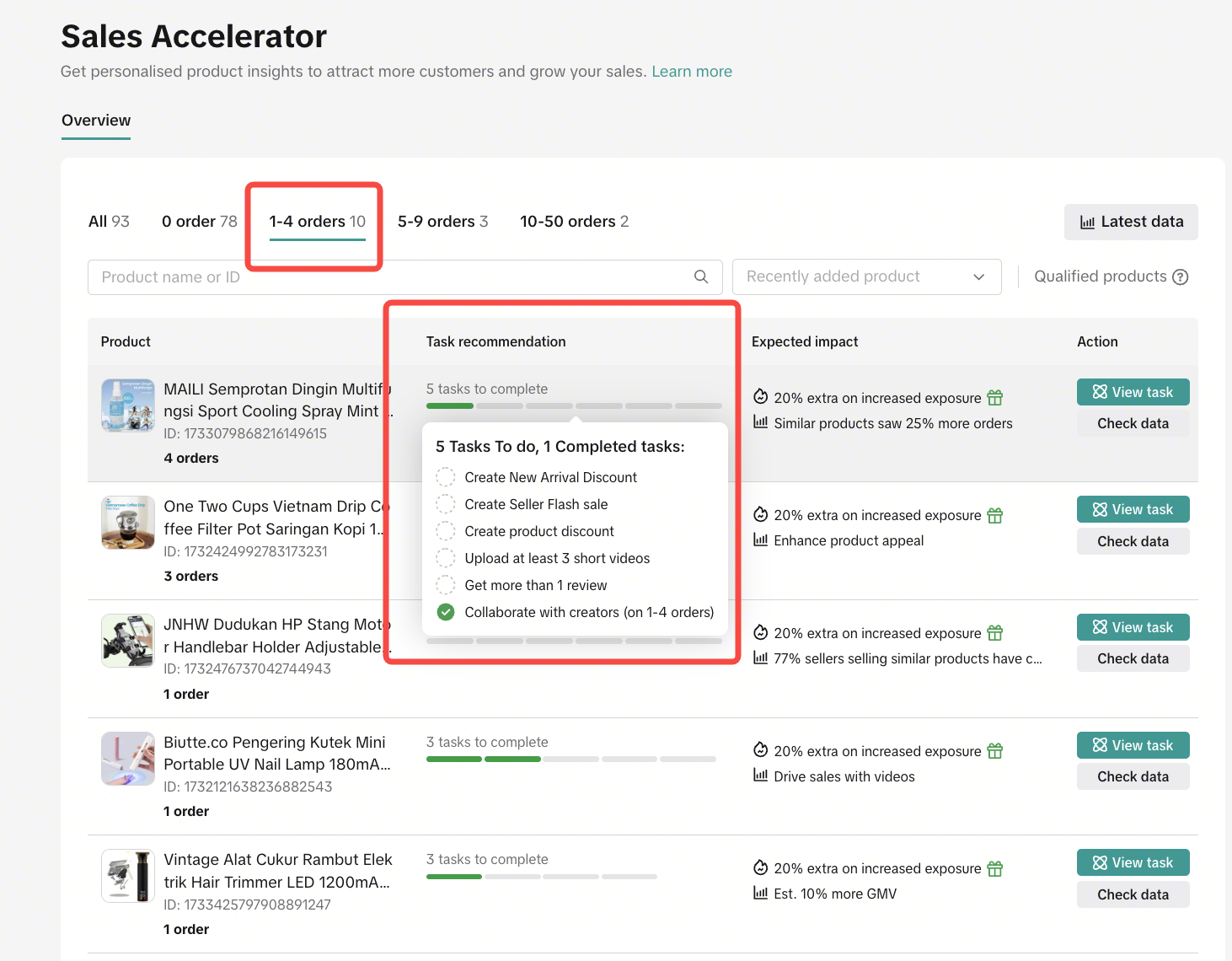
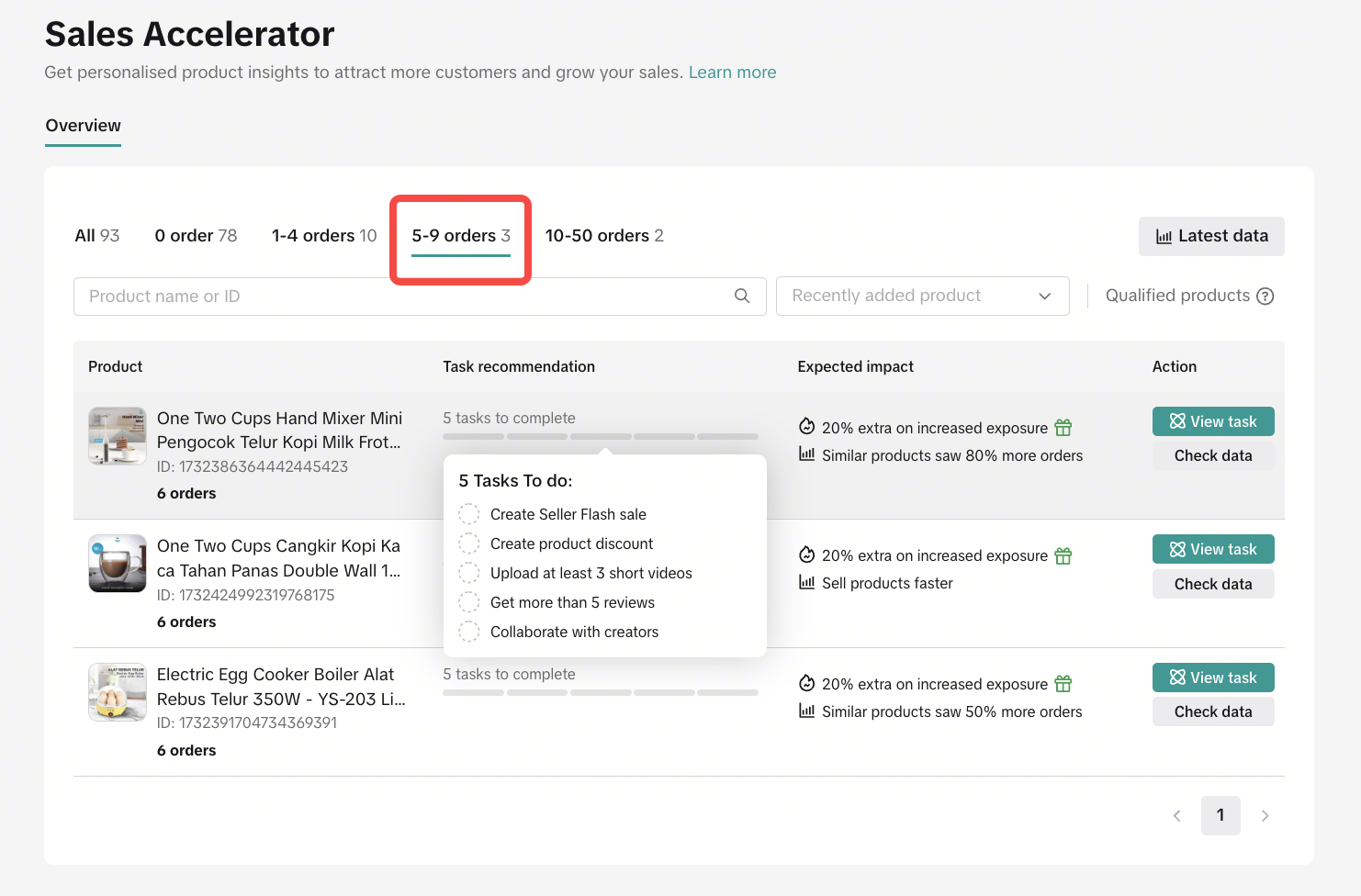
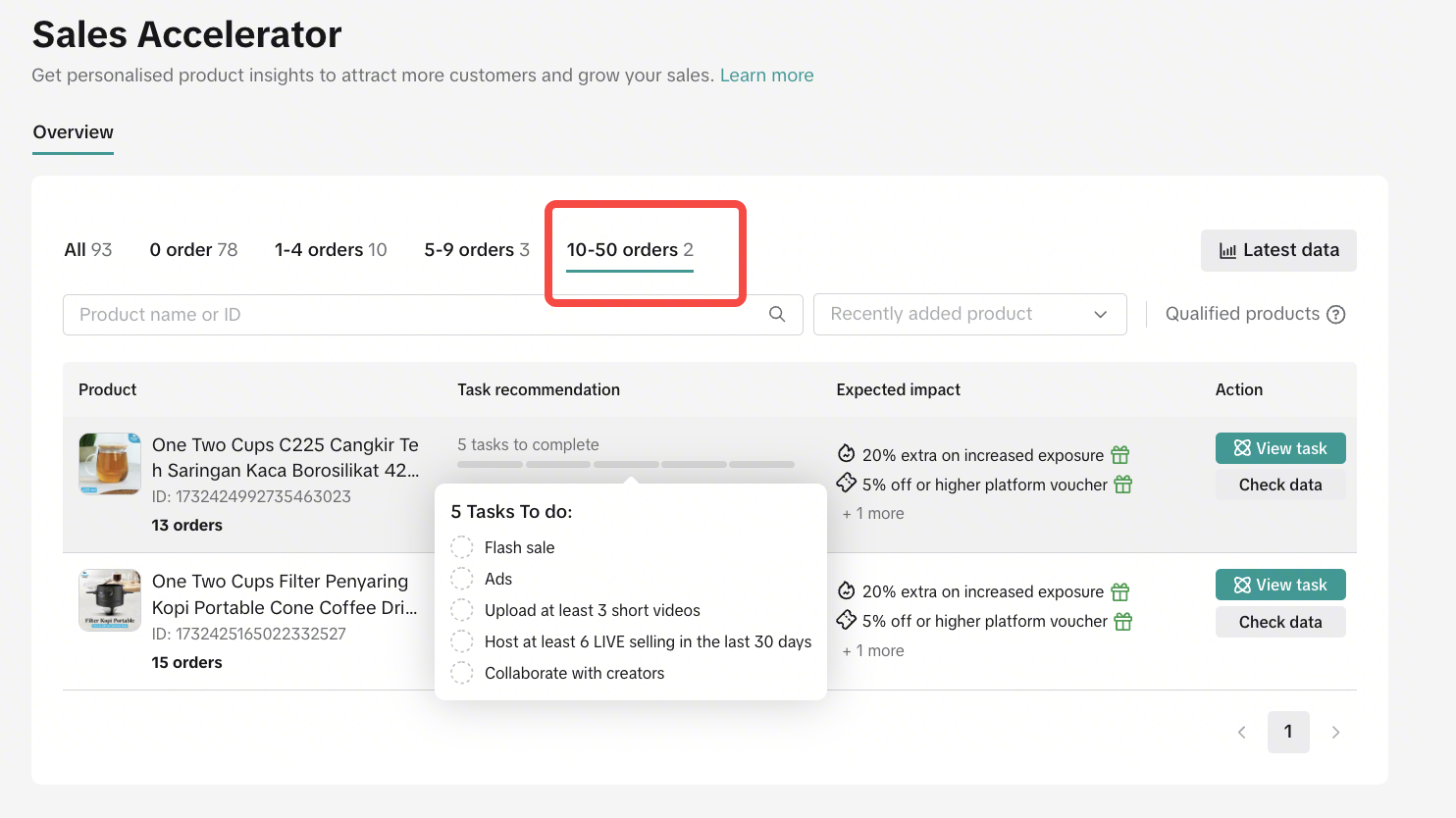
This feature helps you identify qualified products with 0 orders, 1–4 orders, 5–9 orders, and 10–50 orders. Each category provides tailored tasks to help you reach the next order milestone.For example, for products currently with 1–4 orders, the Sales Accelerator feature offers tasks designed to help you increase your orders beyond 4.
- 0 order
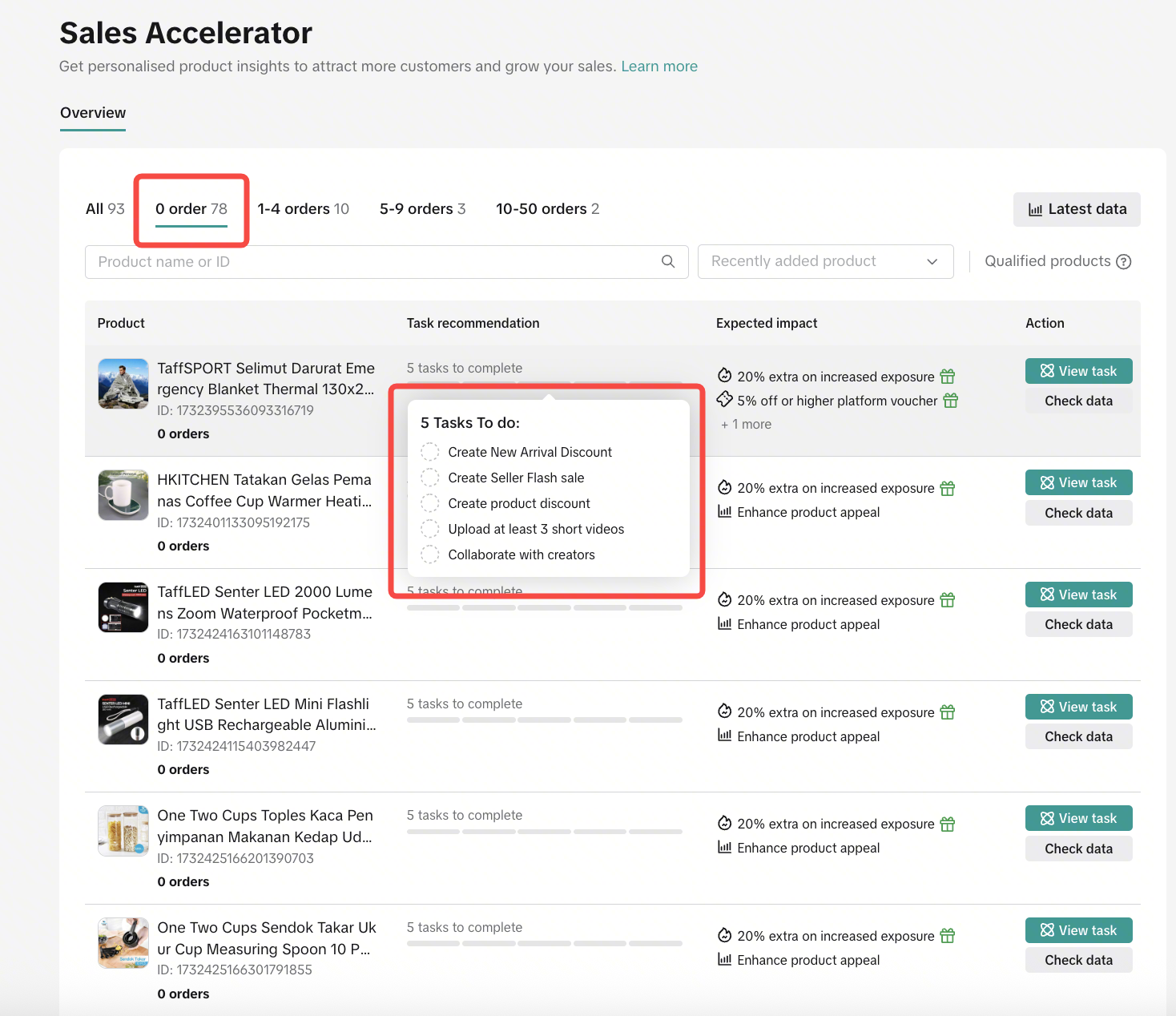
- 1-4 orders
- 5-9 orders
- 10-50 orders

How to Take Action and See Impact
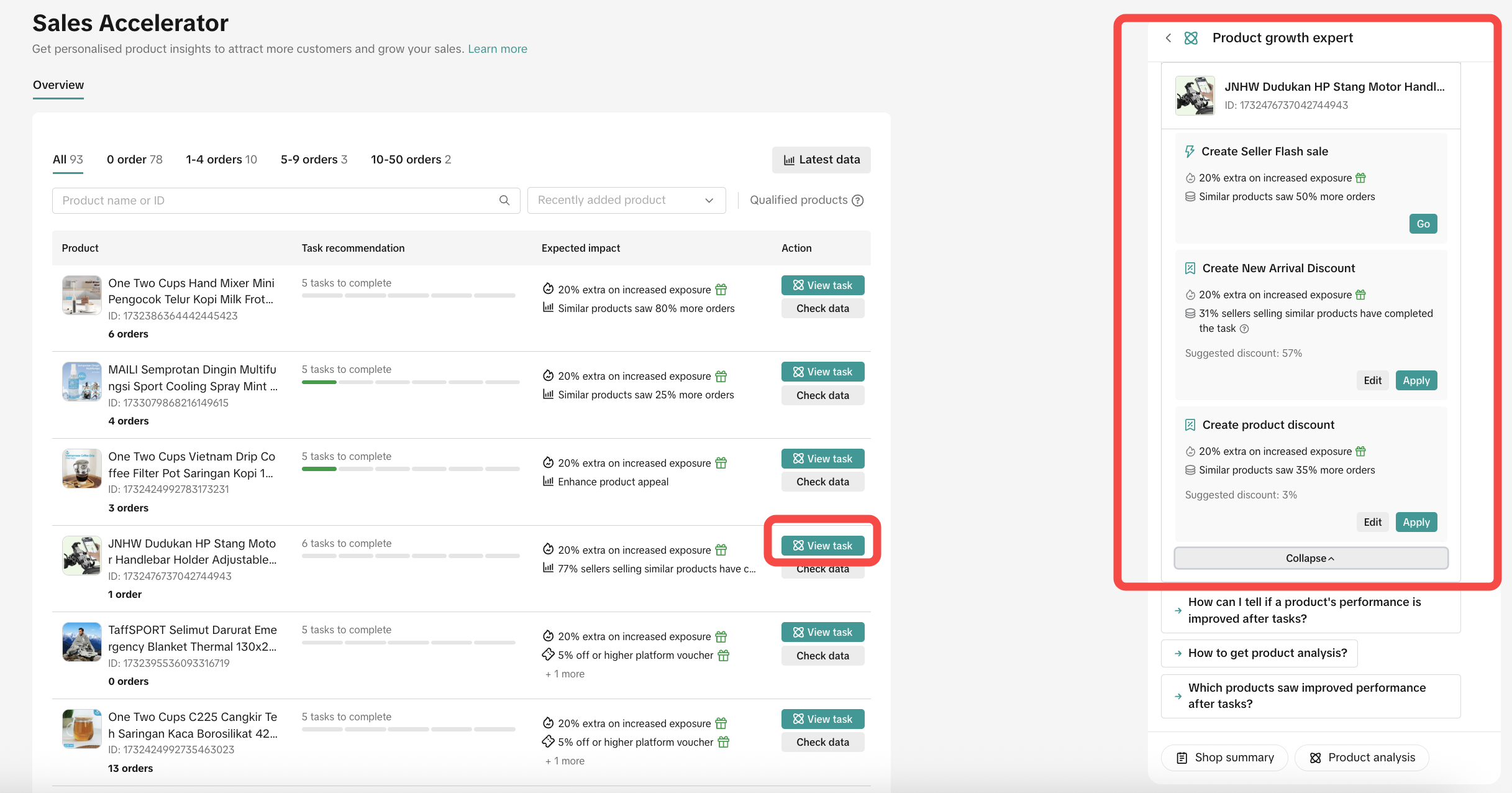
- Click View Task on the product you want to improve. This will redirect you to the recommended action listed in the Task Recommendation column.
- Once you click Go or Apply (depending on the task), you will be redirected to the relevant page to take action and complete the task.
- For example, if the recommended task is to create a New Arrival Discount of 57%, you can directly click Apply or adjust the discount amount as needed.
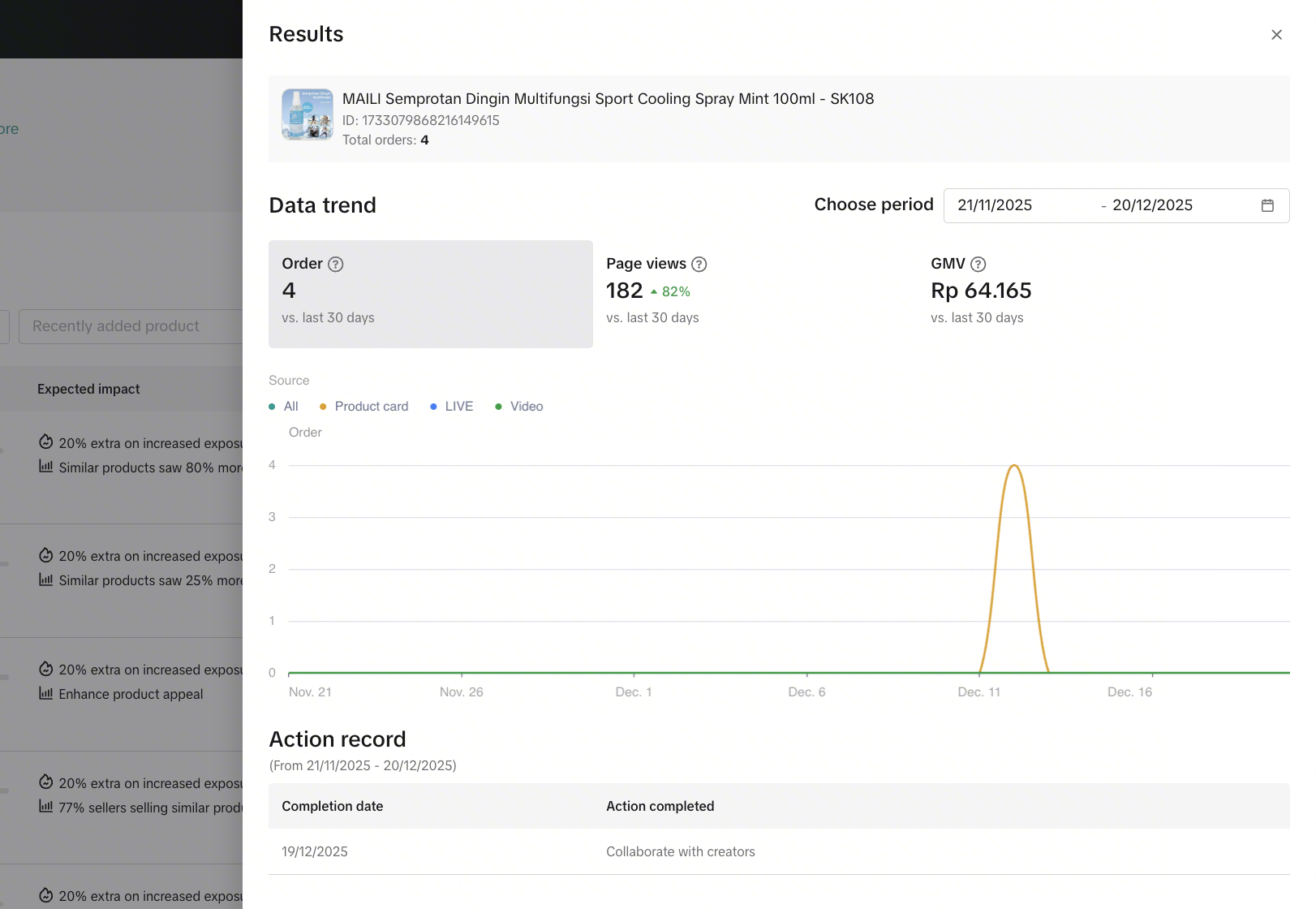
- Once you’ve completed all tasks for a specific product, you’ll be able to see the impact. Click the Check Data button to view the product’s performance trends, such as the number of orders, page views, and GMV uplift.

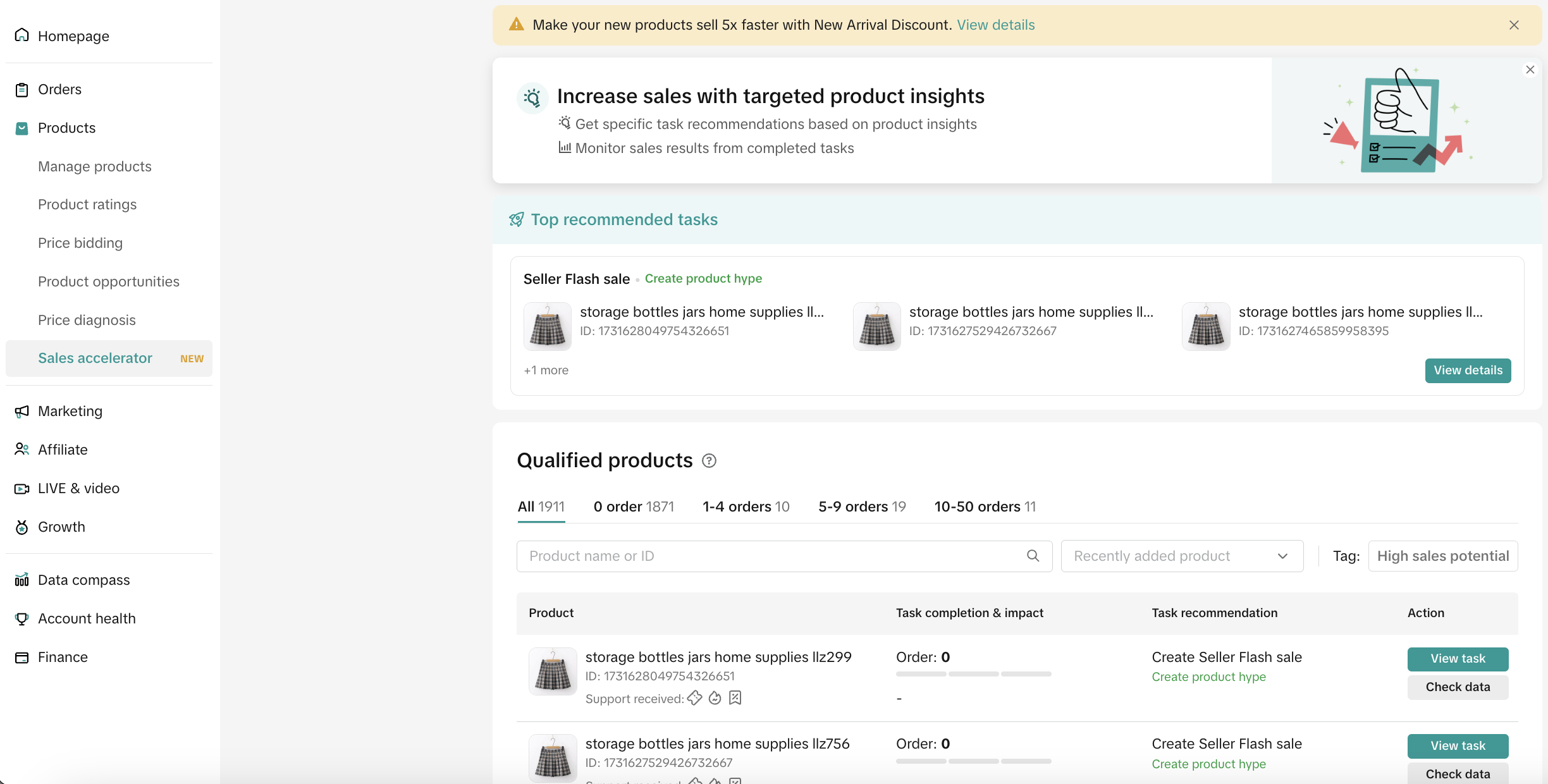
 This feature in Seller Center will guide sellers to have a more attractive product strategy and get higher potential to achieve more orders. This will help sellers to improve their sales through a range of high quality products to sell.
Entrance: Products > Sales AcceleratorOn that page, sellers can:
- See top recommended task
- See qualified products and recommended tasks to be done to get more orders
- Complete tasks directly on each product and see the impact data

Product Data Synchronization
For selected sellers, there is an additional feature inside the Sales Accelerator page to help improve the product's attractiveness. This feature is called Product Data Synchronization, which will allow the system to display the combined number of your product sales across e-commerce platforms on the customer side on TikTok Shop, based on publicly available data.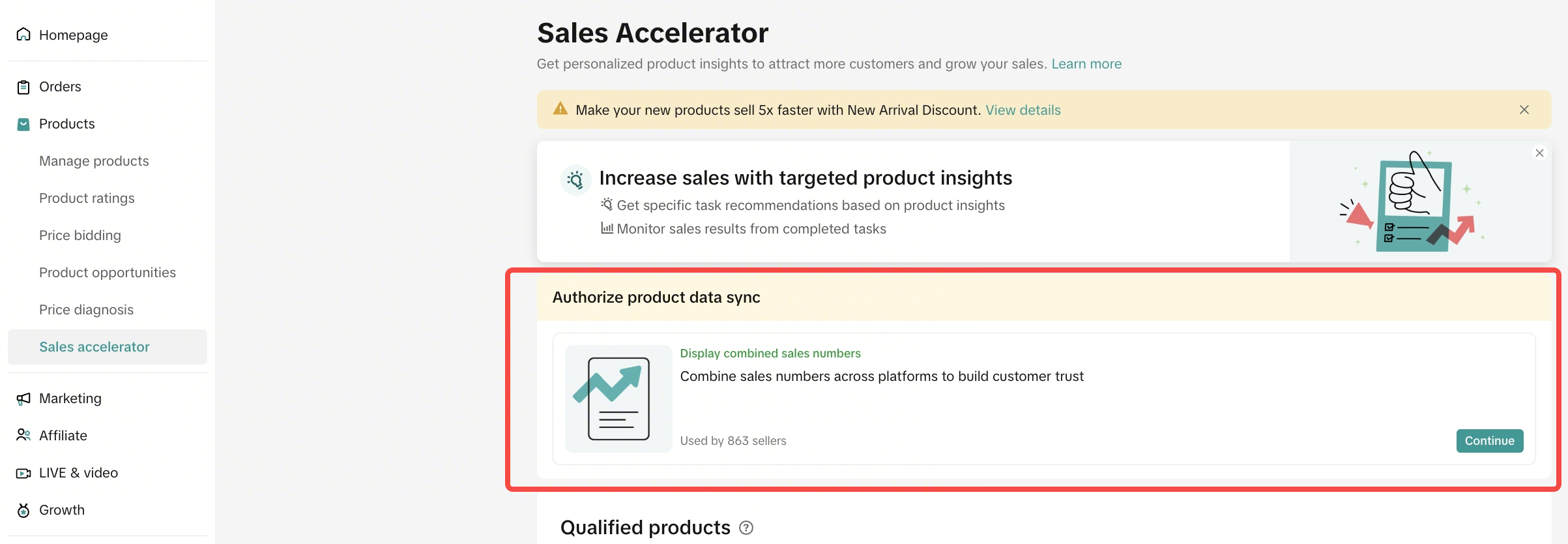
 If you give authorization by clicking Continue on the page, a pop up will appear to give information related to this product data synchronization. Sellers can choose whether to give authorization or not.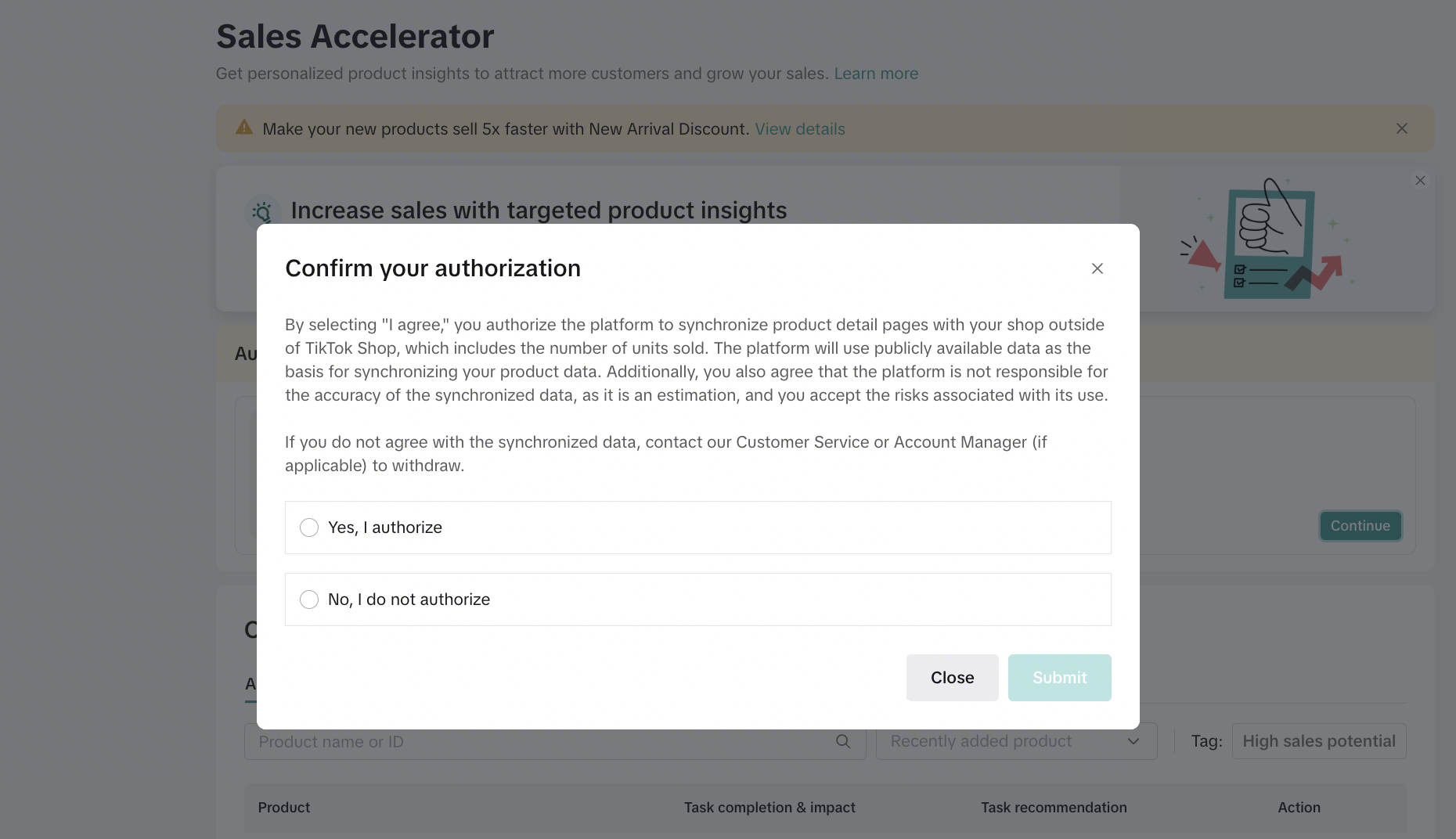
| What It Will Look Like on Customers' side |
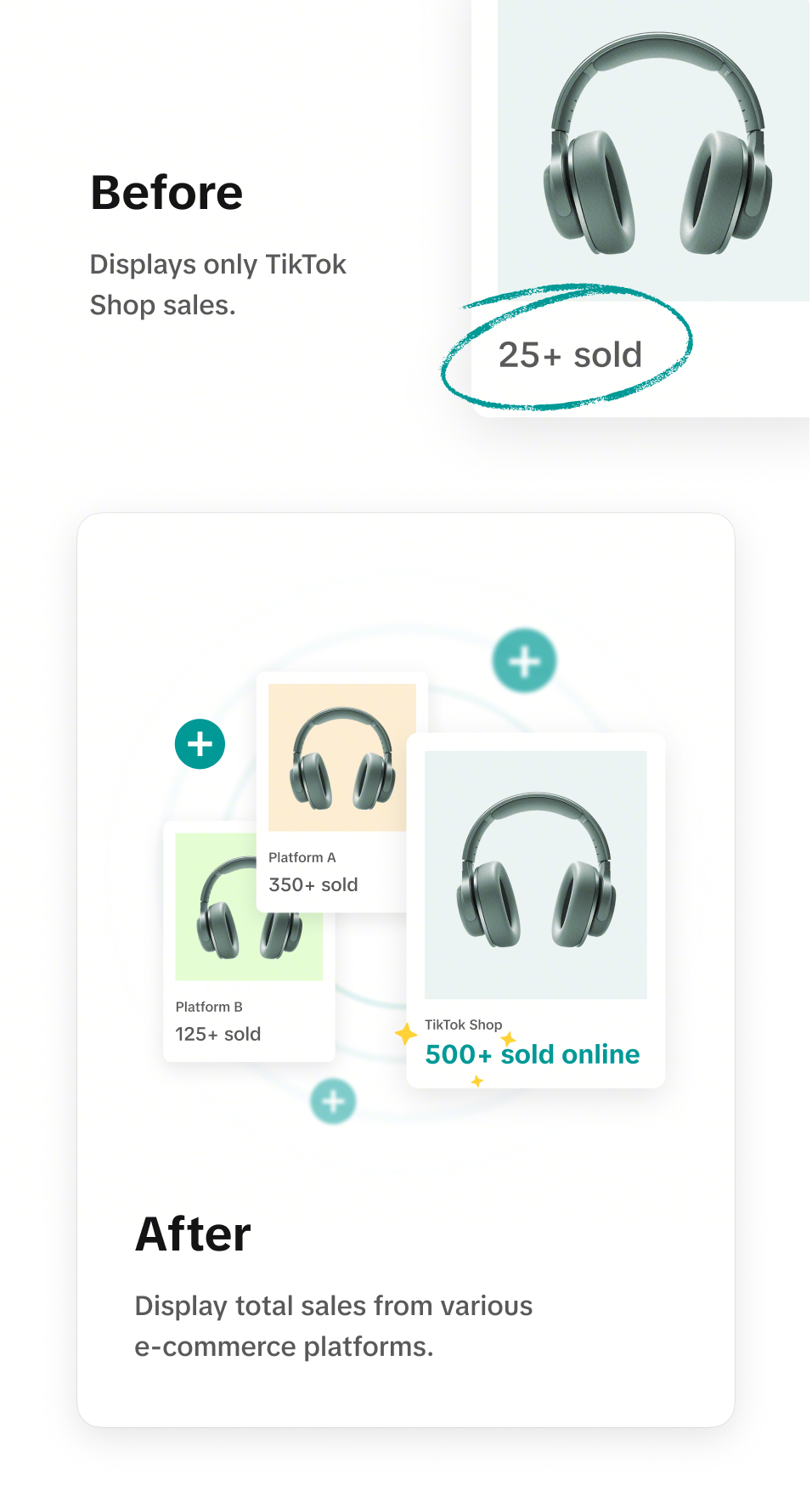 |
- Seller's products sold number will be combined with its sold number from other e-commerce platforms.
- Example:
| Seller A | TikTok Shop | E-commerce X | E-commerce Y | Final Result of What Customers Will See on TikTok Shop After Synchronization |
| Product B | 20 sold | 100 sold | 50 sold | 170 sold |
- The system will require 3 working days lead-time for synchronization after sellers give authorization
- Every time sellers add new products, the system will identify whether the product is also sold on other platforms. If yes, the system will automatically sync the product number. Usually it requires 3-7 working days to be synced after seller uploads the product
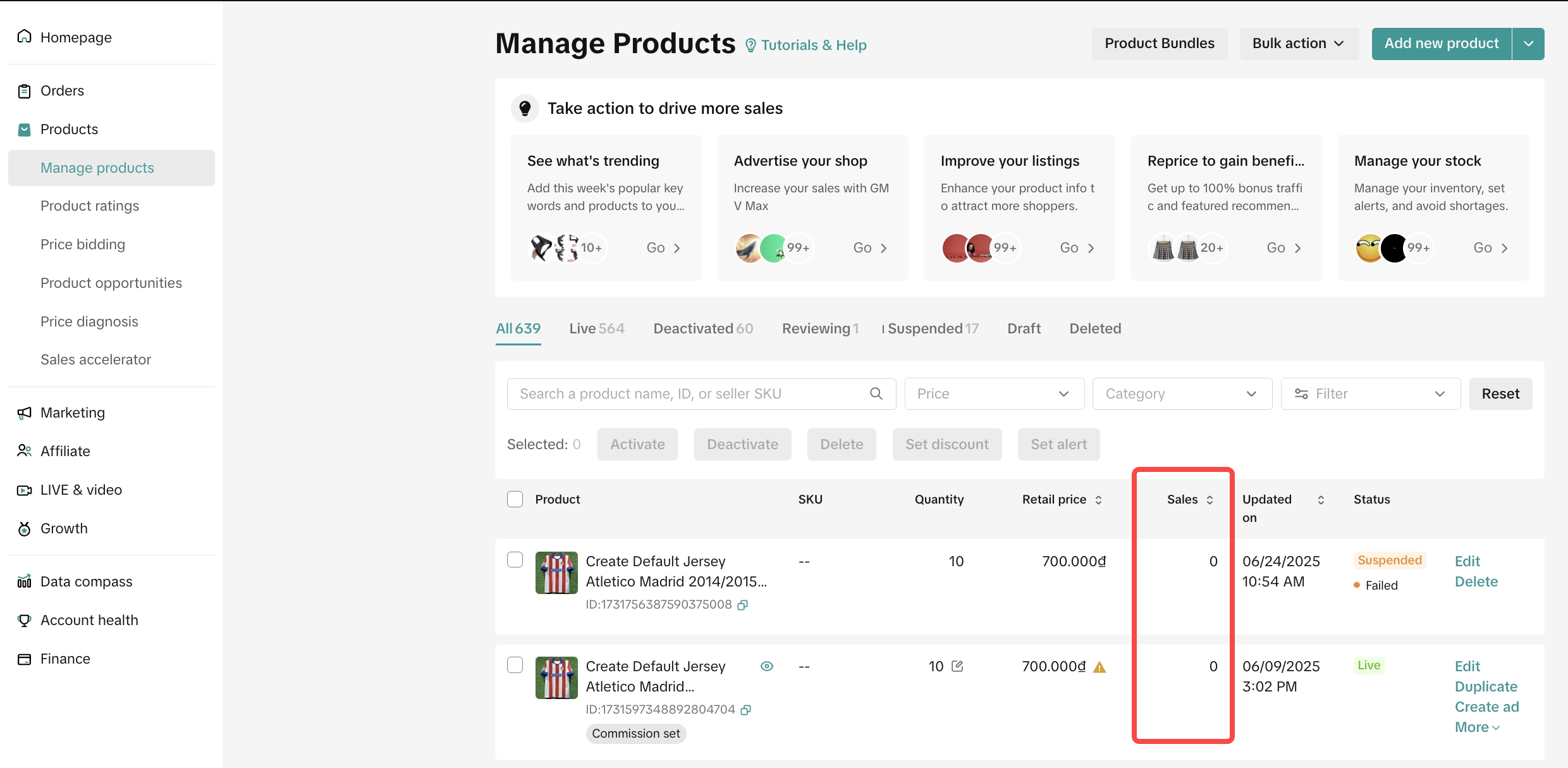
- Sellers should refer to the Manage Product page in Seller Center to find the original number of product sales from TikTok Shop, as the number displayed on customers' side reflects combined sales across multiple e-commerce platforms
You may also be interested in
- 5 lessons
Product Listing And Management
Listing your product is the first step in officially bringing your product to consumers.
- 1 lesson
What causes Incomplete Information in product listings? (Inf…
Best practices to avoid Incomplete Information violation
Adding Existing Products from TikTok Shop
Getting your products live is the first essential step to succeeding on our platform. While we offer…

Branded Products Listing Guidelines
What are Branded Products? Branded products are products bearing a brand. The brand and its features…

Price Diagnosis
This feature will help sellers to review their product price competitiveness in TikTok Shop and full…
Trademark Infringement
What is a Trademark? A trademark includes but is not limited to words, symbols, slogans, designs, sh…

Product Listing and Image Editor on Seller Center App
Image Editor The new product image editor enables sellers to take product pictures continuously and…

Patent and Design Infringement
What are patents and designs? Patents protect inventions and give the owner the right to prevent oth…

Copyright Infringement
What is a copyright? Copyright is a legal right that protects original works and stops others from u…
Making Comparisons in Product Listings
What constitutes a "comparison"? A "comparison" is any statement that compares your product with the…