

Connecting with Creators at Affiliate
03/08/2024
In this article, we will teach you how to message and contact your Affiliate Creators in the Seller Center.
As a Seller, you can message chosen Creators to collaborate through the Affiliate program. The messaging tool is a great way to freely communicate with Creators and strengthen your partnership!
Accessing Creator Messages in Seller Center Desktop
You can access all your current Creator messages at the top portion of your screen in the Affiliate Center. The Creator messages button will also show the amount of unread messages you currently have.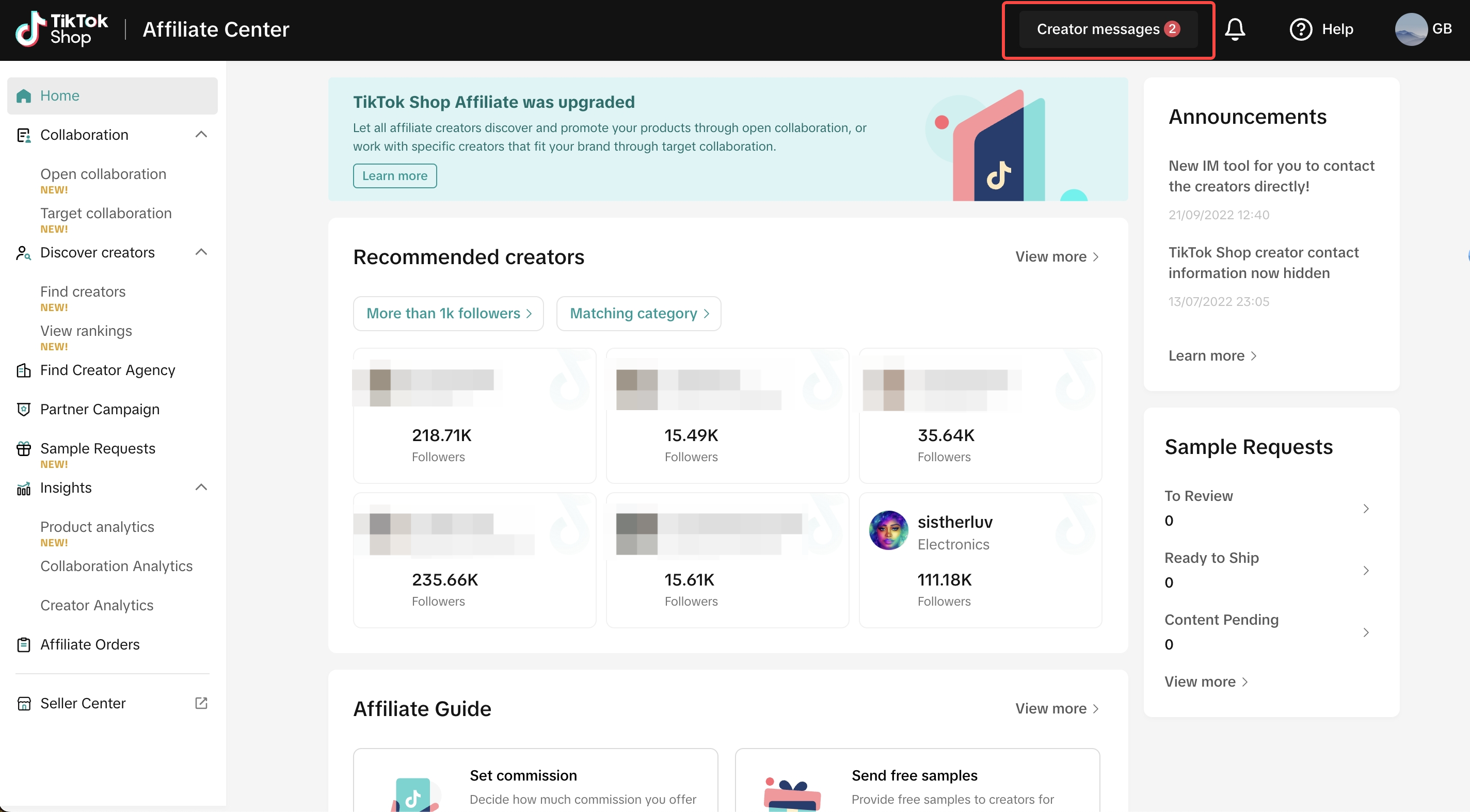 Upon entering the Creator messages tab, you will be redirected to this window below. In this window, you can see all your current messages with Creators.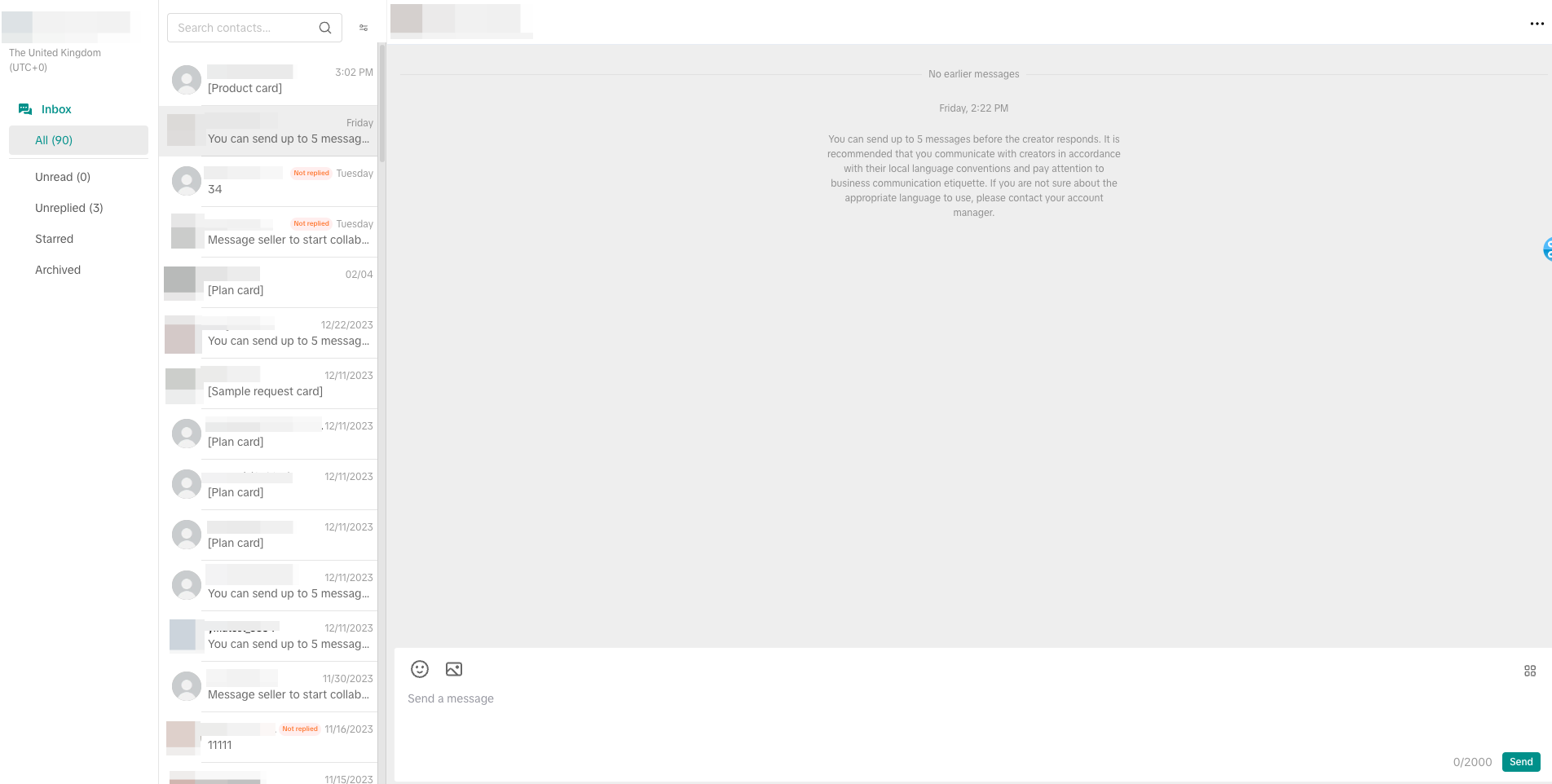
Filtering your Messages
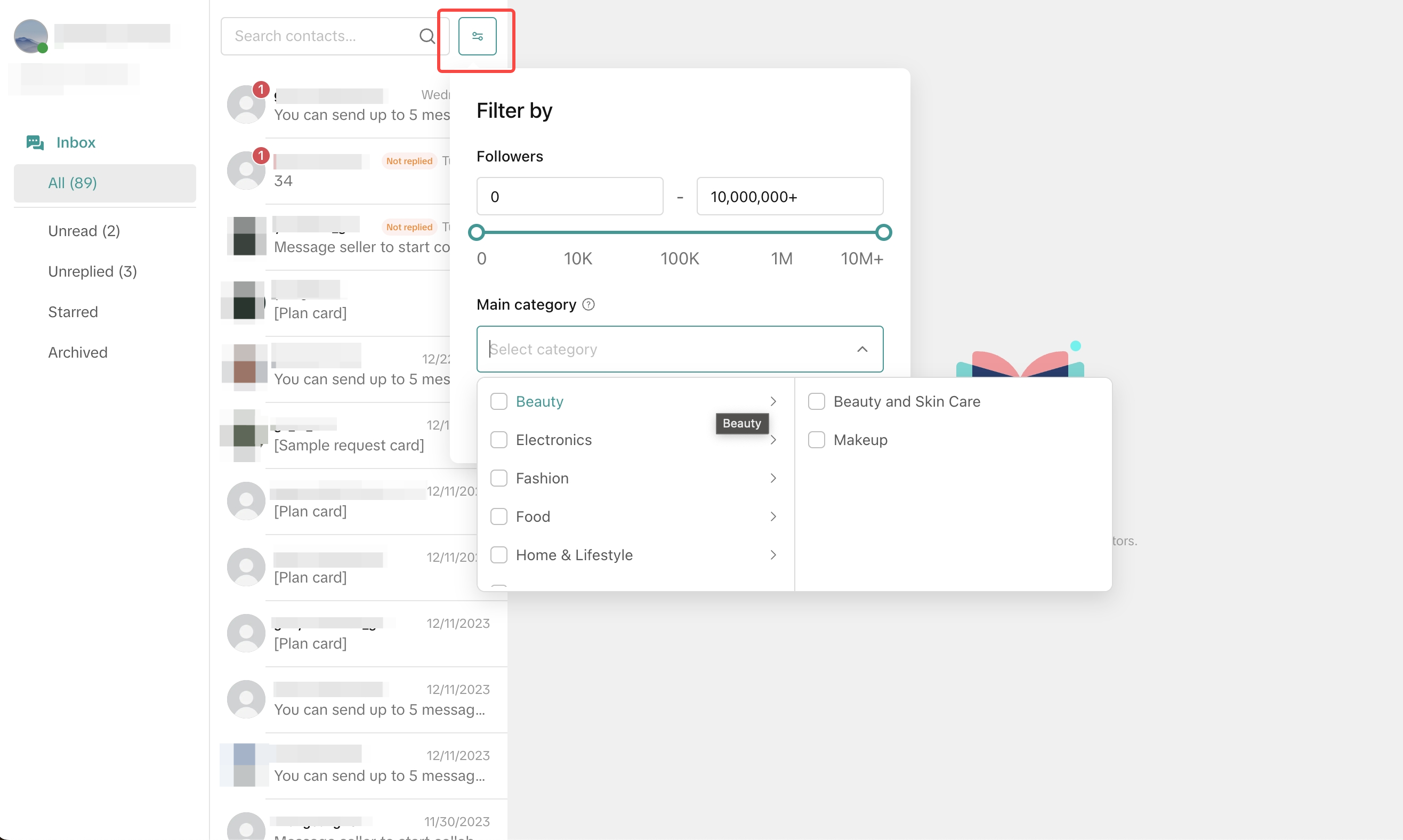
You can filter the type of messages you want to see according to these factors:- Creator's Amount of Followers
- Creator's Main Category: This is based on the Creator's generated category from the Find Creators page.
"Starred" Messages
Clicking on the three dots when your mouse is hovering in the preview will open up two options: Add to starred will add your chosen conversation to the Starred folder under Unreplied. Additionally, Starred messages are highlighted with a gold star in the preview section.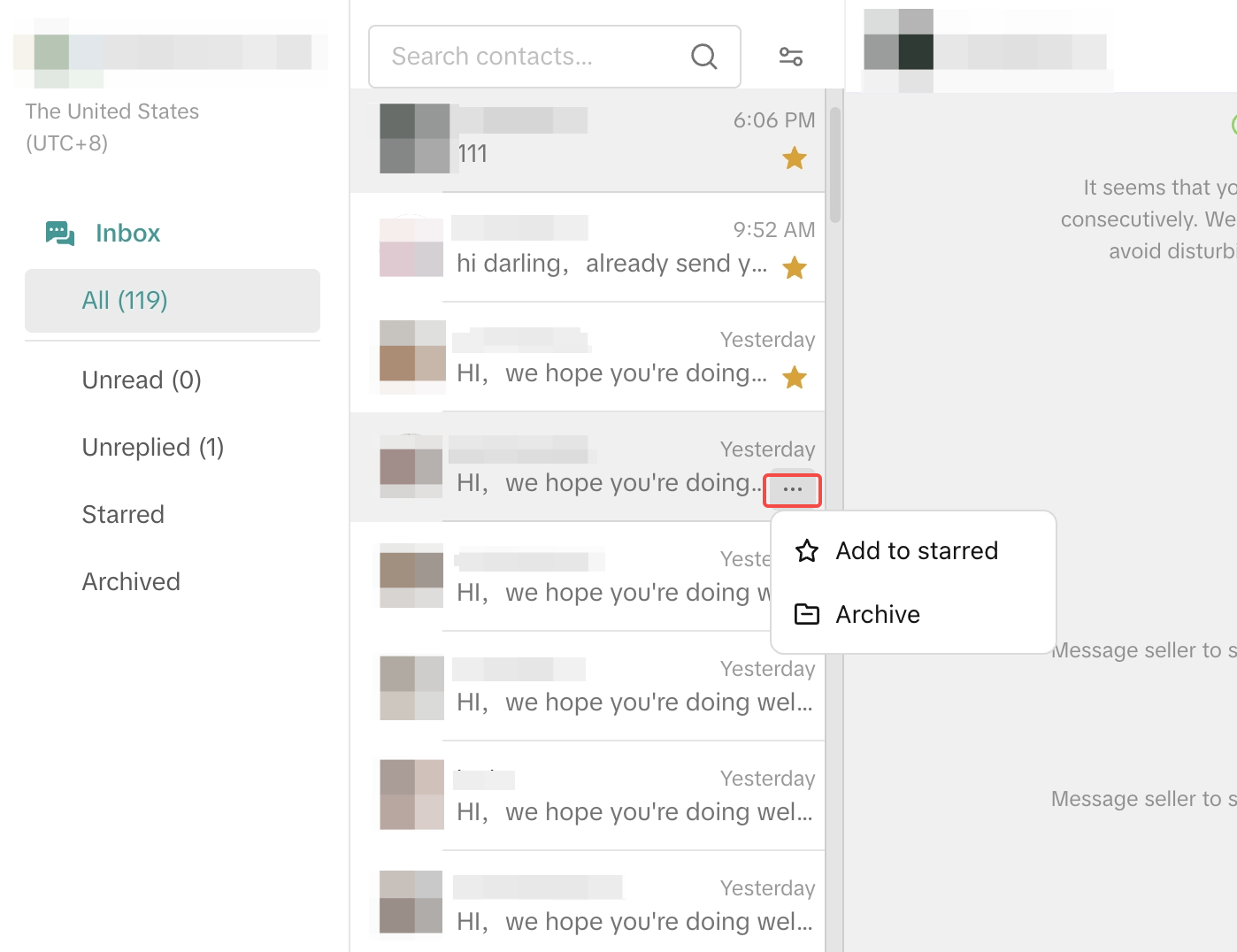
Archiving Messages
Clicking on the three dots can also be used to archive any of your old or unwanted messages in your inbox. Archived messages will be stored inside the Archived folder.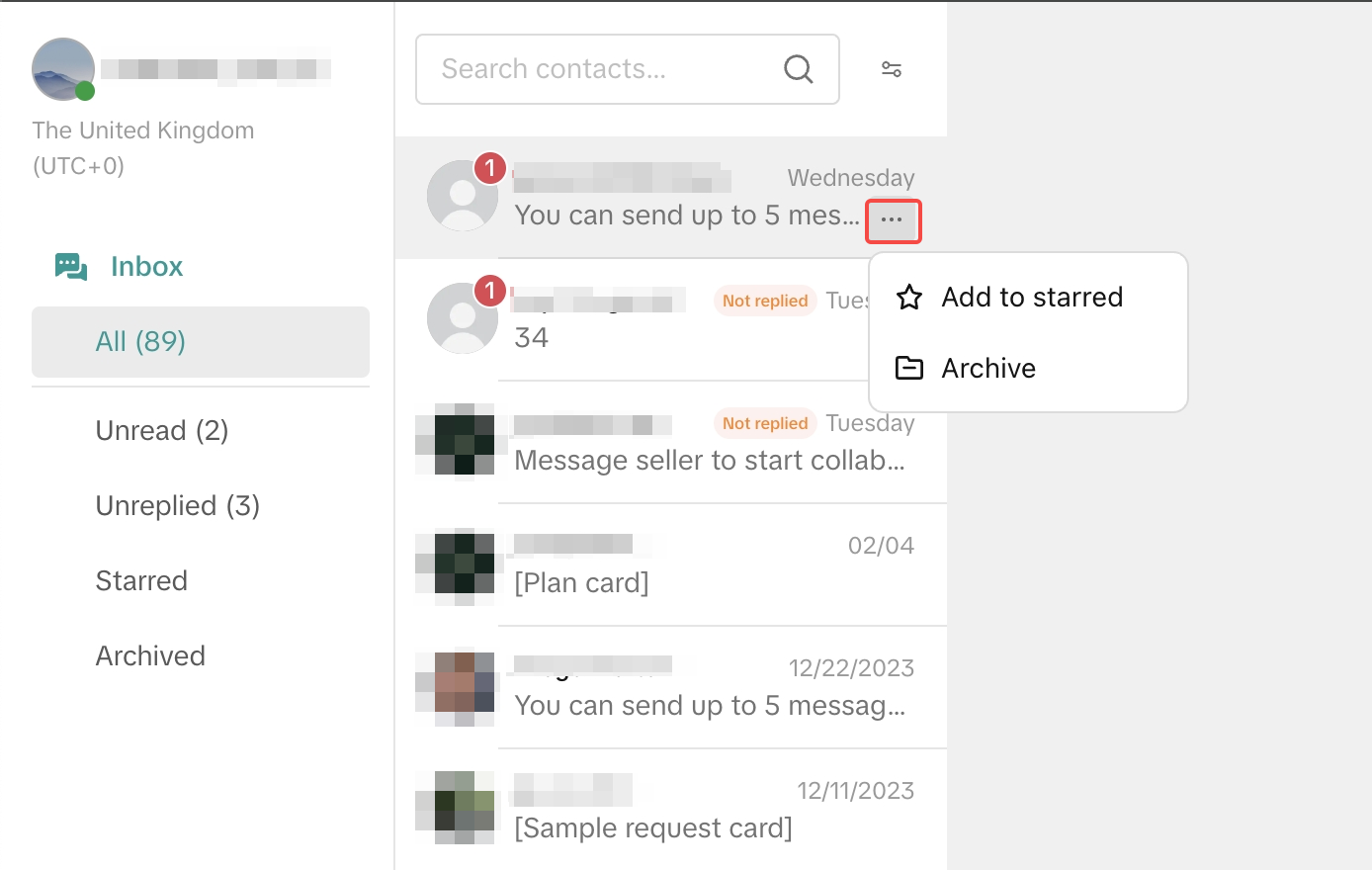
Blocking Messages
Yes, you can block Creator accounts from messaging you by tapping on the 3 dots beside their username as shown below: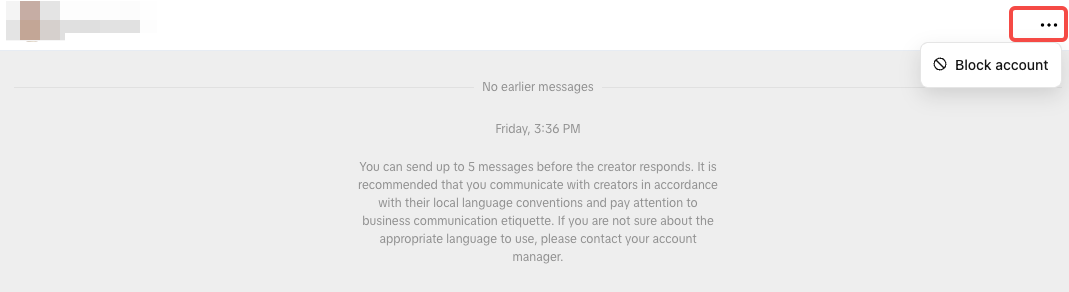

Entering a Conversation with a Creator
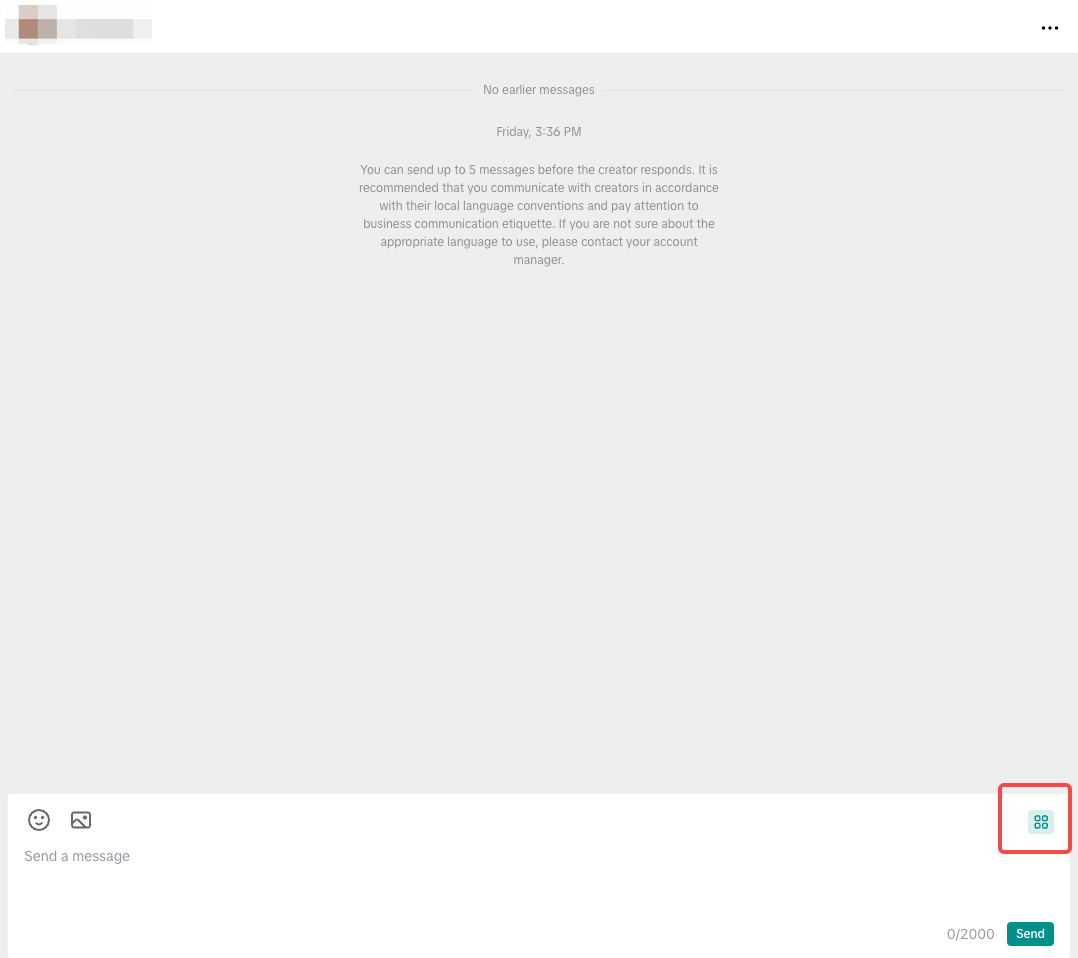
Upon clicking on one of the messages or entering a conversation with Creator, the messaging tool will look like this without any messages. You can communicate with the Creator by typing below, sending GIFs or pictures at the bottom left-hand side.Click on the button with four boxes below to access the Creator's profile and your Affiliate Collaboration tools.
Creator Profile
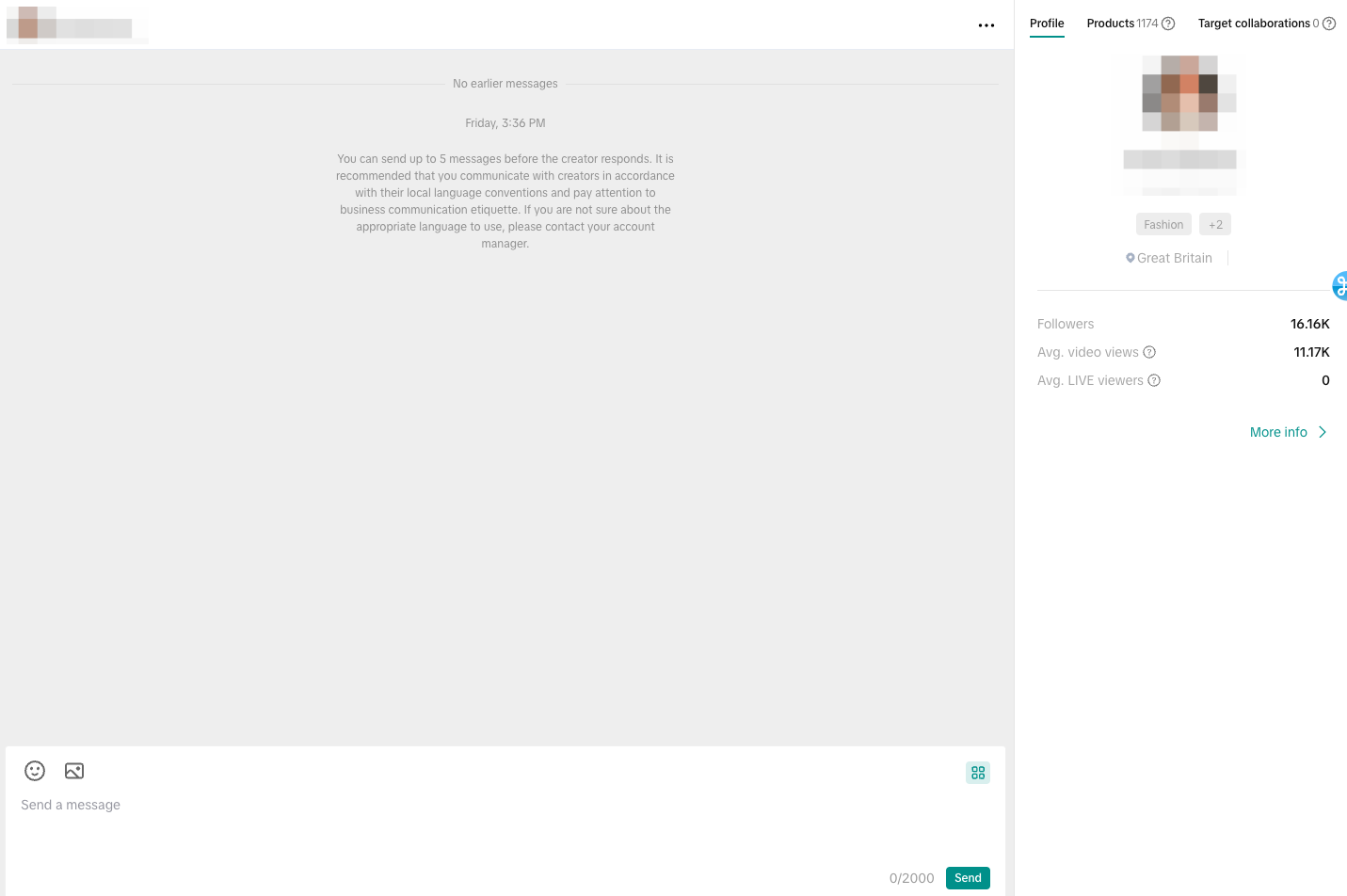
You can check the Creator's details upon clicking the button. These details include:- Main Categories: The Creator's main product categories will show up under their username and profile picture
- Location
- Followers
- Avg. Video Views: The average number of views of this creator's product videos posted in the last 30 days
- Avg. LIVE Viewers: The average number of viewers of this creator's e-commerce LIVE videos in the past 30 days.
Products
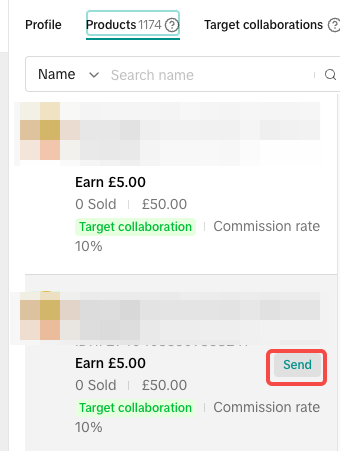
In this section, you can see all the available products that the Creator can use for their Affiliate Content. Both available Open and Target Collaboration products will be shown in this section.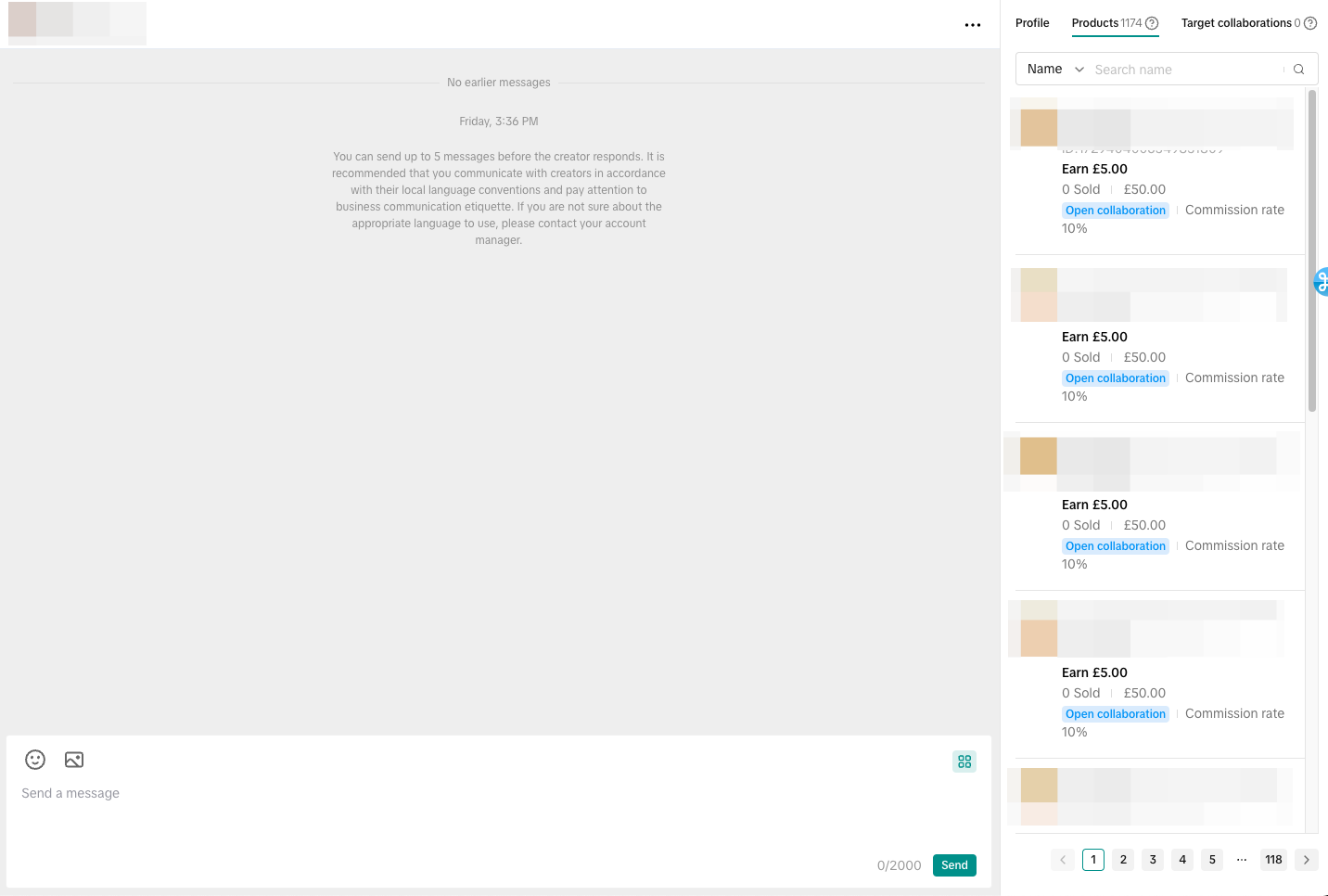 You can send any of the available products on the right-hand side to the Creator by clicking on send as shown below:
 Upon clicking on send, the product card will be shared in the message section as shown below. Creators can then click/tap on the product card and they can add it to their showcase or content if they want to.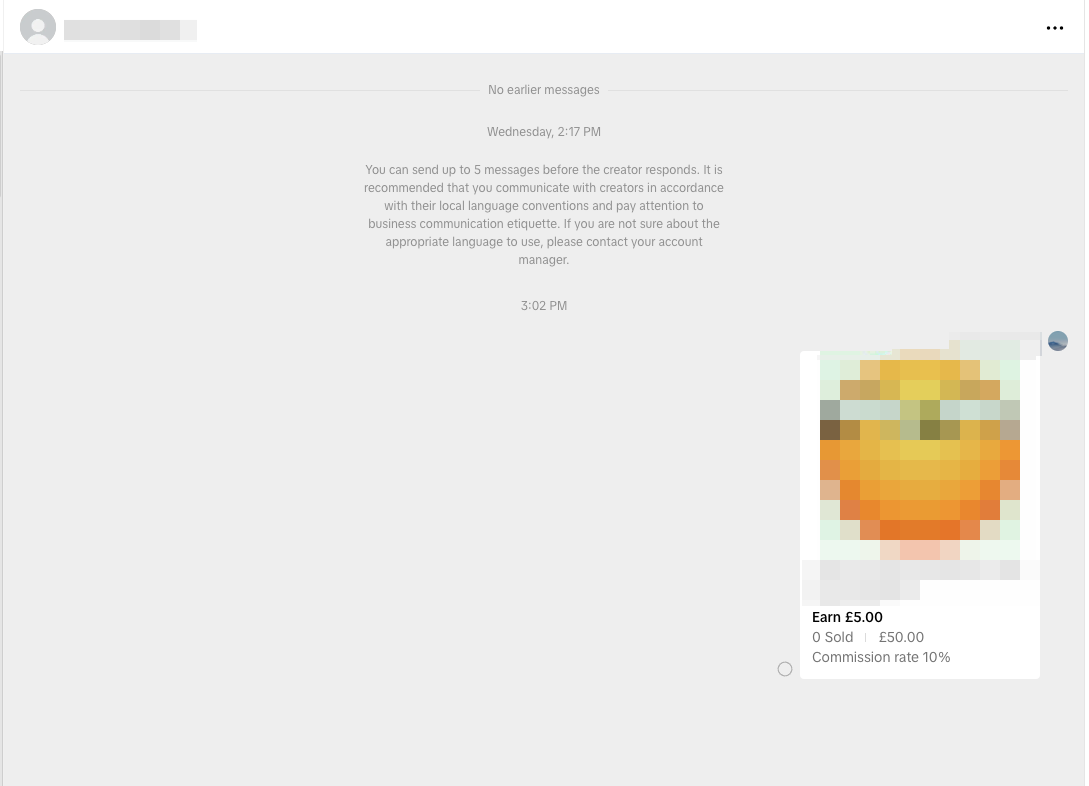
Target Collaboration Invites
Lastly, you can check all the current Target Invitations that the Creator is a part of. If the Creator is not a part of any ongoing Invitations, the Seller can create a new invitation for the Creator.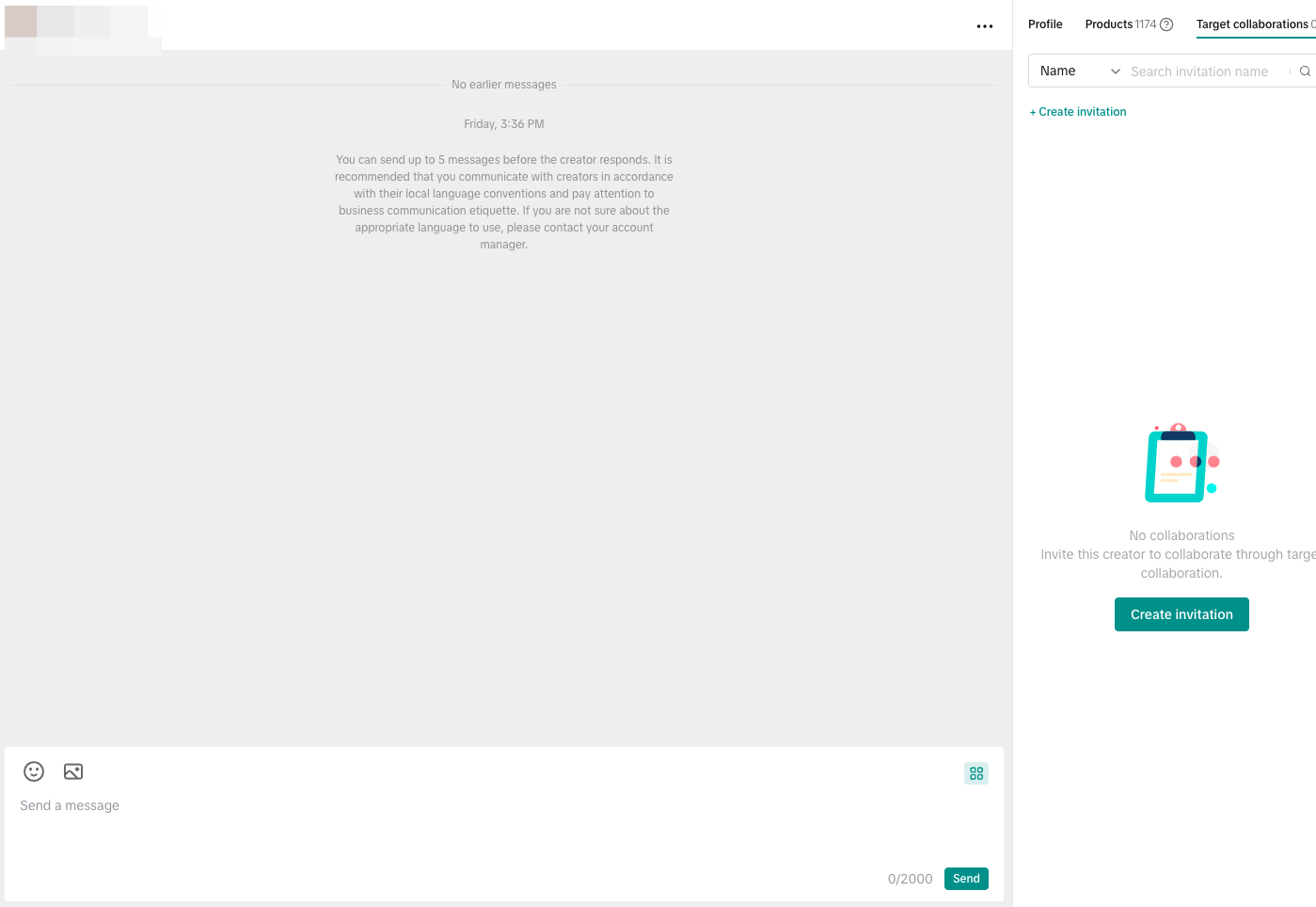

Message Creators via Find Creators
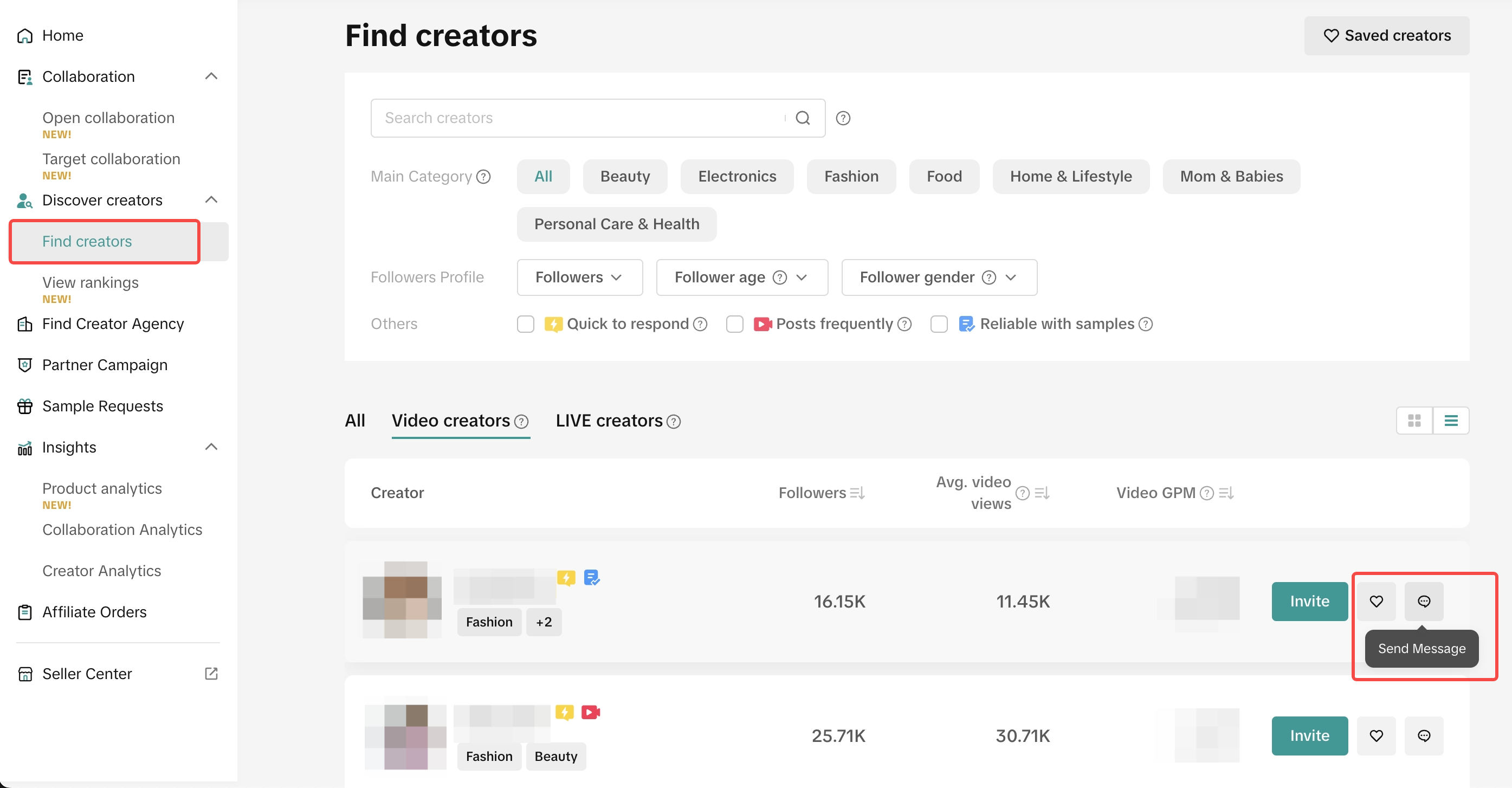
On the Affiliate Homepage on Desktop, you can initiate new conversations with Creators by searching them on the Find creators tab.- Step 1: Access the Find creators page at the left-hand side menu as highlighted in the photo below
- Step 2: You can message your chosen Creator by clicking on the Send Message button at the right-hand side of the screen
 Additionally, you can also message Creators when you view any of their profiles.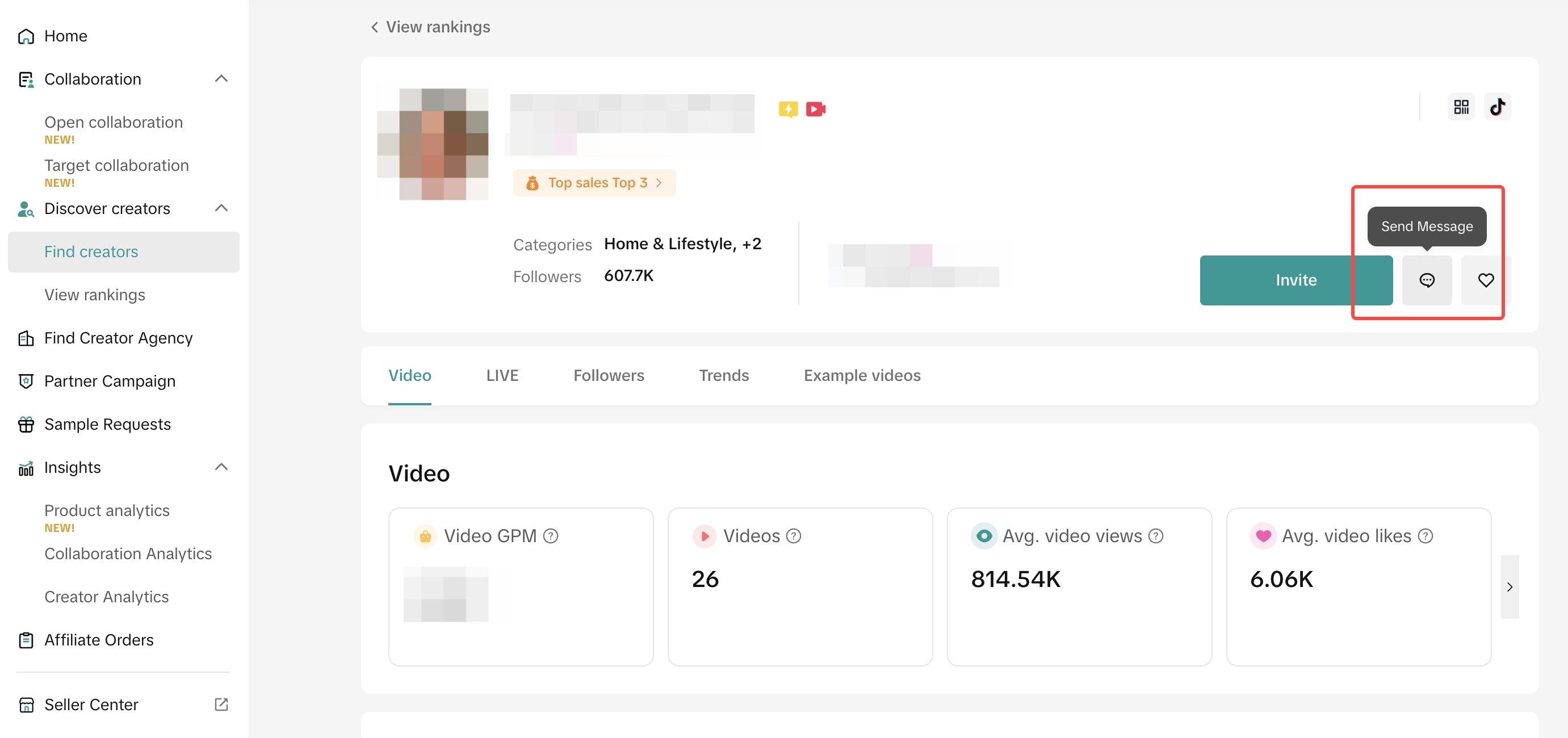
You may also be interested in
How to Request TikTok Shop Partners
In this guide, we'll walk you through the new process that allows sellers like you to connect and co…

Find Creators for Affiliate
This article will guide you on how to look for Creators to work with for your Affiliate Collaboratio…

How to Join Affiliate Partner Campaigns
This guide will walk you through how you, as a seller, can join affiliate partner campaigns to colla…
Creator Ranking List
This article will teach you how to understand and navigate the "View Rankings" page in the Affiliate…
Creator Level for Sellers
What is Creator Level System? Creators are classified into L0 to L8 and their level will be refreshe…
Manage Creators
This article will guide you on how to use and explore the "Manage Creators" page in the Affiliate Ce…
Affiliate Partnerships Overview
This guide will walk you through on how sellers can now track and monitor performances when collabor…