

How to use LIVE Screen
12/13/2022
Function entry
The Data Compass module of Seller Center will provide you with the real-time LIVE screen data of each livestream. You can view your live data performance through the LIVE screen. The following is the entrance to the LIVE screen: 1、Today's Livestreams page On Today's Livestreams page, you can see the live rooms that started on the same day. Click the function button on the live card to enter the live screen.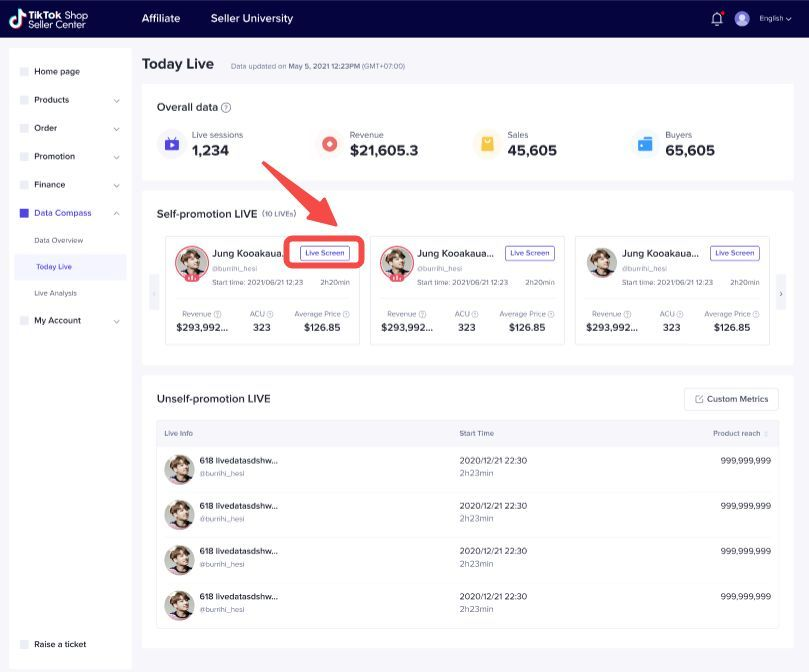 2、Live Analytics page On the Live Analysis page, you can click the function button on the live card or click the operation button in the live record table to enter the live screen.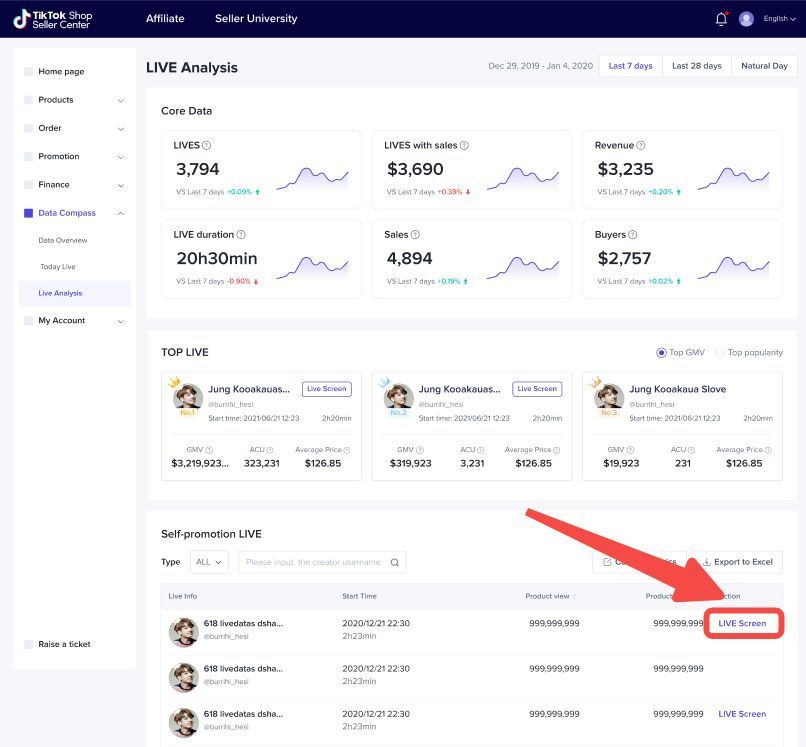
Function Introduce
Only the product data of your own shop is displayed on the live screen. If there are products from other shops in this live, you will not be able to see this part of the product data. Show the relevant data of the whole live from the beginning of the live to the end of the live .After the live ends, you can still see the data performance of the live. The live screen mainly includes several functions, including the core data of the whole live room, the product list in the live room, the revenue trend, the traffic source, the user profile, the engagement and viewing trend in the live, and the live broadcast.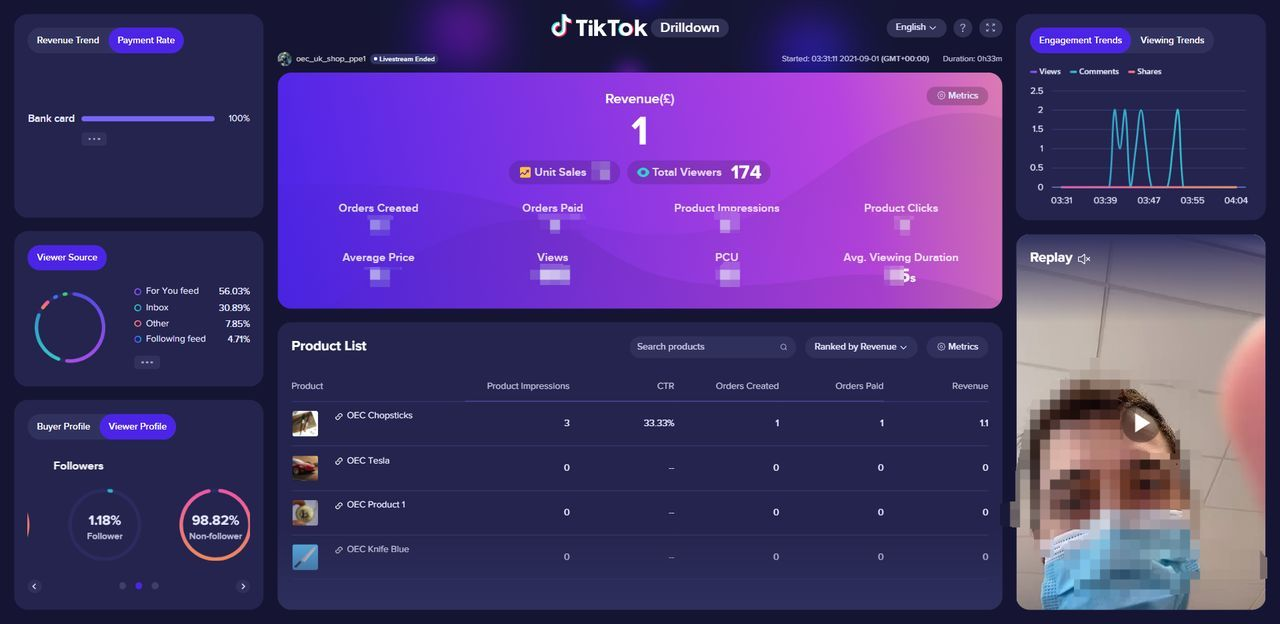
| Module | Funciton | Sample | Details |
| Core data | LIVE basic info | 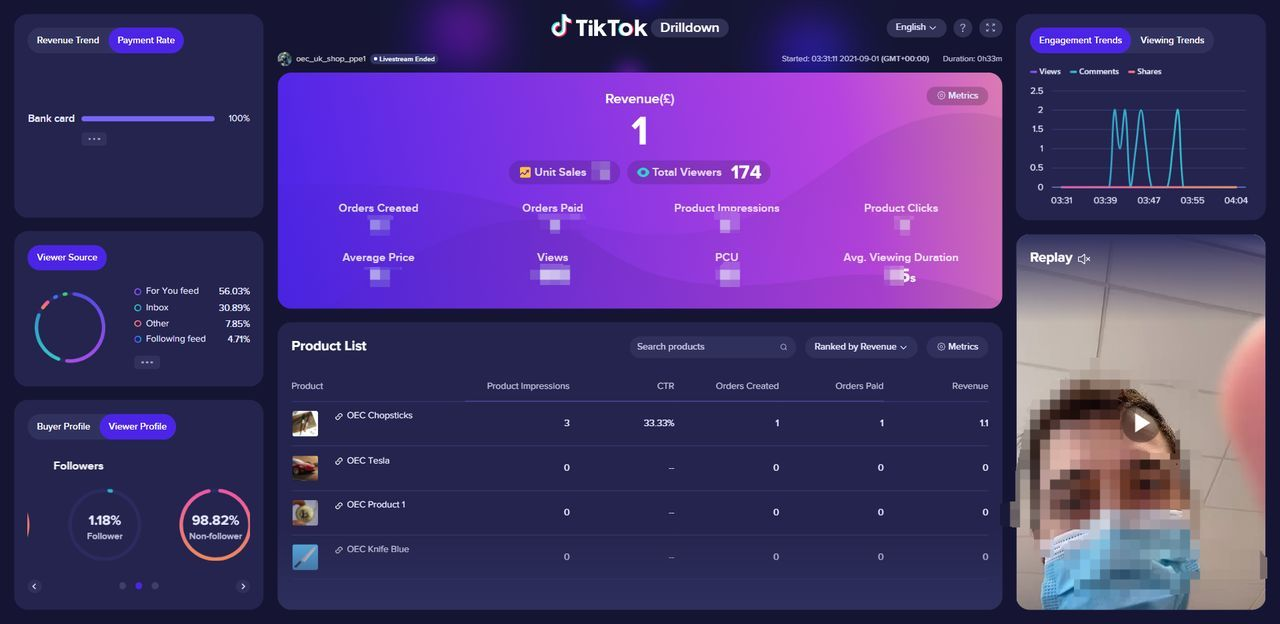 | Show the creator's handle, the start time of LIVE, and the duration of the LIVE |
| Core indicator | 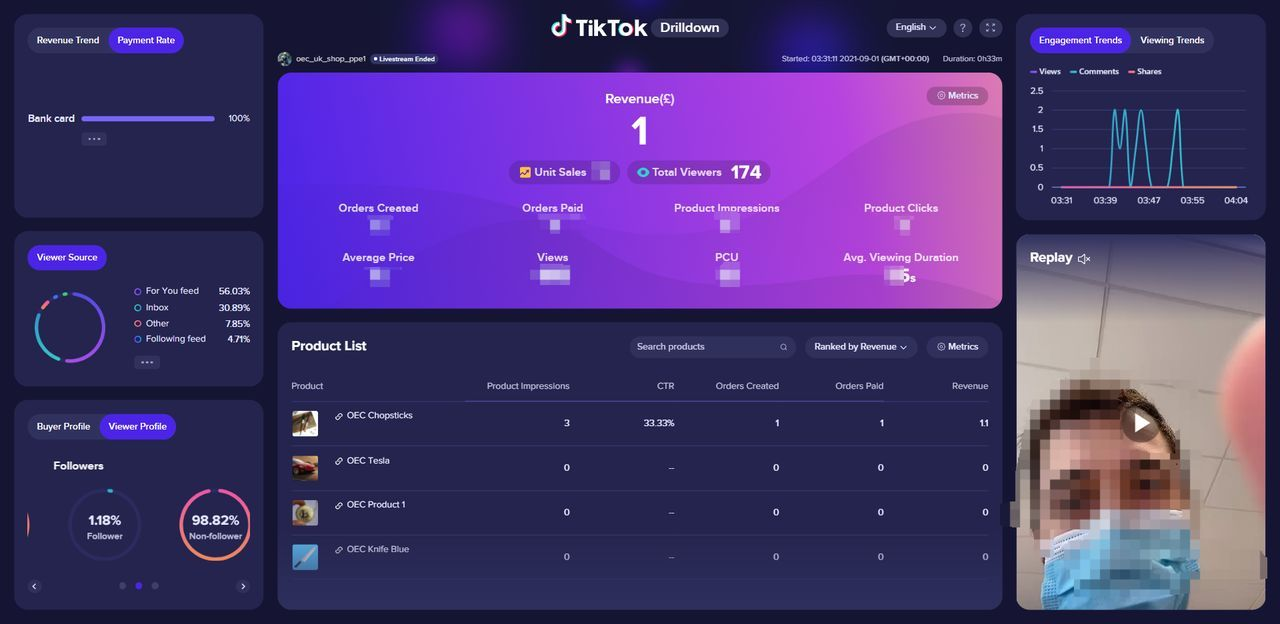 | Revenue, sales (items sold), viewers (real-time online people) fixed display, the rest of the indicators can be manually configured | |
| Set indicator | 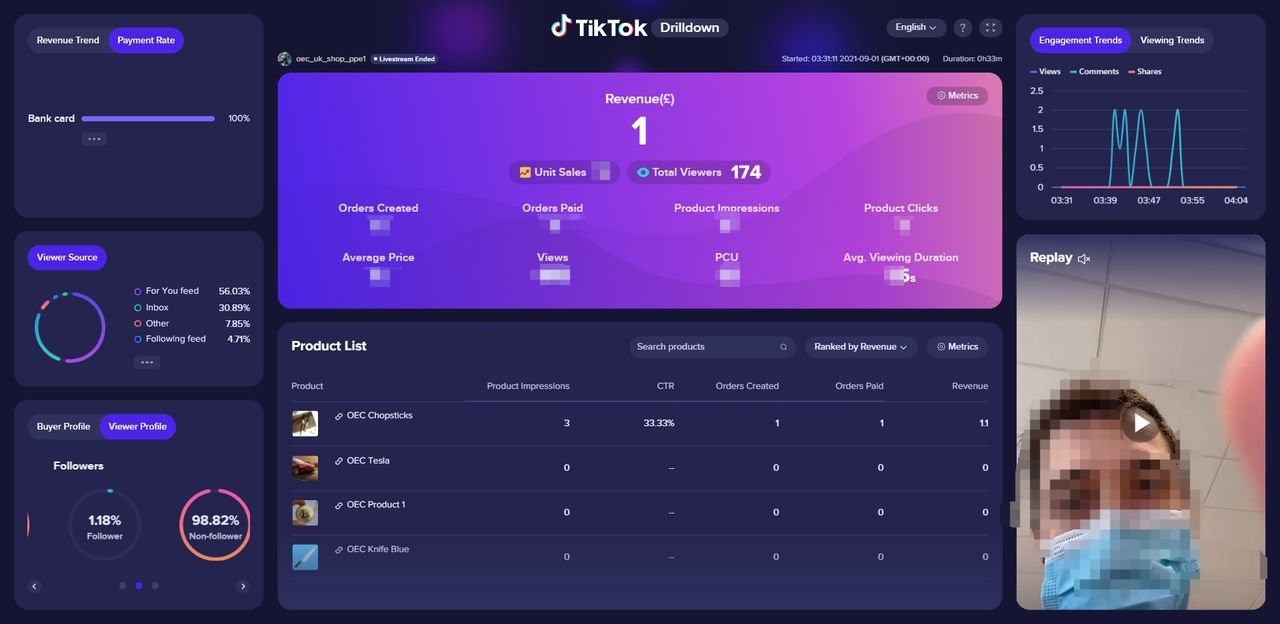 | Click 'Set indicator' button to configure indicators in the pop-up window | |
| Product list | Product info | 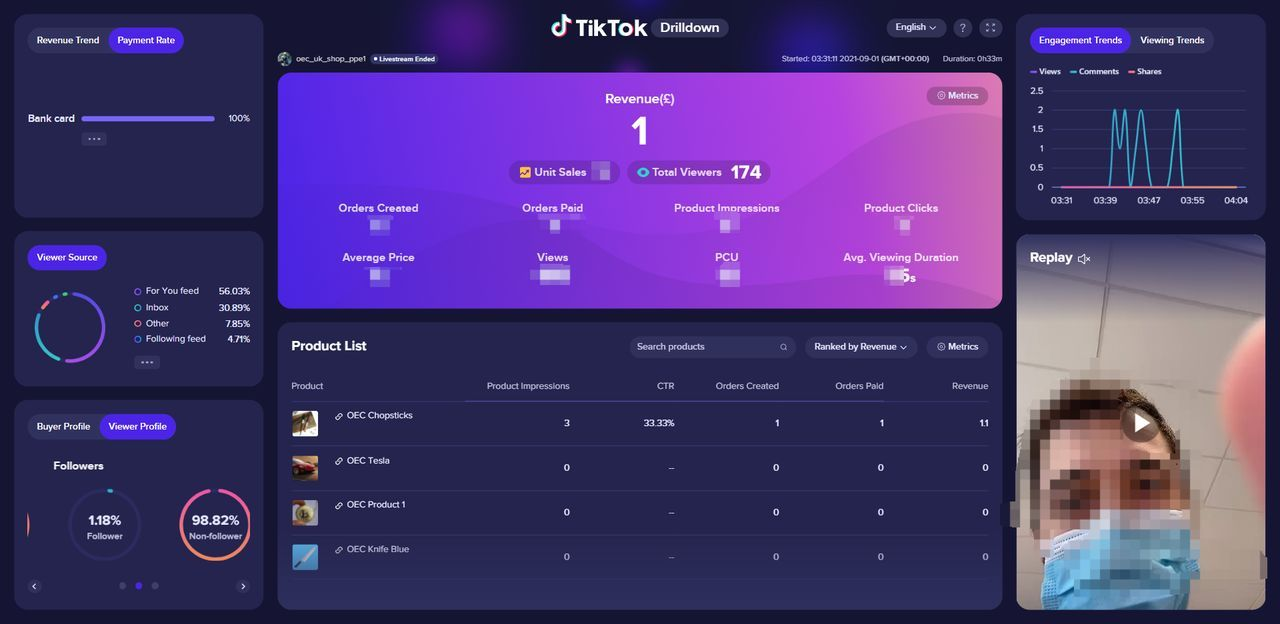 | Show all the products in this LIVE |
| Metric ranking | 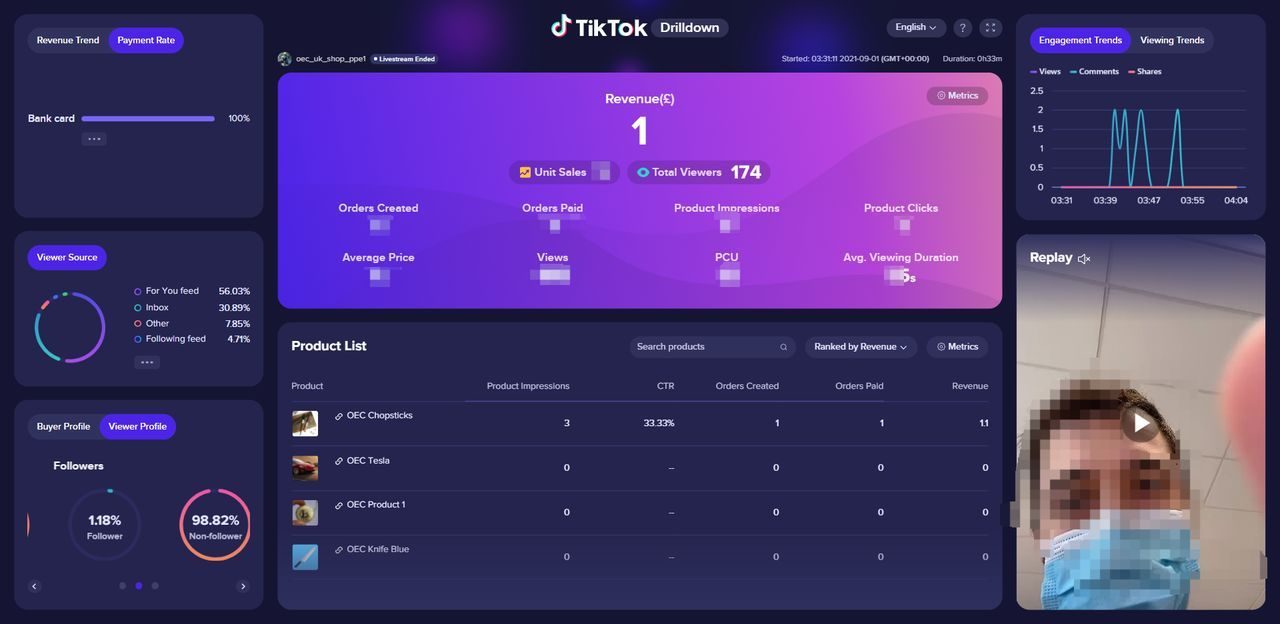 | The user sorts the product list (in descending order) according to the selected indicator | |
| Set indicator | 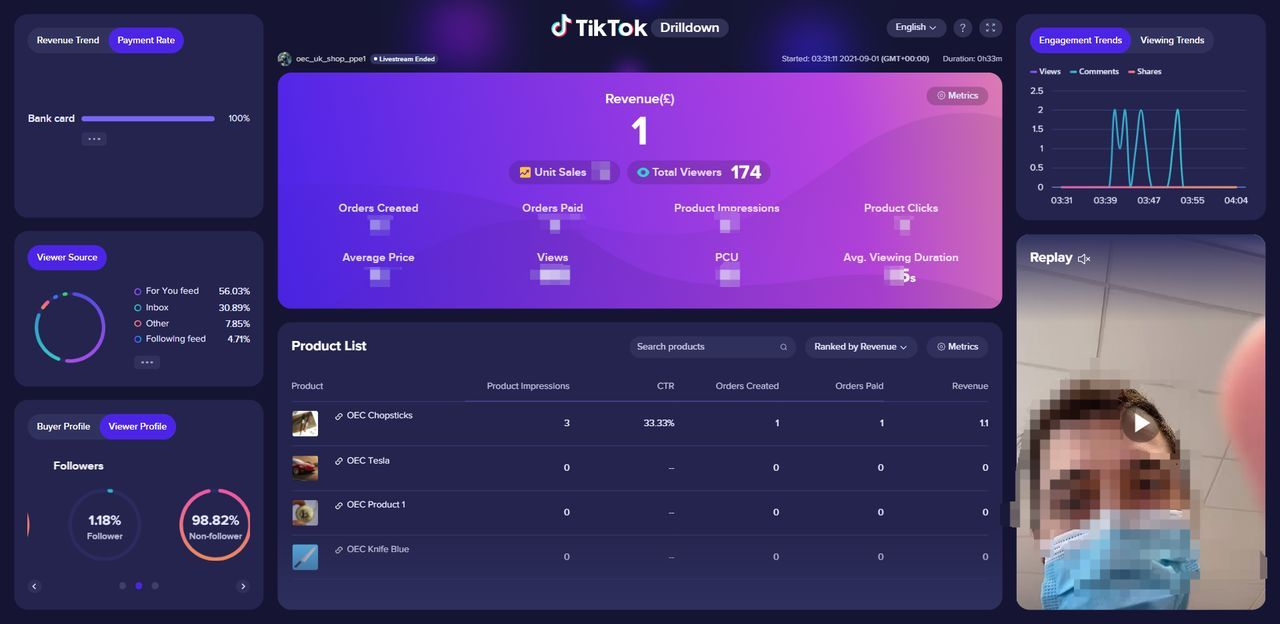 | Click 'Set indicator' button to configure more indicators, select up to 5 items, select at least 1 item | |
| Product search | 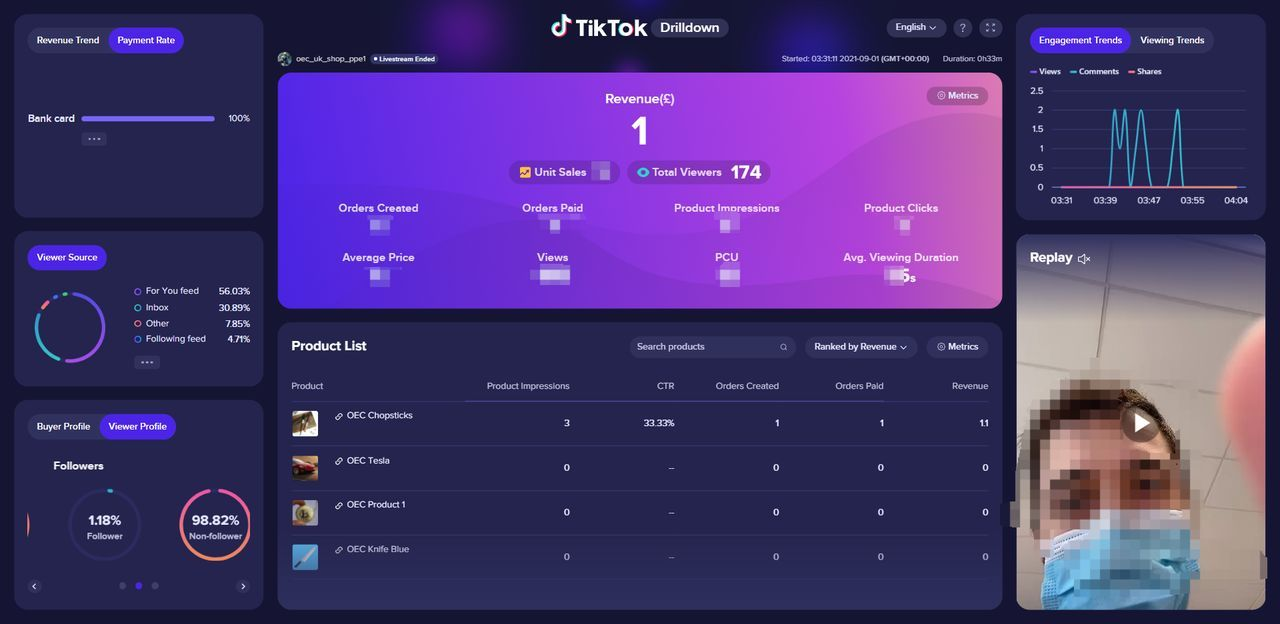 | Fuzzy searches can be performed according to the product name | |
| Revenue Trend | Revenue trend | 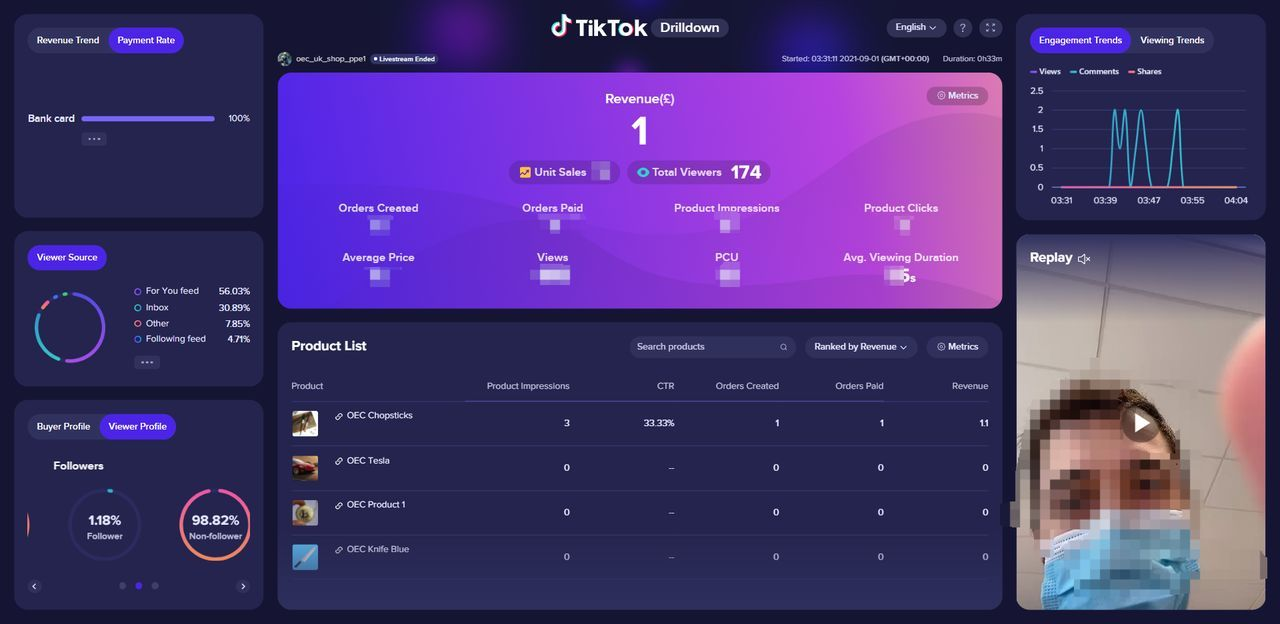 | Provides minute-level trends for revenue |
| Viewer source | Viewer source | 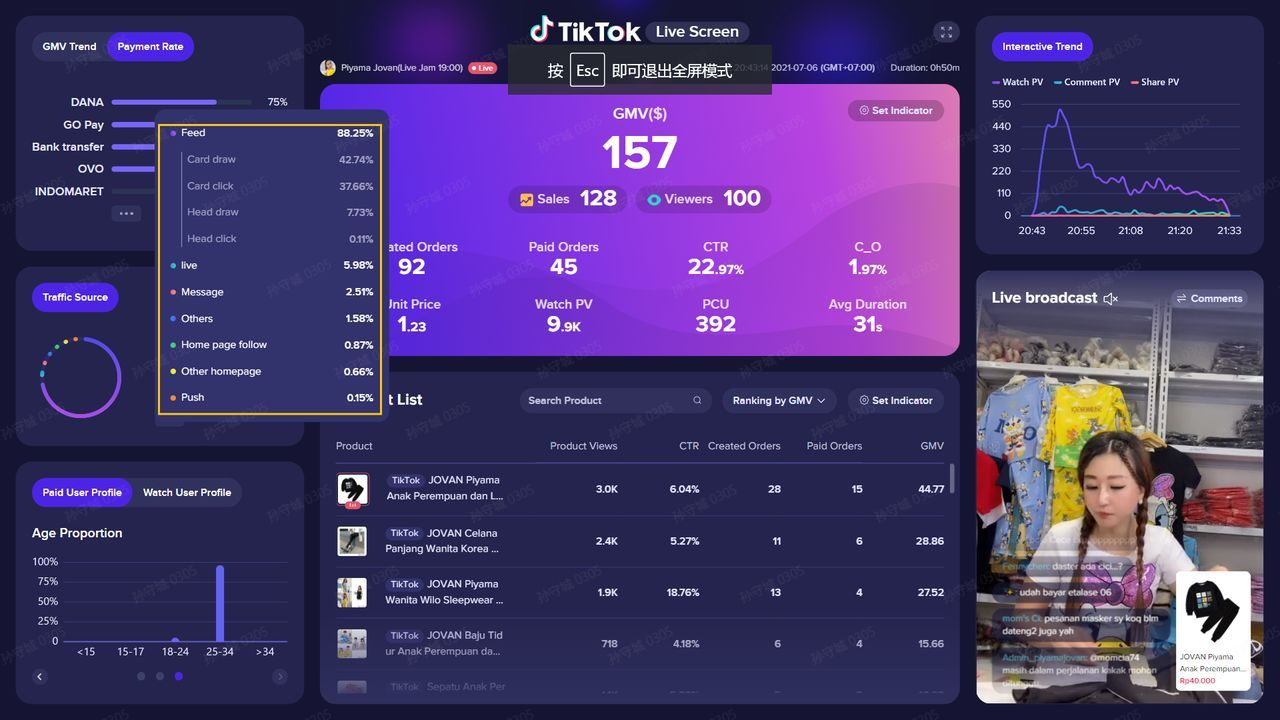 | The whole traffic data of the live, currently only natural flow sources,for paid traffic, it is not currently possible to distinguish the types and we classify them in the 'others' channel |
| User profile | User profile | 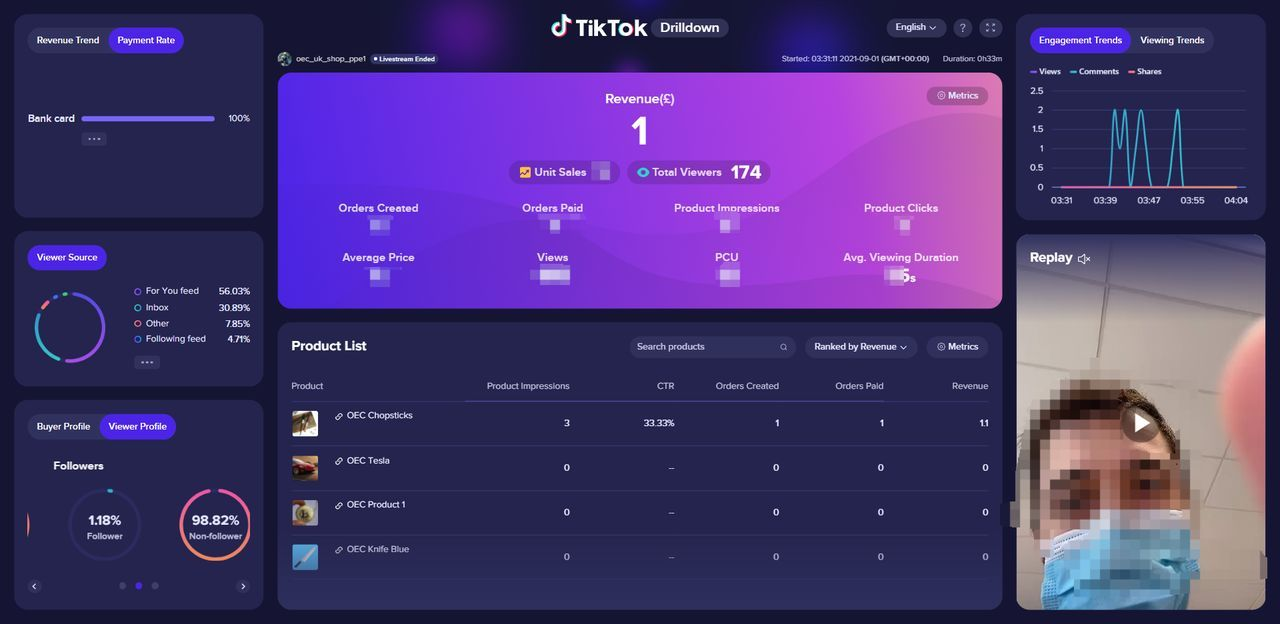 | Provide LIVE user profile and paid user profile, including gender informationn and fans strcture |
| Engagement Trends | Engagement Trends | 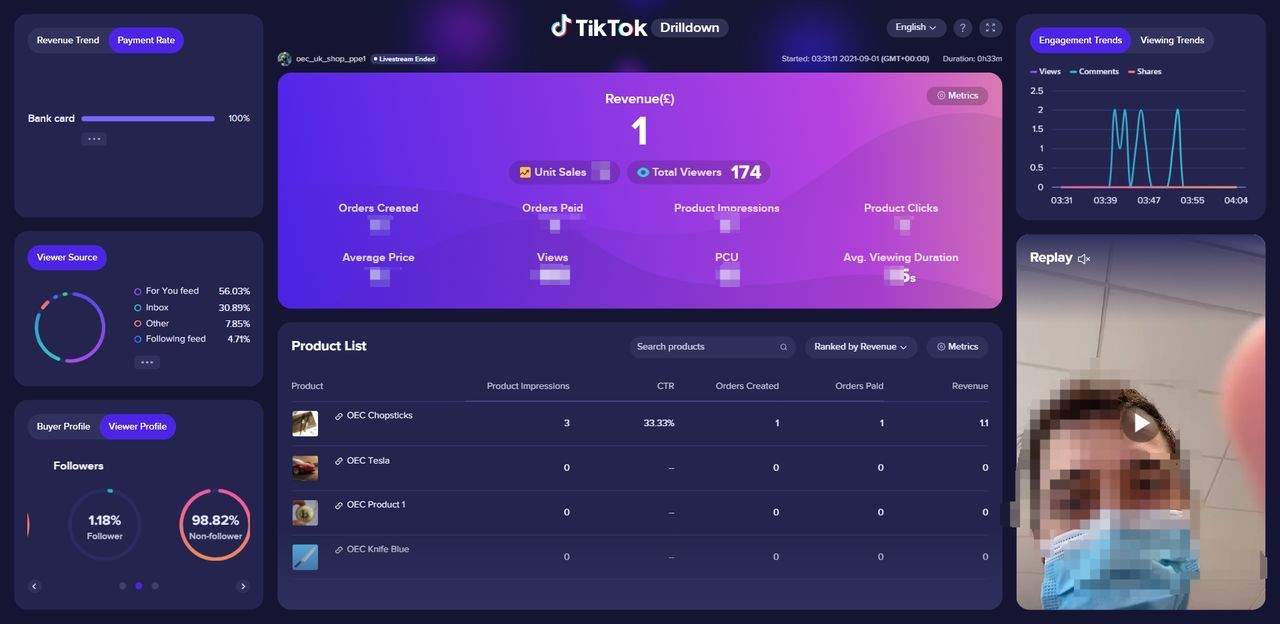 | Provide minute-level trends for watch pv, comment pv, and share pv |
| Viewing Trends | Viewing Trends | 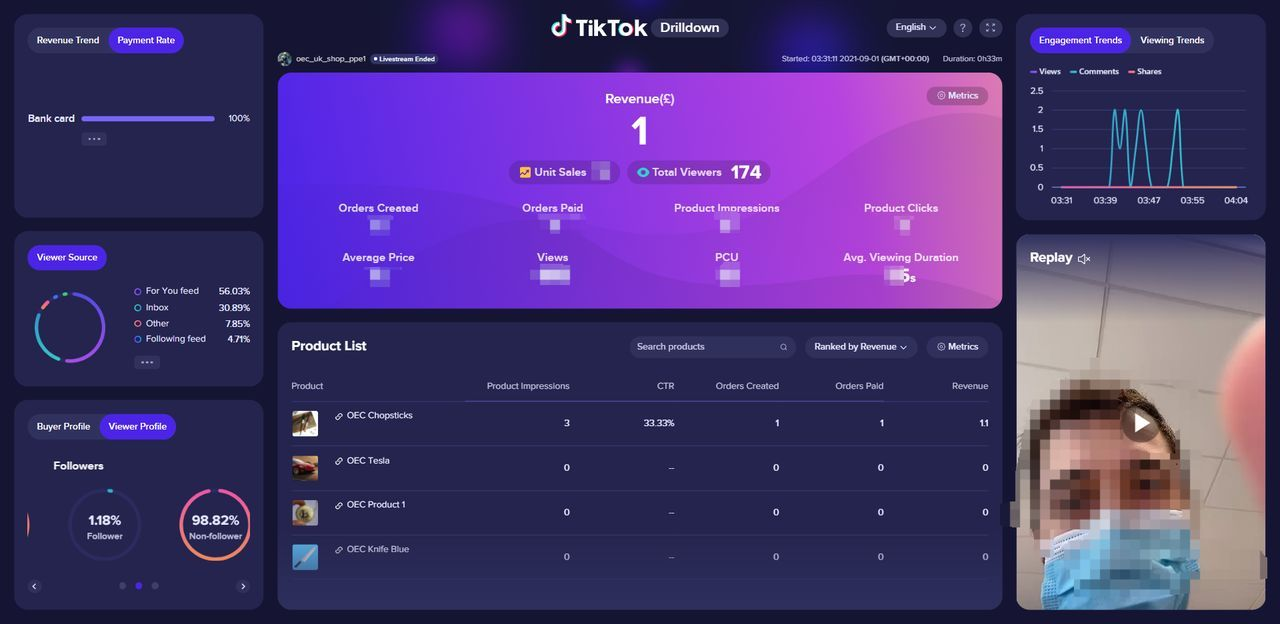 | |
| LIVE | Real-time LIVE LIVE replay | 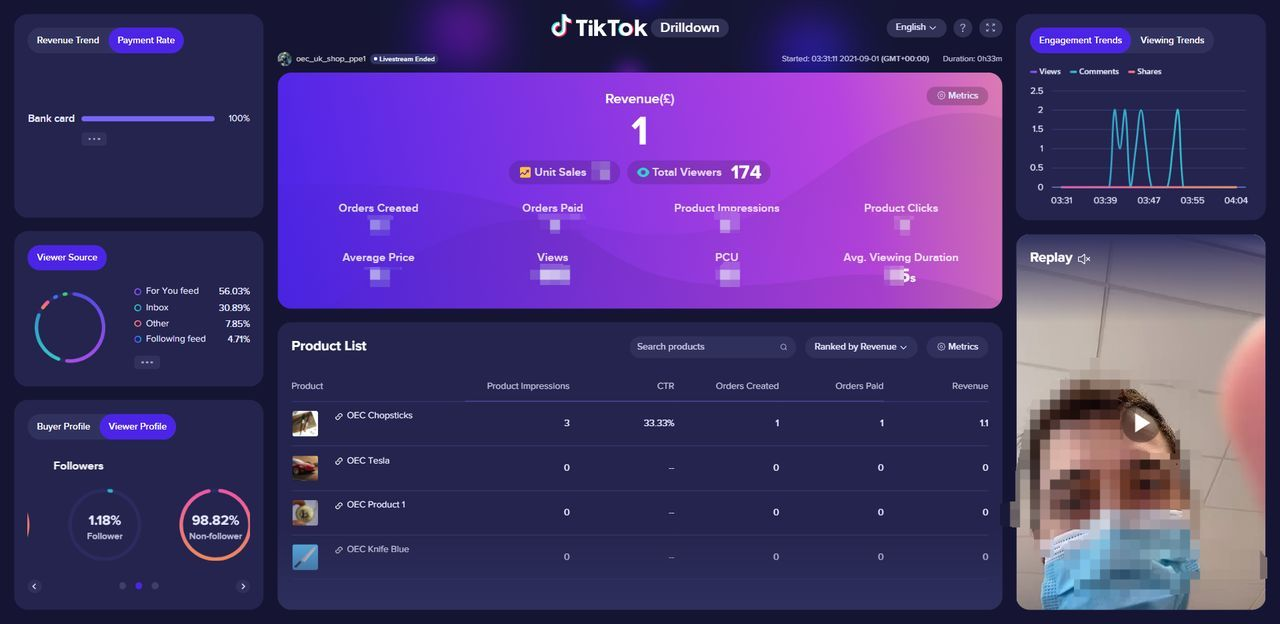 | When a LIVE is in progress, can monitor the LIVE pictures and comments, and at the same time you can switch to the pure comment mode. When the LIVE is over,supports LIVE replay and can adjust the time progress. |
Common Questions
1.What is the specific enum of viewer source entrances?| Source channel | Picture | Details |
| LIVE |
| |
| FEED Head click |  |
|
| FEED Head draw |  |
|
| FEED Card click | 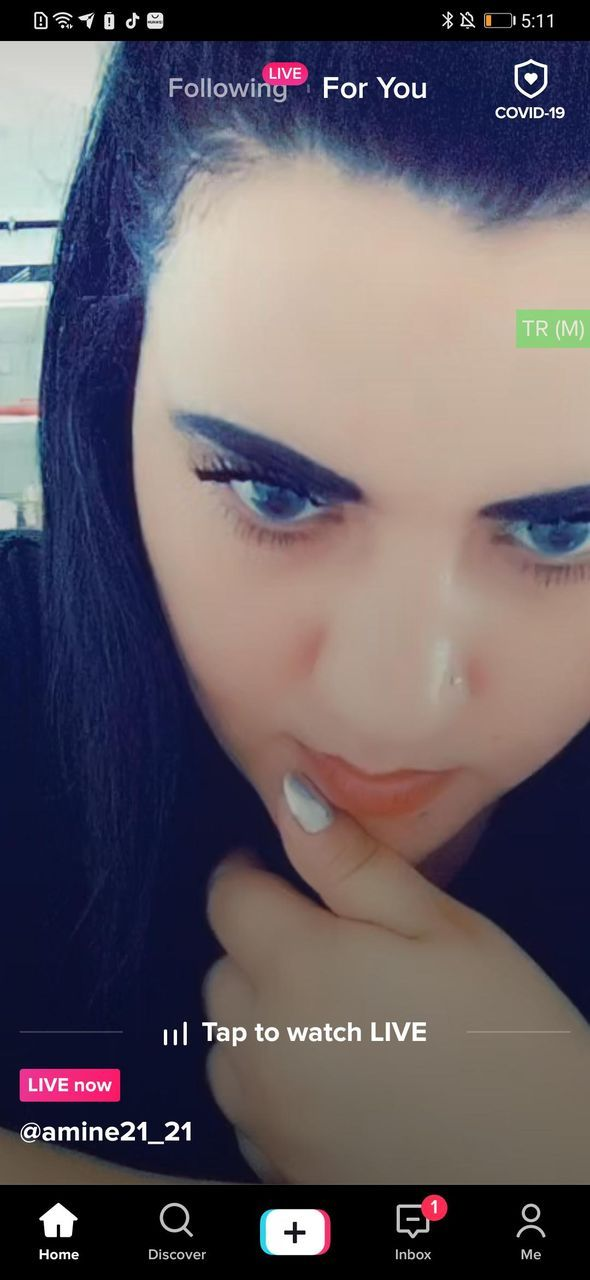 |
|
| FEED Card draw |  |
|
| Message | 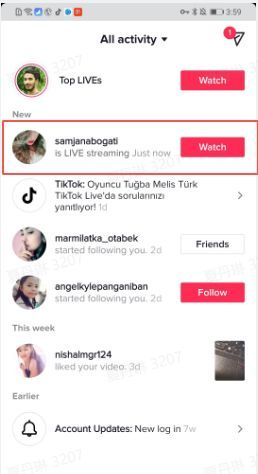 |
|
| Home page follow |
| |
| Other homepage |
| |
| Push | Đẩy |
|
| Others | Các nguồn từ các kênh lưu lượng truy cập khác không được phân loại riêng |
|