

Find Creators for Affiliate
05/09/2025
This article will guide you on how to look for Creators to work with for your Affiliate Collaborations. Finding the right Creators to do partnerships with can make or break your Affiliate strategy.
To get you started, we will teach you how to use the "Find Creators" page in the Affiliate Center and all of its functions.

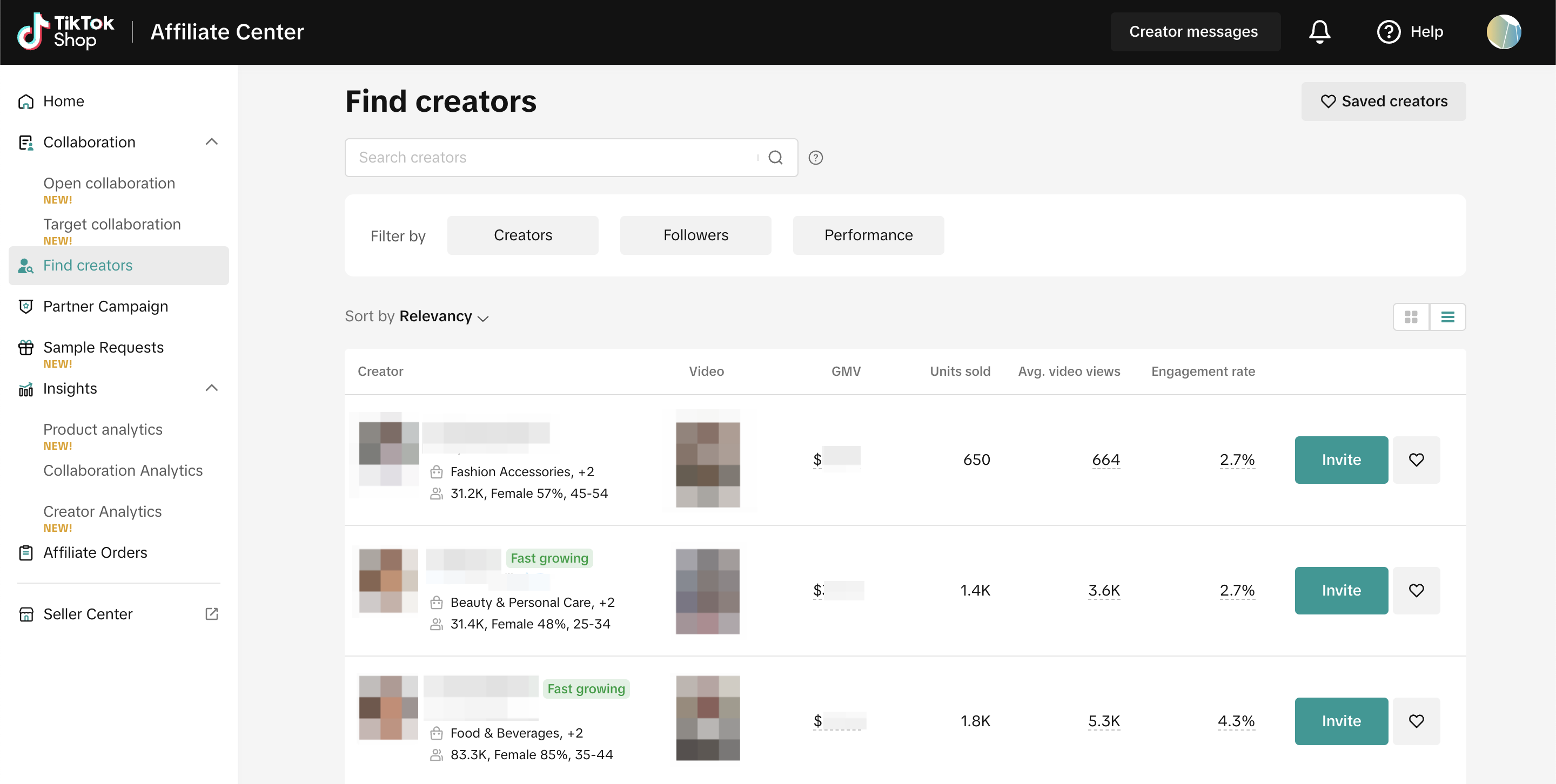
 The Find Creators page is divided into two main sections: The Filter section and the Creator list.
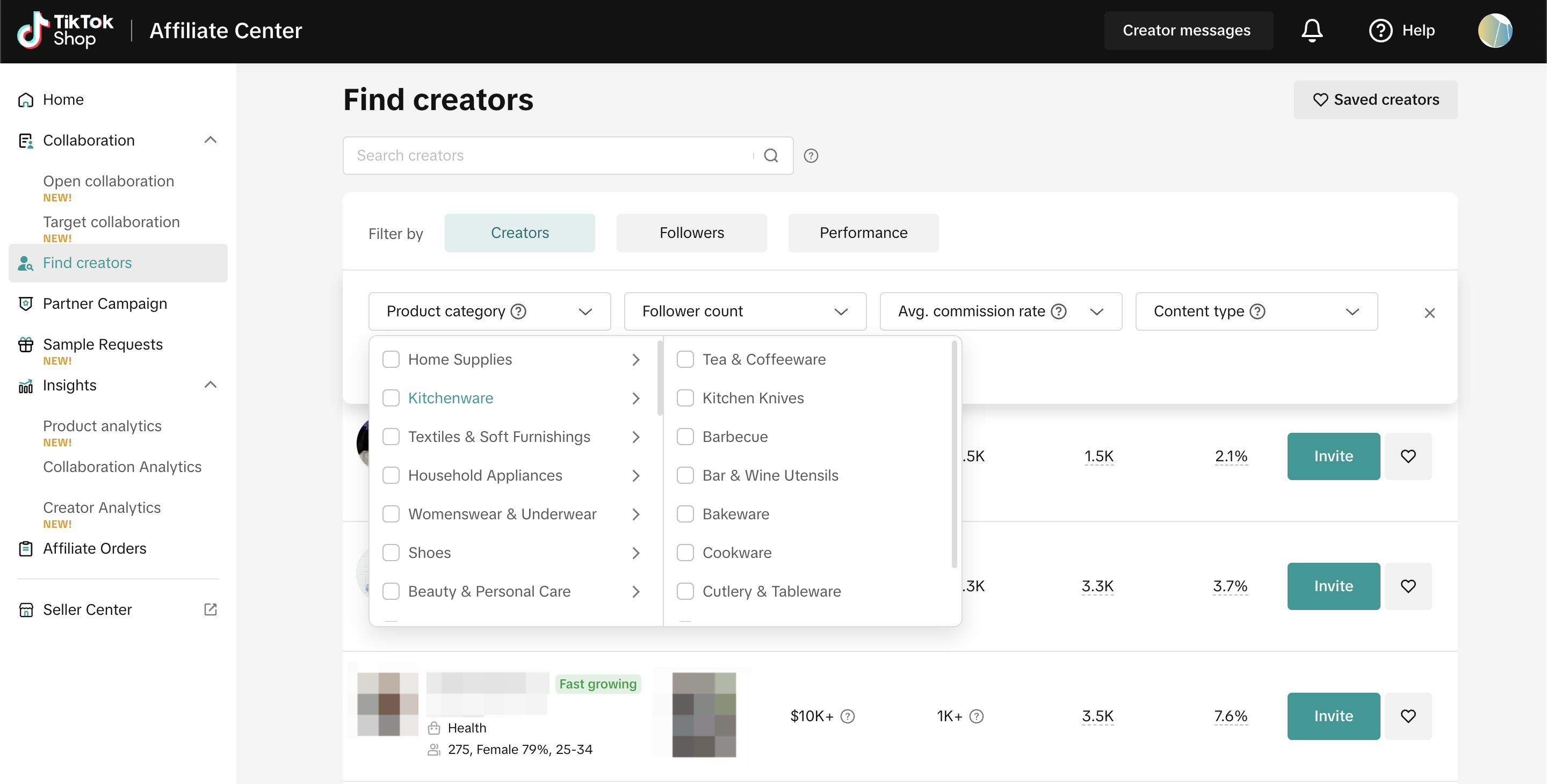
Product Category: Based on which Category did the Creators generate revenue or promote products in that category in the last 30 days, or who added a product to showcase in the last 90 days.
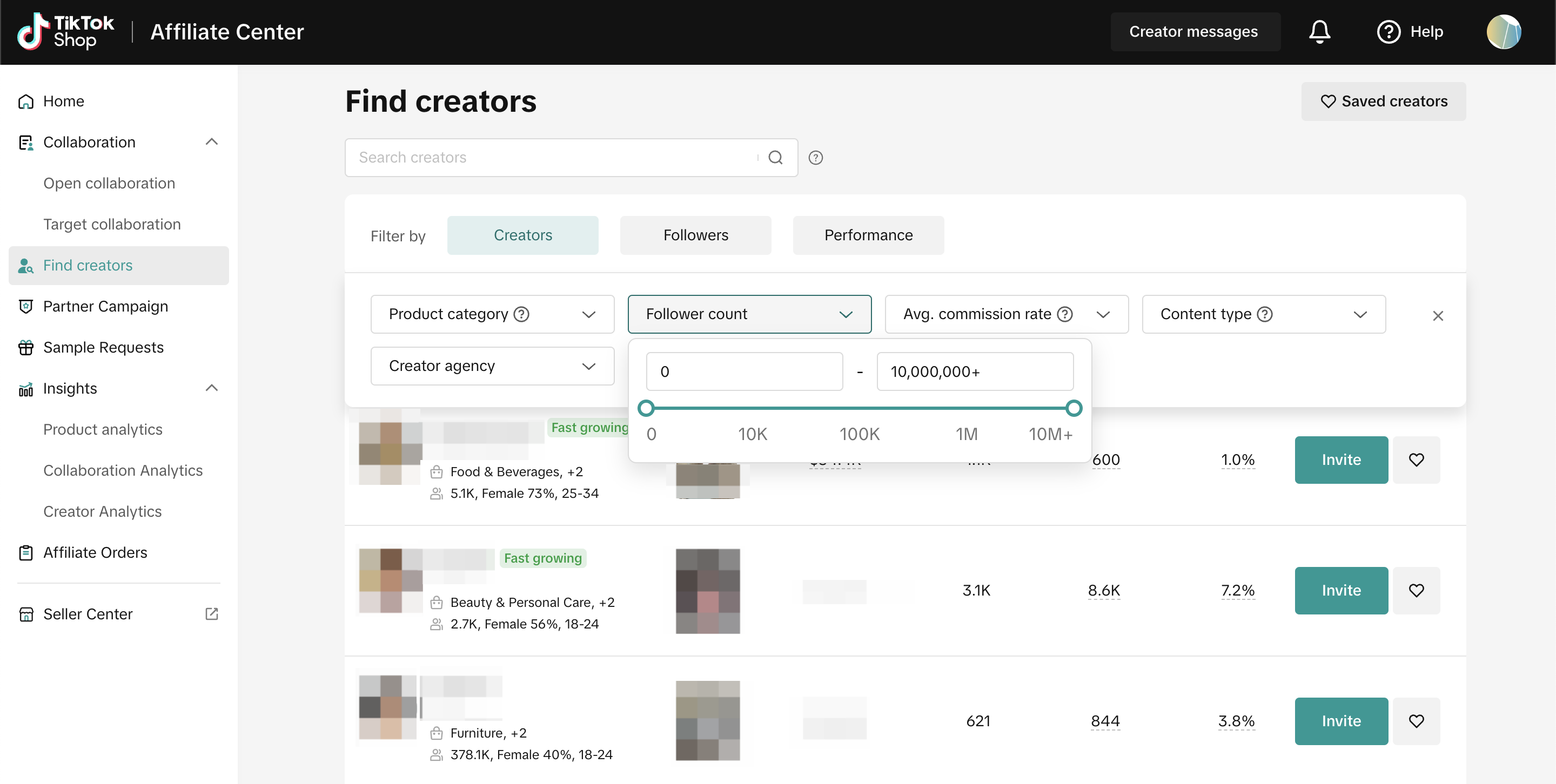
 Follower Count: Filter the Creators based on their total number of Followers.
 Avg. Commission Rate: Based on the Creators' average commission rate range on products in their showcase, sales, and promoted products in the last 30 days.
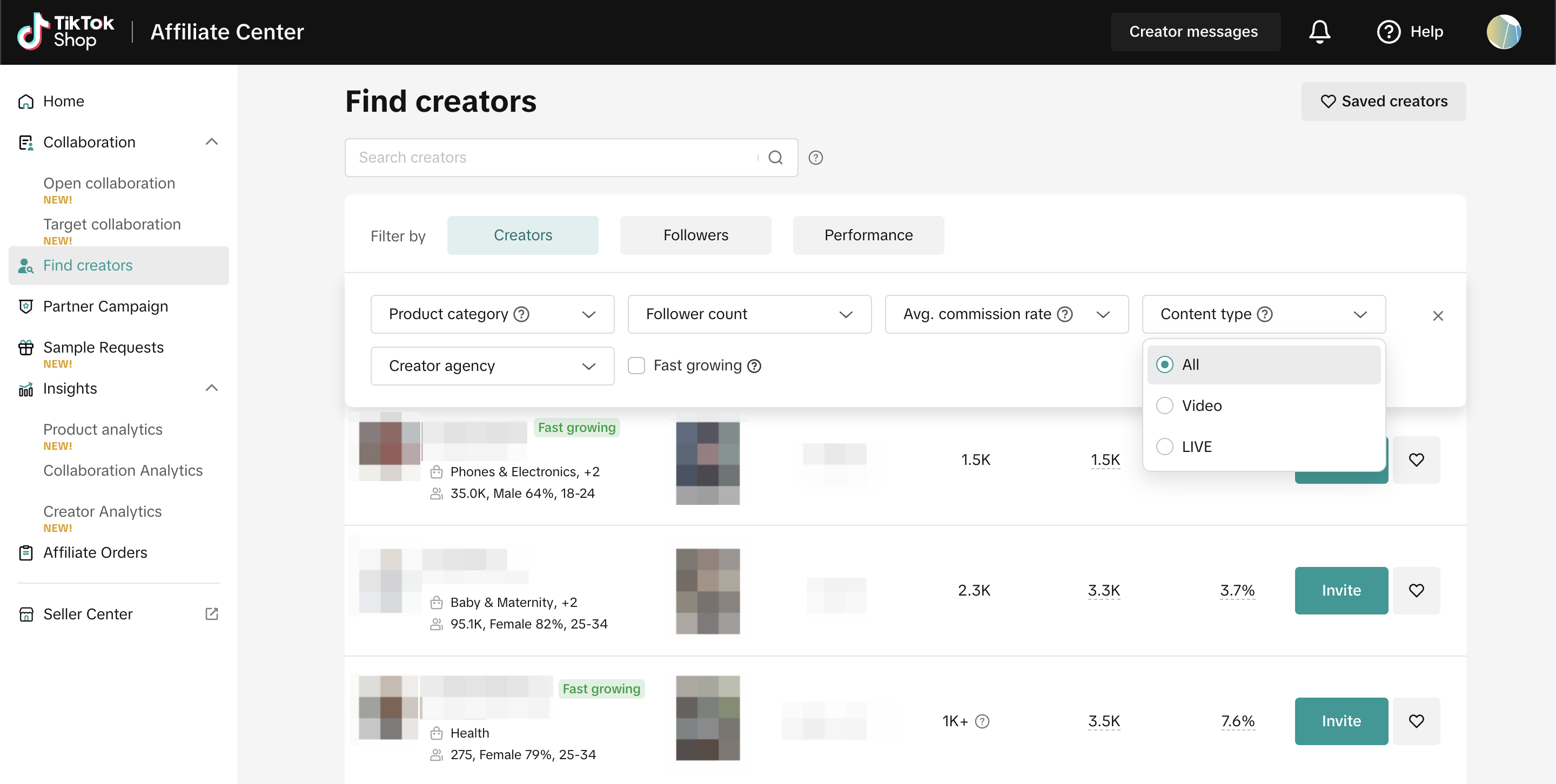
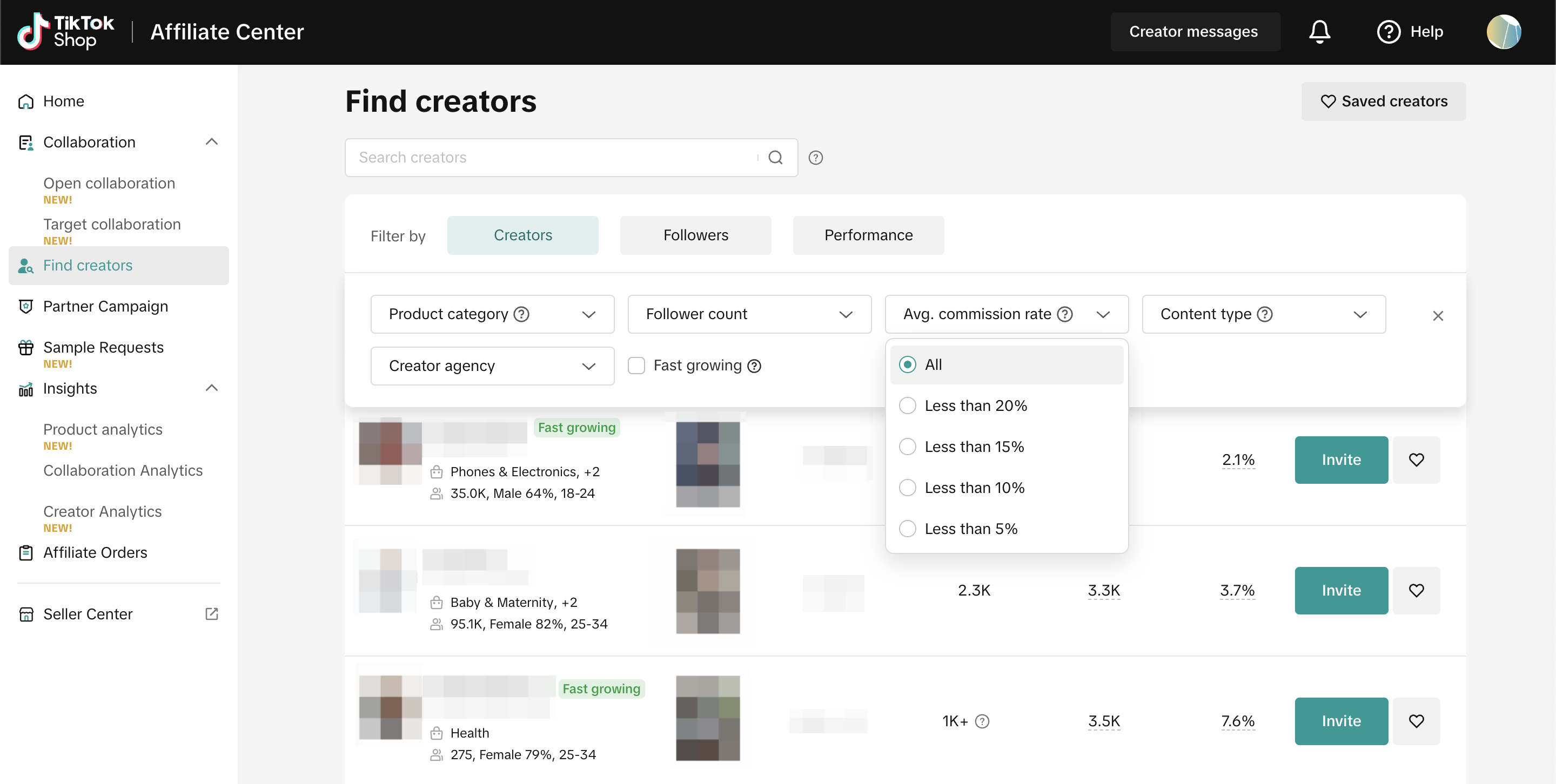 Content Type: The content type creators used to promote products in the last 30 days, including short videos or Live.
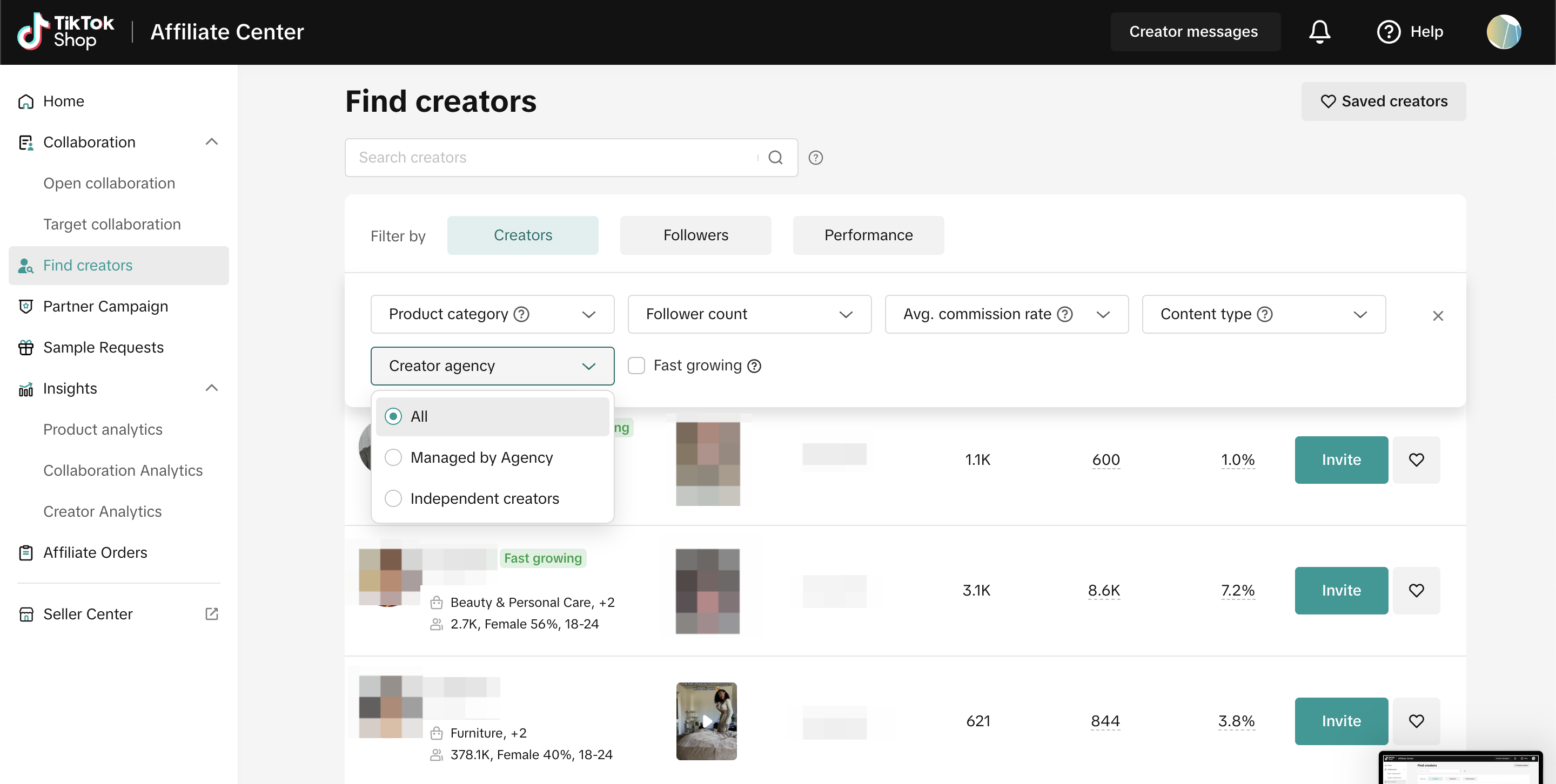
 Creator Agency: Filter Creators whether they are managed by Agencies or are working independently.
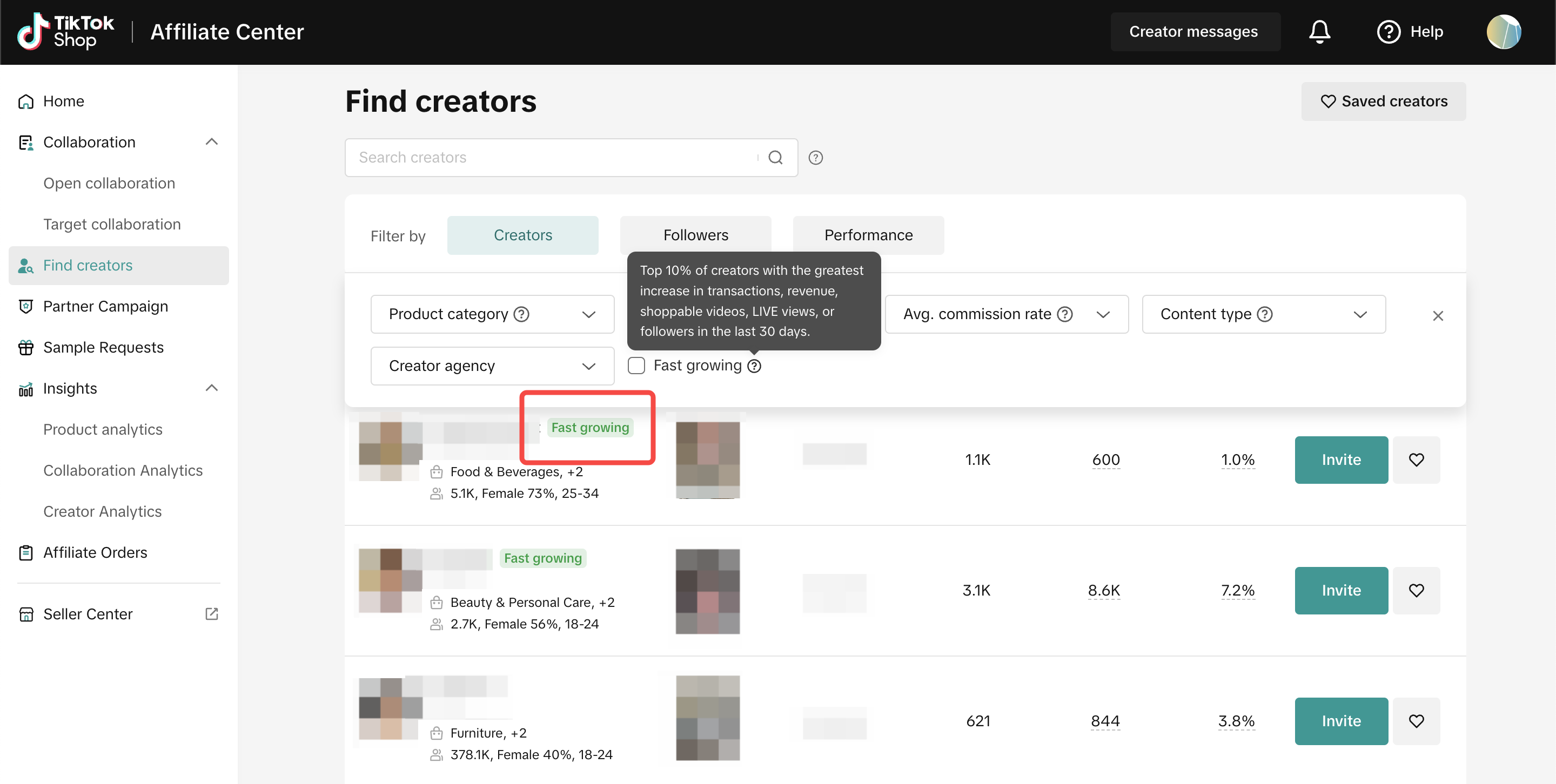
 Fast Growing: Signified by a green badge beside their username, Fast Growing users garner the highest increase in transactions, revenue, and other metrics in the past 30 days.
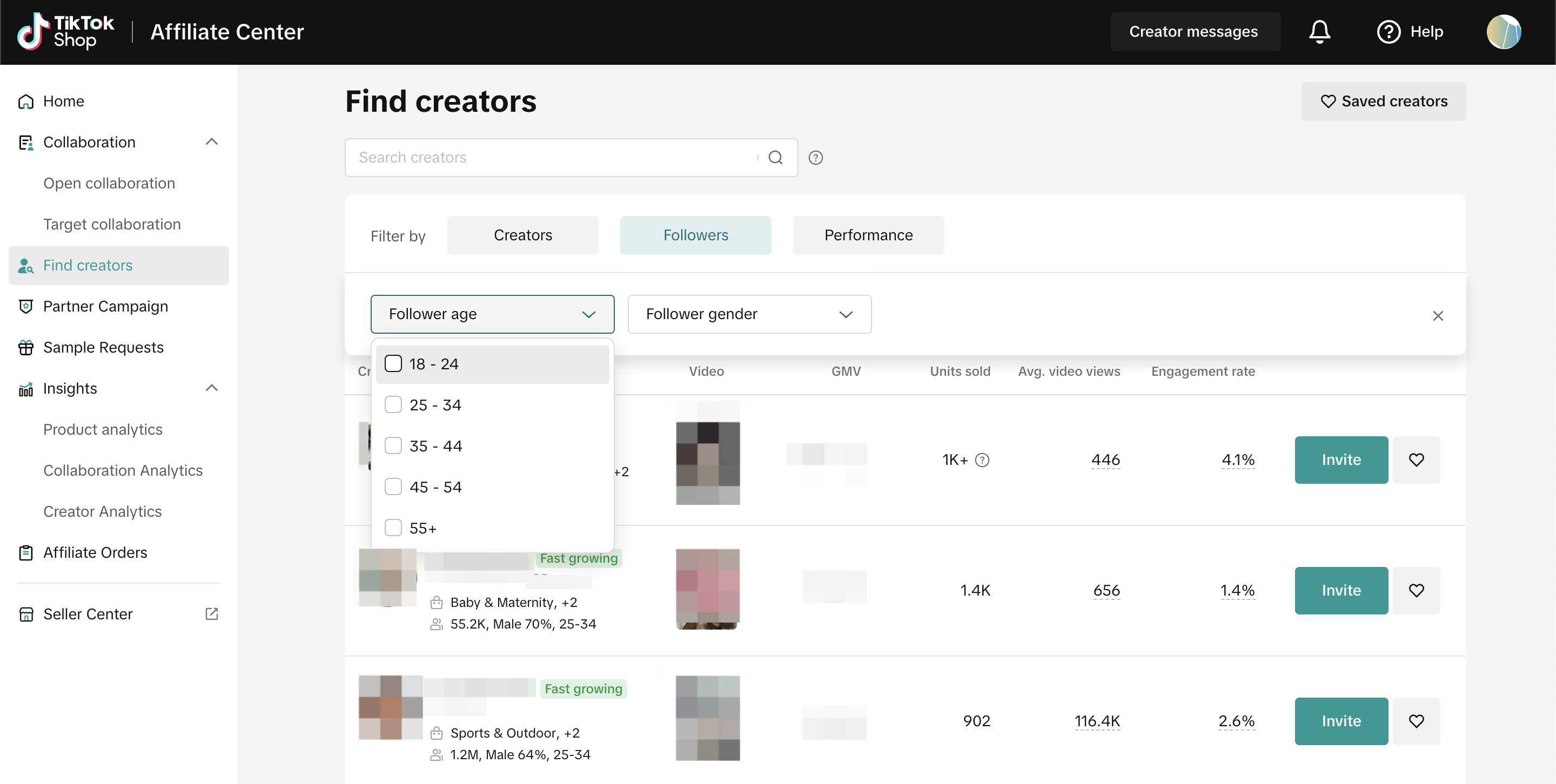
Follower Age: Based on which age group has the highest share of followers
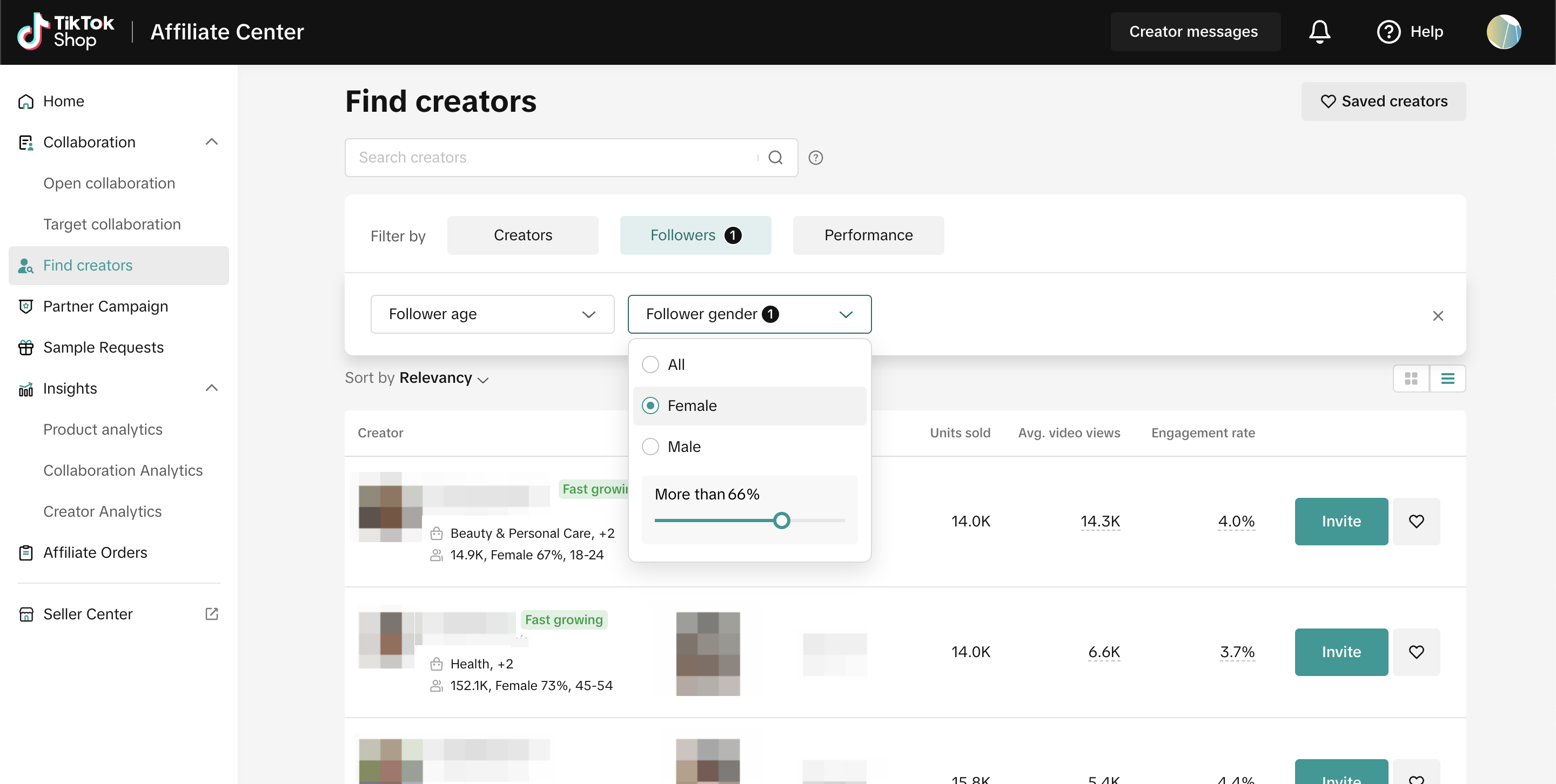
 Follower Gender: Based on which gender has the highest share of followers, you can set the percentage of your preferred gender balance.
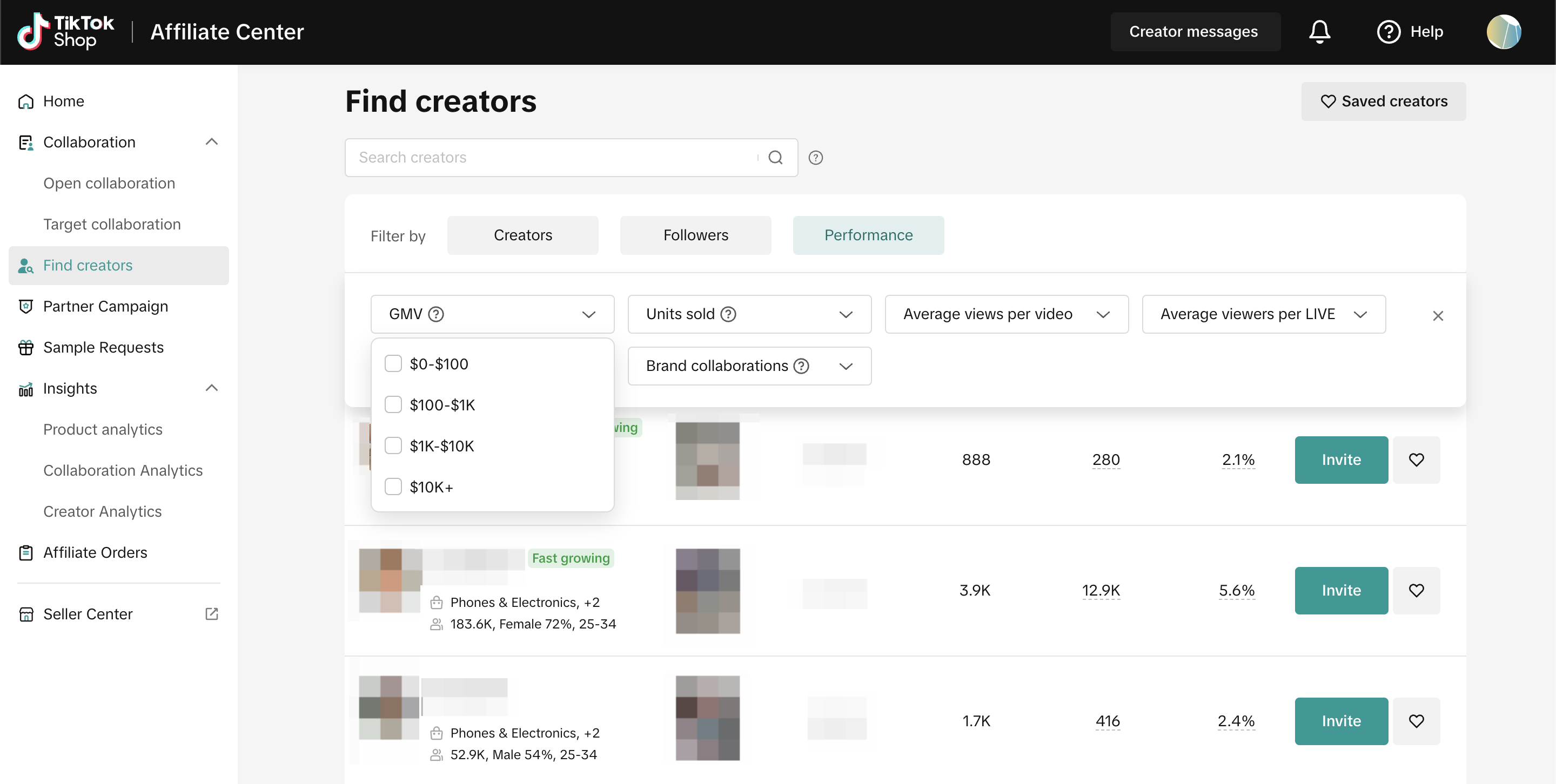
GMV: Based on the revenue generated by creators from LIVE, shoppable video or showcase in the last 30 days.
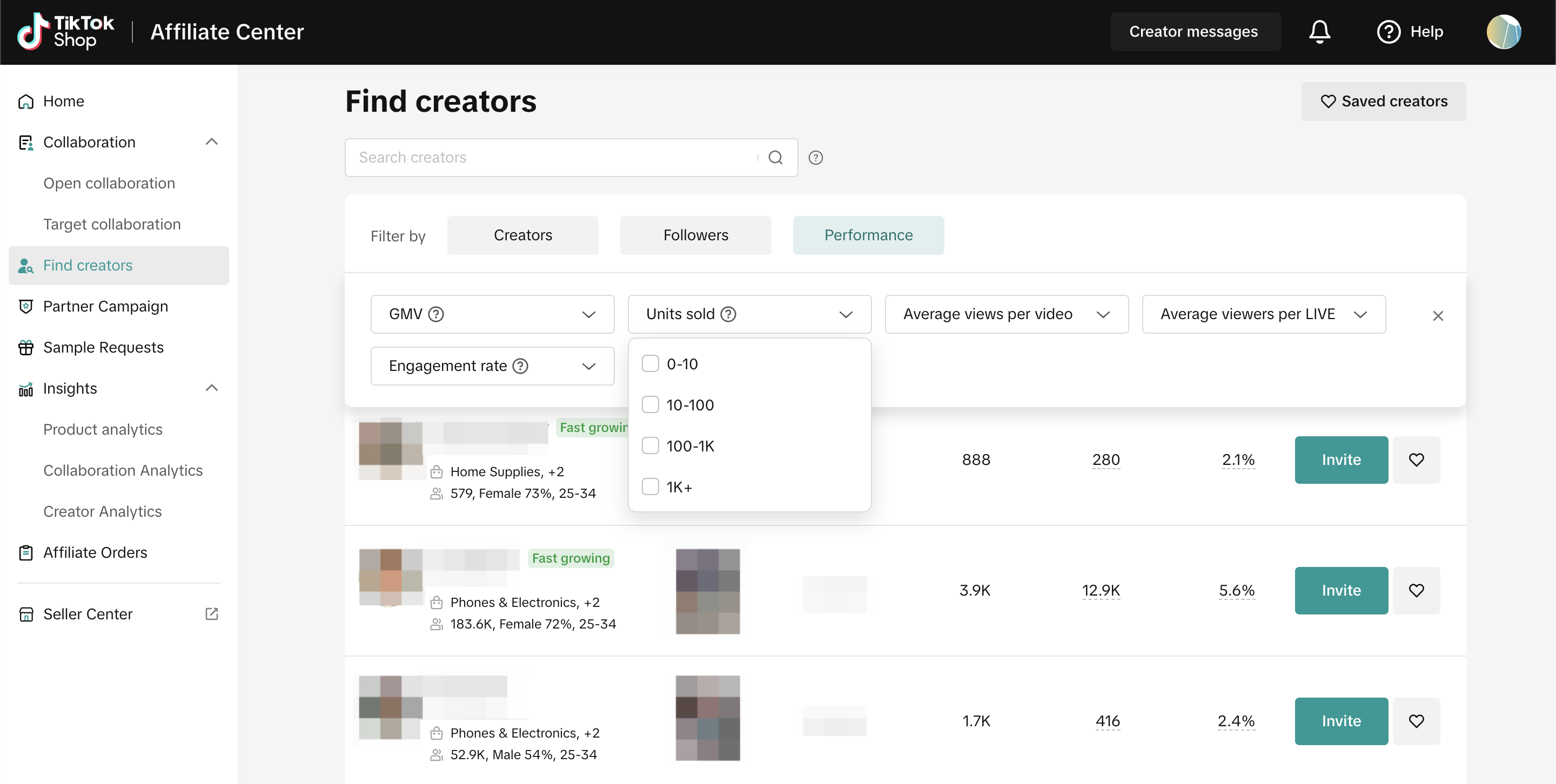
 Units Sold: Based on the amount of products sold from the Creator's LIVE sessions, shoppable short videos. or showcase in the last 30 days.
 Average Views per Video: Filter the average views that the Creator generates per video

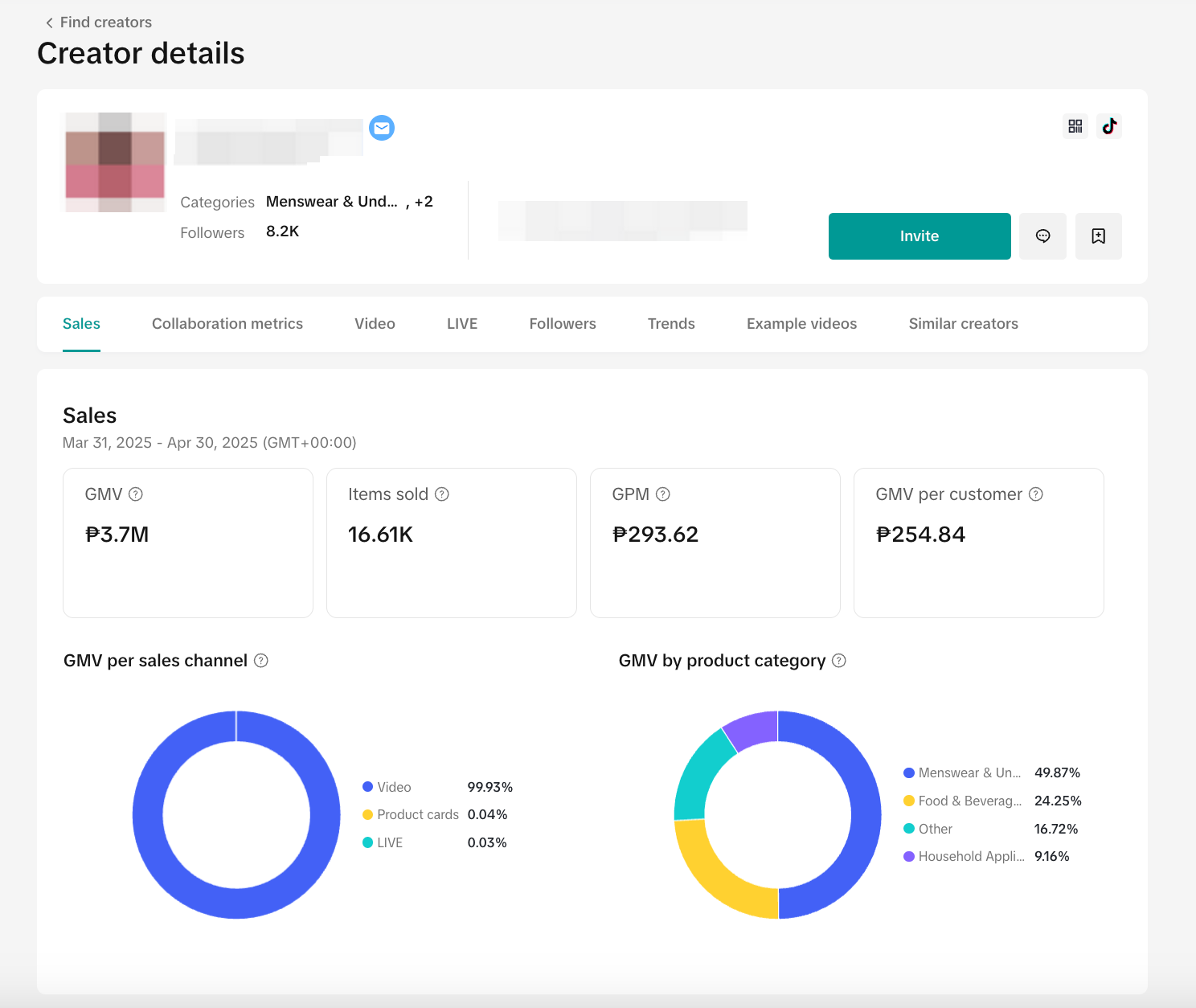 Before deciding to collaborate, it’s important to understand how a creator promotes products. One of the best ways to do this is by watching their videos.
You can view a creator’s videos by scanning the QR code on their details page using the TikTok app. This will take you directly to their TikTok profile, where you can browse their content.
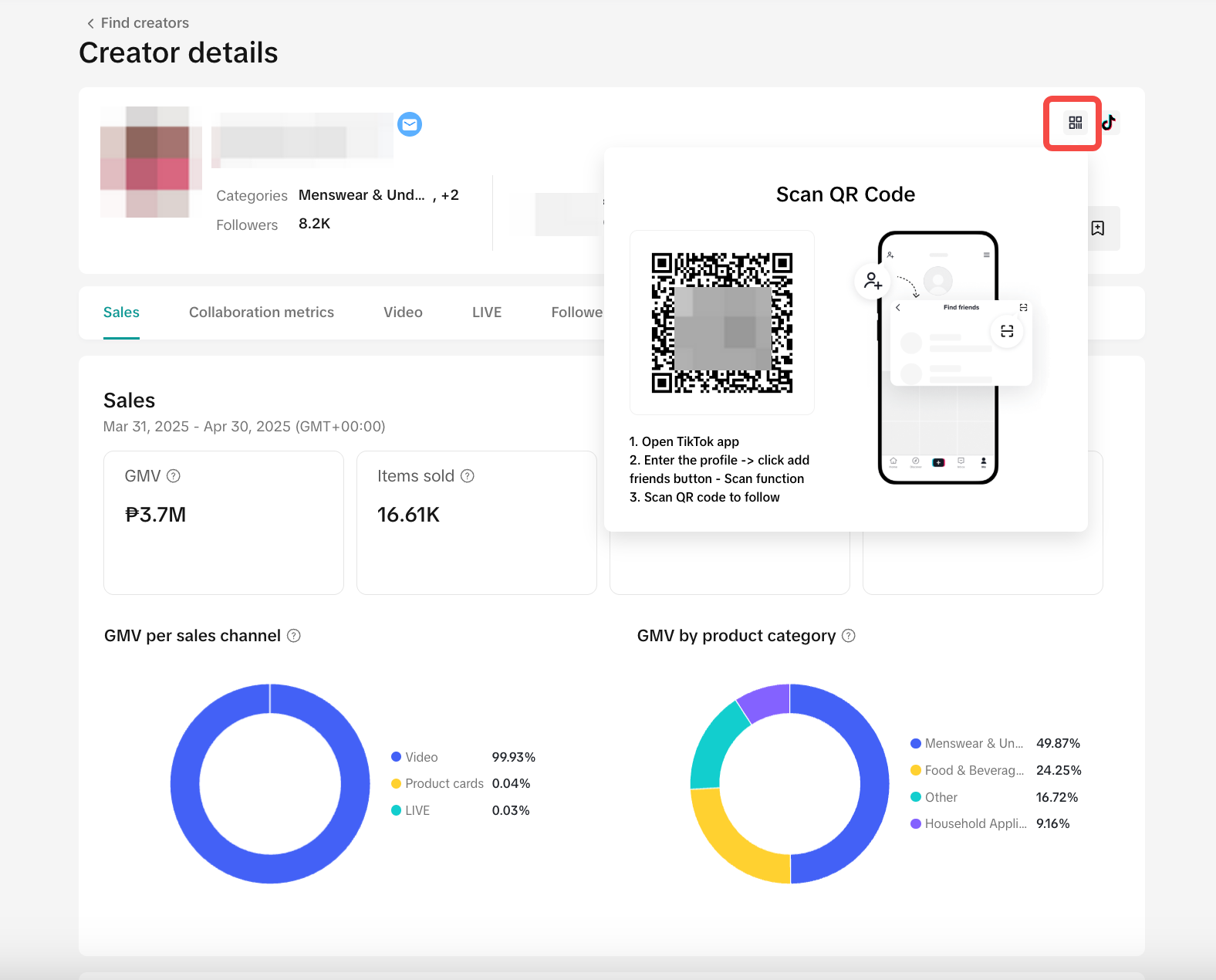 Note: Video viewing is currently unavailable on desktop while we work on enhancing the experience.

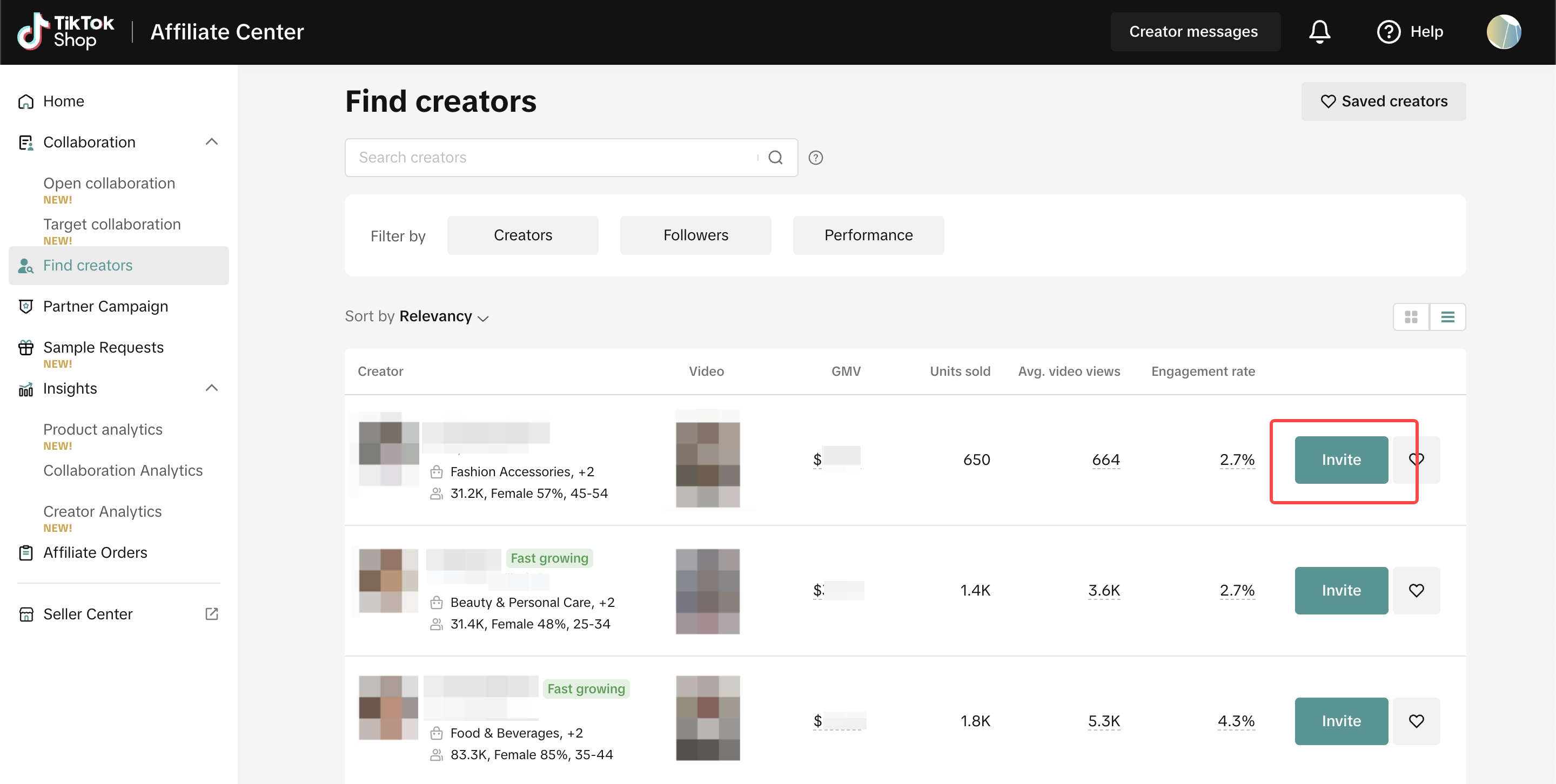 Clicking on the invite button will redirect you to a Target Invitation page that will automatically have the chosen Creator added:
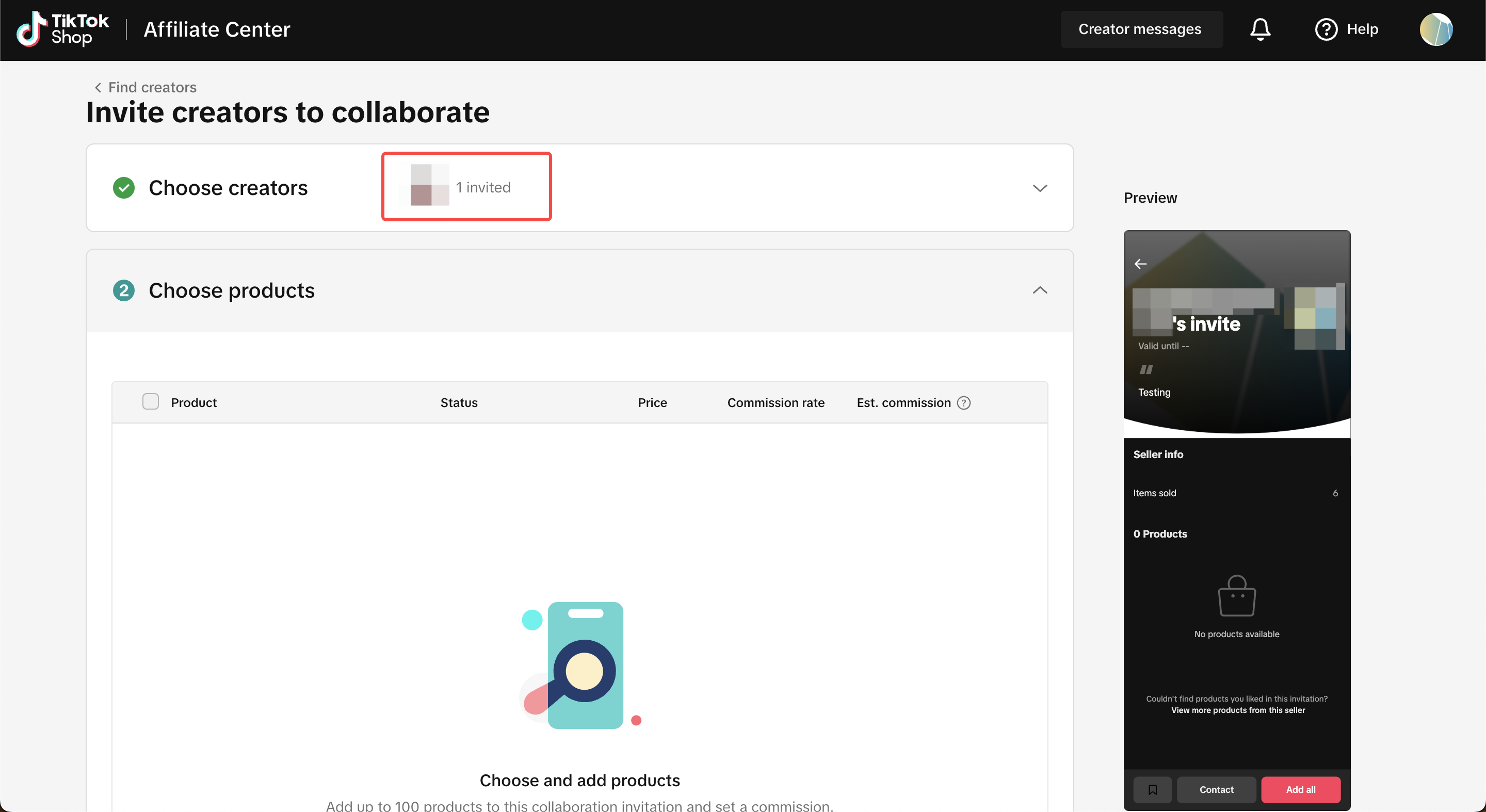

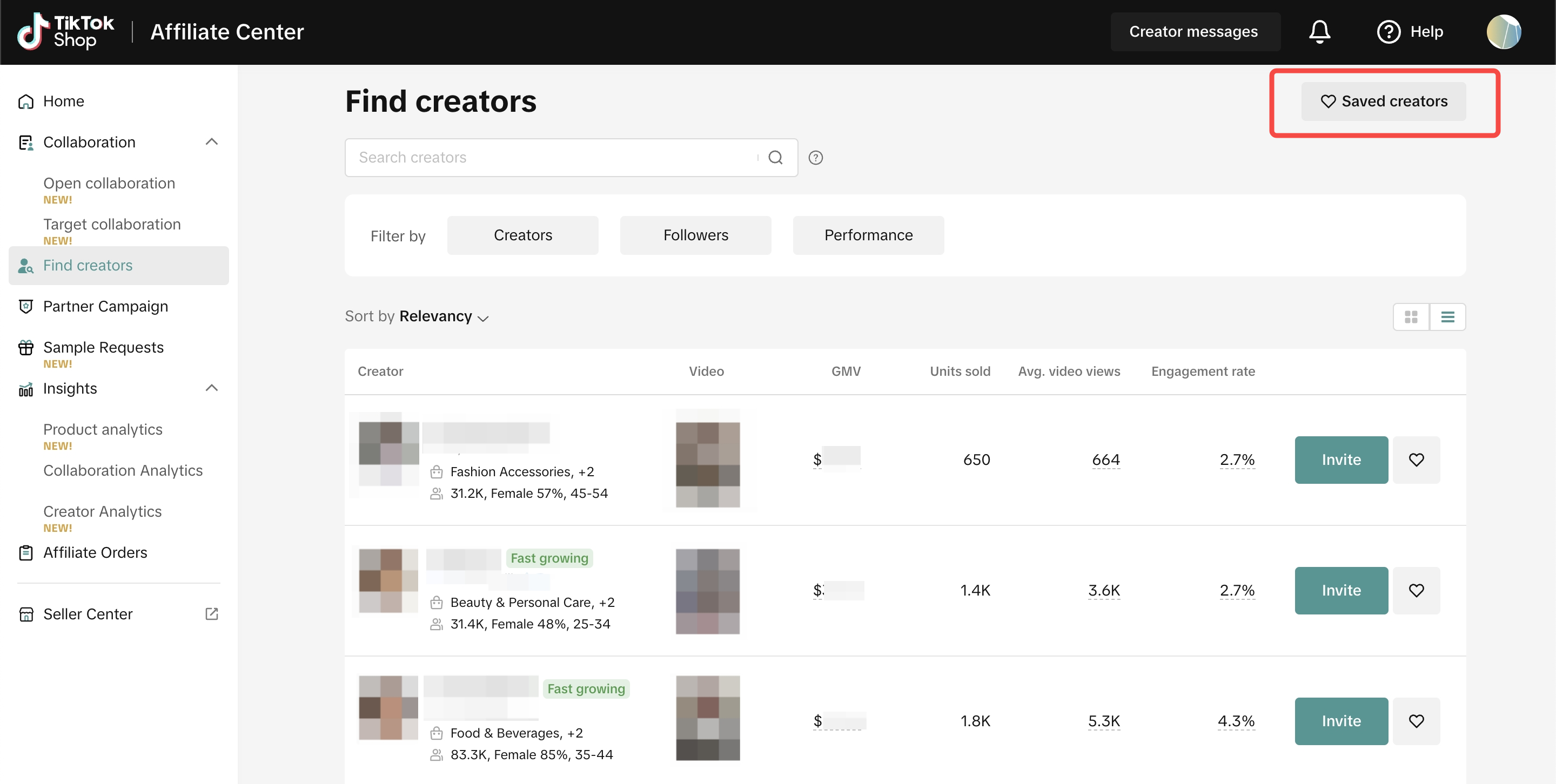
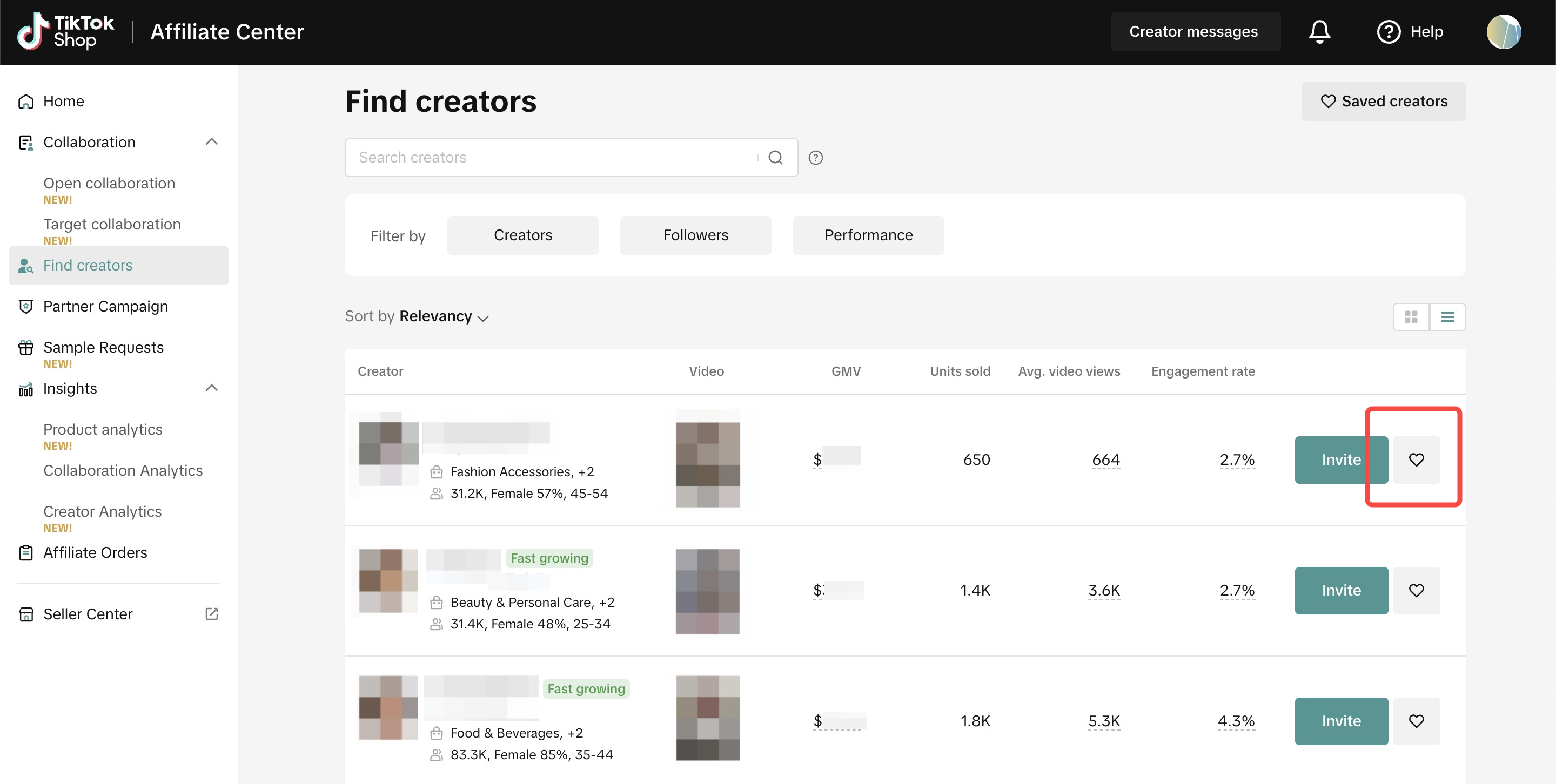 All your saved Creators will be listed under the Saved Creators tab in the upper right-hand side of the screen.
 You can check all your Saved Creators on this page. Click on Batch Invite or Invite to get started on your Target Invitation.
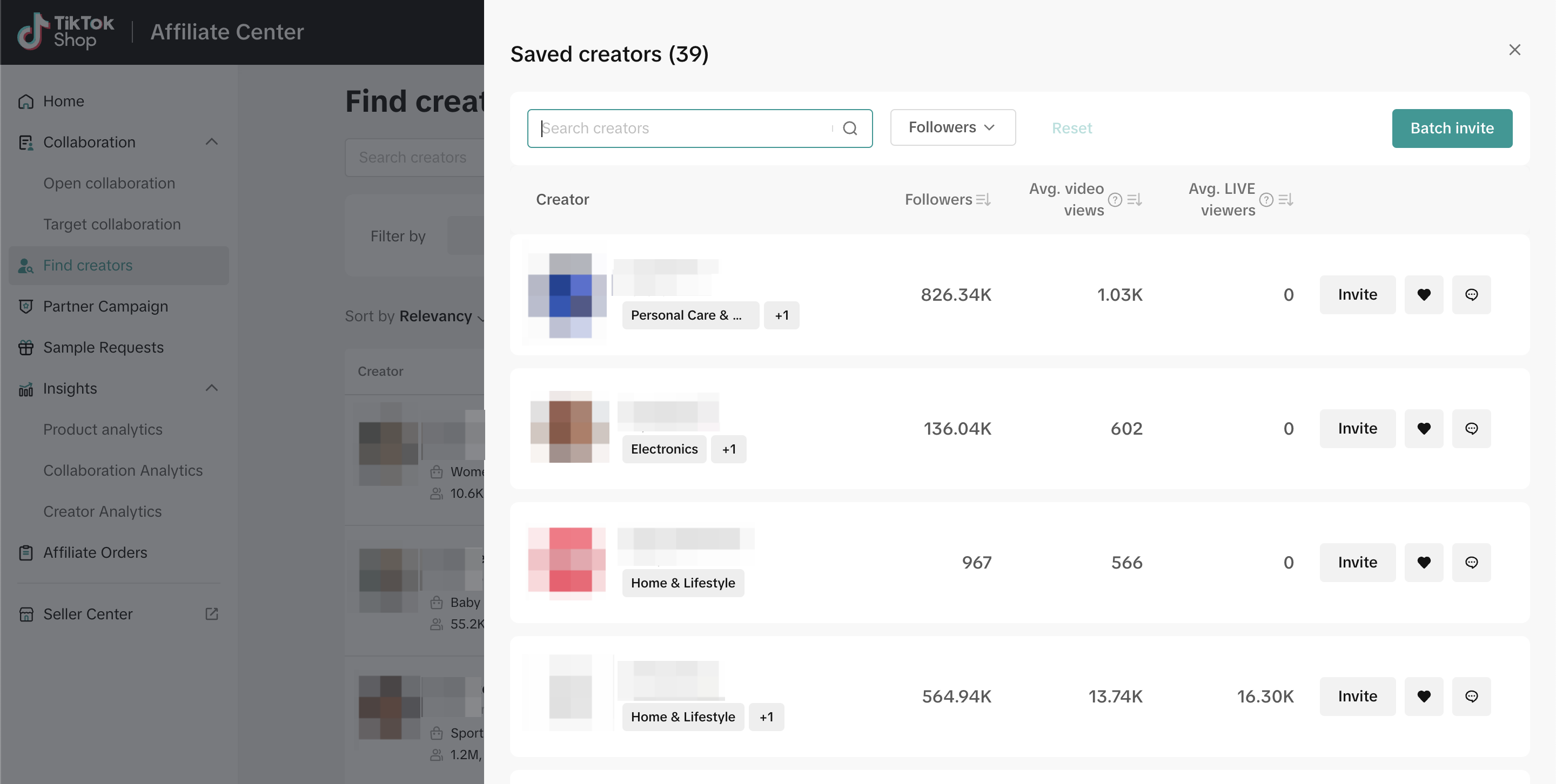 Select all the Creators that you want for your collaboration and click on Invite.
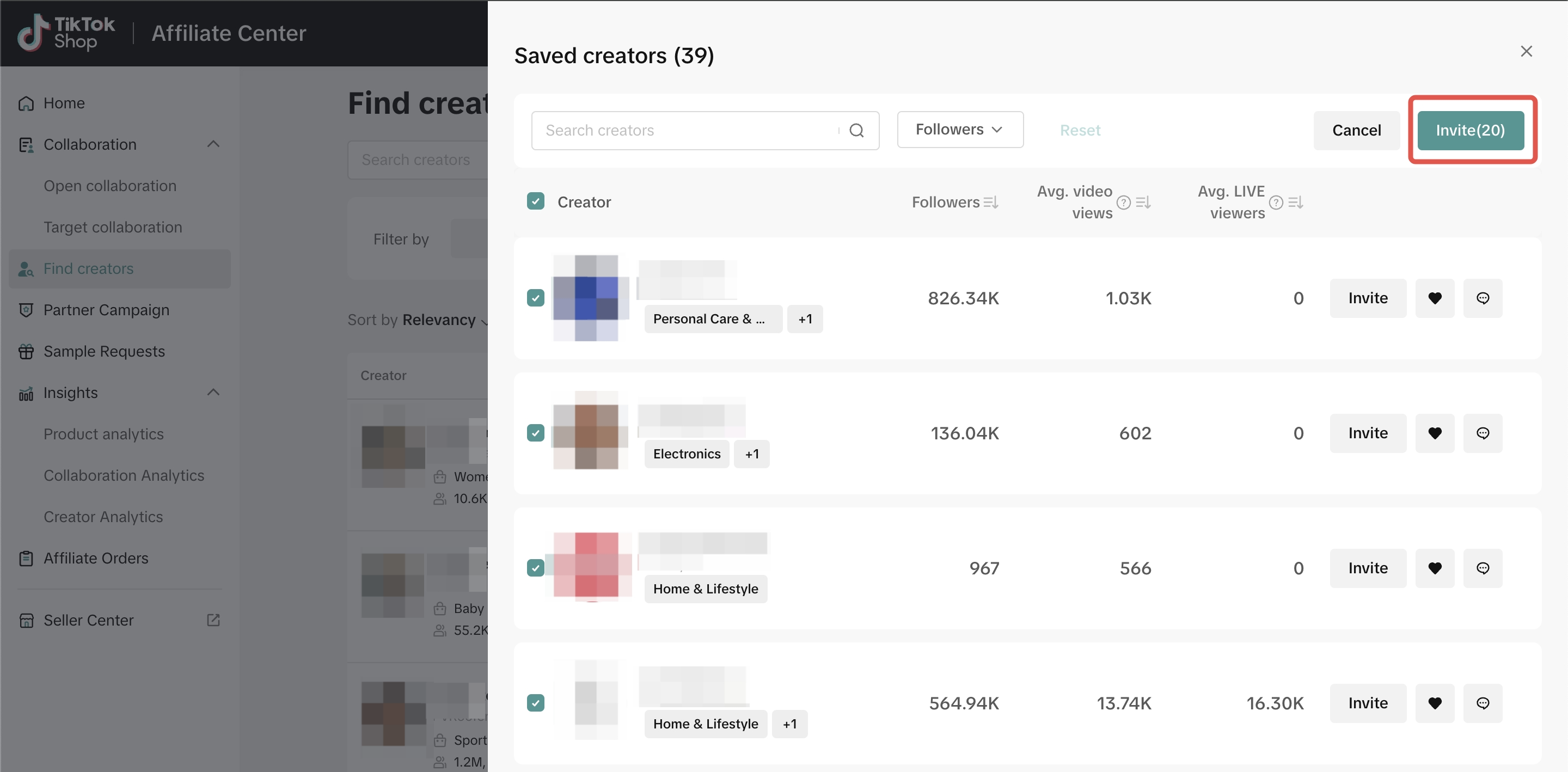 Batch Invite will redirect you to the Target Invitation page. Read the article here for a full step-by-step guide on Target Collaboration.

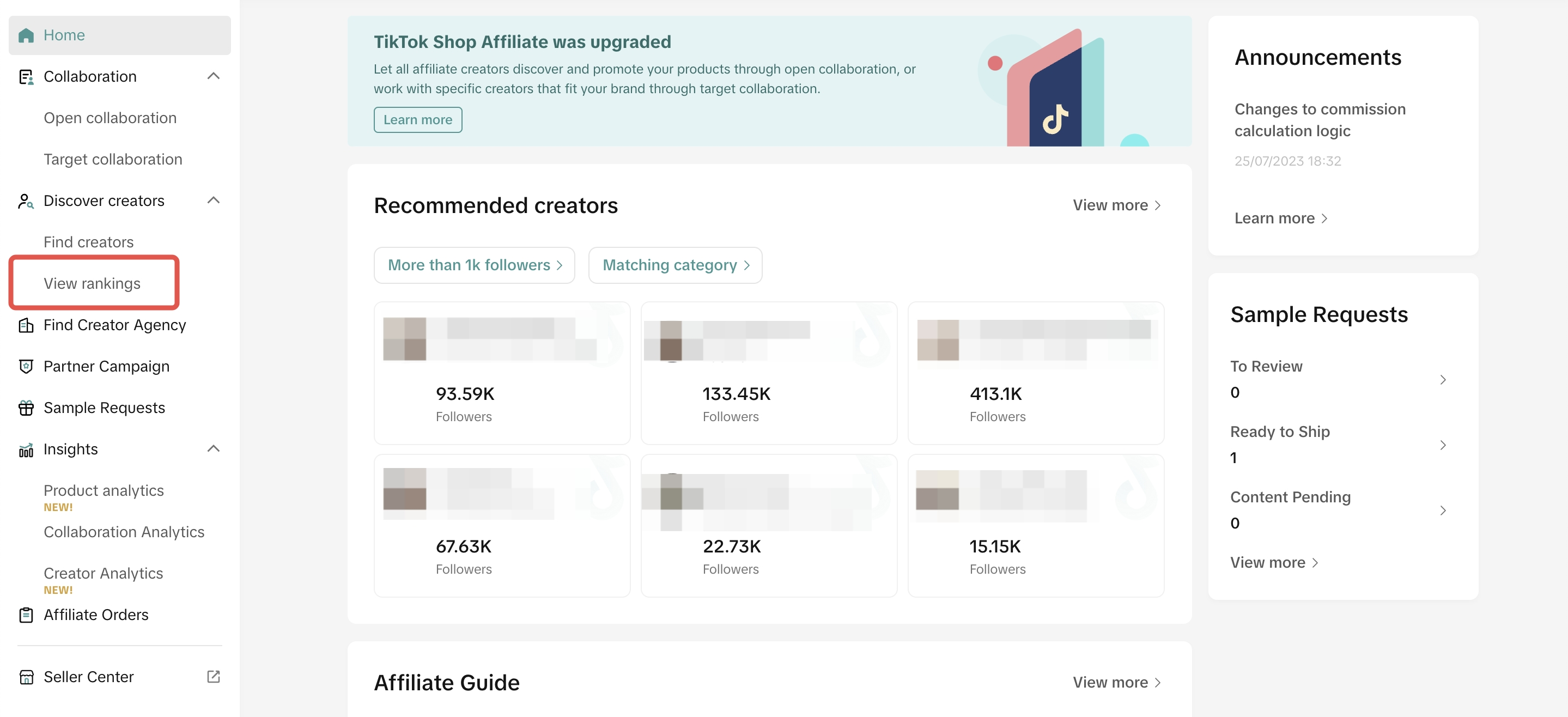
The Creator Rankings page can help you filter out the necessary data you need. You can find the "View Rankings" page under Discover Creators on the left-hand side once you enter the Affiliate Center.
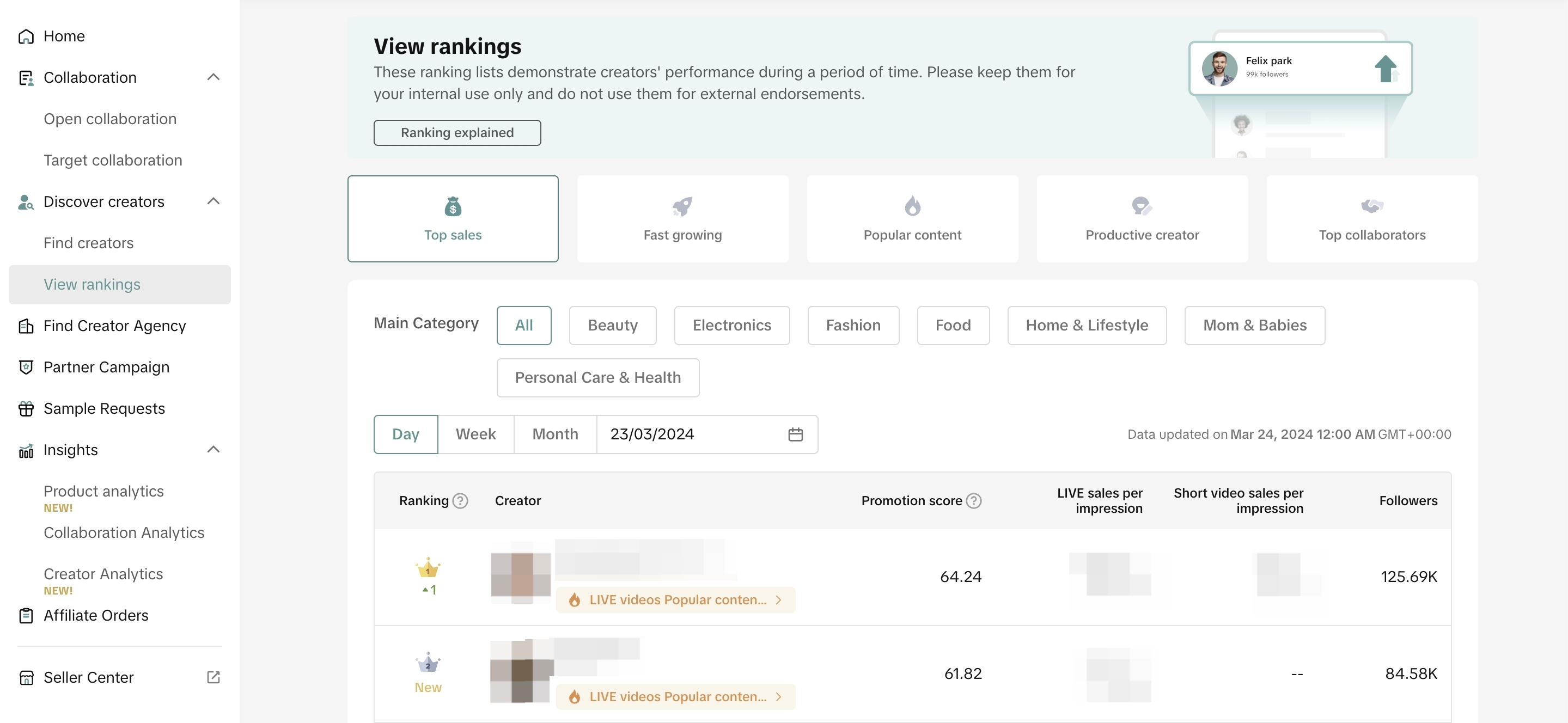
 Creators can be filtered by their main category. You can track which Creators rank the best for your Shop's category. The rankings only represent the performance of creators on the platform for a certain period of time. You can adjust the Rankings based on Daily, Weekly and Monthly periods.
 Tapping on the Creator in the rankings will redirect you to their Creator page. You can invite them for Affiliate Collaboration, direct message or save them on this page.
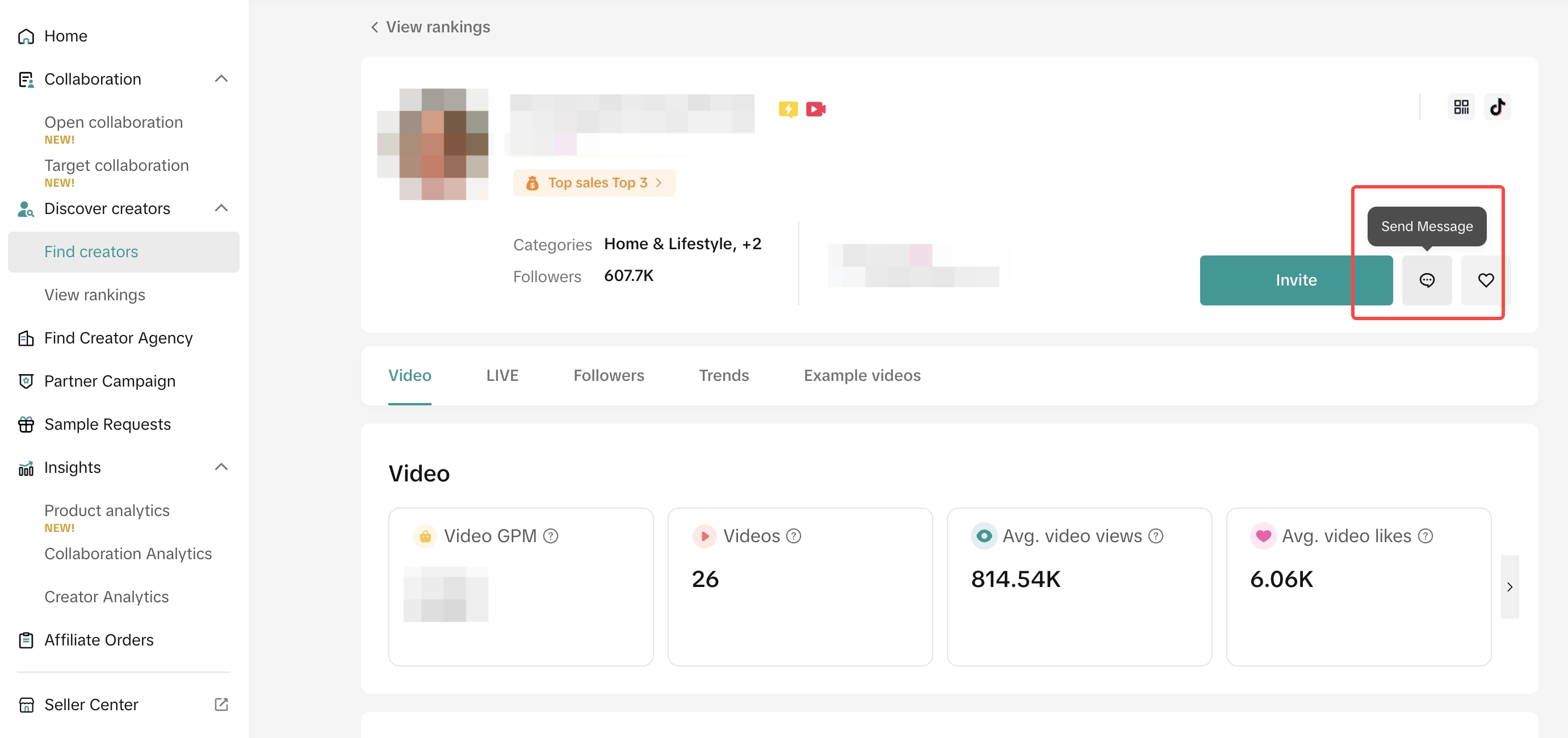 Read the full version of our Creator Rankings guide here.
To get you started, we will teach you how to use the "Find Creators" page in the Affiliate Center and all of its functions.
Navigating the "Find Creators" Page
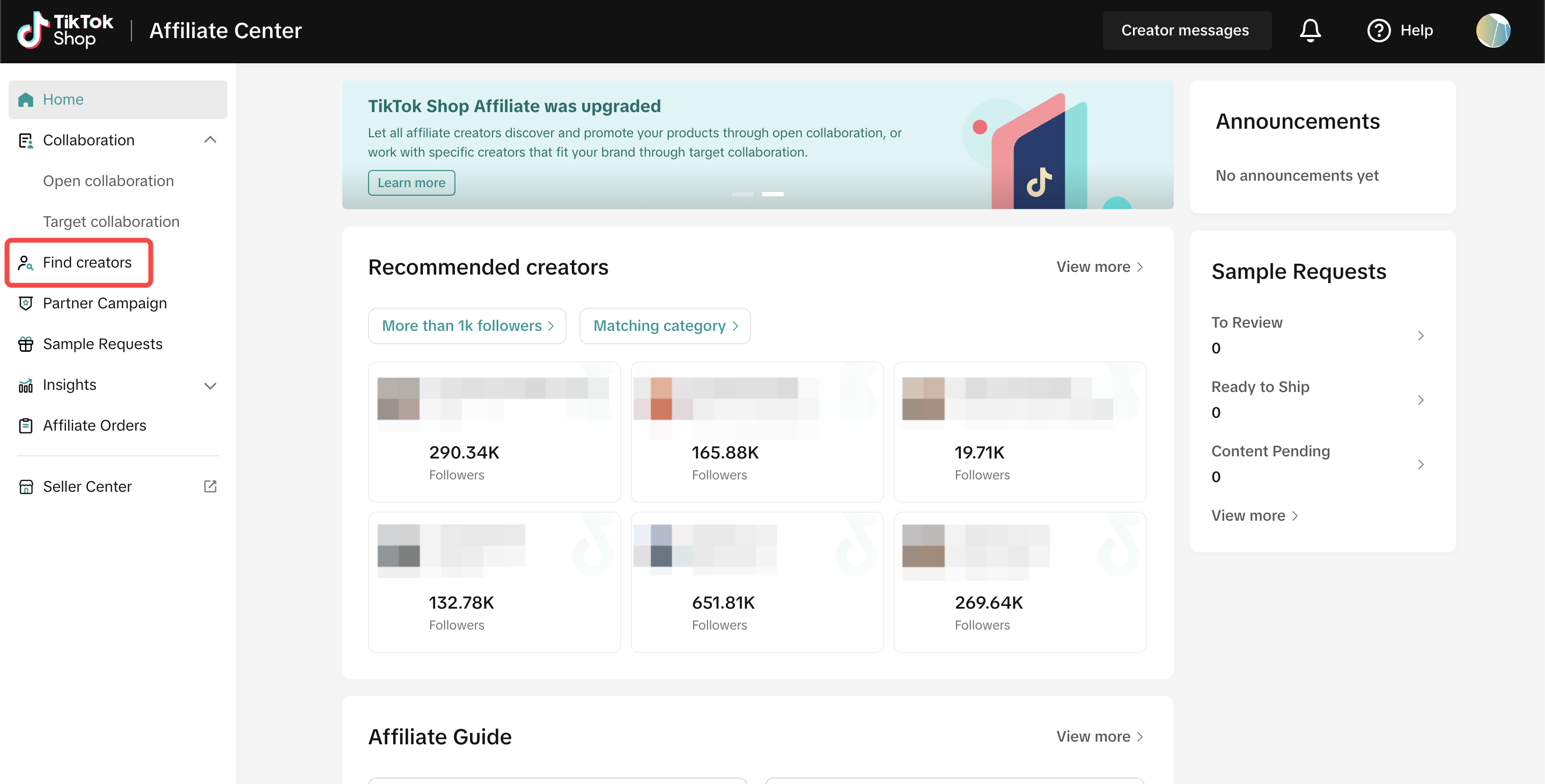
Go to the Affiliate Center and you can locate the Find Creators page on the left-hand side of the screen as shown below:Using the Filters in the "Find Creators" page
Under the Search Bar, you can filter the Creator profiles that pop up based on your wants and needs:Creators Filter
Under the Creators filter, you can select different subfilters to find the appropriate creators for your collab invitation:Product Category: Based on which Category did the Creators generate revenue or promote products in that category in the last 30 days, or who added a product to showcase in the last 90 days.
Followers Filter
Creators can be filtered based on the type of followers they majorly have:Follower Age: Based on which age group has the highest share of followers
Performance Filter
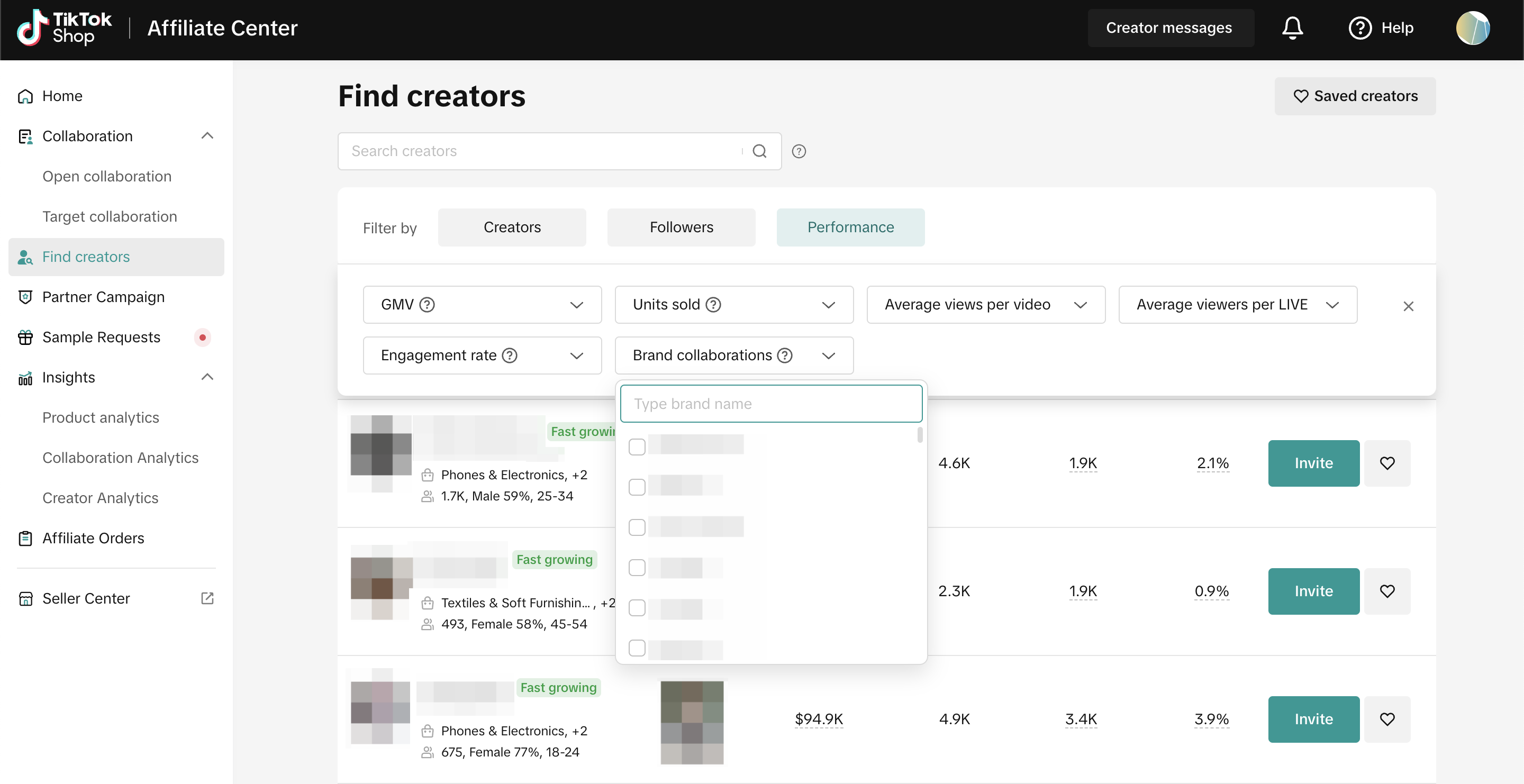
These filters correspond to the Creator's effectiveness to sell, engage, catch the viewers' attention:GMV: Based on the revenue generated by creators from LIVE, shoppable video or showcase in the last 30 days.
- Filter by Shoppable Videos: Use this filter to show data focusing on content with product links only.
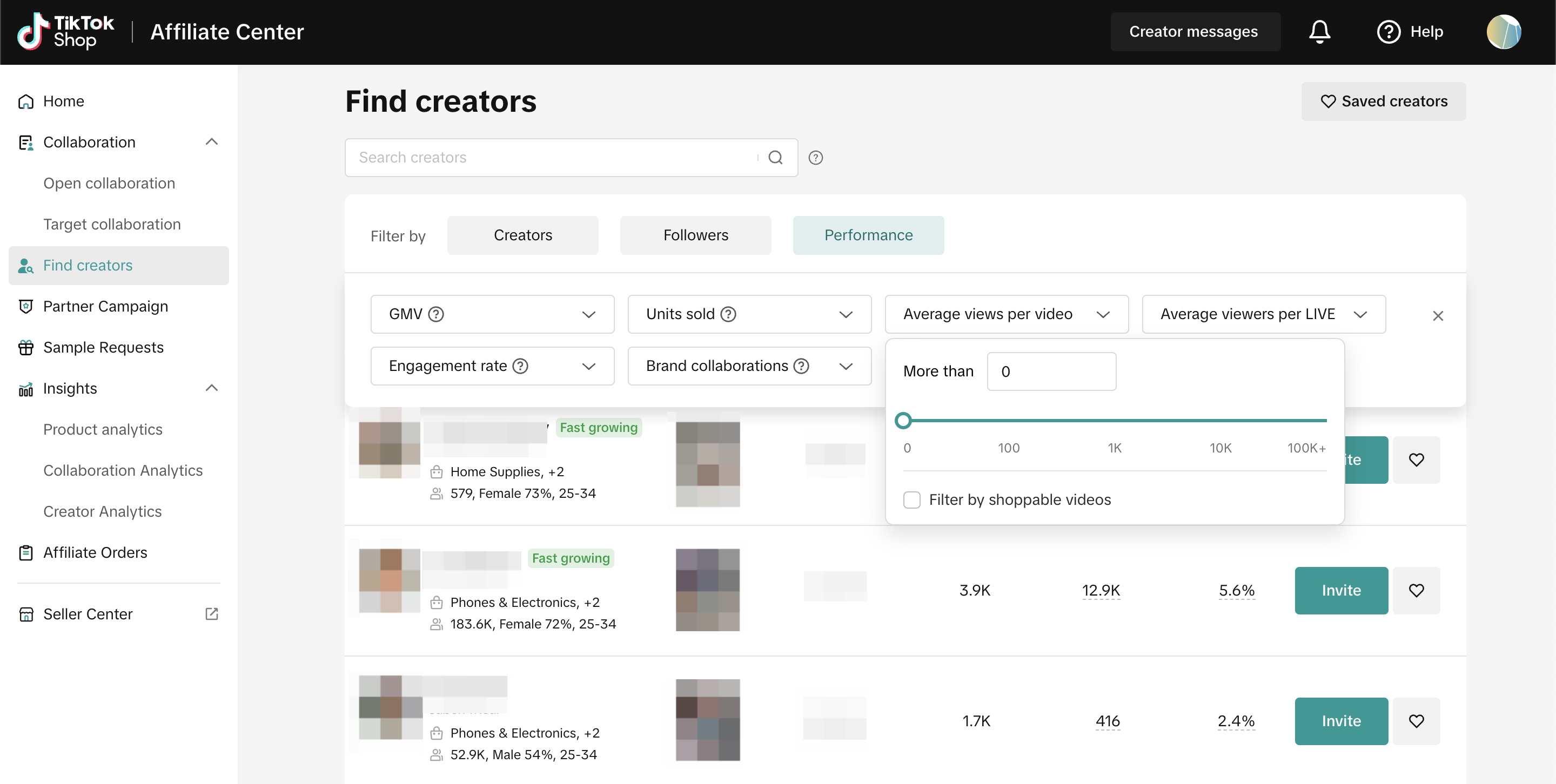
- Filter by Shoppable LIVE Videos: Use this filter to show data focusing on content with product links only.
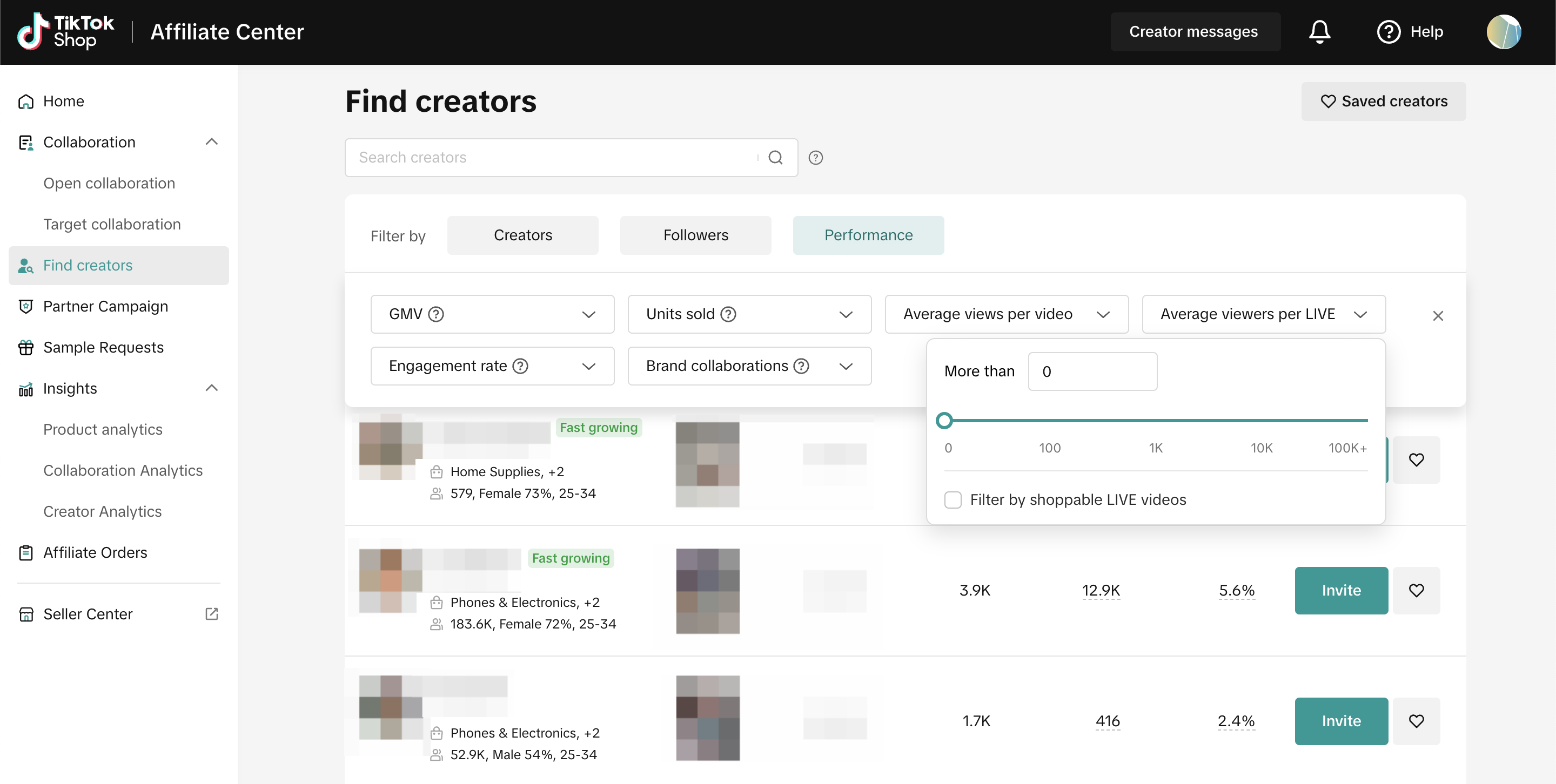
- Filter by Shoppable Video: Use this filter to show data focusing on content with product links only.
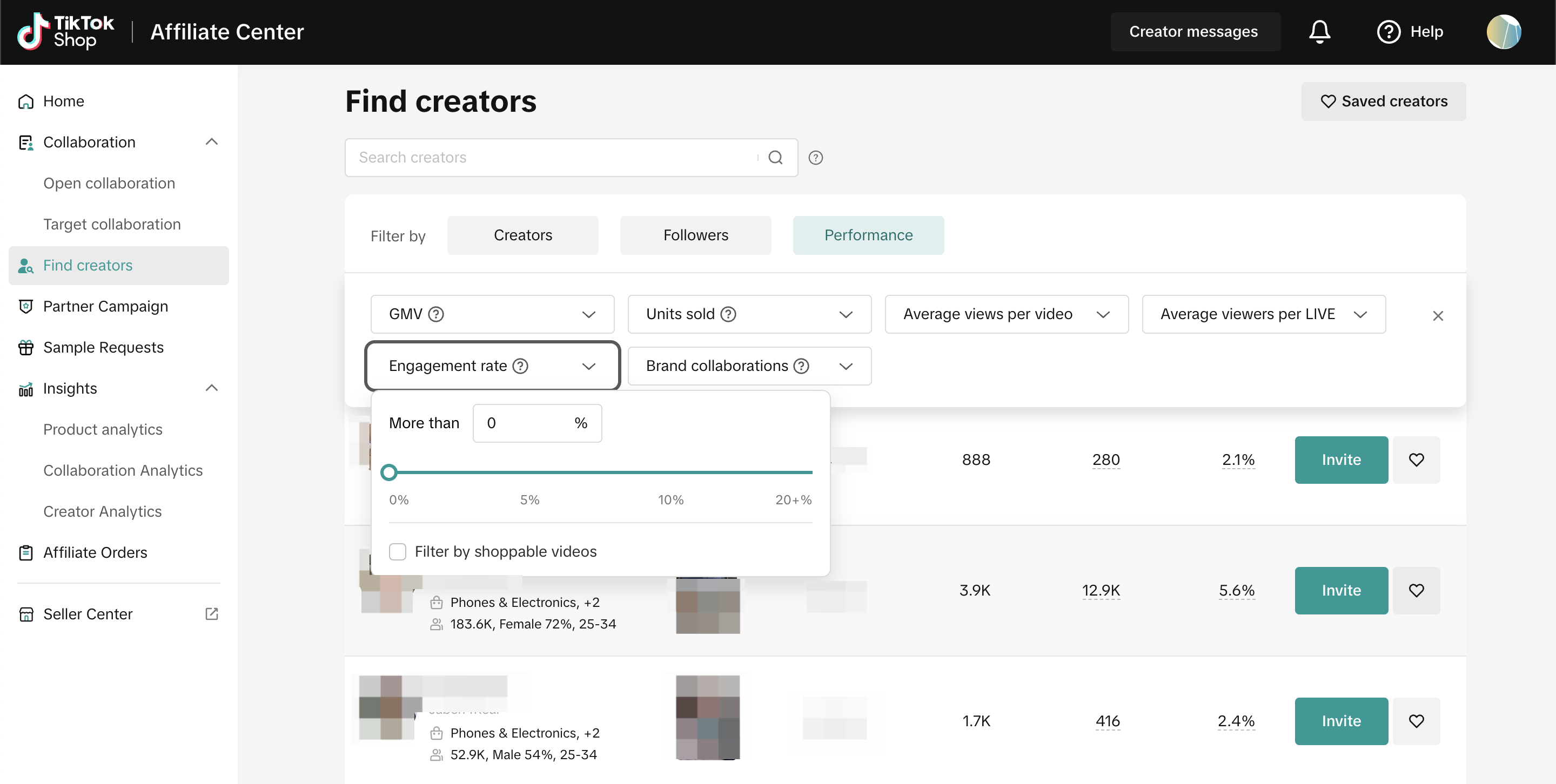
Filter using Shops or Seller Brands that the creator promoted and sold in the last 30 days through shoppable videos, showcase, or LIVE. You can check for Creators that have collaborated with competitors or brands in your same category.
View Creator Performance
To learn more about a creator, click on their profile from the Find Creator page to access their detailed profile. On the creator details page, you’ll find various insights, including:- Contact information (e.g., phone number and email)
- Sales performance and trends
- Content performance metrics
- Top-selling product categories and partnered brands
- Follower demographics
- Examples of their shoppable videos
You can view a creator’s videos by scanning the QR code on their details page using the TikTok app. This will take you directly to their TikTok profile, where you can browse their content.
Inviting Creators for Target Collaboration
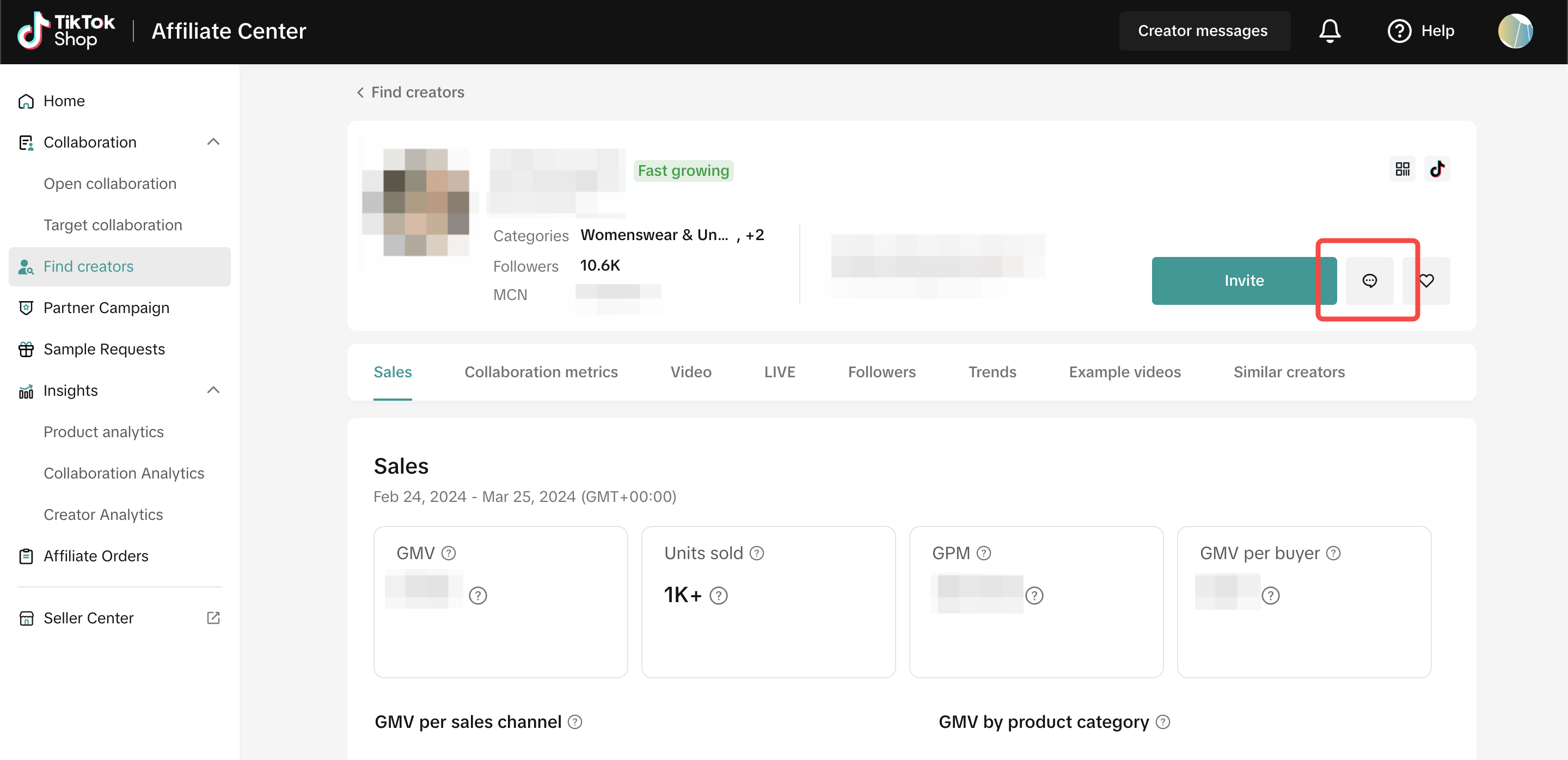
Through the Find Creators page, you can directly invite Creators to collaborate with you for your Target Collaboration. Each Creator will have the invite button beside their profile as shown below:Saving Creators for Target Collaboration
You can "save" Creators that you would like to partner with in the future. Click on the heart button beside the invite button inside their Creator profile.Message Creators via Find Creators Page
On the Affiliate Homepage on Desktop, you can initiate new conversations with Creators by searching them on the Find creators tab. You can connect with the Creators in two ways:- Using the Creator Profile Page: Clicking on the Creator's profile in the Find Creators tab and getting redirected to their Creator Profile Page.
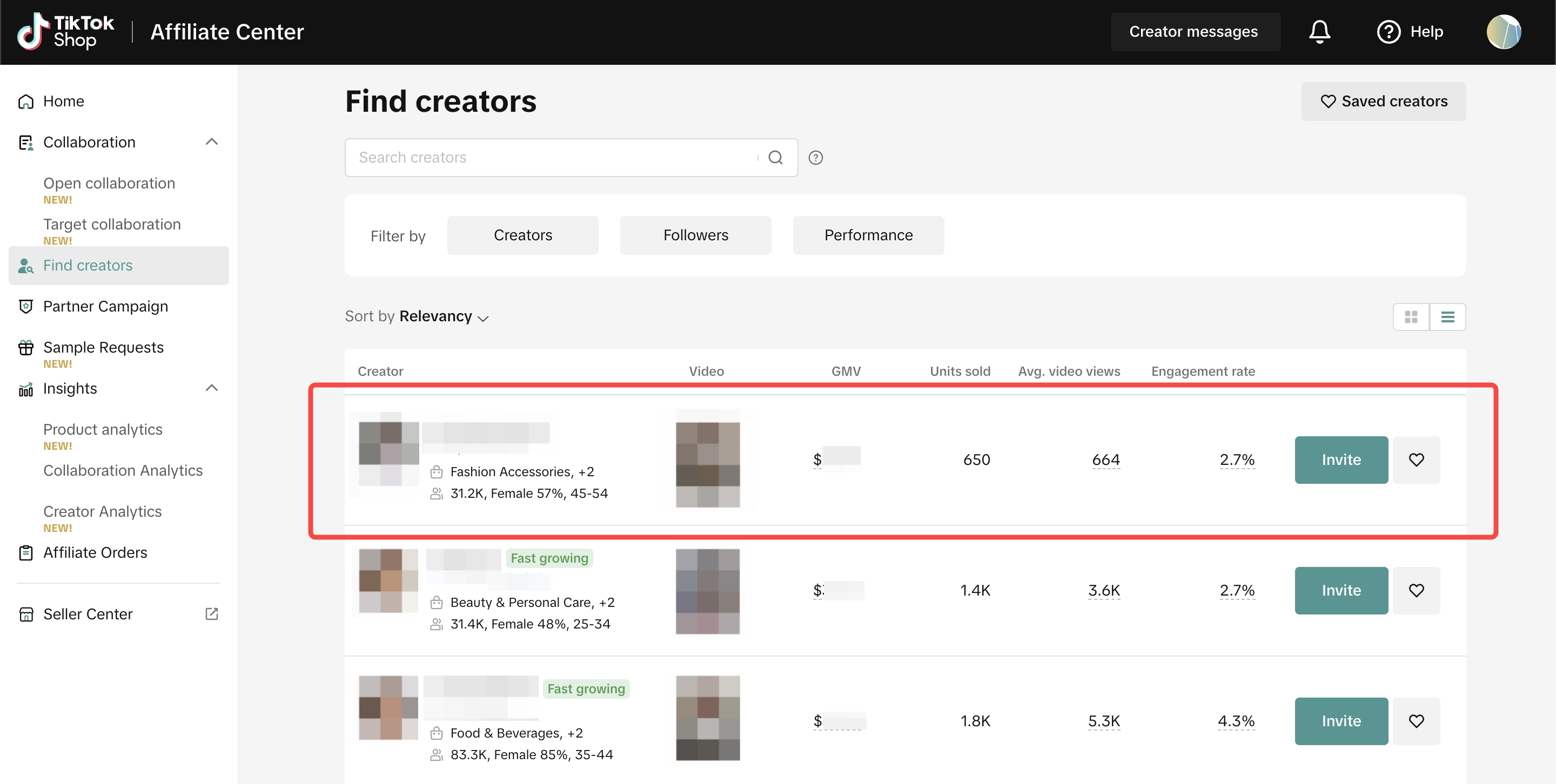
- Using the Saved Creators Page: Open up the Saved Creators tab and you click the message button shown below.
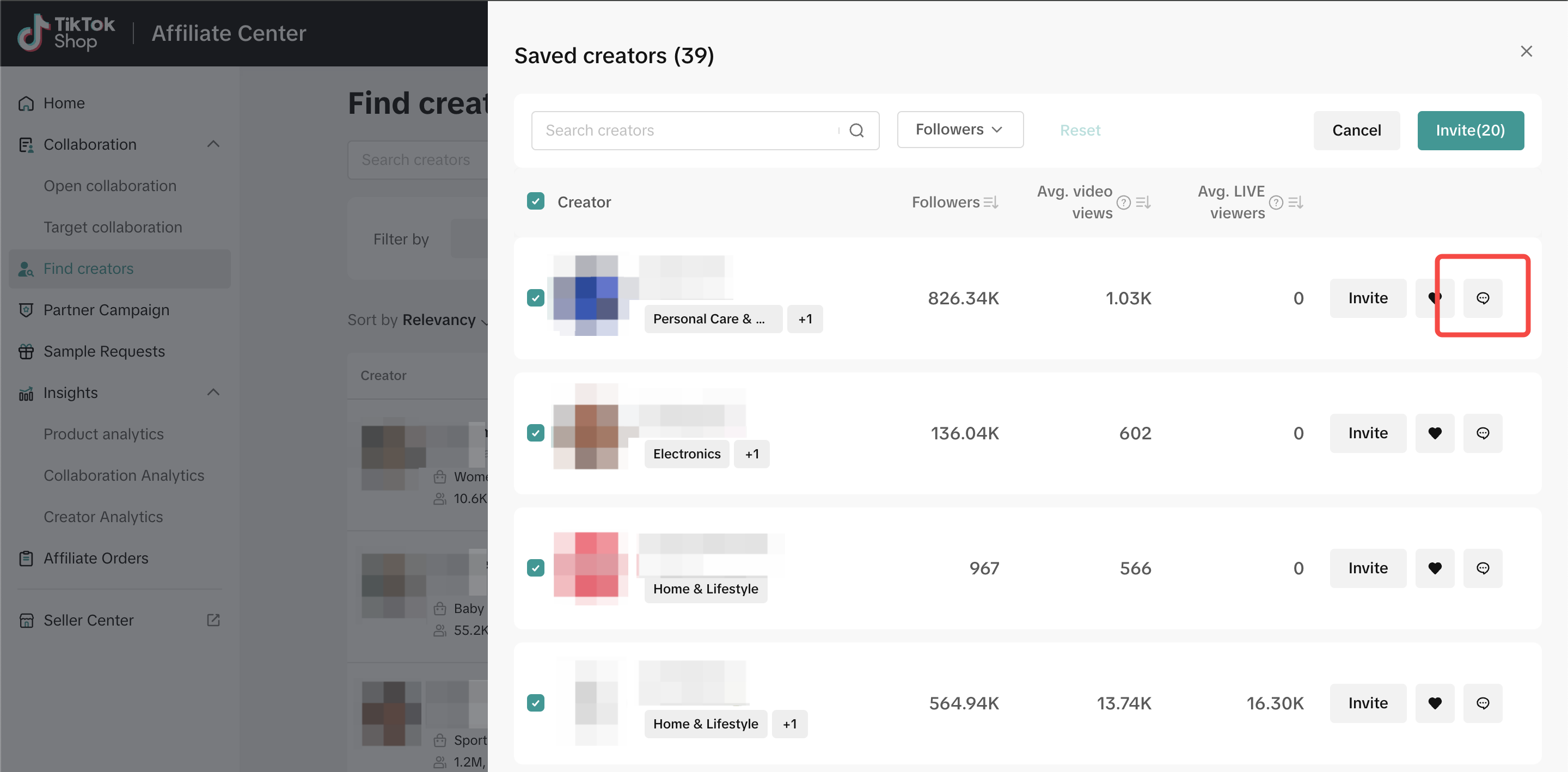
The Creator Rankings page can help you filter out the necessary data you need. You can find the "View Rankings" page under Discover Creators on the left-hand side once you enter the Affiliate Center.
You may also be interested in

How to Request TikTok Shop Partners
In this guide, we'll walk you through the new process that allows sellers like you to connect and co…
Connecting with Creators at Affiliate
In this article, we will teach you how to message and contact your Affiliate Creators in the Seller…

How to Join Affiliate Partner Campaigns
This guide will walk you through how you, as a seller, can join affiliate partner campaigns to colla…
Creator Ranking List
This article will teach you how to understand and navigate the "View Rankings" page in the Affiliate…
Creator Level for Sellers
What is Creator Level System? Creators are classified into L0 to L8 and their level will be refreshe…
Manage Creators
This article will guide you on how to use and explore the "Manage Creators" page in the Affiliate Ce…
Affiliate Partnerships Overview
This guide will walk you through on how sellers can now track and monitor performances when collabor…