

About GMV Pay
09/09/2025
GMV Pay is a payment method you can use to pay for your ads on TikTok. When you use GMV Pay, part of your TikTok Shop's revenue can be used to pay for ads you create on TikTok Ads Manager or Seller Center. You can use GMV Pay in addition to other supported payment methods for ads on TikTok.
If you want to set up GMV Pay, you'll need to use manual payment or use automatic payment to pay for your ads.
You'll automatically add funds to your ad account balance with GMV Pay. You can also manually add funds to your ad account balance in Seller Center. We recommend setting up multiple payment methods. If your first payment method fails, your next payment method will be used until your payment is successful.
To view your invoices for GMV Pay, go to the Finances tab in Seller Center, or go to the Transactions tab in TikTok Ads Manager.
If you see the message Insufficient balance, you'll need to make sure your available funds in your Seller Center Available to withdraw balance exceed the amount you want to add to your account.
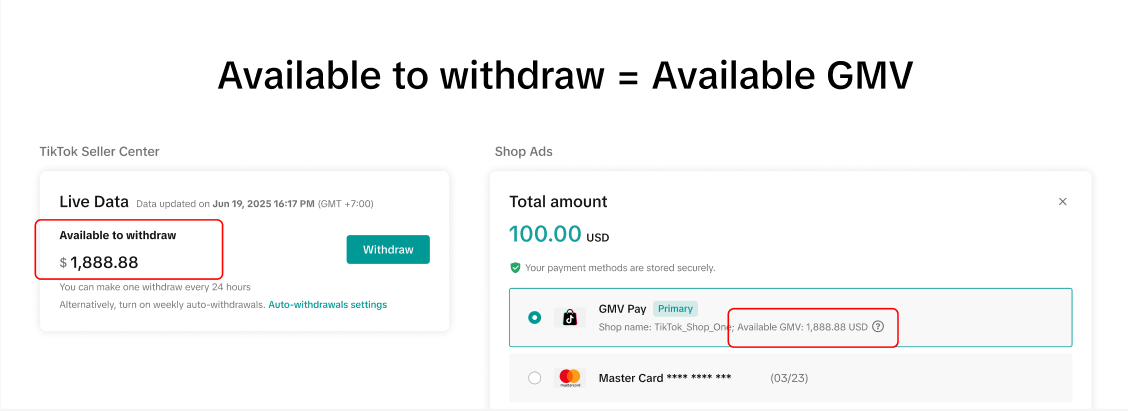
If the amount is insufficient, try updating your auto-withdrawal settings to a longer duration.
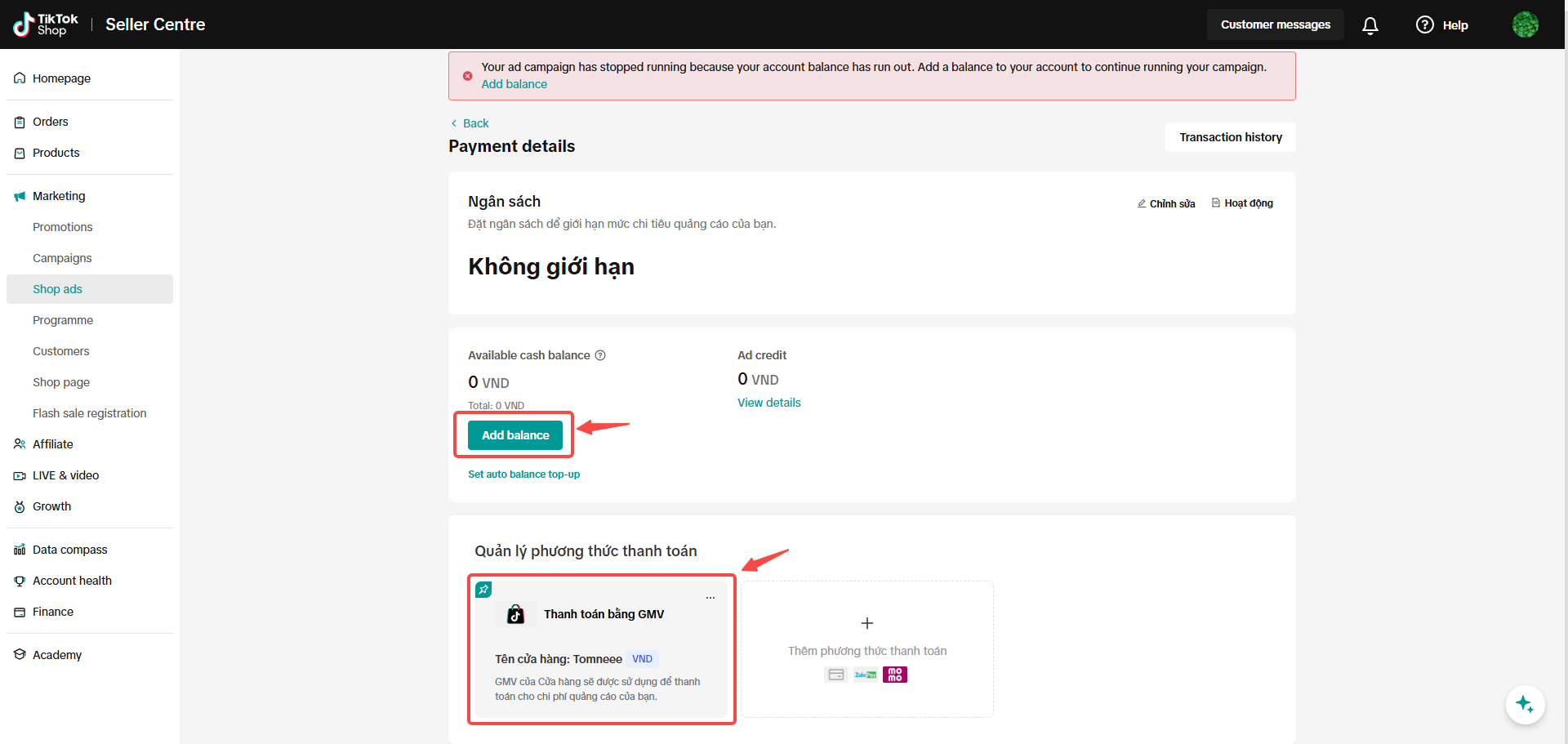 You can now use GMV Pay to pay for your ads.
You can create Shop Ads using the Product Sales objective with TikTok Shop as the product source. You can create the following:
If you want to set up GMV Pay, you'll need to use manual payment or use automatic payment to pay for your ads.
Available regions and currencies for GMV Pay
- Indonesia: IDR only
- Malaysia: MYR only
- Philippines: PHP only
- Thailand: THB only
- Vietnam: VND only
How to set up auto top-up for GMV Pay
When you set up GMV Pay to pay for ads, you can choose to automatically add to your ad account balance with funds from your TikTok Shop. Note: This feature is only supported if you're using the manual payment billing method.How to set up auto top-up for GMV Pay
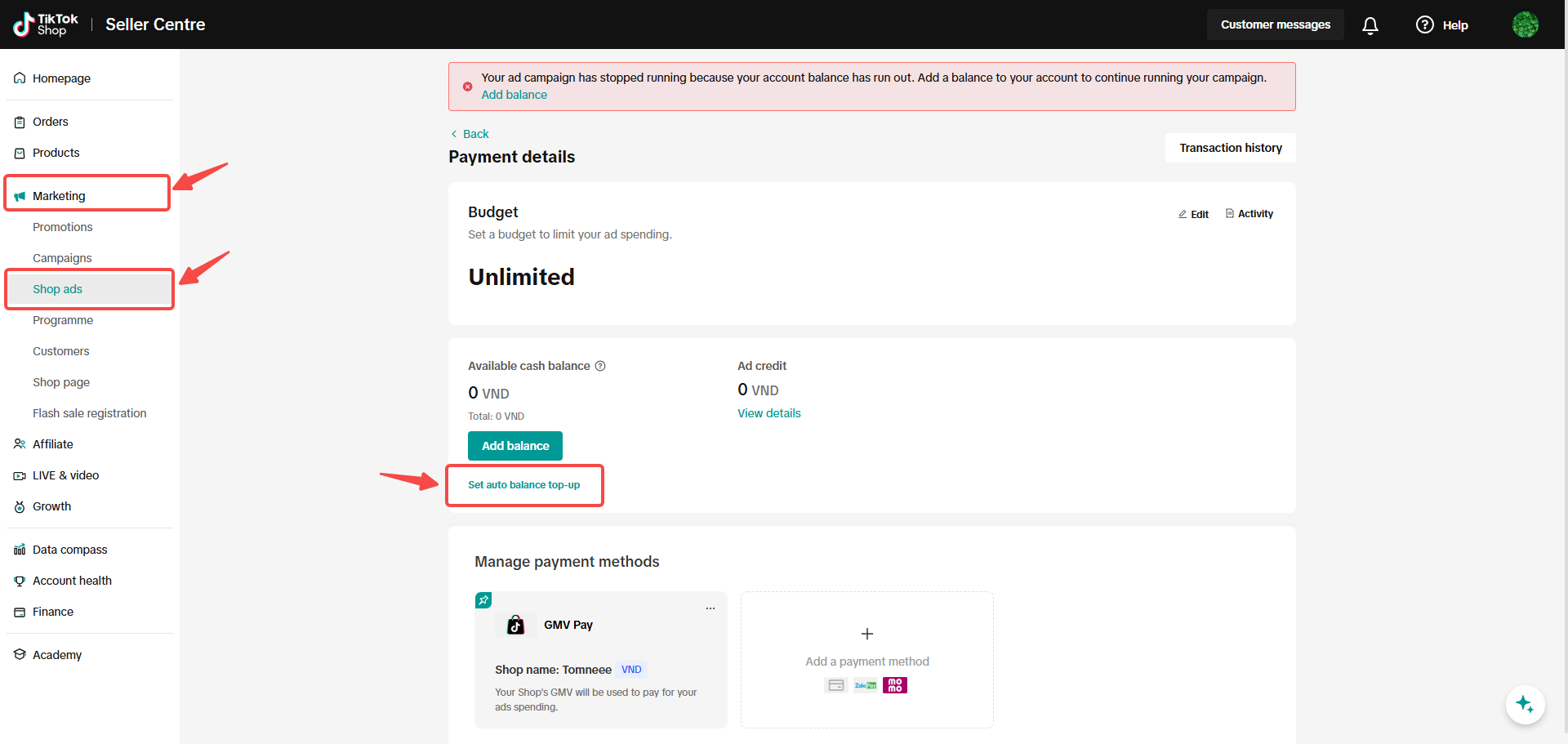
To set up auto top-up for GMV Pay:- Log in to Seller Center.
- Click Marketing in the left-hand column.
- Click Shop Ads.
- You'll see your available balance at the top of the page. Click Payment details.
- Under Add balance, select Set auto balance recharge.
- Click Edit.
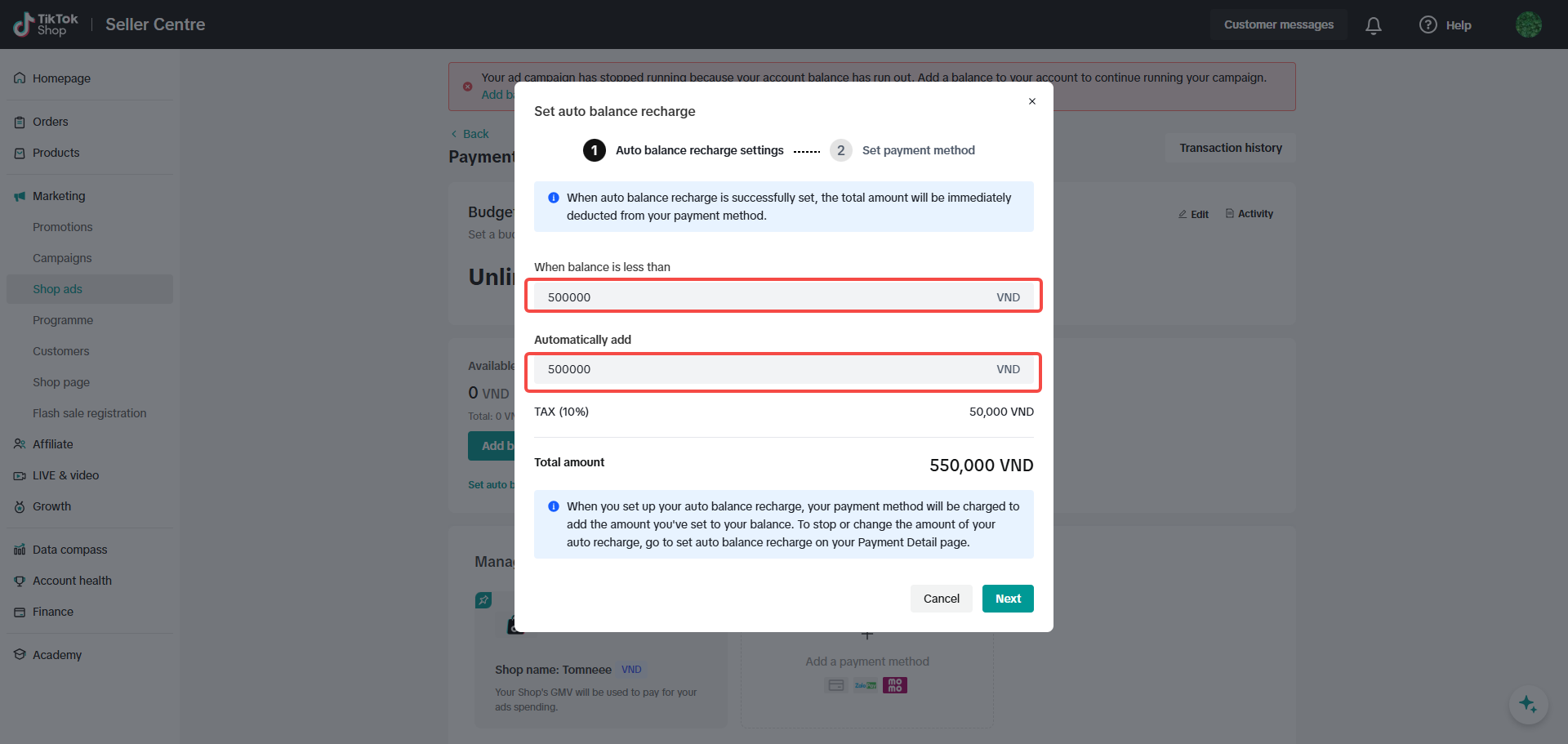
- Enter the amounts for your auto recharge rule. For example, When balance is less than $50.00, Automatically add $300.00. This means if your ad account balance drops below $50 USD, GMV Pay will automatically add $300 more to your balance. If your TikTok Shop has less than $300 in available funds, then GMV Pay will only add up to the available amount.
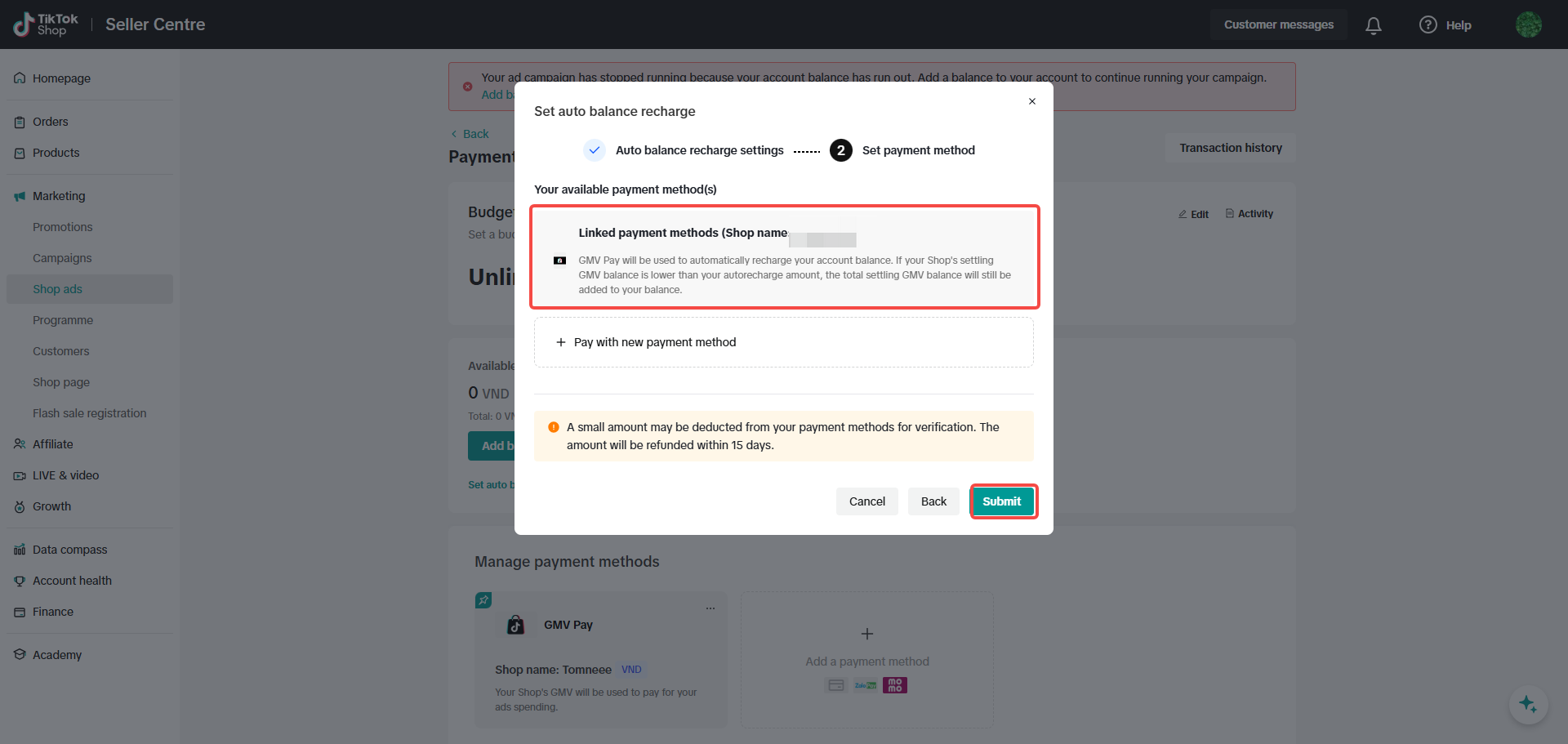
- When you're finished, click Submit.
| Step 5 | Step 7 | Step 8 |
 |  |  |
To view your invoices for GMV Pay, go to the Finances tab in Seller Center, or go to the Transactions tab in TikTok Ads Manager.
Troubleshoot GMV Pay
If you or someone on your account can't choose GMV Pay as their payment method, you might need to update permissions. You'll need Finance Specialist permissions in Seller Center and Finance Manager permissions in Business Center in order to use GMV Pay as a payment method.Grant Finance Specialist permission in Seller Center
To grant someone Finance Specialist permission in Seller Center:- Go to Seller Center. Log in as the owner or admin of the shop.
- Find the user you want to grant Finance Specialist permission to. The user does not need to be an admin of the Seller Center.
- Click the Role dropdown and choose Finance Specialist.
- Click Submit.
- Go to Ads Manager. Log in as the user you granted Finance Specialist permission to.
Grant Finance Manager permission in Business Center
To grant Finance Manager permission in Business Center:- Go to the Business Center. Log in as an admin of the Business Center.
- Find Users in the left-hand menu and click Members.
- Click the member of your Business Center you want to grant Finance Manager permission to.
- Choose Finance Manager and click Confirm. The member does not need to be an admin of the Business Center.
Troubleshoot insufficient settling amount
Note: This section applies to the following regions: Indonesia, Malaysia, Philippines, Thailand, and Vietnam.If you see the message Insufficient balance, you'll need to make sure your available funds in your Seller Center Available to withdraw balance exceed the amount you want to add to your account.
If the amount is insufficient, try updating your auto-withdrawal settings to a longer duration.
Troubleshoot mismatched account info between ad account and Seller Center account
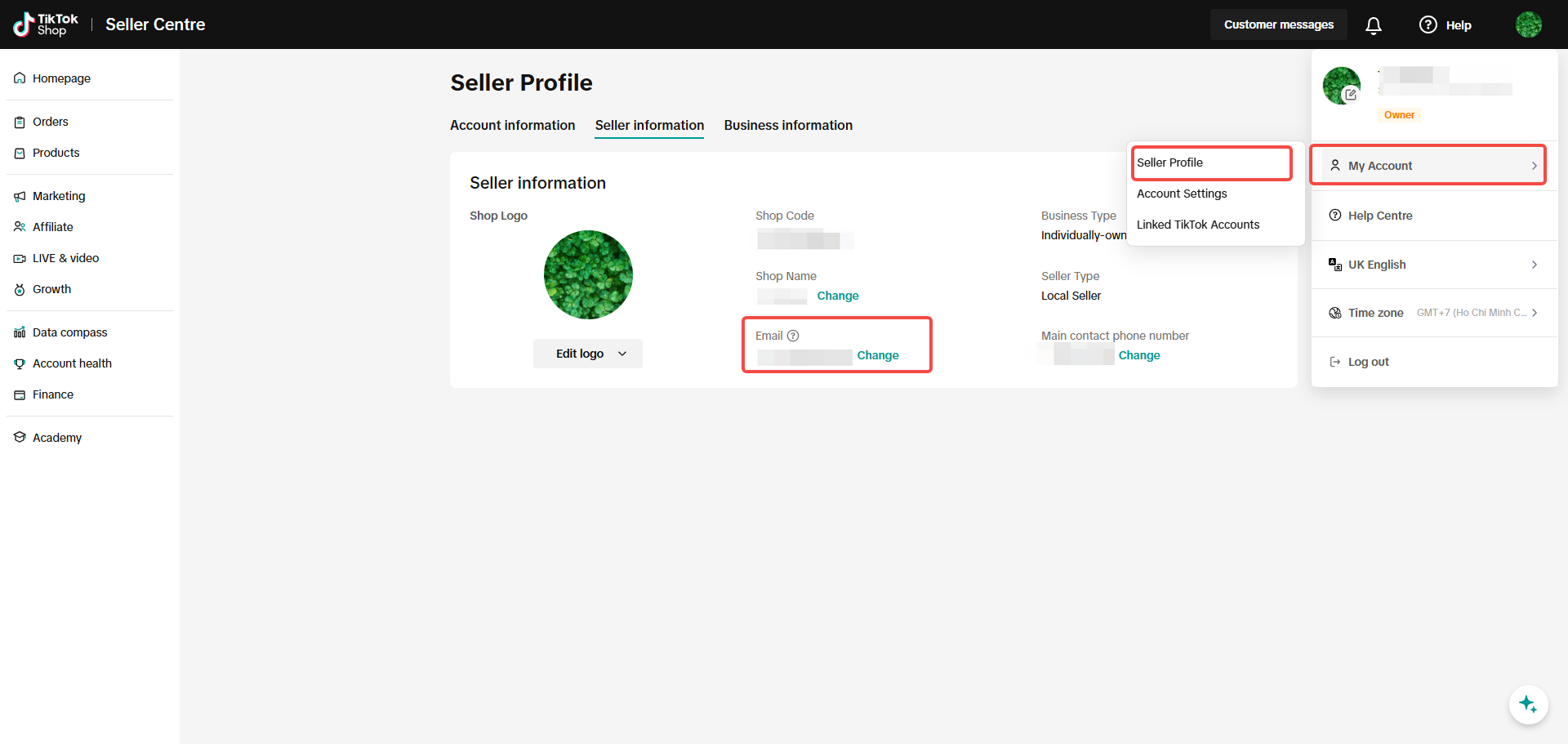
If you see the message Your ad account information doesn't match your Seller Center account information. update your advertiser account email address such that it is the same as your Seller Center contact info (visit My Account-Seller Profile-Seller information), you'll need to check that the email in your Seller Center account matches your email in TikTok Ads Manager.- Log in to Seller Center.
- Click the icon in the top right corner, then select My Account.
- Select My Profile.
- Select the Seller information tab to view the email associated with your Seller Center account.
How to use GMV to Pay for Ads
GMV Pay is a payment method you can use to pay for your ads on TikTok with revenue from your TikTok Shop sales. You can set up GMV Pay in Ads Manager or Seller Center. You can use GMV Pay in addition to other supported payment methods for ads on TikTok. Note: GMV Pay is currently under limited testing for invited sellers only.Before getting started
- Sign in to a Business Center account with Finance Manager permissions
- Sign in to a Seller Center account with Finance Specialist permissions
- You must be signed in to Business Center and Seller Center with the same email address.
- If you already use monthly invoicing you won't be able to use GMV Pay.
How to set up GMV Pay to pay for ads in TikTok Ads Manager
To use GMV Pay:- Go to TikTok Ads Manager.
- Go to Tools in the top menu.
- In the Settings section, click Finance.
- On the Payment page, choose Add balance or add a payment method with GMV Pay.
You can now use GMV Pay to pay for your ads.You can create Shop Ads using the Product Sales objective with TikTok Shop as the product source. You can create the following: