

LIVE Giveaway
06/08/2023
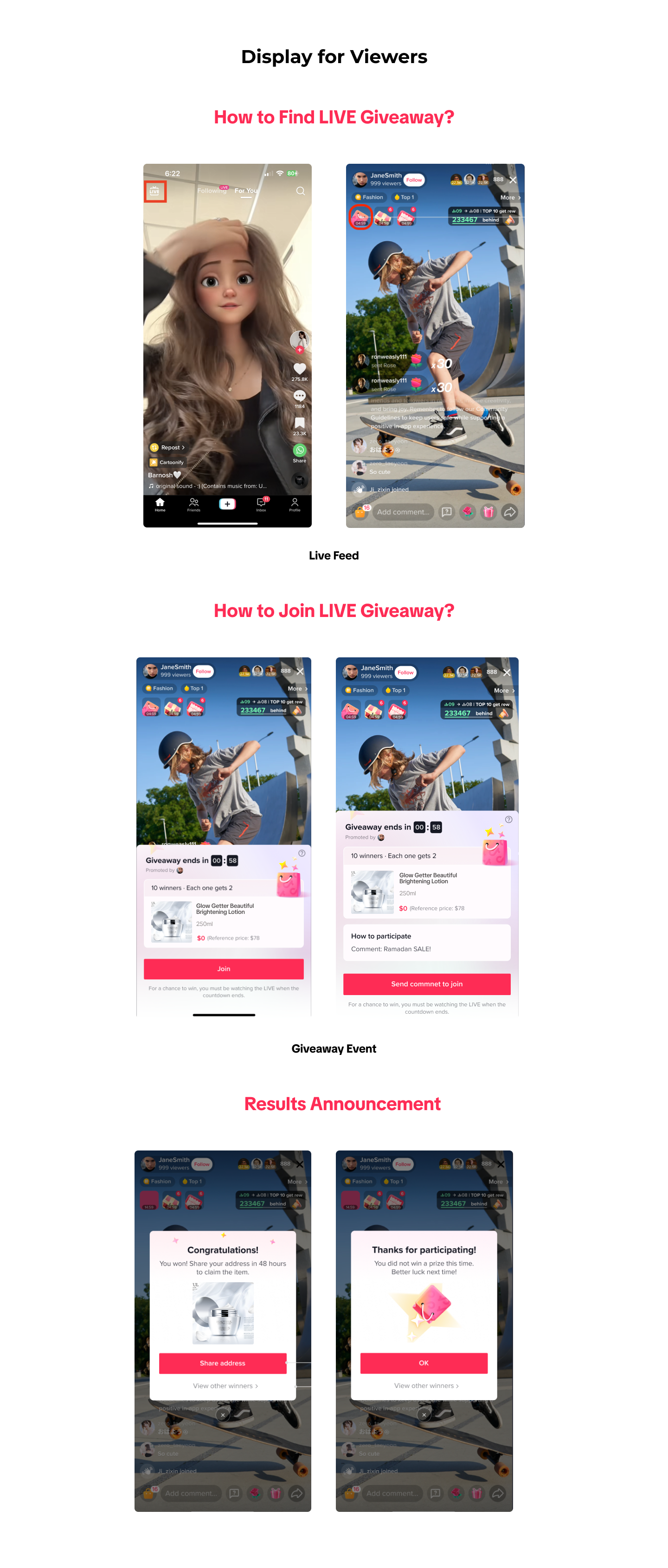
This article teaches you how to use Seller LIVE Giveaway to increase your engagement, number of viewers, and average watch time. You will learn how to set up and manage LIVE Giveaway events on PC. 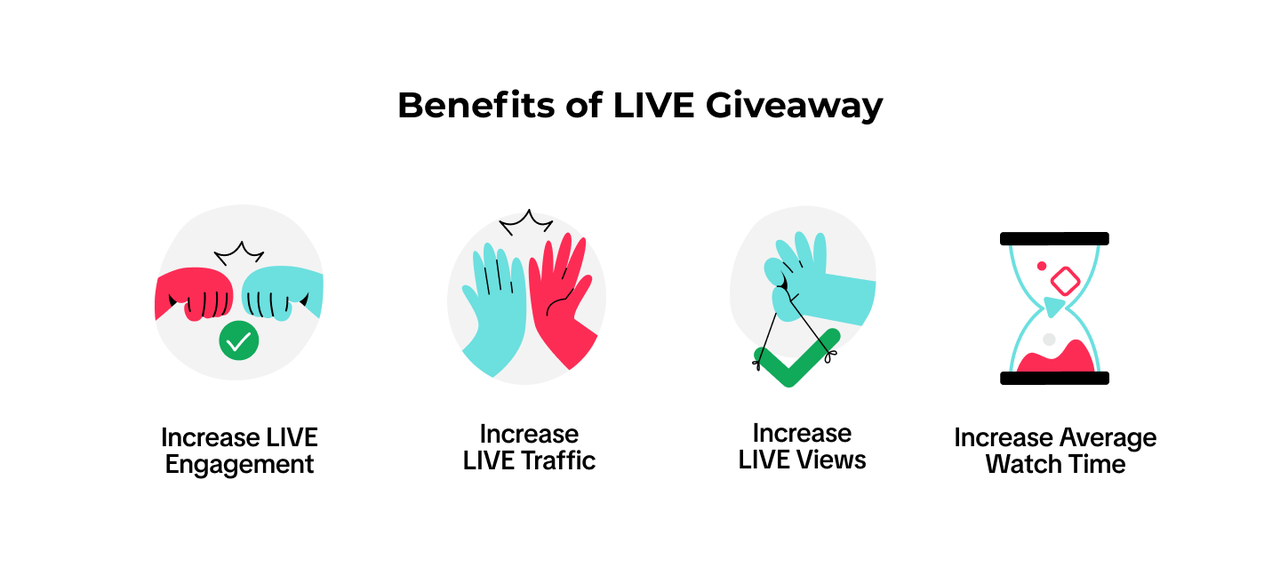 Viewers can access LIVE Giveaway from the LIVE Feed by clicking the pink bag icon, as shown below:
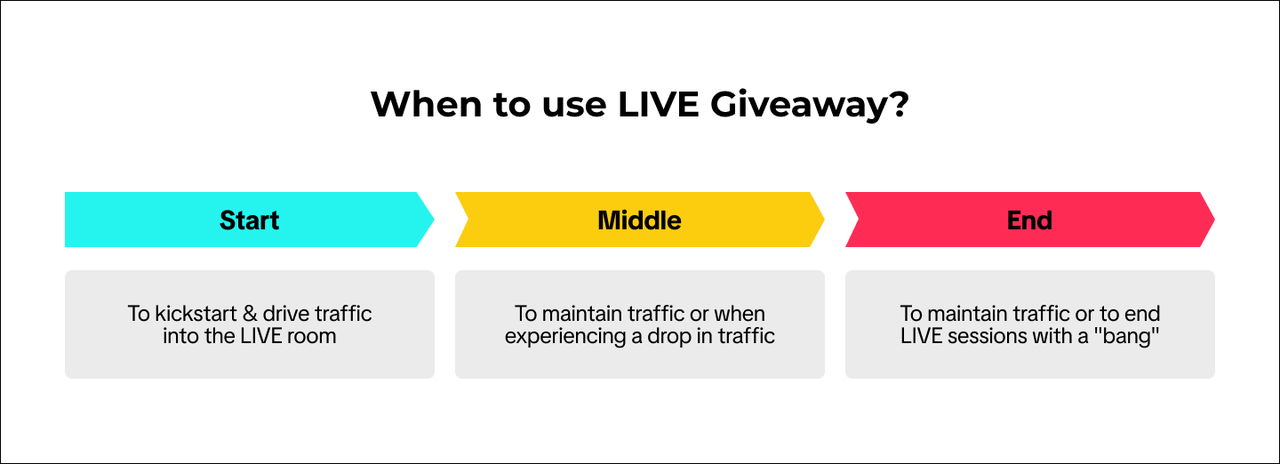
  You can use LIVE Giveaways for improving your LIVE performance at various stages:
  To be eligible for LIVE Giveaway, you must: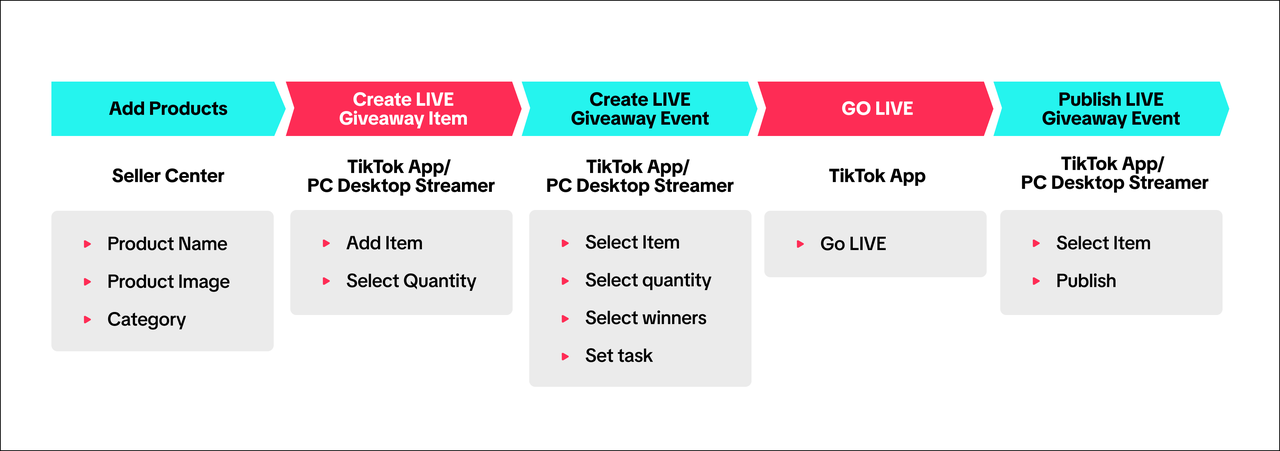
 ❗Rules on Giveaway Item Selection
 ❗Note: For a single LIVE Giveaway event, the SKU limit for a giveaway item is 100 units.
 💡 Pro Tips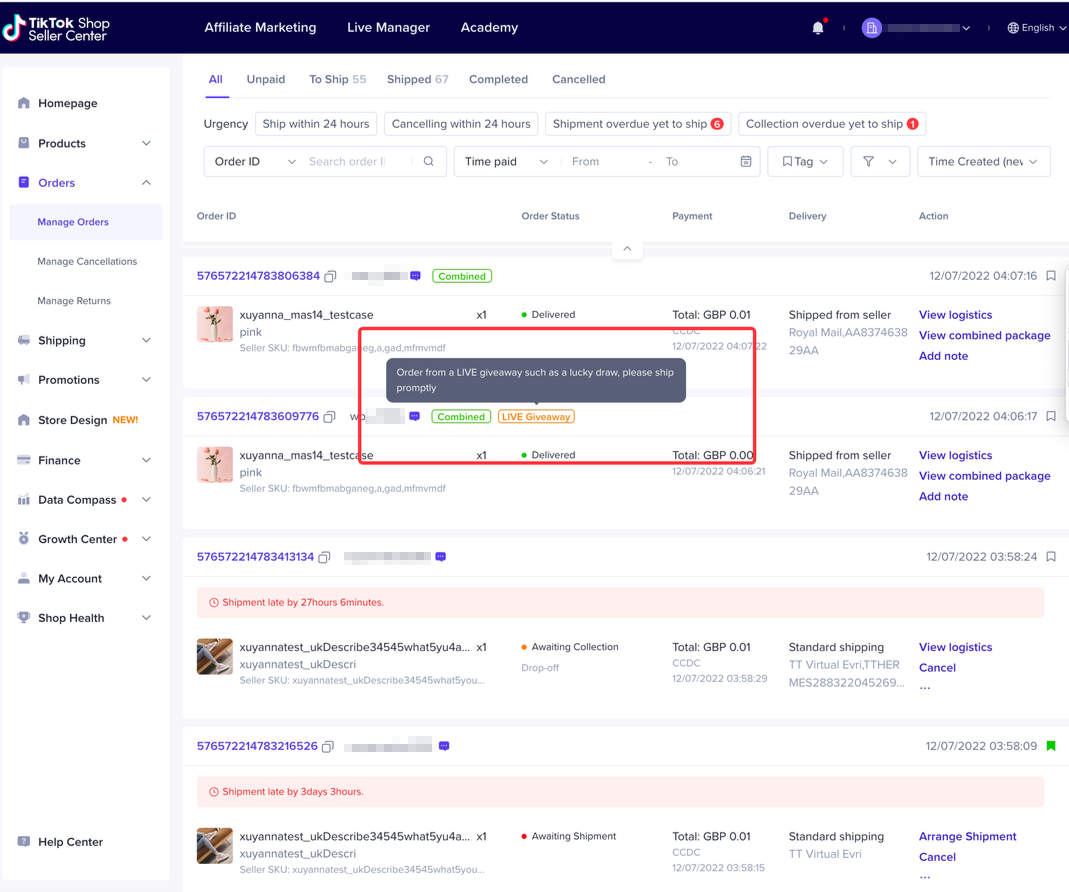
What is LIVE Giveaway?
LIVE Giveaway is a seller-funded interactive tool that allows sellers to run giveaways events and give out free prizes to viewers during a TikTok Shop LIVE session. Sellers can configure which products and how many units they would like to give away to viewers. Viewers can participate by joining the competition directly or completing a certain set of tasks, determined by the seller.Viewers can access LIVE Giveaway from the LIVE Feed by clicking the pink bag icon, as shown below: You can use LIVE Giveaways for improving your LIVE performance at various stages: To be eligible for LIVE Giveaway, you must:- Be a registered seller on TikTok Shop
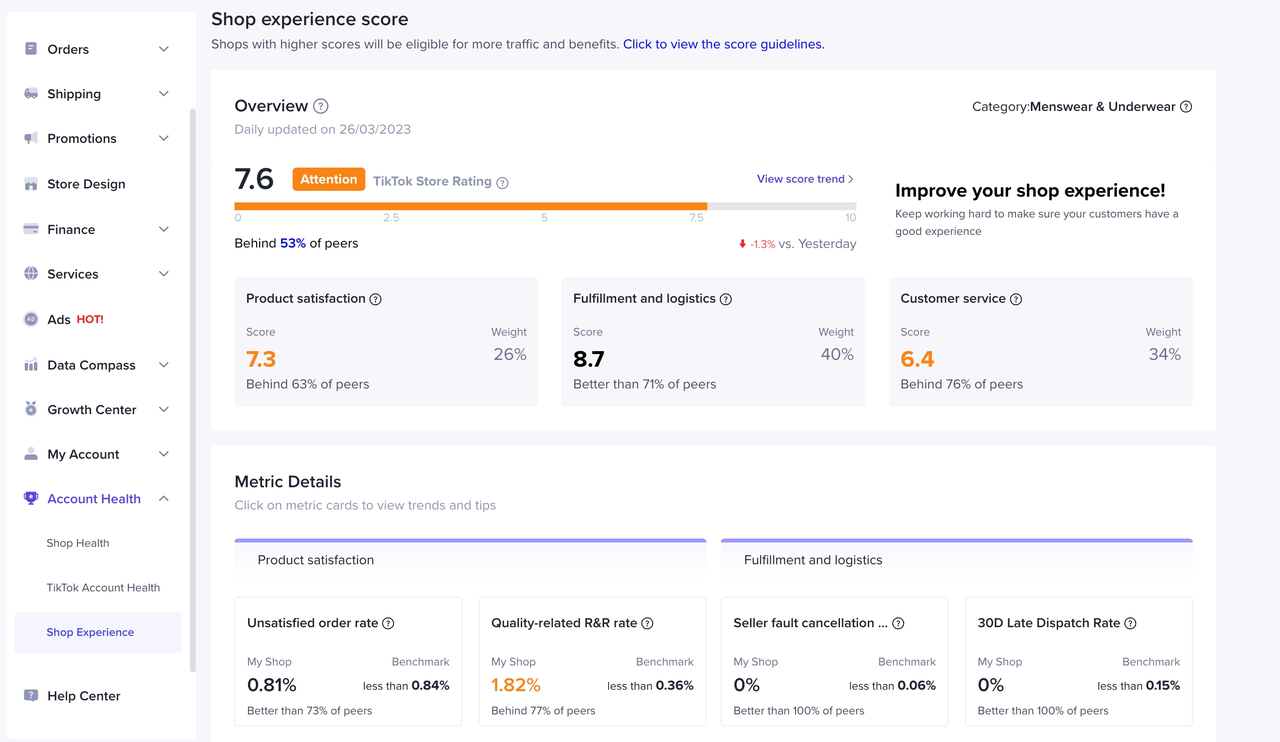
- ID: Shop Experience Score (SES) >= 6.5
- MY/PH/VN: Shop Experience Score (SES) Ranking = "Attention", "Good" or "Excellent"
- Have an official TikTok account (marketing and creator accounts are not eligible)
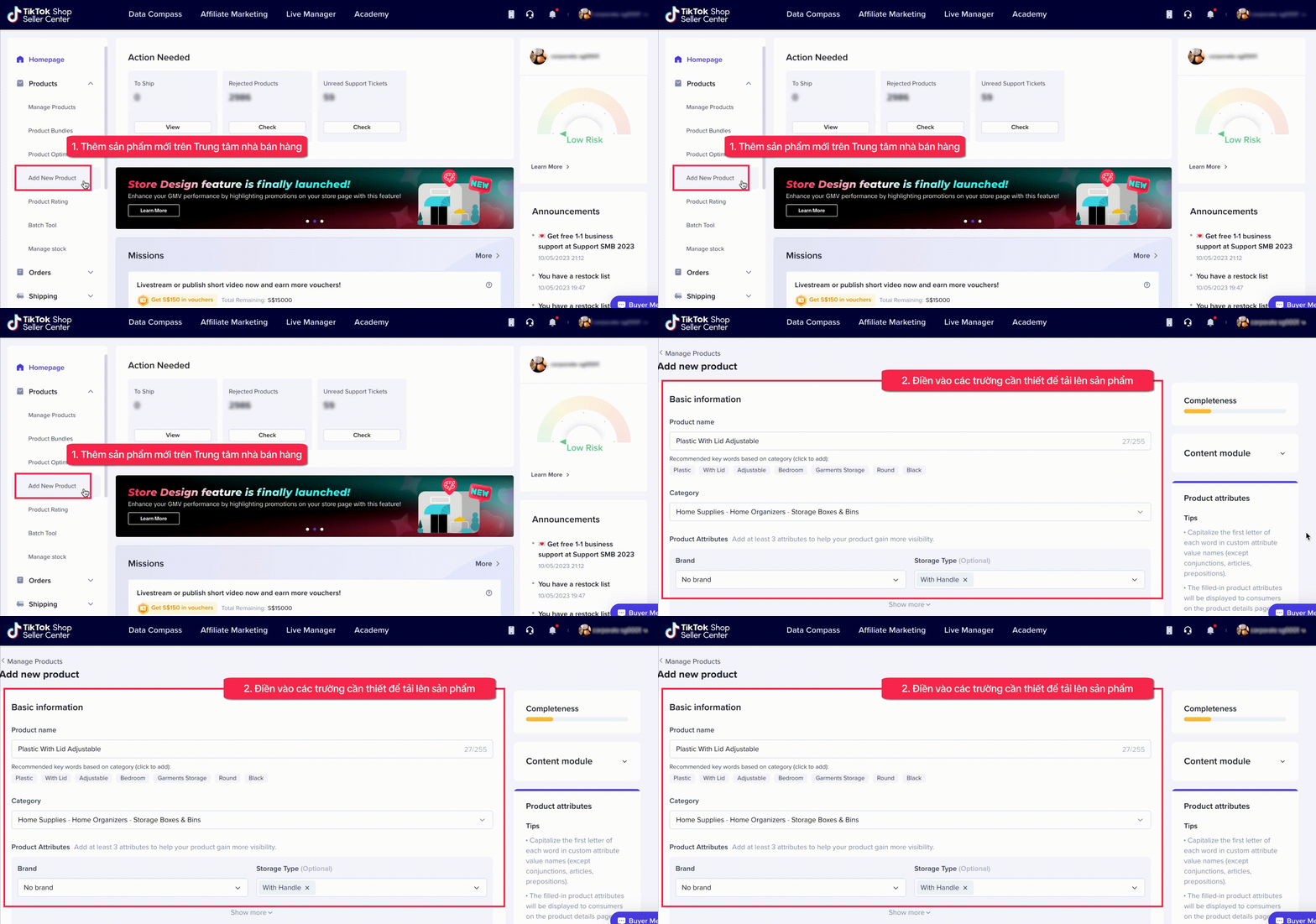
Add a New Product for LIVE Giveaway
First, you need to upload a product that will be used in the LIVE Giveaway by visiting the Products tab in Seller Center.Fill in the basic information and product details needed to list the product.Create a LIVE Giveaway Item
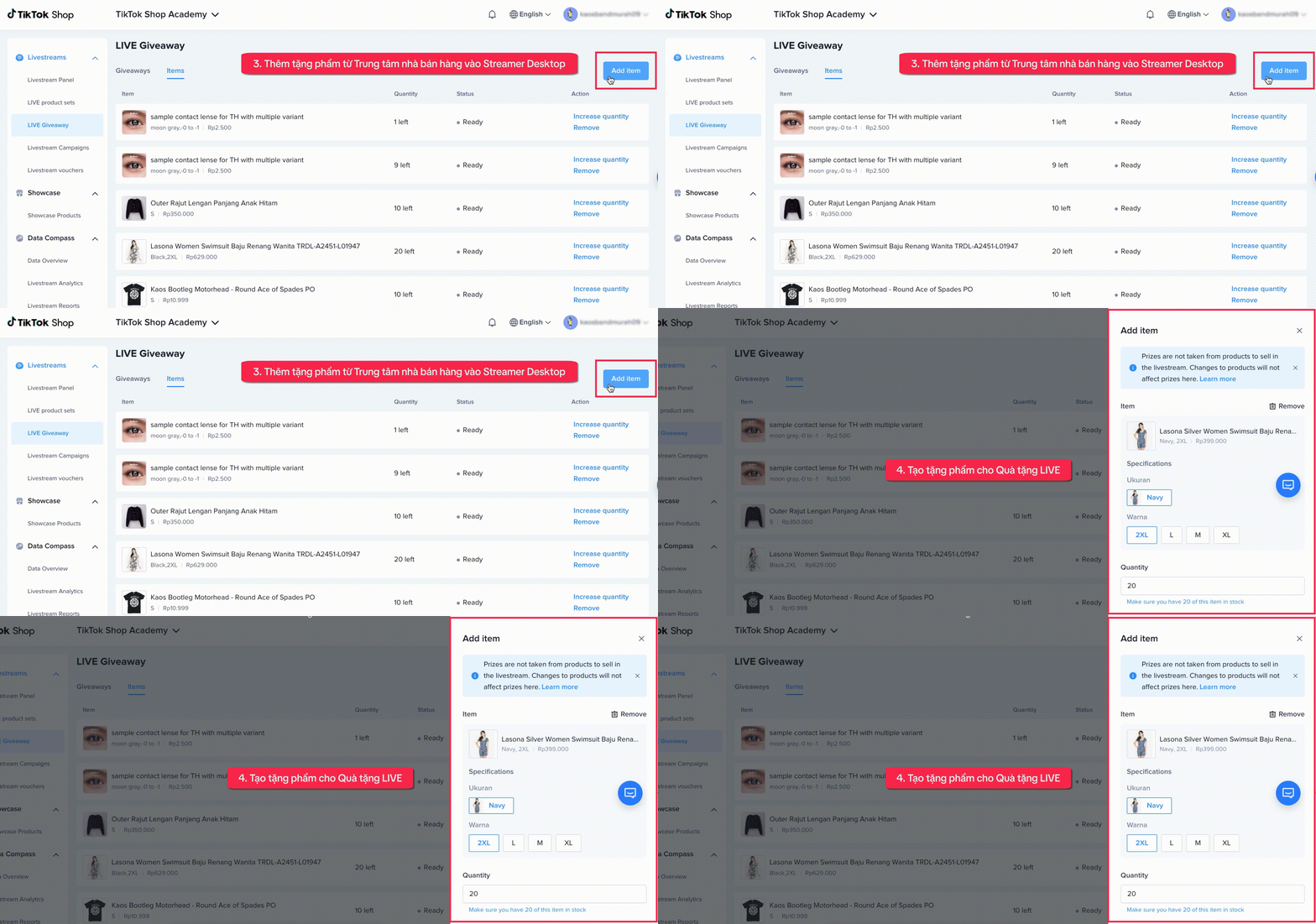
On the PC Streamer Desktop, select Livestreams, followed by the LIVE Giveaway page. Select the Items tab and click Add Item.Add a LIVE Giveaway item by selecting the product and indicating the quantity. If the product selected has variations, please ensure the correct item is configured.❗Rules on Giveaway Item Selection- Only products available in the seller's store (successfully listed items that have passed TikTok Shop's product listing policy) can be selected.
Create a LIVE Giveaway Event
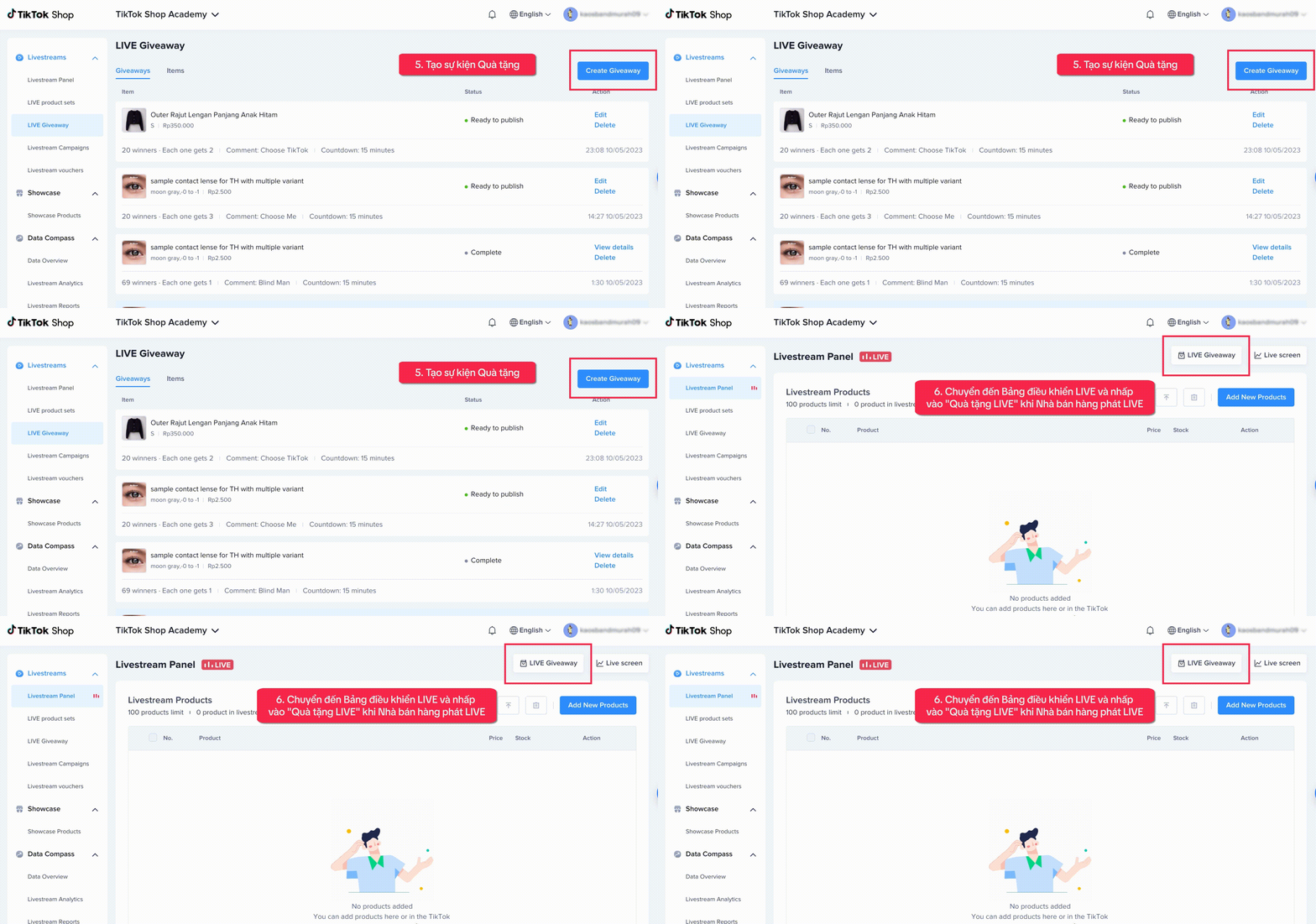
On the PC Streamer Desktop, select Livestreams, followed by the LIVE Giveaway page. Select the LIVE Giveaway tab and click the Create Giveaway button.Create a LIVE Giveaway event by selecting a LIVE Giveaway item and selecting the event rules, such as the number of prizes and winners, tasks, and LIVE Giveaway duration.❗Note: For a single LIVE Giveaway event, the SKU limit for a giveaway item is 100 units.Publish the LIVE Giveaway Event
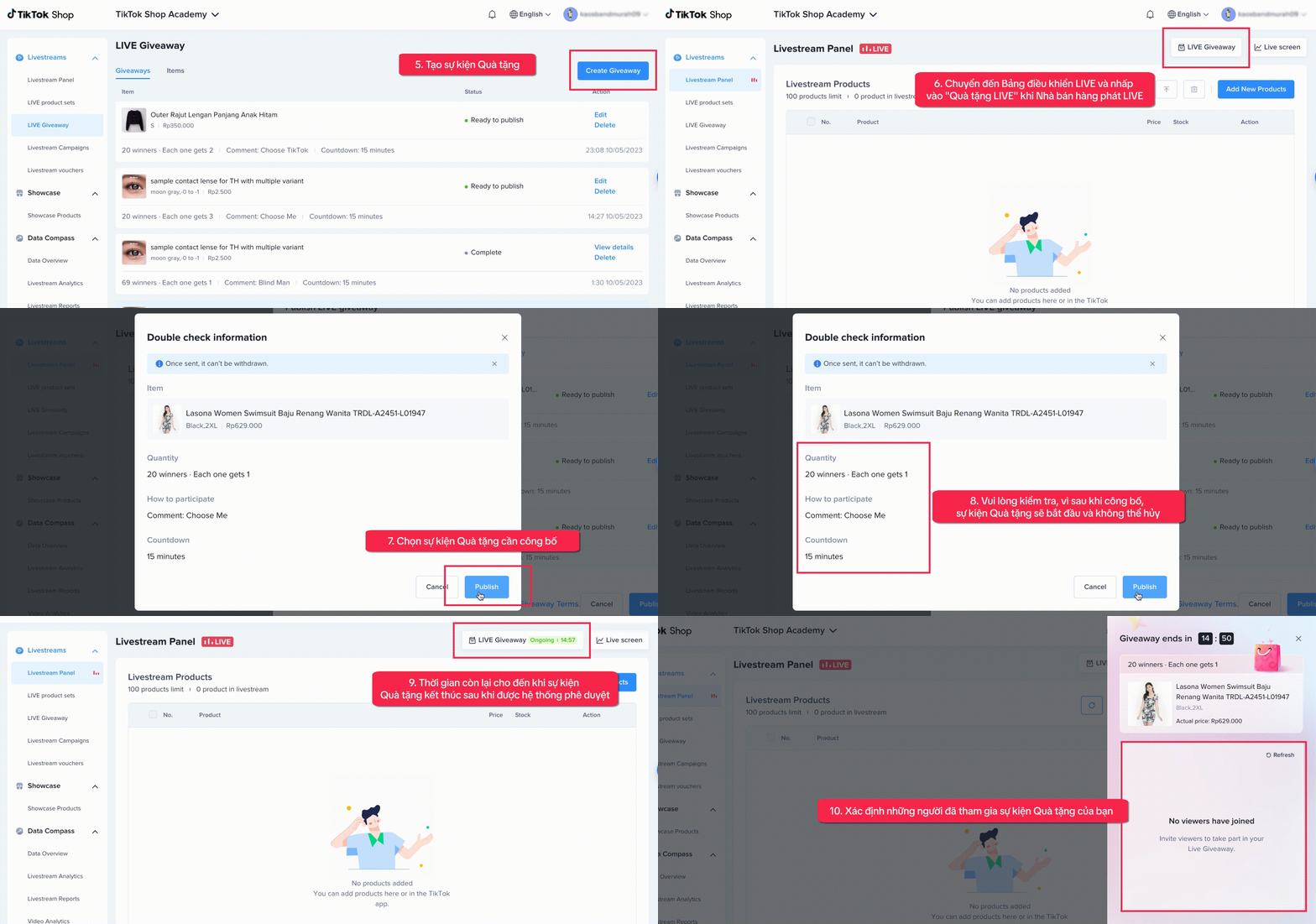
Important: Sellers must Go LIVE in the TikTok app first, before a LIVE Giveaway can be published. Once you go LIVE, return to the PC Streamer Desktop. Go to Livestream Panel and select a LIVE Giveaway item & event that was configured in the previous step to publish.The LIVE Giveaway countdown on the top right corner should start. You can click on LIVE Giveaway to check the giveaway status, participants, and winner list. Please note that you can only run 1 LIVE Giveaway event at a time.💡 Pro Tips- Plan LIVE Giveway events ahead of time: announce events before going live to build engagement and boost LIVE room traffic.
- Always assign a task to viewers and get creative: engage viewers by creating interesting ways to generate comments.
- Create urgency during the last few minutes of countdown time: provide call to action to encourage viewers to participate.
- Offer attractive deals, immediately after the countdown is over: use seller promotion tools to minimise traffic drop off rates.
Fulfill a LIVE Giveaway prize?
Results will be announced by the end of the LIVE Giveaway countdown. Winners will be notified in the LIVE room and via an app push message. Viewers will have 48 hours after the LIVE Giveaway ends to redeem their prize. Once the winner has redeemed the prize, the order information will be displayed in Seller Center with a Live Giveaway tag. The seller should proceed to fulfill the LIVE Giveaway prize.FAQ
- Can a seller set up multiple LIVE Giveaways events at the same time?
Eg. LIVE Giveaway item = Product A
LIVE Giveaway event = Give out x10 prizes of Product A. (Not possible to be Product A & Product B in the same LIVE Giveaway event)
- Can a seller pick a winner for the LIVE Giveaway event?
- Is the quantity of the giveaway item the same number as the quantity of the same item in store?
- Can creators do the LIVE Giveaway on behalf the seller?