

How to add product to showcase?
08/22/2023
Three Options
Once your application is approved, you can start adding products to your Showcase. Any products in the showcase is available for direct purchase and for adding in your videos/livestreams. You can add products by yourself & by seller's invitation:1: Add By Yourself (Open Plan)
Affiliate has a pool of products that are open for sale to all creators, which is called an Open Plan. You can actively explore and select the products you want to sell and add them to Showcase. Some products require approval from the seller. Once your application is approved, it will be added to your product showcase automatically.step1 Entrance (four options)
Instruction | Screenshot | |
| Option 1: Search products | Go to 'Me' page > TikTok Shop > Add products > Search products | 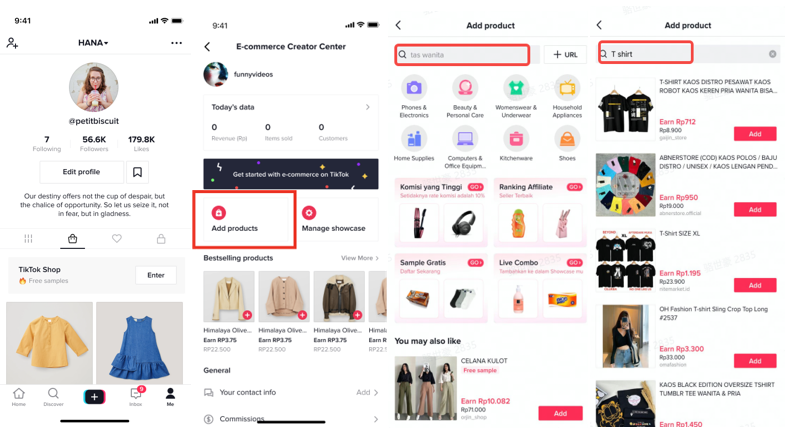 |
| Option 2: Product URL | Go to 'Me' page > TikTok Shop > Add products > + URL > Enter Product URL Closed loop Products:TikTok Products | 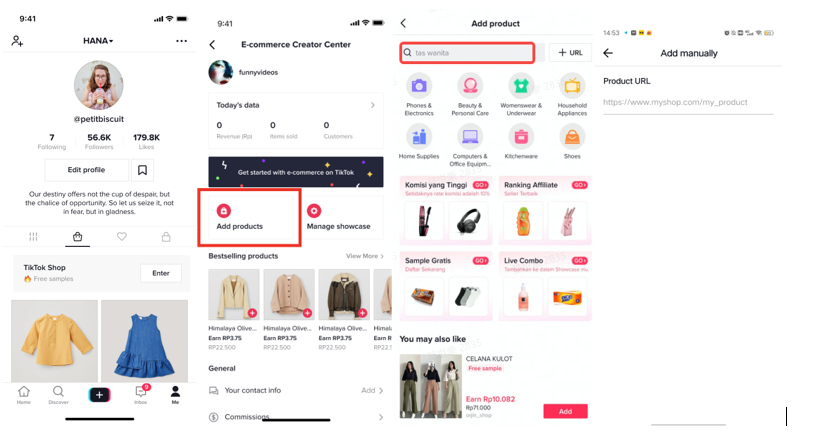 |
| Option 3: Categories & You may also like | Go to 'Me' page > TikTok Shop > Add products > You may also like / Categories | 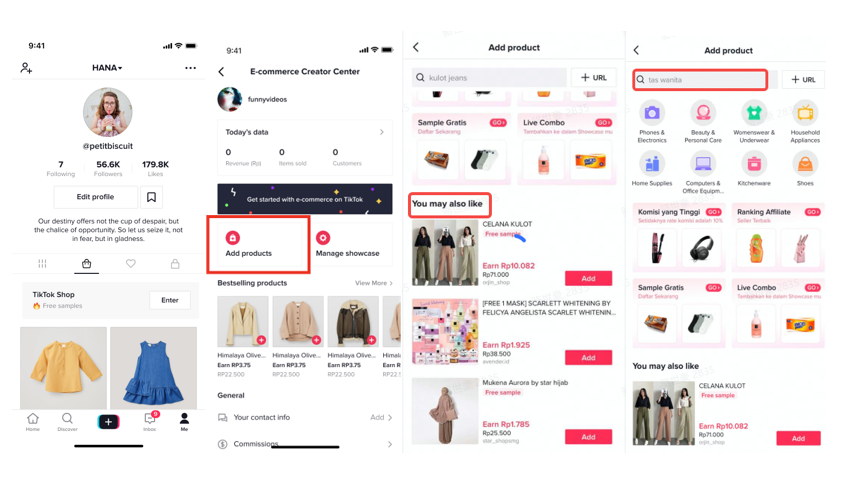 |
| Option 4: Best selling products | Go to 'Me' page > TikTok Shop > High Commissions and Free shipping | 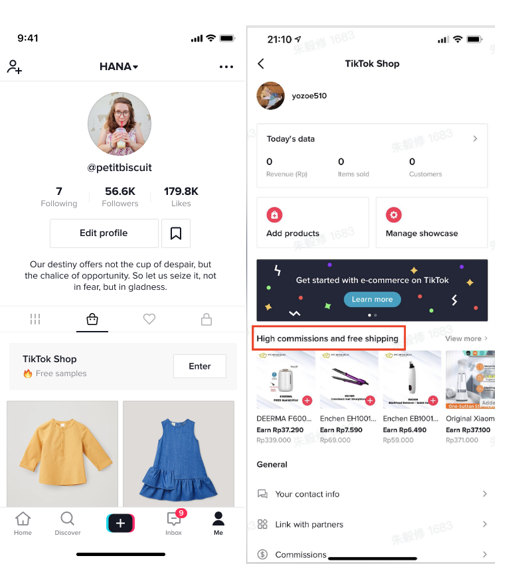 |
step2.Add products
Instruction | Screenshot |
Click 'Add'.
| 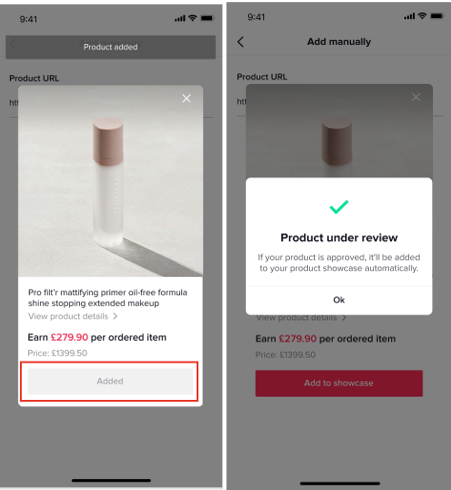 |
2: Add By Invitation (Targeted Plan)
Some products are only open to targeted creators and can only be added through invitation, which is called Targeted Plan. If you receive invitation from the seller, you can choose to accept or reject. The accepted products will appear in "Exclusively for you" . All products in targeted plan do not need approval from the seller.Steps | Instruction | Screenshot |
| Go to the message inbox right next to profile picture > check plan details > select and add products directly to your showcase You will also receive an in-app push for the invitation with the option to accept or reject the targeted plan. | Image 1: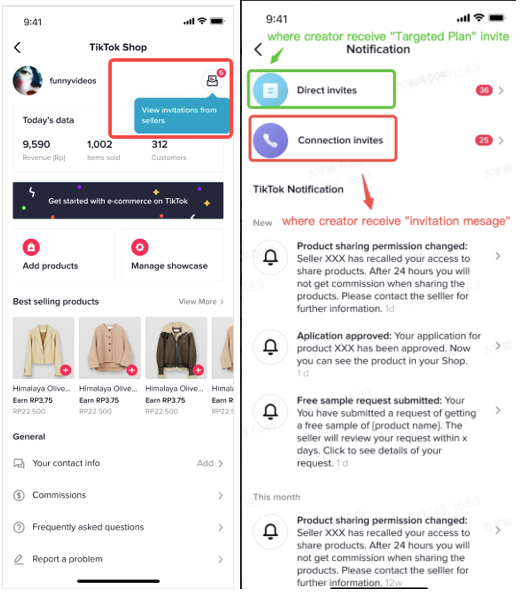
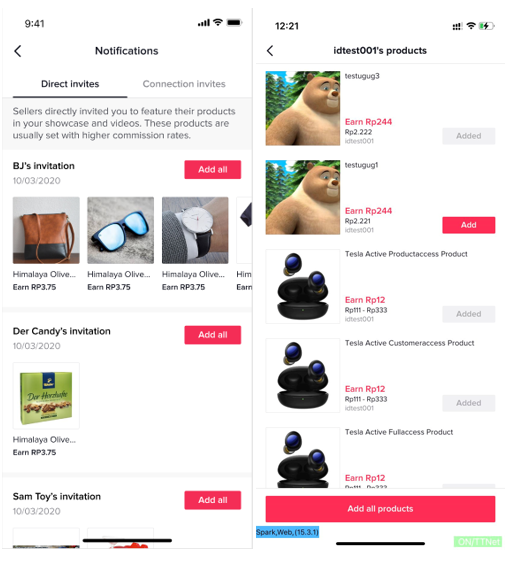 Image 3 Image 3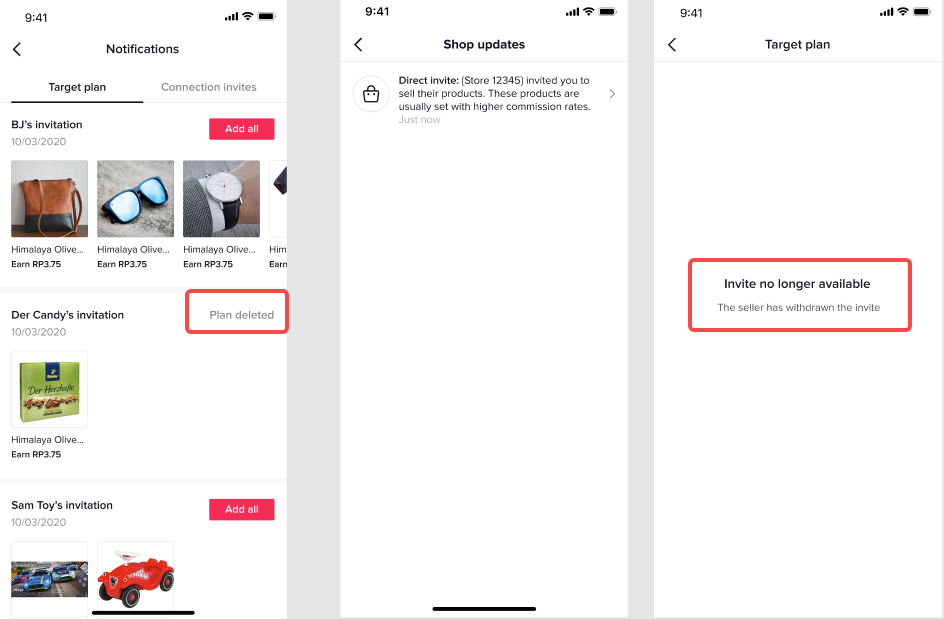 |
3: Add by product link (sent by ops team or sellers)
Steps | Instruction | Screenshot |
|
| Image 1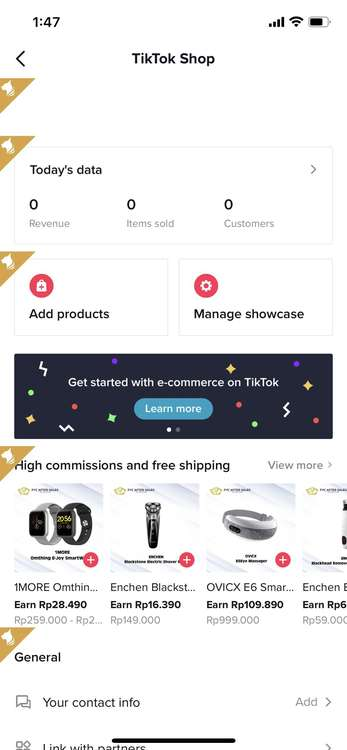 |
| see Image 2 | Image 2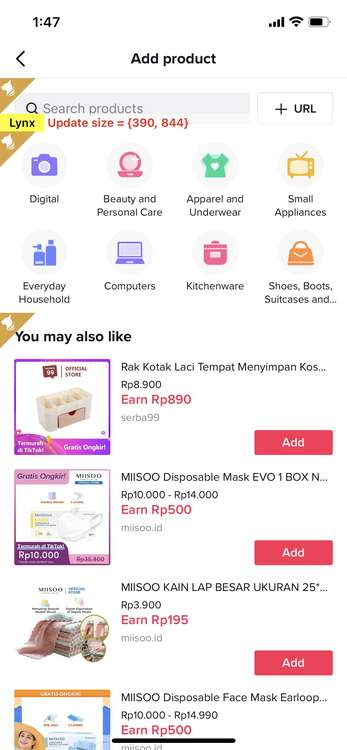 |
| See Image 3 | Image 3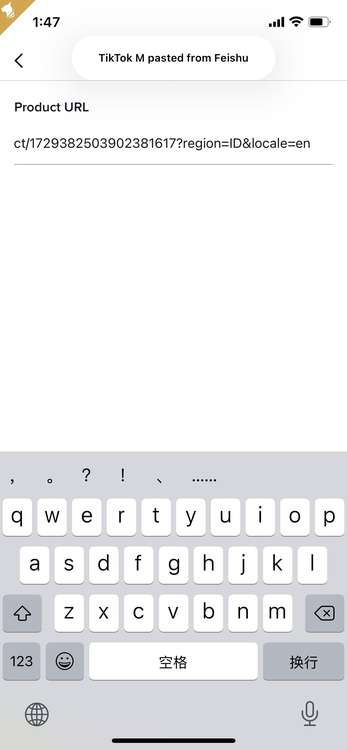 |
| See Image 4 | Image 4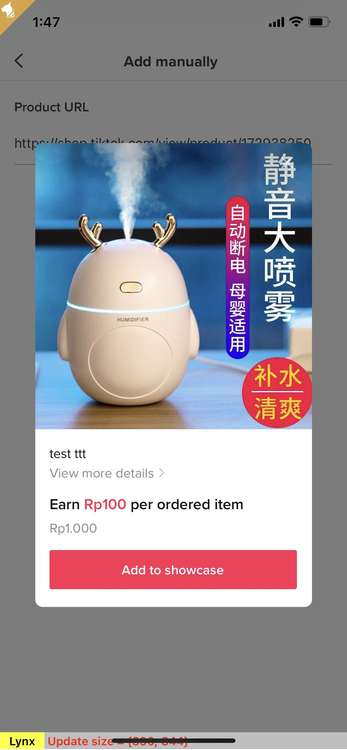 |
| Here is a screen recording for you to see the whole process! --> |